
Preface
DFdiscover Release 5.7.0
All rights reserved. No part of this publication may be re-transmitted in any form or by any means, electronic, mechanical, photocopying, recording, or otherwise, without the prior written permission of DF/Net Research, Inc. Permission is granted for internal re-distribution of this publication by the license holder and their employees for internal use only, provided that the copyright notices and this permission notice appear in all copies.
The information in this document is furnished for informational use only and is subject to change without notice. DF/Net Research, Inc. assumes no responsibility or liability for any errors or inaccuracies in this document or for any omissions from it.
All products or services mentioned in this document are covered by the trademarks, service marks, or product names as designated by the companies who market those products.
Google Play and the Google Play logo are trademarks of Google LLC. Android is a trademark of Google LLC.
App Store is a trademark of Apple Inc.Sep 20 2023
Getting Help
For software support, Please contact the DFdiscover team:
via email, help@dfnetresearch.com.
Visit our website, https://dfnetresearch.com.
Conventions
A number of conventions have been used throughout this document.
Any freestanding sections of code are generally shown like this:
If a line starts with # or %, this character denotes the system prompt and is not typed by the user.
Text may also have several styles:
Emphasized words are shown as follows: emphasized words.
Filenames appear in the text like so: dummy.c.
Code, constants, and literals in the text appear like so: main.c.
Variable names appear in the text like so: nBytes.
Text on user interface labels or menus is shown as: Printer name, while buttons in user interfaces are shown as Button .
Menus and menu items are shown as: File > Exit.
Introduction
This guide describes the DFweb application.
The instructions are intended to describe, in general terms, how data entry tasks are performed using DFweb. The guidance provided here is not meant to replace more specific instructions which may be provided by the sponsor, principal investigator or coordinating site for a particular trial.
What is DFweb?
DFweb is a browser-based application that allows users to perform data entry, data review, and query resolution and view reports for a DFdiscover study.
Compatible Browsers
DFweb requires a browser with HTML5 capabilities. Check your browser’s capabilities at https://html5test.com
DFweb has been tested with current versions of Chrome, Firefox, and Edge on Windows 10 and Chrome, Firefox, and Safari on macOS 10.14 (Mojave) or later. Browser updates are frequently made available by vendors.
Important: Please keep your browser up-to-date.
DFweb is not compatible with any version of Internet Explorer, any browser in Windows XP or any browser in Windows 7.
The minimum recommended screen width is 400 pixels, except for studies using CRFs with backgrounds and DFdiscover reports, where the minimum recommended screen width is 800 pixels. To avoid horizontal scrolling with CRF backgrounds in portrait orientation, the minimum recommended screen width is 1280 pixels.
Capabilities
The main purpose of DFweb is to facilitate data entry at clinical sites participating in a DFdiscover study without the need for the additional features available in DFexplore. It may also be that a site is unable to install a local application like DFexplore - DFweb is the perfect solution.
DFweb supports many of the same data validation features as DFexplore: legal range checking, type validation, required values, field skipping, missing value coding, lookup tables, and several metadata features: adding, resolving, and editing queries, and adding reasons for data values. It also supports the DFdiscover edit checks language, with a few exceptions.
DFweb provides additional features including a Queries page to identify and resolve outstanding data issues, a Tasks page to review study-defined subsets of data, and a Reports page to view standard DFdiscover reports and custom listings.
Access DFweb from any compatible browser via the URL https://dfweb.dfdiscover.com/. You may be provided with a custom URL for DFweb by your study sponsor or coordinating center.
Login
The server selection page is the initial landing page in DFweb for new users or if you are accessing DFweb in a new browser or on a new device. Enter the DFdiscover Server for your study and click Continue to proceed to the login page.
For subsequent logins, this page is skipped and the DFdiscover server is displayed on the login page. If you are using a URL provided by your study sponsor or coordinating center, you may not see this page and instead go directly to the login page.
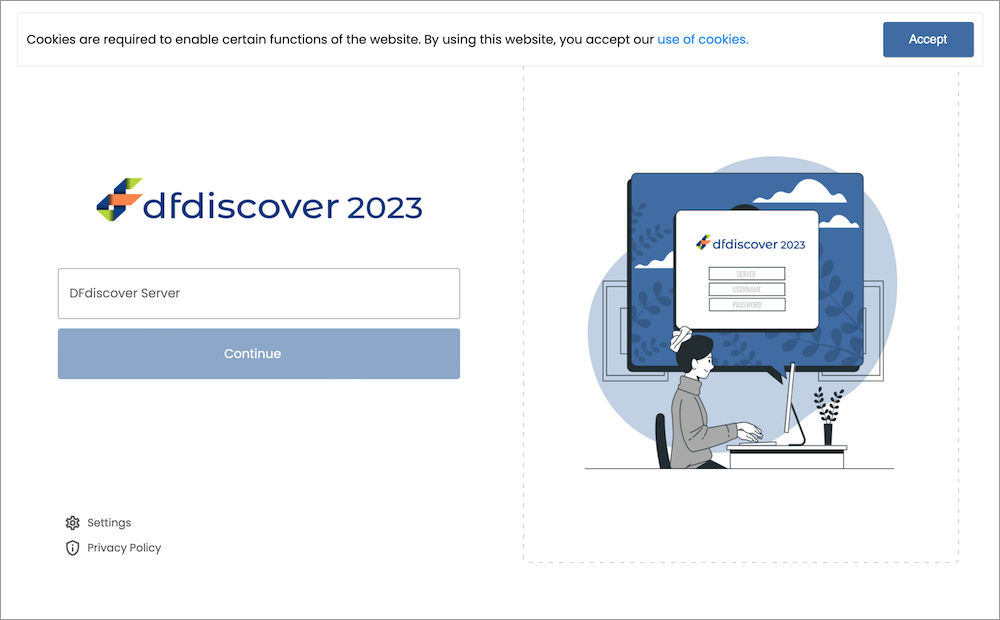
If there is a problem with the server name you've provided, an error message appears below the Continue button.
The login page is where you provide your username and password in order to access DFweb. The DFdiscover server you are connecting to is shown on the top left of the page. If the DFdiscover administrator has provided an information message, this will be shown on the right side of the screen or at the bottom of the screen on smaller displays.
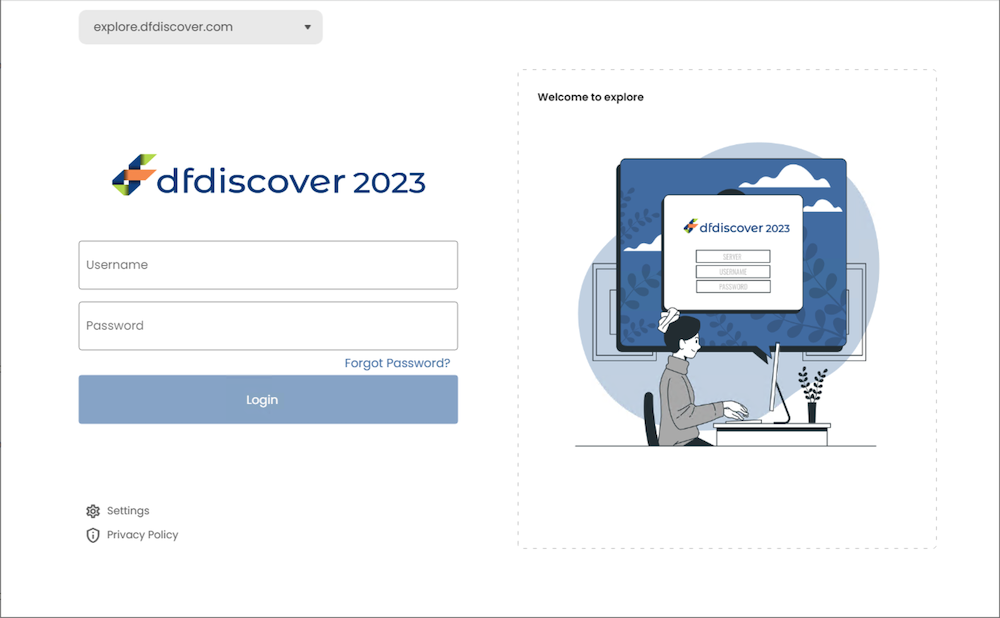
To access a study, a successful login is required. Successful login requires a valid Username and Password for the DFdiscover server you are connecting to. Your study sponsor or coordinating center has provided you with your own unique credentials. After login, all activities are logged with your username. Do not share your credentials with any other user - each user must use their own credentials.
If you already have login credentials for other DFdiscover tools, the login credentials for DFweb are identical.
Enter your Username and Password exactly as provided. Click Login to login.
If there is a problem with the credentials you've provided, an error message appears below the Login button.
If you don't remember your password, click Forgot Password? on the login page. Provide the DFdiscover Server, Username, and Email and click Send Email to request a new password. You will receive an email with the subject line "DFdiscover password reset". Follow the instructions in that email to reset your password.
When you login for the first time, or if your password expires, you may be prompted to provide a new password. To continue, provide a new password meeting the stated requirements.
If you need to connect to a different DFdiscover server from the login page, change the server name in the field at the top left of the page. All servers you have connected to on this device will appear in the dropdown to allow easy switching between servers.
Two-Factor Authentication
The administrator of the DFdiscover Server may have enabled two-factor authentication for your login account. If it is enabled, after successful authentication a new screen will appear to request the security code. You will receive an email with the 6-digit security code. The email is sent to the email address on file for the account. Enter the 6-digit security code.
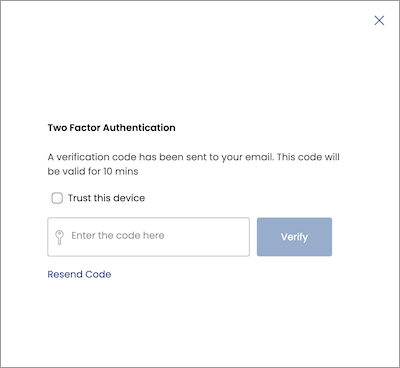
The code is unique to your login on a specific device and is valid for 10 minutes. If you do not receive the email or the code is no longer valid, you can request another code by clicking Resend Code. After entering the code, click Verify to complete login.
If you are using a personal device, you can choose to enable Trust this device. By enabling this setting, you will not be asked for another security code for 30 days. If you are using a shared device, do not enable this setting - this provides an additional layer of security as each login will require a unique security code.
Logging in with Microsoft
If Single Sign On with Microsoft is enabled on your DFdiscover server, a Login with Microsoft button will show on the DFweb login page. If your account has configured to use a Microsoft login, click Login with Microsoft to begin the Microsoft login process. Once the Microsoft login process is complete, you will be logged in to DFweb.
NOTE: If you log in using a Microsoft Login, future signing requests in DFweb, such as eSignatures, will require you to authenticate using the same Microsoft login process.
Cookies
DFweb uses cookies. Cookies are standard technology implemented in all web browsers. They are small pieces of data sent from a web server (the DFdiscover server in this case) and stored on the user's computer by the user's web browser, while the user is browsing. DFweb displays a notification and a hyperlink for more detail.
Further details on the usage of cookies in DFweb can also be found at https://www.dfnetresearch.com/cookie-policy/. Click Accept to confirm that you have read the notification and stop it from being shown in that browser again. If you have previously cleared the notification and need to see it again, clear the browser's cookies and site data, and refresh the page.
Study Selection
After a successful login, you will see the Select Study dialog if you have access to more than one study in DFweb. You won't see this dialog if you only have access to one study. Click on the appropriate study to open it.

To switch to another study, click the study name in the top middle part of the page to open the Select Study dialog again and choose another study, or click X in the top right to return to the current study. The Select Study dialog also includes options to search by study name, sort by study number, and sort by study name.
For subsequent logins, DFweb opens the last study you accessed, so the Select Study dialog won't appear unless you switch to another study.
Session Timeout
To maintain security, the DFweb login session is automatically closed if there is no activity for a certain period of time. By default, the auto logout timer is set to 10 minutes, but this may be customized for your study. A warning, with countdown, is displayed one minute before the session is closed. Click Stay logged in to continue to use DFweb and reset the timer.
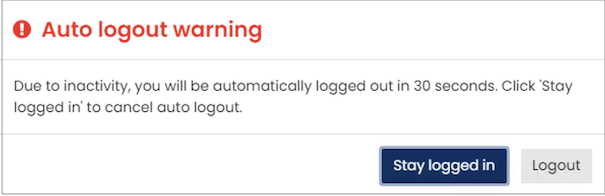
In the event of session timeout, the following actions take place:
- an information dialog is presented to notify that automatic logout has occurred
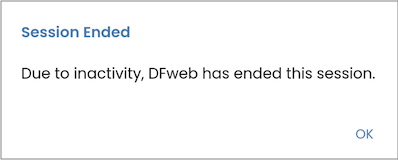
- unsaved changes for the current CRF, if any, are discarded
- the lock for the current CRF, if any, is released
- you are logged out and taken back to the login screen
Never rely upon the session timeout to terminate a session. Always save changes to the current CRF and logout.
Following a session timeout, after re-login you have the option to resume your previous session.
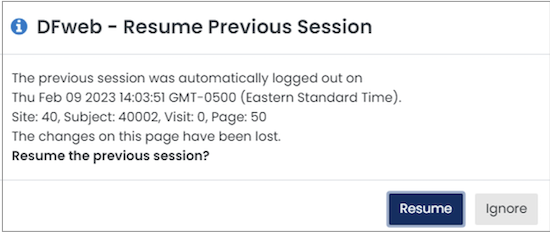
Click Resume to return to the page you were on when the session ended, or click Ignore to continue the new session.
Logging Out
To exit from DFweb, choose Logout from the Application Menu. After successful logout, the login window is shown.
When using DFweb, logging out via Logout in the Application Menu is the recommended and most secure way to exit DFweb. Although closing the page ensures your data is safe, it is best practice to logout properly.
If you use the browser’s back button to navigate back to the login page, you will see the Logout Warning dialog informing you that continuing to the previous page will log you out of DFweb. Click Cancel to stay logged in and return to the current page. Click OK to continue logging out and return to the login page.
Application Overview
DFweb includes several key pages which are explained here. More detailed explanations of certain pages and functionality, as well as the menus and dialogs that appear on these pages are given in the following sections.
Overall Application Appearance
After logging in and selecting a study, you will be taken to the Subjects Page. The Subjects Page and other pages in DFweb share a similar layout.
Application Layout

The following features appear in the application layout:
Browser Controls. Browser controls are specific to each browser and are not part of DFweb. In general, this area contains the URL for the content that is being viewed, buttons to move to the previous page (if one exists), the next page (if one exists) and refresh the current page, and controls for tabbed windows (if supported).
Header Panel The header panel is available on all pages of DFweb except the login page. It contains options and navigation that are relevant for all pages, including:

Application Logo The DFdiscover application logo appears on the left side of the header panel.
Study Logo and Name This is the study logo (if available) and name of the current study. Click the study name or arrow icon to open the Select Study dialog and switch to another study. On small displays, this is available in the sidebar accessed from
 on the top left.
Login InformationYour full name, username, and DFdiscover server appear in the header panel. On small displays, this information is visible by tapping the
 icon.
icon.Application Menu The application menu contains several generic functions that are not study specific, including Logout. See Application Menu for more information.
Main Panel The main panel contains the primary navigation, information, and interaction for the current page. The leftmost part of the main panel contains the sidebar with links to
 Dashboard,
  Subjects,
  Tasks,
  Queries, and
  Reports. The sidebar may be collapsed by clicking
  at the bottom of the sidebar, and expanded again by clicking
  . The sidebar will be collapsed automatically on smaller displays and on the Subject Binder page, or may be hidden entirely and accessible from the hamburger icon () on the top left. Pages that may appear in the main panel are Dashboard Page, Subjects Page, Tasks Page, Queries Page, Reports Page, Subject Binder, User Profile Page, and Settings Page.
Application Pages
Subjects Page
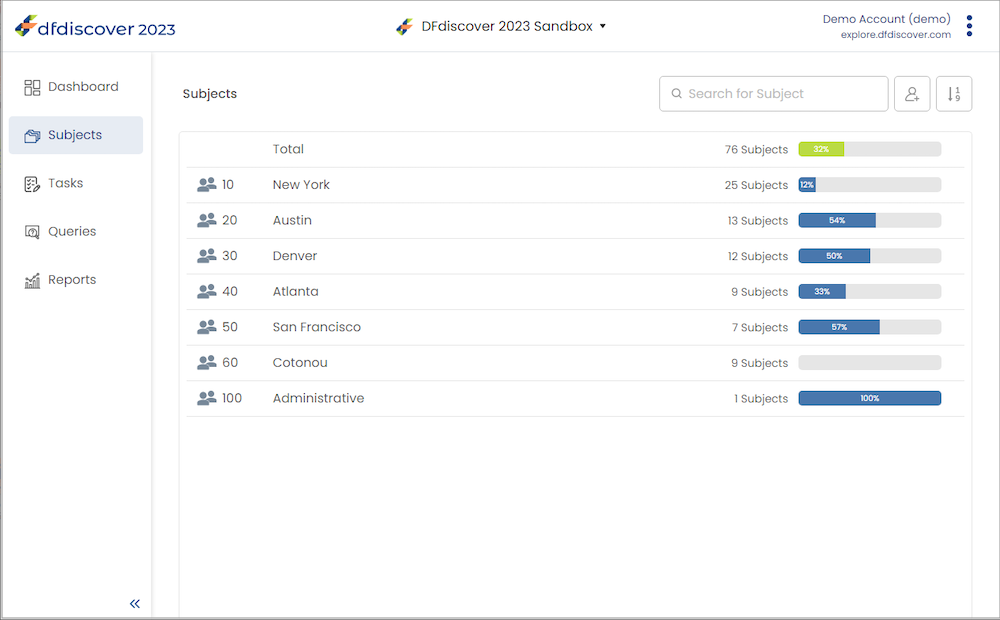
The Subjects page is the starting point for data entry and review for specific study subjects. The Subjects page is the landing page for each study, opened by default when entering or switching to a study, and can be accessed by selecting from the left-hand sidebar.
For more details on how to view, enter, and modify subject data in DFweb, see Data Entry.
Dashboard Page
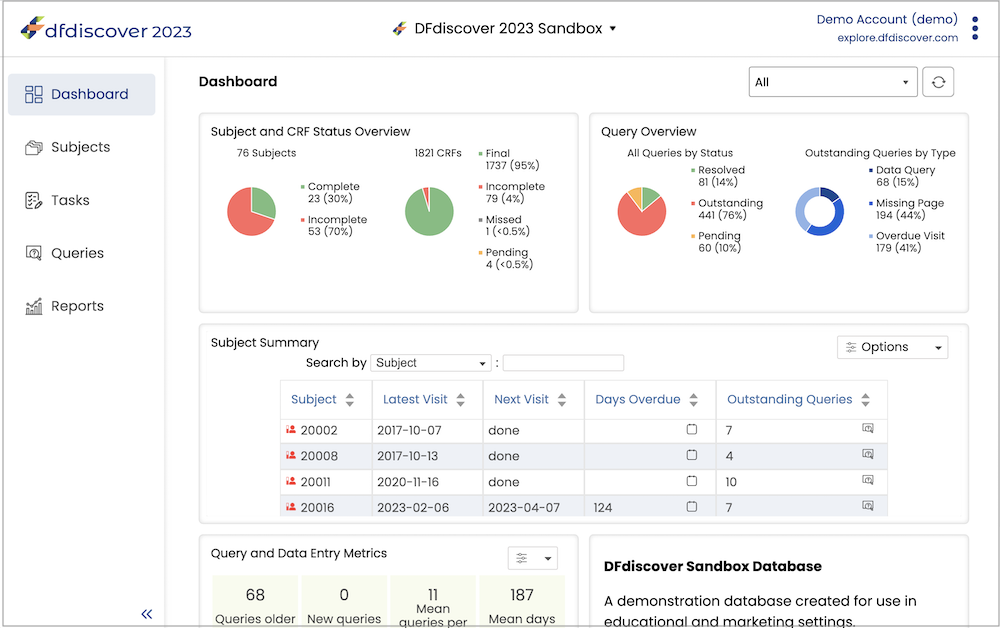
The Dashboard page is accessed by selecting Dashboard from the left sidebar. The Dashboard is a new page in DFweb giving the user a high-level overview of the study and providing a way to drill down to specific subjects, CRFs, and data fields to review data and resolve outstanding issues.
For more details on the dashboard in DFweb, see Dashboard.
Tasks Page
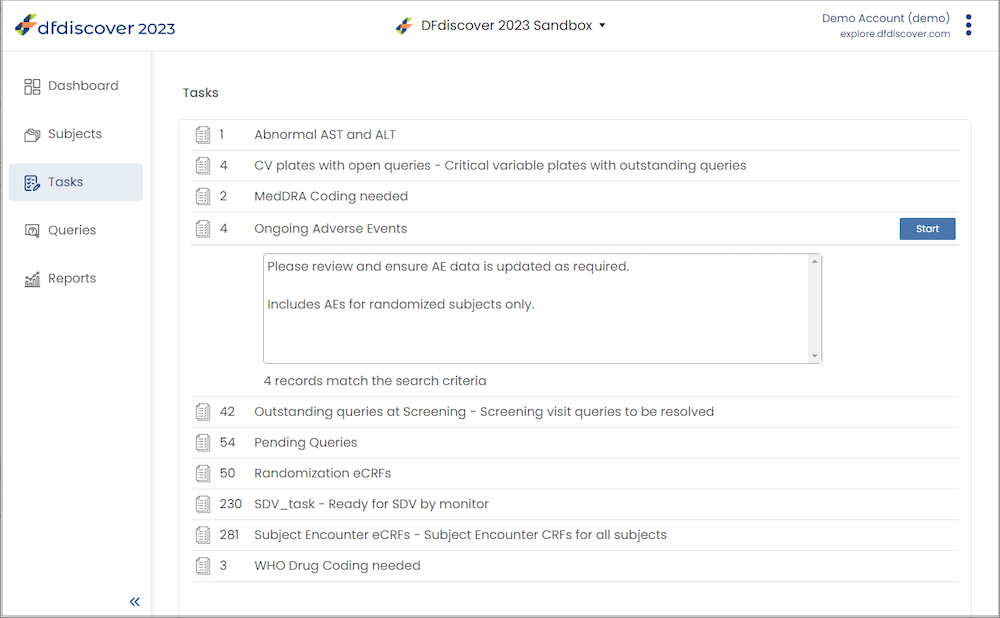
The tasks page is accessed by selecting Tasks from the left-hand sidebar. It contains a list of the tasks you can run. Click on a task title to view any details and click Start to start the task.
For more details on how to use tasks in DFweb, see Tasks.
Queries Page
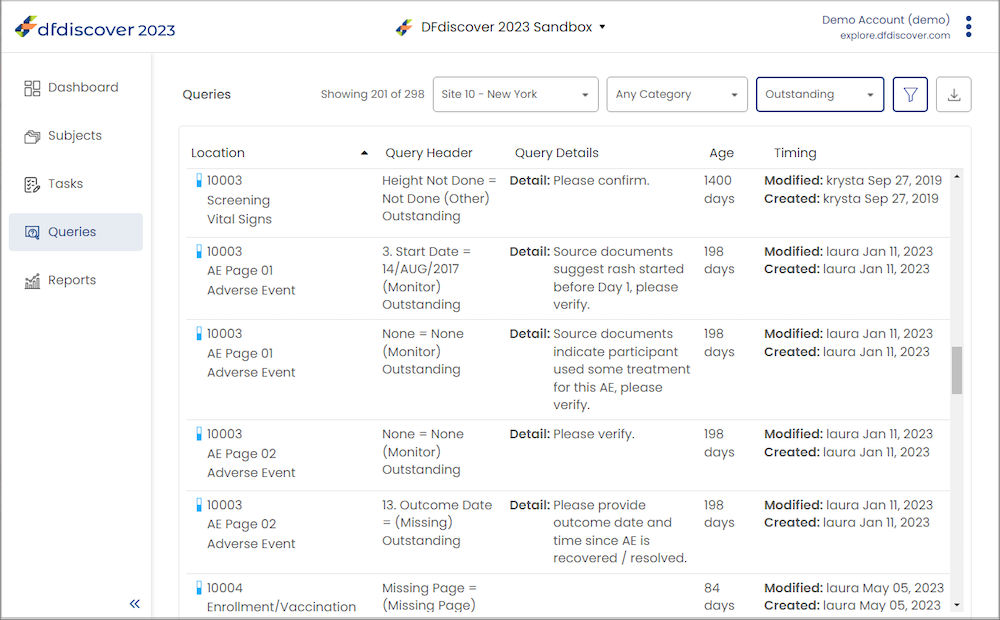
The queries page is accessed by selecting Queries from the left-hand sidebar. From this page you can browse all the queries in the study. Double-click a query to open the CRF and place the focus on the field with that query.
For more details on how to use the queries view in DFweb, see Queries View.
Reports Page
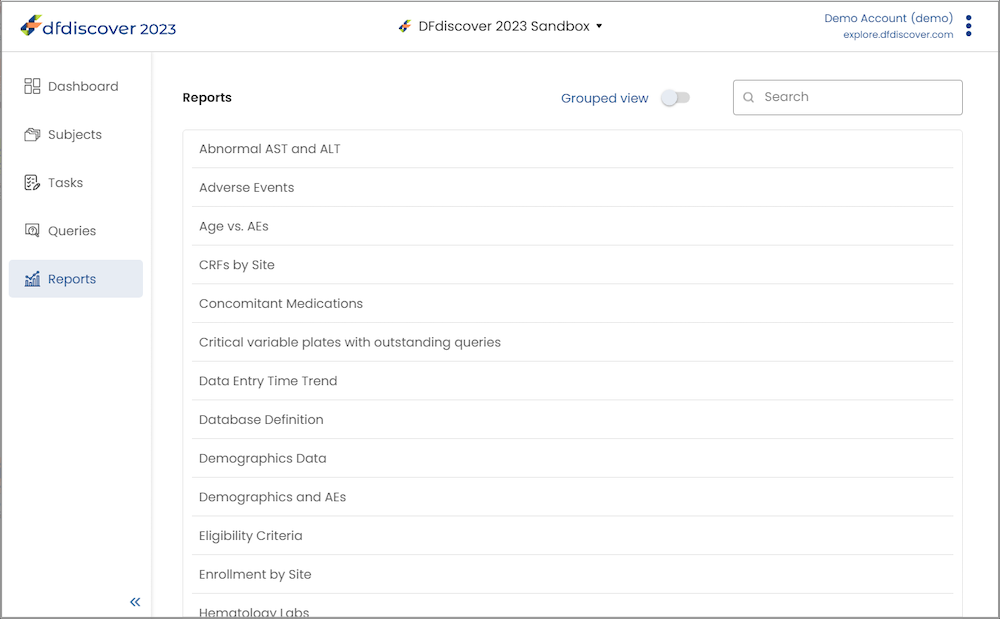
The reports page is accessed by selecting Reports from the left-hand sidebar. This page provides a list of all the DFdiscover reports you have access to. Click any report to open it in a dialog, where you can view the report and customize it with filters and other options.
For more details on how to view reports in DFweb, see Reports.
User Profile Page
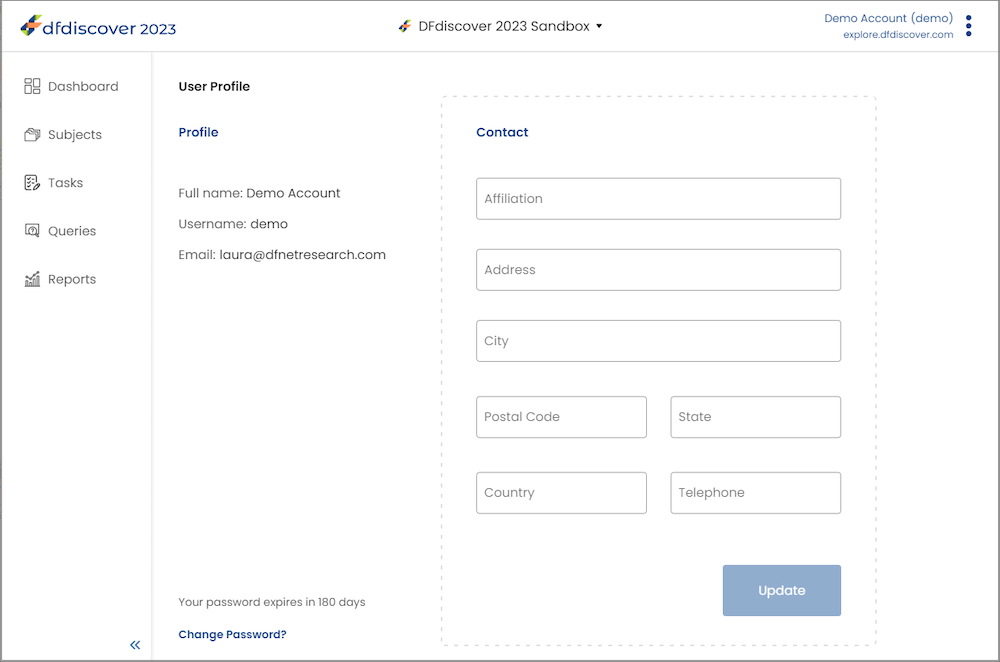
The User Profile page is accessed from the Application Menu. When your DFdiscover user account was created, a user profile was defined for you. That profile includes your full name, username, and email address, and may include your mailing address and other contact details.
You may update the information in the Contact section at any time by making the changes and clicking Update. Your full name, username, and email address cannot be updated here. Please contact your study coordinating center or DFdiscover administrator if your Profile requires updates.
When you first logged in and set a password, that password was given an expiry date. The number of days before your password expires is shown on this page, along with the option to change your password at any time. Click Change Password to set and confirm a new password. If you logged in with a Microsoft login, the password expiry details and change password button will not be shown.
Settings Page
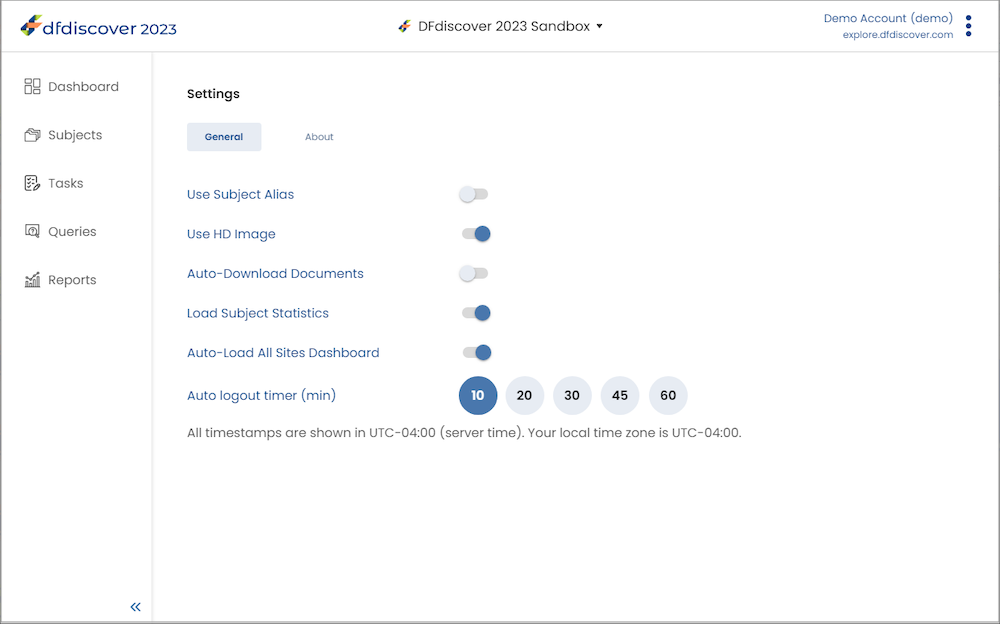
The Settings page is accessed from the Application Menu. The Settings page includes two tabs, one for General settings and one for About details.
Under the General tab, the settings listed below may be customized for the current study, by enabling (  ) or disabling (
  ), or selecting a different option. You may not be able to change some settings if they have been locked by the study coordinating center. If you change your settings, these settings will also be used in future login sessions in the same browser, unless the study coordinating center has configured default settings for you.
| Use Subject Alias | The subject alias is an optional alternative to the default subject ID. This setting may be pre-configured and/or locked by the study coordinating center. Only enable this setting when instructed to do so. By default, this setting is disabled. |
| Use HD Image | For studies that include CRFs with backgrounds, there may be a high definition image available. Enable this setting to view the highest quality images, or leave it disabled for faster loading times. By default, this setting is disabled. |
| Auto-Download Documents | Toggle this option to enable or disable the behavior of downloading attached documents as soon as a page is opened. Enabling this can save time when most records have attached documents and the documents will be reviewed. Otherwise, for large documents or records with many documents, auto-downloading may cause performance issues and it is better to leave this setting disabled. By default, this setting is disabled. |
| Load Subject Statistics | Toggle this option to control whether subject statistics are displayed for all sites on the Subjects page. By default, statistics are not displayed. Enabling this setting will display statistics for all sites on the Subjects page. By default, this setting is disabled. |
| Auto-Load All Sites Dashboard | Toggle this option to control whether to view the dashboard for all sites or for individual sites only, when you have access to more than one site. This setting helps reduce loading times in large studies or on slow connections. By default, this setting is enabled, unless your access includes more than 1 million data records in total, when it is automatically disabled. |
| Auto logout timer | This setting indicates the number of minutes you may remain inactive in DFweb before you are logged out automatically. You will be warned 1 minute before you are logged out. This helps prevent unauthorized access to your account. This setting may be pre-configured and/or locked by the study coordinating center. By default, auto logout timer is set to 10 minutes. |
In addition to the settings above, the General tab displays details about the time zone in UTC (Coordinated Universal Time) used for timestamps shown in DFweb, including the local time zone detected on your device. The accuracy of these time zones is dependent on your local device time being correct.
Under the About tab, the DFweb version and build details are provided along with a link to the build history and privacy policy.
Application Menu
The application menu provides functionality that is applicable for the entire study or user session. The following functions are available:
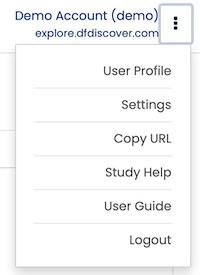
| User Profile | Select User Profile to view information about your user account, including the option to change your password and update your contact details. See User Profile Page for more details. |
| Settings | Select Settings to view and update your DFweb settings for the current study and view information about DFweb such as the version number, build history, and privacy policy. See Settings Page for more details. |
| Copy URL | Select Copy URL to copy the URL of the current page to your device's clipboard. This allows you to easily share the URL with other users, and if they have permission to view the page, they are taken directly there after logging in. |
| Study Help | Select Study Help to open a dialog showing the study help, if it has been defined for this study. The content is displayed in the main body of the help dialog. Click  to close the dialog. to close the dialog. |
| User Guide | Select User Guide to open the DFweb User Guide (this document) in a new tab in your browser. |
| Logout | Select Logout to exit out of DFweb and return to the login page. Remember to always logout after completing your work. |
CRF Menu
The CRF Menu is only visible on the Subject Binder page. It provides actions for the entire CRF. A file icon on the menu indicates that this CRF has documents attached. A loading spinner on the menu button indicates that the CRF documents are still loading. The following actions are available:
| Manage Documents | Select Manage Documents to open the Manage Documents dialog. This allows you to add or view documents for the current CRF. A number to the right shows the number of documents on this CRF. |
| Page History | Select Page History to view the history of changes (audit trail) for the current CRF. |
| Reset Page | Select Reset Page to reload the curren CRF, resetting all fields and other elements to the last saved value. If you have made changes since your last save, you are warned that continuing with the reset removes unsaved changes. |
Dialogs
| Alert Dialogs | Alert dialogs provide warnings of different events or states in DFweb. Information in alert dialogs is important,and you should read them carefully before closing them. Example alert dialogs include:
|
| Confirmation Dialogs | DFweb displays confirmation dialogs to warn you of the (potentially unintended) consequences of an action you are about to perform and to give you a chance to cancel the action. Some confirmation dialogs are:
|
| Select Study Dialog | If you have access to more than one study in DFweb, when you log in for the first time or with a new browser or device, the Select Study dialog will appear. Click a study from the list to continue in DFweb. All the studies you have access to are listed in the Select Study dialog. If a study cannot be opened right now, Not Available will appear on the right. Click to see the reason the study is not available. Use the Search bar to search for a study name, or sort the studies by name or number. After you have selected a study, if you want to switch to a different study , click on the study name in the header panel (on small displays, click |
| Study Help Dialog | Select Study Help from the Application Menu to open a dialog showing the study help. The content is displayed in the main body of the help dialog. Click to close the dialog. |
| CRF Help Dialog | The CRF help dialog is displayed when the user clicks  beside the CRF label. Similar to the study help dialog, the CRF help dialog displays help content in the main section of the dialog, in this case, specific to the current CRF. The dialog is closed by clicking . beside the CRF label. Similar to the study help dialog, the CRF help dialog displays help content in the main section of the dialog, in this case, specific to the current CRF. The dialog is closed by clicking . |
| Modified Values Dialog | On occasion, a change in the study setup can cause a value to be saved to the study database that cannot be displayed in the field. In these cases, DFweb modifies the values as best as possible to make them fit in the field. You are notified of these modifications with this dialog when you open the CRF. The dialog shows you a list of all fields modified in this way. For each field, the dialog shows you the field label, a message explaining why the value was modified, the value in the database, and what the value is after the modification. Leaving the CRF without saving causes the modifications to be discarded and and the database values to be preserved. |
| Attach Documents Dialog | The Attach Documents dialog provides a way to view and add documents to the CRF, and to download attached documents to your device. Documents are displayed in a list, and at the bottom of the list is an area for attaching a new document. Each document in the list is displayed as a row with the document name, the size of the document, an expand document button ( To attach a new document to the CRF, click Choose Files. This opens a file chooser dialog. Select the file you wish to upload, and confirm the selection to close the dialog. Click Upload to attach the document. NOTE: The label of Choose Files may differ in the browser you are using. If the CRF has not been saved, attaching a document saves an empty version of the CRF with the status Pending and the document attached. Saving with the CRF save button is still required to save any changes you have made to field values. At the top right of the Attach Documents dialog is the Download All button ( |
| Change Password Dialog | The Change Password dialog is displayed when you select Change Password on the User Profile Page, when you login for the first time after being given a temporary password by the study administrator, or when your password expires. The text of the dialog indicates minimum password requirements. To change your password, enter a new password that matches the requirements in New Password. Then enter the same password again in Confirm Password. If the password does not meet the requirements, an error message is displayed in red below Confirm Password. When you have entered both new and confirm passwords and no error messages show, click Change to submit the new password to the server. If the password change is not successful you are notified by an error message. Click Cancel to close the dialog without changing your password. |
| Add Subject Dialog | The Add Subject dialog is displayed when you click To create a new subject, enter the desired subject ID in Enter Subject ID. Enter the same ID in Confirm Subject ID. When you have entered an ID in both input areas and no errors are displayed, click OK to create the subject. The subject binder page for the new subject is displayed. Click Cancel to close the dialog without creating a new subject. |
| Query Dialogs | The Query Dialogs allow you to create ( ), edit ( ), edit ( ), reply to ( ), reply to ( ) and delete ( ) and delete ( ) queries for a field. Separate dialogs are used for each function. For a study in which multiple queries are permitted, there is an additional Multiple Queries dialog to view and initiate actions once a query has been created for the field. Click Q to open the query dialogs for the field. For more details on query dialogs and their use, see Queries. ) queries for a field. Separate dialogs are used for each function. For a study in which multiple queries are permitted, there is an additional Multiple Queries dialog to view and initiate actions once a query has been created for the field. Click Q to open the query dialogs for the field. For more details on query dialogs and their use, see Queries. |
| Reason Dialogs | The Reason Dialogs allow you to create, edit, and delete reasons for a field. Separate dialogs are used for each function. Click R to open the reason dialog. For more details on the reason dialog and its use, see Add a Data Reason. |
| Missing Value Dialog | The Missing Value dialog allows you to set (or unset) a missing value for the field. Click M to open the Missing Value dialog. For more details on missing values and their use, see Mark a Data Value as Missing. |
| Lookup Table Dialog | Certain edit checks may offer the opportunity to select a value from a lookup table. The behavior of lookup tables in DFweb is identical to the behavior in DFexplore. For further information, refer to DFexplore,Lookup Tables.
|
| Task List Dialog | When viewing a record as part of a task, click View Tasks to open the task list dialog. This dialog can be used to view the current task's details, and switch to a new task. See Tasks for more information on tasks. |
| Query Filter Dialog | When viewing the query list, or the query binder, click  to open the query filter dialog. Update the filters to change which queries are shown. To learn more about the queries view and query filter dialog, see Queries View. to open the query filter dialog. Update the filters to change which queries are shown. To learn more about the queries view and query filter dialog, see Queries View. |
| Error Dialogs | On occasion DFweb may experience a problem resulting in an error dialog. This can be caused by a problem in network connectivity, the server, or DFweb itself. The dialog content gives details as to the cause of the error. Further detail regarding some errors can be found below. Depending on the error, you may be taken to a different page, or logged out, on closing the dialog.
|

Responsive Elements
DFweb adapts the content to fit displays of different sizes. Largely this is done by adjusting the spacing on the page, however greater changes are made when the display becomes too small. Some of the more significant changes are detailed here.
| Sidebar Visibility | To allow more room for the main content, the application sidebar is hidden on small displays. When it is hidden, a new button with the hamburger icon is added at the top left of the page. Clicking this button opens the sidebar, where you can navigate to another application page or switch studies. Click again or anywhere outside the sidebar to hide it again. |
| Login Information Visibility | On small displays, the login information is hidden from the main view. Click to view your login information in a tooltip. |
| Subject Binder Sidebar Visibility | To allow more room for data entry and review, the subject binder sidebar is hidden on small displays. When it is hidden, a new button with the hamburger  icon is added beside the page title or CRF label. Clicking this button opens the subject binder sidebar. Click anywhere outside the sidebar to hide it again. icon is added beside the page title or CRF label. Clicking this button opens the subject binder sidebar. Click anywhere outside the sidebar to hide it again. |
| Field Arrangement | On small displays, the organization of the fields on eCRFs also changes. The input area, date picker, units, reset button, and warning message are moved below the rest of the elements of the field, allowing enough room for all elements to be visible and usable. For CRFs with backgrounds, field layouts remain the same on small screens. |
Terminology
A glossary of frequently used terms is presented below.
| Document | A document is a file that is, or will be, attached to a CRF. Documents can be images, PDFs, videos or other file types. |
| eCRF | Electronic case report forms (eCRFs) are CRFs (as described below) where the layout of the fields is handled by DFweb, and where no background image is displayed. eCRFs arrange fields as individual rows in a column, and the layout of the fields adjusts as the window size changes. |
| Field | A field is a single data value and optional related metadata, including queries, the reason for the data value, possibly a missing value, and other descriptive information about the field, such as its label and help. |
| Final (Status) | Final is a record status. A record can have status Final if there are no missing required fields, no illegal values and no outstanding queries. DFweb decorates Final records with a green shaded rectangle (see also Incomplete and Pending). |
| Incomplete (Status) | Incomplete is a record status. A record can be saved with status Incomplete if it has one or more fields which are incomplete (required and missing) or illegal, or outstanding queries. A blank record may have an Incomplete status if it has an overdue visit or missing page query, meaning the page is expected but not yet submitted. DFweb marks Incomplete records with a red partially shaded rectangle (see also Final and Pending). |
| Missed (Status) | Missed is a record status. A missed CRF is a page that will not be completed, for example if an expected procedure was not performed at a visit or a form is not applicable for specific subject. DFweb marks Missed records with an empty grey square, circle, or subject icon with a dashed outline. |
| Missing Value | A missing value is used to identify a field that is known and accepted as empty. A missing value allows even a required field to be blank and for the CRF to still be saved as Final. |
| New (Status) | New is a record status. A new record is a placeholder for data that has been entered but not saved yet. It can be a useful reminder for records which are expected but are not yet entered/saved. DFweb marks new records by an empty grey square, circle, or subject icon without a rectangle. |
| Paper CRF | Paper case report forms (paper CRFs) are CRFs (as described below) where the fields are laid out with specific sizes and locations relative to a background image. As the positions are fixed, the layout of the fields is not adjusted as the window size changes. |
| Pending (Status) | Pending is a record status. During entering a new data, a record can be saved with status Pending to indicate that data entry is still in progress, it has been started, not yet finished and you plan to return to it shortly and do not move to higher levels until they are saved with status Final or Incomplete. Pending records are typically not visible to or reviewed by the study coordinating site until they progress to Incomplete or Final status. Pending records are also not generally reported in summary listings. DFweb saves CRFs as Pending after a document has been added to a new CRF but no data entry has been done. DFweb marks pending records with an orange empty rectangle. |
| Plate, or CRF | Plate and CRF are terms used interchangeably to refer to a logical grouping of data fields, presented with a layout determined by the study sponsor, to fit on a single sheet of paper, or single webpage. Each CRF may stand alone, or CRFs may be grouped into multi-CRFs. A collection of CRFs constitute a visit, and a collection of visits constitute the subject binder, which holds all study data for an individual subject. |
| Query | A query is a question or comment about an individual data value. The study coordinating site may add a query to any data field to ask a question about the field, or request a correction or clarification. A query is metadata about the data value, or lack thereof, in the field, DFweb identifies query status by applying color to the field. A field with an outstanding query is blue. When a reply is provided to a query, or a reason is added to explain the field, the color is updated to orange, and when the field has been corrected, or the reply or reason have been approved, the color changes to green, provided there are no other outstanding queries on the field. |
| Reason | A reason is metadata used to explain the value in a data field. It is particularly useful as a way of explaining unusual values and thereby avoiding a data query from the study coordinating site. DFweb colors fields with a new reason orange and gives them a Pending status. If the coordinating site accepts the reason, the field color changes to green and the reason status changes to Accepted. If they do not accept the reason, the field color changes to blue and the reason status changes to Rejected. A reason can be modified, which starts the review process over again. |
| Save | None of the changes made to a CRF are saved to the study database until you click Save. If you leave the computer without saving your work, DFweb will time-out after a few minutes and any un-saved changes will be lost. |
| Screen | A screen is an optional grouping of fields on a CRF. On smaller displays, screens can be useful for grouping fields to ensure that they are seen together. DFweb indicates screens using a tab, and multiple screens in a CRF are stacked vertically. |
| Subject | A subject is an individual participating in a clinical study and for whom data is collected. Subjects are identified by subject ID (a unique numeric identifier), according to conventions established by the study coordinating site. |
| Subject Binder | A subject binder contains all of the required and optional data collection forms used to collect study data for an individual subject. Within DFweb, subject binders are displayed in a list by subject ID, with an associated icon that indicates whether the binder is empty or contains recorded data, and whether that data is currently Final, Incomplete or Pending. |
| Visit | A visit is a study timepoint at which one or more CRFs for a subject are completed, or a repeating log form such as an adverse event or concomitant medications. The duration of a subject's participation in a study is often marked by a baseline visit, several repeating visits, and a termination visit. |
Dashboard
Dashboard Description
The Dashboard page offers a summary of study subjects, CRFs, queries, and data quality metrics, enabling you to identify key issues and upcoming visits and to interact directly with CRFs to enter and update data or resolve queries. The dashboard also displays study help information, if defined.
Warning: The Dashboard is only available when DFweb is connected to DFdiscover server and API version 5.7 or later.
The dashboard shows the following five tiles. The first four tiles are pulled from standard DFdiscover reports.
| Subject and CRF Status Overview | The first chart shows all subjects by status (complete or incomplete). Incomplete subjects have outstanding queries, which may include overdue visits or missing pages. Complete subjects have no outstanding issues at the time the dashboard is updated. The second chart shows all CRFs by status (final, incomplete, missed, or pending). |
| Query Overview | The first chart shows all queries by status (resolved, outstanding, or pending). The second chart shows all outstanding queries by type (data query, missing page, or overdue visit). |
| Subject Summary | This table shows a listing of subjects with upcoming visits or outstanding queries, including the number of days the next visit is overdue, if applicable. To view a subject’s visit schedule, click the cell in the Days Overdue column. Click any visit to open it on the Subjects page. To view a subject’s outstanding queries, click the cell in the Outstanding Queries column. Click any query in the list to go to that data field on the Subjects page. Use the browser’s back button to return to the Dashboard, and click the back arrow in the top left of the tile to return to the main report. By default, only active subjects are shown in this list (upcoming visits or outstanding queries). Click the Options button to update the list to show only complete subjects (all visits completed, no outstanding queries) or all subjects. This table is limited to displaying 3000 subjects at one time (counting both active and complete subjects). If the dashboard shows more than 3000 subjects, use Next and Previous below the table to navigate between the sets of subjects. Note that searching and sorting only apply to the subjects currently displayed in the table. |
| Query and Data Entry Metrics | This report shows a set of standard data entry and query metrics. Click the Options button to hide any metrics not relevant to you. |
| Study Help | This tile displays information provided by the study team. If there is no study help defined, this tile will not be shown. |
The first three reports are interactive and allow you to open a subject binder or specific CRF or data field directly from the dashboard. In the first two tiles, click a segment of the chart or a legend marker to open a table listing of those subjects, CRFs, or queries. All chart sections are clickable except for resolved queries. In the table listing, click any entry to open it on the Subjects page. Use the browser’s back button to return to the Dashboard page, or click the Dashboard link in the left sidebar.
When opening a query from a table listing on the Dashboard, the Queries panel on the Subjects page includes all queries from the table listing, so that you can navigate through the list of queries without returning to the dashboard.
In any table listing on the Dashboard, use the up and down arrows to change the sort order of the rows in the table, or use Search by to filter the list by a value in a specific column, just as in the tabular listing reports on the Reports page. Note that table listings are limited to displaying 3000 rows at a time. Use the site filter or search and sort within the table to view the desired results. For the Subject Summary table only, use Next and Previous to view additional rows.
By default, the Dashboard displays data for all sites you have access to. If you have access to multiple sites, use the filter at the top right to view dashboard data for the selected site only. The selected site is maintained for the entire session, but logging out will reset site selection to all sites you have access to. You can choose to display site-specific dashboards only by turning off the Auto-Load All Sites Dashboard option on the Settings page.
Each report loads separately. If a report fails to load or you do not have permission to view it, the tile will indicate that the report could not be loaded.
The dashboard reports are cached for 30 minutes unless a refresh is requested by clicking the refresh button next to the site filter dropdown. If you open a dashboard report on the Reports page, the data in reports view is also updated.
Dashboard Limitations
The dashboard is currently limited for studies or sites with a high volume of data.
If you have access to multiple sites with more than 1 million records in total, the dashboard will automatically filter to show data for the first site you have access to, instead of the dashboard for all sites, and show an error message indicating this change. Only site-specific dashboards will be available in this case, and the Auto-Load All Sites Dashboard option on the Settings page will be automatically disabled.
If a specific site also includes more than 1 million records, the dashboard will not display the Subject and CRF Status Overview, Query Overview, or Query and Data Entry Metrics tiles. The Subject Summary tile will remain available for sites with a high volume of data, displaying up to 3000 subjects at a time.
Data Entry
Subjects Page
The Subjects page contains a list of the sites you have permission for. The site number and label are shown for each site, along with an indicator of the number of subjects at the site and a progress bar displaying the percentage of subjects with complete data so far. At the top of the list of sites, the total number of subjects and a progress bar displaying the percentage of subjects at all sites with complete data so far. Hover over any progress bar to see more details.
By default, subjects statistics are not displayed. Enable Load Subject Statistics on the Settings Page to show the Total row and statistics for all sites.
Click one of the sites to open the list of available subjects at that site. If you have access to only one site, the list of subjects will open automatically.
Subjects Page with Site Selected
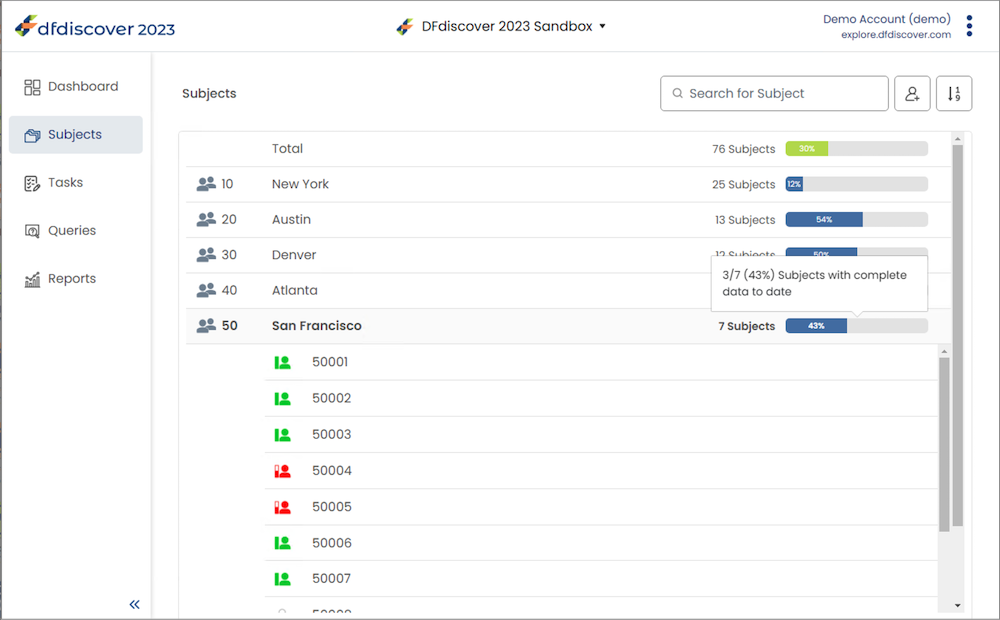
Click a subject to open the subject binder. The icon to the left of the subject ID shows the current status of the subject binder. The status may change over the duration of the study as more visits become required and further data review takes place.
 The subject binder is final, all data required at this time has been submitted, and there are no outstanding responses or missing, required values.
 The subject binder is incomplete. There may be missing required values, illegal values, unresolved questions about the data, overdue visits, or missing pages.
 The subject binder is pending. There is at least one document attached to the subject ID, but otherwise there is no data yet.
 There is no data for this subject, or the subject has not yet been saved.
 The subject binder is missed. All pages for this subject so far are missed, and no pages are final, incomplete, or pending.
The Subjects Page also provides the following functionality when a site is open:
Search Bar The search bar allows you to quickly navigate to a subject with a given subject ID. As you type, the list of subjects automatically filters to show only those subjects containing what you have entered. Click Enter to open the Subject Binder for the first filtered subject.
Add Subject Click
 to open the Add Subject Dialog see Dialogs - Add Subject Dialog.
Sorting Click
 or
or  to change the sort order. This toggles between increasing and decreasing subject ID ordering. indicates that currently the subject IDs are sorted numerically in ascending order. indicates that the current sort order is descending.
Selecting a Subject
On the Subjects page, click a subject ID from the list to open the subject binder.
If the subject ID you need is not in the list, click to add a new subject. This opens a dialog with two text input fields. Enter the subject ID (or alias) to add to the current site. Confirm the subject ID (or alias) by entering it again. Click OK to confirm the subject creation, or Cancel to close the dialog without creating a subject.
Subject Binder
The Subject Binder contains all the information of the visits and plates related to a subject. The initial page you are taken to is the first visit and CRF for the subject.
Subject Binder Sidebar
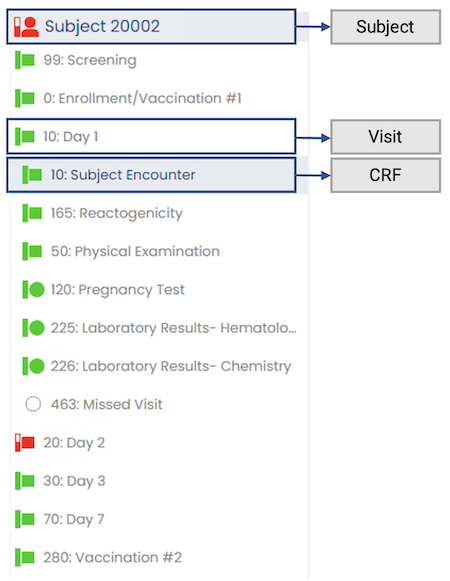
The sidebar displays the current subject, visit, and CRF, as well as providing navigation between CRFs and visits. The current subject is displayed at the top of the sidebar. The rest of the sidebar displays all the visits for this subject that you have permission to view. The current visit is expanded to show all the CRFs in that visit that you have permission to view. CRFs are indented slightly from the visits to help visually differentiate them. CRF and visit labels follow the format [Number]: [Label].
Each visit and CRF has an icon that displays its current status. The meanings of the icons are:
 - This CRF or visit is final, and it is a required CRF or visit.
 - This CRF or visit is incomplete, and it is a required CRF or visit.
 - This CRF or visit is pending, and it is a required CRF or visit.
 - This CRF or visit is missed, and it is a required CRF or visit.
 - This CRF or visit has not been saved, and it is a required CRF or visit.
 - This CRF or visit is final, and it is an optional CRF or visit.
 - This CRF or visit is incomplete, and it is an optional CRF or visit.
 - This CRF or visit is pending, and it is an optional CRF or visit.
 - This CRF or visit is missed, and it is an optional CRF or visit.
 - This CRF or visit has not been saved, and it is an optional CRF or visit.
 - This CRF or visit is final, and it is an unexpected CRF or visit.
 - This CRF or visit is incomplete, and it is an unexpected CRF or visit.
 - This CRF or visit is pending, and it is an unexpected CRF or visit.
 - This CRF or visit is missed, and it is an unexpected CRF or visit.
Click a CRF in the current visit to make it the current and displayed CRF. Click another visit to make that visit current and to display the first CRF in that visit.
The Add New Visit option is available at the bottom of the list of visits, if configured for your study. Click to select one or more visits to add to the binder for this subject.
Data Entry Form
The main part of the page contains the data entry form. This form allows you to view, add and modify data, queries, reasons, and missing values, and view and add documents to the form.
Data entry forms on DFweb may be presented as either eCRFs or CRFs with backgrounds, depending on the study setup for the plate. Both types of forms contain a header section and a data entry section.
Example Data Entry Forms

At the top of the form is a header area for CRF-wide actions. The header remains visible as you scroll through the CRF contents.
Data Entry Form Header

| Breadcrumb | The breadcrumb is a navigation aid displaying information about the current study, site, subject, visit, and page. Click the site or study number to return to the Subjects page. |
| CRF Label | The CRF label is composed of the CRF number and label. These follow the format [Number]: [Label]. |
| CRF Help | If CRF help has been provided for this CRF in the study setup, appears in the header area. Click to open the CRF Help Dialog, see Dialogs |
| Locked CRF Icon | If the CRF is in use by another user,  appears to the left of Save. This indicates that no editing can be done on this CRF. appears to the left of Save. This indicates that no editing can be done on this CRF. |
| Missed Page | If the CRF has been set as missed to indicate it will not be completed for this subject, "Missed" appears to the left of Save. This indicates that no editing can be done on this CRF. To see the reason the page is missed, view the Page History from the CRF menu. |
| Read Only | If the CRF is view only based on your study permissions, "Read Only" appears to the left of Save. This indicates that no editing can be done on this CRF. |
| CRF Menu Button | Click  or or  to open the CRF Menu, which contains CRF level options such as managing documents and resetting the data entry form. to open the CRF Menu, which contains CRF level options such as managing documents and resetting the data entry form. |
| Save Button | Click Save to save the changes you have made to the current CRF and submit them to the server. Save is disabled if no changes have been made to the form. Hover your mouse over Save to display a tooltip with the last saved time, the CRF status, and the workflow save level details. |
eCRF
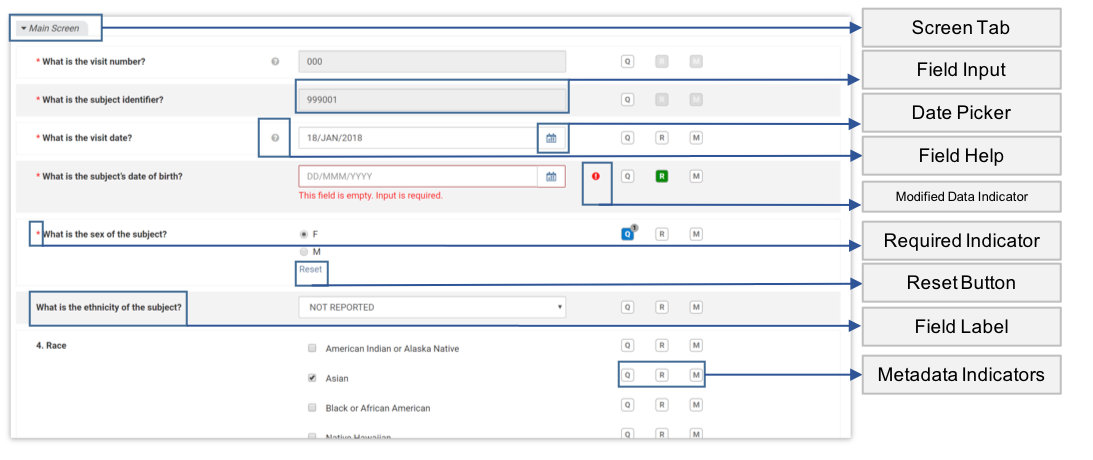
On an eCRF, the remainder of the form is filled by screens, which appear as vertically stacked tabs. Click the corresponding tab to close any screen. The tab with the input focus cannot be closed.
eCRF Data Entry Form 1
eCRF Data Entry Form 2

Each screen is composed of rows of fields. Each field can contain:
| Field Input | Each field has an input area. The type of input determines exactly what appears in this area. For more information on input types, see Data Types. |
| Date Picker | Date fields have a date picker  . Click to reveal a calendar. Picking a date in the calendar is equal to typing it in the Field Input. . Click to reveal a calendar. Picking a date in the calendar is equal to typing it in the Field Input. |
| Field Help | If the study setup has defined help for the field, is visible. Click to display a help tooltip, which can be dismissed by clicking any other area of the page. |
| Modified Data Indicator | If a value in the field is unable to be displayed in the input area, it is modified when you open the CRF.  shows which fields have been modified. Click the indicator to display more information about the change. shows which fields have been modified. Click the indicator to display more information about the change. |
| Required Indicator | If the field is required or essential,  appears on the line. Fields with this indicator display a warning message if left blank. appears on the line. Fields with this indicator display a warning message if left blank. |
| Reset Button | Choice (Radio Button) and VAS input areas have Reset. This can be used to set the field back to the blank value. |
| Metadata Indicators | Q, R, and M are displayed on each line. They allow the user to add, modify and view queries, reasons and missing values for that field. For more information on queries, reasons, and missing values, see Metadata. |
| Focus Indicator | A colored bar indicates that the field is in focus, and the color indicates the status of the field. To learn more, see Data Entry Aids - Focus Indicators |
| Units | If units are defined for the field, they are shown in or near the input area. Where they are displayed depends on the type of input. |
| Warning Message | Warning messages appear when issues like illegal field values, missing values, or incorrectly formatted information are present in the field. Correct the issue to remove the message. |
Paper CRF
On a paper CRF, each plate is displayed as fields laid out on a background image, and a metadata icon panel floats to the right of the window. The metadata icon panel represents metadata for the currently focused field.
Paper CRF Data Entry Form
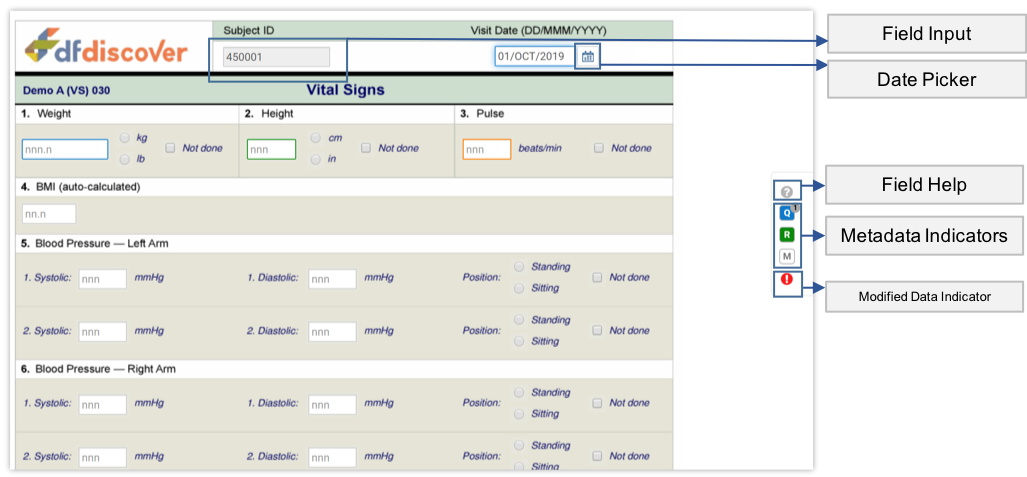
A paper CRF can contain:
| Field Input | Each field has an input area. The type of input determines exactly what appears in this area. For more information on input types, see Data Types. Field inputs on paper CRFs can have colored borders. For more information on the borders, see Locating Metadata. |
| Date Picker | Date fields have a date picker that becomes visible when the field is focused. Click to reveal a calendar. Picking a date in the calendar is equal to typing it in the Field Input. |
| Field Help | For the field that is currently focused, if the study setup has defined help for the field, is visible in the metadata icon panel. Click to display a help tooltip, which can be dismissed by clicking any other area of the page. |
| Metadata Indicators | Q, R, and M are displayed in the metadata icon panel. They allow the user to add, modify and view queries, reasons and missing values for the field that is currently focused. For more information on queries, reasons, and missing values, see Metadata. |
| Modified Data Indicator | If a value in the field is unable to be displayed in the input area, it is modified when you open the CRF. For the field that is currently focused, in the metadata icon panel shows that the field has been modified. Click the indicator to display more information about the change. |
| Focus Indicators | When a field is in focus, the outline color indicates the status of the field. To learn more, see Data Entry Aids - Focus Indicators. |
Locking
When you enter a subject binder and the CRF becomes visible, DFweb attempts to establish a lock on the CRF. If it succeeds, you gain the lock on the CRF and other DFdiscover apps won't be able to edit the CRF until it is unlocked. If someone else already has the lock, your attempt fails and you are shown the locked CRF in read-only mode.
A locked CRF is indicated by a beside the save button. When a CRF is locked, all data fields are in read-only mode, meaning no data can be entered, and no queries, reasons, or missing values can be added to the field. Existing queries, reasons, and missing values can still be viewed by clicking the appropriate button, however all input fields and actions other than cancel are disabled. The Manage Documents dialog is accessible for document review, however no new documents can be uploaded to a locked CRF. Finally, Save and Reset Page are disabled on a locked CRF.
Exiting a CRF, whether by navigating to another CRF, exiting the subject, or logging out, unlocks the CRF.
Data Entry Aids
| Keyboard Navigation | Navigating from field to field is possible using the Tab key. The Save button, if enabled, is tabbed to after the last field. Within choice fields (shown as either radio buttons or dropdowns), the up and down arrow keys can be used to switch between options, and the option can then be selected using the Space key. Within visual analog scale (VAS) fields, the left and right arrow keys can be used to select a point on the scale. |
| Focus Indicators | The last in-focused field displays a vertical bar on the left edge of the field (for eCRFs) or a field highlight/outline (for paper CRFs). It may have color information, including red (required and missing or illegal values), blue (outstanding query), green (resolved), orange (pending), and black (otherwise). The current active field is outlined; on eCRFs, the highlight color matches the vertical bar, except in the case of a black vertical bar, in which case the highlight color is the default one for the browser. |
| Formatting | Some fields only accept specific data formats. Field formatting is shown in the blank field to help guide data entry. For example, a date field may have the format YYYY/MM/DD or a lab result field may have the format nn.nn. |
| Legal Ranges | Some fields may have legal ranges defined. If you enter an illegal value, you are shown a warning similar to: "The input value is not a legal value. The legal values are 01-JAN-2018~today." Correcting the value removes the warning and avoids queries. |
| Help | In addition to the description for each field on the CRF, Help information may be available for each field. This is indicated with a icon. eCRFs display this next to the field label. Paper CRFs display it in the metadata icon panel. Click to view the Help message. |
| Field Skipping | When navigating fields on a CRF using the Tab key, some fields may be skipped. This indicates that the field skipped is not required and can remain blank. |
| Screens | Some eCRFs may be divided into multiple screens. A screen has a main body for data as well as a clickable tab to control visibility. In the tab, click the arrow to collapse the fields within that screen, and click again to expand. By default, all screens are expanded when you open a CRF. The tab with the input focus cannot be closed. 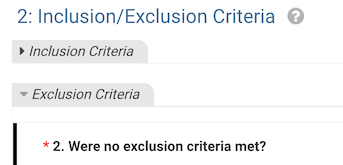 |
Clearing Data
In fields where you can type a value, deleting the value is sufficient to clear the data. In check fields, removing the check removes the value. In choice and VAS fields however, other methods are provided to clear the data.
In an eCRF plate, click Reset or use the Delete or Backspace key on choice and VAS fields to clear the data.
On paper CRF plates, Reset is not available. Instead, use the Delete or Backspace key. The missing value dialog may also be used to clear the data on choice and VAS fields. Enter the missing value dialog, and select No Code (Reset) from the Code dropdown. Click Apply to close the dialog and remove the current field value.
Data Types
| Number | Numeric digits (0-9), decimal . , and a sign symbol + or - can be entered in number fields. If a decimal or other character is required, it can be typed directly. Otherwise, it is entered automatically to match the required format for the field. |
| String | Any text may be entered in a string field. A maximum field length may be defined which limits the number of characters that can be entered.If the maximum length for the string is longer than the input area can display, the string field will show as a resizeable field. |
| Date | Enter dates using the keyboard, or use the date picker to select a date. The date picker is always visible on date fields in eCRF plates. On paper CRF plates, the date picker becomes visible when the date field is focused. The date picker can be scrolled using the scroll wheel on the mouse, and clicking the month name will enter a condensed view to speed up scrolling. Click a month to exit the condensed view. If a date is entered using the keyboard, it must follow the defined format, e.g. DD-MMM-YYYY, YYYY/MM/DD, DDMMYY. Partial dates may only be entered via the keyboard. |
| Time | Enter the time using hours, minutes, and seconds as indicated in the field format. |
| Choice | Only one response option can be selected for each choice field. The field displays as radio buttons or a drop-down menu according to the study setup1. To remove a response, click Reset below the field (eCRFs only), or select No Code (Reset) from the missing Value dialog. |
| Check | A check field can be checked or unchecked. Multiple check fields may be included in one item; check all that apply. |
| Visual Analog Scale (VAS) | Select a point along the scale using the cursor or the left and right arrow keys on the keyboard. On eCRFs, the selected value is shown under the scale in the middle, with the first and last options in the scale shown on the left and right respectively. Paper CRFs display the selected value directly under the scale indicator. To remove a response, click Reset below the field (eCRFs only), or select No Code Reset from the Missing Value dialog. |
Missing Data
It can occur during data entry that the response to a question is not available. The question may not be relevant, the response is unknown or not applicable, or the response may only be available in the future. With the exception of data fields that are identified as essential, the response for any data field can be recorded as missing. While performing data entry it is important to mark the response for such a data field ass missing, rather than leaving it blank. If left blank, a query will be raised during review - was the data field simply skipped or ignored, or was it considered and there is a reason why there is no response? To prevent this uncertainty, missing data must be appropriately identified. Conversely, if data was previously marked as missing and has since become available, the missing designation must be removed and the available data entered. For both situations, the steps are described in Mark a Data Value as Missing.
Edit Checks
Edit checks are defined during study setup. They are fragments of logic that enforce study expectations for the data collected. They run interactively during data entry and data review. Edit checks may be run when you enter a CRF or a field, or when you leave a CRF or a field. Edit checks perform various actions, such as displaying messages, adding a query, masking a field, calculating data, or changing data to view only.
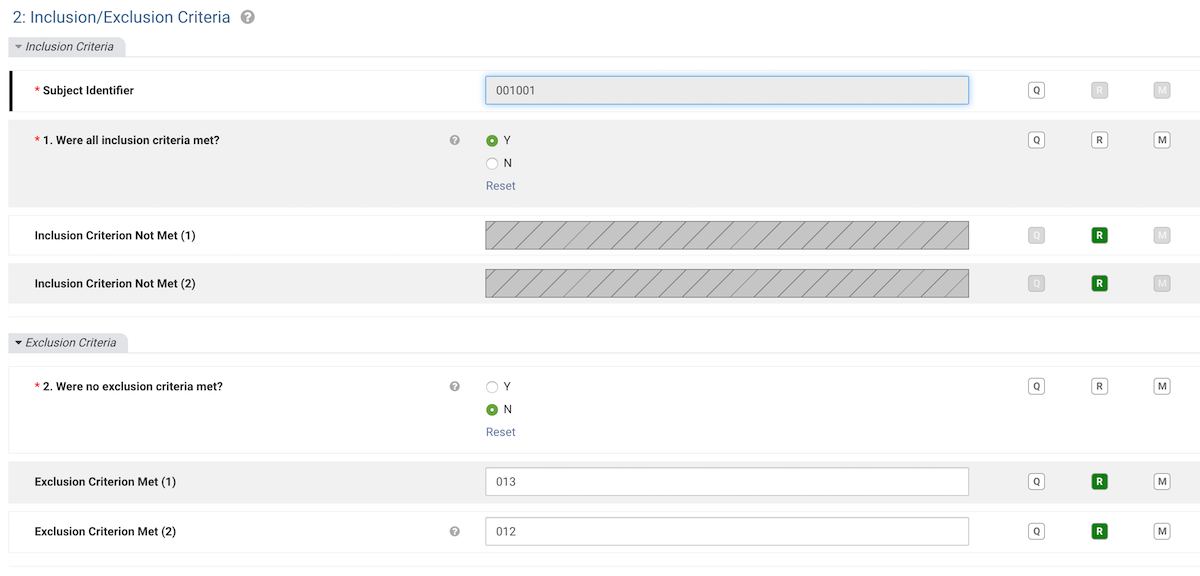
The following is an example edit check. Your own study will likely have similar edit check that also masks other fields based on the answer of current field. In the edit check example shown below, the edit check has detected the answer of "Were all inclusion criteria met?" is Yes after field exit. The edit check thus masks the following two fields as there is no need to continue to answer them.
Saving Data
When you have completed data entry on a CRF, you must save your changes before leaving the CRF. To do so, click Save, located near the right side of the header area.
If you leave the CRF before saving, the following dialog is presented:
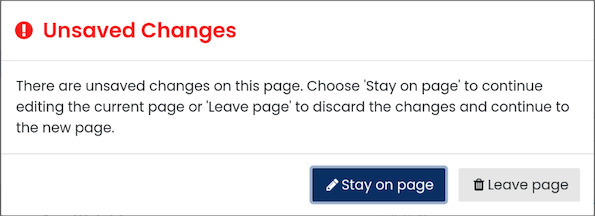
Select Stay on page to remain on the CRF and save your changes. Select Leave Page to discard the data on the CRF. Your changes are not saved and cannot be retrieved.
Working Modes and Workflow Levels
Modes and levels in DFweb are set by edit checks or tasks, and always respect the user's permissions. The current mode and save level can be found by hovering the mouse over the save button. See DFexplore User Guide, Changing Mode and Level for more details on modes and levels.
Electronic Signature
If the CRF you have saved requires an electronic signature, after clicking Save, a dialog will appear indicating that the page is eligible for signing.
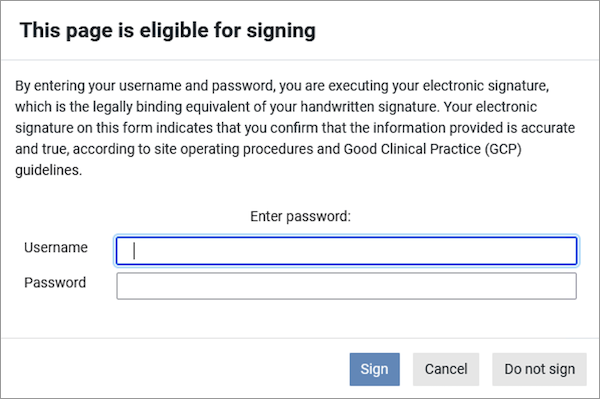
Provide your username and password and click Sign to execute your electronic signature and save the CRF. If you logged in using a Microsoft login, click
You have a limited number of tries to enter the correct username and password. If you provide an incorrect password more than the number of tries indicated, the CRF changes will not be saved and you will be automatically logged out of DFweb.
If you do not want to sign the record, click Do not Sign to save the CRF without providing your signature. Click Cancel to return to the CRF without saving your changes.
Once you have signed one CRF, you will only need to provide your password when you sign additional CRFs during that login session.
If data on a signed CRF changes after it was signed, it will need to be signed again.
Viewing Page History
You can view the history of changes made to a CRF (audit trail) using the Page History option. On any saved CRF, click  to open the CRF menu and select Page History to view the history of changes for the current CRF page.
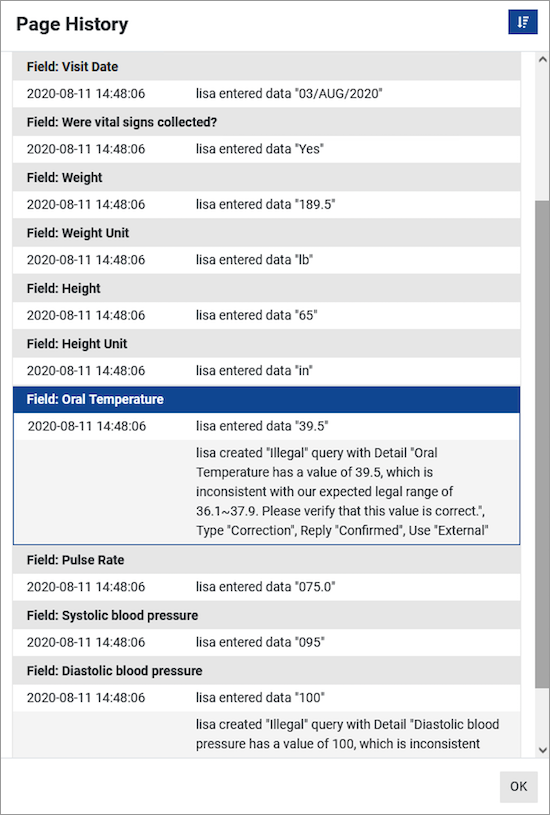
The Page History dialog displays a table with a list changes to the data and metadata for each field on the CRF page. The details include the username of the person making the changes and the date and time of the change. All changes to a field are grouped together under the field description header. If a field is currently selected on the CRF, that field will be outlined in blue in the Page History dialog.
Click  to sort the changes from newest to oldest or oldest to newest within each field. Click OK to close the dialog and return to the data entry screen.
Page History is only available when DFweb is connected to DFdiscover server and API version 5.5 or later.
Reset Page
Select Reset Page from the CRF menu to undo all unsaved changes and reset the CRF to the last saved database values. This can be useful if you are interrupted during data entry and lose track of where changes have been made. After confirmation, unsaved changes to data, queries and reasons are discarded.
Metadata
Locating Metadata
Paper CRFs and eCRFs display the Q, R, and M in different locations.
eCRFs display the metadata buttons for each field on the same row as the field. Since all the buttons are visible, metadata on an eCRF can be quickly and easily viewed by scrolling through the fields.
Paper CRFs only display one set of Q, R, and M. These are located on the right side of the window. The buttons show and allow you to alter the metadata for the field that currently has the focus. Blue, green, and orange borders on a field indicate that the field has metadata, allowing you to quickly see the metadata on a paper CRF. A red border on a field indicates that there is an error on the field.
Queries
Queries are used to request corrections or clarifications about the data. There are four query dialogs: Add Query, Edit Query, Reply to Query, and Delete Query. Query actions are controlled by role permissions or may be performed by edit checks. The following sections explain in detail how to use these dialogs if you have the appropriate permission. New queries or changes to queries are saved to the database when the CRF is saved.
For studies where multiple queries per field are enabled, there is an additional dialog where users can add a new query or choose an existing query to reply to, edit, or delete. Further details are provided in Multiple Queries Dialog below.
| Add Query | To add a query to a field, click Q. If there is no query on a field, the Add Query dialog opens. Select an appropriate category from the dropdown menu, and provide the query detail in the provided text field. Once complete, click Apply to add a query to the field. |
| Edit Query | To edit a query, click Q. If the query is resolved, the Edit Query dialog opens. Otherwise, the Reply to Query dialog opens. Click Edit, and the Edit Query dialog opens. Select an appropriate category and status from the dropdown menu, and provide the query detail in the provided text field. Once complete, click Apply to finish editing the query. |
| Reply to Query | If a query is already resolved, it cannot be replied to. Otherwise, to reply to an outstanding query on a field, click Q. The Reply to Query dialog opens, displaying the query detail. Enter the query reply content in the provided text field. Once complete, click Apply. |
| Delete Query | Queries are rarely deleted. Once a query is created, it should be resolved, perhaps as irrelevant. If it is necessary to delete an existing query, click Q. If the query is outstanding or pending, the Reply to Query dialog opens. Click Edit, and the Edit Query dialog opens. Click Delete, the Delete Query dialog opens. In the Delete Query dialog, click Delete to finish deleting the query on the field. At each step please ensure that the query really should be deleted. |
| Resolving Queries | Typically, queries may be resolved by correcting the data value and providing a reason for data change or by replying to the query, which changes the query status to Pending or Resolved. The study coordinating center reviews any pending queries and resolves them. Follow instructions from the study team on how to resolve queries in your study. The status of a query can be changed to resolved via Q. Click Q, and then click Edit for the query that is to be resolved. Select the Resolved option from the Status dropdown menu, then click Apply to resolve the query. |
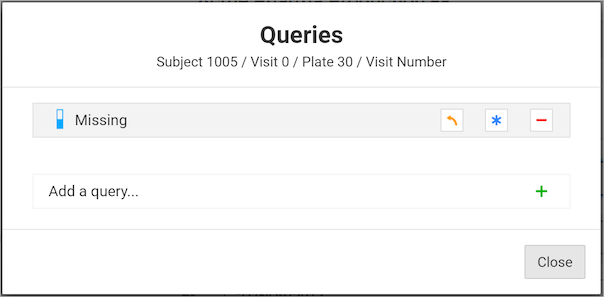
| Multiple Queries Dialog | In a study with multiple queries per field enabled, click Q for a field with an existing query to see the following multiple queries dialog:
The icons used in the multiple queries dialog are:
Additionally, there is another difference between single and multiple query-enabled study query dialogs. In single query-enabled studies there are navigation buttons at the bottom of the dialogs to get from one dialog to another. These aren’t present on multiple query-enabled study query dialogs. Instead, the multiple query-enabled study query dialogs have a back arrow at the left top corner. The back arrow returns you to the Multiple Queries dialog. |
 Reply
Reply Edit
Edit Delete
 Add
AddAdd a Data Reason
Reasons are a way to provide additional information about existing data or to explain why data is changed. For each data field, the user can add a new reason or edit an existing reason using the Reason for Data Value dialog.
To add a reason to a field, click R next to the field. The Reason for Data Value dialog opens. Select an appropriate status from the dropdown menu and enter reason detail in the provided text field. Click Apply to add the reason to the field.
In some cases, the Reason for Data Value dialog may open automatically when a data value is changed. In these cases, a reason is required before the data change is accepted. If the data change was made in error, click Revert to Old in the Add Reason dialog to discard the data change.
To edit an existing reason, click R to open the Reason for Data Value dialog. Change the reason status and/or detail and click Apply to finish editing and close the dialog.
To delete an existing reason, click R to open the Reason for Data Value dialog. Click Delete and then click Confirm Delete to confirm that the reason should be deleted.
Mark a Data Value as Missing
Missing value codes provide a way to mark a data value as missing. Users may select a missing value for any data field that is not essential to indicate that the data value will not be entered.
To mark a data value as missing, click M next to the input field. The Missing Value dialog opens. Select an appropriate missing value from the dropdown menu, and click Apply to finish.
After marking a data value as missing, the field value is set to the missing value code and the field is disabled. Disabled fields can still be tabbed to, however editing the field is not possible.
To enter data in a field that has been marked as missing, click M next to it. In the Missing Value dialog, select the No Code (Reset) option from the dropdown menu, and click Apply to finish. This enables the field for data entry and resets the field value to blank. No Code (Reset) can also be used at any time to clear a data value currently on that field.
Managing Documents
DFweb allows users to attach documents to a plate, which accommodates adding more data and information in other formats.
Supported Document Types
DFweb allows user to upload, view and download PDFs, images, audio, and video. Specifically for images, DFweb supports JPG, JPEG, PNG, BMP, DICOM, DIC, and DCM format; for audio, DFweb supports MP3, and WAV format; for video, DFweb supports MP4, and AVI format. The file size limit is 25 MB.
Reviewing Documents
Navigate to the Manage Documents dialog to review documents. This is available via the Manage Documents menu item under the CRF Menu (without documents) or  (with documents), in the top right corner of the plate. Click to choose from the dropdown menu items:
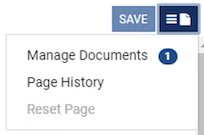
The number next to Manage Documents indicates the number of existing documents for this plate. Click Manage Documents to open the ManageDocuments dialog. Below is an example of the Manage Documents dialog.
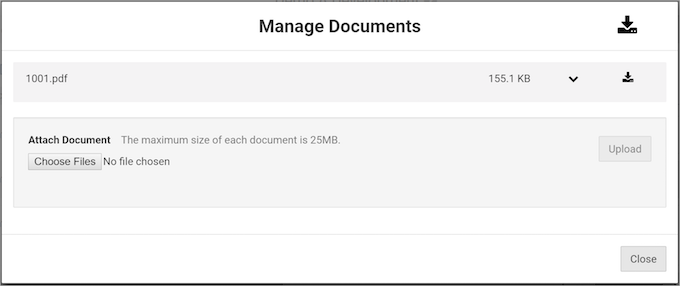
In the Manage Documents dialog, users can review documents. To review a document, click  to expand the collapsible content:
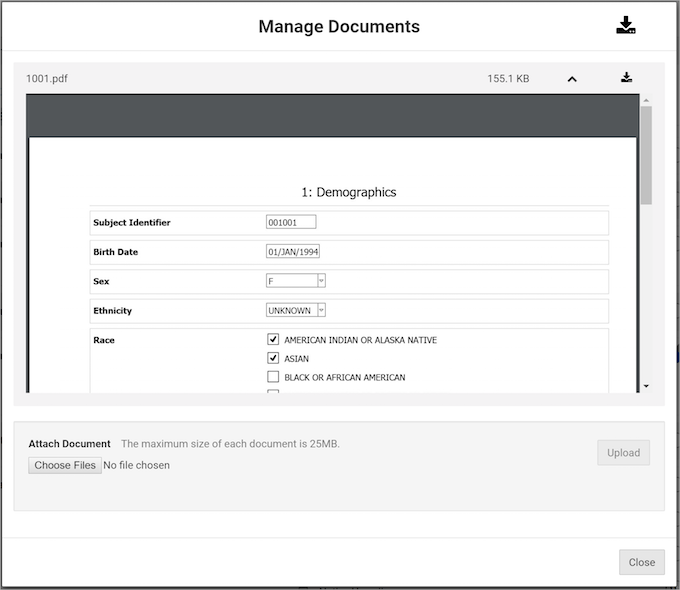
Click  to collapse the content.
Many document types can be previewed or played without downloading first, including PDF, JPG, JPEG, PNG, BMP, MP3, WAV, and MP4 format. For DICOM, DIC, DCM, AVI or other formats, they must be downloaded first.
Adding Documents
Navigate to the Manage Documents dialog by following the instructions in Reviewing Documents.
Click Choose Files to open the file browser and select one or more files from your computer. Once complete, click Upload to add the file(s).
Downloading Documents
Navigate to Manage Documents dialog by following the instructions in Reviewing Documents.
Click  to the right of the file name to download that particular file. Click the large
  at the top of the dialog next to the Manage Documents title to download in a zip file all the documents listed.
Sharing Links
The ability to share links minimizes the time and effort to navigate to a particular page.
Click the Application Menu,  , and then select Copy URL from the dropdown menu. The copied URL can be re-visited at a future time, or shared with others.
When using a copied URL, the user is redirected to the login page first, where they are required to login. After successful login, the user is taken to the linked page.
Queries View
Opening Queries View
Queries View allows you to review data queries, with filter options such as query status (outstanding, pending, resolved), query category (such as missing, illegal, overdue visit), and query timing.
Note: Query View is only available when DFweb is connected to DFdiscover server and API version 5.5 or later.
Once you have selected a study, the list of data queries is available by clicking Queries in the sidebar on the left of the screen.
By default, the outstanding queries from the first site in the site list are shown. If you open a site before clicking queries in the sidebar, the queries for that site will be shown by default. Both the site and status can be changed using the filters.
With the query list open, a table of queries with 5 columns is shown. The columns of the table are:
| Location | Shows the subject ID, visit label and label of the CRF the query is on. Also shows the status of the query as an icon. |
| Query Header | Shows the field name, field value, category, and status of the query in the format of "Field name = Field value (Category)" with the status on the next line. |
| Query Details | Shows the query details, any reply that was given to the query, and any notes added to the query. |
| Age | Shows the number of days from query creation to today, or to query resolution if resolved. |
| Timing | Shows when the query was created and last modified, and by whom it was created and last modified. |
Filtering the Query List
In addition to the queries list, the Queries page also includes options to filter queries by site, subject, status, category, and timing. The number of queries matching the filter and the total queries in the site is shown next to the filters.
The site, status and category filters are can be changed quickly using the dropdowns on the query list page. Selecting a value from these will update the table to show only the queries that match the new filter. The status and category filters also have an Any option, which removes the filter and shows queries with any of those options. Click to open filter dialog for more filtering options.
Query Filter Dialog
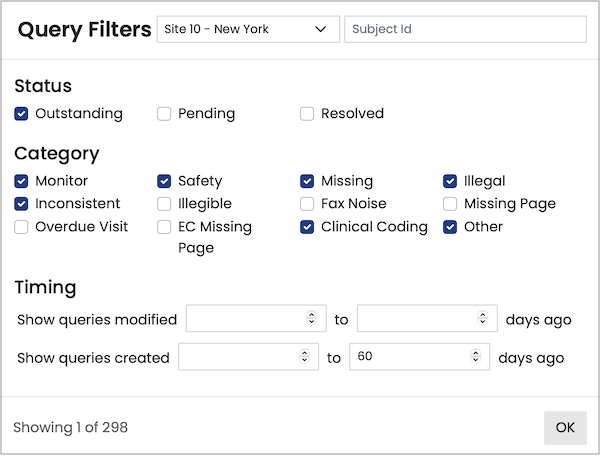
The query filter dialog provides access to the same filters as in the query list page, plus filters for timing and subject ID. In the dialog, it is possible to select more than one status or category so queries with any of the selected options show. Updates to the site, subject, status, and category filters in the filter dialog also update the dropdowns on the query list page. If more than one option is selected for status or query, then the corresponding dropdown on the query list page will display Multiple Statuses or Multiple Categories.
The timing options allow you to filter by queries modified or created before or after a certain number of days ago. Adding a value to one of the timing fields will clear the other.
Once you have the desired filters applied, click OK to return to the query list page.
Sorting the Query List
The query list is sorted based on the subject ID, visit number and CRF number in ascending order by default. This can be reversed to show the highest subject ID, visit and CRF first by clicking the Location column header. In addition, it is possible to sort the queries based on their age by clicking the Age header or by when they were last modified by clicking the Timing header. Clicking again reverses the direction of the age and timing sort as well.
Downloading the Query List
You can download the query list to share or review outside DFweb. Click  to select XLSX or CSV format. Only the queries in the current list are downloaded, taking the applied filters as well as sorting into account. You may be prompted to give DFweb permissions to download files to your device.
Reviewing a Query
To open the CRF that contains a query, double-click anywhere on the query row.
Reviewing Queries
To review a query, double-click any query to open the CRF and go to the field where the query is located. Click Q to open the query dialog.
The query binder is opened in the sidebar with the current subject, visit, CRF and query showing. All filters applied to the query list in the query list page are also applied to the query binder. You can review, filter and navigate through the query list using the query binder.
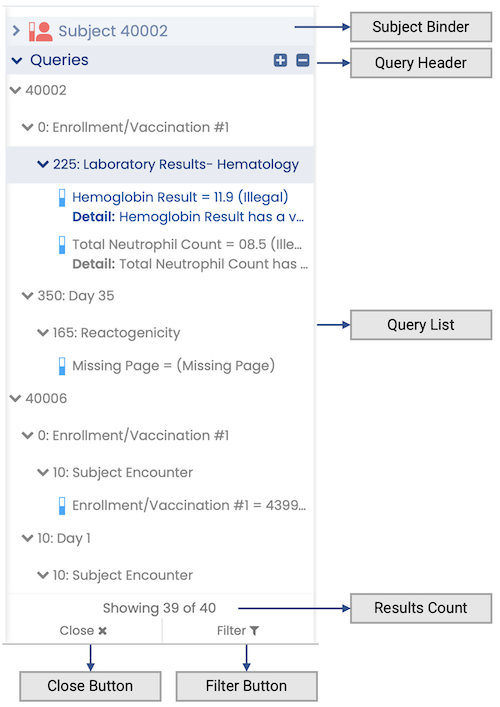
| Subject Binder | View all CRFs in the current subject binder by clicking the subject binder header. Clicking again collapses the subject binder and reopens the query binder. |
| Query Header | Click the query binder header to collapse or expand the query binder. Click + to expand all subjects, visits, and CRFs so all queries are shown in the list. Click - to collapse them all so all queries are hidden. |
| Query List | The query list shows the status icon, field name, field value, category, detail and reply of all queries. Click a subject, visit or CRF to expand or collapse it. Click a query to navigate to that CRF and field. Hovering over a query in the query list shows more details about the query. |
| Results Count | Shows the number of queries that match the filter criteria, and the total queries in the currently selected site. |
| Close Button | Closes the query binder while staying on the current CRF. |
| Filter Button | Opens the Query Filter Dialog. |
The query binder stays up to date with the data that has been saved. If you make a change to a query, you must save it for the changes to appear in the query binder.
Reviewing Other CRFs
You can expand the subject binder to view all other CRFs in the subject binder for the current subject. You can open CRFs from the subject that don't have queries in the query binder to review their contents and assist you in reviewing a query. Expand the query binder and click the query you were working on to return to the query.
Filtering the Query Binder
Click Filter in the sidebar to open the filter dialog. The filter dialog behaves the same as when opened from the query list, but it updates the query binder instead. See Query Filter Dialog for more details.
Closing the Query Binder
Click Close to end the task you are working on. You will stay on the current CRF, but the query binder will be closed.
Tasks
Task Listing
Tasks is a feature that allows you to retrieve a set of CRFs to review. Each task has its own purpose, defined by the study sponsor or coordinating center, and may include instructions.
Warning: Tasks are only available when DFweb is connected to DFdiscover server and API version 5.5 or later.
Once you have selected a study, the list of tasks will be available by clicking Tasks in the sidebar on the left of the screen.
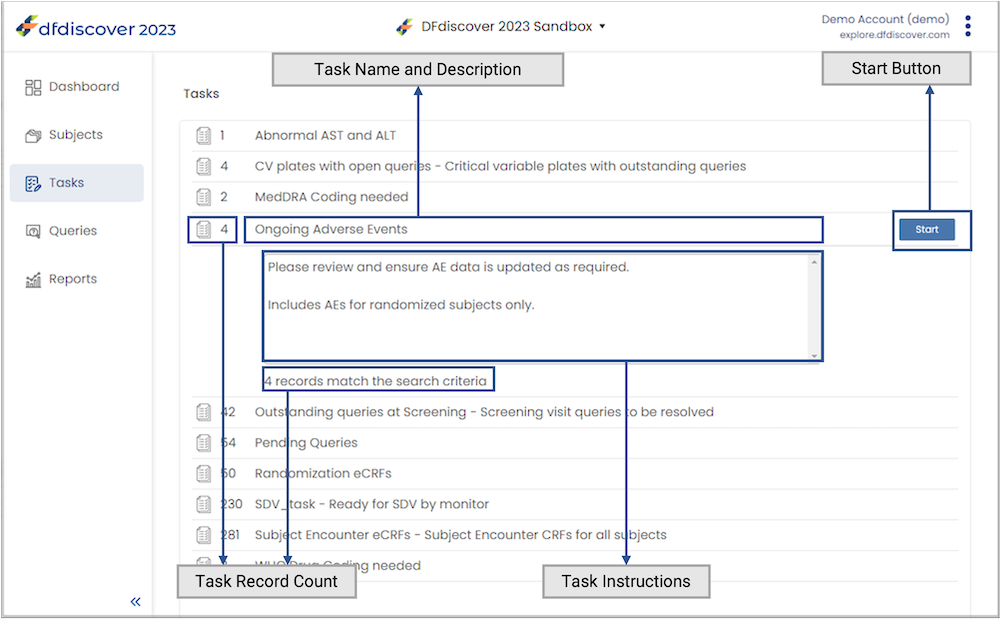
On the task list page, the headers of all the tasks available to your role are shown, and the first task is expanded to show more details.
The task header shows:
Task CRF Count Indicates the number of CRFs currently in this task.
Task Name and DescriptionThe name of the task is shown in the header, followed by a dash and then the description of the task, if it has one.
Start Button For the currently expanded task, Start is shown in the task header.
Clicking the header of a task expands the task and closes any previously expanded task. Once expanded, the task details show:
Task Instructions Instructions provided for the task, if any.
Task CRF Count The number of CRFs currently in the task.
If a task has a CRF count of zero, the Task Name and Description and Task CRF Count are de-emphasized, and Start is disabled. You cannot start a task with no CRFs.
Starting a task
To start a task, expand the task you wish to work on, then click Start. This will open the CRF view and take you to the first CRF in the task.
Task Results
Starting a task takes you to the data entry form with the task binder open in the left-hand sidebar. The first CRF according to site, subject, visit and CRF number is opened, and the other CRFs in the task are available in the task binder sidebar.
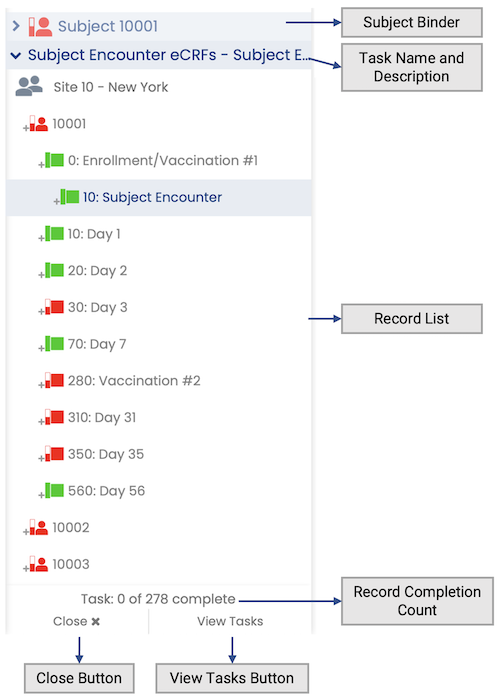
The task binder sidebar shows:
| Subject Binder | View all CRFs in the current subject binder by clicking the subject binder header. Clicking again collapses the subject binder and reopens the task binder. |
| Task Name and Description | The name of the task is shown in the task binder header, followed by a dash and then the description of the task, if it has one. Click the task binder header to collapse or expand the task binder. |
| CRF List | All CRFs in the task are shown in this CRF list. The CRFs are organized by site, subject, and visit. |
| CRF Completion Count | The CRF completion count shows the completed and total number of CRFs in the task. |
| Close Button | Click Close to stop working on the task while keeping the CRF open. |
| View Tasks Button | Open a dialog showing the current task details, and a list of other available tasks. |
Following the instructions for the task, complete the necessary changes on the CRF. Saving the CRF updates the CRF completion count and marks the CRF with a checkmark in the sidebar to show that it was completed. Click on the next CRF, visit, subject or site move to the next CRF in the task.
Reviewing Other CRFs
You can expand the subject binder to view all other CRFs in the subject binder of the current subject. You can open CRFs from the subject that aren't in the task to review their contents and assist you in completing the task. Expand the task binder and click the task CRF you were working on to return to the task.
Switching Tasks
Click View Tasks to open a dialog with the list of tasks available. The current task is expanded by default. Select the task you wish to switch to, and click Change Task to change tasks. The first CRF in the selected task will be opened. The state of the current task is not preserved when you switch, so the completed CRFs will be reset if you switch back to the first task.
Closing a Task
Click Close to end the task you are working on. You will stay on the current CRF, but the task binder will be closed. Returning to the site, subject, or study list pages also ends the task. You can restart the task you were on from the task list page.
Reports
Reports Listing
Reports allow you to view study data and other information in charts, graphs, and tabular listings. The reports available to you are based on your study access details and are determined by the study sponsor or coordinating center.
Warning: Reports are only available when DFweb is connected to DFdiscover server and API version 5.5 or later.
Once you have selected a study, view the list of reports available by clicking Reports in the sidebar on the left of the screen.
The Reports page provides a list of all reports as well as an option to change how the list of reports is displayed (alphabetically or within groups) and a search option.
By default, reports are listed in alphabetical order. Enable the Grouped View option ( ) to view the reports within defined groups. With Grouped View enabled, click a group name to open the list of reports available within that group. Click again to close it. To return to the alphabetical list of reports, disable the Grouped View option ( ).
Use the Search field to filter the list of reports just to those that match your search term.
Click the report name or anywhere in that row to open the report in a dialog.
Report Descriptions
The reports you see in DFweb depend on your study permissions. This section provides a description of some of the available standard DFdiscover reports, however these reports may not all be available to all users, and there are additional reports available not listed here. Complete details on standard DFdiscover reports are available in Standard Reports Guide, Alphabetical Listing, DFdiscover Reports.
| CRFs by Site | This report shows workflow statistics for time to receive data, enter data, and save data as final. Statistics are grouped by site, or optionally by country. Click on any bar to see the detail view for the site or country. An optional view, Time to Final, is available that presents the percentage of records that have final status on arrival (did not require further editing or clarification) and the percentage of records that have final status now. |
| Data Entry Time Trend | This report displays the number of data records entered via EDC and from paper CRFs (if applicable), and the number of elapsed days to complete data entry for each record. The numbers are graphed on two axes: Number of Records and Days Elapsed. For time to complete data entry, the number of days between visit date and record creation date (delay) is calculated. If a record does not have a visit date, it is counted in the number of data records but it is not included in the number of days elapsed. Click on any bar to switch to the detail view for the selected site, showing the number of percentage of EDC and paper records and the average elapsed days per month over time. To view the change in data entry over time, check Enable Timeline Animation in the Options drawer. The report window updates to include animation controls and a timeline marked with the earliest date and the most recent date for which data is available. Use the controls to play, pause, and step forward/backward through the data. |
| Enrollment by Site | This report displays enrollment numbers on a per site, or per country, basis. The default summary view displays current enrollment for all sites you have access to, including the target enrollment if defined. Click on any bar to see the detail view with aggregated monthly enrollment numbers over time for the selected site or country. In detail view, monthly enrollment data includes the enrollment in that month (bar) and the cumulative enrollment up to and including that month (stepped line). Sloping rate lines are also included: constant rate (which assumes that total enrollment is achieved over the interval between site start and end dates) and trend line (linear interpolation of available monthly data). Vertical markers are included for Target Date (where the constant rate line meets total enrollment), Projected Date (where the trend line meets total enrollment), and optionally Actual Date (where total enrollment was achieved). By default, subjects are considered enrolled if the baseline visit date is entered in the database. This default can be changed via report filters. |
| History of Changes | DFdiscover maintains a change history of every data value or metadata value that is added/modified/deleted during the course of the study. This report outputs the change history in tabular format and by default displays the first 100,000 history records (3,000 records per page) for data, queries, and reasons. Filter options are provided to limit the output. The output includes:
Additional sub-filters are provided for different types of output:
|
| Queries by Field | This report shows the number of queries, of each category, for each field in the database. The output includes each data field that has at least one query. By default, output is sorted by increasing plate number, and field number within plate. Fields which have no queries are not presented. Choosing Sort by Total produces output ordered by the most frequently queried data fields. Note that missing page and overdue visit queries are always attributed to the subject ID field on a plate. |
| Queries by Site | This report provides summary information about queries in the database. Summary information is reported by site (default) or country and presented in chart and table form. It includes 4 different views: Queries by Status (including resolved and pending queries), Categorical Age of New/Unsent Queries (including outstanding queries not sent to sites in a Query Report), Categorical Age of Sent/Unresolved Queries (including outstanding queries sent to to sites in a Query Report), and Percent Resolved Queries. |
| Query Overview | This report provides an overview of the status of queries in the database. The first section shows the total number of queries and the percentage of resolved, outstanding, and pending queries. The second section shows the percentage of outstanding queries that are data queries (queries on specific data fields), missing page queries, or overdue visit queries. Click any section of the pie chart or any legend marker (except resolved queries) to open a table listing of pending or outstanding queries shown in that section of the pie chart. |
| Query Report | This report provides an overview of the study schedule status and number of queries for each subject, followed by detailed listings of queries, including those that are outstanding, resolved, and pending. Correction queries and clarification queries are included in separate listings. |
| Query Status Trend | This report shows the current, total number of resolved and outstanding queries per site. To view the percentage of resolved and outstanding queries per site, select the Relative option under Measure in the Options drawer. Click on any bar to switch to the detail view for the selected site, showing the number or percentage of resolved and outstanding queries over time, sampled on a monthly interval based on when the query was created. To view the change in query status over time, check Enable Timeline Animation in the Options drawer. The report window updates to include animation controls and a timeline marked with the earliest date and the most recent date for which data is available. Use the controls to play, pause, and step forward/backward through the data. |
| Query Time Trend | This report shows the number of resolved and outstanding queries and the days it takes to resolve queries. The numbers are graphed on two axes: Number of Queries and Days Elapsed. To view the percentage of resolved and outstanding queries, select the Relative option under Measure in the Options drawer. For time to resolve queries, the number of days between query creation and query resolution dates is calculated. For outstanding queries, the report uses today as the resolution date to make the calculation. Click on any bar to switch to the detail view for the selected site, showing the number or percentage of resolved and outstanding queries and the average elapsed days over time, sampled on a monthly interval based on when the query was created. To view the change in query resolution over time, check Enable Timeline Animation in the Options drawer. The report window updates to include animation controls and a timeline marked with the earliest date and the most recent date for which data is available. Use the controls to play, pause, and step forward/backward through the data. |
| Query and Data Entry Metrics | This report provides metrics for queries and data entry, providing a high-level view of data quality. The metrics shown in this report include:
By default, the metrics in this report reflect all data the user has access to. Filters can be applied to limit the data to a specific site or subject. In the Options panel, specific metrics can be hidden from the report. |
| Status and Level Summary | This report provides a summary of the workflow levels and status of data records, queries, and reasons in the database. Click on any bar to switch to the detail view of record, query, and reason statuses for that workflow level. |
| Subject Schedule of Visits | This report provides a summary view of the subject schedule and provides a detail view of the study schedule for each subject. The summary view includes the entry (baseline) visit date, most recent visit date, next expected visit, and days overdue (if the next visit is overdue) or number of outstanding queries. Click any row in the table to view the detail view, which shows all possible study visits and the schedule date (calculated based on visits completed to date), complete date (actual visit dates), days off-schedule or days overdue (if applicable), and the status of the visit. |
| Subject Summary | This report provides a listing of study subjects with their latest visit date, next expected visit date, number of days the next visit is overdue, and the number of queries outstanding. Click the schedule icon or number in the Days Overdue column to view the detailed scheduling information for that particular subject, the same information as shown in the Subject Schedule of Visits report. Click the queries icon or number in the Outstanding Queries column to view the list of outstanding queries for that particular subject. By default, the table displays active subjects only (follow-up not yet done or any outstanding queries). Use the Options panel to view complete subjects (follow-up done and no outstanding queries) or all subjects, or apply filters to limit the data to a specific site or subject. |
| Subject and CRF Status Overview | This report provides an overview of the status of subjects and CRF pages in the database. The first sections shows the total number of subjects and the percentage of complete and incomplete subjects, based on the status of each subject’s CRFs, queries, and visit schedule. The second section shows the total number of CRF pages and the percentage of each CRF status (final, incomplete, pending, and missed). Click any section of the pie chart or any legend marker to open a table listing of subjects or CRF pages summarized in that section of the pie chart. |
| Task Summary | This report provides a table listing of all tasks available to you, including the name, title, workflow details (mode, level, run edit checks), count of pages currently in the task, and any instructions provided for the task. |
| Visits by Site | This report shows the number of visits, by visit number, that have occurred at each site. A visit is considered to have occurred if there is at least one page in the database with that visit number. |
Report Dialog
Clicking a report name in the reports listing opens that report in a dialog that overlays the main application page.
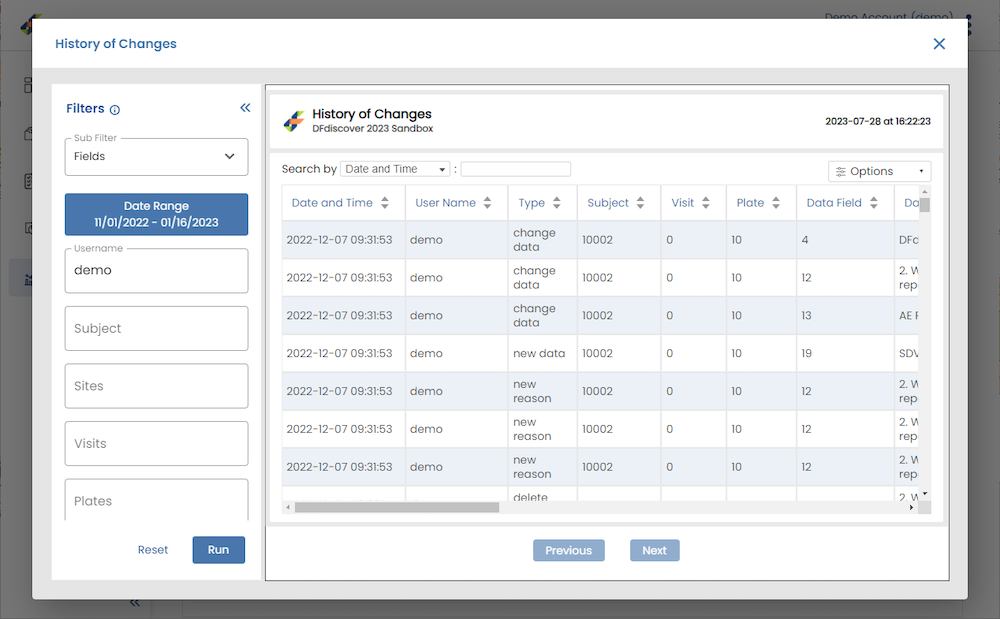
The report dialog includes:
| Report title | The name of the report that is currently open is shown in the top left corner of the dialog. |
| Filters sidebar | If the report has filters available to customize the report results, the Filters panel will appear on the left side of the dialog. See Filters for more detail. |
| Report results | The main part of the dialog displays the report results. Each report includes the report title and logo in the left corner, and the date and time the report was run in the top right corner. Some reports include interactive elements; see Interactivity for more detail. |
| Close button | Click X in the top right corner of the dialog to close it and return to the reports listing. |
Filters
Some reports have filter options to customize the report results. When a report is opened, the report is displayed using the default options, however the filters can be used to change what data is included in the report.
Click  in the Filters sidebar to view details about each of the available filters for this report. Select or enter filter options as needed, then click Run to view the updated report based on the updated filter options. Click Reset to restore the filter options to the default.
The Filters sidebar is collapsible, so you can move it out of the way if you don't need it. Click to collapse and  to expand as needed.
Interactivity
DFdiscover reports include built-in interactivity - output can be manipulated and displayed in diverse ways without re-executing the report. Some of the interactivity options include:
Options drawer The options drawer is opened by clicking on the options tab (
 ). Several appearance settings and behaviors can be changed in the options drawer. Each report has a common option to show/hide the header, plus its own unique settings. When the drawer is open, the report output is updated when a setting is changed. When no further changes are needed, click X to close the drawer.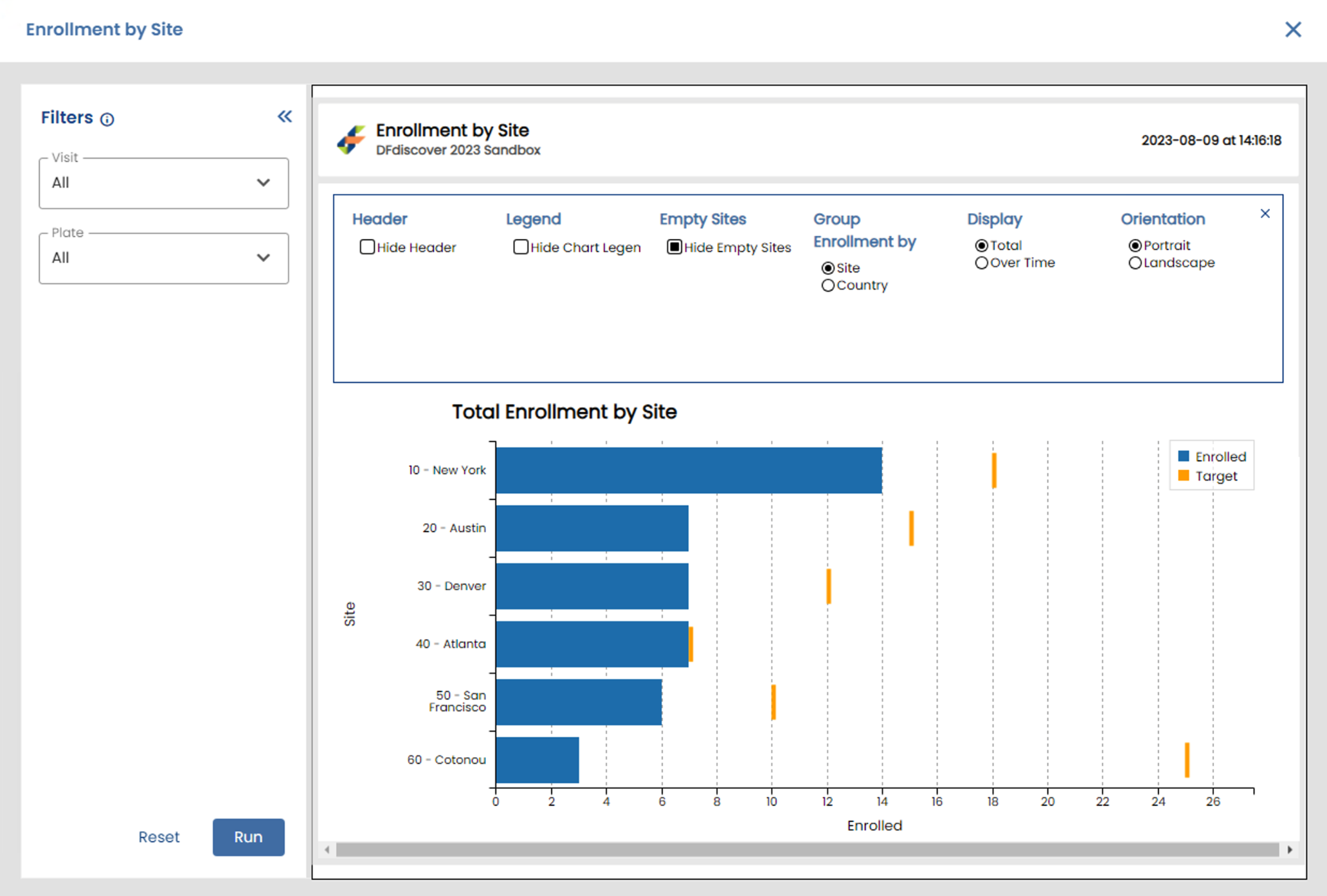
Display/hide elements The visibility of elements in a graph can be toggled by clicking the corresponding element in the graph legend. Clicking an element once turns off visibility and clicking it again turns on visibility.
Display graph values By hovering the mouse pointer over a graph or chart element, it is possible to inspect the data value(s) in that element.
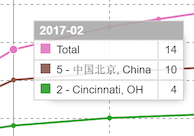
Report sub-views More info for a report is available by clicking a chart or graph element. In some cases, this action creates a sub-view of the current report, switching the displayed content. From the sub-view, you can return to the main report window by clicking the return arrow (
 ).
).Search and sort For reports that include tabular listings, search the output by selecting the field of interest in the Search by dropdown list and then specifying the value to search for. Each column can be sorted in ascending or descending order by clicking the column heading. Each click reverses the previous sort order.
Closing a Report
Click X in the top right corner of the report dialog to close the report and return to the reports listing.
Troubleshooting
Permission Requirements
DFweb requires the following role permissions defined in DFadmin for features to function:
API Clients – DFweb permission is required to login to the study.
Server – Attach Document permission is required to attach documents to CRFs.
DFdiscover Reports report-specific permissions are required to view reports.
The Dashboard requires permissions for reports DF_SBcrfoverview (Subject and CRF Status Overview), DF_QueryOverview (Query Overview), DF_SBsummary (Subject Summary), and DF_QueryDataSummary (Query and Data Entry Metrics).
General Troubleshooting
This section provides some general troubleshooting tips for DFweb. If a page is taking longer than expected to load or loading with no information, or if you encounter an API, server, or other unexpected error or website problem, these are some options to try:
Refresh the page Use the Refresh button in your browser window to reload the current page. Save any changes to CRF data before trying this option, since refreshing the page will discard any unsaved changes.
Log out From the application menu in the top right, select Logout to end the current session and go back to the login page. Save any changes to CRF data before trying this option, since refreshing the page will discard any unsaved changes. Login again with your username and password to start a new session.
Clear the browser cache If none of the above options work, you can clear the cache in your browser to remove data saved to your device that may be interfering with DFweb functionality. You may clear the cache for DFweb specifically or for all websites. For instructions on how to do this, use the following link that matches the browser you are using:
Ask for help Contact your study coordinator or DFdiscover administrator for assistance. Take a screenshot of the problem if you can and share it with them to help with further troubleshooting.
Copyrights
External Software Copyrights
DFdiscover software uses several third-party software components as part of its server side and/or client tools.
The copyright information for each is provided below. If you would like to receive source codes of these third-party components, please send us your request at help@dfnetresearch.com.
DCMTK software package
Copyright© 1994-2011, OFFIS e.V. All rights reserved.
This software and supporting documentation were developed by
OFFIS e.V. R&D Division Health Eschereg 2, 26121 Oldenburg, Germany
Redistribution and use in source and binary forms, with or without modification, are permitted provided that the following conditions are met:
Redistributions of source code must retain the above copyright notice, this list of conditions and the following disclaimer.
Redistributions in binary form must reproduce the above copyright notice, this list of conditions and the following disclaimer in the documentation and/or other materials provided with the distribution.
Neither the name of OFFIS nor the names of its contributors may be used to endorse or promote products derived from this software without specific prior written permission.
THIS SOFTWARE IS PROVIDED BY THE COPYRIGHT HOLDERS AND CONTRIBUTORS “AS IS” AND ANY EXPRESS OR IMPLIED WARRANTIES, INCLUDING, BUT NOT LIMITED TO, THE IMPLIED WARRANTIES OF MERCHANTABILITY AND FITNESS FOR A PARTICULAR PURPOSE ARE DISCLAIMED. IN NO EVENT SHALL THE COPYRIGHT HOLDER OR CONTRIBUTORS BE LIABLE FOR ANY DIRECT, INDIRECT, INCIDENTAL, SPECIAL, EXEMPLARY, OR CONSEQUENTIAL DAMAGES (INCLUDING, BUT NOT LIMITED TO, PROCUREMENT OF SUBSTITUTE GOODS OR SERVICES; LOSS OF USE, DATA, OR PROFITS; OR BUSINESS INTERRUPTION) HOWEVER CAUSED AND ON ANY THEORY OF LIABILITY, WHETHER IN CONTRACT, STRICT LIABILITY, OR TORT (INCLUDING NEGLIGENCE OR OTHERWISE) ARISING IN ANY WAY OUT OF THE USE OF THIS SOFTWARE, EVEN IF ADVISED OF THE POSSIBILITY OF SUCH DAMAGE.
Jansson
Copyright© 2009-2014 Petri Lehtinen <petri&digip.org>
Permission is hereby granted, free of charge, to any person obtaining a copy of this software and associated documentation files (the "Software"), to deal in the Software without restriction, including without limitation the rights to use, copy, modify, merge, publish, distribute, sublicense, and/or sell copies of the Software, and to permit persons to whom the Software is furnished to do so, subject to the following conditions:
The above copyright notice and this permission notice shall be included in all copies or substantial portions of the Software.
THE SOFTWARE IS PROVIDED "AS IS", WITHOUT WARRANTY OF ANY KIND, EXPRESS OR IMPLIED, INCLUDING BUT NOT LIMITED TO THE WARRANTIES OF MERCHANTABILITY, FITNESS FOR A PARTICULAR PURPOSE AND NONINFRINGEMENT. IN NO EVENT SHALL THE AUTHORS OR COPYRIGHT HOLDERS BE LIABLE FOR ANY CLAIM, DAMAGES OR OTHER LIABILITY, WHETHER IN AN ACTION OF CONTRACT, TORT OR OTHERWISE, ARISING FROM, OUT OF OR IN CONNECTION WITH THE SOFTWARE OR THE USE OR OTHER DEALINGS IN THE SOFTWARE.
Mimencode
Copyright© 1991 Bell Communications Research, Inc. (Bellcore)
Permission to use, copy, modify, and distribute this material for any purpose and without fee is hereby granted, provided that the above copyright notice and this permission notice appear in all copies, and that the name of Bellcore not be used in advertising or publicity pertaining to this material without the specific, prior written permission of an authorized representative of Bellcore. BELLCORE MAKES NO REPRESENTATIONS ABOUT THE ACCURACY OR SUITABILITY OF THIS MATERIAL FOR ANY PURPOSE. IT IS PROVIDED "AS IS", WITHOUT ANY EXPRESS OR IMPLIED WARRANTIES.
RSA Data Security, Inc., MD5 message-digest algorithm
Copyright© 1991-2, RSA Data Security, Inc. Created 1991. All rights reserved. License to copy and use this software is granted provided that it is identified as the "RSA Data Security, Inc. MD5 Message-Digest Algorithm" in all material mentioning or referencing this software or this function. License is also granted to make and use derivative works provided that such works are identified as "derived from the RSA Data Security, Inc. MD5 Message-Digest Algorithm" in all material mentioning or referencing the derived work. RSA Data Security, Inc. makes no representations concerning either the merchantability of this software or the suitability of this software for any particular purpose. It is provided "as is" without express or implied warranty of any kind. These notices must be retained in any copies of any part of this documentation and/or software.
mpack/munpack
Copyright© 1993,1994 by Carnegie Mellon University All Rights Reserved.
Permission to use, copy, modify, distribute, and sell this software and its documentation for any purpose is hereby granted without fee, provided that the above copyright notice appear in all copies and that both that copyright notice and this permission notice appear in supporting documentation, and that the name of Carnegie Mellon University not be used in advertising or publicity pertaining to distribution of the software without specific, written prior permission. Carnegie Mellon University makes no representations about the suitability of this software for any purpose. It is provided "as is" without express or implied warranty.
CARNEGIE MELLON UNIVERSITY DISCLAIMS ALL WARRANTIES WITH REGARD TO THIS SOFTWARE, INCLUDING ALL IMPLIED WARRANTIES OF MERCHANTABILITY AND FITNESS, IN NO EVENT SHALL CARNEGIE MELLON UNIVERSITY BE LIABLE FOR ANY SPECIAL, INDIRECT OR CONSEQUENTIAL DAMAGES OR ANY DAMAGES WHATSOEVER RESULTING FROM LOSS OF USE, DATA OR PROFITS, WHETHER IN AN ACTION OF CONTRACT, NEGLIGENCE OR OTHER TORTIOUS ACTION, ARISING OUT OF OR IN CONNECTION WITH THE USE OR PERFORMANCE OF THIS SOFTWARE.
TIFF
Copyright© 1988-1997 Sam Leffler Copyright© 1991-1997 Silicon Graphics, Inc.
Permission to use, copy, modify, distribute, and sell this software and its documentation for any purpose is hereby granted without fee, provided that (i) the above copyright notices and this permission notice appear in all copies of the software and related documentation, and (ii) the names of Sam Leffler and Silicon Graphics may not be used in any advertising or publicity relating to the software without the specific, prior written permission of Sam Leffler and Silicon Graphics.
THE SOFTWARE IS PROVIDED "AS-IS" AND WITHOUT WARRANTY OF ANY KIND, EXPRESS, IMPLIED OR OTHERWISE, INCLUDING WITHOUT LIMITATION, ANY WARRANTY OF MERCHANTABILITY OR FITNESS FOR A PARTICULAR PURPOSE. IN NO EVENT SHALL SAM LEFFLER OR SILICON GRAPHICS BE LIABLE FOR ANY SPECIAL, INCIDENTAL, INDIRECT OR CONSEQUENTIAL DAMAGES OF ANY KIND, OR ANY DAMAGES WHATSOEVER RESULTING FROM LOSS OF USE, DATA OR PROFITS, WHETHER OR NOT ADVISED OF THE POSSIBILITY OF DAMAGE, AND ON ANY THEORY OF LIABILITY, ARISING OUT OF OR IN CONNECTION WITH THE USE OR PERFORMANCE OF THIS SOFTWARE.
PostgreSQL
Portions© 1996-2019, PostgreSQL Global Development Group Portions© 1994, The Regents of the University of California
Permission to use, copy, modify, and distribute this software and its documentation for any purpose, without fee, and without a written agreement is hereby granted, provided that the above copyright notice and this paragraph and the following two paragraphs appear in all copies.
IN NO EVENT SHALL THE UNIVERSITY OF CALIFORNIA BE LIABLE TO ANY PARTY FOR DIRECT, INDIRECT, SPECIAL, INCIDENTAL, OR CONSEQUENTIAL DAMAGES, INCLUDING LOST PROFITS, ARISING OUT OF THE USE OF THIS SOFTWARE AND ITS DOCUMENTATION, EVEN IF THE UNIVERSITY OF CALIFORNIA HAS BEEN ADVISED OF THE POSSIBILITY OF SUCH DAMAGE.
THE UNIVERSITY OF CALIFORNIA SPECIFICALLY DISCLAIMS ANY WARRANTIES, INCLUDING, BUT NOT LIMITED TO, THE IMPLIED WARRANTIES OF MERCHANTABILITY AND FITNESS FOR A PARTICULAR PURPOSE. THE SOFTWARE PROVIDED HEREUNDER IS ON AN "AS IS" BASIS, AND THE UNIVERSITY OF CALIFORNIA HAS NO OBLIGATIONS TO PROVIDE MAINTENANCE, SUPPORT, UPDATES, ENHANCEMENTS, OR MODIFICATIONS.
OpenSSL License
Copyright© 1998-2019 The OpenSSL Project. All rights reserved.
Redistribution and use in source and binary forms, with or without modification, are permitted provided that the following conditions are met:
Redistributions of source code must retain the above copyright notice, this list of conditions and the following disclaimer.
Redistributions in binary form must reproduce the above copyright notice, this list of conditions and the following disclaimer in the documentation and/or other materials provided with the distribution.
All advertising materials mentioning features or use of this software must display the following acknowledgment: "This product includes software developed by the OpenSSL Project for use in .the OpenSSL Toolkit." (http://www.openssl.org/)
The names "OpenSSL Toolkit" and "OpenSSL Project" must not be used to endorse or promote products derived from this software without prior written permission. For written permission, please contact openssl-core@openssl.org.
Products derived from this software may not be called "OpenSSL" nor may "OpenSSL" appear in their names without prior written permission of the OpenSSL Project.
Redistributions of any form whatsoever must retain the following acknowledgment: "This product includes software developed by the OpenSSL Project for use in the OpenSSL Toolkit. (http://www.openssl.org)
THIS SOFTWARE IS PROVIDED BY THE OpenSSL PROJECT "AS IS" AND ANY EXPRESSED OR IMPLIED WARRANTIES, INCLUDING, BUT NOT LIMITED TO, THE IMPLIED WARRANTIES OF MERCHANTABILITY AND FITNESS FOR A PARTICULAR PURPOSE ARE DISCLAIMED. IN NO EVENT SHALL THE OpenSSL PROJECT OR ITS CONTRIBUTORS BE LIABLE FOR ANY DIRECT, INDIRECT, INCIDENTAL, SPECIAL, EXEMPLARY, OR CONSEQUENTIAL DAMAGES (INCLUDING, BUT NOT LIMITED TO, PROCUREMENT OF SUBSTITUTE GOODS OR SERVICES; LOSS OF USE, DATA, OR PROFITS; OR BUSINESS INTERRUPTION) HOWEVER CAUSED AND ON ANY THEORY OF LIABILITY, WHETHER IN CONTRACT, STRICT LIABILITY, OR TORT (INCLUDING NEGLIGENCE OR OTHERWISE) ARISING IN ANY WAY OUT OF THE USE OF THIS SOFTWARE, EVEN IF ADVISED OF THE POSSIBILITY OF SUCH DAMAGE.
This product includes cryptographic software written by Eric Young (eay@cryptsoft.com). This product includes software written by Tim Hudson (tjh@cryptsoft.com).
Original SSLeay License
Copyright© 1995-1998 Eric Young (eay@cryptsoft.com) All rights reserved.
This package is an SSL implementation written by Eric Young (eay@cryptsoft.com). The implementation was written so as to conform with Netscapes SSL.
This library is free for commercial and non-commercial use as long as the following conditions are aheared to. The following conditions apply to all code found in this distribution, be it the RC4, RSA, lhash, DES, etc., code; not just the SSL code. The SSL documentation included with this distribution is covered by the same copyright terms except that the holder is Tim Hudson (tjh@cryptsoft.com).
Copyright remains Eric Young's, and as such any Copyright notices in the code are not to be removed. If this package is used in a product, Eric Young should be given attribution as the author of the parts of the library used. This can be in the form of a textual message at program startup or in documentation (online or textual) provided with the package.
Redistribution and use in source and binary forms, with or without modification, are permitted provided that the following conditions are met:
Redistributions of source code must retain the copyright notice, this list of conditions and the following disclaimer.
Redistributions in binary form must reproduce the above copyright notice, this list of conditions and the following disclaimer in the documentation and/or other materials provided with the distribution.
All advertising materials mentioning features or use of this software must display the following acknowledgement: "This product includes cryptographic software written by Eric Young (eay@cryptsoft.com)" The word "cryptographic" can be left out if the routines from the library being used are not cryptographic related :-).
If you include any Windows specific code (or a derivative thereof) from the apps directory (application code) you must include an acknowledgement: "This product includes software written by Tim Hudson (tjh@cryptsoft.com)"
THIS SOFTWARE IS PROVIDED BY ERIC YOUNG "AS IS" AND ANY EXPRESS OR IMPLIED WARRANTIES, INCLUDING, BUT NOT LIMITED TO, THE IMPLIED WARRANTIES OF MERCHANTABILITY AND FITNESS FOR A PARTICULAR PURPOSE ARE DISCLAIMED. IN NO EVENT SHALL THE AUTHOR OR CONTRIBUTORS BE LIABLE FOR ANY DIRECT, INDIRECT, INCIDENTAL, SPECIAL, EXEMPLARY, OR CONSEQUENTIAL DAMAGES (INCLUDING, BUT NOT LIMITED TO, PROCUREMENT OF SUBSTITUTE GOODS OR SERVICES; LOSS OF USE, DATA, OR PROFITS; OR BUSINESS INTERRUPTION) HOWEVER CAUSED AND ON ANY THEORY OF LIABILITY, WHETHER IN CONTRACT, STRICT LIABILITY, OR TORT (INCLUDING NEGLIGENCE OR OTHERWISE) ARISING IN ANY WAY OUT OF THE USE OF THIS SOFTWARE, EVEN IF ADVISED OF THE POSSIBILITY OF SUCH DAMAGE.
The licence and distribution terms for any publically available version or derivative of this code cannot be changed. i.e. this code cannot simply be copied and put under another distribution licence [including the GNU Public Licence.]
gawk
GNU GENERAL PUBLIC LICENSE Version 2, June 1991
http://www.gnu.org/licenses/gpl-2.0.html
Copyright© 1989, 1991 Free Software Foundation, Inc.
51 Franklin Street, Fifth Floor,
Boston, MA 02110-1301, USA
Everyone is permitted to copy and distribute verbatim copies of this license document, but changing it is not allowed.
The licenses for most software are designed to take away your freedom to share and change it. By contrast, the GNU General Public License is intended to guarantee your freedom to share and change free software--to make sure the software is free for all its users. This General Public License applies to most of the Free Software Foundation's software and to any other program whose authors commit to using it. (Some other Free Software Foundation software is covered by the GNU Lesser General Public License instead.) You can apply it to your programs, too.
When we speak of free software, we are referring to freedom, not price. Our General Public Licenses are designed to make sure that you have the freedom to distribute copies of free software (and charge for this service if you wish), that you receive source code or can get it if you want it, that you can change the software or use pieces of it in new free programs; and that you know you can do these things.
To protect your rights, we need to make restrictions that forbid anyone to deny you these rights or to ask you to surrender the rights. These restrictions translate to certain responsibilities for you if you distribute copies of the software, or if you modify it.
For example, if you distribute copies of such a program, whether gratis or for a fee, you must give the recipients all the rights that you have. You must make sure that they, too, receive or can get the source code. And you must show them these terms so they know their rights.
We protect your rights with two steps: (1) copyright the software, and (2) offer you this license which gives you legal permission to copy, distribute and/or modify the software.
Also, for each author's protection and ours, we want to make certain that everyone understands that there is no warranty for this free software. If the software is modified by someone else and passed on, we want its recipients to know that what they have is not the original, so that any problems introduced by others will not reflect on the original authors' reputations.
Finally, any free program is threatened constantly by software patents. We wish to avoid the danger that redistributors of a free program will individually obtain patent licenses, in effect making the program proprietary. To prevent this, we have made it clear that any patent must be licensed for everyone's free use or not licensed at all.
The precise terms and conditions for copying, distribution and modification follow.
TERMS AND CONDITIONS FOR COPYING, DISTRIBUTION AND MODIFICATION
This License applies to any program or other work which contains a notice placed by the copyright holder saying it may be distributed under the terms of this General Public License. The "Program", below, refers to any such program or work, and a "work based on the Program" means either the Program or any derivative work under copyright law: that is to say, a work containing the Program or a portion of it, either verbatim or with modifications and/or translated into another language. (Hereinafter, translation is included without limitation in the term "modification".) Each licensee is addressed as "you".
Activities other than copying, distribution and modification are not covered by this License; they are outside its scope. The act of running the Program is not restricted, and the output from the Program is covered only if its contents constitute a work based on the Program (independent of having been made by running the Program). Whether that is true depends on what the Program does.
You may copy and distribute verbatim copies of the Program's source code as you receive it, in any medium, provided that you conspicuously and appropriately publish on each copy an appropriate copyright notice and disclaimer of warranty; keep intact all the notices that refer to this License and to the absence of any warranty; and give any other recipients of the Program a copy of this License along with the Program.
You may charge a fee for the physical act of transferring a copy, and you may at your option offer warranty protection in exchange for a fee.
You may modify your copy or copies of the Program or any portion of it, thus forming a work based on the Program, and copy and distribute such modifications or work under the terms of Section 1 above, provided that you also meet all of these conditions:
You must cause the modified files to carry prominent notices stating that you changed the files and the date of any change.
You must cause any work that you distribute or publish, that in whole or in part contains or is derived from the Program or any part thereof, to be licensed as a whole at no charge to all third parties under the terms of this License.
If the modified program normally reads commands interactively when run, you must cause it, when started running for such interactive use in the most ordinary way, to print or display an announcement including an appropriate copyright notice and a notice that there is no warranty (or else, saying that you provide a warranty) and that users may redistribute the program under these conditions, and telling the user how to view a copy of this License. (Exception: if the Program itself is interactive but does not normally print such an announcement, your work based on the Program is not required to print an announcement.) These requirements apply to the modified work as a whole. If identifiable sections of that work are not derived from the Program, and can be reasonably considered independent and separate works in themselves, then this License, and its terms, do not apply to those sections when you distribute them as separate works. But when you distribute the same sections as part of a whole which is a work based on the Program, the distribution of the whole must be on the terms of this License, whose permissions for other licensees extend to the entire whole, and thus to each and every part regardless of who wrote it.
Thus, it is not the intent of this section to claim rights or contest your rights to work written entirely by you; rather, the intent is to exercise the right to control the distribution of derivative or collective works based on the Program.
In addition, mere aggregation of another work not based on the Program with the Program (or with a work based on the Program) on a volume of a storage or distribution medium does not bring the other work under the scope of this License.
You may copy and distribute the Program (or a work based on it, under Section 2) in object code or executable form under the terms of Sections 1 and 2 above provided that you also do one of the following:
Accompany it with the complete corresponding machine-readable source code, which must be distributed under the terms of Sections 1 and 2 above on a medium customarily used for software interchange; or,
Accompany it with a written offer, valid for at least three years, to give any third party, for a charge no more than your cost of physically performing source distribution, a complete machine-readable copy of the corresponding source code, to be distributed under the terms of Sections 1 and 2 above on a medium customarily used for software interchange; or,
Accompany it with the information you received as to the offer to distribute corresponding source code. (This alternative is allowed only for noncommercial distribution and only if you received the program in object code or executable form with such an offer, in accord with Subsection b above.) The source code for a work means the preferred form of the work for making modifications to it. For an executable work, complete source code means all the source code for all modules it contains, plus any associated interface definition files, plus the scripts used to control compilation and installation of the executable. However, as a special exception, the source code distributed need not include anything that is normally distributed (in either source or binary form) with the major components (compiler, kernel, and so on) of the operating system on which the executable runs, unless that component itself accompanies the executable.
If distribution of executable or object code is made by offering access to copy from a designated place, then offering equivalent access to copy the source code from the same place counts as distribution of the source code, even though third parties are not compelled to copy the source along with the object code.
You may not copy, modify, sublicense, or distribute the Program except as expressly provided under this License. Any attempt otherwise to copy, modify, sublicense or distribute the Program is void, and will automatically terminate your rights under this License. However, parties who have received copies, or rights, from you under this License will not have their licenses terminated so long as such parties remain in full compliance.
You are not required to accept this License, since you have not signed it. However, nothing else grants you permission to modify or distribute the Program or its derivative works. These actions are prohibited by law if you do not accept this License. Therefore, by modifying or distributing the Program (or any work based on the Program), you indicate your acceptance of this License to do so, and all its terms and conditions for copying, distributing or modifying the Program or works based on it.
Each time you redistribute the Program (or any work based on the Program), the recipient automatically receives a license from the original licensor to copy, distribute or modify the Program subject to these terms and conditions. You may not impose any further restrictions on the recipients' exercise of the rights granted herein. You are not responsible for enforcing compliance by third parties to this License.
If, as a consequence of a court judgment or allegation of patent infringement or for any other reason (not limited to patent issues), conditions are imposed on you (whether by court order, agreement or otherwise) that contradict the conditions of this License, they do not excuse you from the conditions of this License. If you cannot distribute so as to satisfy simultaneously your obligations under this License and any other pertinent obligations, then as a consequence you may not distribute the Program at all. For example, if a patent license would not permit royalty-free redistribution of the Program by all those who receive copies directly or indirectly through you, then the only way you could satisfy both it and this License would be to refrain entirely from distribution of the Program.
If any portion of this section is held invalid or unenforceable under any particular circumstance, the balance of the section is intended to apply and the section as a whole is intended to apply in other circumstances.
It is not the purpose of this section to induce you to infringe any patents or other property right claims or to contest validity of any such claims; this section has the sole purpose of protecting the integrity of the free software distribution system, which is implemented by public license practices. Many people have made generous contributions to the wide range of software distributed through that system in reliance on consistent application of that system; it is up to the author/donor to decide if he or she is willing to distribute software through any other system and a licensee cannot impose that choice.
This section is intended to make thoroughly clear what is believed to be a consequence of the rest of this License.
If the distribution and/or use of the Program is restricted in certain countries either by patents or by copyrighted interfaces, the original copyright holder who places the Program under this License may add an explicit geographical distribution limitation excluding those countries, so that distribution is permitted only in or among countries not thus excluded. In such case, this License incorporates the limitation as if written in the body of this License.
The Free Software Foundation may publish revised and/or new versions of the General Public License from time to time. Such new versions will be similar in spirit to the present version, but may differ in detail to address new problems or concerns.
Each version is given a distinguishing version number. If the Program specifies a version number of this License which applies to it and "any later version", you have the option of following the terms and conditions either of that version or of any later version published by the Free Software Foundation. If the Program does not specify a version number of this License, you may choose any version ever published by the Free Software Foundation.
If you wish to incorporate parts of the Program into other free programs whose distribution conditions are different, write to the author to ask for permission. For software which is copyrighted by the Free Software Foundation, write to the Free Software Foundation; we sometimes make exceptions for this. Our decision will be guided by the two goals of preserving the free status of all derivatives of our free software and of promoting the sharing and reuse of software generally. NO WARRANTY
BECAUSE THE PROGRAM IS LICENSED FREE OF CHARGE, THERE IS NO WARRANTY FOR THE PROGRAM, TO THE EXTENT PERMITTED BY APPLICABLE LAW. EXCEPT WHEN OTHERWISE STATED IN WRITING THE COPYRIGHT HOLDERS AND/OR OTHER PARTIES PROVIDE THE PROGRAM "AS IS" WITHOUT WARRANTY OF ANY KIND, EITHER EXPRESSED OR IMPLIED, INCLUDING, BUT NOT LIMITED TO, THE IMPLIED WARRANTIES OF MERCHANTABILITY AND FITNESS FOR A PARTICULAR PURPOSE. THE ENTIRE RISK AS TO THE QUALITY AND PERFORMANCE OF THE PROGRAM IS WITH YOU. SHOULD THE PROGRAM PROVE DEFECTIVE, YOU ASSUME THE COST OF ALL NECESSARY SERVICING, REPAIR OR CORRECTION.
IN NO EVENT UNLESS REQUIRED BY APPLICABLE LAW OR AGREED TO IN WRITING WILL ANY COPYRIGHT HOLDER, OR ANY OTHER PARTY WHO MAY MODIFY AND/OR REDISTRIBUTE THE PROGRAM AS PERMITTED ABOVE, BE LIABLE TO YOU FOR DAMAGES, INCLUDING ANY GENERAL, SPECIAL, INCIDENTAL OR CONSEQUENTIAL DAMAGES ARISING OUT OF THE USE OR INABILITY TO USE THE PROGRAM (INCLUDING BUT NOT LIMITED TO LOSS OF DATA OR DATA BEING RENDERED INACCURATE OR LOSSES SUSTAINED BY YOU OR THIRD PARTIES OR A FAILURE OF THE PROGRAM TO OPERATE WITH ANY OTHER PROGRAMS), EVEN IF SUCH HOLDER OR OTHER PARTY HAS BEEN ADVISED OF THE POSSIBILITY OF SUCH DAMAGES.
Ghostscript
The files in the base, psi, lib, toolbin, examples, doc and man directories (folders) and any subdirectories (sub-folders) thereof are part of GPL Ghostscript.
The files in the Resource directory and any subdirectories thereof are also part of GPL Ghostscript, with the explicit exception of the files in the CMap subdirectory (except "Identity-UTF16-H", which is part of GPL Ghostscript). The CMap files are copyright Adobe Systems Incorporated and covered by a separate, GPL compatible license.
The files under the jpegxr directory and any subdirectories thereof are distributed under a no cost, open source license granted by the ITU/ISO/IEC but it is not GPL compatible - see jpegxr/COPYRIGHT.txt for details.
GPL Ghostscript is free software; you can redistribute it and/or modify it under the terms the GNU General Public License as published by the Free Software Foundation, either version 3 of the License, or (at your option) any later version.
GPL Ghostscript is distributed in the hope that it will be useful, but WITHOUT ANY WARRANTY; without even the implied warranty of MERCHANTABILITY or FITNESS FOR A PARTICULAR PURPOSE. See the GNU General Public License for more details.
You should have received a copy of the GNU General Public License along with this program so you can know your rights and responsibilities. It should be in a file named doc/COPYING. If not, write to the
Free Software Foundation, Inc.,
59 Temple Place Suite 330,
Boston, MA, 02111-1307, USA.
GPL Ghostscript contains an implementation of techniques covered by US Patents 5,055,942 and 5,917,614, and corresponding international patents. These patents are licensed for use with GPL Ghostscript under the following grant:
Whereas, Raph Levien (hereinafter "Inventor") has obtained patent protection for related technology (hereinafter "Patented Technology"), Inventor wishes to aid the the GNU free software project in achieving its goals, and Inventor also wishes to increase public awareness of Patented Technology, Inventor hereby grants a fully paid up, nonexclusive, royalty free license to practice the patents listed below ("the Patents") if and only if practiced in conjunction with software distributed under the terms of any version of the GNU General Public License as published by the
Free Software Foundation, 59 Temple Place, Suite 330, Boston, MA 02111.
Inventor reserves all other rights, including without limitation, licensing for software not distributed under the GNU General Public License.
5055942 Photographic image reproduction device using digital halftoning to para images allowing adjustable coarseness 5917614 Method and apparatus for error diffusion paraing of images with improved smoothness in highlight and shadow regions
MariaDB and FreeTDS
GNU LESSER GENERAL PUBLIC LICENSE Version 2.1, February 1999 http://www.gnu.org/licenses/lgpl-2.1.html
Copyright© 1991, 1999
Free Software Foundation, Inc.
51 Franklin Street, Fifth Floor, Boston, MA 02110-1301, USA
Everyone is permitted to copy and distribute verbatim copies of this license document, but changing it is not allowed.
[This is the first released version of the Lesser GPL. It also counts as the successor of the GNU Library Public License, version 2, hence the version number 2.1.]
Preamble The licenses for most software are designed to take away your freedom to share and change it. By contrast, the GNU General Public Licenses are intended to guarantee your freedom to share and change free software--to make sure the software is free for all its users.
This license, the Lesser General Public License, applies to some specially designated software packages--typically libraries--of the Free Software Foundation and other authors who decide to use it. You can use it too, but we suggest you first think carefully about whether this license or the ordinary General Public License is the better strategy to use in any particular case, based on the explanations below.
When we speak of free software, we are referring to freedom of use, not price. Our General Public Licenses are designed to make sure that you have the freedom to distribute copies of free software (and charge for this service if you wish); that you receive source code or can get it if you want it; that you can change the software and use pieces of it in new free programs; and that you are informed that you can do these things.
To protect your rights, we need to make restrictions that forbid distributors to deny you these rights or to ask you to surrender these rights. These restrictions translate to certain responsibilities for you if you distribute copies of the library or if you modify it.
For example, if you distribute copies of the library, whether gratis or for a fee, you must give the recipients all the rights that we gave you. You must make sure that they, too, receive or can get the source code. If you link other code with the library, you must provide complete object files to the recipients, so that they can relink them with the library after making changes to the library and recompiling it. And you must show them these terms so they know their rights.
We protect your rights with a two-step method:
we copyright the library, and
we offer you this license, which gives you legal permission to copy, distribute and/or modify the library.
To protect each distributor, we want to make it very clear that there is no warranty for the free library. Also, if the library is modified by someone else and passed on, the recipients should know that what they have is not the original version, so that the original author's reputation will not be affected by problems that might be introduced by others.
Finally, software patents pose a constant threat to the existence of any free program. We wish to make sure that a company cannot effectively restrict the users of a free program by obtaining a restrictive license from a patent holder. Therefore, we insist that any patent license obtained for a version of the library must be consistent with the full freedom of use specified in this license.
Most GNU software, including some libraries, is covered by the ordinary GNU General Public License. This license, the GNU Lesser General Public License, applies to certain designated libraries, and is quite different from the ordinary General Public License. We use this license for certain libraries in order to permit linking those libraries into non-free programs.
When a program is linked with a library, whether statically or using a shared library, the combination of the two is legally speaking a combined work, a derivative of the original library. The ordinary General Public License therefore permits such linking only if the entire combination fits its criteria of freedom. The Lesser General Public License permits more lax criteria for linking other code with the library.
We call this license the "Lesser" General Public License because it does Less to protect the user's freedom than the ordinary General Public License. It also provides other free software developers Less of an advantage over competing non-free programs. These disadvantages are the reason we use the ordinary General Public License for many libraries. However, the Lesser license provides advantages in certain special circumstances.
For example, on rare occasions, there may be a special need to encourage the widest possible use of a certain library, so that it becomes a de-facto standard. To achieve this, non-free programs must be allowed to use the library. A more frequent case is that a free library does the same job as widely used non-free libraries. In this case, there is little to gain by limiting the free library to free software only, so we use the Lesser General Public License.
In other cases, permission to use a particular library in non-free programs enables a greater number of people to use a large body of free software. For example, permission to use the GNU C Library in non-free programs enables many more people to use the whole GNU operating system, as well as its variant, the GNU/Linux operating system.
Although the Lesser General Public License is Less protective of the users' freedom, it does ensure that the user of a program that is linked with the Library has the freedom and the wherewithal to run that program using a modified version of the Library.
The precise terms and conditions for copying, distribution and modification follow. Pay close attention to the difference between a "work based on the library" and a "work that uses the library". The former contains code derived from the library, whereas the latter must be combined with the library in order to run.
TERMS AND CONDITIONS FOR COPYING, DISTRIBUTION AND MODIFICATION
This License Agreement applies to any software library or other program which contains a notice placed by the copyright holder or other authorized party saying it may be distributed under the terms of this Lesser General Public License (also called "this License"). Each licensee is addressed as "you".
A "library" means a collection of software functions and/or data prepared so as to be conveniently linked with application programs (which use some of those functions and data) to form executables.
The "Library", below, refers to any such software library or work which has been distributed under these terms. A "work based on the Library" means either the Library or any derivative work under copyright law: that is to say, a work containing the Library or a portion of it, either verbatim or with modifications and/or translated straightforwardly into another language. (Hereinafter, translation is included without limitation in the term "modification".)
"Source code" for a work means the preferred form of the work for making modifications to it. For a library, complete source code means all the source code for all modules it contains, plus any associated interface definition files, plus the scripts used to control compilation and installation of the library.
Activities other than copying, distribution and modification are not covered by this License; they are outside its scope. The act of running a program using the Library is not restricted, and output from such a program is covered only if its contents constitute a work based on the Library (independent of the use of the Library in a tool for writing it). Whether that is true depends on what the Library does and what the program that uses the Library does.
You may copy and distribute verbatim copies of the Library's complete source code as you receive it, in any medium, provided that you conspicuously and appropriately publish on each copy an appropriate copyright notice and disclaimer of warranty; keep intact all the notices that refer to this License and to the absence of any warranty; and distribute a copy of this License along with the Library.
You may charge a fee for the physical act of transferring a copy, and you may at your option offer warranty protection in exchange for a fee.
You may modify your copy or copies of the Library or any portion of it, thus forming a work based on the Library, and copy and distribute such modifications or work under the terms of Section 1 above, provided that you also meet all of these conditions:
The modified work must itself be a software library.
You must cause the files modified to carry prominent notices stating that you changed the files and the date of any change.
You must cause the whole of the work to be licensed at no charge to all third parties under the terms of this License.
If a facility in the modified Library refers to a function or a table of data to be supplied by an application program that uses the facility, other than as an argument passed when the facility is invoked, then you must make a good faith effort to ensure that, in the event an application does not supply such function or table, the facility still operates, and performs whatever part of its purpose remains meaningful. (For example, a function in a library to compute square roots has a purpose that is entirely well-defined independent of the application. Therefore, Subsection 2d requires that any application-supplied function or table used by this function must be optional: if the application does not supply it, the square root function must still compute square roots.)
These requirements apply to the modified work as a whole. If identifiable sections of that work are not derived from the Library, and can be reasonably considered independent and separate works in themselves, then this License, and its terms, do not apply to those sections when you distribute them as separate works. But when you distribute the same sections as part of a whole which is a work based on the Library, the distribution of the whole must be on the terms of this License, whose permissions for other licensees extend to the entire whole, and thus to each and every part regardless of who wrote it.
Thus, it is not the intent of this section to claim rights or contest your rights to work written entirely by you; rather, the intent is to exercise the right to control the distribution of derivative or collective works based on the Library.
In addition, mere aggregation of another work not based on the Library with the Library (or with a work based on the Library) on a volume of a storage or distribution medium does not bring the other work under the scope of this License.
You may opt to apply the terms of the ordinary GNU General Public License instead of this License to a given copy of the Library. To do this, you must alter all the notices that refer to this License, so that they refer to the ordinary GNU General Public License, version 2, instead of to this License. (If a newer version than version 2 of the ordinary GNU General Public License has appeared, then you can specify that version instead if you wish.) Do not make any other change in these notices.
Once this change is made in a given copy, it is irreversible for that copy, so the ordinary GNU General Public License applies to all subsequent copies and derivative works made from that copy.
This option is useful when you wish to copy part of the code of the Library into a program that is not a library.
You may copy and distribute the Library (or a portion or derivative of it, under Section 2) in object code or executable form under the terms of Sections 1 and 2 above provided that you accompany it with the complete corresponding machine-readable source code, which must be distributed under the terms of Sections 1 and 2 above on a medium customarily used for software interchange.
If distribution of object code is made by offering access to copy from a designated place, then offering equivalent access to copy the source code from the same place satisfies the requirement to distribute the source code, even though third parties are not compelled to copy the source along with the object code.
A program that contains no derivative of any portion of the Library, but is designed to work with the Library by being compiled or linked with it, is called a "work that uses the Library". Such a work, in isolation, is not a derivative work of the Library, and therefore falls outside the scope of this License.
However, linking a "work that uses the Library" with the Library creates an executable that is a derivative of the Library (because it contains portions of the Library), rather than a "work that uses the library". The executable is therefore covered by this License. Section 6 states terms for distribution of such executables.
When a "work that uses the Library" uses material from a header file that is part of the Library, the object code for the work may be a derivative work of the Library even though the source code is not. Whether this is true is especially significant if the work can be linked without the Library, or if the work is itself a library. The threshold for this to be true is not precisely defined by law.
If such an object file uses only numerical parameters, data structure layouts and accessors, and small macros and small inline functions (ten lines or less in length), then the use of the object file is unrestricted, regardless of whether it is legally a derivative work. (Executables containing this object code plus portions of the Library will still fall under Section 6.)
Otherwise, if the work is a derivative of the Library, you may distribute the object code for the work under the terms of Section 6. Any executables containing that work also fall under Section 6, whether or not they are linked directly with the Library itself.
As an exception to the Sections above, you may also combine or link a "work that uses the Library" with the Library to produce a work containing portions of the Library, and distribute that work under terms of your choice, provided that the terms permit modification of the work for the customer's own use and reverse engineering for debugging such modifications.
You must give prominent notice with each copy of the work that the Library is used in it and that the Library and its use are covered by this License. You must supply a copy of this License. If the work during execution displays copyright notices, you must include the copyright notice for the Library among them, as well as a reference directing the user to the copy of this License.
Also, you must do one of these things:
Accompany the work with the complete corresponding machine-readable source code for the Library including whatever changes were used in the work (which must be distributed under Sections 1 and 2 above); and, if the work is an executable linked with the Library, with the complete machine-readable "work that uses the Library", as object code and/or source code, so that the user can modify the Library and then relink to produce a modified executable containing the modified Library. (It is understood that the user who changes the contents of definitions files in the Library will not necessarily be able to recompile the application to use the modified definitions.)
Use a suitable shared library mechanism for linking with the Library. A suitable mechanism is one that
uses at run time a copy of the library already present on the user's computer system, rather than copying library functions into the executable, and
will operate properly with a modified version of the library, if the user installs one, as long as the modified version is interface-compatible with the version that the work was made with.
Accompany the work with a written offer, valid for at least three years, to give the same user the materials specified in Subsection 6a, above, for a charge no more than the cost of performing this distribution.
If distribution of the work is made by offering access to copy from a designated place, offer equivalent access to copy the above specified materials from the same place.
Verify that the user has already received a copy of these materials or that you have already sent this user a copy. For an executable, the required form of the "work that uses the Library" must include any data and utility programs needed for reproducing the executable from it. However, as a special exception, the materials to be distributed need not include anything that is normally distributed (in either source or binary form) with the major components (compiler, kernel, and so on) of the operating system on which the executable runs, unless that component itself accompanies the executable.
It may happen that this requirement contradicts the license restrictions of other proprietary libraries that do not normally accompany the operating system. Such a contradiction means you cannot use both them and the Library together in an executable that you distribute.
You may place library facilities that are a work based on the Library side-by-side in a single library together with other library facilities not covered by this License, and distribute such a combined library, provided that the separate distribution of the work based on the Library and of the other library facilities is otherwise permitted, and provided that you do these two things:
Accompany the combined library with a copy of the same work based on the Library, uncombined with any other library facilities. This must be distributed under the terms of the Sections above.
Give prominent notice with the combined library of the fact that part of it is a work based on the Library, and explaining where to find the accompanying uncombined form of the same work.
You may not copy, modify, sublicense, link with, or distribute the Library except as expressly provided under this License. Any attempt otherwise to copy, modify, sublicense, link with, or distribute the Library is void, and will automatically terminate your rights under this License. However, parties who have received copies, or rights, from you under this License will not have their licenses terminated so long as such parties remain in full compliance.
You are not required to accept this License, since you have not signed it. However, nothing else grants you permission to modify or distribute the Library or its derivative works. These actions are prohibited by law if you do not accept this License. Therefore, by modifying or distributing the Library (or any work based on the Library), you indicate your acceptance of this License to do so, and all its terms and conditions for copying, distributing or modifying the Library or works based on it.
Each time you redistribute the Library (or any work based on the Library), the recipient automatically receives a license from the original licensor to copy, distribute, link with or modify the Library subject to these terms and conditions. You may not impose any further restrictions on the recipients' exercise of the rights granted herein. You are not responsible for enforcing compliance by third parties with this License.
If, as a consequence of a court judgment or allegation of patent infringement or for any other reason (not limited to patent issues), conditions are imposed on you (whether by court order, agreement or otherwise) that contradict the conditions of this License, they do not excuse you from the conditions of this License. If you cannot distribute so as to satisfy simultaneously your obligations under this License and any other pertinent obligations, then as a consequence you may not distribute the Library at all. For example, if a patent license would not permit royalty-free redistribution of the Library by all those who receive copies directly or indirectly through you, then the only way you could satisfy both it and this License would be to refrain entirely from distribution of the Library.
If any portion of this section is held invalid or unenforceable under any particular circumstance, the balance of the section is intended to apply, and the section as a whole is intended to apply in other circumstances.
It is not the purpose of this section to induce you to infringe any patents or other property right claims or to contest validity of any such claims; this section has the sole purpose of protecting the integrity of the free software distribution system which is implemented by public license practices. Many people have made generous contributions to the wide range of software distributed through that system in reliance on consistent application of that system; it is up to the author/donor to decide if he or she is willing to distribute software through any other system and a licensee cannot impose that choice.
This section is intended to make thoroughly clear what is believed to be a consequence of the rest of this License.
If the distribution and/or use of the Library is restricted in certain countries either by patents or by copyrighted interfaces, the original copyright holder who places the Library under this License may add an explicit geographical distribution limitation excluding those countries, so that distribution is permitted only in or among countries not thus excluded. In such case, this License incorporates the limitation as if written in the body of this License.
The Free Software Foundation may publish revised and/or new versions of the Lesser General Public License from time to time. Such new versions will be similar in spirit to the present version, but may differ in detail to address new problems or concerns.
Each version is given a distinguishing version number. If the Library specifies a version number of this License which applies to it and "any later version", you have the option of following the terms and conditions either of that version or of any later version published by the Free Software Foundation. If the Library does not specify a license version number, you may choose any version ever published by the Free Software Foundation.
If you wish to incorporate parts of the Library into other free programs whose distribution conditions are incompatible with these, write to the author to ask for permission. For software which is copyrighted by the Free Software Foundation, write to the Free Software Foundation; we sometimes make exceptions for this. Our decision will be guided by the two goals of preserving the free status of all derivatives of our free software and of promoting the sharing and reuse of software generally.
NO WARRANTY
BECAUSE THE LIBRARY IS LICENSED FREE OF CHARGE, THERE IS NO WARRANTY FOR THE LIBRARY, TO THE EXTENT PERMITTED BY APPLICABLE LAW. EXCEPT WHEN OTHERWISE STATED IN WRITING THE COPYRIGHT HOLDERS AND/OR OTHER PARTIES PROVIDE THE LIBRARY "AS IS" WITHOUT WARRANTY OF ANY KIND, EITHER EXPRESSED OR IMPLIED, INCLUDING, BUT NOT LIMITED TO, THE IMPLIED WARRANTIES OF MERCHANTABILITY AND FITNESS FOR A PARTICULAR PURPOSE. THE ENTIRE RISK AS TO THE QUALITY AND PERFORMANCE OF THE LIBRARY IS WITH YOU. SHOULD THE LIBRARY PROVE DEFECTIVE, YOU ASSUME THE COST OF ALL NECESSARY SERVICING, REPAIR OR CORRECTION.
IN NO EVENT UNLESS REQUIRED BY APPLICABLE LAW OR AGREED TO IN WRITING WILL ANY COPYRIGHT HOLDER, OR ANY OTHER PARTY WHO MAY MODIFY AND/OR REDISTRIBUTE THE LIBRARY AS PERMITTED ABOVE, BE LIABLE TO YOU FOR DAMAGES, INCLUDING ANY GENERAL, SPECIAL, INCIDENTAL OR CONSEQUENTIAL DAMAGES ARISING OUT OF THE USE OR INABILITY TO USE THE LIBRARY (INCLUDING BUT NOT LIMITED TO LOSS OF DATA OR DATA BEING RENDERED INACCURATE OR LOSSES SUSTAINED BY YOU OR THIRD PARTIES OR A FAILURE OF THE LIBRARY TO OPERATE WITH ANY OTHER SOFTWARE), EVEN IF SUCH HOLDER OR OTHER PARTY HAS BEEN ADVISED OF THE POSSIBILITY OF SUCH DAMAGES.
QtAV
© Wang Bin wbsecg1@gmail.com Shanghai University->S3 Graphics->Deepin, Shanghai, China 2013-01-21
**QtAV is free software licensed under the term of LGPL v2.1. The player example is licensed under GPL v3. If you use QtAV or its constituent libraries, you must adhere to the terms of the license in question.**
Rather than repeating the text of the LGPL v2.1, the original text can be found in GNU LESSER GENERAL PUBLIC LICENSE, Version 2.1.
FFmpeg
Most files in FFmpeg are under the GNU Lesser General Public License version 2.1 or later (LGPL v2.1+). Read the file `COPYING.LGPLv2.1` for details. Some other files have MIT/X11/BSD-style licenses. In combination the LGPL v2.1+ applies to FFmpeg.
Rather than repeating the text of the LGPL v2.1, the original text can be found in GNU LESSER GENERAL PUBLIC LICENSE, Version 2.1.
c3.js
The MIT License (MIT) © 2013 Masayuki Tanaka
Permission is hereby granted, free of charge, to any person obtaining a copy of this software and associated documentation files (the "Software"), to deal in the Software without restriction, including without limitation the rights to use, copy, modify, merge, publish, distribute, sublicense, and/or sell copies of the Software, and to permit persons to whom the Software is furnished to do so, subject to the following conditions:
The above copyright notice and this permission notice shall be included in all copies or substantial portions of the Software.
THE SOFTWARE IS PROVIDED "AS IS", WITHOUT WARRANTY OF ANY KIND, EXPRESS OR IMPLIED, INCLUDING BUT NOT LIMITED TO THE WARRANTIES OF MERCHANTABILITY, FITNESS FOR A PARTICULAR PURPOSE AND NONINFRINGEMENT. IN NO EVENT SHALL THE AUTHORS OR COPYRIGHT HOLDERS BE LIABLE FOR ANY CLAIM, DAMAGES OR OTHER LIABILITY, WHETHER IN AN ACTION OF CONTRACT, TORT OR OTHERWISE, ARISING FROM, OUT OF OR IN CONNECTION WITH THE SOFTWARE OR THE USE OR OTHER DEALINGS IN THE SOFTWARE.
d3.js
Copyright© 2010-2017 Mike Bostock All rights reserved.
Redistribution and use in source and binary forms, with or without modification, are permitted provided that the following conditions are met: * Redistributions of source code must retain the above copyright notice, this list of conditions and the following disclaimer. * Redistributions in binary form must reproduce the above copyright notice, this list of conditions and the following disclaimer in the documentation and/or other materials provided with the distribution. * Neither the name of the author nor the names of contributors may be used to endorse or promote products derived from this software without specific prior written permission.
THIS SOFTWARE IS PROVIDED BY THE COPYRIGHT HOLDERS AND CONTRIBUTORS "AS IS" AND ANY EXPRESS OR IMPLIED WARRANTIES, INCLUDING, BUT NOT LIMITED TO, THE IMPLIED WARRANTIES OF MERCHANTABILITY AND FITNESS FOR A PARTICULAR PURPOSE ARE DISCLAIMED. IN NO EVENT SHALL THE COPYRIGHT OWNER OR CONTRIBUTORS BE LIABLE FOR ANY DIRECT, INDIRECT, INCIDENTAL, SPECIAL, EXEMPLARY, OR CONSEQUENTIAL DAMAGES (INCLUDING, BUT NOT LIMITED TO, PROCUREMENT OF SUBSTITUTE GOODS OR SERVICES; LOSS OF USE, DATA, OR PROFITS; OR BUSINESS INTERRUPTION) HOWEVER CAUSED AND ON ANY THEORY OF LIABILITY, WHETHER IN CONTRACT, STRICT LIABILITY, OR TORT (INCLUDING NEGLIGENCE OR OTHERWISE) ARISING IN ANY WAY OUT OF THE USE OF THIS SOFTWARE, EVEN IF ADVISED OF THE POSSIBILITY OF SUCH DAMAGE.
jwt-cpp
MIT License
Copyright © 2018 Dominik Thalhammer
Permission is hereby granted, free of charge, to any person obtaining a copy of this software and associated documentation files (the “Software”), to deal in the Software without restriction, including without limitation the rights to use, copy, modify, merge, publish, distribute, sublicense, and/or sell copies of the Software, and to permit persons to whom the Software is furnished to do so, subject to the following conditions:
The above copyright notice and this permission notice shall be included in all copies or substantial portions of the Software.
THE SOFTWARE IS PROVIDED “AS IS”, WITHOUT WARRANTY OF ANY KIND, EXPRESS OR IMPLIED, INCLUDING BUT NOT LIMITED TO THE WARRANTIES OF MERCHANTABILITY, FITNESS FOR A PARTICULAR PURPOSE AND NONINFRINGEMENT. IN NO EVENT SHALL THE AUTHORS OR COPYRIGHT HOLDERS BE LIABLE FOR ANY CLAIM, DAMAGES OR OTHER LIABILITY, WHETHER IN AN ACTION OF CONTRACT, TORT OR OTHERWISE, ARISING FROM, OUT OF OR IN CONNECTION WITH THE SOFTWARE OR THE USE OR OTHER DEALINGS IN THE SOFTWARE.
If connecting to a DFdiscover 2019 (or older) server, the field is displayed as radio buttons if there are three or fewer response options, and a drop-down menu otherwise.↩