Table of Contents
DFdiscover is able to calculate and report the current schedule for any subject in the study. This greatly simplifies the task of monitoring individual subject data for missing pages and overdue visits.
The primary interface is Schedule View.
This chapter does not describe how scheduling is defined in DFdiscover. If you are not familiar with scheduling terminology, or scheduling in general, an excellent reference can be found here, Study Setup User Guide, Subject Visit Scheduling.
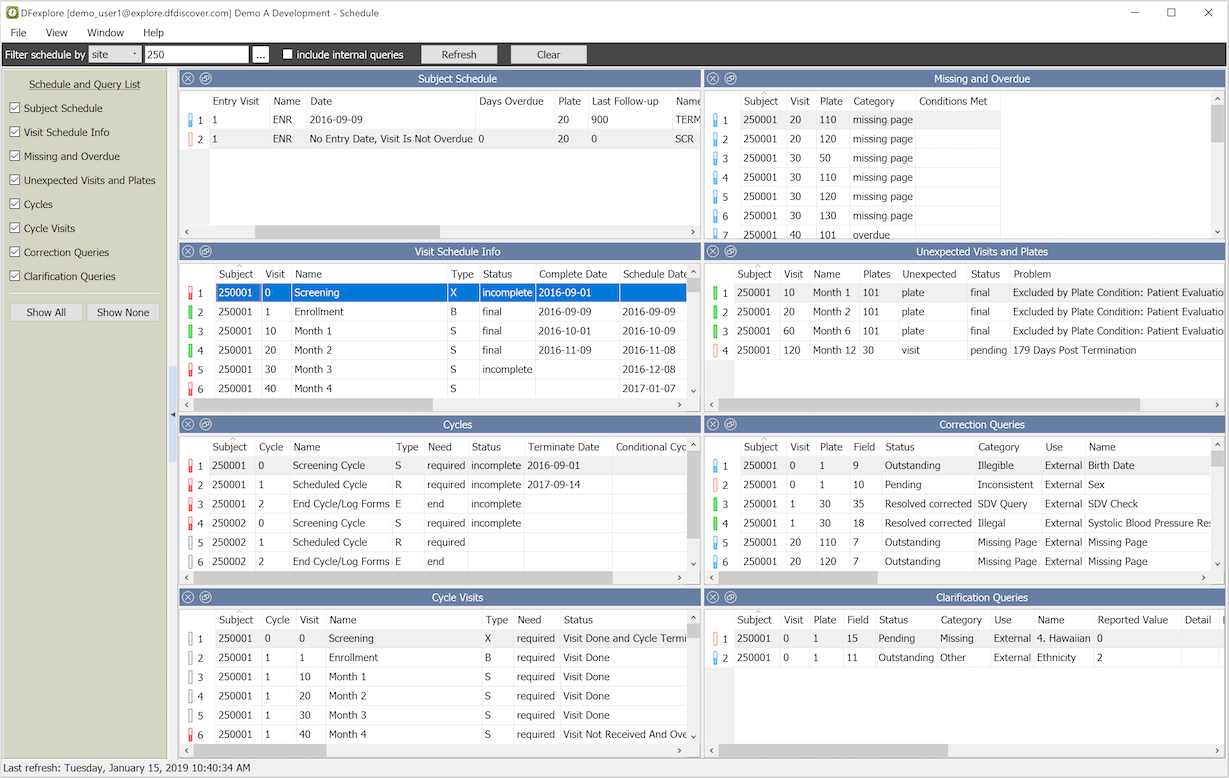
Schedule View displays all schedule information for permitted sites or subjects. The information is shown in several different schedule and query lists, namely:
Subject Schedule. Display an overall summary of the schedule, one record per subject. Per subject, the summary reports the number of outstanding queries, and the dates of entry visit, last follow-up visit and the next follow-up visit, if any.
Visit Schedule Info. Display a detailed summary of the schedule, one record per subject visit. For each subject, each scheduled visit is reported, including completed and not yet completed visits.
Cycles. Display a summary of the schedule, one record per subject cycle. Each cycle is reported with the cycle status, when it completed and what condition, if any, caused the cycle to become required.
Cycle Visits. Display a detailed summary of the schedule, one record per subject visit cycle. Where cycles occur, report the status of the visits within each such cycle.
Missing and Overdue. Display a list of all pages that are required yet missing, as well as all scheduled visits that have not occurred and are identified as overdue.
Unexpected Visits and Plates. Display a list of all CRFs and visits that have been completed but based upon the schedule are not expected.
Correction and Clarification Queries. Display a list of all outstanding queries, separated in two lists based upon their correction or clarification property.
The Schedule View is interactive.
Double-click a row in any list to switch to Data View. The subject, visit and plate identifiers are used to select the matching record in the database, making it current. Further review or editing of the visible record is then possible, as permitted by the role definition. Click the schedule view icon,
 ,
to return to Schedule View.
,
to return to Schedule View.
By default, the contents of each list are sorted in increasing order of Subject ID. To change the sort order, click on the heading of the column used as the sort key. Each click reverses the previous sort order.
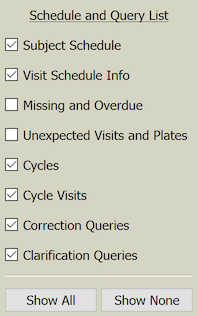
To control which lists are displayed, and updated, use the list control:
Within any list, click the list window control,
 ,
to expand the contents by detaching the list from the main window.
Click the control again to restore the list to the main window.
,
to expand the contents by detaching the list from the main window.
Click the control again to restore the list to the main window.
The contents of Schedule View are aware of the current subject. If a subject binder is open and > is selected, the schedule and query lists are automatically refreshed using the ID of the current subject. If no subject binder is open, the view opens to show the previous schedule, if there was one, or is blank.
To control the contents of Schedule View, use the filter panel.

With no filtering specified, as shown, all permitted subjects and external queries are included. Click to view the results.
To focus on a specific subject, enter the subject ID in the input field and click . To focus on a specific site, choose from the dropdown, enter the site ID or select it from the dialog, and click . By default only queries identified for external use are included. For users that have permission to view internal use queries, mark include internal queries and click . [5]
Schedule View is quite similar to DF_QCupdate in its goals. Both report the visit schedule information for study subjects and identify missing pages and overdue visits. The schedule information presented by both is the same. However, the manner in which the information is generated and maintained differs in several important ways:
The results calculated by DF_QCupdate are static - they are correct at the time that the report is run and then slowly age until refreshed when DF_QCupdate is run again. The results in Schedule View are always up-to-date each time that the Schedule View is presented.
To reflect the results calculated by DF_QCupdate, missing page and overdue visit queries are maintained in the study database. Schedule View does not create missing page or overdue visit queries.
DF_QCupdate requires a user with full database permission to run the report, including the permission to add queries. The results are calculated for the entire study every time. Schedule View can be narrowed down to an individual site, or even an individual subject. The Schedule View does not need query write permission and can also be calculated from a read-only database.
The output from DF_QCupdate is easily shared with external parties, who have no access to the study database, by emailing a PDF generated by DF_QCreports. Schedule View requires that the user has access to DFexplore and at least read access to their site or subject data.
[5] If the user does not have any permission to view internal queries, this option is not present in the filter panel.