Table of Contents
- 1.1. Tests & Requirements
- 1.2. Confirm version information can be obtained for DFdiscover.
- 1.3. Obtain super-user privileges and remove older Acceptance Test Study, if one exists.
- 1.4. Install the Acceptance Test Study.
- 1.5. Define Acceptance Test Study to the DFdiscover server.
- 1.6. Create a role and permissions for
datafax. - 1.7. Creating study roles and permissions.
- 1.8. Creating user accounts and assigning study permissions.
- 1.9. Enable high definition imaging.
- 1.10. Start the Acceptance Test Study Control Panel application.
Confirm version information can be obtained for DFdiscover.
Obtain super-user privileges and remove older Acceptance Test Study, if one exists.
Install the Acceptance Test Study.
Define Acceptance Test Study to the DFdiscover server.
Create a role and permissions for
datafax.Creating study roles and permissions.
Creating user accounts and assigning study permissions.
Enable high definition imaging.
Start the Acceptance Test Study Control Panel application.
Estimate of Time Required: 30 Minutes
-
Confirm the Acceptance Test Kit is installed on the following Linux operating system:
Red Hat / CentOS
SUSE
-
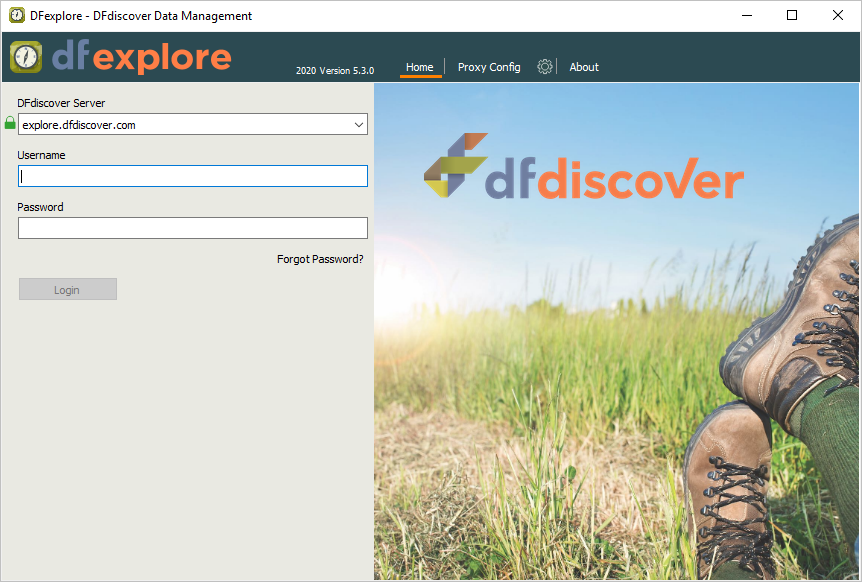
Confirm DFdiscover version information by starting DFexplore.
-
In the login dialog, click . Confirm that the version information in the dialog matches the installed software Version 5.3.X.
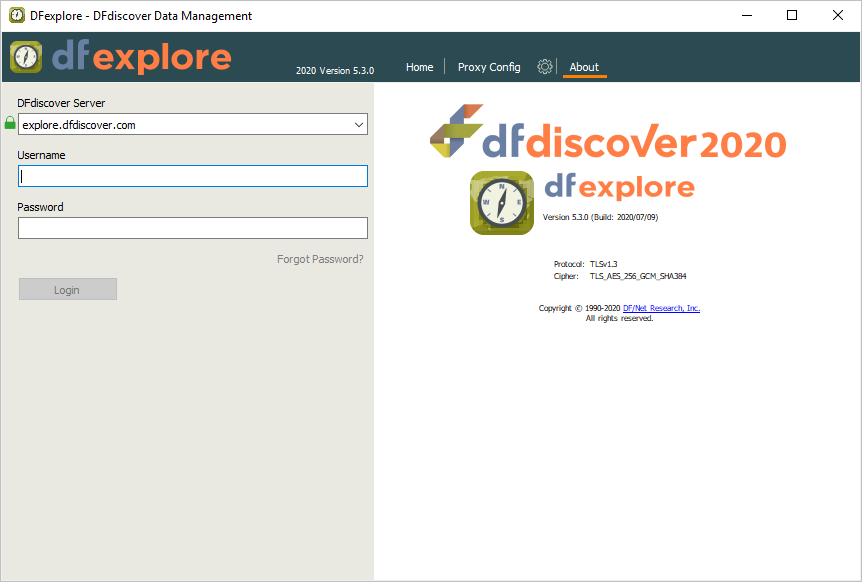
If the version is not DFdiscover 2020 Version 5.3.X, you must stop at this point. The Acceptance Test Kit is specifically designed for release DFdiscover 2020 Version 5.3.X.
Exit DFexplore.
![[Note]](../../imagedata/note.png) | Note |
|---|---|
This step is required only if 254 Acceptance Test Study already exists on your DFdiscover server. If it does not currently exist on your DFdiscover server, skip this section and continue with Section 1.4, “Install the Acceptance Test Study. ”. If an earlier version does exist on your server, delete it prior to installation by following these steps. |
-
Start DFadmin. Login to your DFdiscover Server as
datafax.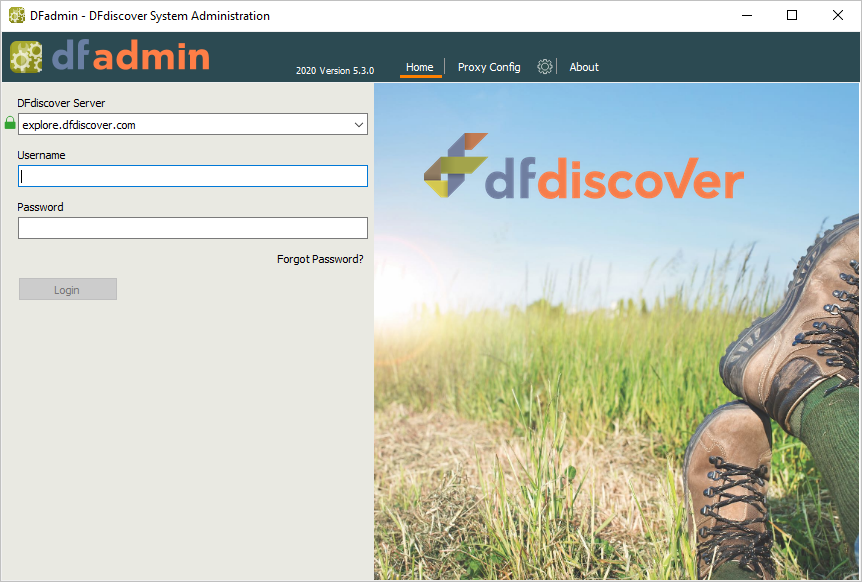
-
Specify a Username of
datafax, and the assigned user password in the Password field. Click to complete login and continue.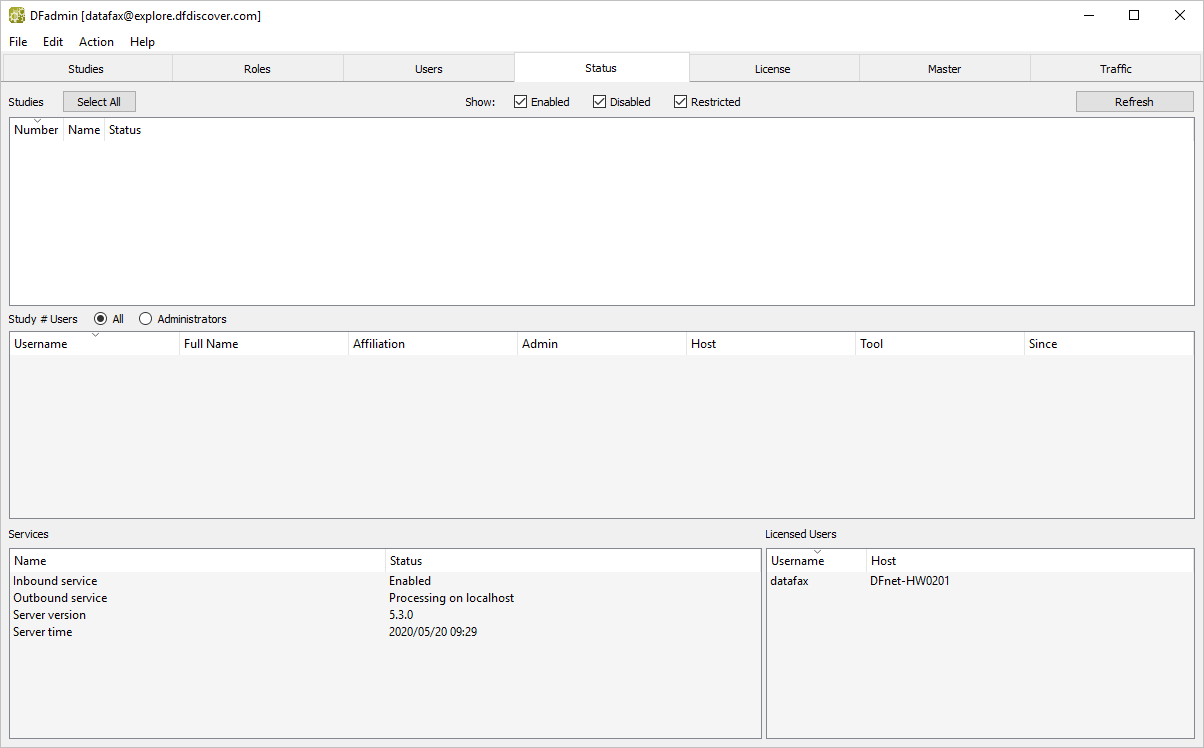
Click Status Tab.
The list of studies defined on your DFdiscover Server will be displayed in the studies list.
-
Select the entry for 254 Acceptance Test Study from the list of studies. Select > . In the confirmation dialog, enter the text
Study Removal.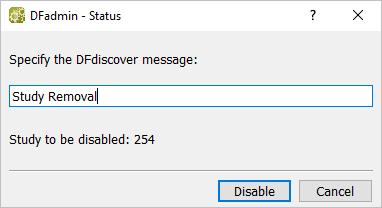
-
Click to disable the Acceptance Test Kit.
-
Click Studies tab. Select the entry for 254 Acceptance Test Study if it is not already highlighted. Click .
From the 3 delete options, choose Remove Study from DFdiscover.
-
Click in the confirmation dialog to continue with the delete.
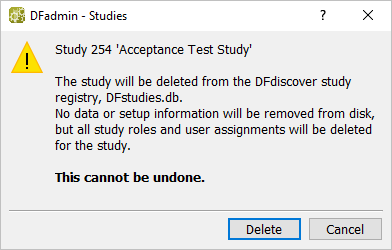
-
In the Remove Study dialog, de-select (disable) Archive Study Permissions and click .
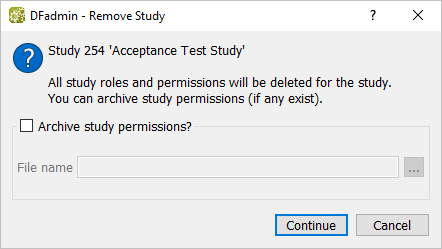
-
To confirm, enter the password for
datafaxand click . Close the study removal confirmation dialog by clicking .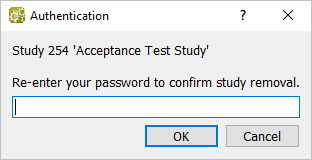
| Note |
|---|---|
Existing Acceptance Test Kit directories,
If the directories are present at this time, installation of the DFdiscover 2020 Version 5.3.X Acceptance Test Kit will create a TAR file of the existing installation and re-install the updated DFdiscover 2020 Version 5.3.X |
-
The DFATK-5.3-X.x86_64.rpm file can be found on www.dfnetresearch.com in the Support section. After downloading the DFATK-5.3-X.x86_64.rpm execute the installation using rpm on OpenSUSE & RHEL operating systems. The installation defaults to the
/opt/studiesdirectory, this can be changed using the rpm --prefix=NEWPATH flag.New installations using rpm, which will automatically download and install any dependencies required:
#rpm -ivh DFATK-5.3-X.x86_64.rpmOR, specify an alternative installation location:
#rpm -ivh --prefix=NEWPATH DFATK-5.3-X.x86_64.rpmNote Use of rpm --prefix=NEWPATH does not alter current definitions of
DFstudyspaces.dborDFstudies.db. These files must be manually updated to inlcude the specified prefix pathing.Confirm the presence of 254 Acceptance Test Study with the command:
#ls -d /opt/studies/val254/opt/studies/val254
-
Return to DFadmin, select the Studies tab. Add a definition for 254 Acceptance Test Study. Click and complete the dialog with the following values:
Study Number:
254Study Name:
Acceptance Test StudyStudy Space:
opt_studies(or the name of the Study Space for the /opt/studies directory)Study Folder:
val254Select Restore previous Study at this location
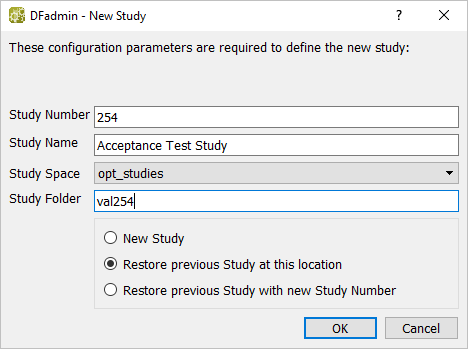
Note The name of your Study Space may differ from that shown here if the Study Space is something other than
opt_studieson your DFdiscover server. Click to confirm the action and add an entry for 254 Acceptance Test Study to the list of studies.
-
Verify configuration information and set the Preset Printer. Select the newly added 254 Acceptance Test Study entry from the list of studies. Click Configurations tab and enter the name of a networked printer in the Preset Printer field.
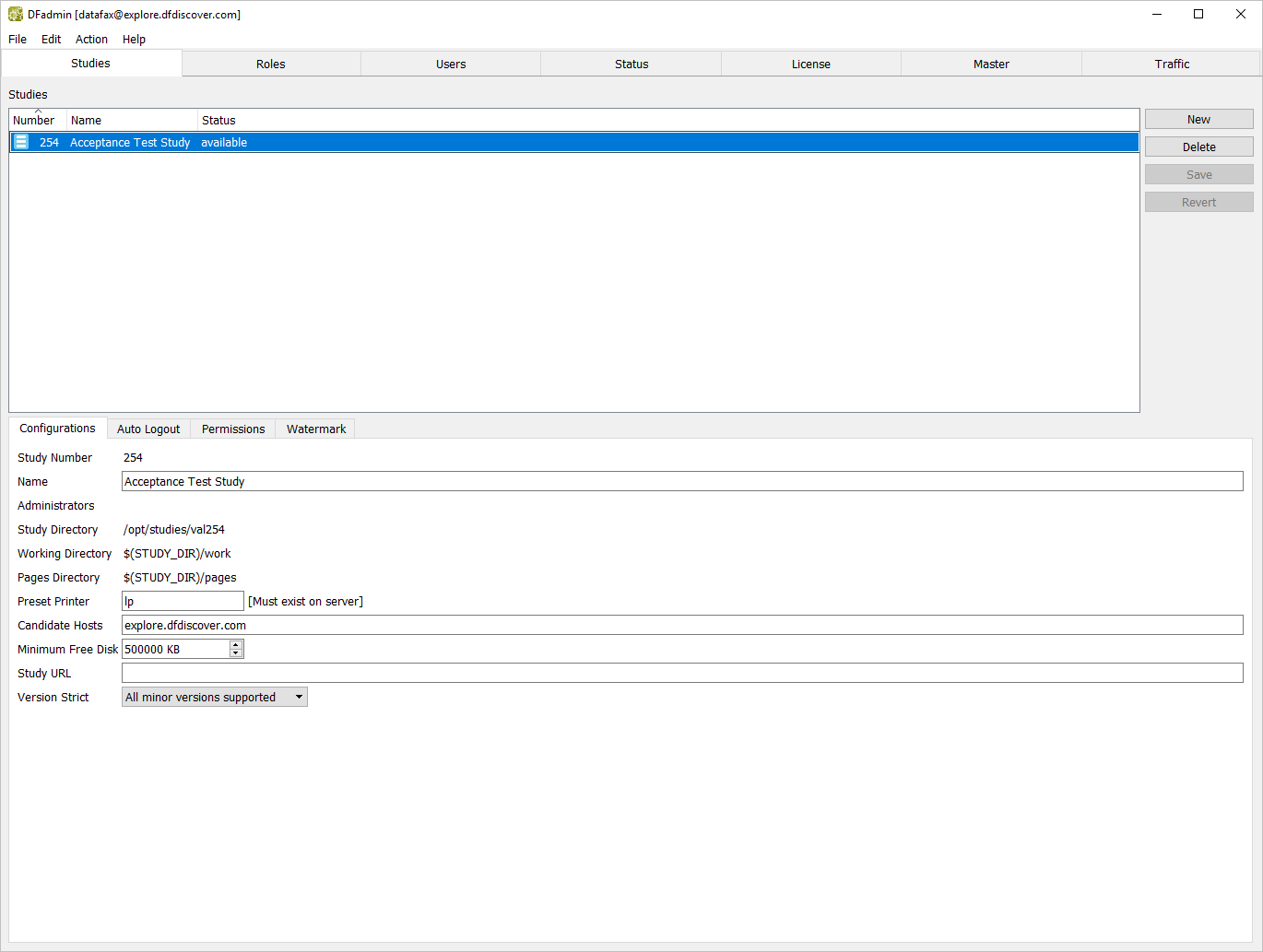
Choose All minor versions supported from the Version Strict drop-down.
Select > or click to save the configuration information.
User datafax is already defined on your DFdiscover installation, however, you must grant user datafax a role and permissions to be able to access 254 Acceptance Test Study.
-
Click Users tab. Confirm that user
datafaxis present in the Username column for one user row.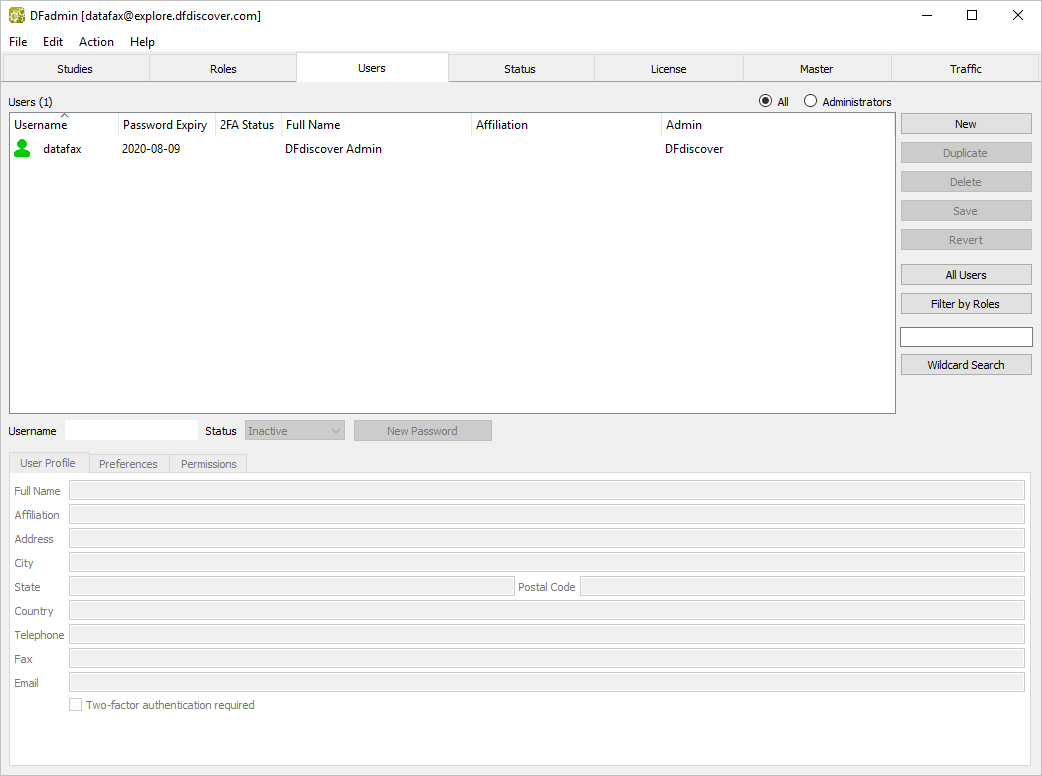
-
Create a Role for user
datafax. Begin this task by clicking the Roles tab.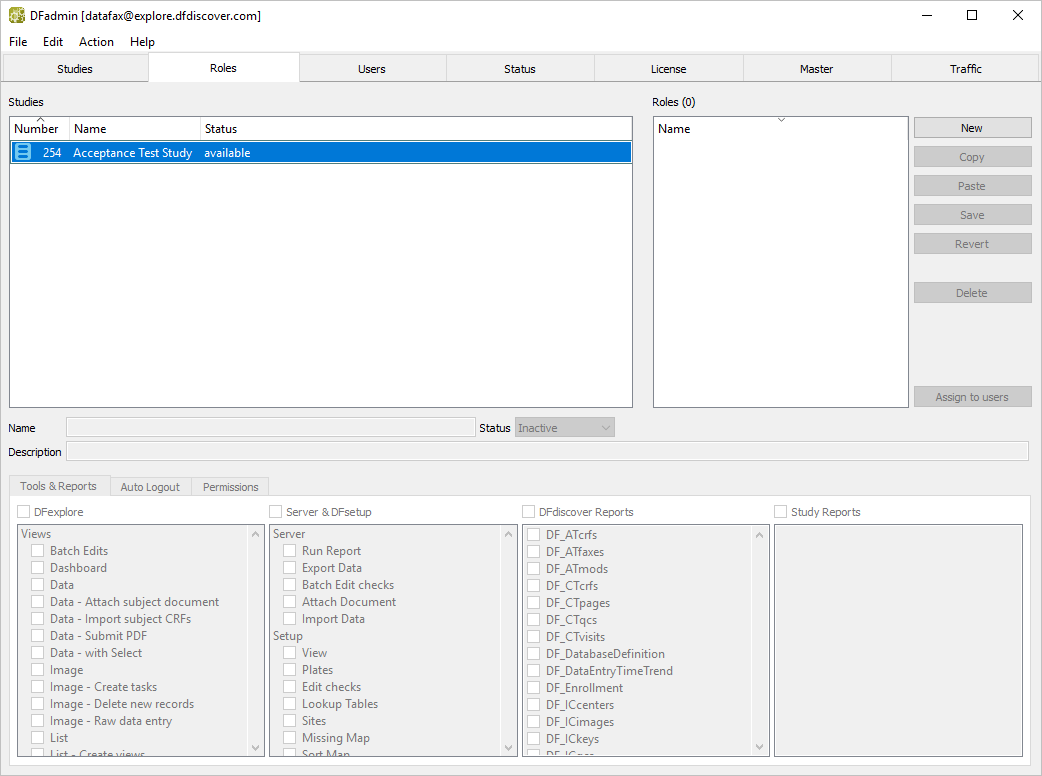
-
Within the list of studies, locate and choose the entry for 254 Acceptance Test Study. Click to add a new user role. In the dialog, enter the role name
Unrestricted.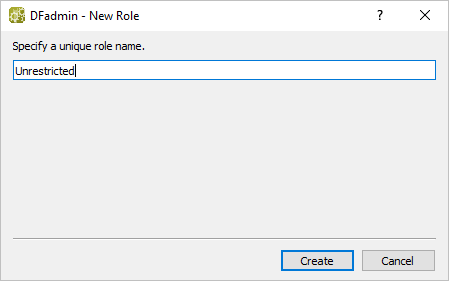
-
Click to create the new role
Unrestricted.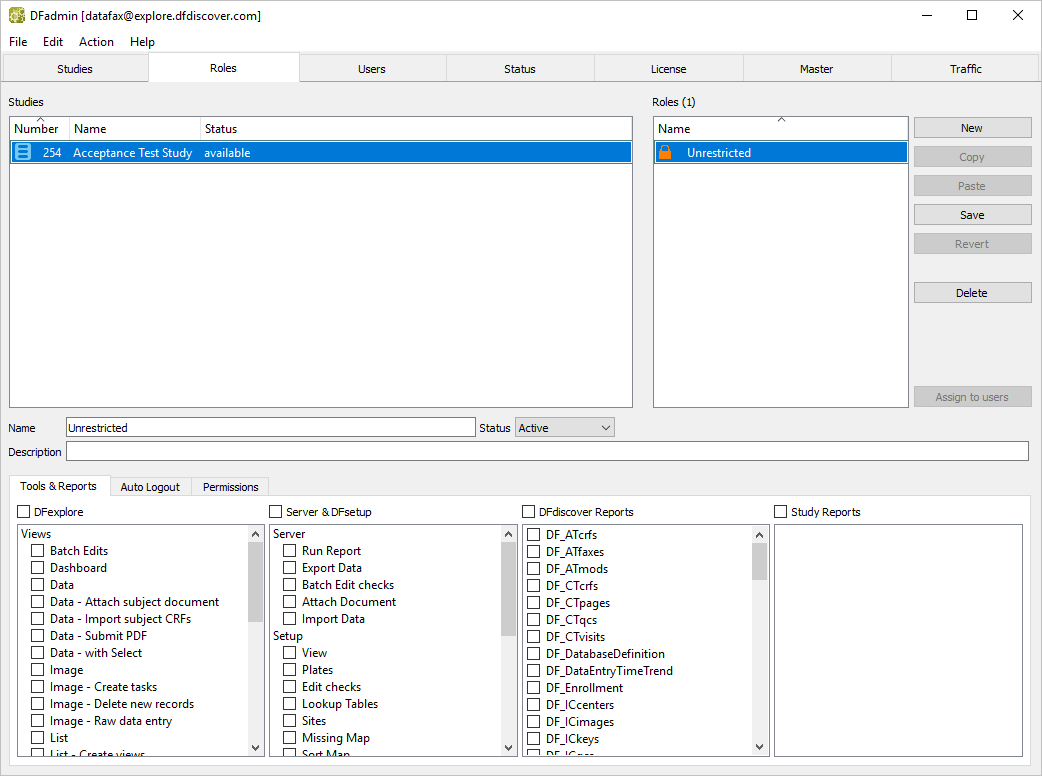
-
Define Tools & Reports permissions for the
Unrestrictedrole. HighlightUnrestrictedin the Roles list to make it the active role. EnterFull Permissionsin the Description field.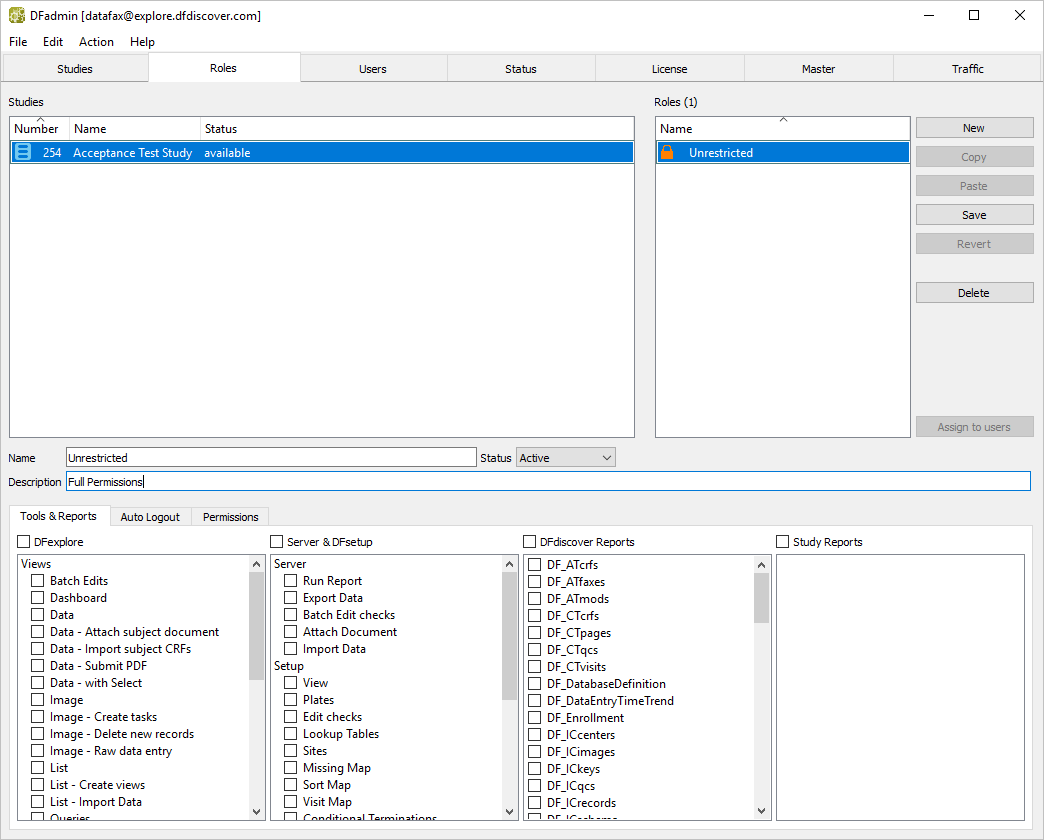
-
Click Tools & Reports tab below the Description field. Check (enable) each of the following: DFexplore, Server & DFsetup, DFdiscover Reports, and Study Reports.
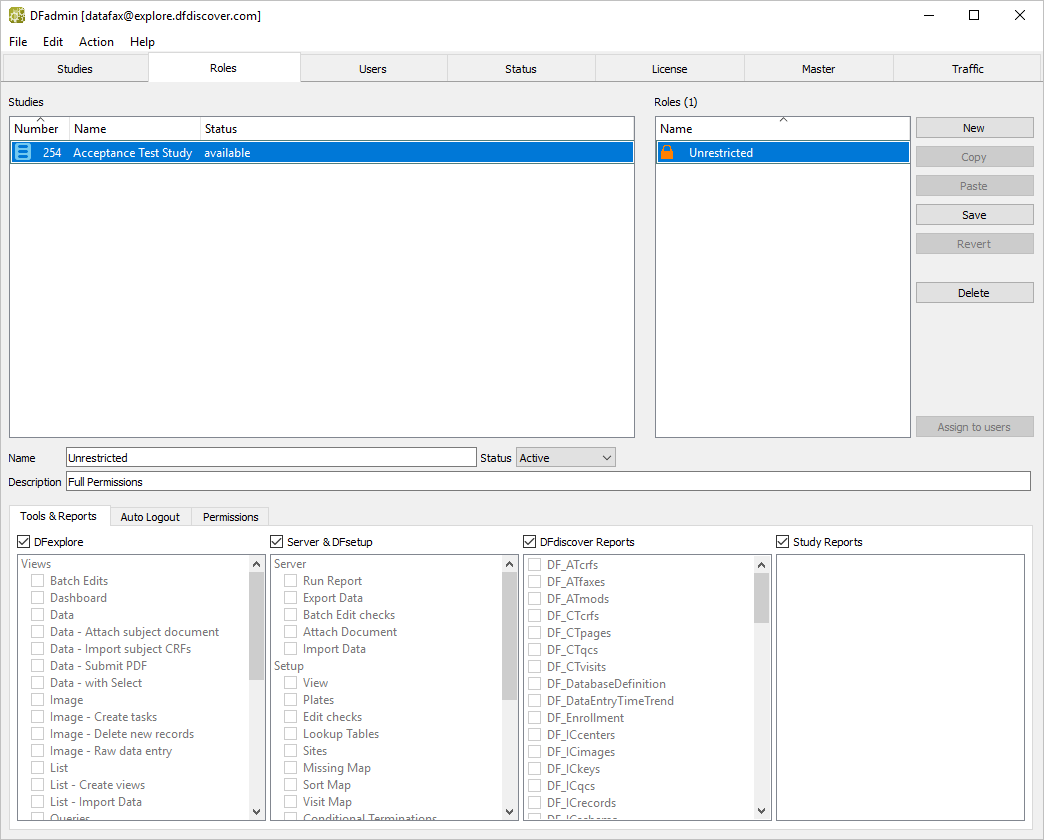
-
Click Auto Logout tab. If not already enabled, check (enable) the Inherit from Study box to override the default Auto Logout settings with those of the ATK study.
-
Click Permissions tab.
-
Set data permissions as follows:
Visits =
ALLPlates =
ALLLevels =
ALLCheck (enable) Show Hidden Fields
Check (enable) Show Int. Queries
Modify =
0-7Write Levels =
0-7Data = Check (enable) CMDL (Create, Modify, Delete, Missed), but not P (Password)
Queries = Check (enable) CMDAR (Create, Modify, Delete, Approve, Reject)
Reasons = Check (enable) CMDA (Create, Modify, Delete, Approve)
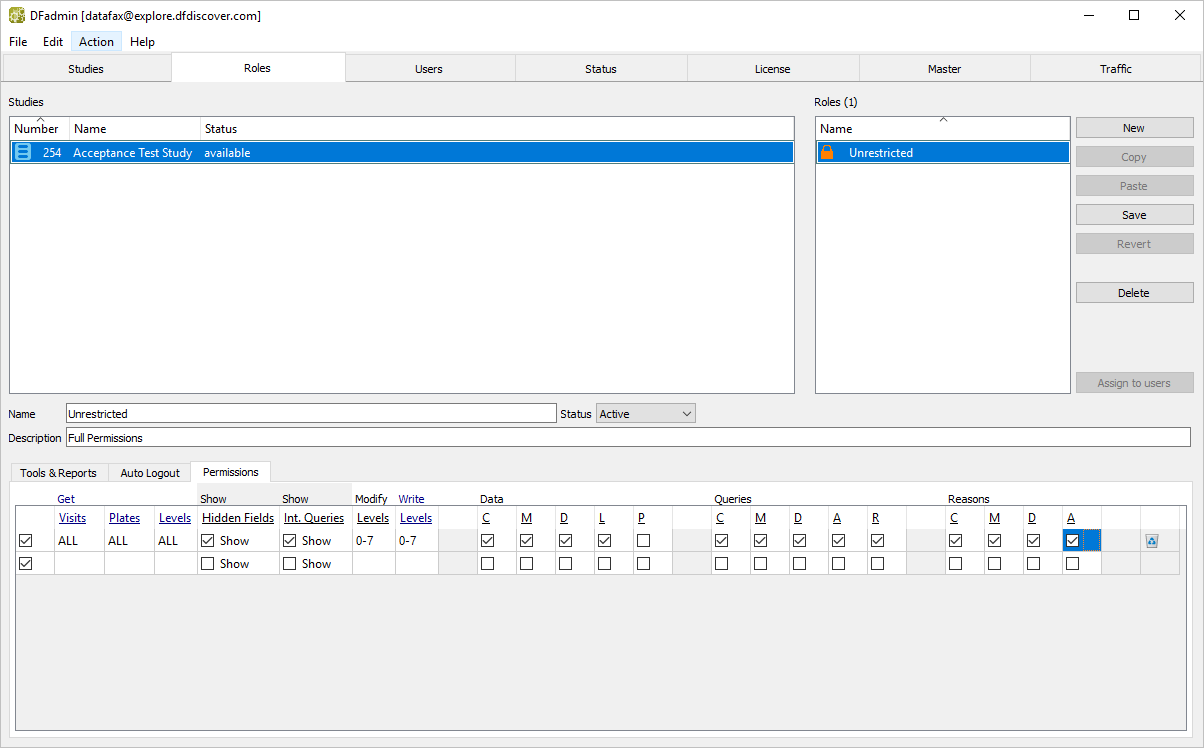
Select > or click to save settings for role
Unrestricted.Still as
datafaxand with the DFadmin application open, click Users tab.-
Set permissions for
datafax. Click the entry fordatafaxfrom the list of users to make it active. Click Permissions tab. Check (enable) Allow access to Image Router.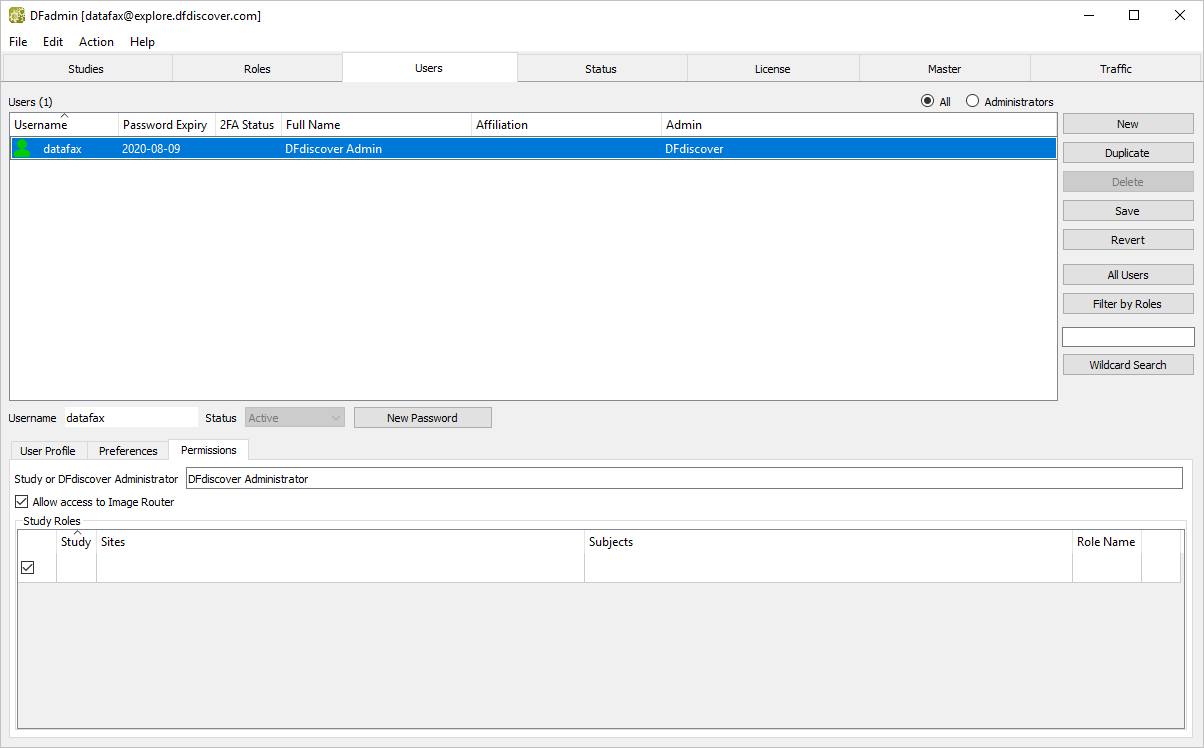
-
To assign a study to
datafax, click the blank area below the Study heading. Select 254 Acceptance Test Study from the Study drop-down. Set:Sites =
AllSubjects =
AllRole Name = Unrestricted
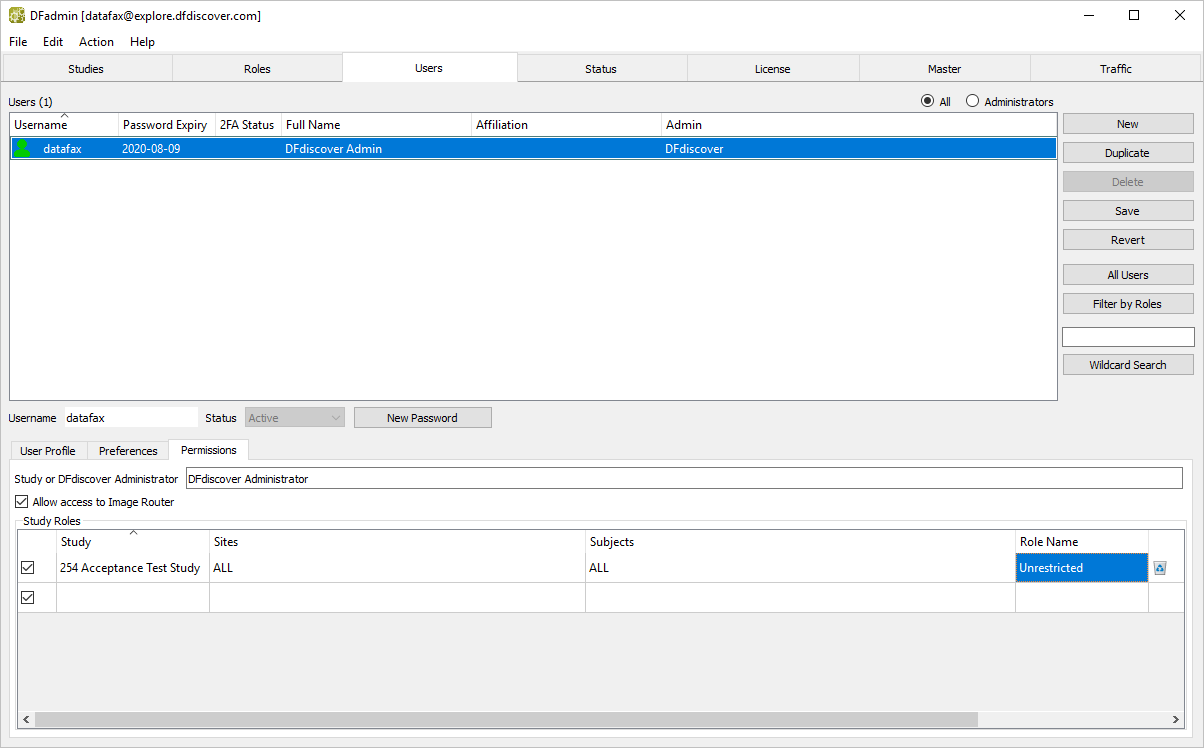
Click to save the role and permissions for
datafax.
-
Create a Role for user
data_coordinator. Begin this task by clicking the Roles tab.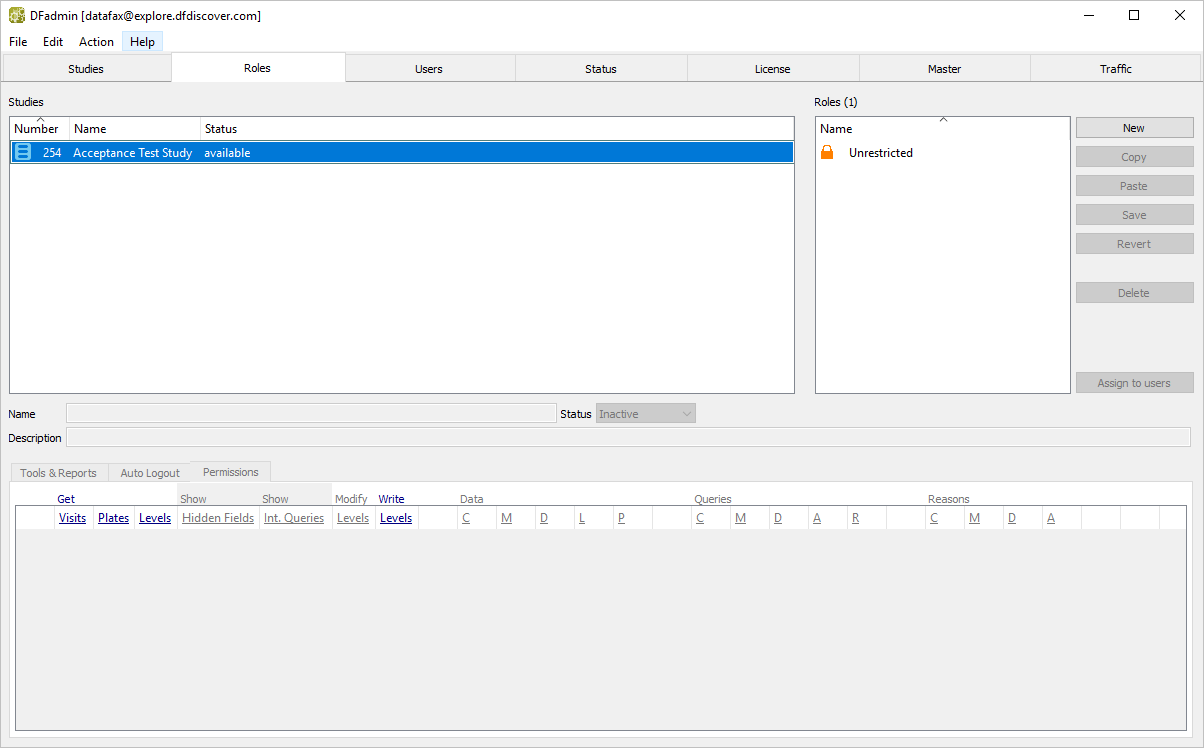
-
In the list of studies, locate and choose 254 Acceptance Test Study. Click to add a new user role. In the confirmation dialog, enter the role name
data_coordinator.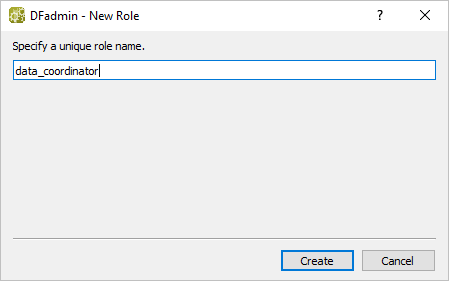
-
Click in the New Role dialog to apply the role name.
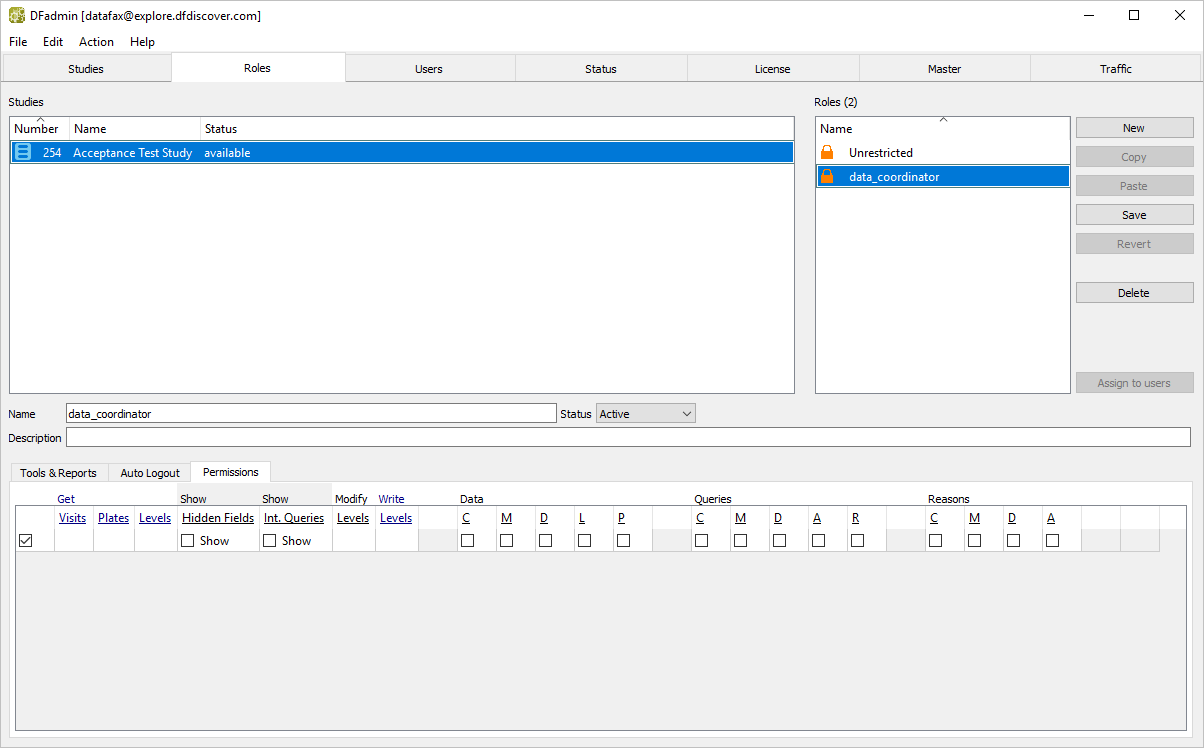
-
In the Description field enter:
Levels 0-4, data entry and meta data.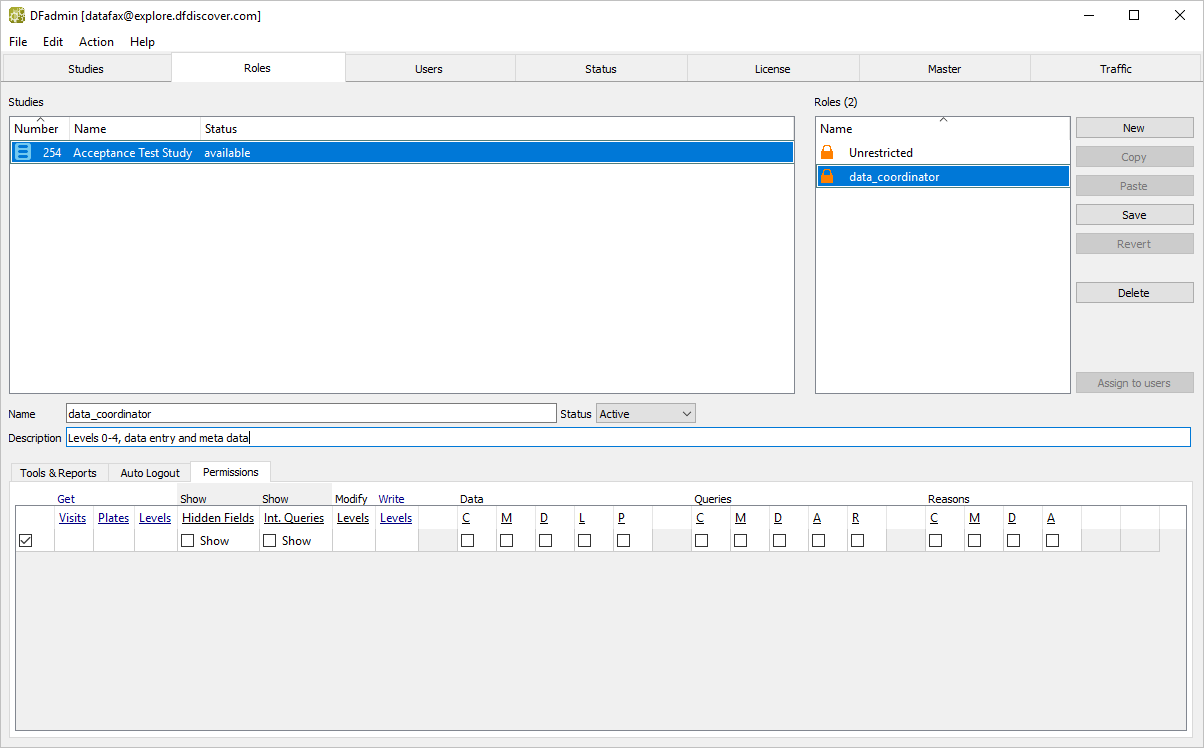
-
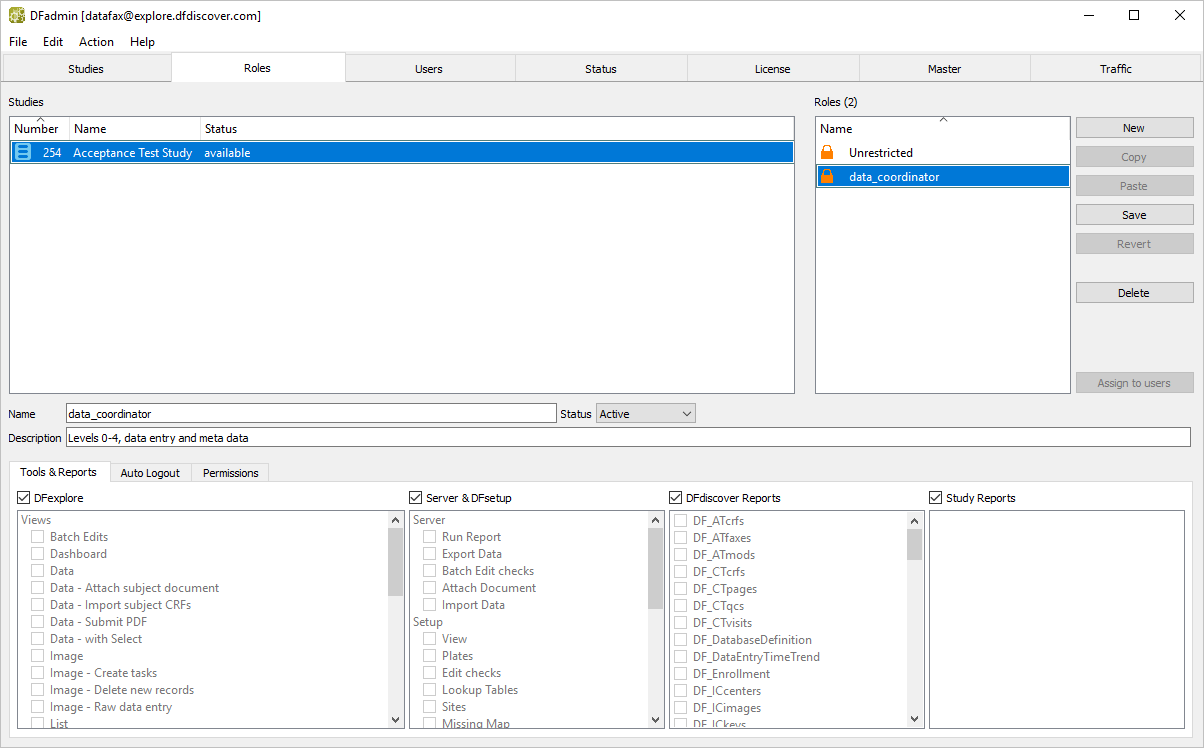
Click Tools & Reports tab. Check (enable) each of the following: DFexplore, Server & DFsetup, DFdiscover Reports, and Study Reports.
-
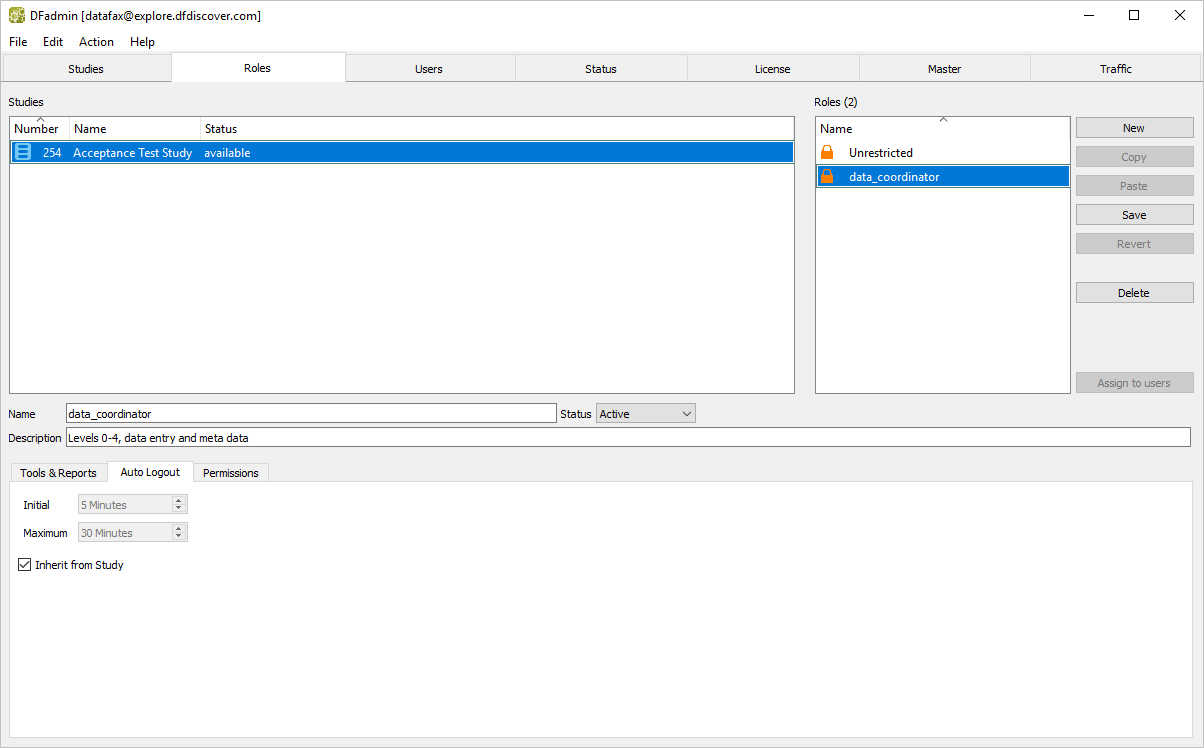
Click Auto Logout tab. If not already checked (enabled), check Inherit from Study to override the default Auto Logout setting with the study setting.
-
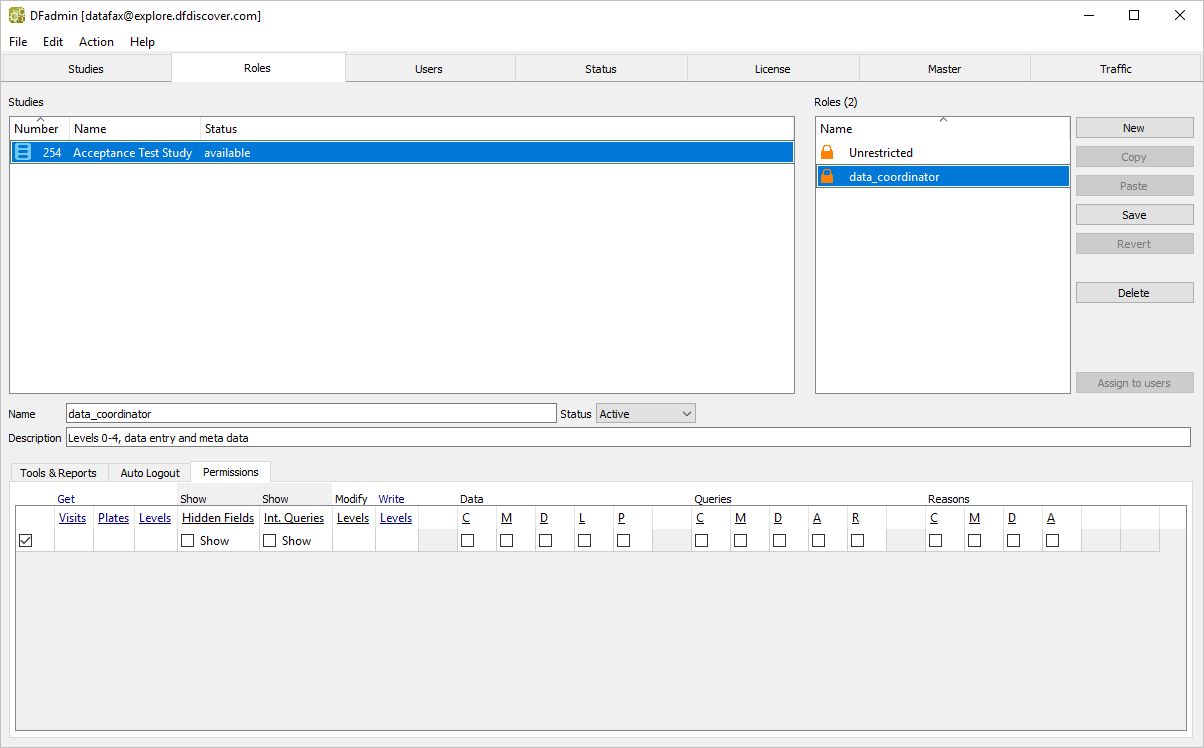
Click Permissions tab.
-
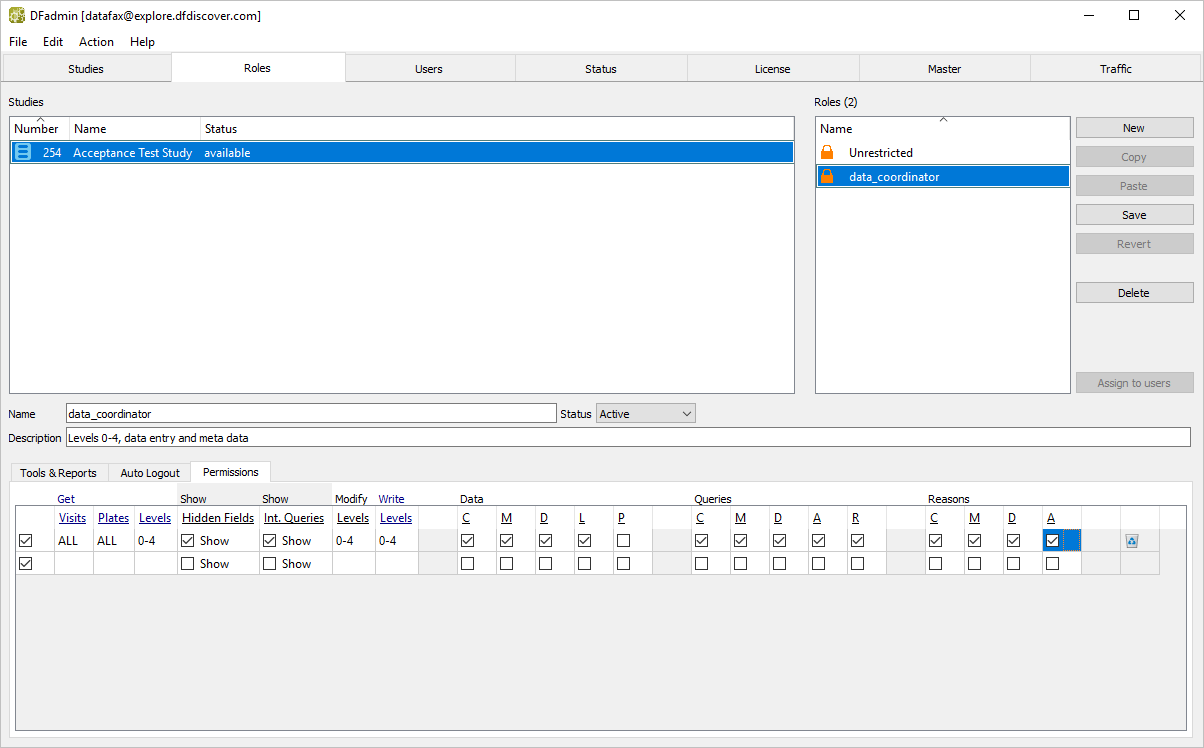
Set data permissions with the following settings:
Visits =
ALLPlates =
ALLLevels =
0-4Check (enable) Show Hidden Fields
Check (enable) Show Int. Queries
Modify Levels =
0-4Write =
0-4Data Check (enable) = CMDL (Create, Modify, Delete, Missed), but not P (Password).
Queries Check (enable) = CMDAR (Create, Modify, Delete, Approve, Reject)
Reasons Check (enable) = CMDA (Create, Modify, Delete, Approve)
-
Click to save the role.
-
Click then , specify a role name of
site_investigator. Click . -
Click Permissions tab.
-
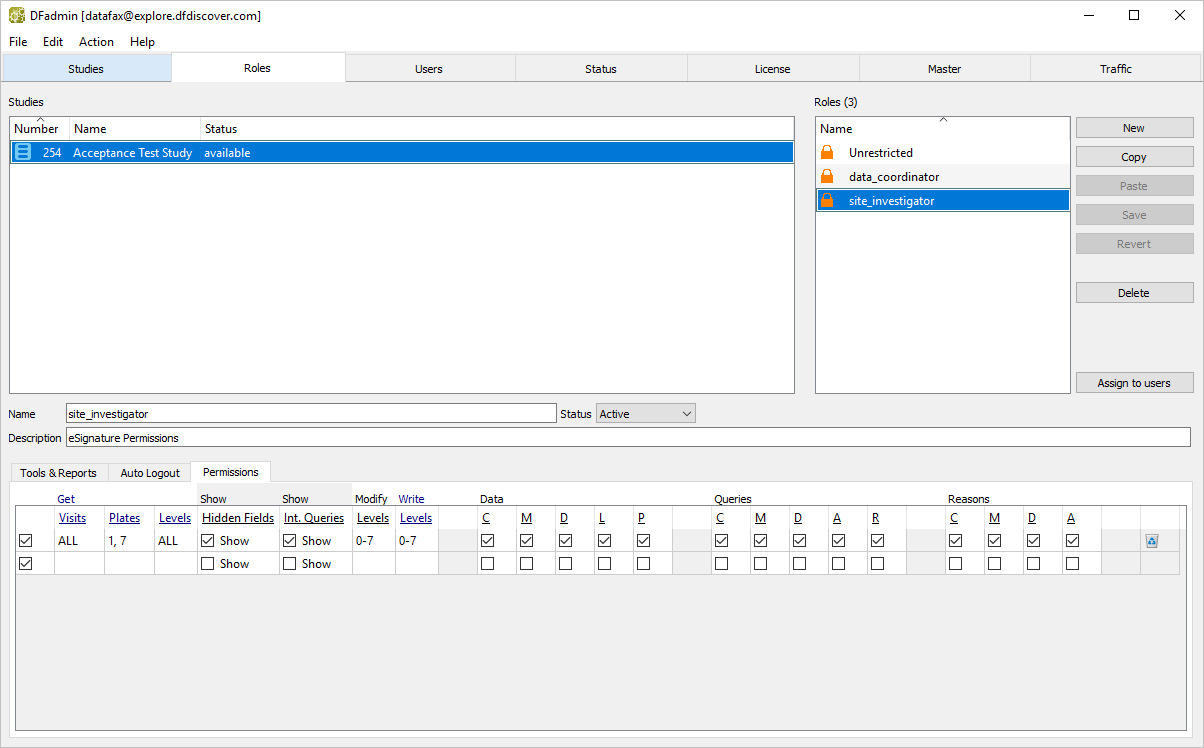
Enter a Description of
eSignature Permissions. Set data permissions as follows:Visits =
ALLPlates =
1,7Levels =
ALLCheck (enable) Show Hidden Fields
Check (enable) Show Int. Queries
Modify =
0-7Write Levels =
0-7Data = Check (enable) CMDLP (Create, Modify, Delete, Missed, Password)
Queries = Check (enable) CMDAR (Create, Modify, Delete, Approve, Reject)
Reasons = Check (enable) CMDA (Create, Modify, Delete, Approve)
Click .
Still as
datafaxand with the DFadmin application open, click Users tab to open the user definition window.-
Determine if user
data_coordinatorhas already been defined. Review the list of users to determine if an entry exists for userdata_coordinator. -
Click to add a DFdiscover account for user
data_coordinator. In the dialog, enter the Usernamedata_coordinatoras shown.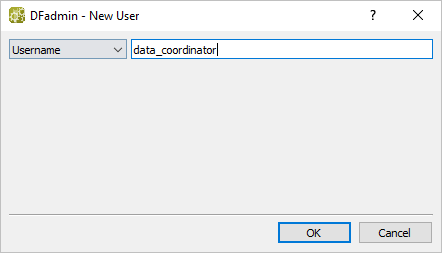
Click to add
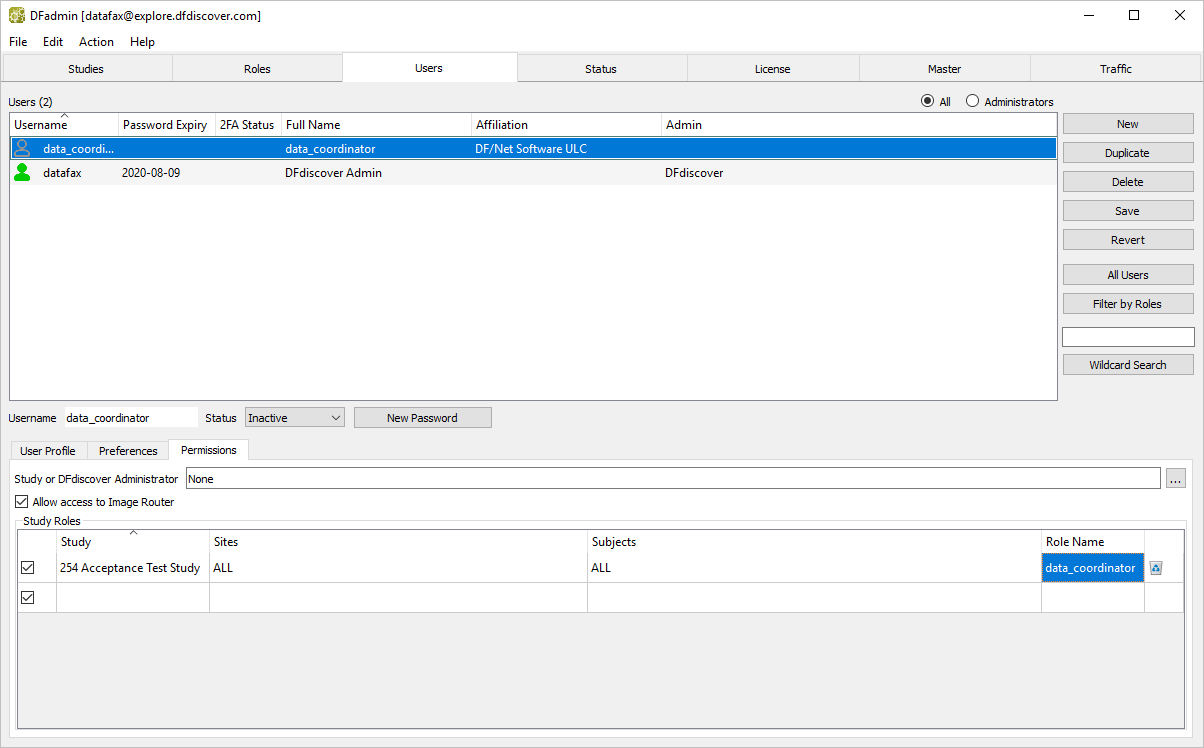
data_coordinatorto the list of users. An empty icon representsdata_coordinator, the status ofdata_coordinatoris set to Inactive.-
Choose the
data_coordinatorentry from the list of users if it is not already highlighted. Click User Profile tab. Enter these settings:Full Name =
data_coordinatorAffiliation =
DF/Net Software ULCEmail =
Your email address
Note A valid email address is required to receive module specific PDF files if you have not specified a printer in the Master view.
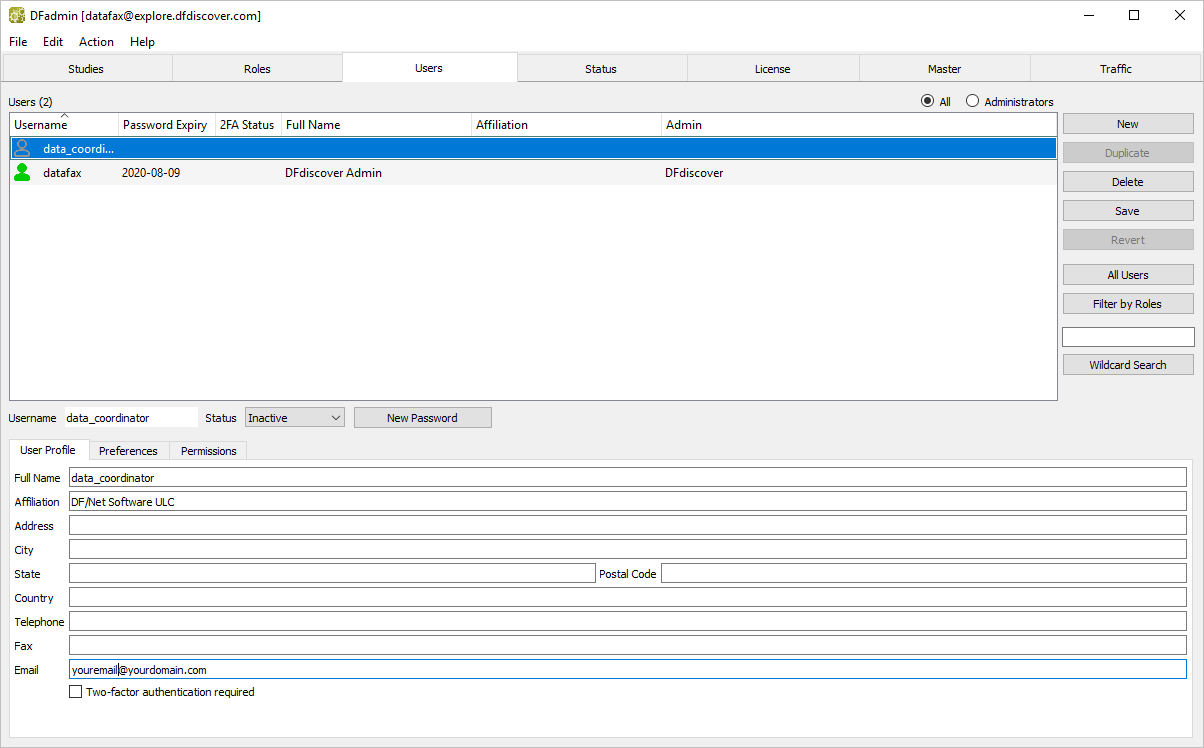
No further user profile information is needed. Click .
-
With user
data_coordinatorstill as the active user, click Permissions tab. Check (enable) Allow access to Image Router.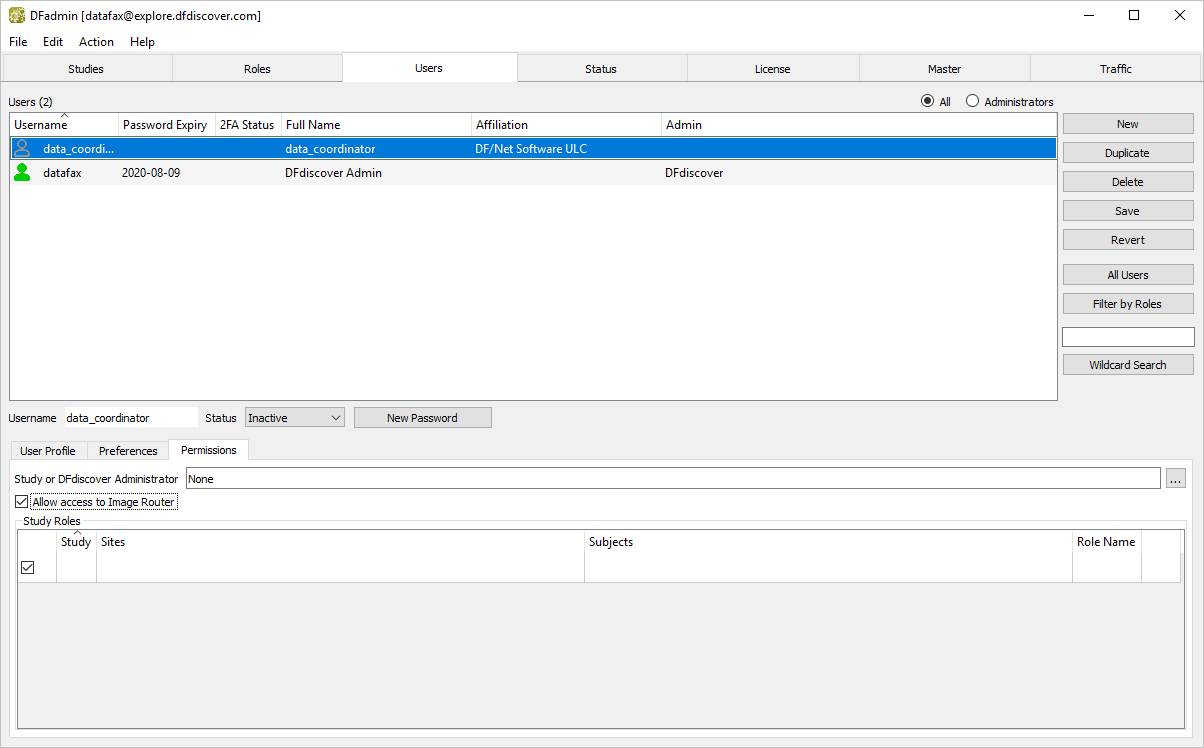
-
To assign a study to
data_coordinator, click the blank area below the Study heading. Select 254 Acceptance Test Study from the Study drop-down. Set:Sites =
AllSubjects =
AllRole Name = data_coordinator
-
Select Active from the Status drop-down list to change the status from Inactive to Active for user
data_coordinator.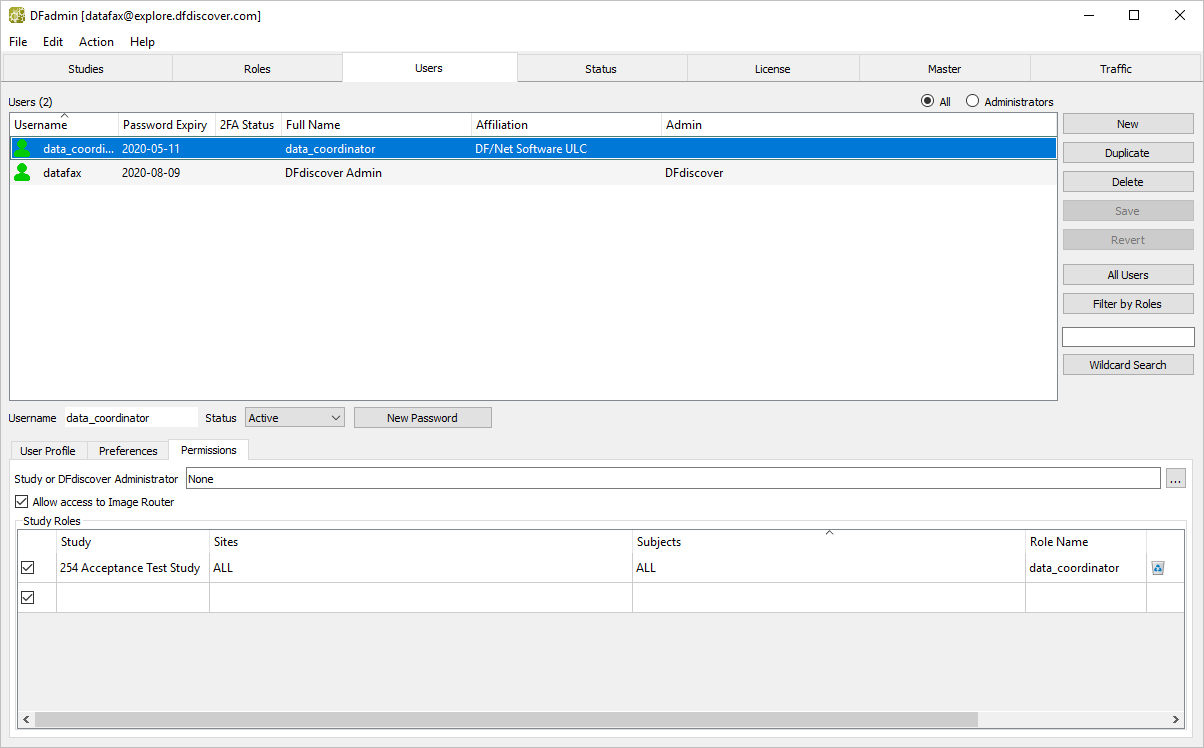
-
Assign a DFdiscover password for
data_coordinatorby clicking . Enter a password of your choice in place of the auto-generated system password.Note Remember the password assigned in this step as it is needed in future tests.
Save all previously entered permissions, roles and password by clicking .
-
Locate and choose the entry for user
data_coordinatorin the list of users. Click Permissions tab and confirm the following settings. If any of the following permissions do not appear as shown below, set them now.Allow access to Image Router box is checked (enabled)
254 Acceptance Test Study is assigned to user
data_coordinator.Sites =
ALLSubjects =
ALLRole Name = data_coordinator
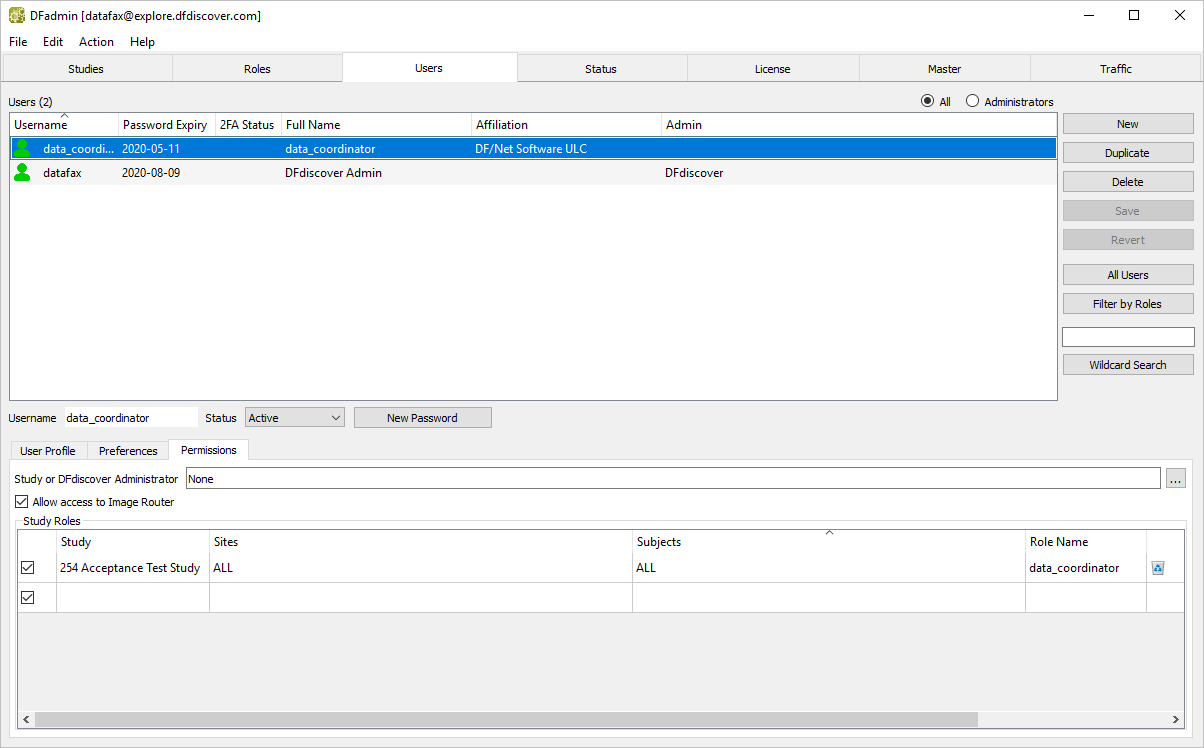
Verify the status for
data_coordinator. Ifdata_coordinatoris set to Inactive, select Active from the Status drop-down list.-
Assign a DFdiscover password for
data_coordinatorby clicking . Enter a password of your choice in place of the auto-generated system password.Note Remember the password assigned in this test step as it is needed in future tests.
Save all previously entered permissions, roles and password by clicking .
-
With
data_coordinatoras the active user, click . In the dialog enter a username ofdata_manager. Click . -
Specify a Full Name of
data_manager. Click Permissions tab, then within the Study or DFdiscover Administrator. Select Study Admin for Selected Studies, check (enable) 254 Acceptance Test Study. Click .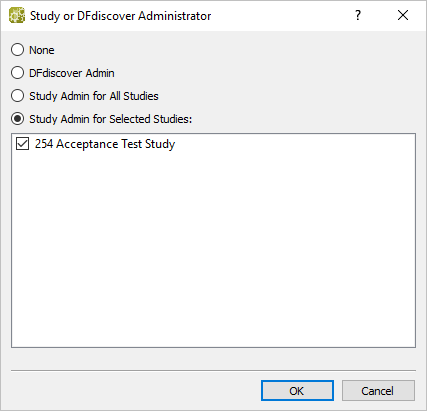
-
Confirm the Study Roles permissions. If any of the following permissions do not appear as shown below, set them now.
Allow access to Image Router box is checked (enabled)
254 Acceptance Test Study is assigned to user
data_manager.Sites =
ALLSubjects =
ALLRole Name = Unrestricted
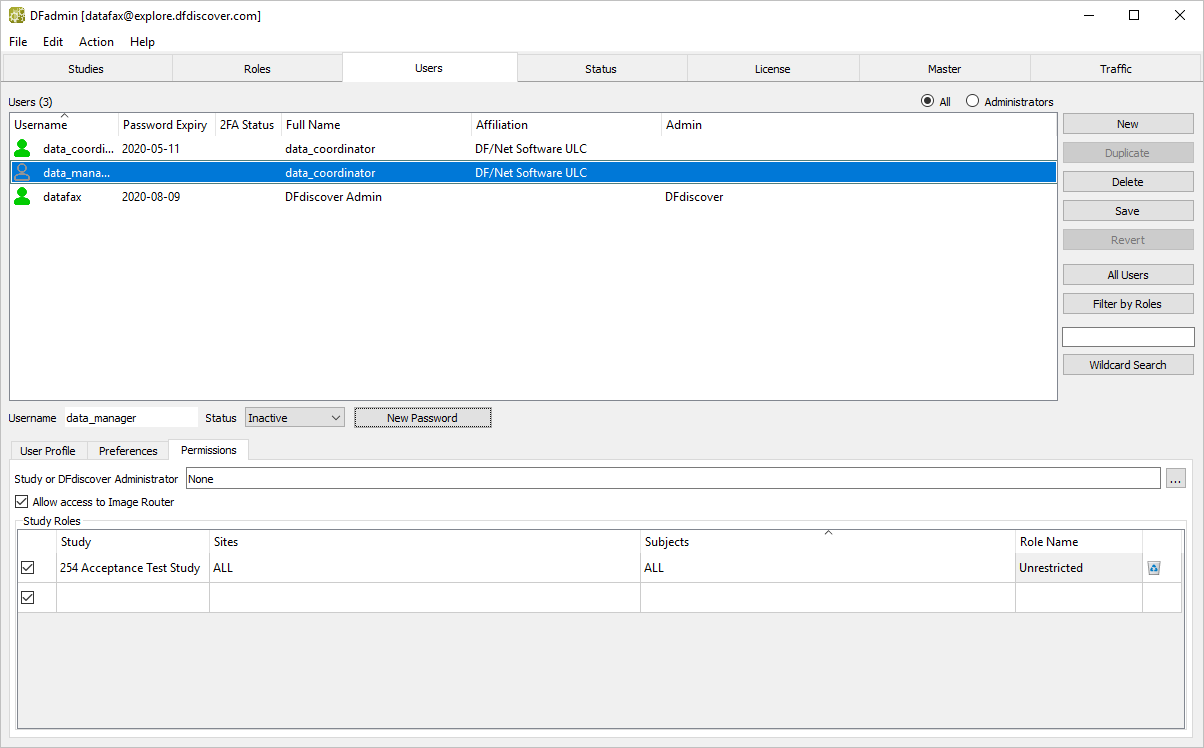
Verify the status for
data_manager. Ifdata_manageris set to Inactive, select Active from the Status drop-down list.-
Assign a DFdiscover password for
data_managerby clicking . Enter a password of your choice in place of the auto-generated system password. Click .Note Remember the password assigned in this test step as it is needed in future tests.
-
Click
data_coordinatorto make it the active user. Click . In the dialog enter a username ofsite_monitor. Click -
Specify a Full Name of
site_monitor. Click Permissions tab and confirm the following settings. If any of the following permissions do not appear as shown below, set them now.Allow access to Image Router box is unchecked (disabled)
254 Acceptance Test Study is assigned to user
site_monitor.Sites =
99Subjects =
ALLRole Name = data_coordinator
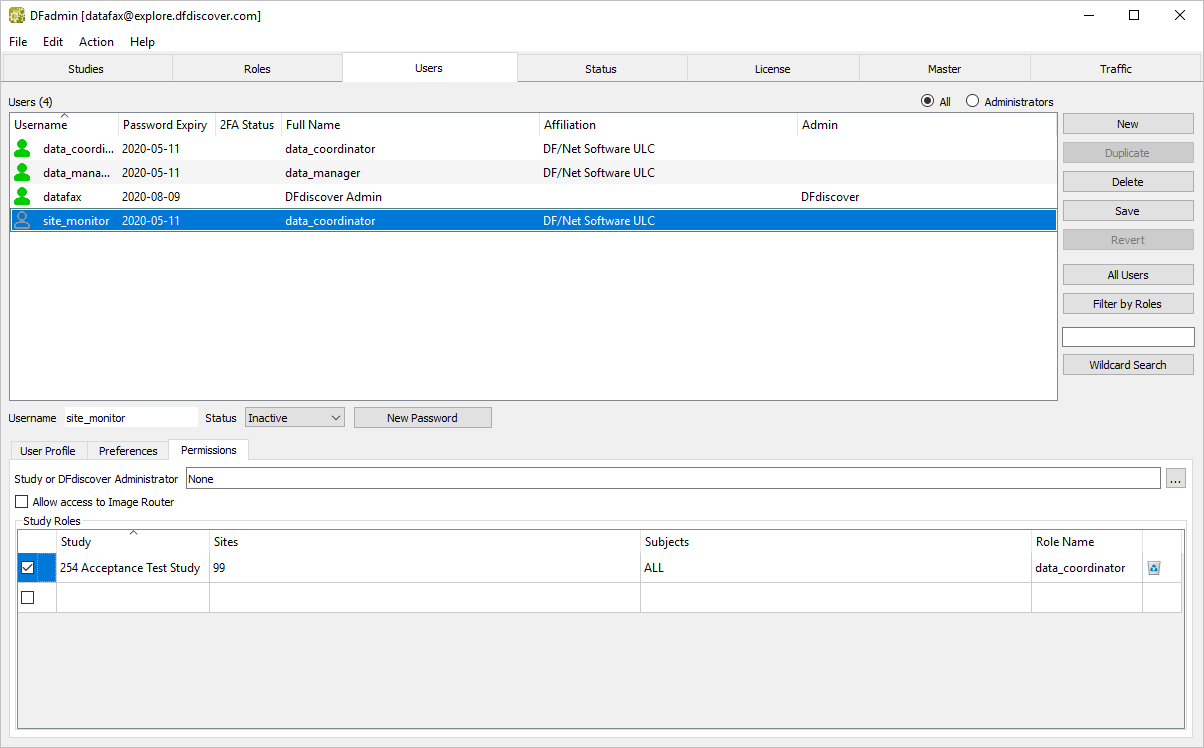
Verify the status for
site_monitor. Ifsite_monitoris set to Inactive, select Active from the Status drop-down list.-
Assign a DFdiscover password for
site_monitorby clicking . Enter a password of your choice in place of the auto-generated system password. Click .Note Remember the password assigned in this test step as it is needed in future tests.
-
With
site_monitoras the active user, click . In the dialog enter a username ofsite_invest. Click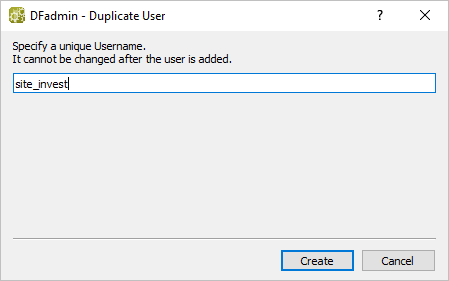
-
Specify a Full Name of
site_investigator. Check (enable) Two-factor authentication required.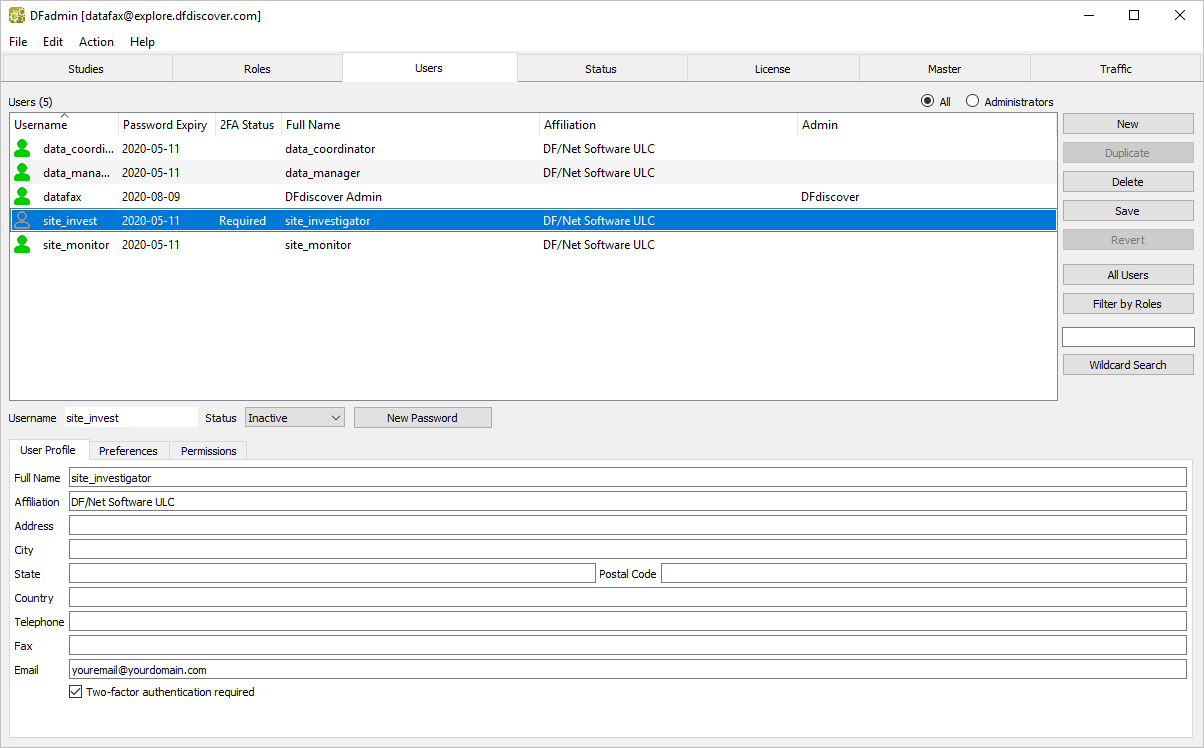
-
Click Permissions tab and confirm the following settings. If any of the following permissions do not appear as shown below, set them now.
Allow access to Image Router box is unchecked (disabled)
254 Acceptance Test Study is assigned to user
site_invest.Sites =
99Subjects =
ALLRole Name = site_investigator
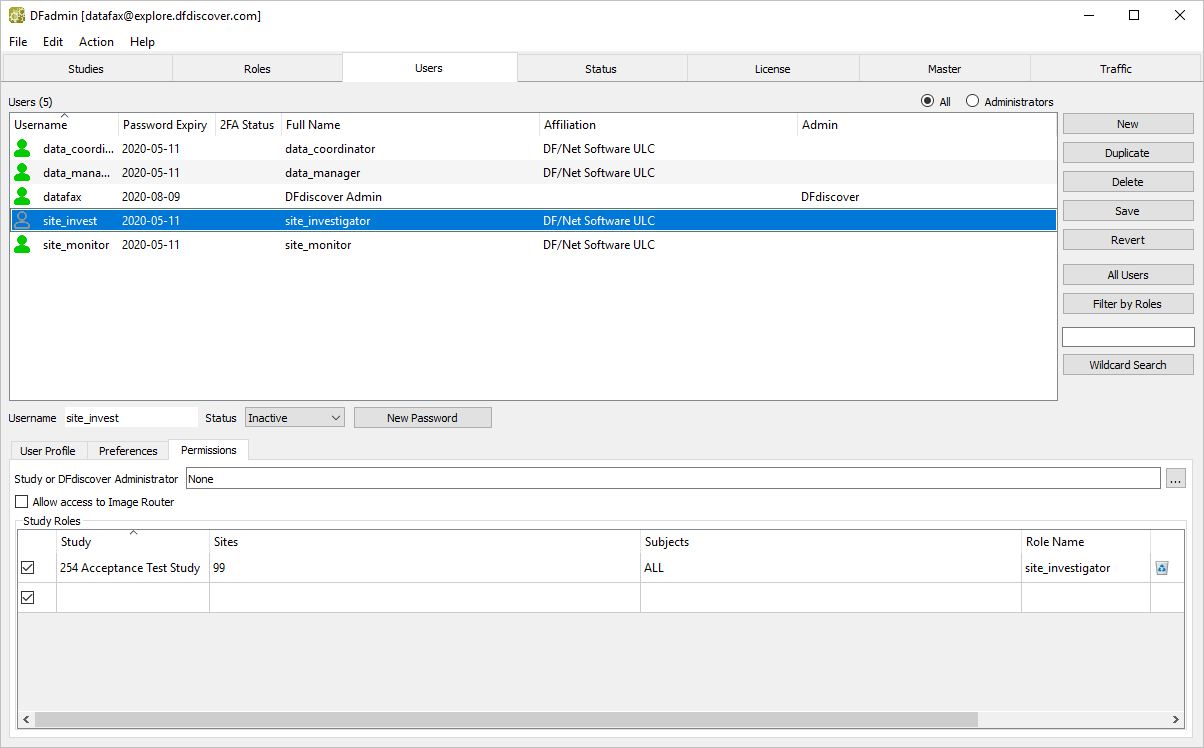
Verify the status for
site_invest. Ifsite_investis set to Inactive, select Active from the Status drop-down list.-
Assign a DFdiscover password for
site_investby clicking . Enter a password of your choice in place of the auto-generated system password. Click .Note Remember the password assigned in this test step as it is needed in future tests.
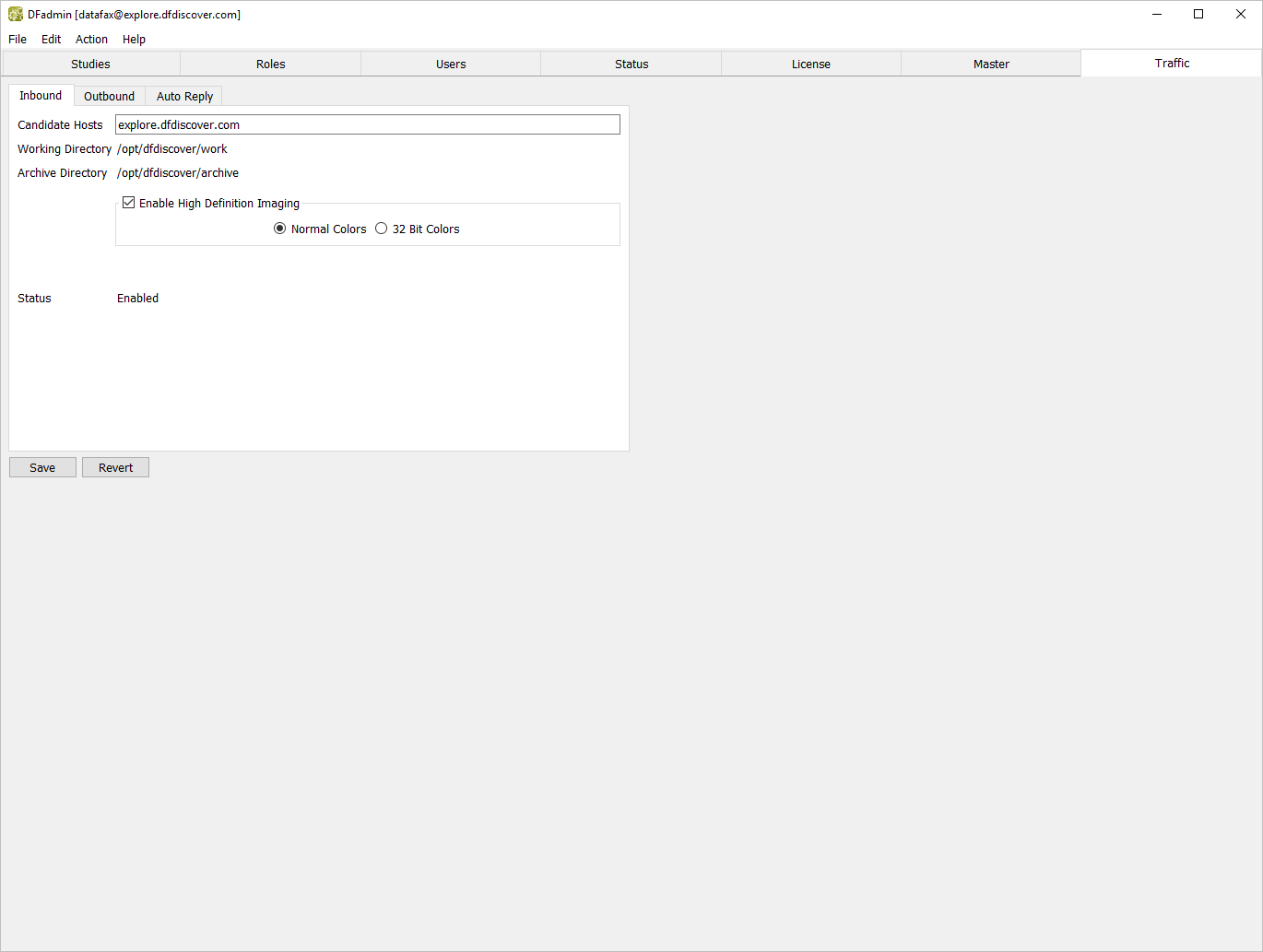
-
The remaining steps in this module require
datafaxprivileges. Open the DFATK (Control Panel) login dialog.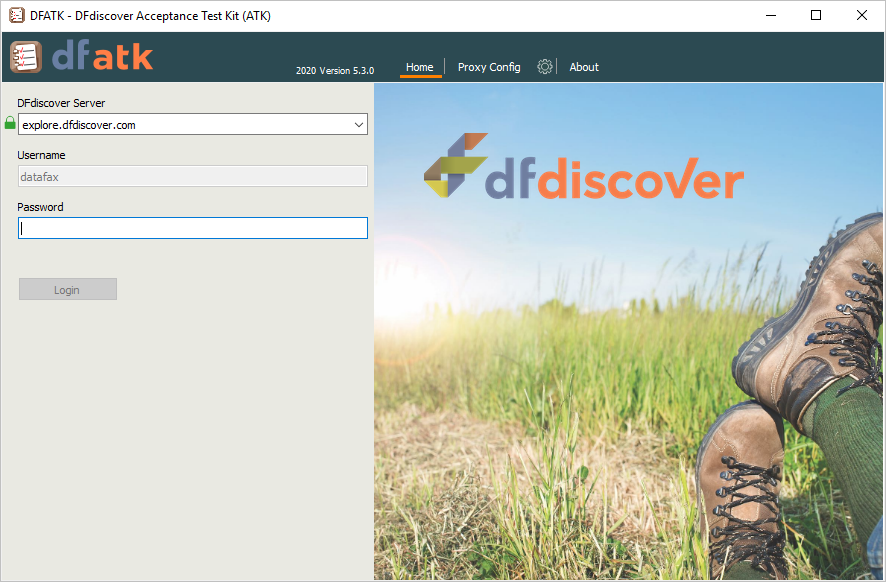
-
Enter the name of the DFdiscover Server on which the Acceptance Test Kit has been installed. As the Acceptance Test Kit Control Panel must be run as
datafax, the Username field cannot be edited. Enter the previously specified password fordatafaxand click .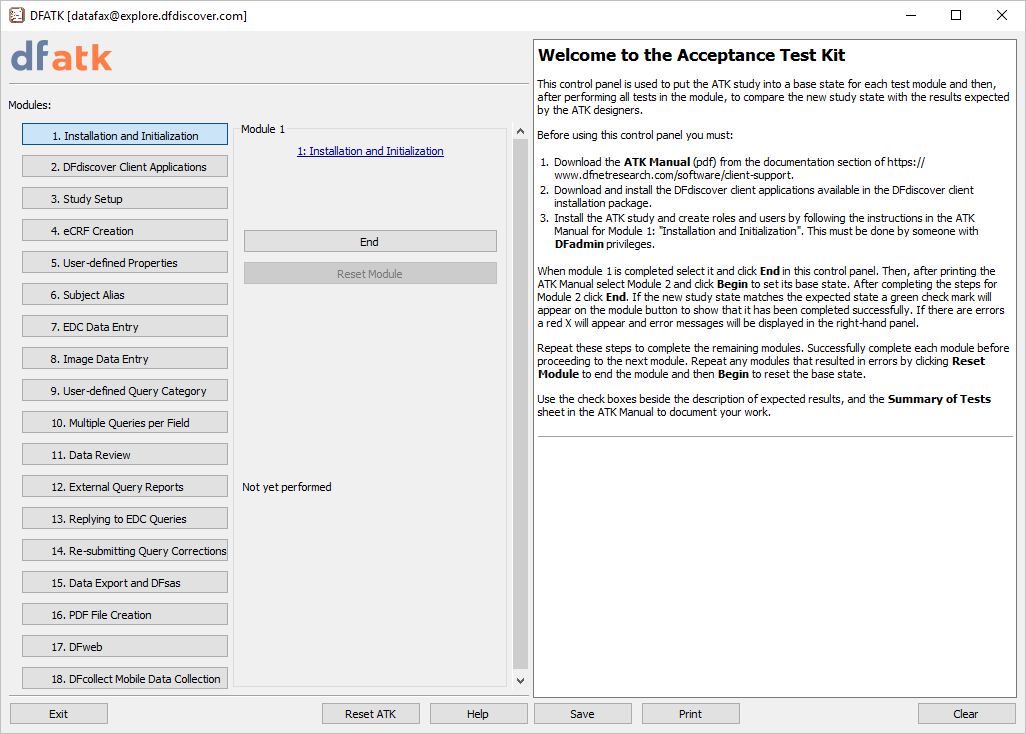
-
In the Control Panel, confirm that Module is the current module and that its status is Not yet performed.
Click to complete Module 1. Installation and Initialization.