Table of Contents
DFsas is an intermediary between DFdiscover and SAS®. It can be used to extract summary data files from the study database and to create the corresponding SAS® job file for subsequent processing by SAS®.
![[Note]](../../imagedata/note.png) | SAS® version 7 assumed |
|---|---|
|
Unless otherwise stated, the SAS® functionality described herein is based upon version 7. |
DFsas reads specifications from a DFsas job file. As an introduction to DFsas consider the following example DFsas job file.
Example 8.1. Typical DFsas job file
# GLOBAL SPECIFICATIONS
DFNUM 248
SASDIR /studies/df248/sas
SASJOB test
SASVERSION 7
CHECK labels
CHOICE codes
VLABEL yes
BLANK all asis
RETAIN QUOTES no
MISSING all asis
MISSING lost .L
NOVISIT .
RECSTATUS final incomplete missed
RECLEVEL all
MERGE yes

# DATA RETRIEVALS
# variables from plate 001, seq 001
RECORD 1
9 race labels
10~31
# variables from plate 002, seq 000 to 005
RECORD 2 0~5
9 vdate
11 SBP
12 DBP

# SAS PROCS
SAS
proc print;
Executing DFsas with the example job file results in the creation
of 3 files: test.sas (the SAS® job file), and
test.d01 and test.d02
(two data files, one for each of the 2 record types specified in the DFsas
job file).
The SAS® job and data files created by DFsas are plain ASCII files, which
can be moved to any platform capable of running SAS®.
From the above example, one can see that a DFsas job file has three parts:
- global specifications
- data retrievals
- SAS® procedures
The global specifications identify the study database, SAS® job name, and those specifications that are to be applied to all data fields. The global statements in Example 8.1, “Typical DFsas job file” include the following:
-
The
DFNUMstatement identifies the DFdiscover study number (248 in this example) for which the SAS® job is to be created. -
The
SASDIRstatement identifies the full path name of the directory where the DFsas job file can be found and where the output SAS® job and data files are to be written. -
The
SASJOBstatement identifies the name of the DFsas job file. This file includes all of the specifications needed to create the SAS® job and data files. This name also serves as the root name of the SAS® files to be created. In the example,test.saswill become the name of the SAS® job file, andtest.d01andtest.d02will become the names of the SAS® input data files. -
The
SASVERSIONstatement specifies the version of SAS® to be used with the SAS® job file created by DFsas. This statement is created by specifying the-SAS #option when generating the DFsas job file. If this option is not specified, the default of SAS® version 7 is used. -
The
CHECKstatement is used to specify the desired output for check fields (i.e. those data fields defined by a single box which is either checked or not). In our example we are requesting that the labels specified in the study schema be written to the data files for all check fields (instead of the numeric codes,0and1). All check fields must have labels defined in the study schema [17]. Note that local specification ofcodesat the variable level overrides specification oflabelsat the global level.If labels are to be written, DFsas encloses the label in double quotes and removes any double quotes present in the label's text. Single quotes present in the label text are preserved.
-
The
CHOICEstatement is used to specify the desired output for choice fields (i.e. those fields like race, for which there are 2 or more response options). As withCHECK, the options arecodesorlabels. In the example, codes have been requested. If labels are requested DFsas will read them from the study schema. DFsas will enclose the label in double quotes and remove any double quotes present in the label's text. Single quotes present in the label text are preserved. If no labels are found, DFsas will default to the numeric codes. Note that local specification ofcodesat the variable level overrides specification oflabelsat the global level. -
The
VLABELstatement, followed byyesindicates that SAS® variable labels are to be written to the SAS® job file. These labels are read from the description of each field found in the study schema.When writing variable labels, DFsas encloses the label in double quotes and removes any double quotes present in the variable description text. Single quotes present in the variable label are preserved.
-
The
BLANKstatement is used to identify how blank fields are to be written to the data files. In the example, all blank fields will be written as they are (i.e. they will remain blank). -
The
RETAIN QUOTES nostatement instructs SAS to discard any quotation marks when reading string fields from the input data files. If no is changed to yes, quotation marks are preserved. -
The
MISSINGstatement is used to identify how fields that contain a DFdiscover missing code, are to be written to the data files. In the exampleMISSING all asisspecifies that all missing codes are to be output as they are, (i.e. without any re-coding). TheMISSING lost .Lstatement specifies that the missing value code.Lis to be output in fields exported from missed data records. -
The
NOVISITstatement is used to specify a value to be used for all variables for visits that do not exist in the database for a subject, when constructing data records containing variables that are repeated across visits. The SAS®.(dot) missing value code has been used in the example. -
The
RECSTATUScommand is used to select data records by record status. The default is to export all final, incomplete and missed data records. -
The
RECLEVELcommand is used to select tdata records by workflow level. The default is to export records at all levels. Levels can be specified using a list of values and ranges, as in: RECLEVEL 3-5,7. -
The
MERGEstatement followed by 'yes' specifies that the merge command needed to combine all of the data files into a single SAS® data set, should be included at the end of the SAS® job file. In cases where a more detailed merge command is needed, useMERGE no, and include a new merge specification at the top of the SAS® procedures section.
This section identifies the data fields to be extracted from the study
database. The RECORD
statement identifies the plate from which data fields are to be
extracted. The plate number may be followed by a visit or sequence number or
range, to identify the repetitions of the plate which are to be included. If
there is only one possible sequence number for a particular plate, the sequence
number need not be specified.
In the example, for each primary data record in the database with plate number
1, a summary data record will be written to
test.d01.
Each summary data
record automatically includes the subject ID as the first data field. In
the example, the subject ID is followed by data fields 9 through 31. The field numbers
correspond to the numbering used in the study schema. The SAS® job file will
automatically include the variable name ID for the subject ID. The
variable name race
will be used in the SAS® job file for field 9. Since variable
names are not specified for fields 10 through 31, variable names for these
fields will be taken from the study schema. If a variable's field name has been
specified it will be used; otherwise the appropriate number of leading
characters of the variable's alias will be used.
The variable race (a choice field) is also followed by the
keyword labels.
The result will be to output value labels (e.g.
Caucasian, Asian, etc.) instead of codes for this particular choice field, thus
overriding the global CHOICE codes specification. DFsas
will enclose the labels in double quotes and remove any double quotes present
in the text of the label. Single quotes present in the label's text will be
preserved.
The retrieval specified for plate 2 will be written to file
test.d02.
It is
similar, except that a range of visit numbers has been specified. One summary
data record will be created for each subject who has at least one record in the
specified set (i.e. plate 2, visit numbers 0 through 5 inclusive). In each
summary data record, separate data fields are created for each of the specified
sequence numbers. In retrievals of this type the sequence number is appended to
each variable name when the SAS® job file is created. Thus the variable names
written to the SAS® job file in the example will be:
ID, vdate0, SBP0, DBP0, vdate1, SBP1, DBP1, etc.
When variable names are not specified they will be taken
from the study schema, and if a sequence number range is specified, the
sequence number will be appended to each variable name. It is therefore
important when specifying the variable field names to allow for the sequence
number that will be appended when this type of retrieval is specified.
It is also possible to create a separate data record for each visit (or sequence) number that appears in the database. To do this, specify the plate number alone, without any qualifying visit or sequence numbers.
DFsas also includes the ability to create normalized records for adverse events, medications, medical history items, etc. This is not shown in the preceding example but is illustrated later in this chapter.
DFsas will automatically write the commands required to merge the summary data
files on subject ID to the SAS® job file (unless MERGE no
is specified in
the global specifications section). In addition, all lines at the end of a
DFsas job file, following the SAS® statement, are written to the end of the SAS®
job file.
In the example, after the data is merged into a SAS® data set it
will be printed using the SAS® print procedure.
After
% DFsas test
is executed to create the SAS® job file, test.sas,
and the data files, test.d01
and test.d02,
the job can be submitted to SAS®.
If SAS® is installed on the same machine being
used to run DFsas, SAS® can be run directly with the command:
% sas test.sas
SAS® will put the output from the print command in file
test.lst,
and will write job control and messages to file test.log.
A DFsas job file can be created manually by using a text editor (e.g. vi) and following the syntax described in detail later in this chapter. But a quicker method is to first use the DFsas job creation option to build an initial DFsas job file for all variables in the database or all variables on specified plates, and then use an editor to make any desired modifications. Modifications might include:
changing global statement options
removing specifications for variables that are not required
changing variable names or labels
specifying the desired sequence number range for specified plates, or
indicating how a normalized data set is to be created
SAS® imposes various limits, those limits vary with SAS® version and those limits have an impact upon the behavior of DFsas. Specifically, there are character limits on variable name, variable description and maximum length of text/string value. DFsas enforces the following maximums:
for SAS® version 6, and older:
variable name length = 8 characters
variable description length = 40 characters
text/string length = 200 characters
for SAS® version 7, and newer:
variable name length = 32 characters
variable description length = 256 characters
text/string length = 32767 characters
An initial DFsas job file is created by using the -c
(or -C) option.
Option -C includes all variables while
-c includes all variables except for the following meta
variables:
DFRASTER(the DFdiscover CRF page identifier)DFSTUDY(the DFdiscover study number)DFPLATE(the DFdiscover plate number)DFCREATE(the record creation date/time field)DFMODIFY(the last date/time the record was modified)DFSCREEN(screen value of the record status)
These fields are infrequently
used in a SAS® analysis and can thus generally be omitted by using
-c instead of -C
when creating a DFsas job file.
Example 8.2.
Build a DFsas job file named
job1 for all variables on all plates for study number 7.
% DFsas job1 -C 7 -p allThe DFsas job file created by this command contains the field number, name and description of all data fields described in the study schema for all user defined study plates in the range 1-500, plus DFdiscover plates 510 (reasons) and 511 (queries). Users can then scan the list of variables and remove any that are not required.
To create a DFsas job file for specified plates, replace the keyword
all
with a list of the desired plate numbers, as in:
% DFsas job1 -c 7 -p 1~3 6 10~12 33
To split long string fields into a number of smaller fields use
-s like this:
% DFsas job1 -C 7 -p all -s 200
This example splits all string fields that are defined with a maximum length
greater than 200 characters into multiple fields of 200 characters each.
For example a 500 character comment field named COMMENT
would be split on word boundaries into 3 fields named
COMMENT1,
COMMENT2 and
COMMENT3, each with a maximum of 200 characters.
If -s is specified, DFsas uses the SAS® version number to
decide how long it can make the new variable names that it needs to create.
DFsas creates a new variable for each substring by using the variable name
as a base and adding a number (1, 2, 3, etc.). If SAS® version 6 or earlier is being
used and the variable name is
already 8 characters long, DFsas will reduce it as needed to keep the
resulting variable names within the 8-character limit.
For example,
splitting a field named LONGNAME produces fields named
LONGNAM1, LONGNAM2, etc.
If SAS® version 7 is
specified, a limit of 32 characters will be imposed when creating new variable
names for each substring.
| Warning for shortened names |
|---|---|
|
A warning message is printed whenever DFsas has to shorten an existing variable name. |
String splitting may be needed for versions of SAS® 6 and older, as they
will not read string fields that are
longer than 200 characters. As described later, a DFsas job file may include
instructions to split specified string fields into 1 or more shorter fields.
When creating a default DFsas job file, using
-c or -C, one can
instruct DFsas to automatically include the specifications needed to split all
string fields that are longer than a specified maximum length by also
specifying -s.
| Warning for long fields |
|---|---|
|
A warning message is printed if the DFsas job file specifies string fields longer than the SAS® maximum and that have not been split into smaller strings. This is merely a warning as DFsas can be used to assemble data sets for purposes other than SAS®. |
To truncate long string fields, use -t as in:
% DFsas job1 -C 7 -p all -t 200which truncates all string fields to a maximum of 200 characters.
Use -t
to truncate string fields to a specified maximum character
length.
Truncation occurs at exactly the specified number of characters,
even if this truncates the string in the middle of a word.
Strings that are shorter are not affected.
To export dates in calendar, string, original or julian formats use the
-d option.
As described in
Section 8.4.2, “Qualified Dates”,
DFsas can export each date field in one or more of 4
different formats. When creating a default DFsas job file,
using -c or -C, you
can automatically generate the specifications needed to have all dates
formatted in one or more of these formats by using
-d followed by
one or more of the single letters (date qualifiers) csoj
to specify the desired date formats.
For example, the following command will generate the DFsas specifications needed to convert all dates on plates 1-3 to both c (calendar) and s (string) formats.
% DFsas job1 -C 7 -p 1~3 -d cs
This results in creation of 2 output fields for each date field. These fields
are named by appending 1,2,3 etc. to the original field name.
DFsas uses the SAS® version number to determine the maximum length allowed
for these variable names
(see Impact of SAS® limits).
If the base name
is too long to generate a legal SAS® name by appending
a number (1-4 in the case of qualified dates),
then the base name is shortened
and a warning message is printed similar to the following:
WARNING: date datename -> datenam1 to datenam4 (SAS 8 char names)
To select subjects use -I as in:
% DFsas job1 -C 7 -p all -I 1001~1999,3001~3999,5066
Use -I
to specify a list of subject IDs to be included in the
SAS® data sets. In the above example, 2 subject ID ranges and one single value
have been specified. If this option is not used all subjects with primary
records for the specified plates will be included. Note that the specified ID
string must not contain spaces.
To select data records having a specified list of visit numbers, use
-v as in:
% DFsas job3 -C 254 -p all -v 0~99
In the above example, a range of visit numbers (0-99) has been specified. If this option is not used, DFsas will create DFsas job files for all visits.
To suppress warning messages, use -w as in:
% DFsas job2 -C 254 -p all -w
After you have setup a DFsas job file, you can execute DFsas again,
this time with no options,
to create the SAS® job file and assemble the required summary data files.
Variable name and label lengths created in the data files will be
determined by the SAS® version number specified in the global
SASVERSION statement in the DFsas job file
(see Impact of SAS® limits).
Example 8.3. Create SAS® job file and data files for DFsas job file
job1
% DFsas job1
DFsas creates the SAS® job file (job1.sas) and the
required data files (job1.d01,
job1.d02,
job1.d03, etc.).
These are plain ASCII files that can be
copied to the computer used to run SAS® and submitted for execution.
DFsas displays the number of subjects and number of records written to each data file, as it proceeds to build the data files.
1. RECORD 1    Subjects = 172    Records = 172
2. RECORD 2    Subjects = 154    Records = 154
3. RECORD 3    Subjects = 152    Records = 152
If a DFsas job file requests data from a plate that contains no data, DFsas
will not create an output data file or SAS® input statements for that plate,
unless the force option is used. The force option is invoked by including
-f on
the command line after the DFsas job file name.
% DFsas job1 -f
By default, the data export script created when building a DFsas job file is
removed after it is executed. Including -dbx
as a command line option preserves the data export script.
% DFsas job1 -f -dbx -c 7 -p allThis script may be useful for debugging purposes but is not required for proper operation of DFsas or SAS®.
The default behavior of using field names will not create a valid SAS
job file when used on a study that has more than one instance of a
module, whether on the same or on different plates. Including
-a in the command line creates
job files using the
field alias and will work as expected
provided all field aliases are unique for all
fields.
% DFsas job1 -a
DFsas performs limited checks on the integrity of the DFsas job file before proceeding to create the SAS® job file and data files. In general it is up to the user to make sure that SAS® rules for variable names, labels, missing value codes, etc. are followed. DFsas checks the following:
-
DFNUM. Has a legal DFdiscover study number been specified? SASDIR. Does the SAS® directory exist?SASJOB. Has a SAS® job name been specified?Reserved character,
|. Has the field delimiter been used inappropriately? DFsas checks for illegal use of|in the specification of fixed fields, default labels for check fields and recoded values for blanks and missing value codes.Plate and variable numbers. Have legal values been specified? DFsas checks the specified plates to verify that they have been defined for the study, and also verifies that the specified field numbers have been defined for each plate.
Field numbers do not contain extraneous characters (e.g.
12-,12.,12a,a12, etc).Field number ranges are legal (e.g.
12~55, and not:55~12,12~15~55, etc.)If a string split is specified, is the field a string?
No more than one field qualifier is used on any field.
If a date qualifier is specified, is the field a date?
Variable name and label length. DFsas checks the length of all variable names and labels in the DFsas job file and prints error messages and stops if there are any which exceed the limits of the specified SAS® version.
If the DFsas job contains a request to split a specified data field, DFsas uses the
SASVERSIONstatement to determine the maximum length allowed for the variable names that it creates (see Impact of SAS® limits).
Dates are governed by the global statements IMPUTE,
INFORMAT
and OPTIONS and by the date field qualifiers,
jocs.
The IMPUTE statement controls how date values for SAS®
are imputed from DFdiscover partial dates.
IMPUTE no. Date fields are exported exactly as they appear in the database, regardless of what imputation method has been defined.IMPUTE yes. All 2-digit years are converted to 4 digit years using the pivot year defined for each date. In addition the imputation method defined in the study schema for each date field is used to convert missing days and/or months to legal values. If the imputation method is set to none only 2 digit to 4 digit year conversions are performed. When imputing dates, any nonsensical dates, i.e. dates with impossible values for day, month or year, are converted to the default DFdiscover missing code,*. If other missing value codes have been defined for the study, any dates that use them will retain their original missing value code.
The INFORMAT statement controls the type of SAS®
informat statements DFsas generates.
INFORMAT dates. Create SAS®informatstatements for date fields that SAS® recognizes. DFdiscover allows some date formats that SAS® does not recognize as dates, (e.g. Jan 25, 2001). When this global statement is used, date fields with formats that SAS® does not allow are converted to string fields and a corresponding characterinformatstatement is created.INFORMAT all. Convert all fields to type character, including dates.INFORMAT all dates. Use date formats for all date fields and convert all other fields to type character.
Finally, 4-digit year imputation from 2-digit years can be achieved through
the SAS® OPTIONS YEARCUTOFF statement.
The DFsas global statement:
OPTIONS YEARCUTOFF=yyyy
instructs DFsas to add a SAS® YEARCUTOFF
statement to the job file, such that
yyyy defines the beginning of a
100 year period for imputing the century in 2 digit dates.
Example 8.4. Using OPTIONS YEARCUTOFF
With the following DFsas global statement,
OPTIONS YEARCUTOFF=1940
years 40 to 99 will be interpreted as 1940 to 1999, and years 00 to 39 will be interpreted as 2000 to 2039.
| One YEARCUTOFF statement per SAS® job
file |
|---|---|
|
SAS® only allows one |
The global statements already described set the desired format for all dates.
This can be overridden at the individual field level by using one of the date
qualifiers, jocs,
after the date's field number, as in:
12:c
which will output field 12 as a calendar date.
Qualified dates will be written with an INFORMAT
statement appropriate to the qualified date format, and will
override the global statement INFORMAT all, if present.
The date qualifiers are:
:j- julian value. This option converts the date to a number representing the number of days since a date in 4712 BC. No informat statement is written to the SAS® job file as this is treated by SAS® as a number.:o- original value. This option turns off imputation to yield the value exactly as it appears in the database, overriding any global specificationIMPUTE yes.With this date qualifier a date informat statement is written to the SAS® job file using the original date format specified in the study schema. This option should only be used for fields that cannot contain a partial date. Otherwise SAS® will complain.
:c- calendar value. This option converts 2 digit years to 4 digit years and performs imputation as specified in the study schema. If imputation leads to a nonsensical date it is converted to*, the DFdiscover default missing value code. When:cis specified the appropriate date informat statement is written to the SAS® job file overriding any globalINFORMATstatement.:s- string value. Like the:ooption,:salso turns off imputation to yield the value exactly as it appears in the database, but the field is considered to be a string and thus a character (not date) informat statement is written to the SAS® job file. This option allows one to output partial dates exactly as they appear in the database with a character informat that SAS® will accept.
In addition, to date qualifiers, DFsas includes time qualifiers that
cause DFsas to generate appropriate SAS® time types.
Time variables in DFdiscover are handled correctly automatically,
however this qualifier must
be applied manually to numeric or string fields that have the format
nn:nn or nn:nn:nn.
:t5- SAS time typeTIME5. This option indicates that the field is to be identified as the SAS® time type,TIME5, represented asHH:MMThe appropriate SAS® informat statement is written to the SAS® job file for any fields so qualified.:t8- SAS time typeTIME8. This option indicates that such fields are to be identified as SAS time typeTIME8, represented byHH:MM:SS. The appropriate SAS® informat statement is written to the SAS® job file for any fields so qualified.
When creating a default DFsas job file, with
-c or -C, the following rules are applied:
The global statement
INFORMAT datesis written to the DFsas job file.If all dates in the study schema use the same pivot year, DFsas creates the following global statements:
OPTIONS YEARCUTOFF=yyyy (1) IMPUTE no
where
yyyyis set to the common pivot yearIf all dates do not use the same pivot year a
YEARCUTOFFstatement cannot be generated because SAS® only allows one such statement. Instead, DFsas converts all dates to 4 digit years using the global statementIMPUTE yes.If more than one output format is requested for date fields using the
-doption, DFsas creates a unique variable name for each of the output date variables by appending 1, 2, 3, 4 to the variable name. DFsas uses the SAS® version number to determine the maximum length allowed for these variable names.csoj
This section includes a description of how global statements can be manipulated for string fields.
SAS® cannot input a string field that is longer than 200 characters. DFdiscover allows much longer string fields. Thus when preparing string fields for SAS® it is necessary to either truncate strings that are longer than 200 characters or split them into multiple shorter fields. This can be done within a DFsas job file using the same string splitting syntax used by DFexportrpc;.
Example 8.5. String splitting
Field 44, a 500-character field named comment,
is split into 5 fields of up to 100 characters each.
The w qualifier specifies
that splitting is to occur on word boundaries. The field names are created by
appending 1,2,3, etc. to the root name provided in the DFsas job file.
The resulting 5 fields are named comment1,
comment2, comment3,
comment4 and comment5.
DFsas uses the SASVERSION statement in the DFsas job
file to determine the maximum lengths allowed for the variable names it
creates.
44:5x100w comment "Physician comment field"
It is also possible to split string fields on exact character boundaries, by
using the c qualifier.
44:5x100c comment "Physician comment field"
String fields may be truncated by specifying a split that does not add up to the original field length, as in:
44:2x200w
This creates 2 fields of not more than 200 characters each, with the division occurring on word boundaries. If it is necessary to truncate the second field, truncation will occur on a word boundary.
Similarly,
44:1x200c
truncates field 44 to not more than 200 characters. In this case truncation will occur on a character boundary and thus may occur in the middle of a word.
When creating a normalized data set, field names are specified after the
NORMALIZE key word.
A separate name must be specified for each of the string
fields that result from any string field splitting that is specified in the
data record creation section that appears after the
RECORDS keyword, as in
this example:
NORMALIZE if(length(drug) > 0) drug "Drug name" why1 "Drug indication - part 1" why2 "Drug indication - part 2" RECORDS 200 20,25:2x200w 30,35:2x200w 40,45:2x200w
New fields can be created consisting of substrings of database fields. The specification is: field number : start_character x number_of_characters. Substrings can be extracted from any field type: strings, dates, or numbers. But substrings are extracted from the string value of the field. So be careful with numeric fields; unless they are zero padded you may not get the results you want. In the following example variable sitenum is created from the 1st 3 digits of the subject ID field. This will give the desired results provided all IDs are zero padded, e.g. 001001 not 1001, for subject 1 at site 1.
7:1x3 sitenum "site number - 1st 3 digits of subject ID"
When SAS reads string fields from an input data file it normally removes any
quotation marks it finds. This can be prevented by tagging string field names
with ~$ instead of $ in SAS input
statements. (Aside: per communication from SAS support, his trick only works
when the DSD option is used in the INFILE statement; but this has been
standard practice for reading the pipe delimited output files created by
DFsas from the beginning.)
By default DFsas tags string fields with $ and thus
quotes are removed.
You can instruct DFsas to tag string fields with ~$ and
thus retain input quotes, in 2 ways: by including the global statement
RETAIN QUOTES yes
which is applied to all string fields, or by using the :q
field level qualifier on those fields for which quotes are to be retained,
as illustrated in the following example.
RECORD 1 8 PINIT Subject Initials 9 AGE Age 10 SEX Sex 10:q PCOMP Subject complaint
There is one limitation.
It is not possible to use more than one field level qualifier at a time.
Thus you cannot instruct DFsas to both split a string field and retain quotes
using field level qualifiers. The only way this can be accomplished is by using
the global statement RETAIN QUOTES yes in combination with
field level string splitting specifications. However, note that there is no
guarantee that matching quotes will appear in each of the split string fields.
This section includes a detailed description of all DFsas commands. Each DFsas job file has three parts. Global specifications come first, followed by instructions for each of the summary data files to be created, and ending with any SAS® command lines you want to include in the SAS job file.
DFsas job files are constructed from records, where each record
is composed of a keyword followed by value specifications for the keyword.
Keywords and options must be typed exactly as illustrated in the examples. All
keywords are in uppercase. Blank lines and extra spaces may be inserted
anywhere to aid readability. Comments can be added on lines by starting them
with a single
octothorpe, #, followed by at least one space and then your
comment.
The global specifications, located at the top of each DFsas job file, apply to all of the subsequent data retrieval specifications in the job file. They include the following:
DFNUM. This keyword is followed by the DFdiscover study number of the database from which you plan to export a SAS® data set. For example:
DFNUM 248
SASJOB. The file name specified after this keyword is the name of the DFsas job file and is also the root name for the SAS® job and summary data files created by DFsas.
The following sets the DFsas job name to
job1:SASJOB job1
The SAS® job file name is constructed by appending
.sasto the specified job name, constructing a filename similar tojob1.sas. A separate data file is created for each set of retrieval specifications introduced by the keywordRECORDorNORMALIZE. These summary data files are named by appending.d##(where ## is in the range 01 to 99, inclusive) to the job name (e.g.job1.d01,job1.d02). Summary data files are numbered in the order in which they appear in the DFsas job file.-
SASVERSION. When using the
-Cor-coption to create a default DFsas job file, the target SAS® version can be specified on the command line using the-SAS #option. SAS® version 7 is the default if the-SAS #is not specified. Each DFsas job file contains aSASVERSIONstatement regardless of whether or not the-SAS #is explicitly specified on the command line.SASVERSION 7
SASDIR. The SAS® job file and summary data files created by DFsas are written to the directory specified by the value of this keyword. A full path name must be given.
SASDIR /studies/mystudy/sas/baseline
RUNDIR. If you plan to move the SAS® job and data files created by DFsas to another platform, such that the files will be processed by SAS® from a different file location than they were created by DFsas, use this keyword and specify the location where you intend to install the files. If a RUNDIR statement is present, DFsas will use this directory when creating filename statements in the SAS® job file. Without the RUNDIR statement DFsas uses SASDIR when creating filename statements. A full path name must be given.
RUNDIR C:\studies\mystudy\sas\baseline
LIBNAME. DFsas includes support for SAS® libraries, and also allows users to create their own data set names for both the individual data files corresponding to DFdiscover plates, and for the merged data set that currently has the default name
final. SAS® libraries are used to save a SAS® data set created during a SAS® run, and to use a previously saved SAS® data set. When libraries are not used, the SAS® data sets created during a SAS® run are temporary, and are removed when the run is completed.SAS® libraries may be used by specifying the
LIBNAMEstatement in the global specifications section of a DFsas job file as per the following example.Example 8.6. SAS® data sets
mylib1andmylib2are created by specifying the previously saved SAS® data sets ofbaselibandaelib, respectively, in aLIBNAMEstatement in the global section of a DFsas job file.LIBNAME mylib1 `C:\studies\study254\sas\baselib' LIBNAME mylib2 `C:\studies\study254\sas\aelib'
Note DFsas will not create the
LIBNAMEif it does not exist. The user must do this.Data set names may be specified for each input data file by including a
DATAstatement immediately following theRECORDstatement used to introduce data set specifications for a plate in a DFsas job file, or immediately below a normalized data set.Example 8.7. The data set name
mylib1.vitalsis specified using aDATAstatement following theRECORDstatement for plate 5.RECORD 5 DATA mylib1.vitals
Example 8.8. The data set name
mylib2.medsis specified using aDATAstatement following theNORMALIZEstatement for normalized data set specifications.NORMALIZE if( length(medname)>0 ) DATA mylib2.meds
To change the name of the final merged data set, from the current default value of
final, add the desired name of the merged data set to the globalMERGEstatement.Example 8.9. The name
mylib1.baselinereplaces the default name offinalusing theMERGEstatement in the global specifications section of a DFsas job file.MERGE yes mylib1.baseline
OPTIONS. A DFsas job file may include one or more OPTIONS statement to define SAS® options. For example,
OPTIONS YEARCUTOFF=1940 OPTIONS PAGESIZE=60 LINESIZE=72 NOCENTER
IDNAME. When DFsas is used to create a DFsas job file it determines the field variable name assigned to the subject ID field from the first plate in the schema and writes this out as the global IDNAME statement. The variable name can be changed to any desired value, keeping in mind the SAS® restrictions on variable names. If the IDNAME statement does not appear in a DFsas job file, DFsas uses the name ID.
SUBJECTS. This statement can be used to specify a list of subject IDs and ID ranges to be included in the SAS® data sets. The default setting is
SUBJECTS all
which includes all subjects who have a primary data record in at least one of the plates being extracted from the study database.
Example 8.10. Select a subset of subjects
The following statement selects subject IDs in the range 1001 to 1999, 3001 to 3999, and values 5501 and 6002. The order in which the values are specified is not important.
SUBJECTS 1001~1999,3001~3999,5501,6002
-
VISITS. This option can be specified on the command line during SAS® job creation by using the option
-vor added to the global specifications section by editing the DFsas job file. If this option is not specified, DFsas will create DFsas job files containing the global statementvisit#_listVISITS all. For backwards compatibility, DFsas will assumeVISITS allif theVISITSglobal statement is missing from a DFsas job file.This option is similar to the existing
SUBJECTSoption in that both are applied during data export. Since data export occurs before data record processing, this option takes precedence over the visit specification on theRECORDstatement. Thus, for example, specifyingRECORDS 12 20, which indicates the creation of a data file for plate 12, visit 20, would produce no output at all if the globalVISITSstatement was not set toallor did not include20. Also, if the globalVISITSstatement has already been used to select visit20, theRECORDSstatement would not need to include the visit specification. For example,RECORDS 12would be adequate to produce the desired data file.The specified visit number list is applied to all of the specified plates. It is not necessary that all visits be relevant for all plates.
Note The
VISITSoption does not allow the specification of different visit numbers for different plates. SUBJECTALIAS. Specifying
SUBJECTALIAS yes
instructs DFsas to export the subject alias as the identifier in place of the traditional subject ID. It is possible to include both subject ID and subject alias by specifiying
SUBJECTALIAS yes
and also requesting field 7 in the list of fields to be exported.
CHECK. Check fields are data fields that are entered using a single box which is either checked or left blank. An example might be a question that asks the investigator “Check all of the symptoms that apply to this subject from the following list”. Each of the symptoms will have a check box with only 2 possible values, for example, 1 if the box was checked and 0 if it was left blank.
This keyword is used to control the output for all data fields of this type. You may either print the codes (e.g. 0,1) or replace them with the labels specified in the study schema.
The 2 possibilities are specified as follows:
CHECK codes
which outputs the codes (e.g. 0, 1) for all check fields and creates a proc format statement for the value labels, and
CHECK labels
which outputs the schema labels (e.g. no for 0, yes for 1).
When using the labels option, missing value codes are preserved. If you request labels for all check fields, but have not specified any labels for a particular check field in the study schema, DFsas will use the codes.
The default for this global specification is
CHECK codes, meaning that the numeric codes found in the database will be output to the SAS® data file if this statement does not appear in your DFsas job file.You can override the global specification of labels or codes at the individual field level as described in Data Retrieval Specifications.
CHOICE. Choice fields consist of a question followed by 2 or more mutually exclusive response options. Examples include: race, yes/no questions, severity mild/moderate/severe, etc. As for check fields, choice fields can be output as either codes or labels,
CHOICE codes CHOICE labels
When codes are output to the data file, DFsas creates a proc format statement for value labels and writes it to the SAS job file.
Because the choice data type will apply to fields having many different response options it doesn't make sense to have default labels. Thus if you request labels and DFsas cannot find them in the study schema it will simply output the codes. As for check fields, DFsas will first check for missing value codes before substituting value labels for the codes stored in the database.
The default for this global specification is
CHOICE codes, meaning that the numeric codes found in the database will be output to the SAS® data file if this statement does not appear in your DFsas job file.You can over-ride the global specification of labels or codes at the individual field level as described in Data Retrieval Specifications.
IMPUTE. Dates which use 2 digit years can be converted to 4 digit years and missing day and/or month values can be imputed with this statement, such that
IMPUTE no
disables imputation and outputs dates as they appear in the database and
IMPUTE
yes
enables imputation and imputes the day and month in partial dates and convert 2 digit years to 4 digits.
Imputation of day and month, and conversion of 2 digit years to 4 digit years is performed using the imputation method and pivot year set in the study schema.
If a date variables has its imputation method set to
never, imputation by DFsas will only result in conversion of 2 digit years to 4 digit years.If a date is nonsensical, (i.e. does not yield a true date even after application of the imputation method, if any) imputation will output the DFdiscover default missing value code,
*.If a date field is blank or contains a missing value code, as defined in the study missing values map, imputation has no effect, i.e. the field will be output as is, with a blank or missing value code.
IMPUTE and RECODE The use of imputation in a DFsas job file (via any of the ways that it can be done) has the potential of creating missing value codes and thus the
RECODEstatement should be used to change the DFdiscover*to either the SAS®.or some other user-defined missing value code that SAS® will accept. If the user has defined a missing map which only contains legal SAS® missing value codes, then theRECODEstatement could still be used for dates. For example,RECODE date *
NUMBER. Numeric fields may be defined with labels, just like choice and check fields. In such cases you have the option of outputting the numeric values, as in
NUMBER codes
or, the labels defined for the values, as in
NUMBER labels
STRING. It is rare to put value labels on string fields but DFdiscover does allow it. For example single letter entries in a string field may be used as codes for longer descriptions that are defined in value labels. In such cases you have the option of outputting the string values,
STRING codes
or the labels, as in:
STRING labels
If string splitting is used in conjunction with a request for labels and the resulting split string values are coded with labels, the labels will be output.
Example 8.11. STRING coding and string splitting
Suppose you have a string field where you enter codes for problems that have occurred
A = "lost to follow-up" B = "temporary withdrawal from treatment" ... Z = "zero interest in this study" Further, the user enters any combination of the letters A-Z into the string field in the database. To export the labels, one could then include
22:12x1c prob labels
in a record specification, such that the string field is field 22 and has a maximum length of 12 characters. The record specification would produce 12 fields named prob1 to prob12, each containing the label corresponding to the letter, or the letter itself if no label is defined.
RETAIN QUOTES. This statement determines how SAS input statements are written for string fields. If
RETAIN QUOTES no
is specified (which is also the default setting), string field names are followed by a
$sign, and SAS will remove any quotation marks found in these fields when the input data files are read. IfRETAIN QUOTES yes
is specified, string field names are followed by
~$, which instructs SAS to retain quotation marks.VLABEL. Specifying
VLABEL yes
instructs DFsas to include variable labels in the SAS® job file. Variable labels are copied from the field descriptions included in the study schema file, with the exception that any double-quote characters appearing in the field description are removed from the variable label.
VALFMT. If
VALFMT yesis specified, equivalentproc formatvalue label statements will be written to the SAS® job file for each variable that has code labels defined in it's style or variable definition in the study schema. With value formats defined in the SAS® job file, users can elect to use the data values as in the SAS® statementproc print, or use the value labels as in the SAS® statementproc print label.DFsas creates value formats for all variables that have code labels, whether they are defined in the style or at the variable level. If code labels are defined in the style, the style name is used as the value format name in the SAS® job file, unless the style name would be an illegal SAS® name, in which case DFsas makes up a legal SAS® name. The style name must meet the SAS® restriction that it be no longer than 8 characters, start with a letter or underscore, thereafter contain characters that are letters, digits, or an underscore, and not end with a digit. If the code labels are defined at the variable level (instead of in a style), DFsas makes up a new SAS® value format name.
When DFsas creates a value format name, it does not check to see if the variable codes and labels exactly match another value format already in use. Thus if coding and labels are not defined in the style, it is possible that DFsas may create and use more value formats than are really required. If the same code labels are used by more than one variable, it is recommended that the codes and labels be defined in a style which the variables then use.
When creating new value format names, DFsas uses
F####vwhere####starts at 0001 and is incremented for each new value format name that DFsas creates as it reads through the list of study styles stored in the fileDFschema.stl.vis the visit number which is appended to the variable's field name. There is one exception. For DFSTATUS and DFSCREEN variables, which are DFdiscover protected fields appearing on every plate, DFsas uses value format namesDFSTATvandDFSCRNvrespectively. Thus these 2 names should not be used for user-defined styles with code and label definitions of their own.For normalized records DFsas creates SAS® value formats based on the code labels defined in the study schema for the first data record defined in the block of normalized records. Typically all records in the normalized block have the same variables with the same codes (which is why they are being normalized) but DFsas does not check to make sure that this is the case.
![[Warning]](../../imagedata/warning.png)
Value format and variable names SAS® requires that value format names be different from variable names. DFdiscover does not impose this restriction and currently DFsas does not check for this possible SAS® error.
BLANK. Data fields which are blank (i.e. empty) in the database can be output as they are or can be recoded to some other value (e.g. the SAS®
.missing code). Since check and choice fields contain a numeric code when no box has been selected, check and choice fields are never blank. Consequently theBLANKglobal specification only applies to string, date and numeric fields.The
BLANKkeyword is followed by either the keywordallor by the data type from the liststring,date, orint, which is to be recoded. This is then followed by either the keywordasisor by the value to be inserted for blank fields. For example,BLANK all asis
outputs all blank fields without any recoding.
BLANK all .
recodes all blank fields to a period.
BLANK all blank
recodes all blank fields to the word
blank.BLANK string .
recodes blank string fields to a period.
BLANK int 0
recodes blank int fields to 0.
It is legal to include more than one
BLANKspecification, to specify different recoding instructions for string, date and int data types. Any such field type specifications will take precedence over aBLANK allspecification.RECODE. A
RECODEstatement can be used to recode all data fields of a given type. Since SAS® provides extensive recode capabilities, only minimal recoding has been implemented in DFsas. DFsas only allows oneRECODEstatement per data type and only allows for the replacement of one data value by another.The
RECODEkeyword is followed by the data type, from the listcheckchoicestringdateint, which is to be recoded. This is followed by the value to be recoded and then the new value to be written to the SAS® data input files. For example:RECODE choice 0 .
recodes 0 to a period in all choice fields, and
RECODE check 0 9
recodes 0 to 9 in all check fields
Note If you request output labels instead of codes for check and/or choice fields, and a label has been specified for zero for some or all check and/or choice fields, then the label will appear in the data field, and the above recode specification will have no effect. The desired recode can however be obtained when outputting labels, by specifying the label that is to be recoded instead of the numeric value (see Recode Processing Order).
MISSING. Data fields that contain a missing value code in the database can be output as they are or can be recoded to some other value. For example, while several different missing value codes may be used in a DFdiscover study, you might want to change all missing value codes to the SAS®
.missing code for a particular SAS® analysis.The
MISSINGkeyword is followed by either the keywordallor by the data type, from the listcheck,choice,string,date, orint, which is to be recoded. This is followed by either the keywordasisor by the value to be used in place of all missing codes. For example:MISSING all asis
outputs all missing codes without any recoding,
MISSING all .
recodes all missing codes for all fields to a dot,
MISSING all NA
recodes all missing codes for all fields to "NA", and
MISSING string .
recodes all missing codes in string fields to a dot.
It is legal to include more than one
MISSINGspecification, to specify different recoding instructions for choice, check, string, date and int data types. However, if theallspecification appears it takes precedence over all other specifications.When creating new SAS® job files, a second
MISSINGstatement is included by default. This statementMISSING lostallows you to specify the missing value code to be used in data fields for missed records. The keywordlostcan be followed by a user-defined missing value code that will be inserted into each data field after field 7 (Subject ID) in each missed data record. If the global statementMISSING lostexists with no missing value code specification, all data fields following field 7 are left blank for missed records.It is important to note that the
MISSING allglobal statement described above will not insert missing value codes into fields of missed records. A separateMISSING loststatement must be specified in order to do this. However, if theMISSING loststatement specifies the DFdiscover missing value code (*) and aMISSING all codestatement is used to recode DFdiscover missing value codes, then theMISSING all codetakes precedence and this statement will apply to missed records as well.Note The
MISSING lostglobal statement will have no effect on the output unless missed records are requested by theRECSTATUSglobal statement (See RECSTATUS). By default, theRECSTATUSstatement includes final, incomplete and missed records. If missed records are requested but aMISSING loststatement has not been included, or has been included but with no missing value code specification (i.e. literally asMISSING lost), all data fields following field 7 will be left blank for missed records.The
MISSINGstatement can also be used to specify that a SAS®MISSINGstatement is to be included in the SAS® job file created by DFsas. A SAS®MISSINGvalue statement is generated if the DFsas job file contains the following:MISSING SAS
missing_value_list_from_study_missing_value_mapFor example the global statement:
MISSING SAS A B C
will generate the SAS®
MISSINGstatement:MISSING A B C;
to indicate that the values A, B and C represent missing values.
Note A
MISSING SASstatement is generated automatically when DFsas is executed with-cor-C, regardless of whether or notDFmissing_mapcontains legal SAS® missing value codes. If only legal SAS® codes have been used theMISSING SASstatement should be removed, as SAS® expects this statement only for non-standard codes. The SAS® missing value statement is written at the top of each data step rather than just once at the top of the entire SAS® job file.Example 8.12. Generate a SAS® job file called
testjobfor plate 5 of study #254, view the globalMISSINGstatements, and recode all illegal SAS® missing value codes.%DFsas testjob -c 254 -P 5After executing the above command, we see that the SAS® job file
testjobcontains the followingMISSINGstatements.MISSING all asis MISSING SAS * _A _U _N
We see that
*is used as a missing value code in DFdiscover. This is not legal in SAS® and thus needs to be changed. An appropriate change might be to modify theMISSINGstatements in the job file to appear as follows:MISSING recode * _D MISSING SAS _D _A _U _N
F. In addition to extracting data from the DFdiscover database you might also want to include fixed fields, i.e. data fields that contain the same value for all cases. An example might be a study protocol number or a study name that you want to be able to include in data listings. Another possibility is that you might plan to merge data sets from different studies at some point and want to have the protocol number included in the data set for subjects from each study.
Fixed fields can be defined globally (in which case they are added to all data records from all plates) or they may be included in the variable list following the
RECORDstatement used to begin data retrieval from a specified plate (as described in Data Retrieval Specifications). Fixed fields can be defined for both normalized or non-normalized data sets.A fixed field is defined using a statement in the following format:
F fixed_value variable_name variable_label
(1)                       (2)
If the
fixed_valueincludes spaces it must be enclosed in double or single quotes. If the fixed field contains non-numeric characters (i.e. characters other than 0-9 or.), or if the fixed field is enclosed in quotes it is treated as a string field, otherwise it is considered to be of type int. A fixed field can not contain quotes within the string and the:qqualifier can not be used.Quotes may also be used around the
variable_labelbut are not required.Example 8.13. Common uses of fixed fields
F 18345 SNUM "Study Number"
F 44.171 PNUMBER "Protocol Number"
F "Study 44-171" PNAME "Protocol Name"
F 09/15/97 STARTDT "Study Start Date"
F "150mg" STDOSE "Study Treatment Dose"
The first example is interpreted as an int field and the last 4 examples are all string (character) fields.
Exactly the same format is used to specify fixed fields, whether defining them in the global statements section of the DFsas job, or locally in the variable list following a
RECORDstatement for a particular plate. The only difference is that globally defined fixed fields are inserted at the beginning of each data record immediately after the subject ID, while locally defined fixed fields are inserted in the position in which they are defined within the variable list. A DFsas job may include both globally and locally defined fixed fields.There are 3 restrictions on fixed fields:
they can not contain single or double quotes
they can not contain the
|or-characters,and they can not begin with a minus/dash (
-).
NOVISIT. By specifying visit numbers after the RECORD statement, it is possible to construct data records in which the data for repeating visits are laid out on a single summary data record for each subject (e.g. ID dbp0 dbp1 dbp2 dbp3 etc.). The NOVISIT keyword is used to specify a value to be inserted for variables that don't exist in the database for a subject, because that visit has not been completed, or received. Whatever follows the NOVISIT keyword will be used, exactly as typed. Do not include quotes or the quotes will also be inserted. The only exception is the word blank, which is interpreted as requesting that the fields be left blank. A few examples follow.
NOVISIT .
Inserts the SAS® missing value code, i.e. the dot.
NOVISIT NA
Inserts the 2 letters NA.
NOVISIT blank
Leaves the fields blank.
RECSTATUS. If the
RECSTATUSstatement is not used, DFsas retrieves final, incomplete and missed data records from the database. It does not retrieve pending records because this status is normally used to indicate that the data is not ready for statistical analysis, and in some cases might even indicate that one or more of the keys (subject ID, visit or plate) are uncertain. Missed records are included by default so that the data set includes all cases as is typically desired for an intention to treat analysis. TheMISSING loststatement is also be included by default in new SAS® job files. This outputs blank fields for missed records. Alternatively a missing value code can be specified (See MISSING).The
RECSTATUSstatement can include any combination of the following record status keywords: final, incomplete, pending and missed.Note While it is also possible to export 'secondary' records this is not generally useful, as the only meaningful data field on secondary records is the image ID.
The
RECSTATUSstatement applies only to data plates and not to queries. If you want to export data by query status, you must specify plate 511 when building an initial DFsas job file, as in%DFsas job 1 -c 7 -p 511In the data retrieval specifications for job1, specify
RECORD 511 unresolved
or
RECORD 511 resolved
to export unresolved or resolved queries respectively.
SETNAME. DFsas names the input data files which it creates by appending d01, d02, d03, etc. to your SAS® job file name (specified using the SASJOB command). It is possible instead to have DFsas append the plate number as the extender following the SAS® job name. This is done using the SETNAME statement, as follows:
SETNAME byplate
which results in the naming of data sets by plate number (not d01, d02, etc.). The ASCII data files will be named jobname.
#and the SAS® data sets will be named data#where#is the plate number.This might be helpful if you want to have a common data set name across different SAS® jobs or different studies, in situations where the same variables are always pulled from each plate, or the same plate numbers are used in different studies.
Obviously, this option can not be used if you build more than one data set from a single plate. In the case of normalized data sets, which involve the creation of normalized records from more than 1 plate, DFsas will use the plate number from the first
RECORDSstatement to name the data set whenSETNAME byplateis specified.INFORMAT. This statement controls the creation of SAS® informat statements. When a DFsas job file is created the following INFORMAT statement is automatically included:
INFORMAT dates
which instructs DFsas to create SAS® informat statements for date fields that SAS® recognizes. DFdiscover allows some date formats that the current version of SAS® does not recognize as dates, (e.g. Jan 25, 2016). Any date fields that SAS® does not allow are converted to string fields.
DFsas identifies string fields which are up to 8 characters long using the SAS®
$identifier in the data variable list, and generates informat statements for any string fields that have more than 8 characters.DFsas converts fields which contain formatting characters to type string. Also if labels are requested for check or choice fields they too will be converted to SAS® string fields by DFsas, and if any of these labels is more than 8 characters long DFsas will automatically generate a SAS® informat statement for that field.
A global INFORMAT statement can be used to get DFsas to convert all variables to type string and generate the appropriate SAS® INFORMAT statements as follows:
INFORMAT all
This converts all fields to type string including dates. To use date formats for dates and convert all other fields to type string use the following:
INFORMAT dates all
FORMAT. This statement is used to create SAS® output format statements for dates. The following example sets the output format for all dates to the SAS® date format
DDMMYY10:FORMAT dates DDMMYY10
If this option is used without specifying a SAS® date format, DFsas creates SAS® format statements which correspond to the format defined for each date in the study schema.
FIELDCODE. By default, for choice and check fields, code labels are taken from the variable style and written as SAS® format statements. Generally speaking, this is the desired behavior for such fields. There may however be situations where the unique code labels for the field may be preferred. The default behavior can then be overridden with this statement as a global specification.
FIELDCODE yes
With this specification, the code labels specified at the individual field level are written as SAS® format statements.
MERGE. In order to read all of the data files created by DFsas into a single SAS® data set it is necessary to include the appropriate SAS® commands after the data statements in the SAS® job file. Most of the time the commands that will be needed are something like the following:
data final;
merge test.d01 test.d02;
by ID;
In this example, a data set named
finalwill be created by merging filestest.d01andtest.d02on the subject ID. The above is what is written to your SAS® job file by default, or when you explicitly ask for it by including:MERGE yes
The summary data files are sorted on ID when they are created by DFsas and thus
proc sortis not needed in SAS®.Sometimes, for example when building normalized data sets, you may want to specify a different SAS® merge command. In such cases specify:
MERGE no
and then put the desired SAS® merge commands at the top of the SAS® procedures section of your DFsas job file.
DFsas includes several commands (labels, MISSING, BLANK, RECODE and NOVISIT) that can be used to recode data fields before they are written to the SAS® input data files. These commands are applied in the following order:
labels. converts numeric values to labels in choice and check fields
MISSING. converts different missing value codes to a single code
BLANK. converts blank fields to a specified value
RECODE. converts a single specified value to another specified value
NOVISIT. the missing visit code is applied to all fields of visits not in the database
| Side effects of ordering |
|---|---|
|
Watch out for possible unintended order effects. For example, if for check fields you use coding: 0="box not checked", 1="box checked", and your global statements include both: CHECK labels RECODE check 0 .
the |
After the global statements come the data retrieval statements, which identify
the data fields to be included in your SAS® job.
DFsas will create 1 or more
data input files depending on the number of different plates from which data
are to be retrieved. These data files are merged within SAS®, using the SAS®
merge command, to create the final SAS® data set. The summary data files created
by DFsas are named using the DFsas job name plus .d01, .d02, .d03, etc. as
suffixes (e.g. test.d01,
test.d02, etc.)
The definition of each data set begins with the keyword
RECORD or NORMALIZE.
The
RECORD
keyword is used when you want to pull specified data fields from a
single plate, to create a single record for each subject (or for each
subject/visit combination). It is followed by the plate number and optionally
by record status criteria and/or either a single visit/sequence number or a
list of visit/sequence numbers and ranges. This identifies the records in the
study database from which variables are to be exported.
If more than one visit or sequence number list is specified, the individual
sequence numbers or ranges must be separated by a space, and the 2 numbers
making up a range must be separated by the range delimiter (-
or ~), without any intervening spaces.
Example 8.14. Sample data retrieval
This example specifies that the
variables listed below the RECORD
keyword (i.e. status and vdate) are to be
pulled from plate 101. Further it specifies that these variables are to be
pulled from several visit numbers 0 to 5, 9, 12, 21 to 25 and 99. All of these
variables will be assembled in a single record for each subject. The variables
for visit 0 will be written first, then the variables for visit 1, and so on.
Be careful, you can end up with very long records this way.
RECORD 101 0~5 9 12 21~25 99
1 status
9 vdate
If visit or sequence numbers are not specified, DFsas will create a summary data record for each data record that appears in the database for the specified plate. Thus instead of all variables being laid out on a single record for each subject, each subject will have as many summary data records as they have visits for that particular plate in the study database. In some situations this may be what you want to happen. Or you might know that the plate only occurs at one visit. It's up to you to decide how you want the data organized when you import it into SAS®.
If the global RECSTATUS and RECLEVEL
statements are used, only data records meeting the specified status and level
criteria will be retrieved from the study database.
It is also possible to specify status and level criteria on the
RECORD statement line itself, in which case they
override the global specifications.
In the following example final and incomplete records at levels 3,4,5 and 7
and at visits 0,1,2,3,4, and 9 will be exported from plate 101.
RECORD 101 final incomplete level:3-5,7 0~5 9
| Note |
|---|---|
Status and level specifications must follow the plate number and come before the visit criteria (if any). Status and level specifications can appear in any order. The level specification must not contain spaces. |
When exporting queries (plate 511) the record status keywords
resolved and unresolved
may be used to retrieve only those queries which have the desired
resolution status:
RECORD 511 resolved ... only export resolved queries |
RECORD 511 unresolved ... only export unresolved queries |
The variables to be retrieved from the specified plate are listed following the
RECORD statement. Variables are identified by field number, as specified in the
study schema. Each line, following the RECORD
statement, can define either a
single variable or a single contiguous range of variables. It is not legal to
include a list of variables and ranges on a single line.
The variables to be retrieved may also be specified using the notation
NF or NF-.
#NF refers to the last field on the current plate,
while NF- refers to the
field which is ## fields before the last field.
| Note |
|---|---|
Use of the |
The following example shows legal syntax. Note that variables may be defined in any order.
RECORD 22
12~17
10
34~45
NF-1
NF
DFdiscover maintains a separate data file for each CRF plate. A listing of the study data dictionary for all plates, with data field numbers and variable names, can be displayed and printed by running DF_SSvars.
Do not specify the subject ID (always field number 7) as one of the variables to be retrieved. Since subject ID is needed to merge the summary data files into a SAS® data set this field is retrieved automatically and written as the first field of each summary data record. The variable name is set to the name specified in the study schema but may be changed by editing the global IDNAME statement. If the IDNAME statement is missing from a DFsas job file the subject ID is assigned variable name ID.
Normally variable names will be extracted from the study schema and written to the SAS® job file. This is what happens when you specify a field number without a variable name in a DFsas job file. However, you can override the schema names, and specify new ones in the DFsas job file, as we have done in the preceding example.
If a variable name is not specified in the DFsas job file, a name is constructed from the study schema as follows. If a field name exists it will be used, and if not, the required variable alias will be used. If SAS® version 6 is used and either of these names is longer than 8 characters, it will be truncated to 8 characters when it is written to the SAS® job file. If a sequence number range is specified, the sequence number will be appended to the variable names in that retrieval set. When DFsas is run with the existing DFsas job file to create SAS® job and data files, DFsas checks the length of all variable names in the DFsas job file and prints a warning if there are any which exceed the limit of the SAS® version specified.
All of these variables will be created for each subject record. If a subject
does not have one or more of the specified visits in the database, the fields
for missing visits will be written with the SAS® missing value code, i.e.
., a dot.
If a visit or sequence number is not specified, variable names will be used as they appear in the study schema, or as specified in the DFsas job file, without any appended visit or sequence numbers. If a particular plate is only completed at one visit there is really no need to specify a sequence number, but if one is specified, it will be appended to the variable names.
The first 6, and last 3, fields in all data records in a DFdiscover database are used for
database management by DFdiscover, and are referred to by the same variable names
in all DFdiscover studies. They are: DFSTATUS
(data record status: final, incomplete, pending),
DFVALID (data record validation/workflow level: 0~7),
DFRASTER (the name of the
file holding the fax image of the CRF page corresponding to the data record),
DFSTUDY (the DFdiscover study number),
DFPLATE (the data record plate number),
DFSEQ (the data record sequence or visit number),
DFSCREEN (data record status
without consideration for primary/secondary),
DFCREATE (the record creation date and time) and
DFMODIFY (the record's last modification date and time).
DFSEQ is assigned only if the sequence number
is defined as being in the barcode; otherwise the variable name is
user-defined.
If you want to retrieve these
variables from more than one data file you will have to give them unique
variable names in your DFsas job file.
Date variables are specified as character string fields in the SAS® job file.
You can override the global specification to output codes or value labels for
any field by including the keyword codes or
labels after the
variable name. For example:
10 sex1 codes
10 sex2 labels
will output the variable sex (field 10) twice, sex1 will be numeric (e.g. 1,2) and sex2 will be text (e.g. male, female). Note that if you wish to specify codes or labels at the variable level, a variable name must be specified as illustrated above, i.e. 10 codes, would assign the variable name codes to field 10, probably not what you intended.
When DFsas is executed with the -c or
-C options to create a DFsas job file,
the data retrieval specifications for each plate includes one line for each
variable with the database field number, variable name and variable label found
in the study schema file. Both the variable name and variable label can be
modified in the DFsas job file.
Variable labels can be
increased to the SAS® version's character maximum in the DFsas job file.
When DFsas is
executed to create the SAS® job and data files, it is the variable names and
labels found in the DFsas job file that are used. DFsas reverts to the variable
names and labels found in the schema if they are not specified in the
DFsas job file. If the DFsas job file contains a variable label that is
longer
than the character maximum allowed by the SAS® version, the label is truncated
to the maximum limit
in the SAS® job file. Note that a variable label cannot be either
"codes" or "labels", as these are key words used to determine whether
the output data file is to be written with the numeric codes or text labels for
specified variables.
It is not uncommon to see case report forms designed so that several medications, medical history items, adverse events, etc. can be recorded on the same page. Associated with each entry there are typically several data fields. For example, medications might include: drug name, indication, dose, start date, stop date, etc. These questions might be repeated several times on the same page so that several medications can be recorded in the same place in each subject's case record book. The same question blocks may also appear on optional continuation pages, or be used at both baseline and follow-up, and thus may appear on several different plates and at several different visits in the study database.
A normalized data set for such repeating question blocks, puts all of the data fields related to a single item (e.g. a medication, medical problem, or adverse event) on a single data record. Each subject might thus contribute none, one or more such records to the normalized data set, depending on the number of items (medications, medical problems, or adverse events) that were recorded for each subject.
When building a normalized data set, you usually only want to output records for those items that have data recorded. That is, you want to skip over empty question blocks. Also, you might want to specify additional retrieval criteria (e.g. build a data set consisting of only serious adverse events).
It is also possible that you might want to have a data field appear in the normalized records that does not actually appear in the study database. For example, if medical history items are described on the case report forms (e.g. hypertension, diabetes, etc.) but only appear as a yes/no choice field followed by other details on the case report forms, you would probably want to include a field in the normalized data records which specified the type of medical problem (e.g. "hbp" for hypertension, "dbm" for diabetes, etc.) being described by each data record.
Finally, in the SAS® data set you may want to merge a normalized data set with other subject data. For example you might want to combine adverse event data with demographic data (e.g. age, sex), initial diagnosis, etc.
DFsas includes the ability to create normalized data sets with all of these features. The syntax is illustrated in Section 8.7, “ Creating a Normalized Data Set”.
The third and final section of a DFsas job file begins with the keyword
SAS on
a line by itself. All lines following this keyword are written directly to the
SAS® job file. This can be used to include SAS® commands following the data
definition statements in the SAS® job file. This section is optional. Without it
the SAS® job will end with the SAS® commands needed to merge the summary data
files on subject ID.
Sometimes you will want to be able to create more than one record for each subject, because certain data can naturally be divided into repeating record blocks. Examples include CRFs in which several medications, adverse events, or medical problems are listed on a single CRF page. In such cases you may want to be able to create a separate data record for each medication, adverse event or medical problem.
The example that we will use shows how to create a normalized data set for medical problems reported at baseline. Our objective will be to create a record for each problem that exists (i.e. for each problem checked Yes). Also we will show how to merge the problem records with the subject’s age and sex, and then print them out, one problem on each line. The case report forms used to record this data might appear as illustrated in Figure 8.1, “Sample Case Report Form”.
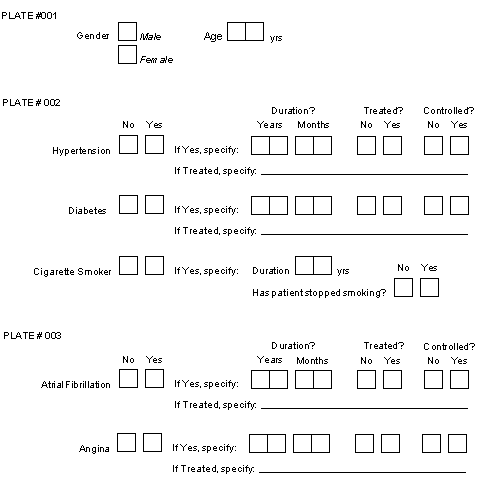
Example 8.15. Normalization code for Sample Case Report Form
MERGE no
NORMALIZE if(item==2)
SORT 1:n 2
medprob "Medical Problem"
item tempvar
yrs "Medical Problem - duration (yrs)"
mon "Medical Problem - duration (mon)"
treat labels "Medical Problem - on treatment"
ok "Medical Problem - controlled or stopped"
rx "Medical Problem - treatment specify"
RECORDS 2
"hbp" 10~15
"dbm" 16~21
"smoker" 55 56 "." "." 57 "."
RECORDS 3
"afib" 41~46
"angina" 47~52
RECORD 1
12 sex labels
13 age
SAS
data final;
merge medhx.d01 (in=medprob) medhx.d02;
by ID;
if medprob;
proc print;
Although most specifications will probably be simpler than the example shown above, this example illustrates most of the DFsas normalization features. A detailed description follows below. In this example we will assume that the yes/no questions are coded 1=no, 2=yes, and that plates 1, 2 and 3 only occur at baseline.
In our example the only global specification shown is MERGE no. This will
suppress the standard merge command so that it can be replaced by the command
shown at the bottom under the SAS keyword.
With the specified merge command
only subjects who have one or more medical problems will be included in the
normalized data set. If the usual merge command were used subjects with no
medical problems who appeared in the baseline (age/sex) file, would appear as a
single record in the merged data set, with SAS® missing value codes (i.e. the
dot) for the medical problem variables.
In our example, each medical problem is defined by 7 data fields, named:
medprob, item, yrs, mon, treat, ok, rx.
Each of these 7 data fields is defined on a separate line following the
NORMALIZE command. The normalized records to be created consist of only 6 of
these fields.
The variable named item
is classified as a tempvar. Tempvars are variables that are needed for case
selection but which are not be included in the normalized data records.
Variable item
is needed to select the problems to be printed but is of no use by itself. It
is a choice field with 2 boxes coded 1 for no (the problem does not exist) and
2 for yes (problem exists). Since this field will equal 2 for all records that
are written to the normalized data set, it would be an uninformative constant
and can therefore be eliminated. It is legal to specify more than one tempvar
within a set.
The type (choice, check, etc.) of each variable is determined from the
definition in DFschema
of those variables that make up the first normalized
record.
For this reason it is important to choose the first record carefully and to
avoid using a record in which some of the fields are missing and therefor
specified with a fixed value. The record that begins with "smoker" in
the preceding example is like this and thus would be a poor choice for the first record.
If you can not avoid fixed fields in the first record, (e.g. medprob
in the example) the variable type is determined by inspection of the fixed value.
If this value is entirely numeric (i.e. composed of 1 or more digits and optionally
including a decimal) it is defined as a number to SAS®,
otherwise it is defined as a text field. When specifying fixed numeric fields
remember to enclose them in double or single quotes, otherwise they will be
interpreted as database field numbers.
When DFsas creates a normalized data set, it determines the field type
(i.e., string, number, date) of each variable by examining the definition of
each variable on the first normalization record specified. If a fixed string
is specified, DFsas examines it to determine whether it is a string or a
number. In some cases it may determine the type incorrectly. For example,
if the first record contains a field that is defined with a SAS missing value
code, e.g. ".M", there is no way for DFsas to know whether the field is a
number or a character string.
To eliminate
ambiguity, users may specify the string qualifiers of c
(string) or
n (number) for fixed strings in the DFsas job file.
String qualifiers should only be specified on the first normalization record,
because this is the only one examined to determine the field type of each
variable in the normalized data set. This is all that is needed because
each field can only be of one type.
For example
RECORDS 3
"bp" 9~13 "mmHg":c
"wght" 14~18 "kg"
"hght" 19~23 "cm"
"pulse" 24~28 "beats per min"
"other" 29~33 ""
String qualifiers are defined in the DFsas job file and consist of:
:c- character string. This option specifies that a fixed string is to be interpreted as a character field.:n- number. This option specifies that a fixed string is to be interpreted as a numeric field.
There are several important points to bear in mind when using string qualifiers:
The qualification is only used from the first normalized record and is ignored if present on any other normalized records.
Qualified strings may have embedded spaces, as for
pulsein the example above.Single or double quotes may be used to specify qualified strings, but quotes of any type are not allowed within a string, and the
:qqualifier is not allowed. Qualified strings must have matching quotes.Empty strings are allowed, and may be specified with either single or double quotes, as for
otherin the above example.
The if statement after the NORMALIZE command is optional. It instructs DFsas to
print a data record if variable item
equals 2 (i.e. the problem exists).
The if statement uses awk syntax. Other
examples of legal selection criteria for the above example would include:
-
medical problems among older men
if(item==2 && sex==1 && age>65)
-
untreated problems which are not resolved
if(item==2 && treat==1 && ok==1)
-
problems among women of any age or men over 65
if(item==2 && (sex==2 || age>65))
Another common use of the case selection specification is to restrict record selection to a desired set of visits (e.g. baseline only, follow-up only, etc.). This can be accomplished by including the visit number in the variable list (perhaps as a tempvar) and then using it in the case selection specification. For example:
medical problems at visit 0 (baseline)
if(item==2 && vnum==0)
medical problems from visits 1 through 5 inclusive
if(item==2 && vnum>=1 && vnum<=5)
Another common example will arise when normalizing medication records or
adverse events. In such cases each question block typically begins with a
string variable (e.g. a drug name or adverse event name). To select blocks in
which something was specified use the
awk length function as follows:
if(length(drugname)>0) # include if a drug name is specified
DFsas will also accept
SELECT if(condition statement) on one or more separate
lines following the NORMALIZE statement. If more than one
SELECT statement is
used, an OR is implied among them, i.e. a record only has to match one
SELECT statement to be created. For example, the statement:
NORMALIZE if ( x==1 || y==2 || (z==3 && length(comment)>0) )
can also be written as:
NORMALIZE
SELECT if(x==1)
SELECT if(y==2)
SELECT if(z==3 && length(comment)>0)
NORMALIZE and SELECT
must both appear in uppercase, if
must be in lowercase, and the names must use case exactly as defined in the
NORMALIZATION variable definitions. SELECT if
must be considered a single phrase.
if must follow SELECT and it is not
legal to have anything except space(s) between SELECT and
if.
For example,
SELECT {if(...)}is not legal.
Remember that the variables used for case selection must appear in the list of
normalized variables. However, if they are not wanted in the normalized data
records they can be removed by defining them as tempvar,
as was done for
variable item
in the example.
Variable names may be followed by the keyword labels or
codes to
override global specifications. This is illustrated in variable
treated,
for which labels are requested.
For example, this variable might have labels
no and yes, which will be written to the normalized data set in
place of the codes 1 and 2.
Value labels are taken from the study schema. Since all records are assumed to
follow the same format, it does not matter which of the records specified
under the
RECORDS keyword(s) is used to locate variable labels. DFsas uses the
very first record specified.
The variable name statements all end with a variable description or label. This is needed because these variables do not exist in a single place in the database, and thus a unique variable description can not be read from the study schema.
The
RECORDS statement identifies the plate from which the variables will be
extracted. In our example, there are 2
RECORDS statements, one for records to
be created from plate 2 and one for records to be created from plate 3.
As previously described for RECORD
statements, it is possible to specify record
status retrieval criteria following the plate number on a
RECORDS statement.
For example:
RECORDS 1 final #only export final data records from plate 1
Each line following a
RECORDS statement identifies the variables to be
extracted from the specified plate to form a single normalized data record.
Variables are specified as a space delimited list of single field numbers,
field number ranges and/or quoted fixed string fields. The field numbers
corresponding to the variables you want to select can be determined from
DFsetup, or by running DF_SSvars or DF_SSschema from DFexplore in
Reports View.
There must be a one-to-one correspondence between the variable names specified
under the NORMALIZE statement, and the data fields identified under the
RECORDS
statement. Note that the first data field, which maps to variable
medprob, is a fixed string field,
and is a constant which identifies the question on
the study case report forms from which the problem record was created. This
technique is also used to insert missing codes for 3 variables
(mon, treat and
specify)
for history of smoking, which in our example inquires about duration in years
(variable yrs
) and whether the subject has stopped (variable ok
), but not about duration in months, and treatment. Remember to enclose all
fixed string fields within single or double quotes.
DFsas automatically sorts each normalized data set on subject ID, however sometimes this may not be enough. You may wish to sort the normalized set on some other variable(s) within subject ID, or even sort on some other variable ahead of subject ID.
You can specify your own sort order by including a SORT
statement after the NORMALIZE statement as in:
SORT 1:n 2
This example statement will sort the normalized data set on the 1st
field (ID) in numerical order, and then within
ID will sort on the 2nd field
(medprob) in ascending ASCII or character order.
Note that field numbers
correspond to the order in which the variables are defined in the normalized
set.
Remember that although subject ID is not included in the list it is always
present as the first field.
Legal field sort qualifiers include:
:n. Sort the field in ascending numeric order, as in:2:n
which sorts on field 2 in ascending numeric order.
:r. Sort the field in descending alphanumeric order, as in:2:r
which sorts on field 2 in descending alphanumeric order.
:nr. Sort the field in descending numeric order, as in:2:nr
which sorts on field 2 in descending numeric order.
If a sort field is specified with no qualifier, sorting is done in ascending alphanumeric order (a.k.a. ASCII collating sequence).