Table of Contents
DFweb is a browser-based application that allows users to perform data entry, data review, and query resolution and view reports for a DFdiscover study.
DFweb requires a browser with HTML5 capabilities. Check your browser’s capabilities at https://html5test.com.
DFweb has been tested with current versions of Chrome, Firefox, and Edge on Windows 10 and Chrome, Firefox, and Safari on macOS 10.14 (Mojave) or later. Browser updates are frequently made available by vendors. Please keep your browser up-to-date.
DFweb is not compatible with any version of Internet Explorer, any browser in Windows XP or any browser in Windows 7.
The minimum recommended screen width is 400 pixels, except for studies using CRFs with backgrounds and DFdiscover reports, where the minimum recommended screen width is 800 pixels. To avoid horizontal scrolling with CRF backgrounds in portrait orientation, the minimum recommended screen width is 1280 pixels.
The main purpose of DFweb is to facilitate data entry at clinical sites particpating in a DFdiscover study without the need for the additional features available in DFexplore. It may also be that a site is unable to install a local application like DFexplore - DFweb is the perfect solution.
DFweb supports many of the same data validation features as DFexplore: legal range checking, type validation, required values, field skipping, missing value coding, lookup tables, and several metadata features: adding, resolving, and editing queries, and adding reasons for data values. It also supports the DFdiscover edit checks language, with a few exceptions.
DFweb provides additional features including a Queries page to identify and resolve outstanding data issues, a Tasks page to review study-defined subsets of data, and a Reports page to view standard DFdiscover reports and custom listings.
Access DFweb from any compatible browser via the URL https://dfweb.dfdiscover.com/. You may be provided with a custom URL for DFweb by your study sponsor or coordinating center.
The server selection page is the initial landing page in DFweb for new users or if you are accessing DFweb in a new browser or on a new device. Enter the DFdiscover Server for your study and click to proceed to the login page.
For subsequent logins, this page is skipped and the DFdiscover server is displayed on the login page. If you are using a URL provided by your study sponsor or coordinating center, you may not see this page and instead go directly to the login page.
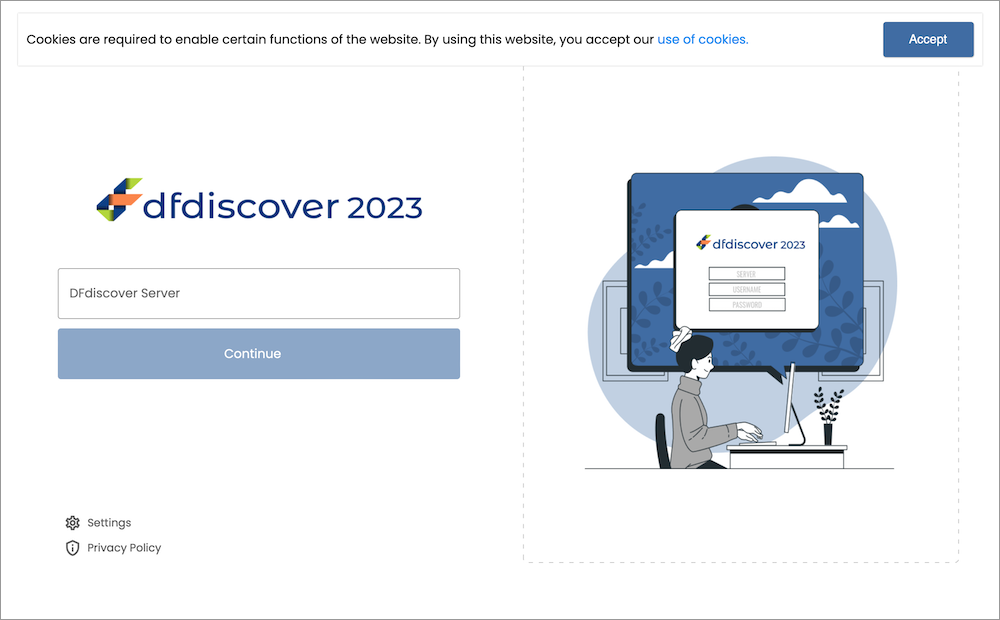
If there is a problem with the server name you've provided, an error message appears below the button.
The login page is where you provide your username and password in order to access DFweb. The DFdiscover server you are connecting to is shown on the top left of the page. If the DFdiscover administrator has provided an information message, this will be shown on the right side of the screen or at the bottom of the screen on smaller displays.
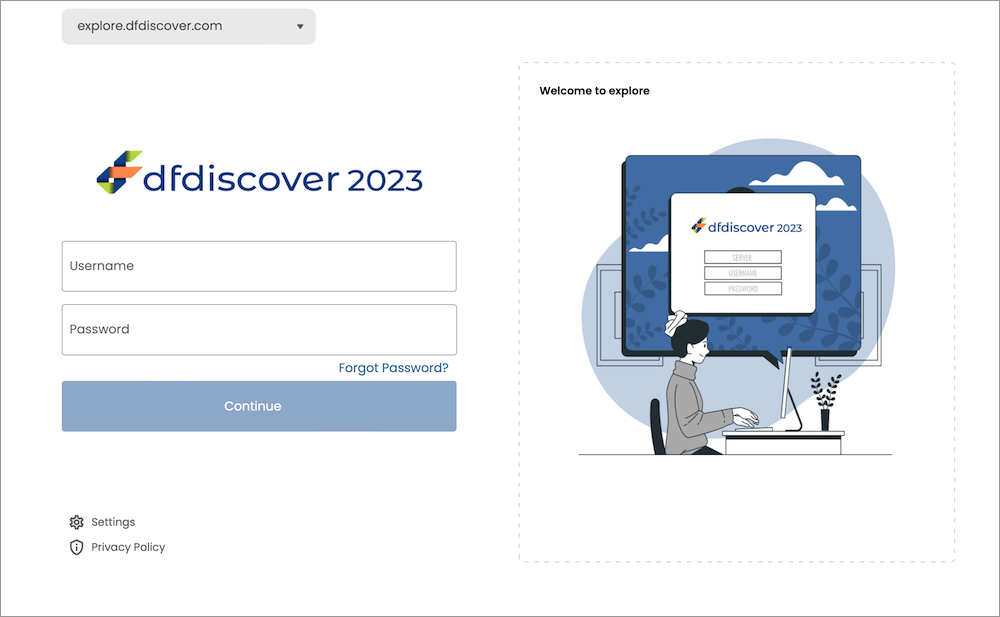
To access a study, a successful login is required. Successful login requires a valid Username and Password for the DFdiscover server you are connecting to. Your study sponsor or coordinating center has provided you with your own unique credentials. After login, all activities are logged with your username. Do not share your credentials with any other user - each user must use their own credentials.
If you already have login credentials for other DFdiscover tools, the login credentials for DFweb are identical.
Enter your Username and Password exactly as provided. Click to login.
If there is a problem with the credentials you've provided, an error message appears below the button.
If you don't remember your password, click on the login page. Provide the DFdiscover Server, Username, and Email and click to request a new password. You will receive an email with the subject line "DFdiscover password reset". Follow the instructions in that email to reset your password.
When you login for the first time, or if your password expires, you may be prompted to provide a new password. To continue, provide a new password meeting the stated requirements.
If you need to connect to a different DFdiscover server from the login page, change the server name in the field at the top left of the page. All servers you have connected to on this device will appear in the dropdown to allow easy switching between servers.
The administrator of the DFdiscover Server may have enabled two-factor authentication for your login account. If it is enabled, after successful authentication a new screen will appear to request the security code. You will receive an email with the 6-digit security code. The email is sent to the email address on file for the account. Enter the 6-digit security code.

The code is unique to your login on a specific device and is valid for 10 minutes. If you do not receive the email or the code is no longer valid, you can request another code by clicking Resend Code. After entering the code, click to complete login.
If you are using a personal device, you can choose to enable Trust this device. By enabling this setting, you will not be asked for another security code for 30 days. If you are using a shared device, do not enable this setting - this provides an additional layer of security as each login will require a unique security code.
DFweb uses cookies. Cookies are standard technology implemented in all web browsers. They are small pieces of data sent from a web server (the DFdiscover server in this case) and stored on the user's computer by the user's web browser, while the user is browsing. DFweb displays a notification and a hyperlink for more detail.
Further details on the usage of cookies in DFweb can also be found at https://www.dfnetresearch.com/cookie-policy/. Click to confirm that you have read the notification and stop it from being shown in that browser again. If you have previously cleared the notification and need to see it again, clear the browser's cookies and site data, and refresh the page.
After a successful login, you will see the Select Study dialog if you have access to more than one study in DFweb. You won't see this dialog if you only have access to one study. Click on the appropriate study to open it.
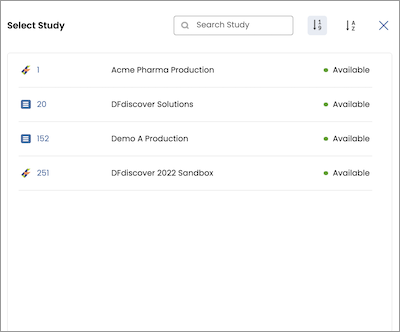
To switch to another study, click the study name in the top middle part of the page to open the Select Study dialog again and choose another study, or click in the top right to return to the current study. The Select Study dialog also includes options to search by study name, sort by study number, and sort by study name.
For subsequent logins, DFweb opens the last study you accessed, so the Select Study dialog won't appear unless you switch to another study.
To maintain security, the DFweb login session is automatically closed if there is no activity for a certain period of time. By default, the auto logout timer is set to 10 minutes, but this may be customized for your study. A warning, with countdown, is displayed one minute before the session is closed. Click to continue to use DFweb and reset the timer.
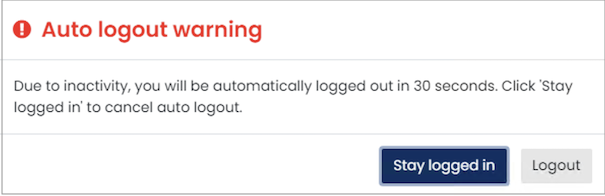
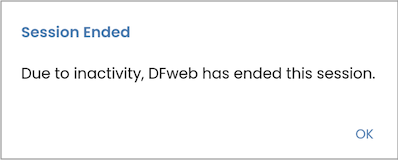
In the event of session timeout, the following actions take place:
an information dialog is presented to notify that automatic logout has occurred
unsaved changes for the current CRF, if any, are discarded
the lock for the current CRF, if any, is released
you are logged out and taken back to the login screen
Never rely upon the session timeout to terminate a session. Always save changes to the current CRF and logout.
Following a session timeout, after re-login you have the option to resume your previous session.
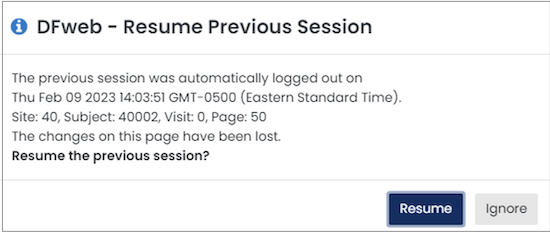
Click to return to the page you were on when the session ended, or click to continue the new session.
To exit from DFweb, choose from the Application Menu. After successful logout, the login window is shown.
When using DFweb, logging out via in the Application Menu is the recommended and most secure way to exit DFweb. Although closing the page ensures your data is safe, it is best practice to logout properly.
A glossary of frequently used terms is presented below.
Document |
A document is a file that is, or will be, attached to a CRF. Documents can be images, PDFs, videos or other file types. |
eCRF |
Electronic case report forms (eCRFs) are CRFs (as described below) where the layout of the fields is handled by DFweb, and where no background image is displayed. eCRFs arrange fields as individual rows in a column, and the layout of the fields adjusts as the window size changes. |
Field |
A field is a single data value and optional related metadata, including queries, the reason for the data value, possibly a missing value, and other descriptive information about the field, such as its label and help. |
Final (Status) |
Final is a record status. A record can have status Final if there are no missing required fields, no illegal values and no outstanding queries. DFweb decorates Final records with a green shaded rectangle (see also Incomplete and Pending). |
Incomplete (Status) |
Incomplete is a record status. A record can be saved with status Incomplete if it has one or more fields which are incomplete (required and missing) or illegal, or outstanding queries. A blank record may have an Incomplete status if it has an overdue visit or missing page query, meaning the page is expected but not yet submitted. DFweb marks Incomplete records with a red partially shaded rectangle (see also Final and Pending). |
Missed (Status) |
Missed is a record status. A missed CRF is a page that will not be completed, for example if an expected procedure was not performed at a visit or a form is not applicable for specific subject. DFweb marks Missed records with an empty grey square, circle, or subject icon with a dashed outline. |
Missing Value |
A missing value is used to identify a field that is known and accepted as empty. A missing value allows even a required field to be blank and for the CRF to still be saved as Final. |
New (Status) |
New is a record status. A new record is a placeholder for data that has been entered but not saved yet. It can be a useful reminder for records which are expected but are not yet entered/saved. DFweb marks new records by an empty grey square, circle, or subject icon without a rectangle. |
Paper CRF |
Paper case report forms (paper CRFs) are CRFs (as described below) where the fields are laid out with specific sizes and locations relative to a background image. As the positions are fixed, the layout of the fields is not adjusted as the window size changes. |
Pending (Status) |
Pending is a record status. During entering a new data, a record can be saved with status Pending to indicate that data entry is still in progress, it has been started, not yet finished and you plan to return to it shortly and do not move to higher levels until they are saved with status Final or Incomplete. Pending records are typically not visible to or reviewed by the study coordinating site until they progress to Incomplete or Final status. Pending records are also not generally reported in summary listings. DFweb saves CRFs as Pending after a document has been added to a new CRF but no data entry has been done. DFweb marks pending records with an orange empty rectangle. |
Plate, or CRF |
Plate and CRF are terms used interchangeably to refer to a logical grouping of data fields, presented with a layout determined by the study sponsor, to fit on a single sheet of paper, or single webpage. Each CRF may stand alone, or CRFs may be grouped into multi-CRFs. A collection of CRFs constitute a visit, and a collection of visits constitute the subject binder, which holds all study data for an individual subject. |
Query |
A query is a question or comment about an individual data value. The study coordinating site may add a query to any data field to ask a question about the field, or request a correction or clarification. A query is metadata about the data value, or lack thereof, in the field, DFweb identifies query status by applying color to the field. A field with an outstanding query is blue. When a reply is provided to a query, or a reason is added to explain the field, the color is updated to orange, and when the field has been corrected, or the reply or reason have been approved, the color changes to green, provided there are no other outstanding queries on the field. |
Reason |
A reason is metadata used to explain the value in a data field. It is particularly useful as a way of explaining unusual values and thereby avoiding a data query from the study coordinating site. DFweb colors fields with a new reason orange and gives them a Pending status. If the coordinating site accepts the reason, the field color changes to green and the reason status changes to Accepted. If they do not accept the reason, the field color changes to blue and the reason status changes to Rejected. A reason can be modified, which starts the review process over again. |
Save |
None of the changes made to a CRF are saved to the study database until you click . If you leave the computer without saving your work, DFweb will time-out after a few minutes and any un-saved changes will be lost. |
Screen |
A screen is an optional grouping of fields on a CRF. On smaller displays, screens can be useful for grouping fields to ensure that they are seen together. DFweb indicates screens using a tab, and multiple screens in a CRF are stacked vertically. |
Subject |
A subject is an individual participating in a clinical study and for whom data is collected. Subjects are identified by subject ID (a unique numeric identifier), according to conventions established by the study coordinating site. |
Subject Binder |
A subject binder contains all of the required and optional data collection forms used to collect study data for an individual subject. Within DFweb, subject binders are displayed in a list by subject ID, with an associated icon that indicates whether the binder is empty or contains recorded data, and whether that data is currently Final, Incomplete or Pending. |
Visit |
A visit is a study timepoint at which one or more CRFs for a subject are completed, or a repeating log form such as an adverse event or concomitant medications. The duration of a subject's participation in a study is often marked by a baseline visit, several repeating visits, and a termination visit. |