Table of Contents
Tasks are a feature that allow you to retrieve a set of CRFs to review. Each task has its own purpose, defined by the study sponsor or coordinating center in DFexplore, and may include instructions.
![[Note]](../../imagedata/note.png) | Note |
|---|---|
| Tasks are only available when DFcollect is connected to DFdiscover server and API version 5.5 or later. |
To view your tasks, go to the Sites page and click  to open the Application Menu, and select from the dropdown menu. The list of defined data tasks available to you will appear.
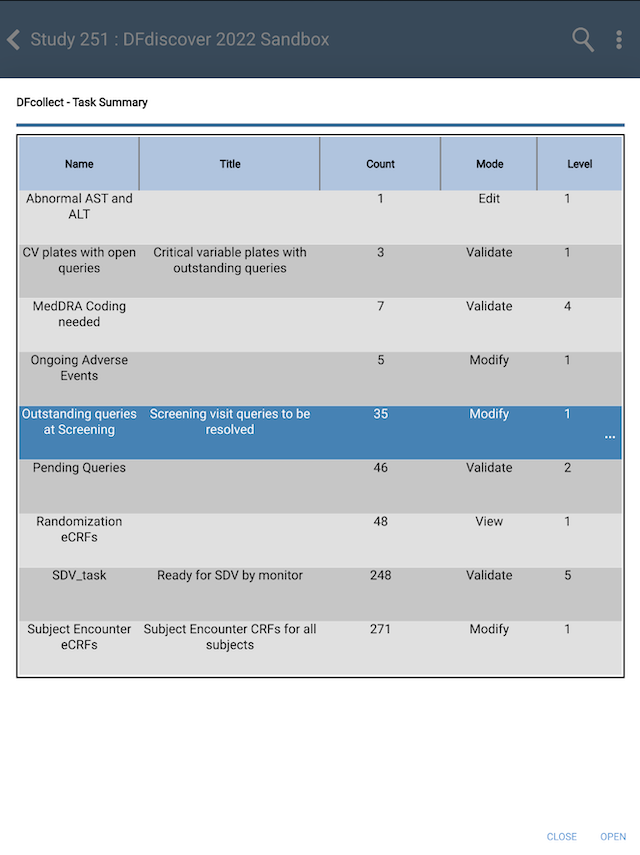
The Task Listing page includes the following information for each task: Name, Title, Count, Mode, and Level. The Name and Title provide information about the purpose of the task. The Count indicates the number of records that are included in this task. The Level and Mode provides technical details about what happens when you review and save the records in this task. You may need to scroll up and down to see all tasks in the table or scroll right and left to see all columns for each task. Click at the end of the row to see more information about the task listing, including any instructions provided about completing the task.
Select any task on the Task Listing page and click to go to the Task page. To close the Task Listing page and return to the Sites page, click .
After selecting a task from the Task Listing page, you will see the list of records available in that task. The task name is shown at the top of the page. Click  next to the task name for more details about the task.
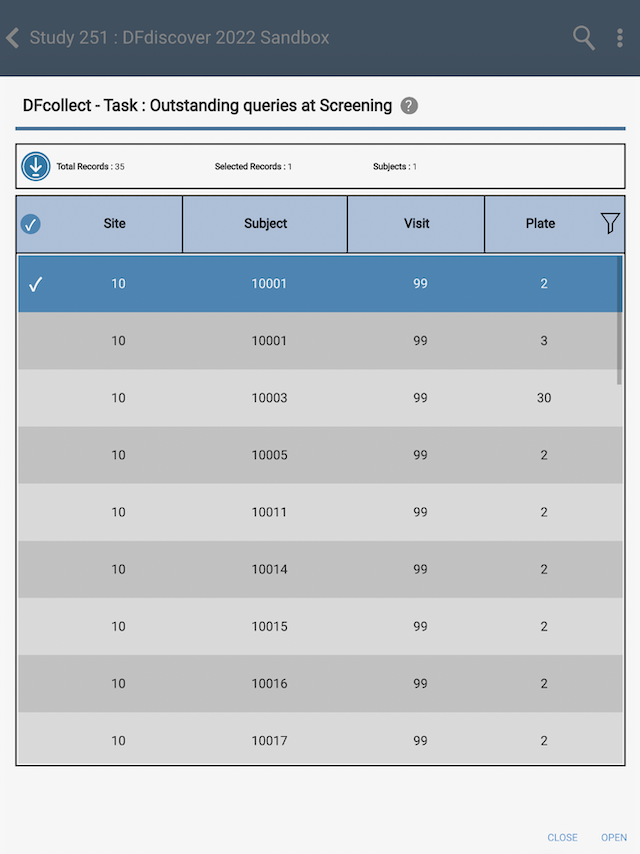
The Task page includes the following information for each task record: Site, Subject, Visit, and Plate. Total Records at the top of the table indicates the total number of CRFs in your task. To begin reviewing your task, select any record on the Task Results page and click to open the CRF.
While reviewing a CRF in a task, the CRF menu will indicate that you are reviewing this record as part of a task. Click Task in the CRF Menu to view details about the current task. Review and save the CRF as needed, following instructions provided, as you would during data entry.
Click  to return to the Task page and select another CRF to review or close the task. The Task page will refresh when you return to it, so that if the record you just saved no longer meets the task criteria, it no longer appears in the table.
The Task page also includes options to filter task records in the table and to download subject records for offline use.
To filter task records, click  to display search fields for each of the columns in the table. Enter a value in one or more search fields and click
  to filter the records in the table. A message will appear at the top of the screen indicating the number of records found by the filter criteria. Click to hide the search fields and remove the filter, displaying all records in the task again.
To download subject records for offline use, click one or more records in the table to select the subject(s) whose data you wish to download, or click the circle to the left of the Site column header to select all subjects in the task for download. Click the row again to unselect it if needed. Selected Subjects at the top of the table indicates the number of subjects to be downloaded. Click  to start downloading all records for the selected subjects. Once records are downloaded, the icon
  will appear at the beginning of the row.
To close the task and return to the Sites page, click .