Table of Contents
The Queries View aids in the review and management of queries. It has features that are specific to queries.
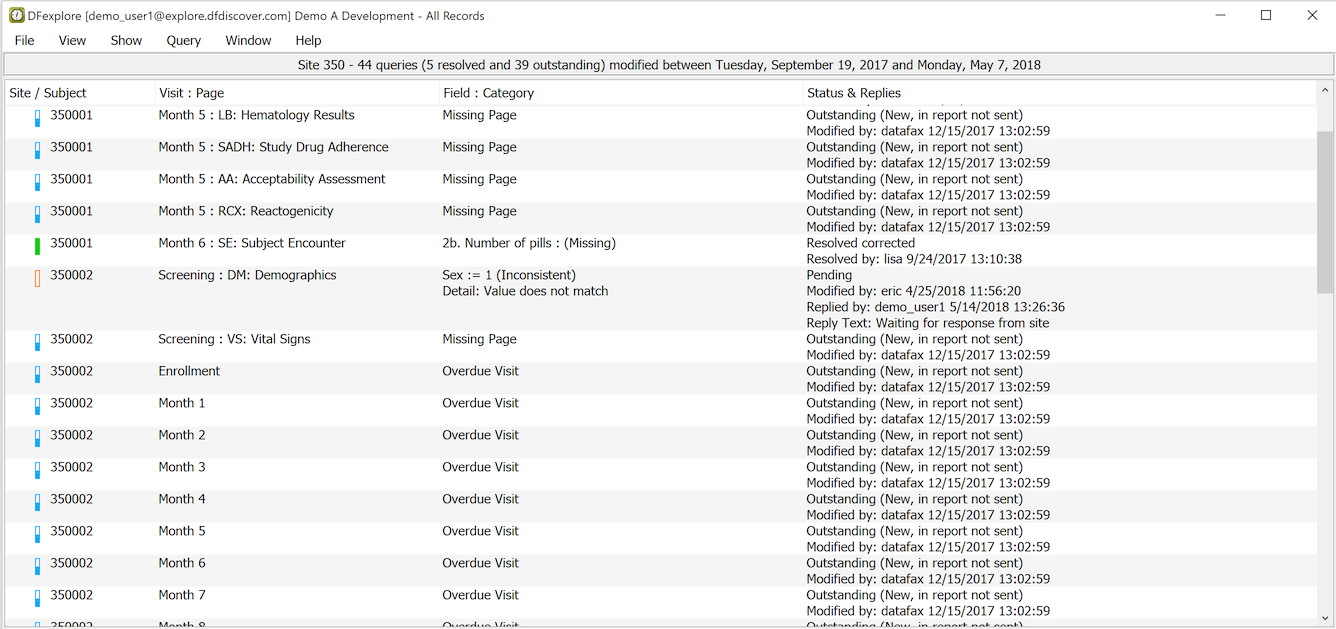
Each query is identified by the subject ID, visit and page on which it occurs. Under the heading Field : Category the data field is identified along with its current value and the category (in brackets). If necessary, this may be followed by a description of the question from the study coordinating site. The last column shows the current status of each query, when status was set and by whom, and the current reply made to the query (if any).
Each query is marked with a symbol that shows its current status: a green filled rectangle for resolved queries, a blue partially filled rectangle for queries that are outstanding, and an orange outline rectangle for pending queries (i.e. where someone has responded to the query but the response has not yet been reviewed by the study coordinating site).
Double-clicking a query closes Query View and opens Data View with the focus on the field to which the query is attached. This makes it easy to locate the field that needs to be corrected or to enter a reply to the query or a reason explaining the data value.
When finished with the data field in Data View and having saved any changes, click at the bottom of the subject binder list.
Query status has one of 3 possible values:
-
Outstanding. the query still needs to be addressed
-
Pending. the query has been addressed and is waiting for someone at the study coordinating site to review it
-
Resolved. the problem has been solved. This may occur automatically, for example when a legal value is entered into a field that has a query with category 'missing' or 'illegal'. Or a query may be resolved by someone at the study coordinating site. Query resolutions are classified in one of 3 ways:
-
resolved corrected - always the desired solution
-
resolved NA - the requested data/information is not and will not be available
-
resolved irrelevant - another value or response has rendered this query irrelevant
-
The available menu actions change when Queries View is selected.
The menu is used to filter the queries to be displayed in the queries table.
The following filters are available:
-
- include only queries on plates that match the defined task
-
- include all queries
-
- include queries that still need to be addressed
-
- include queries that have been resolved
-
- include queries that are awaiting review by the study coordinating site
-
- include queries that have the specified category code
-
- include outstanding queries that request data corrections
-
- include outstanding queries that require a detailed reply
-
- include outstanding queries modified in the past 5, 10, 15, 20, 25 or 30 days
-
- include outstanding queries modified more than 5, 10, 15, 20, 25 or 30 days
-
- display a search dialog for queries with specified properties. This provides the greatest flexibility and specificity for locating queries.
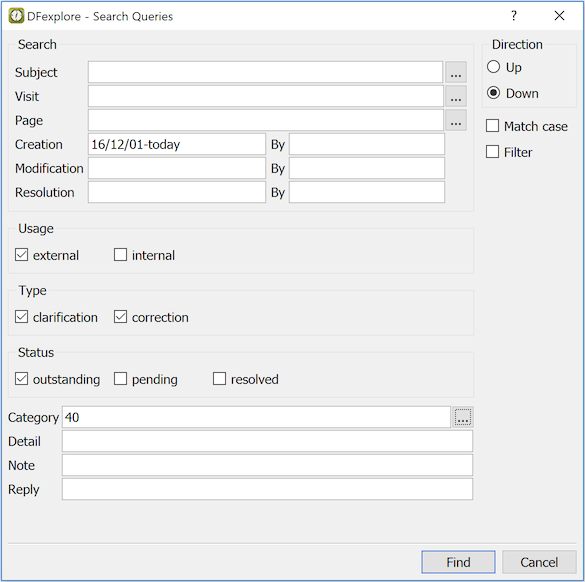
To be selected, a query must match all of criteria and you must have permission to view the query. Criteria left empty are not considered in the search.
To further specify subject selection criteria based on multiple criteria across multiple plates (Selecting Subjects based on Criteria), click .
If Filter is checked, clicking reduces the query list to queries that match the search criteria, and the search dialog closes.
Otherwise search Direction is applied to find the first match starting from the top of the list, or from the currently selected query and changes to .
Searching for a text match in the Detail, Note and Reply fields is case insensitive unless Match case is checked.
This menu has one action, . The menu action is available after a query has been selected in the Queries table. Selecting this option changes to the Data view, opens the relevant subject binder, visit, and page, and places the focus on the field that has the query. This allows you to find, review, and respond to outstanding queries in the context within which each query was created.
A quicker way to jump to the relevant data field is to double-click the query in the Queries table.
To return to the queries table after reviewing a query in Data View, click .