Table of Contents
The Reasons View is used for review of reasons that have been added to explain unusual values, add comments or explain why a data value was changed. Reasons are analogous to comments written in the margins of a paper CRF.
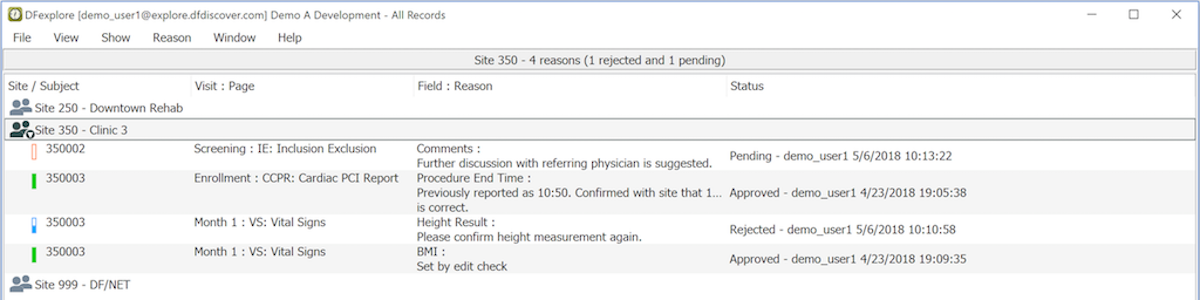
Each reason is identified by the subject ID, visit, and page on which it occurs. Under the heading Field : Reason, the data field is identified, followed by the reason that was entered to explain the current value. The last column shows the current status of each reason, when the status was set, and by whom.
Reason status has one of 3 possible values:
-
Pending. the reason has not yet been reviewed by the study coordinating site
Approved. the reason has been reviewed and accepted by the study coordinating site
Rejected. the reason has been reviewed but has not been accepted by the study coordinating site. For example, some data fields may be essential to a study and only accepted as missing in very rare circumstances. Typically when a reason is rejected the study coordinating site will add a query to explain why the reason is inadequate
The available menu actions change when Reasons View is selected.
The menu is used to select the reasons to be displayed in the reasons table.
The following filters are available:
-
- include only reasons on plates that match the defined task
-
- include all reasons
-
- show reasons that have been approved by the study coordinating site
-
- include reasons that have been rejected by the study coordinating site
-
- include reasons that are awaiting review by the study coordinating site
-
- display a search dialog for reasons containing specified text strings
This menu has only one option, . The menu action is available after a reason has been selected in the Reasons table. Selecting this option changes to the Data view, opens the relevant subject binder, visit, and page, and places the focus on the field that has the reason. This allows you to find and review reasons in the context within which each reason was created.
A quicker way to jump to the relevant data field is to double-click the reason in the Reasons table.
To return to the reasons table after reviewing a reason in Data view, click .