Table of Contents
Batch is a framework for edit check execution in unattended (batch) mode. The framework specifies which data records are to be operated upon by edit checks and what is to happen when edit checks are invoked. It uses the same edit checks that are used in interactive edit checks through DFexplore and introduces no changes to the language.
From this point forward we'll refer to batch edit checks as DFbatch, the name of the program that oversees the batch edit checks process.
With DFbatch, it is possible to:
- add queries to data fields in the study database,
- add (and remove) missing page queries to the study database,
- generate and log messages that report inconsistencies, data values that need further review, etc,
- perform coding from lookup tables,
- change data values on records in the study database, and
- execute all of the same edit checks that DFexplore already does.
With DFbatch all of this is possible in an unattended mode.
This chapter contains overview descriptions as well as step-by-step instructions for most of the tasks you will perform with DFbatch.
![[Important]](../../imagedata/important.png) | Read entire chapter before proceeding |
|---|---|
|
DFbatch is a very powerful, and potentially dangerous if misused, application. We recommend that you read each section before using DFbatch for the first time. If you do not have time to read everything before starting, read DFbatch Basics and Using DFbatch at a minimum. |
If you have previously used DFbatch, Using DFbatch, BATCHLIST Element Reference, and BATCHLOG Element Reference are good reference sections.
Limitations of DFbatch are outlined in Limitations.
A great deal of the value added by DFbatch is in the log information that it records. The syntax and semantics of the log information is described in Reference Pages. The XML nature of the log information lends itself to presentation in an HTML-enabled, web browser environment.
Sample control files and their purpose are listed in Example Control Files. Where file examples are given throughout the chapter, they may be fragments of a complete file, or a complete file themselves. If the example file begins with the XML declaration,
<?xml version="1.0"?>
it is the complete file, otherwise it is only a fragment from a file.
Common Pitfalls and System Messages describes common pitfalls and enumerates all of the possible error messages.
DFbatch can be thought of as an additional layer that sits on top of the edit checks language, in much the same way that DFexplore is another layer, albeit interactive, that sits on top of the same edit checks.
Figure 6.1. DFbatch interacts with the study database and the edit checks language in the same manner as DFexplore
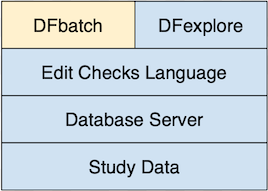
DFbatch reads the edit checks file as input, in the same way that DFexplore does. Where DFexplore provides interactive control over the records that are to be processed, DFbatch provides a language, stored in a control file, wherein the records to be processed can be specified non-interactively by the user. That specification can subsequently be applied to a study database on a regular (or irregular!) basis, in an efficient and unattended manner. This causes DFbatch to retrieve from the study database, one-by-one, the records selected by the control file, and apply the edit checks, field-by-field, to every field where they are referenced. Data field changes and queries are sent back to the study database, and all messages are logged. This is equivalent to retrieving sets of task records in DFexplore and traversing over each field of each record with the keyboard or mouse to invoke the edit checks.
While DFbatch is useful in most situations where edit checks are processed, it is not necessarily appropriate in all situations. Before proceeding to implement DFbatch, consider the following situations where it is inappropriate:
Application of edit checks to level 0 records . Batch edit checks cannot be applied to level 0 (new) records. If your workflow model is such that most edit checking must be performed during validation of new records, batch edit checks may not be appropriate.
Creation of queries that require user confirmation. In batch, calls to
dfaddqc()must always return with either a success status (equivalent to the user clicking ) or a fail status (equivalent to clicking ). It is not possible within a batch for some function calls to return success and some function calls to return false. If there is some uncertainty in the response (possibly because additional external information that is not available to the edit check must be reviewed), DFbatch is not appropriate.Display of lookup tables. DFbatch returns the default response for
dflookup()in all circumstances unless an exact match can be found. If matching must be performed by a visual search of the lookup table, DFbatch is inappropriate.Changes to record key fields. The record key fields cannot be modified in batch, this includes: the study number, plate number, visit number, and subject ID.
On the other hand, DFbatch is appropriate in many more situations where interactive edit checks are not workable or painfully inefficient.
Cross-plate edit checks. Records are generally processed in the order that they are received within a fax. In an interactive setting, it is very possible that the other plate involved in a cross-plate check is not yet in the database. Typically, the logic of the edit check will gracefully fail because the other plate is missing. However, in batch, the likelihood of this occurring is substantially reduced, and at those times when it does occur likely represents a plate that is truly missing.
Re-application of edit checks. When the logic of an edit check changes mid-study, it is too time consuming to re-apply study edit checks interactively via DFexplore, except for all but the smallest databases. With DFbatch, re-applying edit checks is trivial.
Application of new edit checks. Using DFbatch, it is easy to add new edit checks over the course of a study and apply them retrospectively to existing data.
Improved audit information. DFbatch logs a great deal of information about the environment in which edit checks execute. This can prove to be valuable debugging or audit information that is simply not available during interactive edit checks.
DFbatch is a command-line utility as well as a view in DFexplore. This section describes the command-line version of DFbatch which, apart from how it's invoked, is identical to the DFexplore DFbatch view. The commmand-line version of DFbatch is invoked from a command prompt or a scheduled cron or Windows Task Scheduler task.
DFbatch reads a control file of instructions as input, uses those instructions to select records from the study database, and executes all referenced or requested edit checks for those records, sending additions and changes back to the study database. At the same time, all actions taken by DFbatch are logged to an output file.
The output is a complete record of what happened during the execution of DFbatch. It is created so that incremental changes can be easily identified and is in a format that is amenable to post-processing. It is by default post-processed to an HTML document, which is only one possible view of the log results. The post-processing can be skipped, delayed, or subsequently re-applied to create a different view of the same results. DFbatch goes to great lengths to separate the creation of log information from its presentation.
It should be noted that DFbatch does not bypass the normal database activities that already define DFdiscover. Database records are requested from the study server in the same manner as existing applications, permissions and record locking are enforced, and changes are similarly sent back to the study server, where updates are performed and journal records are written. Record locks are observed so that DFbatch cannot modify a record that is currently locked by another DFdiscover application.
Certain aspects of edit checks are intrinsically interactive and do not
lend themselves naturally to a batch environment.
The dfask() edit check function, for example, is
an interactive function where the user selects one of the two
presented responses.
Lookup table functions, via dflookup(), are also
inherently interactive.
Fortunately, each of these functions also requires the programmer to
provide a default response as an argument.
DFbatch uses this default response as the function return value in
batch mode.
This allows an edit check that would otherwise require user interaction
to complete in a non-interactive environment.
Perhaps the easiest way to learn DFbatch is to look at an example.
DFbatch needs a batch control file as input. This must be created by the user in advance of invoking DFbatch. The purpose of the batch control file is to specify criteria that select records from the study, optionally name edit checks to be executed (by default all edit checks referenced by variables of selected records are executed), and state actions to be applied as the edit checks are executed.
Example 6.1. Example batch control file
<?xml version='1.0'?>
<BATCHLIST version='1.0'>
    <BATCH name="simple">
        <TITLE>This is a very simple batch</TITLE>
        <DESC>This batch executes edit check aeCoding on all
        records that are currently at level 2.</DESC>
        <ACTION>
            <APPLY which="none"/>
            <LOG which="data msg qc" file="simple_out.xml"/>
        </ACTION>
        <CRITERIA>
            <LEVEL include="2"/>
            <EDIT>aeCoding</EDIT>
        </CRITERIA>
    </BATCH>
</BATCHLIST>
The first thing that you will notice is a new language. The batch control file is specified in eXtensible Markup Language, XML. In XML parlance, the input file is a document. It turns out that the log output from DFbatch is also written in XML. There are many public domain tools (written in Java, Perl, C, etc) that are to parse and transform XML. Some web browsers are even able to display XML directly.
XML is a markup language and the markup is in elements
and attributes.
The extent of an element is marked with tags, namely
a start tag and an end tag.
The start tag and end tag for an element have the same name but
different notation.
The start tag is denoted with <TAG>
and the matching end tag is denoted with </TAG>.
The terminology is important: for the element named
TAG, the start tag is
<TAG> and the end tag
is </TAG>.
The content of an element is the data between the start and end tags. The relationships in the content are achieved by nesting elements.
In the example,
BATCHLISTBATCHTITLEDESCACTIONAPPLYLOGCRITERIALEVELEDIT
are elements.
Each document must have exactly one element, called the root, within which
all other elements are nested.
In the example, BATCHLIST is the root element.
It is an error for any text to appear after the end tag of the root element.
Nested elements must be properly balanced or the document will be invalid, meaning that it cannot be parsed.
Example 6.3. Improperly balanced, nested elements
<A><B></A></B>
In this example the relationship between
A and B
is ambiguous and so is not valid.
Elements that have no content are called empty elements.
Empty elements are denoted with a single tag that represents both the
start tag and the end tag.
The notation for an empty tag is <TAG/>.
In the example,
APPLYLOGLEVEL
are empty elements. Empty elements are typically used to convey information via their attributes.
Data about elements can be kept in nested elements or, if the data is itself not structural, in attributes. In the example,
versionis an attribute ofBATCHLISTnameis an attribute ofBATCHwhichandfileare attributes ofLOGincludeis an attribute ofLEVEL
The example control file contains a single BATCH
named simple.
The batch has a brief TITLE and a more
verbose description in DESC.
These two elements are present for documentation purposes only and do not
influence the processing.
The records to be processed are selected by the CRITERIA
element.
In this example, only those records that have a current validation level
equal to 2 and reference the
aeCoding edit check are selected.
For each selected record (those records that have a validation level of 2),
the data fields are traversed in tab order
and the edit check aeCoding is executed at every data
field that references it by name through at least one of the variable's
plate enter, field enter, field exit, or plate exit attributes.
Other edit checks are not executed.
Any actions that cause messages to be generated, queries to be added, or
data field values to be changed are logged to the
file
simple_out.xml.
The changes are not however applied to the database as is indicated by the
which
attribute of the APPLY element.
Of equal importance to the behavior that is stated, is the behavior that is not stated. In particular,
There is nothing about the input control file that specifies which study it applies to. DFbatch control files are meant to be re-used across studies. Hence the input file itself does not state which study it belongs to. The association with a particular study is made when DFbatch is executed.
Many possible retrieval criteria are not stated. As is true in the task set building dialog of DFexplore, criteria that are not stated match everything on that criteria. So for example, since no selection has been done by subject ID or visit number, all subject IDs and visit numbers are included.
The example control file must be saved to a named file that is accessible to the DFbatch program. There are two possible locations:
Stored on the server. Server-side study-specific control files must be kept in the
STUDY_DIR/batchdirectory.Stored locally. Locally stored control files can be stored anywhere on the system that you have access to.
For file naming conventions, we recommend that the control file use the
name of the batch as the basename with a _in.xml
extension (meaning input XML file).
For example, a control file named simple
for study 254 which is
stored on the server where study 254 has a STUDY_DIR of
/opt/studies/val254
would be saved to
/opt/studies/val254/batch/simple_in.xml.
To process the control file, DFbatch needs to login to your DFdiscover server the same way DFexplore does when you login. If you need to use a proxy server to access the internet, DFbatch automatically uses the same proxy settings as DFexplore. If you need to change these settings, use the Proxy Setting window in DFexplore to do this. Next, you need to tell DFbatch the name of your DFdiscover server, your username and your password. You can do this using -S, -U and -C command line options, by setting DFSERVER, DFUSER and DFPASSWD environment variables or by using DFpass. DFbatch is invoked with the command:
%cd /opt/studies/val254/batch%DFbatch -S server.somedomain.com -U datafax -C passwd 254 -i simple_in.xml
The login, study number and control file arguments can appear in any order. For more invocation options, see Invoking DFbatch.
The result of the command is the execution of the batch and the creation
of the log file, /opt/studies/val254/batch/simple_out.xml
on the server (as requested by the file
attribute of the LOG element).
The log file records the details of the batch execution but is not
post-processed in any way.
A more common way of running DFbatch is to process the batch, applying any
actions and creating the log file as before, and then immediately
post-processing the log to create a viewable HTML page.
This is achieved with -p xsl as in:
%cd /opt/studies/val254/batch%DFbatch -S server.somedomain.com -U datafax -C passwd -p xsl 254 -i simple_in.xml -osomedir/simple.html
The option requests post-processing via a default
XSL transformation (supplied with DFbatch) and the result
is written to simple.html, typically in a directory that
can be viewed from a web browser.
The HTML output is explicitly re-directed to an output file
at execution time (rather than making that file an attribute of the input
control file) to allow for the various web-publishing infrastructures that
are present at DFdiscover installations.
Alternatively, an existing log file can be transformed at any time into an HTML file using DFstyle, a companion program to DFbatch. The invocation of DFstyle requires a log file created by a previous invocation of DFbatch (not an input control file).
%cd /opt/studies/val254/batch%DFstyle -p xsl simple_out.xml >somedir/simple.html
The exit status of DFbatch reflects the success of the command.
If the exit status is 0, DFbatch executed
successfully.
Any other exit status indicates that an error occurred.
The text of the error will appear in one of the last elements of the
log file.
Example 6.4. Testing DFbatch exit status in C-shell
%/opt/dfdiscover/bin/DFbatch -S server.somedomain.com -U datafax -C passwd 254 -i simple_in.xml0%echo $status
This section covers the DFbatch control file language in detail and also provides addition detail for how DFbatch can be used.
The control file is an XML document that must address two needs:
it must state selection criteria for records to retrieve and/or edit checks to execute, and
it must state actions to take as edit checks are applied.
The document root element of the control file is always
BATCHLIST.
A BATCHLIST contains one or more
BATCH elements.
A BATCHLIST that contains zero BATCH
elements is an empty input file.
Although this is syntactically valid, it has no semantic purpose,
and results in no processing.
Most users will define one BATCH per control file as this
is an easy organizational way to think about batches.
The basic processing element of the control file
is a BATCH.
BATCHes appear sequentially within the input and cannot be self-nested (that is,
a BATCH may not contain another
BATCH).
Example 6.5. The general format of an input file
<?xml version="1.0"?>                          (1)
<BATCHLIST version="1.0">                      (2)
<BATCH name="batch1">                          (3)
        <TITLE>title of the batch</TITLE>      (4)
        <DESC>description of the batch</DESC>
        <ACTION>                               (5)
                action directives
        </ACTION>
        <CRITERIA>                             (6)
                record selection criteria
                edit checks to be included
        </CRITERIA>
</BATCH>
<BATCH name="batch2">
<!-- another batch definition appears here --> (7)
</BATCH>
</BATCHLIST>
|
This declaration must appear as the first line of the input file to indicate that the contents are an XML document. | |
|
The default | |
|
A | |
|
An optional description for the batch and its purpose can be placed in
| |
|
The processing rules of the | |
|
This is the required notation for a comment. Comments are for internal documentation of an XML file - they are read but otherwise not processed. |
The input file elements serve one of four purposes:
Descriptive. These elements,
TITLEandDESC, are present for identification and documentation purposes only.Processing Directive. These elements,
CONTROLandMOVETO, allow the user to modify the behavior and limits of DFbatch as it executes.Action. These elements,
ACTION,APPLY,LOGandODRF, are used to specify what actions are to be taken as edit checks are executed.Record and Edit check Selection. These elements,
CRITERIA,IDRF,ID,PLATE,VISIT,CREATE,MODIFY,LEVELandSTATUS, are used to select from the database the records that are to be processed, and optionally,EDIT, to select the specific edit checks that are to be applied to the fields of those records.
Certain characters have special meaning to an XML parser and hence cannot appear directly in an XML document. This includes the input control file. To use one of these five special characters in an XML document, the corresponding entity must instead be used.
Table 6.1. Special characters
| To display this character | Use this entity |
|---|---|
| & | & |
| < | < |
| > | > |
| " | " |
| ' | ' |
Example 6.6. Use of entity for special character
<?xml version='1.0'?>
<BATCHLIST version="1.0">
<BATCH name="special">
<TITLE>Run checkElig & checkDemo</TITLE>
<DESC>Among other things these edit checks test
that the subject's age is >= 20 and <= 50.
</DESC>
<!-- note that &, <, >, ', and " can appear inside
comments because comments are not parsed -->
...
</BATCH>
</BATCHLIST>
Record selection criteria are similar to those found in the
By Data Fields
retrieval option of DFexplore.
Retrieval criteria for records are by:
site ID, subject ID (not subject alias), visit, plate, level, status, creation date, modification date.
These map respectively to the elements:
SITE, ID, VISIT, PLATE, LEVEL, STATUS, CREATE, MODIFY.
These criteria are specified as nested elements of the
CRITERIA element.
If any element is omitted (or empty), the records to be selected
are not constrained by this element.
For example, if
PLATE is omitted (or empty), there is no restriction on
plate and hence all plates are retrieved, subject to the other criteria.
Retrieval by center and pattern are currently excluded.
Where multiple elements are given as criteria,
the selected records must satisfy the inclusion
criteria of each element, that is, the selected records are the intersection
set of the sets of selected records satisfying each element individually.
Each element is expected to appear at most once. If an element (accidentally) does appear more than once, the last element overrides any previous occurrences.
Each criterion allows a value, range, and/or lists of both.
These are expressed as the value of
the include
attribute as in:
include="val,min-max,val2"
Example 6.7. Selection criteria for all final records of visits 1 through 5, 10, and 20 through 29 inclusive
<CRITERIA>
    <STATUS include="final"/>
    <VISIT include="1-5,10,20-29"/>
</CRITERIA>
The CRITERIA element accepts one
optional attribute, sort.
The value of the attribute determines what sort order, if any, is applied
before processing to records that meet the selection criteria.
The value is constructed from one or more sort keys (precedence for
multiple leys is left to right) from the list:
id, visit, plate
where multiple keys are separated by ; and each key is preceded
by either + to indicate that the key is sorted in ascending
order, or - to indicate that the key is sorted in
descending order.
Example 6.8. Use of the sort
attribute to sort selected records on ascending id, then descending visit,
and then descending plate
<CRITERIA sort="+id;-visit;-plate">
....
</CRITERIA>
It is also possible to select records by an existing
DFdiscover Retrieval File (DRF).
This is specified with the IDRF empty element and the
file attribute as in:
Example 6.9. Select records specified by IDRF
<IDRF file="test.drf" />
The element instructs DFbatch that the records to be processed
in the batch can be found in a file named test.drf
located in the study /drf directory.
Example 6.10. Select records specified by IDRF
in a sub-folder using relative pathname
<IDRF file="sub_folder/test.drf" />
Example 6.11. Select records specified by IDRF
in a sub-folder using absolute pathname
<IDRF file="/STUDY_DIR/drf/test.drf" />
In the above two examples,
the element instructs DFbatch that the records to be processed
in the batch can be found in a file named test.drf
located in the study /drf directory.
The use of IDRF is mutually exclusive of the other
selection criteria and it is an error for the two to appear together in
one batch's CRITERIA.
Additionally, records selected by the IDRF element
are processed in the order that they appear in the file, ignoring any
value assigned to the file attribute of
the parent CRITERIA.
By default, all of the edit checks that are referenced by data fields on the records selected by the criteria, are executed.
For each selected record, DFbatch performs the following steps
The data fields of the record are traversed in the normal order (typically plate top to plate bottom), executing any plate enter edit checks that are defined at each field. A plate enter edit check may change the traversal order as the result of a
dfmoveto()call.Starting at the first data field, the data fields are traversed in order. At each field any field enter edit checks, and then any field exit edit checks are executed. A field exit edit check may change the traversal order as the result of a
dfmoveto()call.The data fields of the record are again traversed in the normal traversal order, executing any plate exit edit checks that are defined at each field. Note that a
dfmoveto()call always returns 0 in a plate exit edit check.
It is possible to include only certain edit checks to be executed by naming
them in EDIT elements within the
CRITERIA element.
Records and fields are still traversed in the same manner but only those
edit checks that match one of the included names are executed.
This can be useful, for example, when a new edit check is introduced
and requires testing.
Example 6.12. Execute only the aeCoding edit check on plate 5 records
<CRITERIA>
    <PLATE include="5" />
    <EDIT>aeCoding</EDIT>
</CRITERIA>
The EDIT element is the only element that is allowed to
repeat within CRITERIA.
A single EDIT element may also list multiple comma
or space separated edit checks by name in the element body.
Example 6.13. Equivalent specifications for multiple edit checks
<CRITERIA>
    <EDIT>aeCoding</EDIT>
    <EDIT>checkInit</EDIT>
    <EDIT>sigLookup</EDIT>
</CRITERIA>
is equivalent to
<CRITERIA>
    <EDIT>aeCoding,checkInit,sigLookup</EDIT>
</CRITERIA>
When EDIT elements appear in the criteria,
DFbatch optimizes the retrieval by automatically excluding from
selection those plates that contain no variables which reference any of the
named edit checks.
For example, if the edit check named checkElig
is referenced only by variables on plate 2, only records from plate 2 are
selected even if PLATE does not
appear in the criteria.
However, if the PLATE element is present
and includes a plate other than 2, the resulting set of selected records
will be empty as there can be no records that reference both the
checkElig edit check and are from a plate other than 2.
Edit checks are capable of changing (or assigning) data field values, adding queries to fields, adding and deleting missing page queries for records other than the current record, and generating information, warning, and error messages. This leads to three important categories:
- data - changes that are made to data field values
- qc - addition/modification of queries to data
fields by
dfaddqc()anddfeditqcor missing page query operations bydfaddmpqc()anddfdelmpqc() - msg - messages that are generated by
dfmessage(),dfwarning(), anddferror()
In an interactive environment, the user has the ability to visually review
and confirm or cancel each of these actions.
In DFbatch this is not possible.
Instead the batch control file must carefully state which actions will be
allowed to proceed unattended and which ones will be canceled.
This is specified in the ACTION element and its
APPLY, LOG, and
ODRF child elements.
Figure 6.2. The descendants of ACTION and
their attributes
<ACTION>
  <APPLY when="changes|all" level="1|2|3|4|5|6|7"
  which="none msg data qc"/>
  <LOG when="changes|all" which="none msg data qc" file="logfile_out.xml"
  mode="create|write" share="yes|no" history="yes|no" />
  <ODRF when="changes|all" which="none msg data qc" file="outfile.drf"
  mode="create|write" share="yes|no"/>
</ACTION>
This element controls what categories of actions are applied back to the database.
| Use with care |
|---|---|
|
This is the only element that controls whether or not DFbatch can request
irreversible database changes to be made and hence it must be used with care.
If you are uncertain about the behavior of a batch control file or
the edit checks that it may execute, use
|
The attributes of APPLY have the
following semantics:
when. This attribute must have a value ofallorchanges. If the value isall, every selected record is sent back to the database as an update, even if the record contains no differences from its previous state. If the value ischanges, only those records that contain changes are sent back to the database for update.level. This attribute must be a single integer in the range of legal validation levels, 1 through 7 inclusive. It indicates the validation level to assign to records when they are sent back to the database for update. This causes DFbatch to behave in a manner equivalent to Validate mode in DFexplore. If this attribute is not specified, the validation level of any record sent back for update is not changed. This is equivalent to Edit mode in DFexplore.which. This attribute has a value that is one or more space delimited categorical keywords from the list:none,data,msg,qc.dataindicates that all records with changed data fields should be updated back to the database.qcindicates that all queries added viadfaddqc()ordfaddmpqc(), modified bydfeditqc()or deleted viadfdelmpqc(), should update the database.msgis intended for logging purposes only and is present here for symmetry only.noneindicates that no changes to data or queries should be updated back to the database. This is the recommended attribute value for this attribute in the context ofAPPLY.
This element controls what categories of actions are logged to file.
The attributes of LOG have the
following semantics:
when. This attribute must have a value ofallorchanges. If the value isall, every selected record, and every selected edit check, is logged to file, even if the edit check or record created no changes or messages. If the value ischanges, only those records and edit checks that created a change or message are logged to file.which. This attribute has a value that is one or more space delimited categorical keywords from the list:none,data,msg,qc.dataindicates that all records and edit checks which would change data fields should be logged to file.qcindicates that all queries that would be added viadfaddqc()ordfaddmpqc(), modified viadfeditqc()or deleted viadfdelmpqc(), should be logged.msgrequests that all messages generated viadferror(),dfwarning(), anddfmessage()be logged.noneindicates that no actions should be logged. The recommended value for this attribute in the context ofLOGisdata msg qc, as inwhich="data msg qc".file. This attribute specifies the pathname of the file that will store the log information. The location of the batch control file (server-side or local) determines where the log file will be stored. The attribute is not required if no logging has been specified withwhich="none".If the log file location is local and the pathname is given as a relative pathname, it is assumed to be relative to the directory that contains the input file. If a pathname is given, and the log file will be stored on the server, the pathname portion is discarded and only the filename portion will be used. If the attribute is missing but logging has been specified, DFbatch will construct a filename for the log as follows:
The directory name of the input file is the base.
Append the value of the batch's
nameattribute.Append the fixed suffix,
_out.xml.
It is also possible to include a sub-folder as part of filename specification. The location can start from either a relative or absolute path. The filename can be given as
sub_folder/xx_out.xmlSTUDY_DIR/batch/sub_folder/xx_out.xml, which is an absolute path. In both cases, the output file will be created inSTUDY_DIR/batch/sub-folder/xx_out.xml. It is not possible to include../as a sub-folder: including../in any pathname will lead to an error.mode. This attribute specifies whether the log file should be created,create, or (over)written,write.share. This attribute specifies whether the log file is readable and writable by other members of the same group,yes, or by the creator only,no. This attribute is applicable only to locally stored log files.history. This attribute specifies whether DFbatch should distinguish between log entries that are new to this execution of the batch and entries that were present in previous executions,yes, or not,no.If history is requested, it is required that the file be created with
mode="write"and that the name of the log file and the batch criteria not change between executions. That is, DFbatch must be able to read an existing log file to create a previous execution history and then overwrite that log file with the history and new entries.The purpose of this history mechanism is not to build a complete historical view containing all log entries ever generated. Instead it creates the log file containing only the entries from the current execution, flagging each of the entries to indicate whether this is the first time that it has appeared or whether it first appeared in a previous execution. Only those entries which are generated by the current execution are included when history is enabled.
The entries in the batch output are the same whether history is checked or not. If history is yes, the entries are divided by date to show in which run the entry first appeared. If history is no, all entries are shown together.
This element controls which records are written to a DFdiscover Retrieval File.
The attributes of ODRF have the
following semantics:
when. This attribute may have a value ofallorchanges. If the value isall, every selected record is written to the DRF, even if the record had no changes or messages. If the value ischanges, only those records that had a change or message are written to the DRF.which. This attribute has a value that is one or more space-delimited categorical keywords from the list:data: all records and edit checks which would change data fields should create a DRF recordqc: all queries that would be added viadfaddqcordfaddmpqc, modified viadfeditqcor deleted viadfdelmpqc, should create a DRF recordmsg: all records for which messages are generated viadferrordfwarning; and dfmessage; shall be written to the DRF.none: no DRF should be created (this is equivalent to not specifying theODRFelement).
The presence of a result DRF allows for the subsequent review of records that were (if changes were applied) or would have been (if changes were logged) processed by the batch.
file. This attribute specifies the file that will receive the output DRF records. The attribute is not required ifODRFhas been specified withwhich="none".Output DRF files are written to the study
/drfdirectory, and must have the.drfsuffix, e.g.test.drf. If the attribute is missing but output DRF has been specified, DFbatch will construct a filename for the DRF.It is also possible to include a sub-folder as part of filename specification. The location can start from either relative or absolute path. The filename can be given as
sub_folder/xx_out.xml, which is a relative path, or/STUDY_DIR/batch/sub_folder/xx_out.xml, which is an absolute path. In both ways, the output file should be found in/STUDY_DIR/batch/sub-folder/xx_out.xml. The filename cannot contain ../ or /.. to alter the file path. Doing this will lead to error.mode. This attribute specifies whether the DRF should be created,create, or (over)written,write.share. This attribute specifies whether the DRF is readable and writable by other members of the same group,yes, or by the creator only,no. This attribute is applicable only to locally stored DRF files.
For the current implementation of DFbatch, the input file must contain only the elements and attributes that have been described and are valid for the document type definition. The presence of unknown elements or attributes will cause reading of the batch to fail, resulting in the batch not being processed. This will likely change in a future release.
For additional descriptions of each element and the attributes (and their purpose) that are valid for each element, consult BATCHLIST Element Reference.
The simplest way to invoke DFbatch is from the command-line with the command
% DFbatch -S server -U username -C password -i control_file study#
where the -S, -U and -C options,
-i control_file and
study# arguments are all required,
The command line options -S, -U and
-C may be used to supply user credentials for
authentication, although a much better approach is to use DFpass
as described in
Section 3.2, “User Credentials” and
DFpass.
The control_file can be located locally if the infile contains a
path, or it can exist on your server, in the 'STUDY_DIR/batch'
directory.
This DFbatch command processes, in document order and in the context of the
selected study,
all of the BATCH elements that appear in
control_file.
Example 6.14. Executing DFbatch on study 254 with the control
file /opt/studies/val254/batch/test_in.xml
% DFbatch -S idemo44.datafax.com -U datafax -C passwd 254 -i test_in.xml
DFbatch accepts several other command-line options:
| permits batches to be selected by name from the control file, or re-ordered within the control file. |
| will make a default output HTML file in your local outhtml_dir for each batch. The default output file name will be 'outhtml_dir' + 'batch_name' + '_out.html'. |
|
output html file name is
local and must include the full path. If '-o outhtml_file' is specified and
there is more than one batch within a control file, only the last
log will be saved to the given name. Consider using
|
| use the specified directory for the log file of each batch |
|
XLSX file name is
local and must include the full path. If '-x xlsx_file' is specified and
there is more than one batch within a control file, only the last
Excel output will be saved to the given name. Consider using
|
| use the specified directory for the Excel output of each batch |
| will write any errors to the full pathname of error_log. By default, errors are written to stderr. |
DFbatch is ideally a batch process, run during off-hours.
In the UNIX environment this is easily accomplished with the cron program.
To use cron, simple include the needed DFbatch command-line equivalents in
the crontab file.
For additional information on using cron, refer to the UNIX man pages.
Example 6.15. Using cron to run DFbatch at scheduled times
0 23 * * * /opt/dfdiscover/bin/DFbatch -S idemo44.datafax.com -U datafax -C passwd 254 -i test_in.xml
Remember that the environment and path variables defined by your login are not available to cron, and hence /opt/dfdiscover must be set explicitly.
![[Note]](../../imagedata/note.png) | DFbatch exit status |
|---|---|
|
When executing DFbatch several times with a sequence of control files (as might be done in a shell script), it is recommended to check the exit status of each execution before continuing with the next. Refer to DFbatch exit status. |
Recall that the root document element,
BATCHLIST, can contain one or more
nested BATCH elements.
The option -b
can be used to select for processing specific batches by their name.
For example, the command:
batchname(s)
% DFbatch -S idemo44.datafax.com -U datafax -C passwd -b simple 254 -i test_in.xml
processes only the batch named simple from the control file,
independent of how many other batches are defined.
If the control file defines only the batch named simple
then execution of DFbatch with and without -b simple
are equivalent.
However, if the control file defines three batches named
simple, hard, and, difficult,
it would be possible to process only a subset of the defined batches with
a command like
% DFbatch -S idemo44.datafax.com -U datafax -C passwd -b "simple difficult" 254 -i another_in.xml
which would process the two batches simple and
difficult while skipping the batch named hard.
When multiple batches appear in the control file, and multiple batches are
processed, default ordering specifies that the batches be processed
in the order that they appear in the file.
Using -b it is possible to alter the processing order at
invocation time without altering the control file.
Consider the following skeleton of a control file.
<?xml version="1.0"?>
<BATCHLIST>
        <BATCH name="b1">
                ...
        </BATCH>
        <BATCH name="b2">
                ...
        </BATCH>
        <BATCH name="b3">
                ...
        </BATCH>
</BATCHLIST>
Invoked in the default fashion,
% DFbatch -S idemo44.datafax.com -U datafax -C passwd 254 -i simple_in.xml
DFbatch will process batches b1, then
b2, and finally
b3.
Order of processing can be altered on an ad-hoc basis through use of
-b, as in the following example that processes batch
b3 first, and then
b1, skipping
b2:
Example 6.16. Process batches named b3 and b1
% DFbatch -S idemo44.datafax.com -U datafax -C passwd -b "b3 b1" 254 -i simple_in.xml
| Note |
|---|---|
If non-default ordering is commonly achieved with this method, it is recommended that the control file be edited to permanently re-order the batches. |
The log information recorded by a batch execution is also in XML format.
This makes it amenable to further processing, filtering, or
transformation (also called styling).
Of course, post-processing is only meaningful if the control file uses
a LOG element and the value of the
which attribute is not
none; otherwise, there is no log
information available to post-process.
For this release, the only post-processing that is supported by DFbatch is transformation of the log output via XSL. This is accomplished with one or more XSL style sheets that are able to transform the log information into HTML without affecting the log file itself. HTML is the most common output format but is certainly not the only one. An XSL transformation could just as easily create another XML file, plain text output, or even PDF. The simplest method for specifying post-processing is at DFbatch execution time with the command:
% DFbatch -p xsl study control_file > htmlfile
This command processes, in the same manner as already described,
the batch in control_file in
the context of study study.
When the processing completes the log information is immediately post-processed
with the default
XSL transformation to create an HTML view of the log information that
is stored to htmlfile.
Note that the log file is not changed which allows
post-processing to re-occur at a future time with the same XSL
transformation, or a different XSL transformation to achieve different views
of the same log.
This post-processing of XML via XSL (or other) transformation is the key
ingredient that allows DFbatch to separate content creation from
presentation.
DFbatch comes with a default file for XSL transformation that is stored in
/opt/dfdiscover/lib/xsl/batchlog.xsl and is referenced by the
file /opt/dfdiscover/lib/stylesheets.xml.
It is possible to create other XSL transformations
(and future versions of DFbatch will
be available
with more) and incorporate them into
/opt/dfdiscover/lib/stylesheets.xml.
In such a case, it is possible to post-process the log information with
an alternate, non-default, XSL transformation using the command:
% DFbatch -p XSL=name study control_file > htmlfile
which applies the XSL transformation named name
to the log file, instead of the default transformation.
Note that the case of the option is important:
-p xsl requests the default transformation,
-p XSL= requests a specific
transformation.
name
So far, we have only seen how to post-process a log file at the time of DFbatch execution. This unfortunately does not de-couple log creation from presentation as DFbatch must be run again to re-do the post-processing. De-coupling log creation from presentation requires an additional program, DFstyle.
The DFstyle program can be invoked at any time to apply a transformation to an XML file (not just a batch log file). DFstyle is invoked with either:
% DFstyle -p xsl XML file > htmlfilewhich applies the default transformation, or
% DFstyle -p XSL=name XML file > htmlfile
which applies the transformation named by name.
Notice that XML file can be any XML file,
although in the context of DFbatch, it is an existing log file (not control
file) from a previous execution.
Also notice that the study number is not supplied to DFstyle - it does need the
context of the study number to transform the log file.
Using DFstyle in conjunction with DFbatch, it is now possible to independently execute a batch to create a log, and then transform that log information into another format for viewing, thus achieving the de-coupling of content creation from presentation.
Example 6.17. Complimentary uses of DFbatch and DFstyle
Remember that DFstyle can transform a log file independent of when the log file was created. As a result the following two scenarios produce the identical HTML file.
The first scenario performs the post-processing at DFbatch execution time,
% DFbatch -S idemo44.datafax.com -U datafax -C passwd -p xsl 254 -i /opt/studies/val254/batch/example_in.xml \
-o /opt/studies/val254/batch/htmlfile
while the second uses DFstyle to perform the post-processing at some, potentially much, later point in time:
%DFbatch -S idemo44.datafax.com -U username -C passwd 254 -i /opt/studies/val254/batch/example_in.xml%DFstyle -p xsl example_out.xml > htmlfile
If multiple XSL transformations are defined, it also possible to create multiple presentations of the same log file.
Example 6.18. Creating multiple presentations
(1)%DFbatch -S idemo44.datafax.com -U datafax -C passwd -p xsl 254 -i /opt/studies/val254/batch/example_in.xml \ -o /opt/studies/val254/batch/htmlfile1(2)%DFstyle -p XSL=secondtransform example_out.xml > htmlfile2(3)%DFstyle -p XSL=thirdtransform example_out.xml > htmlfile3
|
The first presentation is an HTML file created with the default transformation. | |
|
The second presentation is a second HTML file created with the named
transformation | |
|
The third presentation is a third HTML file created with the named
transformation |
The challenge in using DFstyle to transform a log file is to know the name of the log file that was created by a batch control file. Consistent naming between batches and input/log files simplifies this challenge.
Keep the following issues in mind as you learn about and begin to use batch edit checks.
Decide on file naming conventions and stick to them. There are potentially many input control files and output log and drf files that can be created and naming conventions will help you to keep them straight. Minimally, try using suffixes to distinguish between file types, something like this:
_in.xml- input control file_out.xml- output log file.drf- output DRF
If possible, define only one
BATCHper input control file. Use the name of the batch as the base name of the input file.Use the
APPLYelement sparingly. Instead, useLOGandODRFas often as possible. Remember that theAPPLYelement will cause actual, irreversible changes to be made to the database. There is no rollback feature in DFbatch.Further remember that the owner of created queries and the last modifier of changed data becomes the person that executed DFbatch. This implies that different batches should be run by different people, likely at different validation levels, just as if the edit checks were being tripped by individuals during interactive validation. Certain batches will lend themselves to being run by first level data entry, at validation level 1, while others will lend themselves, such as adverse event and medication coding, to being run by subsequent reviewers at higher validation levels. Alternatively, you may decide to make one person responsible for running all batch edit checks. DFbatch does not require or restrict either implementation method.
Perform extensive testing of edit check logic in DFexplore. Test all edit checks extensively in DFexplore before using them in DFbatch. In the 10-20 seconds required to validate a record interactively, DFbatch will process hundreds of records. It is much easier to deal with a single edit check error than potentially hundreds of the same error.
Re-usability of batches versus specificity. Do certain types of batch control files lend themselves to being generic while others are study specific? Where multiple batches need to be defined, is it better to define them in one
BATCHLISTwith multipleBATCHes, or in multipleBATCHLISTs with one (or a few)BATCHes per.One reason to place multiple
BATCHes in oneBATCHLISTis that the order of execution of the eachBATCHis executed in the order that is in encountered in the file, reading the file from top to bottom.Executing DFbatch from cron. What timing issues need to be considered before running DFbatch from the UNIX cron?
Try to limit how much a batch does. Avoid input control files that execute all edit checks on all records. This can lead to very large log files that are difficult to post-process and subsequently apply history to. Experience to date has shown that log files larger than 5MB in size cannot really be post-processed efficiently.
Primary records only. Remember that only primary records are processed in batch.
Consider dedicating a validation level to DFbatch. If DFbatch is being used to make changes to database records and add/delete queries, consider using one of the validation levels only for the purpose of marking records that have been through batch processing. For example, assume that all data records go through two levels of review by data clerks (first review moves record from level 0 to 1, and second review moves record from level 1 to 2) resulting in database records (hopefully final) at level 2. If the next step in the data review process required application of all edit checks to all level 2 records, level 3 could be used as an indication of records that had been through batch processing. The input control file would look something like:
<?xml version="1.0"?> <BATCHLIST version="1.0"> <BATCH name="level2"> <TITLE>Process all level 2, primary records</TITLE> <DESC>This batch processes all level 2, primary data records, moving them to level 3 after they are processed.</DESC> <ACTION> <APPLY when="all" which="data msg qc" level="3"/> (1) <LOG when="changes" which="data msg qc" (2) history="no"/> </ACTION> <CRITERIA sort="+id;+visit;+plate"> <STATUS include="primary"/> <LEVEL include="2"/> (3) </CRITERIA> </BATCH> </BATCHLIST>Apply all actions (data, msg, and qc) and assign all records (not just changed records) a validation level of 3. Specifying
when="changes"would only change the validation level of those records that were updated by the batch processing, leaving the unchanged records at their current validation level. In some scenarios, this may be desired, but not in this one.Log only the changes (this is not required, but does reduce the amount of log information recorded when edit checks do nothing and records are not changed).
Also, turn off history. Because of the way that this control file is designed, this attribute setting really makes no difference. Since level 2 records are always promoted to level 3, it will never occur that the same log entries repeat, because the selected set of records will always be different.
Select only the records that are at level 2.
This section describes the behavior of interactive edit check functions in the non-interactive environment of DFbatch, and lists items that cannot and should not be done with DFbatch.
Certain features of the edit checks language
are intrinsically interactive, for example, the dfask()
function.
When these features are encountered in DFbatch, they must be handled
intelligently and consistently.
The following describes the behavior of edit check functions when executed in
DFbatch.
Functions that are not listed behave identically in both environments.
dfask( query, dflt, accept, cancel )always returnsdflt.dflookup( table, var, dflt, method )always returnsdfltwhenmethodhas any value other than-1. Ifmethod=-1,dflookupbehaves the same in both environments, returning the result element fromtableif an exact match can be made,dfltotherwise.![[Warning]](../../imagedata/warning.png)
Warning Improper coding of
dflookupwithout consideration to this behavior in DFbatch can lead to unexpected results. In particular, previously coded fields can be replaced with the default.Example 6.19. Improper usage
The following use of
dflookupwould always replace the value in the current variable with the default parameter,""in this case.string s; s = dflookup( "TABLE", @(T-1), "", -1 ); if ( s != "" ) @T = s; else @T = dflookup( "TABLE", @(T-1), "", 0 );The intention of the edit check appears to be a good one: store an exact match if it can be found, otherwise display the table and store the selected result. In DFexplore, this works fine. However, in DFbatch, the second invocation of
dflookup()will never display the table and will always return"", which after the assignment, effectively erases any previous value in@T.
An example of a general implementation strategy for
dflookupthat considers the behavior in DFbatch is given below.Example 6.20. Implementation strategy for
dflookup# Look-up the value in @(T-1) and store the result in @T if ( dfbatch() ) { # Use the result only if an exact match is available and then # only if the field is not already coded result = dflookup( "TABLE", @(T-1), "", -1 ); if ( result == "" ) return; if ( dfblank( @T ) ) @T = result; else if ( result != @T ) dferror( "Previously coded value of ", @T, " and new result ", result, " do not match." ); } else { # insert existing dflookup code here }
dfillegal()always returns0. Setting the field color to the illegal value color is only meaningful in DFexplore.dfbatch()always returns1in DFbatch and0in DFexplore.The behavior of
dfaddqc(),dfeditqc(),dfaddmpqc(), anddfdelmpqc()is controlled by thewhichattribute of theAPPLYelement. IfAPPLYcontains the attributewhich="qc", the behavior of these functions is equivalent to the user interactively always choosing , that is, the queries are always added/deleted. If the value forwhichdoes not containqc, the behavior of these functions is equivalent to the interactive user who always chooses , that is, the query operations are always canceled.The behavior of
dfmessage(),dfwarning(), anddferror()is controlled by thewhichattribute of theAPPLYorLOGelements.All other errors that would cause a dialog to appear in interactive edit checks cause a log message to be written to the batch log file, if there is one, or standard error, otherwise. For example, if the referenced lookup table is not a plain ASCII file, an error message will appear on the command line when the batch is initialized.
The following actions are not possible with DFbatch.
It is not possible to change the status of a record. This means that a final record must remain final - it is not possible to assign an illegal or missing required value to a data field on a final record.
There are exceptions to this rule. DFbatch will change the status of a final record to incomplete if one or more queries are added to data fields of the record. DFbatch will change the status of a final record to incomplete if an illegal value is assigned to a field on a final record.
It is not possible to change the status of any primary record to secondary in batch.
It is not possible to change the value of any key field of a record. This means that the plate, visit, and ID numbers may not be changed, regardless of whether or not those fields are barcoded. This limits the usefulness, in batch, of edit checks that calculate and assign the visit number of a CRF.
It is not possible to apply batch edit checks to new (validation level 0) records, or records with status
missed.It is not possible to to assign a validation level that is greater than the maximum permitted to the user by their DFdiscover permissions.
It is not possible to query or interact with the user when something unexpected happens. Most unexpected events in DFbatch result in the writing of a message to the log file followed by immediate termination of the batch execution.
The FDA's Guidance for Industry: Computerized Systems Used in Clinical Trials explicitly states
Features that automatically enter data into a field when that field is bypassed should not be used.
Although not stated, the spirit of the guidance relates to reported values. Calculated or derived values that are not part of the source record should be exempt from this guidance.
To be safe, however, we do not encourage creating or processing edit checks that blindly assign values to data fields. A preferred alternative is to compute what the expected value of a field is and then compare it against the recorded value, signaling an error when the two do not match.
Example 6.21. Comparing calculated and reported values
Rather than simply replacing reported values, edit checks should be written to compare calculated and reported values, issuing an error message when the two do not match.
# s contains the calculated value for what should be in @T
s = "some calculated value";
if ( s != @T )
    dferror( "The expected value, ", s,
    ", and the reported value, ", @T,
    ", do not match." );
Should it be necessary to add or change data values using edit checks, DFdiscover will by default, automatically create a reason indicating that the change was made by an edit check rather than manually. These reasons have this standard format:
Set by edit check ECname
Going with the old saying that “a picture is worth a thousand words”, this section is a collection of example control files.
Example 6.22. Execute all edit checks on all records, logging their actions without actually applying them
<BATCHLIST>
<BATCH name="batch1">
   <TITLE>All edit checks on all records</TITLE>
   <ACTION>
        <!-- this APPLY statement isn't actually needed as the
        default is to apply none, but being explicit about it
        never hurts -->
        <APPLY which="none" />
        <LOG which="data msg qc" file="batch1_out.xml" mode="write"/>
   </ACTION>
        <CRITERIA>
        </CRITERIA>
</BATCH>
</BATCHLIST>
Example 6.23. Execute all edit checks on all incomplete, level 1 records for plates 1 through 5, applying no changes, and logging only the messages generated
<BATCHLIST>
<BATCH name="batch2">
   <ACTION>
        <APPLY which="none" />
        <LOG which="msg" file="batch2_out.xml" mode="write"/>
   </ACTION>
        <CRITERIA>
            <STATUS include="incomplete" />
            <LEVEL include="1" />
            <PLATE include="1-5" />
        </CRITERIA>
</BATCH>
</BATCHLIST>
Example 6.24. Perform AE coding on all level 4 records, assigning the records to level 5 when coding is complete
<BATCHLIST>
<BATCH name="batch3">
   <ACTION>
        <APPLY which="data" level="5" />
        <LOG which="data" file="batch3_out.xml" mode="write"/>
   </ACTION>
        <CRITERIA>
            <LEVEL include="4" />
            <PLATE include="12" />
            <EDIT>aeCoding</EDIT>
        </CRITERIA>
</BATCH>
</BATCHLIST>
Notice the statement:
<APPLY which="data" level="5" />
requests DFbatch to make changes to the processed records and change
their validation level to 5.
Before including this statement in the batch control file, you should
thoroughly
test that the aeCoding() is performing as expected.
Example 6.25. Execute the echoWho edit check on
all level 1 and 2 records, processing records in the specified order
<BATCHLIST>
<BATCH name="batch4">
   <ACTION>
        <APPLY which="none" />
        <LOG which="data msg qc" file="batch4_out.xml" mode="write"/>
   </ACTION>
        <CRITERIA sort="-id;+visit;+plate;-img">
            <LEVEL include="1-2" />
            <EDIT>echoWho</EDIT>
        </CRITERIA>
</BATCH>
</BATCHLIST>
Example 6.26. Execute the missingAEreport() edit check on
all plate 15 records, adding and logging only queries
<BATCHLIST>
<BATCH name="batch5">
   <ACTION>
        <APPLY which="qc" />
        <LOG which="qc" file="batch5_out.xml" mode="write"/>
   </ACTION>
        <CRITERIA>
            <PLATE include="15" />
            <EDIT>missingAEreport</EDIT>
        </CRITERIA>
</BATCH>
</BATCHLIST>
This would be a beneficial edit check in a scenario where plate 15 contains
a question like: “Did the subject experience an adverse event? If yes,
please submit adverse event report.”.
The assumption is that the missingAEreport() edit check
tests the condition and adds a missing page query if the condition is
true.
Interactively, we don't know if the missing adverse event report is possibly
the next page in the fax, so this makes more sense to do in batch.
Experience has demonstrated that the following areas of DFbatch are known to be problematic and may result in confusion at the end-user level:
The control file lists both plate and edit checks selection criteria. The plate list that results from the intersection of these two criteria is the empty set. The result is that DFbatch executes without error but no records are processed.
Edit checks that assign the sequence number based upon fields after the sequence number and then dfmoveto() back to the sequence number. This can lead to a loop condition because the attempt to assign the sequence number will always fail.
At runtime, the interpreter may detect errors that generate messages.
Error messages from DFbatch appear either on the command-line (or the shell
from which DFbatch was started via cron) or
in the
BATCHLOG file as a M
element with a type of
s (short for system).
Even though these system messages appear as
M elements, it is not possible
to filter them by excluding msg
from the which attribute of either
the APPLY or
LOG elements.
They will always appear in the output log file.
While it is possible to subsequently filter out these messages with an
alternate style sheet, this practice is not recommended.
Messages that appear on the command-line have the following format:
ERROR[batchname,type]:message(1) (2) (3)
|
The name of the batch in which the error was detected.
A batch name of | |
|
The severity of the error detected from the list:
| |
|
The text of the reported message. |
This section describes every element in the BATCHLIST document type definition. The description is offered in two complimentary views. The first view is a tree diagram illustrating the relationships between the elements. The second view is a reference where the meaning and use of every element is described.
A Document Type Definition (DTD) defines the set of elements and their attributes that are valid within a document, how many occurrences of each are allowed, and in what order they are allowed. The batch edit checks input control file has its own DTD that is listed here.
The root element of the input control file is
BATCHLIST.
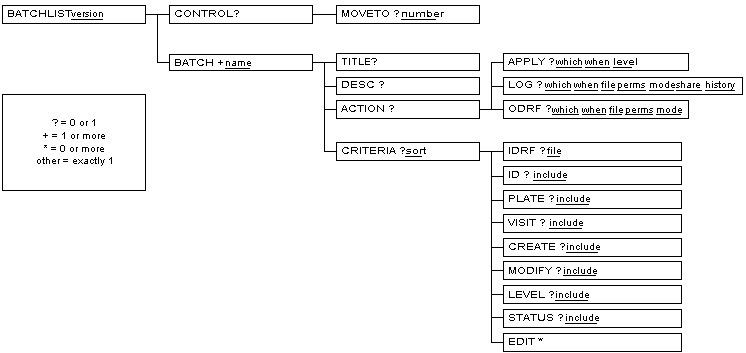
The description of each element in this reference is divided into sections.
Provides a quick synopsis of the element. The content of the synopsis varies according to the nature of the element, but may include any or all of the following sections:
Content model. This is a concise description of the elements that it can contain. This description is in DTD "content model" syntax which describes the name, number, and order of elements that may be used inside an element. The syntax contains: element names, keywords, repetitions, sequences, alternatives, and groups.
Element names. An element name in a content model indicates that an element of that type may (or must) occur at that position.
Keywords. A content model that consists of the single keyword
EMPTYidentifies an element as the empty element. Empty elements are not allowed to have any content. The#PCDATAkeyword indicates that text may occur at that position. The text may consist of any characters that are legal in the document character set.Repetitions. Repetition of an element is accomplished by following the element name with one of the following characters:
*for zero or more times,+for one or more times, or?for exactly zero or one time. If no character follows the element name, then it must appear exactly once at that position.Sequences. If element names in a content model are separated by commas, then they must appear in sequence.
Alternatives. If element names in a content model are separated by vertical bars, then they are alternatives, requiring the selection of one or another element.
Groups. Parenthesis may be used around part of a content model to form a group. A group formed this way can have repetition characters and may occur as part of a sequence.
Note that at this time, there is no element that allows a mixed content model, that is, an element that accepts both text and sub-elements.
Attributes. Provides a synopsis of the attributes on the element.
Describes the semantics of the element in detail. Typically contains the following sub-sections:
Processing Expectations. Summarizes specific processing expectations of the element. Many processing expectations are influenced by attribute values. Be sure to consult the description of element attributes as well.
Parents. Lists the elements that are valid parent elements.
Children. Lists the elements that are valid child elements.
This section describes every element in the BATCHLOG document type definition. The description is offered in two complimentary views. The first view is a tree diagram of the document type definition. The second view is a reference where the meaning and use of every element is described.
A Document Type Definition (DTD) defines the set of elements and their attributes that are valid within a document, how many occurrences of each are allowed, and in what order they are allowed. The batch edit checks input control file has its own DTD that is outlined in Figure 6.3, “The BATCHLOG DTD”.
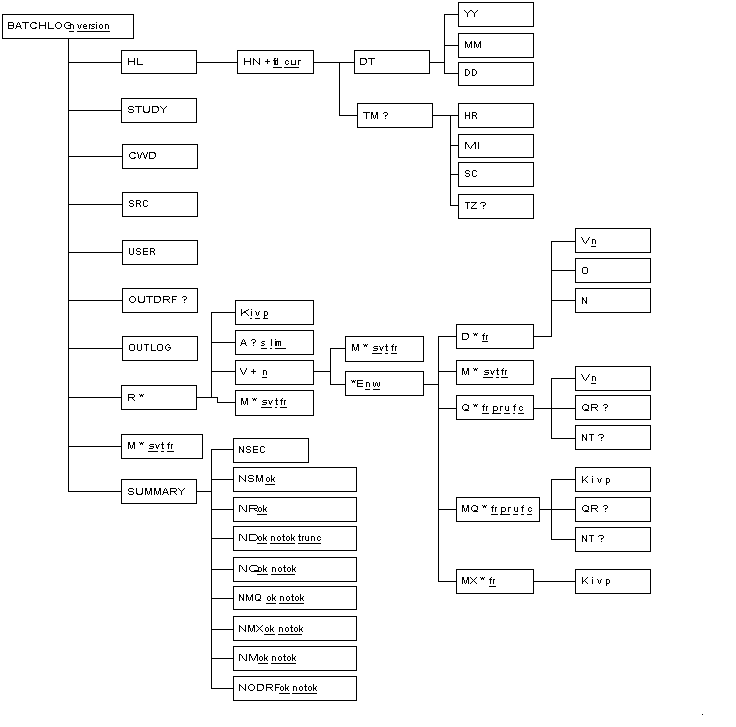
This reference describes every element in the BATCHLOG document type declaration. The organization of the reference is identical to that for the BATCHLIST document type and can be reviewed at Organization of Reference Pages.
XML is really a meta language - a language for creating new
languages.
The syntactic rules for each language are the same, but the vocabulary
and semantics of each language can be quite different.
In the case of DFbatch, we used XML to create two new languages:
the input control file language, rooted at BATCHLIST, and
the output log file language, rooted at BATCHLOG.
XML was chosen as the input and output language format for a variety of reasons, a few of which are listed below:
- It is supported by community standards. It is an entirely vendor neutral way of describing data and the structure of data.
- It is self-describing. You can read an XML document and understand what it is saying without being aware of specialized formats or processing instructions.
- It is extensible (hence the X in XML). If you need another element or attribute, you can add it.
- XML is easy to format for a variety of different uses and audiences.
- There are many publicly available tools for manipulating XML with many more to come. This will allow you to do numerous things with XML data that are independent of DFdiscover.
It is not coincidental that XML is so easy to use - it was designed this way. There are very few rules to live by when using XML. This makes it easy to implement lightweight programs (typically parsers) that enforce those rules. The programs never have to worry about exceptions to the rules - if there is an exception, it is no longer XML - it's as simple as that.
The following rules define what is and what is not an XML document:
- An XML document is constructed from elements and attributes. Elements are delimited by tags, a start-tag and a matching end-tag. The content for the element, which may be character data, other elements, or a combination, is between the tags.
- The value of an attribute must be enclosed in matching quotes, either single quotes, '', or double quotes, "".
- An XML document must have exactly one root element.
An XML document must be well-formed. Each starting tag must be balanced by a closing tag, and pairs of tags must be nested properly.
Example 6.100. Improperly nested tags
<bold>This text is bold and <italic>this is bold-italic
</bold>, but what is this?</italic>
- The following reserved characters may not appear directly in an XML document: &, <, >, ", and '.
Comments are denoted in the SGML notation.
- XML documents may optionally also be valid. A valid XML document, in addition to being well-formed, also adheres to the structure of a Document Type Definition (DTD).
XML has many companion technologies, some that apply business rules, and others that define schemas. By far though, most of the additional technologies are focused on transformation (converting one XML document into another XML document, or filtering parts of an XML document) and formatting (converting an XML document to HTML or PDF, for example). The following illustration is a simple view of how XML fits in with these other technologies.
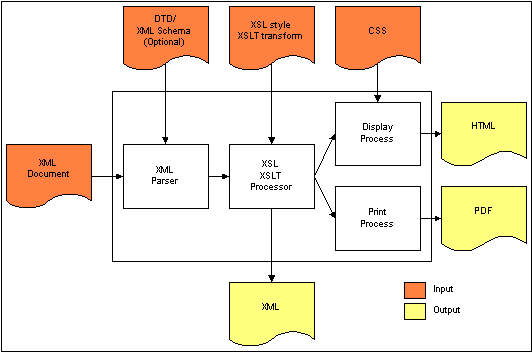
If you would like to learn more about XML, we recommend the following starting points for additional reading: