Edit checks are defined during study setup. They execute interactively during data entry and data review, and can also be programmed to execute unattended, in batch mode.
The Batch Edits View is the interface for controlling this latter, unattended mode.
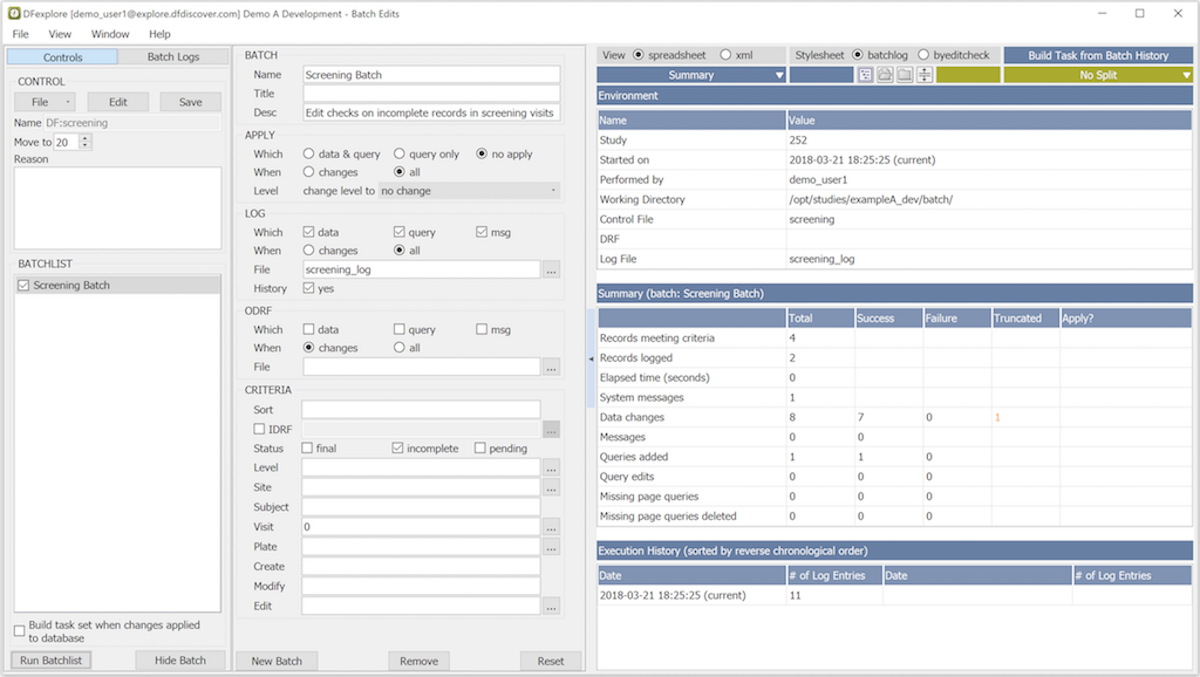
Batch Edits View provides a visual interface to the DFbatch facility described in Programmer Guide, Batch Edit checks.
Batch Edits View is divided into 3 separate but related panels:
Batch Control. A batch control file groups together one or more batch definitions. If multiple batch definitions must always execute together, they should all be referenced in the same batch control file.
Batch Definition. A batch definition specifies the records to be included in the batch run and the actions to be applied.
Batch Results. The batch results typically include log messages of the actions taken and their results. There is nothing further for you to specify here.
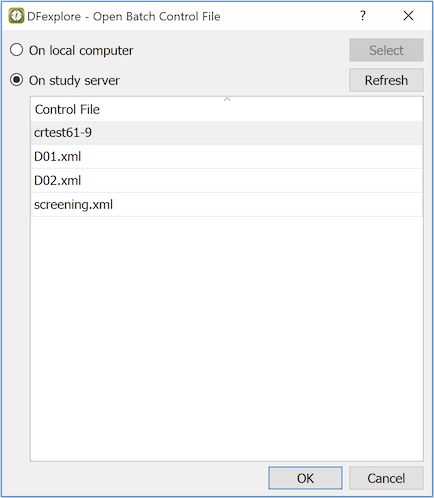
Click and select to start a new batch control file. To open a previously defined batch control file, click and select .
Batch control files can reside on the server (if they are meant to be shared by study personnel), or locally on your computer. Choose the location of the new, or existing, batch control file and click .
After opening, the batch control file properties are displayed in the Name, Moveto and Reason fields and the names of the batch definitions are displayed in the BATCHLIST list. The meaning of the Moveto and Reason directives are described in Programmer Guide, MOVETO and Programmer Guide, REASON.
To review or modify a batch definition before executing it, select it from BATCHLIST and click . The definition of the selected batch updates the second panel, the Batch Definition panel. If the batch was previously executed, the third panel, Batch Results, is also updated to show those previous results.
To execute one or more batches, select them from BATCHLIST and click .
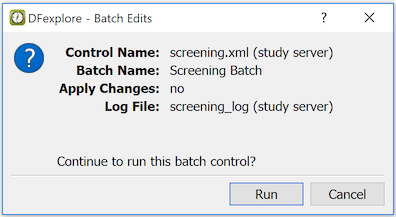
Review the information presented in the confirmation dialog. If no changes are needed, click . If changes are needed, click and update the batch definition and/or selections from BATCHLIST.
The Batch Definition panel is displayed by clicking in the Batch Control panel.
This panel is a visual editor for a batch definition. A batch definition is divided into a descriptive section (BATCH), action sections (APPLY, LOG, and ODRF) and a selection section (CRITERIA). Each section corresponds to tags in the batch definition file. These tags and their meaning are explained in Programmer Guide, Batch Edit checks.
If changes are made to the batch definition, including start a new batch control file, remember to click to save the changes.
The output from the execution of a batch is presented in the third, Batch Results, panel. The default visualization is an HTML spreadsheet. The underlying XML can also be viewed by choosing xml.
There are several options for controlling the presentation of the results.
In the Execution History table, the current execution appears first. Double-click one of the rows to view the results for a specific execution.
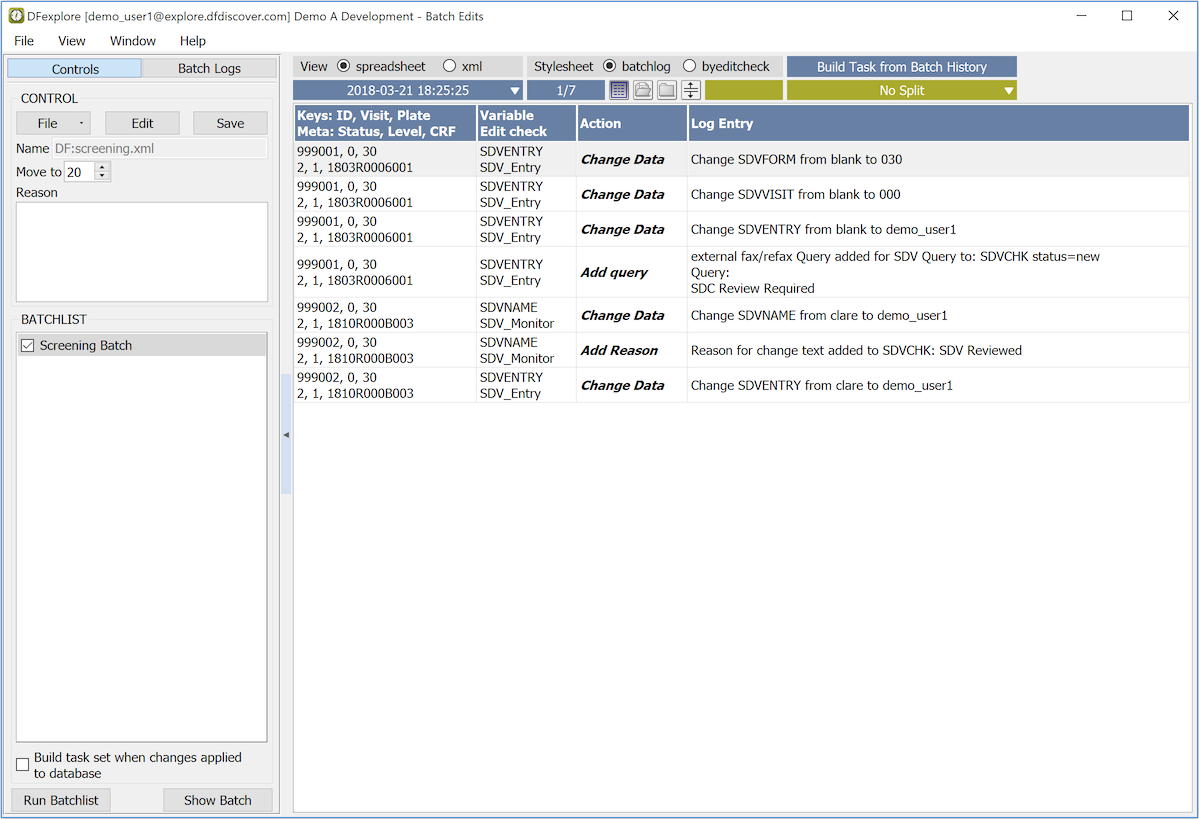
In this results view, double-clicking any entry takes you directly to the specific record and field in Data View. This allows you to easily navigate between the results of a batch run and the individual records involved.