Table of Contents
Status View provides an overview of the status of the study database and shows the list of users who are currently working on the study. It can also be used to quickly assemble a set of records to perform a task by double-clicking any cell in the tables.
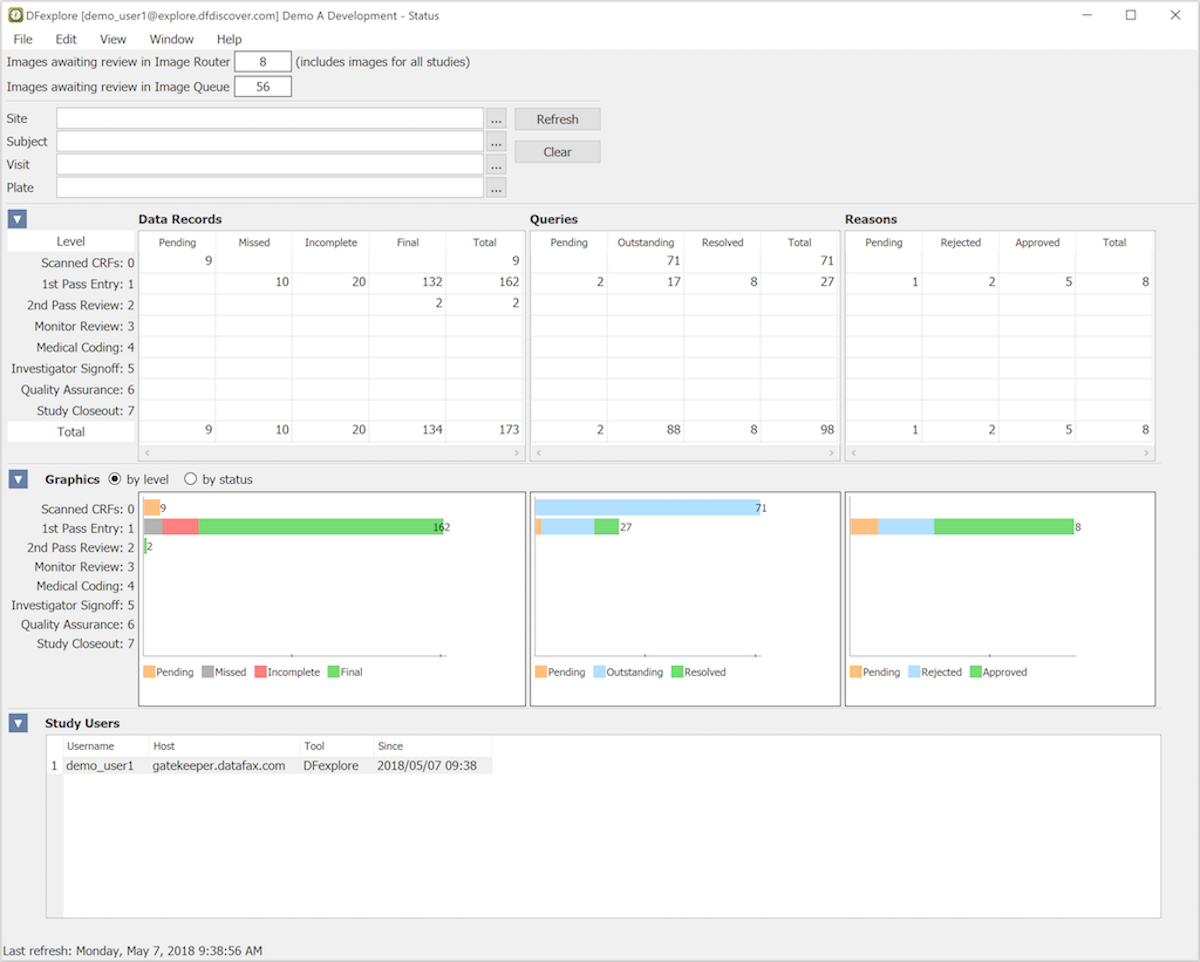
The Status View displays the number of data records, queries and reasons in the study database categorized by their workflow level and status. Workflow labels in Status View have been previously defined in DFsetup, > . Each label is followed by the level number that the label represents. If a workflow label is blank and there are no records at this level, the unused level does not appear in the table. If a workflow label is blank and there are records, only the level number appears.
When Status View is selected it displays the status of the entire study database.
The results displayed in the tables and graphs can be filtered by study site, subject ID, visit and plate. The to the right of each entry widget is used to display and select valid entries for each specification. A list of values and ranges can be entered, e.g. Site: 1-9,21,30-44,81,82. Select to apply the current filter and to remove all filter specifications. After clicking , any filter specifications remain in effect for the duration of your login session.
Click to the right of Subject to open another dialog for Selecting Subjects based on Criteria. This dialog facilitates subject selection based on multiple criteria across multiple plates.
To return to the status for the entire study database select and then .
You can jump to the records displayed in any cell of the table, including row and column totals, by double-clicking the cell.
Double-clicking a cell in the Data Records table creates a task set containing the records defined by the criteria for that cell and opens them in Data View. Double-clicking cells in the Queries table allows you to choose to open the task set in either Queries View or Data View, and double-clicking cells in the Reasons table allows you to choose to open the task set in either Reasons View or Data View. These task selections are successful only if you have permission to use these views.
The information displayed in Status View depends on user permissions. The tables and graphs include only records you have permission to see, and only the counts shown for records available in the Image Router and the Image Queue are displayed if you have permission to use Image View and Image Router.
Status View displays the number of study CRF pages that have arrived and are waiting to be reviewed and entered into the study database. These records are not counted in the Data table. This count is only visible to users who have permission to use Image View to review and enter these pages. Double-clicking the cell opens Image View for such users.
Status View also displays the number of CRF pages that have arrived but could not be routed to any of the current DFdiscover studies because the study number could not be identified. These pages need to be reviewed manually and routed to the appropriate study if they are study CRFs. This count is only visible to users who have permission to use Image Router. Double-clicking the cell opens Image Router.