Table of Contents
Reports appear as an option under the View menu if you have been granted permission to run one or more of the standard DFdiscover reports or study specific reports. Reports can be updated and viewed within the Reports View and can be printed or saved to an Excel, PDF, HTML, Archive HTML or text file. The Reports View is illustrated below.
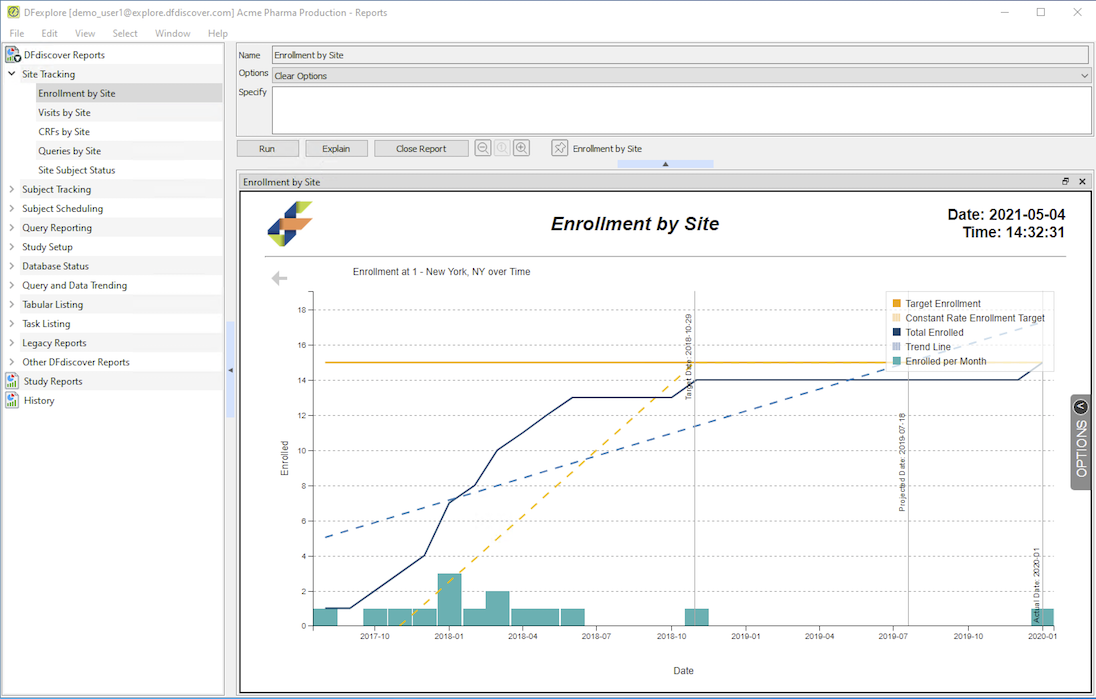
Reports are generally categorized as one of 3 types. These 3 types are presented in the reports list. Clicking any type updates the reports list with the reports of that type.
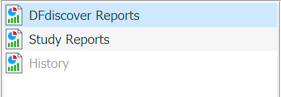
DFdiscover Reports: All of the standard DFdiscover reports for which you have permission are listed. The standard reports are designed to address common trial management needs, like summarizing data management status for individual subjects and clinical sites. The DFdiscover Reports are themselves separated into two groups: legacy reports and standard reports. Legacy reports generate plain text output only. It is not possible to save the output from legacy reports as Excel. Standard reports generate HTML output and can be saved in different formats, including HTML, Archive HTML, PDF, Excel and Text. The HTML and Archive HTML output formats have the same content but the HTML content has references to external resources (like CSS and JS) while Archive HTML is self-contained, without external resources.
Study Reports: Lists the study specific reports, designed by programming staff at the trial coordinating site, to address needs not covered by any of the standard DFdiscover reports.
History: As each report is run it is added to the History list. You can review the output from any recently run report by opening this list and selecting the report. You can re-run reports from within the History list by selecting the report in the list and clicking . Unless changed, a selected report runs with the same options used the first time and then is also added to the end of the History list. If the report History list is saved, the options are also saved.
Tabular listing reports create tables from the data that is selected by previously defined views. Each view that is permitted is listed under the Tabular Listing heading in the reports list. Additionally, there are standard tabular listings that provide details about selected plates or modules or the information related to database keys. The Module Listing report, for example, combines the data and metadata specific to a selected module.
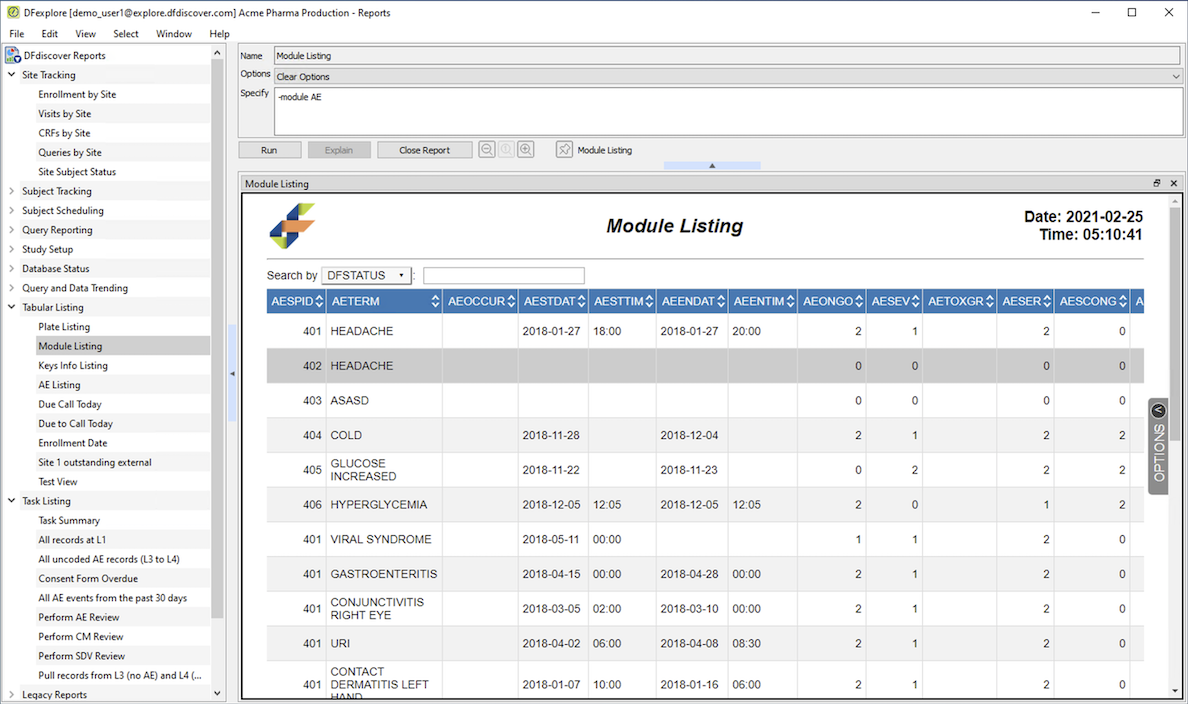
Tabular listings provide a convenient way to share the results of defined views with others within the study team, via Reports View, or outside the study team by saving the output as HTML or Excel. Within Reports View any table row is clickable and changes the view to Data View where the complete matching data record is available for review or editing.
Every defined task appears under the Task Listing heading. As tasks are created, they are automatically added to this reports list. For convenience, a standard Task Summary report is always available and summarizes the key properties of each task, including the count of records that match the task criteria.
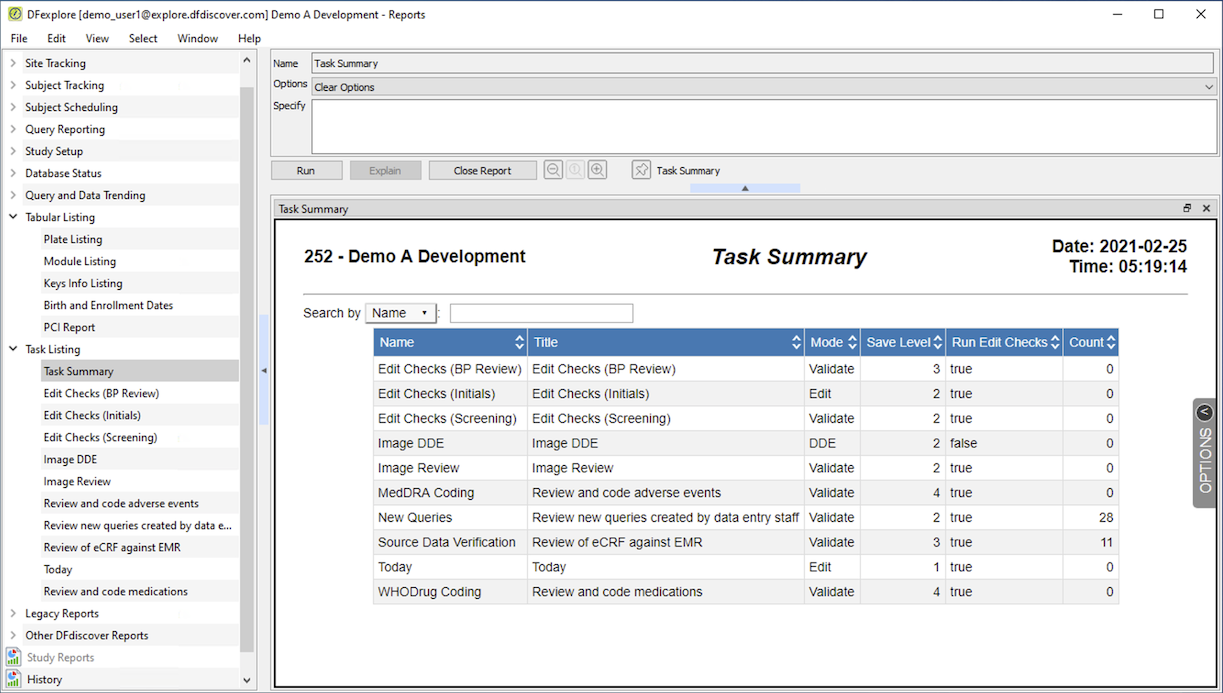
Shortcuts to perform the tasks listed in the Task Summary are available from Dashboard View.
All DFdiscover reports include documentation that can be accessed by selecting the report name and then clicking . The documentation generally includes a description of any options that may be specified before the report is run and an explanation of the report output.
In > , enabling the user preference
Each report run opens in a new tab allows each report run
(and explain action) to appear in a separate tab.
Tabs appear in the "tab bar" at the top of the main report output window.
Tabs can be re-arranged by drag and drop.
Tabs can also be closed by clicking the X
(  ).
).

Reports View is limited to a maximum of 25 tabs at once.
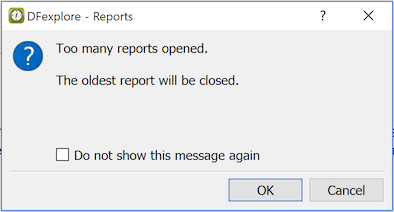
Once 25 tabs are open, subsequent report runs display this warning
and the oldest tab is closed.
Further, it is possible to undock and dock report tabs. Any tabbed window can be "grabbed" with the mouse and dragged out of the tab bar. This is an undocked report.
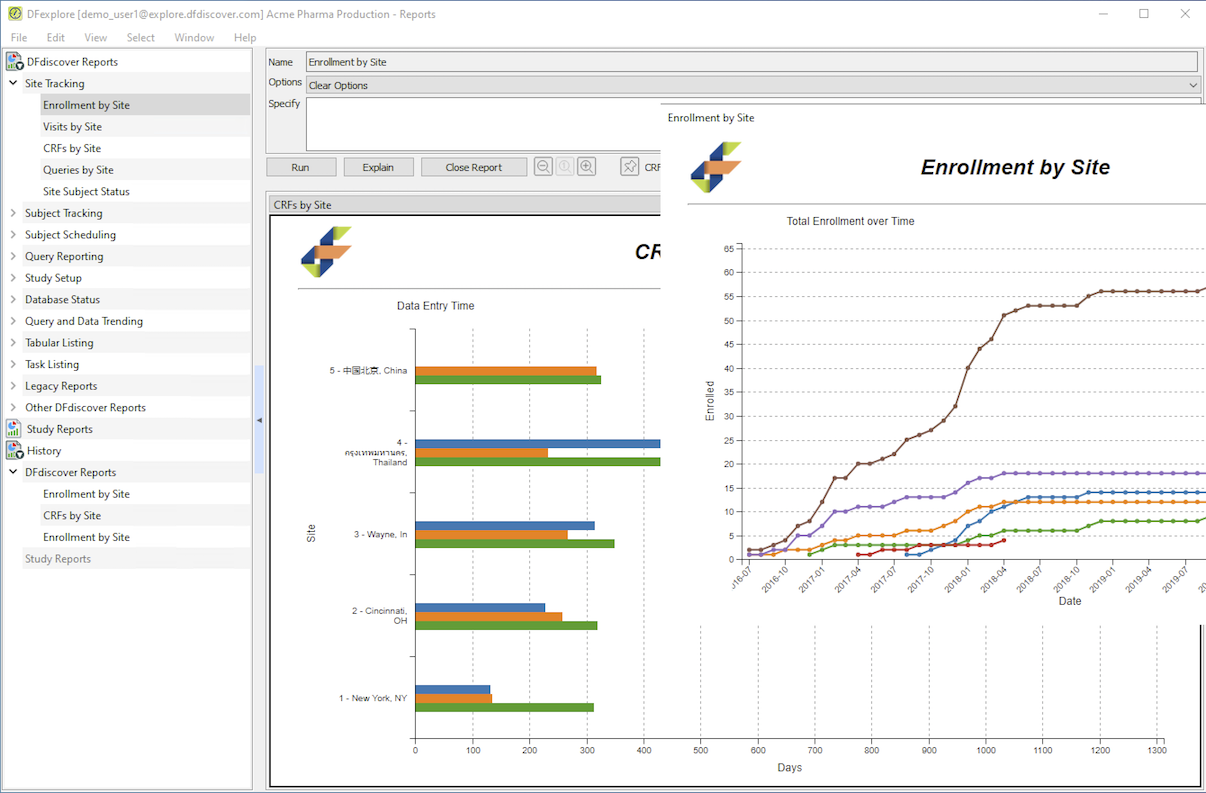
An undocked report can also be re-docked by dragging the tabbed window over top of the tab bar.
DFdiscover reports include built-in interactivity - output can be manipulated and displayed in diverse ways without re-executing the report. Some of the interactivity options include:
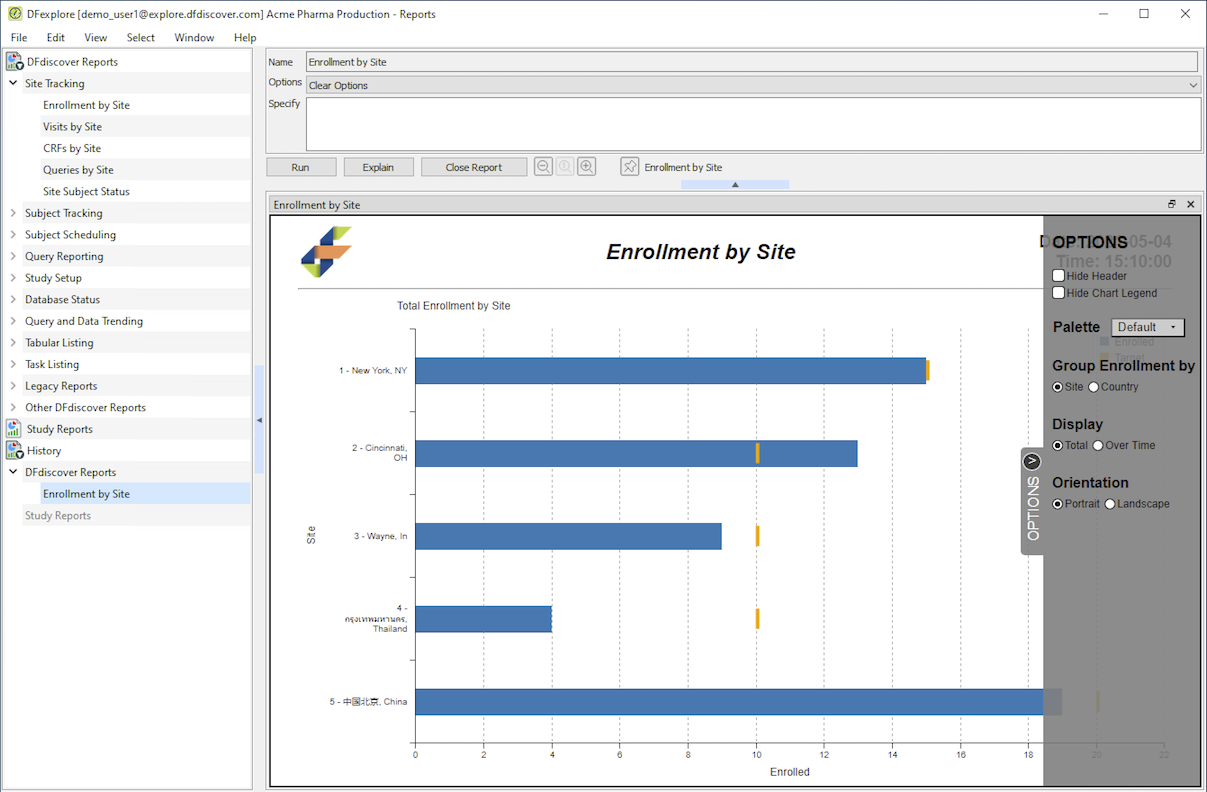
Options drawer. The options drawer is opened by clicking on the vertical options tab (
 ).
Several appearance settings and behaviors can be changed in the options
drawer.
Each report has a common option to display/hide the header, plus its own
unique settings.
When the drawer is open, the reports window output is updated immediately
whenever a setting is changed.
When no further changes are needed, click the options tab again
(
).
Several appearance settings and behaviors can be changed in the options
drawer.
Each report has a common option to display/hide the header, plus its own
unique settings.
When the drawer is open, the reports window output is updated immediately
whenever a setting is changed.
When no further changes are needed, click the options tab again
(  )
to close the drawer.
)
to close the drawer.
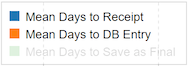
Display/hide elements. The visibility of elements in a graph can be toggled by clicking the corresponding element in the graph legend. Clicking an element once turns off visibility and clicking it again turns on visibility.
Display graph values. By hovering the mouse pointer over a graph or chart element, it is possible to inspect the data value(s) in that element.
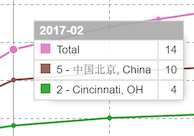
Report sub-views. More info for a report is available by clicking a chart or graph element. In some cases, this action creates a sub-view of the current report, switching the displayed content. From the sub-view, you can return to the main report window by clicking the return arrow (
 ).
).
Zoom contents. The contents of any docked report can be zoomed using the zoom controls (
 ).
From left-to-right, the actions are zoom out, return to normal (no zoom)
and zoom in.
For undocked reports, keyboard shortcuts are available. They are
Ctrl+- (zoom out), Ctrl+0 (no zoom) and Ctrl++ (zoom in).
On macOS, as with all keyboard shortcuts, replace Ctrl with Command.
These keyboard shortcuts are also available for docked reports.
).
From left-to-right, the actions are zoom out, return to normal (no zoom)
and zoom in.
For undocked reports, keyboard shortcuts are available. They are
Ctrl+- (zoom out), Ctrl+0 (no zoom) and Ctrl++ (zoom in).
On macOS, as with all keyboard shortcuts, replace Ctrl with Command.
These keyboard shortcuts are also available for docked reports.
Many legacy (and a few DFdiscover) reports include options that can be used to alter what the report produces. For example, DF_PTcrfs (which displays a summary of CRF status for subjects) includes options to specify which subjects, visits and CRF pages are to be included. Report output also depends on your database permissions, and includes only information based on data records you have permission to read.
Selecting the Options widget displays the entire options list. Selecting an option from the list copies it to the Specify window with the part you need to change highlighted. For example, the DF_PTcrfs option used to limit the output a subset of subjects is: -i <#, #-#>.

When this option is selected it is copied to the Specify window with <#, #-#> highlighted.

Changing this to 99010-99020 yields the option -i 99010-99020, which limits the output to those Subject IDs.
Click to run the report with the current options and display the results in the main (output) window. If the preference Each report run opens in a new tab is selected, a new tab is created and the report output is presented in that new tab. Otherwise, the output from each report run replaces the output from the previous report.
By switching to the History list you can select and review the output from all reports you have run since login. The run history is not saved between logins. Use > to create a list of commonly used reports that is available across logins (see Saving Report Lists).
The current output in the report window can be printed or saved, in PDF, HTML, Excel or text format, by selecting any of these options from the menu.
Reports can also be run outside of DFexplore.
For example, the report can be manually executed from a command line or a script,
or scheduled to run at a defined time via a scheduling facility like
crontab.
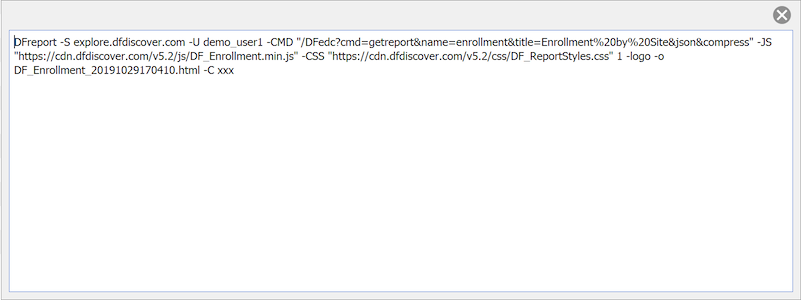
Select > to
display the complete report command.
Copy the command and paste as needed.
Remember to supply the user password in the report argument
-C xxx, or
use DFpass to store the user password for subsequent
lookup.
DFexplore includes a convenient "pin" action that adds the report with current focus to the Dashboard View.
Any report can be added to the Dashboard View ("pinned") by running it first
(or selecting it's tab so that it has the focus)
and then clicking the pin button
(  )
which appears to the right in the row of report action buttons.
)
which appears to the right in the row of report action buttons.

Using this feature, it is easy to customize the default appearance of the Dashboard View. Which reports have been pinned is remembered across invocations of DFexplore so these reports also appear in Dashoard View when DFexplore is restarted in the future.
If the report has previously been pinned or is already included in the
Dashboard View as a result of view customization, the button appearance is
inverted
(  ),
showing that the report is already pinned.
When this is true, the report cannot be pinned again.
To update the report in the Dashboard View (perhaps because options have
been changed), first remove the report from the Dashboard View, run it again
and then pin it.
),
showing that the report is already pinned.
When this is true, the report cannot be pinned again.
To update the report in the Dashboard View (perhaps because options have
been changed), first remove the report from the Dashboard View, run it again
and then pin it.
A list of commonly executed reports can be saved for later execution by specified users and/or users with specified roles. You can also specify the user and roles that are permitted to own and thus modify each report list you define. The permissions granted at this level do not over-ride the permissions defined in user roles. If a user lacks permission for any report in a report list, the entire list is unavailable in DFexplore.
A report list is defined using > to access the dialog. Previously defined report lists can be accessed by selecting > . Reports and report options may be added to a report list manually, or the current History list can be used as a starting point and then modified.
To access a previously defined report list, use Select-Report List and select the desired report list.
All reports can be executed in the order they appear in the list by choosing all reports and then clicking . The output from each report is added to the current History list.
Reports can also be executed one at a time by choosing the selected report option, selecting a report from the list, and then clicking .
Select > to write the report output to a file. Different formats are available.
HTML. The report window output is in standard HTML format and contains external references to CSS and JS resources. The saved HTML can be shared and the interactivity of the content is preserved so long as the viewer has an internet connection. Without an internet connection, the report HTML appears as a blank window.
Archive HTML. The report window output is in standard HTML format and has all of CSS and JS resources contained within the file. The saved HTML can be shared and the interactivity of the content is preserved. No internet connection is needed to view the HTML. This option is not available for legacy reports.
PDF. The HTML content of the report output window is saved as a PDF. There is no interactivity in this format.
Excel. Standard DFdiscover reports can save their raw data to an Excel file. There is no visualization applied to the data - the data itself is saved. This option is not available for legacy reports.
Text. Save the output from report in a plain text format. For standard reports, the raw data is saved; for legacy reports, the "formatted" text output of the report is saved.