Table of Contents
This chapter discusses various topics relevant to ongoing, periodic maintenance of a DFdiscover system. Familiarity with these topics is recommended, and as many of the concepts as possible should be implemented in each DFdiscover environment. Some topics could even be paraphrased into standard operating procedures.
The most critical area of maintenance for any DFdiscover installation is disk usage monitoring. DFdiscover can be brought to a grinding halt by failing to notice that you are about to run out of disk space. Periodic monitoring of current disk usage and planning to make sure that disk space will be available for incoming faxes is essential to the health of the system.
Disk usage by a DFdiscover study is highest for CRF image files.
Generally, 90% of the disk space required for a study is consumed by
CRF image files.
This section covers managing disk space for the individual CRF image files
that are kept in the PAGE_DIR directory defined for each study.
Archive File Maintenance
discusses management of the original TIFF/PDF files that the image files
are extracted from.
So far we have concentrated on the notion that disk usage for a study can be planned for in advance. For many larger trials it may not be possible to determine the exact number of CRF pages that will be received. For example, the accrual rate may be different than expected, or the percentage of re-faxed pages that occurs is higher than normal. For such trials, it is important to continually monitor information about current disk usage patterns and base future disk demand planning decisions on that information.
The best way to plan future disk needs is to monitor your current disk usage patterns and extrapolate. This can be accomplished using DF_WFdiskusage, which lists and graphs, in chronological order, the total and average disk usage by week for study fax pages. Example 12.1, “Sample output from DF_WFdiskusage” is an example of the information that the report provides. DF_WFdiskusage accepts several options to customize its behavior. For additional details see Standard Reports Guide, DF_WFdiskusage.
Example 12.1. Sample output from DF_WFdiskusage
DF_WFdiskusage: Disk Space Used Per Week.         DFstudy 251. Feb 26,2015 10:30
Disk usage from week 201449 to 201505 inclusive
Yr   Wk     Kb      Each * represents 9 Kb
                    +---------+---------+---------+---------+---------+-------
2014 49:         521|*********************************************************max
2014 50:         346|**************************************
2014 51:         354|***************************************
2014 52:          82|*********min
2015 03:         182|********************
2015 04:         155|*****************
2015 05:         154|*****************
                    +---------+---------+---------+---------+---------+-------
Total:  1794 Kbytes in 7 weeks
 Mean:  256 Kbytes per week
  Min:  82 Kbytes (week 201452)
  Max:  521 Kbytes (week 201449)
A periodic procedure should be established whereby DF_WFdiskusage is executed for each active DFdiscover study. If available disk space is low, it should be run at least once per week. If available disk space is not a current concern, that interval can be extended to at least once per month. In either case, execution of this application at regular intervals is a task well suited to the UNIX cron facility.
With the output from DF_WFdiskusage, consider the following points when planning future disk needs:
What is the current average weekly disk usage? At the current rate of disk consumption, for how many weeks into the future will there be disk space available? Is any study exceeding or falling below expectation for weekly disk usage? If a study is exceeding expectation, will this affect other studies that share the same disk partition?
Are any current studies terminating or new studies starting? If studies are drawing to an end one can expect that there will be greater than average disk usage in the closing weeks, as investigators fax all outstanding CRFs, and thereafter disk usage should drop to near zero. On the other hand, new studies typically start slowly as investigators recruit subjects, but then they quickly reach operating levels. Do not be fooled by disk usage that falls below expectation over the first few weeks or even months.
Remember that a formatted disk has about 5-10% less capacity than its unformatted (published) size. Formatting a disk can require 5-10% of its published capacity, and this space is then unavailable for fax page storage.
The time required to acquire new disks can vary from a day or two to several weeks depending on the vendor. Become familiar with the lead times required by your hardware vendors. One can expect that it will take one week on average to receive a disk after it is ordered. If the disk is a newly announced product from a vendor, the delivery time will be even longer.
There are many options available to system managers that minimize or even eliminate downtime in the event that your primary server becomes inoperative due to anything from a hardware failure to an actual disaster such as a fire, flood, extreme weather conditions or an earthquake. Some common backup/recovery procedures are outlined below. You should have a "Disaster Planning" document as part of your SOPs that outlines the necessity for the method you have chosen, and what your staff needs to do to implement your chosen method. Your backup/recovery system should be tested on a regular basis to document that it is working and that you are able to recover should an actual disaster occur.
The quickest method of recovery from the loss of your primary server is to have a duplicate server that can be deployed as soon as the failure of your primary server is detected. Ideally, your backup server should be identical to your primary server, including at least availability of other external services (modem lines, Internet access, power supply backup). Ideally, your backup server should be at a different physical location. If your primary server is located in an area that is more susceptible to hurricanes or earthquakes, pick a location that historically has lower risk for such events.
There are many software solutions available for synchronizing two systems. At DF/Net Research, Inc., we use rsync. With rsync and cron, two identical systems can be synchronized at a scheduled interval (e.g., once nightly, once per hour). Only data that has changed is transmitted between servers, making this a very efficient method of keeping two systems up to date with each other. Once two systems have been synchronized, you may want to limit what directories get copied to make the most of whatever network bandwidth you have available. This should include the same directories you would normally backup using tape. Usage of rsync is described in the man page for the application. See man rsync for details.
Because recovery involves the use of a second server, a license key for that server must be obtained before it can be tested or used in an actual disaster recovery. Test license keys are available from DF/Net Research, Inc. for this purpose. Should your primary server be involved in an actual disaster, you must request a temporary license transfer to your backup system.
True backups require a quiet filesystem. If this is done during off-hours, it is unlikely that any user will be modifying a study database. However faxes may still be arriving, especially from international sites. This problem can be solved at two levels:
disable HylaFAX from answering any new incoming fax calls, or
shutdown DFdiscover.
The former solution has the problem that it may frustrate sites that are trying to fax while the backup is being done. The latter solution should be careful to not backup the incoming fax directory as its contents will not be quiet as long as one or more incoming faxes are being received.
DFdiscover can be halted from a shell script (like the cron process that performs the backups) by executing the command
# /opt/dfdiscover/bin/DFshutdown -fand then subsequently restarted using
# /opt/dfdiscover/bin/DFbootstrap
If only an individual study directory (or group of study directories) needs to be backed up, then DFdisable.rpc is used to temporarily disable the study servers that must not be running while the backup is executing. This allows users of other studies to continue with their DFdiscover activities while the backup proceeds. When the backup is complete, DFenable.rpc must be used to re-enable the halted study servers.
There are many freely and commercially available applications for performing system backup. Discuss the options with your corporate IT team.
It is essential to back up the DFdiscover setup and configuration as well as the individual DFdiscover study definitions and data.
There are two files in your /opt/dfdiscover/lib directory which
contain information that will be essential to rebuilding your DFdiscover server.
This file contains the study number and
$STUDY_DIRlocation for each study. While you may need to put your study information in a different location on a new server, this information is essential to knowing where to look for it in available backups.This file contains a list of the filesystem locations on a server where DFdiscover study information and data can be stored. As with , knowing how the old system was configured is important even if the new system needs to be different for some reason.
There are also non-study-specific files that DFdiscover updates regularly, and hence they also need to be part of a regular backup. These include the directories:
/opt/dfdiscover/work |
/opt/dfdiscover/lut |
/opt/dfdiscover/ecsrc |
/opt/dfdiscover/ecbin |
/opt/dfdiscover/lib |
/opt/dfdiscover/archive, or whatever
the local setting is for the TIFF/PDF archive directory |
This includes the DFdiscover setup and configuration files, the data records themselves, and the images, if any, associated with them. At a minimum, the directories to backup include:
$STUDY_DIR/bkgd |
$STUDY_DIR/data |
$STUDY_DIR/dfsas |
$STUDY_DIR/dfschema |
$STUDY_DIR/drf |
$STUDY_DIR/ecbin |
$STUDY_DIR/ecsrc |
$STUDY_DIR/lib |
$STUDY_DIR/lut |
$STUDY_DIR/pages |
$STUDY_DIR/pages_hd[11] |
$STUDY_DIR/reports/QC |
$STUDY_DIR/work |
There may also be other directories used by a study team that are not specific to, or required by, DFdiscover - consult with the DFdiscover users to identify what those directories or files might be. It may be safest, and most inclusive, to specify the study root directory for backup. In this way every sub-directory will by default be included.
Example 12.2. Use of tar to backup a study
#cd /opt/studies/val254#tar cf /dev/rmt/0 bkgd data dfsas dfschema drf ecbin ecsrc lib lut pages pages_hd reports/QC work
In this case, the study is rooted at
/opt/studies/val254.
If there are other directories or files to be included, it may be safest to capture the entire study hierarchy with this command:
#cd /opt/studies/val254#tar cf /dev/rmt/0 .
or this command:
#cd /opt/studies/#tar cf /dev/rmt/0 val254
The former excludes the study parent directory name from the backup, while the latter includes it.
As with any backup or disaster recovery solution, it must be tested to confirm that it is operating in the expected manner, that all of the needed contents are in fact being backed up and that is occurring on the planned, regular schedule.
DF/Net Research, Inc. encourages all clients to test their backups at least once per month. Additional, manual backups should be performed for "milestone" events - for example, launch of a new study, close of a completed study, or before upgrading to a new software version. Individual needs and resources will vary. Clients are also encouraged to have a secondary, standby server available at all times and to regularly update the secondary server with the contents of the primary server.
This section covers the management of the original archive (TIFF or PDF) files that the PNG files are extracted from. In DFdiscover, these files contain the original fax transmission as received from the sender via the fax modem (or scan transmission via DFsend). Each file contains the total number of pages sent in the transmission.
Archiving of TIFF and PDF files is controlled by the value of the
INBOUND_ARCHIVE_DURATION variable defined in the
configuration of incoming daemon(s).
Unless archiving has been explicitly disabled by setting the value of
this parameter to 0,
each incoming file is archived by the DFdiscover incoming daemon.
The value of the archived fax is in the ability of an administrator
to subsequently manually recover pages that are mistakenly deleted.
This process is described in
Retrieving lost CRF images.
The DFdiscover software itself does not require archived faxes, nor does it
confirm their existence.
Generally speaking, archive files should be routinely saved to secondary media (tape) and then deleted from primary storage (disk). How many archive files are kept on disk before being moved to secondary storage is a matter of individual preference and comfort level, but an average of 4 weeks of archived faxes is appropriate. This leads to a monthly procedure in which any archive files that are more than 4 weeks old are moved to secondary storage and deleted from disk.
By way of example, consider an environment where the archive files have
never been moved to secondary storage and it is now desired
to begin implementing a routine monthly procedure for doing this.
The archive files have been kept in
/opt/dfdiscover/archive
and all but the four most recent weeks worth of files must be moved
to tape storage on device /dev/rmt/0.
The archive directory has the following contents:
# ls /opt/dfdiscover/archive
The following command would have the desired result of archiving the oldest weeks to tape:
#cd /opt/dfdiscover/archive#tar cvf /dev/rmt/0 171{6,7,8,9} 132{0,1,2,3,4,5,6,7} | lp
The tar command is used to backup the files to tape in this case, but other backup commands are equally valid. This particular tar command also creates a table of contents listing as the backup is created, and that listing is directed to the default printer. This provides a convenient, printed table of contents that can be kept with the tape.
The next step is to delete from primary storage the archive files that have been copied to secondary storage. Before deleting the archive files, verify that the backup created on secondary media is complete. This confirmation can be done with a visual review of the printed table of contents or by immediately performing a test restore of the media to another location.
After confirming that the backup copy of the TIFF files is complete, delete the original copies of the files from disk. Continuing with the example, the command to execute is:
#cd /opt/dfdiscover/archive#/bin/rm -rf 171{6,7,8,9} 132{0,1,2,3,4,5,6,7}
Having completed the steps, the directory would have the following contents:
# ls /opt/dfdiscover/archive
The only remaining step is to formalize this process into a periodic routine.
This section describes those activities that should be executed on a regular database as part of a pro-active study maintenance process.
Before going 'live' with a new study setup, it is advisable to restore the study directory to a base (empty) state that does not contain any test data or test images.
Periodically the study directories should be examined and old, stale files removed. These files are typically temporary files that were created by users in the study work directory and quality control reports that were created but never sent.
It may also be required to perform regular archiving of a study database for interim analyses.
It is highly recommended that a study setup be thoroughly tested before real data is accepted from investigative sites. This testing should include completing blank case report forms with actual data, faxing the case report forms into the system, validating the ICRed data records, and creating Query Reports to test the visit map, page map, and/or conditional plate and termination maps. The DFdiscover Study Setup Worksheets are an excellent aid in ensuring that all of the required steps are completed and documented.
The result of this testing will be a study database that contains data, CRF images, and Query Reports that are not relevant to the real study data. It is important before going live with a study to remove all of this test data. It is straightforward to remove this test data before the real data arrives; it is much more tedious to remove it once it becomes combined with real subject data.
To delete the existing test data from a study the following steps should be followed.
Disable the study server
It is a requirement that the study server be disabled when the test data is deleted. This can be done either via the Status dialog of DFadmin or from the command-line, using DFdisable.rpc, as illustrated in Example 12.3, “Disabling study 254”.
Remove, or rename, the existing
datapagespages_hdandreports/QCdirectoriesNote that removal of these directories assumes that they contained only information that was created by DFdiscover. If these directories contain other information that is outside the control of DFdiscover (and this is not recommended), then they cannot simply be deleted.
Example 12.4. Removing the directories containing test data for study 254
#cd /opt/studies/val254#rm -r data pages pages_hd reports/QC
-
Once the study server starts again, the removed directories will be re-created as empty directories.
For documentation purposes, the setup should be printed from the > menu in DFsetup and the current user permissions should be printed from the Permissions dialog in DFadmin.
A DFdiscover study is stored on disk as an inverted tree structure in the filesystem. The information required at any moment during the use of a study is available as one or more files in that filesystem structure. Using the UNIX filesystem directly has the advantage that this same information is also readily available to applications outside of DFdiscover, for example, for the purposes of scripting or working with third-party applications. However, this flexibility also has the drawback that UNIX filesystem permissions and the permissions required by DFdiscover are not always in perfect agreement. This can lead to users that are unable to open files that should otherwise be permitted to. The purpose of this section is to describe the permissions that DFdiscover requires and suggest ongoing maintenance to ensure that those permissions are maintained.
By default, DFdiscover will create all of the needed directories and files for a study
with owner datafax and group studies.
The ownership should always remain as datafax.
The group studies is intended for general sharing of study files
across all DFdiscover users.
This typically matches the primary group assigned during login to DFdiscover
user accounts.
If a different group is being used for the study, then that group name
should be applied to all of the directories and files.
At the same time, that group name should be listed as the primary group for
login to those DFdiscover accounts that are specific to the study.
No permissions are required for other, and so they
are not granted by DFdiscover.
It should be possible to accomplish all needed tasks with owner or group
permissions.
Owner and group settings are not applied by DFdiscover to directories or files
which it does not create.
For example, a sas or
batch sub-directory, which is created
by a user will not have the same ownership and group.
It is recommended that owner datafax and group studies be
applied to these directories and files, but this must be done manually.
DFdiscover includes a utility application, DFstudyPerms, (see Programmer Guide, DFstudyPerms) which examines, reports, and optionally repairs permissions for a study filesystem. This application should be run from the command-line whenever a permissions problem is suspected and also as part of a regular maintenance procedure to identify and correct problems with permissions.
To report on study permission problems, any user can execute the command:
% /opt/dfdiscover/utils/DFstudyPerms #
where # is the study number.
Run in this fashion, DFstudyPerms remains silent unless a problem is discovered.
Any permissions which do not match the expected permissions are reported, one line per file or directory.
It also uses the group studies unless another group is specified with
the -g option.
groupname
To fix study permission problems, the root account is required.
In this case the command is:
# /opt/dfdiscover/utils/DFstudyPerms -f #
where # is the study number and -f instructs
the application to correct any permission errors that it encounters.
Again, the -g option is
needed if the study group is not groupnamestudies.
It is recommended that the latter invocation be added to
root's crontab and executed at least once
per month.
Table 12.1, “Study filesystem permissions” lists the study
filesystem permissions.
The permissions are reported as 3 triples of 3 characters.
The first triple is owner permissions, the second group, and the third other.
The 3 character positions, rwx, represent read permission,
write permission, and search permission respectively.
If a particular permission is not granted, it appears as a dash,
-, in the listing.
If a file or directory is checked by DFstudyPerms it is also checked for
either exact permissions or minimum permissions.
If it is checked for exact permissions, it must have exactly the listed
permissions - any other permission will generate a message.
If it is checked for minimum permissions, then additional permissions (for
example, additional write permissions for group)
are acceptable and will not generate a message.
![[Note]](../../imagedata/note.png) | Note |
|---|---|
Most of the permissions are checked by DFstudyPerms but not all of them. It is expected that a future version of DFstudyPerms will include checking of these additional files. |
Table 12.1. Study filesystem permissions
| Name | File or Directory | Permissions | Type of check | Notes |
|---|---|---|---|---|
. | Directory | rwxr-x--- | Minimum | This is the study parent directory.
If users are permitted to create their own sub-directories, the permissions
will need to be rwxrwx--- |
batch | Directory | rwxr-x--- | Minimum | |
bkgd | Directory | rwxrwx--- | Minimum | |
bkgd/DFbkgd???.tif | File | rw-rw---- | Minimum | |
bkgd/plt??? | File | rw-rw---- | Minimum | |
bkgd/DFbkgd??? | File | rw-rw---- | Minimum | |
data | Directory | rwxr-x--- | Minimum | Write permissions on this directory should never be granted to any
account other than datafax. |
data/*.dat | File | rw------- | Exact | |
data/*.idx | File | rw------- | Exact | |
data/*.jnl | File | rw-r----- | Exact | These audit trail files must not be writable by any account other
than datafax. They are readable for the purposes of audit trail
reports like DF_ATmods. |
drf | Directory | rwxrwx--- | Minimum | |
dde | Directory | rwxrwx--- | Minimum | |
dde/sets | Directory | rwxrwx--- | Minimum | |
dfsas | Directory | rwxrwx--- | Minimum | |
ecbin | Directory | rwxr-x--- | Minimum | |
ecsrc | Directory | rwxr-x--- | Minimum | |
lib | Directory | rwxrwx--- | Minimum | |
lib/DFcenters | File | rw-rw---- | Minimum | |
lib/DFfile_map | File | rw-rw---- | Minimum | |
lib/DFschema | File | rw-rw---- | Minimum | |
lib/DFschema.stl | File | rw-rw---- | Minimum | |
lib/DFserver.cf | File | rw-r----- | Exact | |
lib/DFsetup | File | rw-rw---- | Minimum | |
lib/DFsetup.backup | File | rw-rw---- | Minimum | This file contains the previous version of the study setup and is overwritten as part of the initialization process of DFsetup. |
lib/DFtips | File | rw-rw---- | Minimum | |
lib/DFvisit_map | File | rw-rw---- | Minimum | |
lib/DFccycle_map | File | rw-rw---- | Minimum | These remaining files in the study
lib directory are optional. |
lib/DFcplate_map | File | rw-rw---- | Minimum | |
lib/DFcterm_map | File | rw-rw---- | Minimum | |
lib/DFcvisit_map | File | rw-rw---- | Minimum | |
lib/DFedits | File | rw-rw---- | Minimum | |
lib/DFlut_map | File | rw-rw---- | Minimum | |
lib/DFmissing_map | File | rw-rw---- | Minimum | |
lib/DFpage_map | File | rw-rw---- | Minimum | |
lib/DFqcproblem_map | File | rw-r----- | Minimum | |
lib/DFqcps.prolog | File | r--r----- | Minimum | |
lib/DFqcsort | File | rw-rw---- | Minimum | |
lib/DFraw_map | File | rw-rw---- | Minimum | |
lib/QCcovers | File | rw--rw----- | Minimum | |
lib/QCmessages | File | rw--rw----- | Minimum | |
lib/QCtitles | File | rw--rw----- | Minimum | |
lut | Directory | rwxr-x--- | Minimum | |
pages,pages_hd | Directory | rwxr-x--- | Minimum | |
pages/????,
pages_hd/???? | Directory | rwxr-x--- | Minimum | These are the directories, organized by year and week of year, in which the CRF images are stored. |
pages/????/???????,
pages_hd/????/??????? | File | rw-r----- | Exact | |
reports | Directory | rwxr-x--- | Minimum | If users are permitted to install their own study-specific reports,
these permissions will need to be rwxrwx---. |
reports/QC | Directory | rwxrws--- | Minimum | |
reports/QC/*-?????? | File | rw-rw---- | Minimum | |
reports/QC/QC_LOG | File | rw-rw---- | Minimum | |
reports/QC/QC_NEW | File | rw-rw---- | Minimum | |
reports/QC/SENDFAX.log | File | rw-rw---- | Minimum | |
reports/QC/SENDFAX.qup | File | rw-rw---- | Minimum | |
reports/QC/internal | Directory | rwxrwx--- | Minimum | |
reports/QC/sent | Directory | rwxrwx--- | Minimum | |
reports/QC/sent/*-?????? | File | rw-rw---- | Minimum | |
work | Directory | rwxrwx--- | Minimum | |
work/DFvisit.dates | File | rw-rw---- | Minimum | |
work/DFX_* | File | rw-rw---- | Minimum | |
work/DF*.drf | File | rw-rw---- | Minimum | |
work/DF_QCupdate.log | File | rw-rw---- | Minimum |
The work
directory for a DFdiscover study includes a mixture of
temporary files created by DFdiscover and temporary files
created by users.
Files that have names beginning with DFX
are created by the DFdiscover DF_XXkeys report.
They are overwritten each time that DF_XXkeys or DF_QCupdate is executed.
In most circumstances, they should be left alone.
However, if disk space is at a premium they can be deleted, as they
will be re-created the next time the reports are run.
The other temporary files that might be found in the work directory will be specific to each DFdiscover installation. You will have to use your own discretion in deciding which files to delete. As a general guideline, files with the following attributes are good candidates for deletion:
at least one month old,
created by a user other than user
datafax, andhave typical temporary file names like
temp,tmp,test, andNoName
The reports directory for a DFdiscover study includes study specific reports as
well as Query Reports. The Query Reports are stored in a further QC
sub-directory of the reports directory.
Reports that are created by DF_QCreports are stored in this QC
sub-directory and then are moved to a further QC/sent sub-directory when
they are successfully faxed to investigators.
If reports are created by DF_QCreports but are never subsequently faxed out,
they will be left in the QC sub-directory.
Periodically check the files in the QC sub-directory of the study
reports directories for such reports and delete them if they are
out of date.
If there is any doubt, this step should be coordinated
with the staff member responsible for creating Query Reports for the study.
When preparing to close-out a study or archive a copy for interim analysis, the following issues need to be considered:
The current state of the study setup needs to be archived. All of this setup information is, under normal circumstances, in the study
libdirectory. However, lookup tables, for example, may reside elsewhere.Is the new record queue empty? Ideally, there should be no new records awaiting validation.
What data needs to be archived? Does all of the data need to be archived? Primary records only? Are the journal files also required?
Do the CRF images need to be archived? Almost always, the answer to this question is yes. The CRF images must be archived but is unlikely that there will be sufficient primary (disk) storage available to maintain an archive copy. Hence the CRF images should be archived to tape, DVD or cloud storage. The requirements for keeping the CRF images can be quite onerous and hence it is important to choose a secondary storage medium that will be readable many years in the future.
If the study is being closed out, DFdiscover permissions should be revoked for all users that have access to the study. Minimally, each previously permitted user should be assigned a role that permits view-only, and eventually permissions should be completely removed.
Disable or de-register the study. The study may also be disabled, so that no users can access it, or deleted from the DFdiscover studies database. The latter solution is ultimately preferred as this guarantees that DFdiscover will not process incoming faxes for the study to the study new queue.
A minimal set of steps for making an archive copy of the primary database records might follow the scenario in Example 12.6, “Making an archive copy of the primary database records for study 254”.
Example 12.6. Making an archive copy of the primary database records for study 254
#mkdir -p /opt/archive254/data#cd /opt/studies/val254#tar cf - lib | ( cd /opt/archive254; tar xpf - )#foreach p ( `DFlistplates.rpc -s 254` 0 511 )?DFexport.rpc -s primary 254 $p /opt/archive254/data/exp$p?end#tar cf /dev/rmt/0 pages
This example makes an archive of the study setup and primary data for study 254
in a separate archive directory,
/opt/archive254.
Additionally, all of the current CRF images are archived to tape.
Rarely, a user may encounter the message 'image not available' in the DFexplore Review Images dialog. Before retrieving a lost image file, attempt to determine the cause of the problem and log it. Periodically review the log to look for any systematic problems that might be correctable.
Retrieving lost CRF images
The steps to retrieving a lost CRF image are as follows.
Determine the name of the lost CRF image
The name of the CRF image in question will be the name that followed the Can't load warning in the message window. The name will begin with the study pages directory and end with digits in the form
YYWW/FFFFPPP, whereYYWWis the year and week that the fax was received,FFFFis the parent fax's sequential number withinYYWW, andPPPis the page number within the fax.Determine if the lost CRF image is still in the filesystem
DFdiscover does not ever delete image files - instead the image is renamed by prepending the name with an
Xand the file permissions are set so that the file is not accessible by a typical user. Therefore, even a deleted file is still present in the filesystem. DFdiscover always attempts to retrieve and restore lost CRF images on its own. If DFdiscover is not able to do so, the following procedures should be performed by the DFdiscover administrator. Generally this includes undoing the file renaming and setting the permissions so that the file is again accessible. This may be needed for only thepagesdirectory, or it may also be required for thepages_hddirectory if HD imaging is enabling.Example 12.7. Restoring a CRF image by renaming
Suppose that DFexplore reports that image '1601/0023002' is not available. Looking in the filesystem under the directory where the image should be stored, the administrator sees:
#cd /opt/studies/mystudy/pages/1601#ls -l *0023002which confirms that the CRF image file is still present in the filesystem. To restore the CRF image then requires the steps:
#mv X0023002 0023002#chmod 640 0023002whereby the file name is restored by removing the leading
Xand restoring the permissions so that the file can be seen by members of the study group. This should then be repeated with thepages_hddirectory. In this directory, it may be that:the same renaming is required, or
the image is not present at all.
The latter case is not unusual - it would indicate that HD imaging was not enabled at the time that the fax was first received. In such a case there would be no need to restore the HD image in the
pages_hddirectory.
The DFdiscover system includes several reports that target potential problem areas in a study setup and study database. These reports are DF_ICrecords, DF_ICimages, DF_ICqcs, DF_ICkeys, DF_ICvisitmap, and DF_ICvisitdates. This section concentrates on the DF_ICrecords, DF_ICimages, and DF_ICqcs reports. Any failure output from these reports represents a consistency error requiring DFdiscover administration privileges to resolve. The remaining reports Standard Reports Guide, DF_ICkeys, Standard Reports Guide, DF_ICvisitmap and Standard Reports Guide, DF_ICvisitdates detect consistency errors that a user can resolve.
The DF_ICrecords report verifies the integrity of data records for all or specified plates in the database. It does this by confirming that each record has the correct number of fields defined by the plate definition in the study setup. Additionally, DF_ICrecords performs the following checks on each record in the specified data files:
the record has the correct study and plate number,
the record has properly formatted creation and modification timestamps
there is exactly one primary record for the record's key fields
The latter check detects more than one primary record for a set of keys and also detects secondary records that have no primary.
Executing this report with the -d option creates a
DRF named ICrecords.drf that contains a record
for each data record that fails one or more of the above checks.
Using Select-By Data Retrieval File DFexplore is used to
correct each problem record detected by DF_ICrecords.
After resolving the
problems, re-execution of DF_ICrecords will generate no error output.
In addition to the DF_ICrecords report, the shell-level utility, DFcmpSchema, are used to more stringently examine each record. DF_ICrecords ensures that the database structure is consistent with DFdiscover requirements. DFcmpSchema ensures that the database content is consistent with the study schema.
The DF_ICimages report verifies that each data record in a study database references a CRF image in the study pages directory, and conversely that each CRF image in the study pages directory is referenced by exactly one data record.
In most cases, the DF_ICimages report should be run with the
-x option which forces the report to execute with the
database in a read-only state.
Without this option, the database is in a read-write state that allows the
database state to change while the report is being run.
The end result may be that DF_ICimages indicates problems with are present
because they are timing related.
If the DF_ICimages report detects a record that references a missing CRF image, follow the steps in Retrieving lost CRF images.
If the DF_ICimages report detects a CRF image that is not referenced by a data record, two resolution methods are possible:
Move the CRF image from the study pages directory to the /opt/dfdiscover
/identifydirectory so that it can be re-entered into the study new queue.For example, if DF_ICimages indicates that the CRF image
9901/0045001does not have a corresponding data record, the following command will move the CRF image back to the identify directory for subsequent identification and re-processing:#cd /studies/mystudy/pages#mv 9901/0045001 /opt/dfdiscover/identify/9901.0045001Locate the original journal entry for the record in the study journal files and re-submit that (edited) journal record with DFimport.rpc.
Using the same example image name, the steps are to locate the original journal entry for the record (the original entry is denoted with leading text of
d|0|0), edit the journal record, and pass the result to DFimport.rpc. DFimport.rpc requires the study number.Example 12.8. Restoring a record from the journal for study 254
#cd /studies/mystudy/data#grep "d|0|0|9901/0045001" *.jnl | \/opt/dfdiscover/bin/DFget 5-NF | /opt/dfdiscover/bin/DFimport.rpc -an 254 -The needed steps can be accomplished with one command that locates the needed journal record (using grep), removes the leading 4 fields of the journal record (using DFget), and finally imports the record by adding it to the new record queue using DFimport.rpc.
Finally, if DF_ICimages detects a CRF image that is referenced by two or more data records, DFexplore is used to review all of the involved records and delete all but the correct primary (or secondary) record.
The DF_ICqcs report:
detects final database records that have one or more unresolved queries
detects queries that are not referenced by the key fields in any data record (free floating queries)
detects multiple queries that reference the same data field (duplicate queries)
The DF_ICqcs report includes the -r option that causes
the report to attempt to repair problems resulting from un-referenced
queries and final records having unresolved queries.
Inconsistencies are resolved by deleting all un-referenced
queries. On final records, the unresolved queries are marked as resolved.
Multiple queries that reference the same data field can be resolved by using DFexplore to delete all but one of the duplicate queries.
A DFdiscover system as a whole also needs routine maintenance. This maintenance includes regular, generally daily, backups of important filesystems as already described, as well as routine pruning of the filesystem that involves truncating log files.
Each of the client applications communicates with the DFdiscover server using HTTPS on port 443. This port must be open on any firewalls between the local computer and the study server.
This is industry-standard technology that encrypts the bi-directional communication using a 'certificate of trust' provided by the server. It is the same technology used by banks and the majority of secure, global web services.
You can visually confirm that the communication is secure. After logging-in to DFadmin select > and look for the green checkmark.
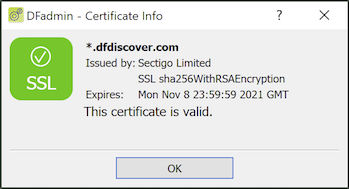
In the Certificate Info dialog, take note of the expiry date. The certificate for your server is valid for a defined period of time.
If the certificate expires, clients will not be able to connect using encrypted communication. It is your responsibility to ensure that certificate expiry does not happen. This is easy to handle.
The certificate issuer for your DFdiscover server is identified in the value of the Issued by field. If
DF/Net Research, Inc. is your certificate issuer, use the command-line DFcertReq utility or DFserveradmin to request a new certificate
DF/Net Research, Inc. is not your certificate issuer, contact the certificate issuer directly to arrange a new certificate
There are various log files that are maintained by DFdiscover that can be periodically truncated. In truncating these files it is important to maintain the file permission and ownerships that were in place before the file was truncated. Also, you should choose between completely clearing all of the log messages or maintaining a context of the most recently written log messages. In the examples below, both methods are indicated.
The DFmaster.rpcd application appends an entry to this log file each time a study database server starts or stops. These entries are useful in debugging but are not required for the proper functioning of a DFdiscover system.
Entries are expected to appear in pairs and have the following appearance:
DFserver.rpc.251[27239]: start on teamserver at Mon Jan 22 17:23:37 2018
DFserver.rpc.251[27239]: exit at Tue Jan 23 09:29:53 2018
Messages may be appended to this file between the start and exit messages, but each start should eventually be terminated by an exit.
Messages are also appended to this file if a DFdiscover administrator deletes a study, study data, or study data and setup info using the DFadmin 'Delete' option. The example below illustrates the message from each of these operations performed on study 101.
DFedcservice.101[21877]: jack@localhost deleted all study data Fri Dec 1 12:00:09 2017
DFedcservice.101[21877]: jack@localhost deleted all study data and setup info Fri Dec 1 12:01:19 2017
DFedcservice.101[21877]: jack@localhost deleted study from datafax registry Fri Dec 1 12:02:58 2017
This file can be pruned at any time; the DFmaster.rpcd process will re-create or re-synchronize with the file after any changes. Pruning can be accomplished from the command-line as described below.
To clear all messages:
#cat /dev/null > /opt/dfdiscover/work/server_logTo maintain the 50 most recent messages:
#cd /opt/dfdiscover/work#tail -50 server_log > new_server_log#mv new_server_log server_log#chown datafax:studies server_log
Each transmitted fax, independent of originating study, adds a record to this file. The record includes information about the user name of the sender, the name of the transmitted file, the date and time of transmission, and the disposition status (sent/failed) of the fax. This information is not used by any DFdiscover application or report and is intended to be a debugging aid in the case of failed transmissions.
This file can be pruned in the same manner as the
work/server_log file and can be pruned at any time.
Since the file does not grow very large or very quickly, it
is safe to prune this file on a quarterly, semi-annual, or even annual
basis.
Certain log files contain information that is relevant to a DFdiscover installation over its entire history. These log files should not be pruned.
This file contains a record for each incoming fax that has been received
by the DFdiscover system, independent of destination
study. Each record includes
information on the name of the received fax (the
YYWW/SSSS part is particularly important),
the number of pages, the sender identification, and the date and
time of receipt.
This information is subsequently used by the
>
option in DFexplore, as well as reports: DF_ATfaxes, DF_WFcrfsperwk, and
DF_XXtime.
The contents of this file are also mirrored by an index file,
work/fax_log.idx.
The contents of these two files must absolutely
remain in sync.
The unique sequence number that belongs to a fax is determined at the time of
fax arrival by the DFmaster.rpcd process. The process determines
the sequence number by consulting the appropriate
.seqYYWW file.
Under normal circumstances, only the .seqYYWW file for the
current week is required. However, should a document need to be re-processed from
the TIFF/PDF archive, the .seqYYWW file for the original
year and week of receipt will be consulted, not the
.seqYYWW for the current year and week.
As a result, it is important that these files not be removed;
this is partially the reason why they are named with a leading dot (.).
HylaFAX provides a detailed log of all transactions that is very useful in debugging faxing problems. The information contained in these log files includes the remote fax machine number, the speed and encoding method used to transfer the fax and information about the duration and success or failure of each transmission. These log files need to be cleaned up periodically, and HylaFAX provides two scripts to accomplish this.
The first of these, faxcron, truncates the log files, and the second, faxqclean, is responsible for purging job description and old document files that are left over after a fax request has completed. Both of these scripts are normally run automatically by the UNIX cron facility.
To ensure that scripts have been correctly configured on your machine you will need to log in as root (or have a super-user perform these steps) and execute the following commands:
#crontab -l > mycronjobs#more mycronjobs
If you see lines containing faxqclean and faxcron, the scripts are already
correctly installed and no further action is necessary.
If they do not appear,
edit the mycronjobs file and add the following lines to the
end of the file:
25 23 * * * /opt/hylafax/sbin/faxqclean
0 3 * * 0 /opt/hylafax/sbin/faxcron
which executes the faxqclean script every day at 11:25PM and the faxcron script every Sunday at 03:00AM. Save the file and then inform cron of the changes with the command:
# crontab mycronjobs
It may be necessary to increase the frequency
of the script execution for a very high-volume site.
In such a case, it can occur that the partition containing the HylaFAX logs
(typically /var) will fill with log files
leaving no space for normal system operation.
Periodic maintenance of a DFdiscover system as described in this chapter is a preventive measure that can save many hours or days of corrective or restorative work. It also gives DFdiscover users a feeling of confidence that the system is always available and running smoothly. Done regularly, this maintenance should require no more than 30 to 45 minutes per week.