Table of Contents
- 6.1. Tests & Requirements
- 6.2. Begin Module 6.
- 6.3. Retrieve an existing data record in DFexplore.
- 6.4. Apply a user-defined Query Category query.
- 6.5. Add a reason for Data Value to explain entered data.
- 6.6. Edit an existing query.
- 6.7. Remove a user-defined Query Category that is used by an existing query.
- 6.8. Delete a user-defined Query Category query.
- 6.9. End Module 6.
Retrieve an existing data record in DFexplore.
Apply a user-defined Query Category query.
Add a reason for Data Value to explain entered data.
Edit an existing query.
Remove a user-defined Query Category that is used by an existing query.
Delete a user-defined Query Category query.
Estimate of Time Required: 30 Minutes
-
Start DFATK as described in Module 1 (Installation & Initialization).
-
Click followed by to begin this module.
-
Start DFexplore.

-
Enter the name for DFdiscover Server that has been provided by your administrator. Enter
valid1in the Username field and the previously assigned password in the Password field. Click to login.
-
From the list of available studies, select the 254 Acceptance Test Study and click .
-
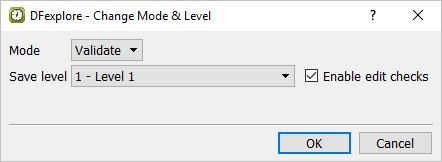
Select > . Within the dialog, set:
Mode = Validate
Save level = 1 - Level 1
Check (enable) Enable edit checks
Click to apply these settings.
-
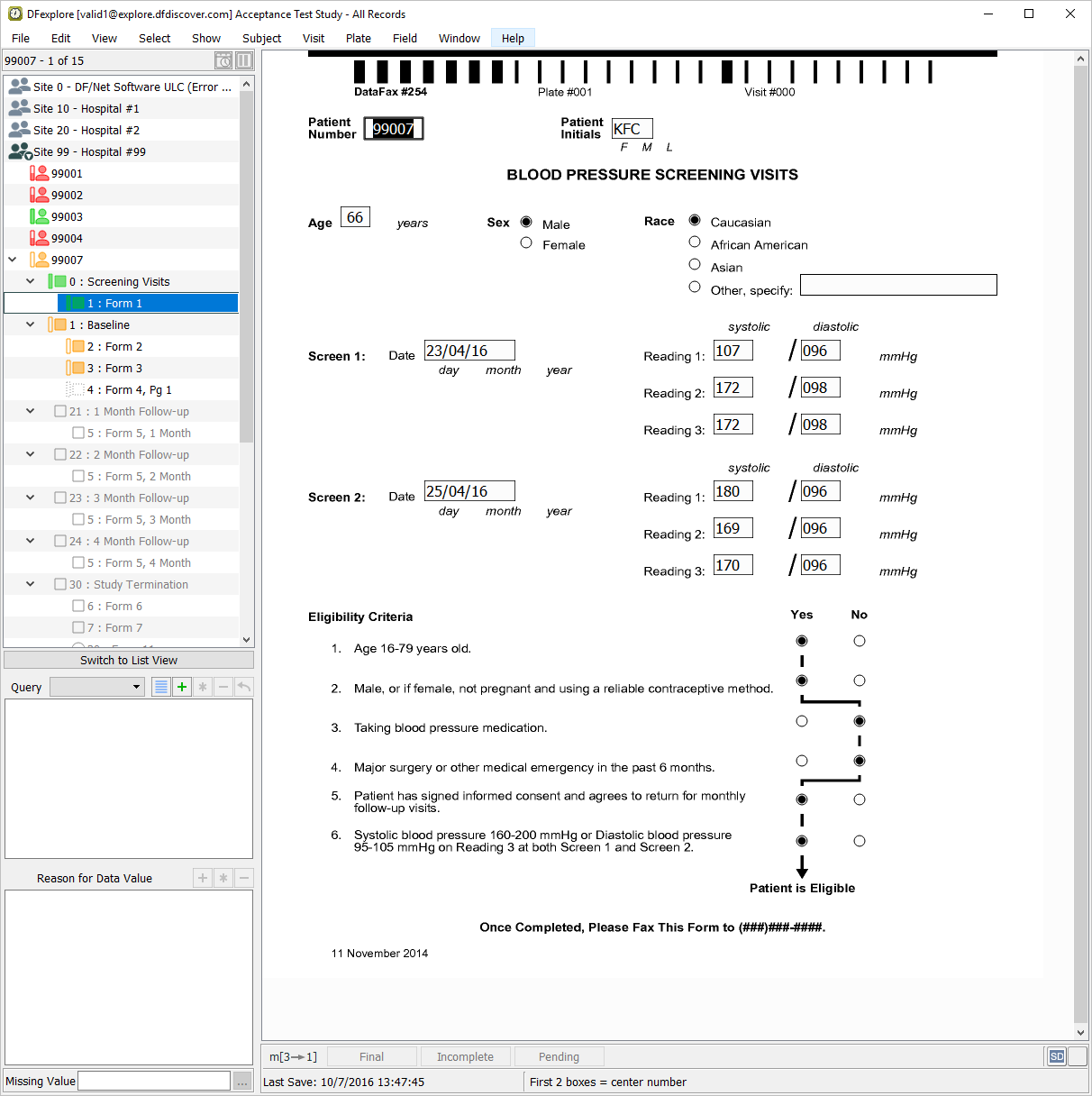
Double-click the folder for Site 99 and then double-click subject 99007 in the record list to open the subject binder. Locate the 0: Screening Visits in the list of assessments for subject 99007, and double-click this entry to open task records for this subject. Press Tab to advance through the fields until Screen 2, Reading 1 systolic blood pressure becomes the current field.
-
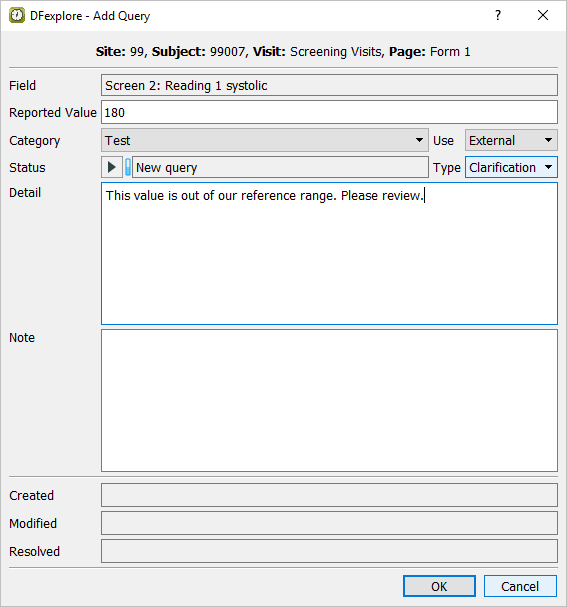
With Screen 2, Reading 1 systolic blood pressure as the current field, select > to open the Add Query dialog. In dialog, confirm that Test, Monitor and Clinical QC are present in the Category pull-down list. Set:
Category = Test
Use = External
Type = Clarification
Status = New query
Detail =
This value is out of our reference range. Please review.
-
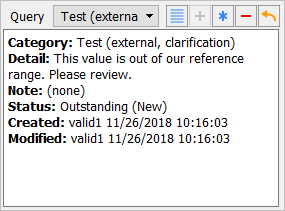
Click to apply the query to the Screen 2, Reading 1 systolic blood pressure field. Note that the field becomes blue. Examine the details in the Query window that appears near the bottom left of the screen.
-
Press Tab to advance through the remaining fields on the page without making any changes. Press Tab to advance to the save buttons at the bottom of the data screen to make them active. Click to save the page.
-
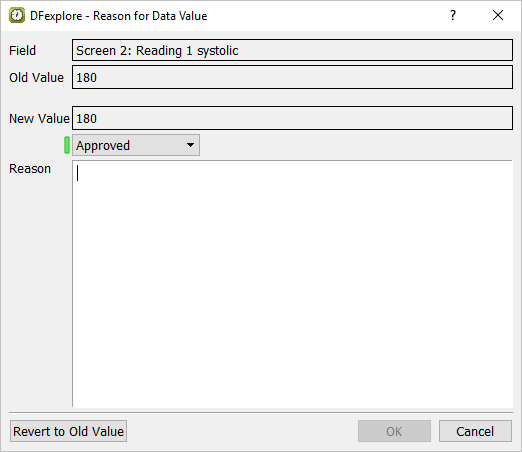
With Blood Pressure Screening Visits as the active page, press Tab to advance through the fields until Screen 2, Reading 1 systolic blood pressure becomes the current field. Select > or click
 to open Reason for Data Value dialog.
-
Enter
The value 180 mmHg for systolic blood pressure has been confirmed. Clinical significance is being evaluated.in the Reason field.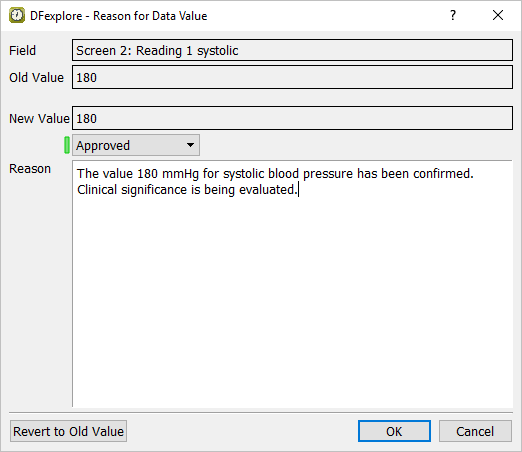
-
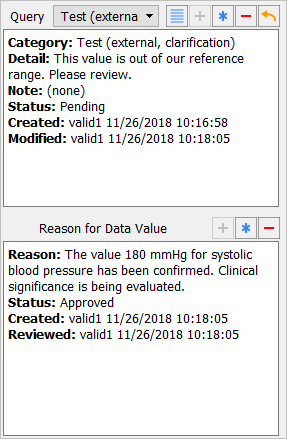
Click to apply the reason to the Screen 2, Reading 1 systolic blood pressure field. Note that this field is the current field and the field becomes orange. Examine the details in the Reason window that appears near the bottom left of the screen.
![[Note]](../../imagedata/note.png)
Note If a user-defined Query Category Code is specified as auto-resolution in DFsetup, adding a reason to a field that has a query with such a problem type will change the query status from outstanding to pending.
-
From the Screen 2, Reading 1 systolic blood pressure field, press Tab to advance through the remaining fields on the page without making any changes. Press Tab to advance to the Save buttons at the bottom of the data screen to make them active. Click to save the page to the database.
-
Select > . Select > to display all pending queries for Site 99 - Hospital #99.

-
Double-click entry for subject 99007, Screening Visits: Form 1 to be taken directly to the page and the pending field.
-
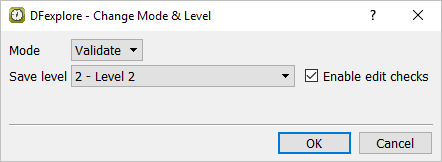
In Data View, select > . In the dialog, set:
Mode = Validate
Save level = 2 - Level 2
Check Enable edit checks
-
Click to apply and close the Change Mode & Level dialog. The current field is Screen 2, Reading 1 systolic blood pressure.
-
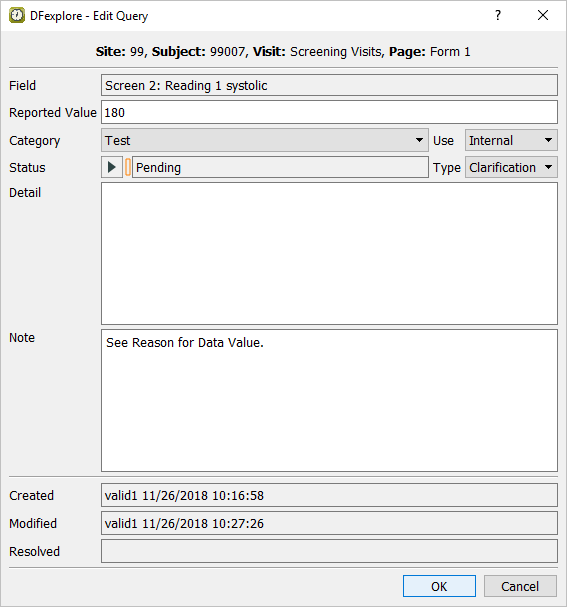
Select > or click
 . In the dialog,
 Set Use as Internal
Delete the existing text in the Detail field
Enter
See Reason for Data Value.in the Note field
Click to apply the edits.
-
From the Screen 2, Reading 1 systolic blood pressure field, press Tab to advance through the remaining fields on the page without making any changes. Press Tab to advance to the save buttons at the bottom of the data screen to make them active. Click .
-
Select > to close and exit DFexplore.
-
Start DFsetup.

-
In the DFsetup login dialog, enter the name for DFdiscover Server that has been provided by your administrator. Enter
datafaxin the Username field and the previously assigned password in the Password field. Click to login. -
Highlight the entry for 254 Acceptance Test Study. Click to continue.

-
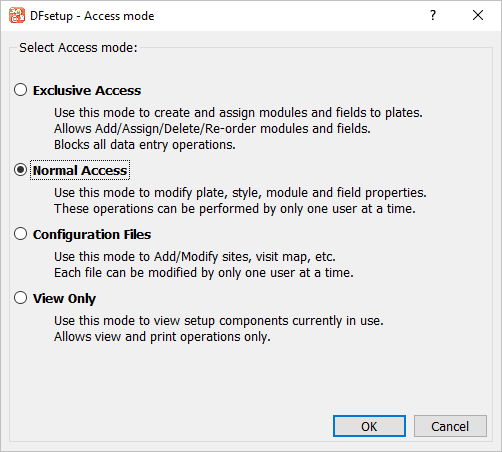
Choose Normal Access and click .
-
-
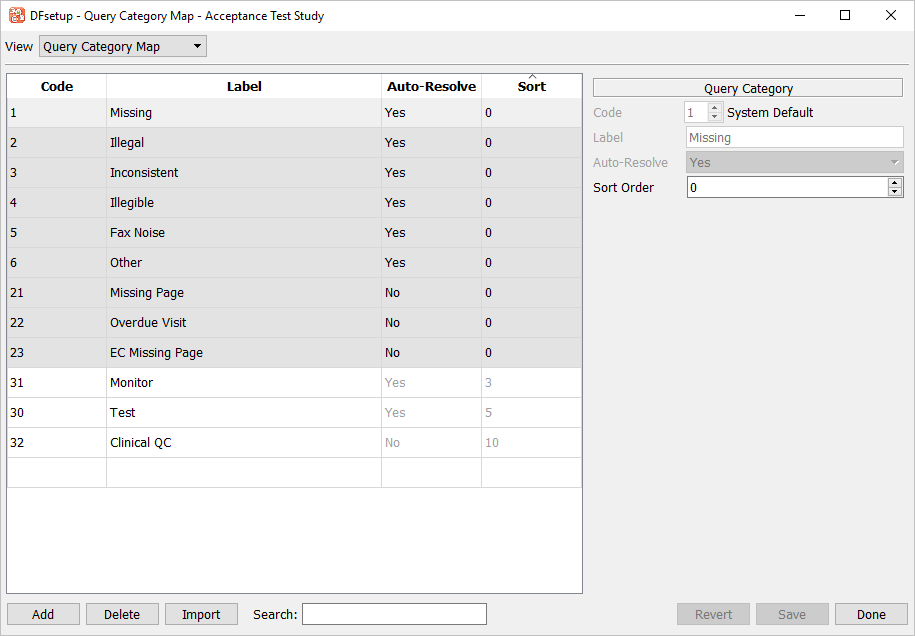
In the Query Category Map dialog, locate the entry that has Query Category Code 30 and Label
Test. Click entry to highlight it, then click . Click and .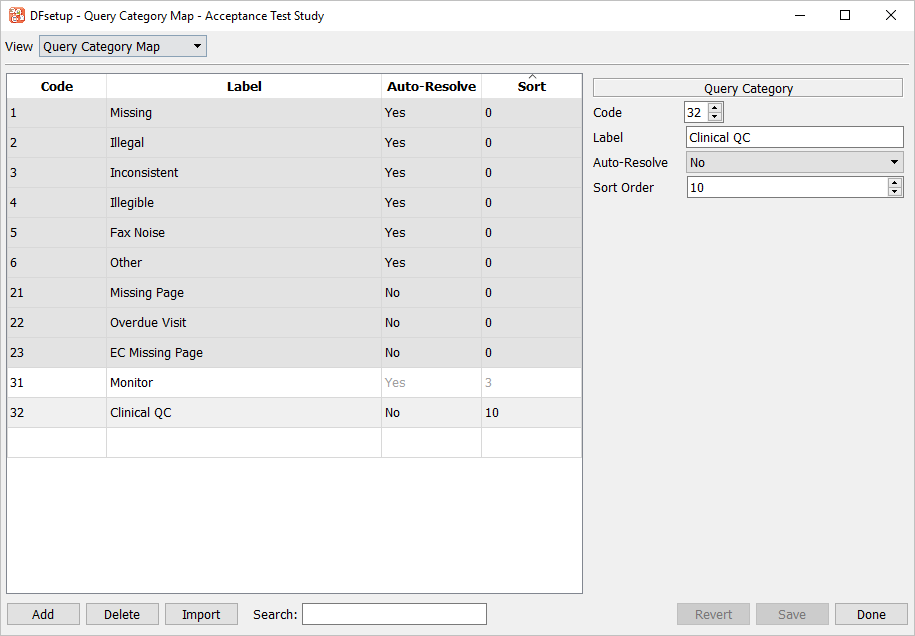
-
Select > to close DFsetup.
-
Start DFexplore.
-
In the DFexplore login dialog, enter the name for DFdiscover Server that has been provided by your administrator. Enter
valid1in the Username field and the previously assigned password in the Password field. Click to login. -
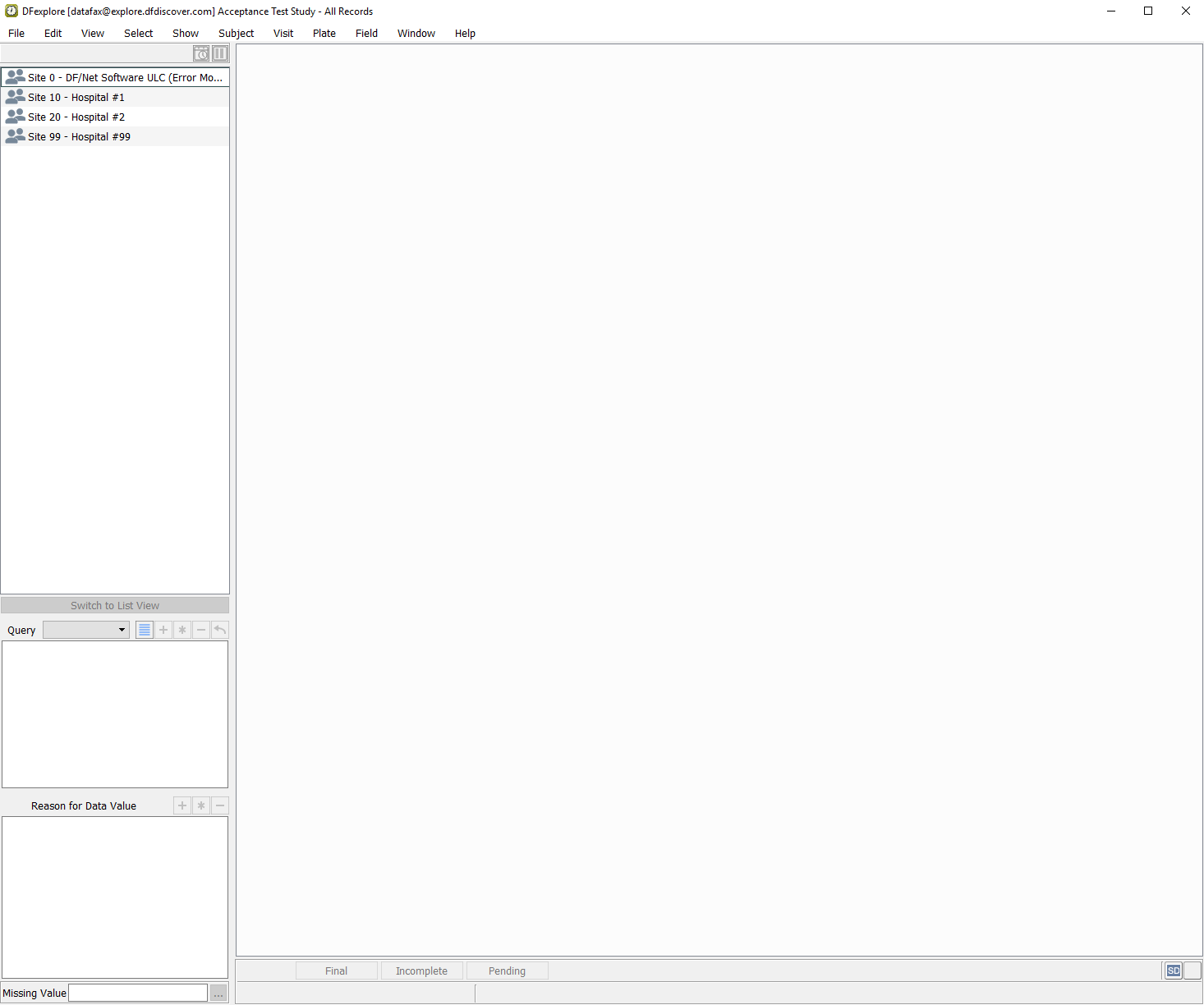
Select 254 Acceptance Test Study then click to open its database.
-
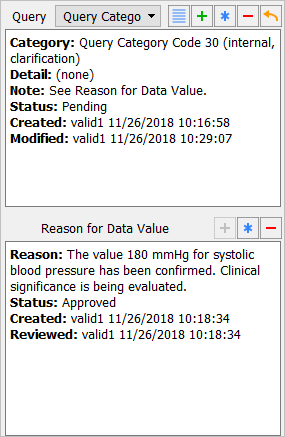
Double-click the folder for Site 99 - Hospital #99 to display a list of available subjects. Double-click subject entry 99007 in the subject list to open the subject binder. Locate the 0: Screening Visits assessment for subject 99007 and double-click this entry. Press Tab to advance through the fields until Screen 2, Reading 1 systolic blood pressure becomes the current field. Examine the details in the Query window. If an existing query contains a user-defined problem type, and that problem type definition has been removed from DFsetup, the query in DFexplore displays Query Category Code 30 as category.
-
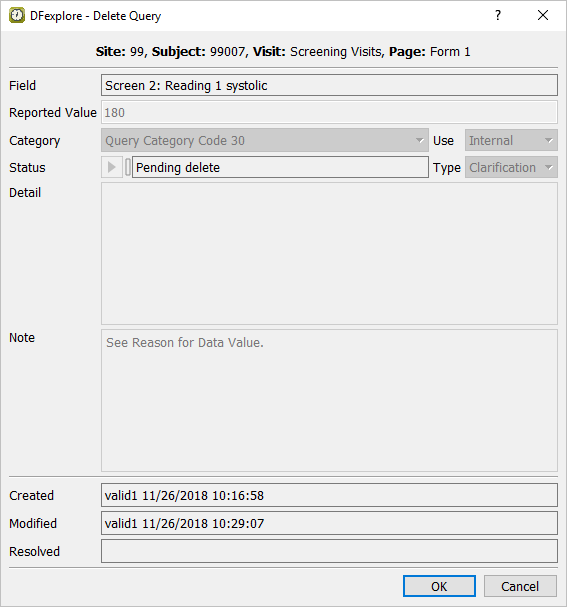
Select > .
-
Click to perform the query deletion.
-
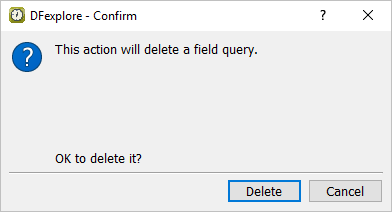
Click in the confirmation dialog.
-
Press Tab to advance through the remaining fields on the Blood Pressure Screening Visits page until the save buttons at the bottom of the screen become active. Click .
-
Click > to exit DFexplore.