Table of Contents
DFdiscover is licensed by a unique host identifier for a single server machine. This licensed machine is the only machine permitted to execute the DFdiscover master daemon. This machine is often referred to as the "DFdiscover master".
DFdiscover uses a concurrent user license model, which permits up to a purchased maximum number of concurrent users to be using the software, and does not limit which users are running the client applications, or where those applications can be run. Only the DFdiscover master daemon needs to be licensed; the individual client machines do not.
If you are licensing DFdiscover for the first time, you must choose your DFdiscover master carefully. In particular, this machine should have demonstrated network and hardware reliability. If the DFdiscover master is 'down' (unavailable), DFdiscover will not function on that machine or any client machines.
DFadmin will only connect to a server that already has a valid license. To enter license information for new installations or to update license information on servers where the license has expired, use DFserveradmin (see Software Installation Guide, LicensingRequest and Install DFdiscover License).
Each DFdiscover license is controlled by a password which encodes 4 attributes:
the unique host identifier of the master,
the license expiration date,
the number of license seats, and
optional features.
These 4 attributes are provided to DF/Net Research, Inc.. Using these attributes as input, a password is computed and provided back to you. Since the provided password encodes the 4 attributes, changing the value of any attribute without also requesting and updating the password invalidates the software licensing, potentially making DFdiscover unusable.
DFadmin provides a view for updating license information, as well as a view for reviewing current license usage.
The License tab has two views: License for entering DFdiscover software license details, and Usage Statistics for reviewing seat usage.
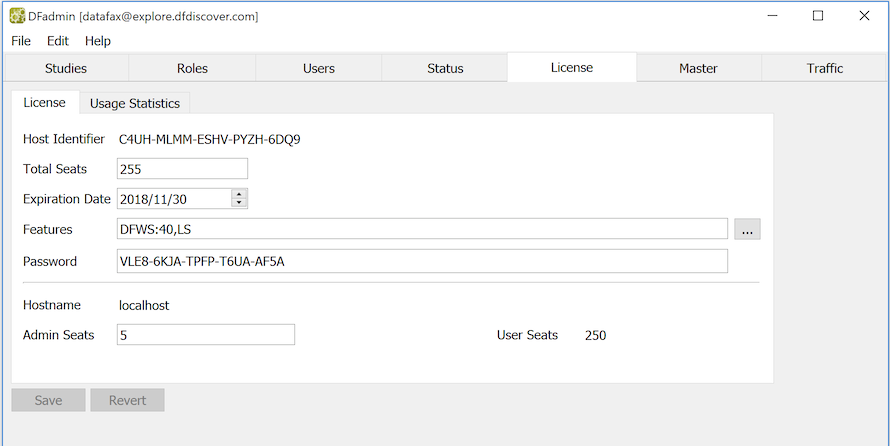
The License view is where all changes to license information are made.
Click the tab. The License view is separated into two sections, separated by a horizontal rule: an upper section for values that are password restricted, and a lower section for values that can be modified independent of the password.
The following values appear in the upper section:
Host Identifier. The host identifier is a 20 character alphanumeric value expressed in 5 dash-separated blocks of 4 characters/digits. It is unique to one computer. For DFdiscover, this is the host identifier of the server machine that has been chosen to run the master daemon. This value does not change and should not be modified.
Total Seats. This number defines the maximum number of concurrent user logins that are permitted. The number, in the range 1 to 500 inclusive, is equal to the number of seats purchased. Normal use of the software will occupy seats up to the maximum number of concurrent logins permitted.
Expiration Date. DFdiscover is licensed for a defined period of time. The software license expires at midnight on the license expiration date.
Features. DFdiscover optionally includes features that may be valuable to a certain type of client. These features can be licensed separately. Features are defined by an acronym and an optional seats limiter. Features available for licensing are DFWS, web services via API, and LS, large study numbers.
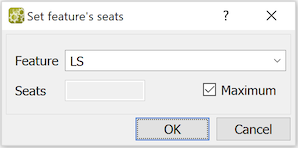
Individual features can be directly entered in the field, or they can be selected from the dialog. Multiple features are separated by a comma (
,). The maximum number of seats available to DFWS connections can be limited, whereas large study numbers, LS, is simply available or not.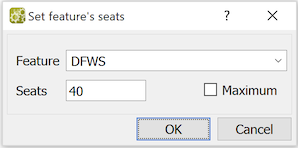
Password. The value for this field is provided by DF/Net Research, Inc. on payment of the software license fee. The value is 20 characters in length, presented as 5 dash-separated blocks of 4 characters or digits. To prevent confusion, the digits 0 ('zero') and 1 ('one'), and the letters O ('oh') and I ('eye') never appear in a password.
The following values appear in the lower section, below the horizontal rule. They can be updated independent of the password value.
Hostname. The hostname is the name by which the DFdiscover server is known on your network, and is the output of the command:
%hostnameThis field is not used when defining/evaluating the password, however it is verified in other areas of the software. Be careful before changing it.
Admin Seats. Seats can be reserved for use by DFdiscover and study administrators, to ensure that they are never locked out because all licensed seats are taken by users. We recommend that at least 1 seat be reserved for administrators. The split between administrative seats and user seats can be changed at any time. Each login by a DFdiscover or study administrator takes an administrative seat if one is available; if an admin seat is not available, administrator login will try to take a general user seat. All other users cannot take one of the admin seats even if one is available and all user seats are in use.
It is also possible to change the allocation of seats assigned to a feature (as
a subset of the purchased Total Seats).
Specifically, it is possible to assign an upper limit to seats that can be
used by DFWS.
The notation is FEATURENAME:MAXSEATS.
For example, DFWS:40 indicates that feature
DFWS has been licensed and that a maximum of 40 seats can
be occupied by users/clients using that feature.
This change can also be made independent of a password change.
Verify that each field has been entered correctly. To save and apply the license information, click or select > . If any license fields are incomplete or incorrect, the save will fail and the existing license will be left unchanged.
If complete and accurate, the license information is saved and passed to the DFdiscover master daemon. It is not necessary to restart DFdiscover - the expiration date, seat count and features on a currently licensed system will be automatically updated.
Subsequently, each time the DFdiscover master starts, it verifies the license. The master (and hence DFdiscover) will fail to start if the license file cannot be found or any of the information in the file is incorrect.
Click to undo changes you have made to any fields in the license view.
DFdiscover warns of approaching license expiry 60, 30, 14, 7, 6, 5, 4, 3, 2, and 1 days prior to the expiry date. The person recorded as the Problem Mail Recipient (in the Master tab) will receive email messages similar to the following:
datemachineDFmaster.rpcd[pid]: your software license expires in#days
If the license is not renewed, it will expire at midnight on the expiry date. In this case the essential DFdiscover services will halt and not restart, and the Problem Mail Recipient will receive an email message similar to the following:
datemachineDFmaster.rpcd[pid]: your software license has expired
If the DFdiscover license expires, HylaFAX will continue to receive faxes. When the DFdiscover license is subsequently renewed, the received faxes will be processed by DFdiscover. Nothing will be lost. Be careful however that the incoming fax directory has sufficient disk capacity to store any faxes that arrive while the DFdiscover software is off-line.
It is possible to apply new license information to an active DFdiscover installation
without the use of DFadmin or DFserveradmin.
Logged-in to the licensed DFdiscover server, the system super-user can update/install a new license
file and send a UNIX SIGHUP signal to DFmaster.rpcd.
The SIGHUP signal is interpreted as a request to re-read the license file.
Before sending the SIGHUP signal, the new license information must be entered into the
DFdiscover license file, namely /opt/dfdiscover/work/license.
From the command-line, the following steps cause DFmaster.rpcd to re-read its license:
Before editing
/opt/dfdiscover/work/license, make a backup copy of the file.Edit
/opt/dfdiscover/work/licensewith a text editor and save the changes.Determine the process id,
pid, of DFmaster.rpcd:#ps ax | grep DFmasterSend the SIGHUP signal to DFmaster.rpcd:
kill -HUP
pid
If the new license can be loaded and validated successfully, the new settings are applied. Otherwise, they are ignored. The interval to license expiry is re-calculated if necessary which may also reset the timing for the license expiry warning emails.
![[Warning]](../../imagedata/warning.png) | Invalid license settings |
|---|---|
|
If the new license file cannot be loaded and validated successfully, it is imperative that the old license settings be re-entered and saved to the license file. Although invalid settings are ignored in this scenario, valid settings are required if there is a need to restart DFdiscover. A recommended practice is to keep a backup copy of a valid license file before attempting to update the active license file from the command-line. |
DFdiscover provides current and cumulative license usage information in the Usage Statistics view.
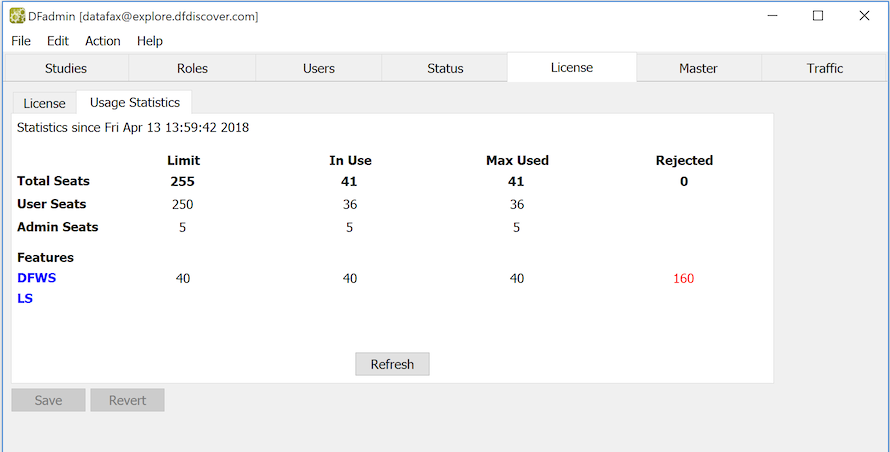
Statistics are available for seat usage and feature usage. Seat usage is reported by User Seats and Admin Seats, mirroring the specification in the license itself. Feature usage is reported individually for each licensed feature.
For seats and features, DFdiscover is able to report the licensed value (Limit), the current value (In Use), the maximum value since start (Max Used) and the number of license requests that could not be fulfilled (Rejected).
The statistics reported include:
Statistics since
date/time. The date and time of the beginning of the reporting period. Reported usage is available since DFdiscover last started, or the license was last updated.-
Limit. The number of seats included in your current DFdiscover license is shown in the first row of the table. This is a static value matching the value of Total Seats in the License view.
In Use. This is the number of concurrent seats currently in use by clients connected to the DFdiscover server. The number of seats available is the difference between Limit and In Use.
Max Used. The maximum number of seats that have ever been used concurrently is reported in this column. If the maximum has been reached (matches the limit) and you see many rejections in the next field it may be time to purchase additional seats.
Rejected. The number of times that a license request could not be granted because all available licenses were in use is reported in this column. DFdiscover does not track if rejected requests came from administrators or users.
The statistics can be updated at any time by clicking .