Table of Contents
The master daemon [4] is the most important application in the DFdiscover system. It connects every client application to the appropriate study database server, and without it no useful work can be done. The master is started when DFbootstrap is executed (which typically occurs when the licensed computer is started) and runs continuously.
It controls the total number of users (or clients) that are allowed to run concurrently on the system. This is constrained by the DFdiscover software license.
It serves as a connection router for DFdiscover client applications, servicing requests for a connection to a particular server. It determines where the requested server is running and returns this information to the client. If the requested server is not running, the master solicits a slave daemon to start it.
It receives notification of each incoming document and responds by soliciting a helper application to process the incoming document.
It manages outgoing documents (typically Query Reports being that are emailed/sent back to the clinical sites) by assigning the document to the outbound daemon.
In most installations, DFdiscover and the master are configured to start automatically whenever the computer (re-)starts and stop automatically whenever the computer halts. It is also possible to start and stop DFdiscover manually or with the DFserveradmin application (see DFserveradmin).
DFdiscover can be started manually, by root, with the DFbootstrap command as in:
# /opt/dfdiscover/bin/DFbootstrap
There is no further direct user interaction with the master process. It operates as a background process, receiving and directing requests from other DFdiscover processes.
DFdiscover runs continuously on the server. It is started when the host computer is started and is halted when the computer is halted.
Occasionally it may be necessary to halt DFdiscover, to perform a system administration task, like installing a system upgrade, updating the DFdiscover software, or to install additional disk storage. Stopping DFdiscover can be performed with the DFserveradmin application (see DFserveradmin), or manually from the command-line.
DFdiscover can be halted, by root, with the DFshutdown command as in:
# /opt/dfdiscover/bin/DFshutdown
Any attempt to halt DFdiscover will fail if there are open client connections. In such a case, messages similar to these will be displayed.
Locating DFdiscover slave daemons...
Trying to shutdown slave daemons...
 Slave daemon on explore.dfdiscover.com shutdown.
Done.

Trying to shutdown study servers...
 Server 007 on explore.dfdiscover.com will not exit - Study server is in use.
Failed.

DFdiscover shutdown failed. Some processes still running.
If this occurs, it will be necessary to have all users exit their DFdiscover applications before shutdown can proceed.
Shutdown can be forced to proceed, regardless of any warnings, by executing DFshutdown and including the
-f option. This is not recommended as a general solution but instead should be used in those cases where shutdown must proceed, for example, because the computer is also halting. The invocation is:
# /opt/dfdiscover/bin/DFshutdown -f
The master is configured with defaults during the initial installation of DFdiscover. In most environments, these defaults require no further modification or specification. If necessary, re-configuration of the master is simple and in most situations has to be done only once. Configuration is done through the master tab in DFadmin.
To (re-)configure the master, click the Master tab in DFadmin. The Master view has the following appearance.
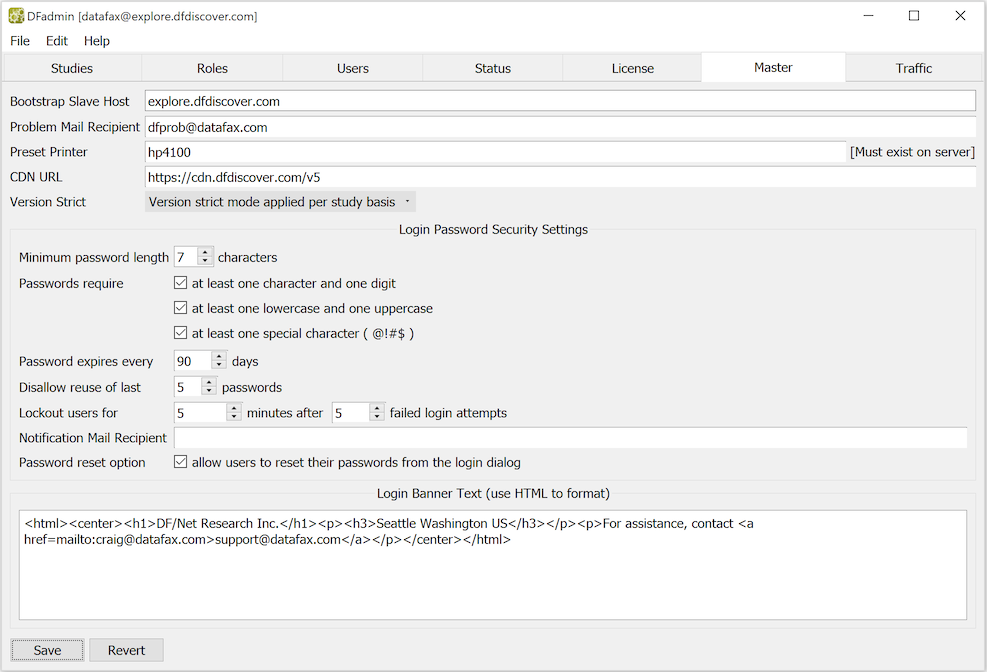
The following configuration parameters can be specified in the dialog:
-
Bootstrap Slave Host. The value for this field is typically the same as the hostname of the master, but it can also be a comma-delimited list of hostnames on the local network. When the master daemon is started, it starts one slave process on each listed host. Since DFdiscover server processes will only execute on machines running a slave process, each machine that will be a database server must also be listed as a slave. Good choices for database servers are machines that have local disk space (so they can swap efficiently), sufficient CPU power, and typically have a light processing load.
DFdiscover attempts to distribute work evenly to all slave machines [5]. Also, if one machine is down, DFdiscover will continue and try to start the server on another machine.
The default value for this field is the hostname of the computer running the master daemon. In most environments, this is sufficient.
-
Problem Mail Recipient. Messages related to license expiry or usage will be emailed to the specified address(es). Specifically,
-
when the number of days to license expiry is: 60, 30, 21, 14, 7, 6, 5, 4, 3, 2 and 1, a warning message will be emailed
-
when license expiry occurs, an error message will be emailed
-
when no licenses are available, and a user requests a license, a warning message will be emailed
-
-
Preset Printer. Several applications permit printing. Applications that are connected to a study server use the study specific value for a printer. Other applications, such as DFadmin or Image Router do not have a study connection. They use this value as their default print location, unless otherwise overridden.
-
CDN URL. DFdiscover reports are built from JavaScript (JS) and Cascading Style Sheet (CSS) resources that reside on a separate server. By default, DFdiscover provides and shares a common server to make these resources available. This server is known as the CDN and the resources are rooted at the CDN URL. One advantage of this structure is that DFdiscover reports which are shared externally can also access these same resources via the CDN URL.
-
Version Strict. It is possible to enforce software version numbers between client and server applications at the master level. This enforcement determines the behavior at client connection time.
The choice Version strict applied per study basis allows the study-level configuration of the same setting to control the setting. This is the less restrictive choice.
The choice Only current version supported specifies that the client and server application versions must match exactly, and it is not possible to override this at the study level. This is the more restrictive choice.
For further details, also see Software Versions and Version Strict (Studies).
The following Login Password Security Settings may be specified:
-
Minimum password length. Users may change their password to a string no shorter than the value specified here, and no longer than the fixed maximum of 64 characters.
-
Passwords require. To increase the strength of user passwords you may require that they must contain any combination of the following attributes:
at least one character and one digit
at least one lowercase and one uppercase character
at least one special character (@!#$)
-
Password expires every. Passwords may be set to expire every 1-9999 days, after which the user will be prompted to enter a new password on the next login.
-
Disallow reuse of last. When resetting their password users can be prevented from reusing their previous 1-10 passwords. A value of 0 in this widget allows users to re-enter their current password. This applies to each user's initial password and to any reset passwords, so to prevent users from reusing these passwords after first login set this parameter to at least 1.
-
Lockout users for. If an incorrect password is entered several times you may suspect that someone is trying to break into your system using another user's login account. To minimize this risk, you can lock the login account for 1-999999 minutes after 1-9999 failed login attempts. A compromise, for forgetful users, might be to lock the account for a short period of time, during which they can look up the password and try again. When a lockout occurs, this message appears at the bottom of the login dialog:
Account locked because of repeated password errors - You may try again in XX minute(s). -
Notification Mail Recipient. When a login account is locked out a message is written to the system log. In addition, an email can be sent to the addresses specified in this widget.
-
Password reset option. Selecting this option will allow users to reset their passwords to a temporary single-use password from the login dialog. By default, this option is not selected. The user's email address used for this purpose must be registered under the Users tab in the Email field of the contact info section.
A banner may be specified to customize the login dialogs for DFexplore, DFsetup, DFadmin and DFsend. The banner appears at the bottom of the login dialog when the user selects the DFdiscover server. The banner may consist of one or more lines, include UNICODE characters, and use HTML to add formatting and links to URLs.
Links to media, such as image files are not supported. However, images may be included using base64 encoding (which represents binary data in an ASCII string format). Base64 image encoders are readily available online.
By default, the login banner consists of the organization name, country, state, locality and email contact information.
[4] The term daemon indicates that the program runs continuously in the background. It is not under direct user control.
[5] When attempting to distribute the load, DFdiscover only considers the number of DFdiscover servers that are running on each candidate computer. It does not consider other software that might be running.