Table of Contents
A DFdiscover study can be thought of as a database of related CRFs. An actual clinical trial might be logically divided into more than one database and thus may be defined as more than one study to DFdiscover. For example, while subject CRFs might all go into the main study database, a separate investigator database might be kept for investigator registration forms, an investigator fact sheet, and correspondence with investigators. The key structural difference between these 2 databases is that while a subject ID would serve as the ID key field in the subject database, an investigator number would serve as the ID key field in the investigator database.
In very large studies with many sites it might also be desirable to divide the sites into regional databases, to keep the individual study databases smaller and thereby improve system performance.
In most cases, clinical trial databases are paired as a development database and a production database. Work is done in the development database, tested and then pushed to the linked production database. The trial is conducted with, and data is collected in, the production database.
A maximum of 999
[6]
active studies (or databases) can be defined per DFdiscover installation.
Each DFdiscover study is assigned a unique number
in the range 1 to 999.
DFdiscover is able to automatically identify and route
CRFs that have a DFdiscover barcode. For such studies,
the maximum study number is 255 (this is the maximum that
can be barcoded).
If the study will contain paper forms that are either
scanned or faxed, and should be automatically routed,
then the study numbers must be in this range of 1-255.
If the study is purely EDC with no scanned or faxed paper
forms, or if automatic routing is not needed,
then the full range of 1-999
can be used.
A study number is the first key necessary to uniquely identify a CRF and route it to the correct database. Because of this study numbers must be chosen carefully, and their uniqueness maintained for the duration of the study. Consideration should also be given to how the numbers are planned. For example, are numbers assigned sequentially starting with study number 1? Or is some other stratification desired, with study ranges allocated for product lines, phase, region, or other natural ways to categorize studies?
A study database is implemented as a collection of files that reside on one or more storage devices. Typically, the collection of files that are a study database are all stored under one unique parent directory. Placing all the files for a particular study under a parent directory that is unique to that study is a good way to organize those files. This eliminates the possibility of mistakenly sharing one file between two or more studies, and makes it easier to encapsulate a study for migration or backup purposes.
When each study has its own parent directory, DFdiscover names all sub-directories and study files consistently across studies. Hence the name and location of a file (relative to the parent study directory) will be the same regardless of which study it belongs to.
The default DFdiscover file structure for a study includes the following:
batch |
Control files and output logs for study-level batch edit checks. |
bkgd |
Background image files used by DFexplore, DFsetup, and DFprintdb applications. |
data |
All DFdiscover database files, including one data file and one index file for each unique plate. It is strongly recommended that this data directory be local to the machine that executes the study database server. |
dde |
Double data entry sets that are waiting to be processed. |
dfsas |
Any stored SAS® jobs that were created from DFexplore. |
drf |
Any DRFs (Data Retrieval File) created by server-side applications, including reports, and DFexplore. |
ecbin |
Any study specific scripts or applications that are called from within edit checks using the |
ecsrc |
All edit check source files that are specific to this study. |
lib |
Specific library files, including study server configuration file, sites database, visit map, data dictionary, ICR template. |
lut |
Any study specific lookup tables. |
pages |
Base directory for standard resolution (100dpi) CRF pages. Each data record has a corresponding CRF image file below this directory. |
pages_hd |
Base directory for high resolution (300dpi) CRF pages. Each data record has a corresponding CRF image file below this directory. |
reports |
Study specific scripts and applications that generate output for review by study staff. This directory also contains all previously created Query Reports. |
work |
Storage location for study temporary files. |
All of these directories are created automatically by DFdiscover when a new study is defined. In general, the files and directories should not be accessed directly but instead be accessed through one or more DFdiscover applications.
A detailed description of the format of study configuration and data files can be found in Programmer Guide, Study FilesDFdiscover Study Files.
Most study administration tasks are performed using the Studies tab in DFadmin.

All studies currently registered with DFdiscover are displayed, one row per study, in the studies list. Each row shows the unique DFdiscover study number, the descriptive study name, and the study status. If the study is not available (either disabled or restricted) the status message will include the administrator's username as well as the message from the administrator. The study list is filtered based on the current user's permissions: the DFdiscover administrator can see all known studies in the list (no filtering is applied), while a study administrator can only see the studies they have permission to administer.
Using the Studies view, DFdiscover administrators can:
-
Register and configure a new DFdiscover study.
-
Delete a study from the DFdiscover study registry. This action does not delete anything from the study directory. It makes the study unavailable to DFdiscover users, until/unless it is recovered using one of the 'Add' options.
-
Delete all study data. This action is typically used to remove all test data before going live. It removes directories: data, pages, pages_hd, drf, work, and reports/QC, and all dfsas/*.* files (i.e. DFsas job output files) from disk.
-
Delete all study data and setup info. This action removes everything from the study directory except the study configuration file DFserver.cf.
-
Define a watermark that is applied to all printed output generated by users assigned to any of the roles listed in the watermark definition.
The first study server 'start' message in the DFdiscover server_log corresponds to the date the study was created. A log message identifying the study, user, date and time is also appended to server_log for each of the 3 delete operations.
The following study settings may be specified in the Configurations tab:
-
Study Number is the unique number for the study.
-
Name is the name of the study.
-
Administrators are the administrators for the study.
-
Study Directory where the study is stored on the server.
-
Working Directory where the temporary data is saved as it is processed.
-
Pages Directory is where images are stored. HD pages are stored in a sibling folder with the same prefix plus a
_hdsuffix. -
Preset Printer is the printer where print operations are directed, unless another printer is specified elsewhere as an override.
-
Candidate Hosts identifies the servers where slave daemons are running. The value should match the value for Bootstrap Slave Hosts in the Master view.
-
Minimum Free Disk is the minimum amount of free disk space for the study. The recommended minimum value for this field is 500MB. The maximum value is 20GB.
-
Study URL is ignored in the current release.
-
Version Strict specifies how DFdiscover handles connections from client applications that do not exactly match the DFdiscover software version.
The following study settings are specified in the Auto Logout tab:
-
Default is the auto logout interval automatically assigned to users for this study.
-
Maximum is the maximum auto logout interval that a user can set.
Each new study must be registered before it is used in DFsetup to create the study database or in DFadmin to define study roles and assign them to users. Studies should be registered early in the study-planning phase so that a study number can be allocated, ensuring that the same number cannot be assigned to another study.
Adding a new study
-
Click or select >
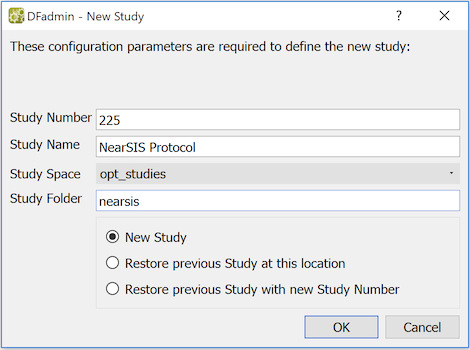
The New Study dialog is displayed.
-
Study Number
Each study database must be assigned a unique number in the range
1to999inclusive. -
Study Name
The study name appears in a variety of places including the study selection dialogs, the title bar at the top of DFexplore and DFsetup, and in the header of most DFdiscover reports.
-
Before any studies can be registered a UNIX administrator must specify permitted study spaces, i.e. the UNIX pathname(s) where study directories can be created, and provide a label for each space. Study space directories must be created with
datafaxas the owner,studiesas the group, and have read-write-execute permission for bothdatafaxandstudies. Each space must be unique (case-insensitive) and cannot itself be a study directory, nor can any sub-component of a study space be a study directory.Once the UNIX directories are created from a command-line, they can be registered as study spaces by running DFserveradmin as root on the DFdiscover server, and selecting the study spaces tab.
![[Note]](../../imagedata/note.png)
Note No part of a study space can itself be a DFdiscover study directory. For example, /opt/studies and /opt/studies/NIH_Studies could both be study spaces for the following study directories: /opt/studies/A, /opt/studies/B, /opt/studies/NIH_Studies/A, /opt/studies/NIH_Studies/B, etc., but /opt, /opt/studies and /opt/studies/NIH_Studies cannot be DFdiscover study directories. Study directories cannot include the follow characters: \ ` ' $ ; & * < > | and SPACE
-
Specification of the UNIX path to a new study directory is performed in 2 steps. First select a 'Study Space' from the drop-down list of predefined spaces, and then specify a study folder name, which will be appended to the study space to create the UNIX pathname for the study directory. For example, if the user selects study space name 'NIH_Studies' which has been mapped to UNIX directory '/opt/studies1', and then enters study folder name 'ECIC' the study directory becomes '/opt/studies1/ECIC'. The study folder name must be unique (case-insensitive) within the study space.
-
Mode
Select one of 3 modes:
-
New Study . Use this mode to create a new DFdiscover study.
-
Restore previous Study at this location . A study which has been deleted using 'Delete-Remove Study from DFdiscover' remains on the DFdiscover server and can be restored using this option, if you remember the study number, space and folder names.
-
Restore previous Study with new Study Number . This option is similar to the second option, but allows you to restore the study using a different study number. It does not update any existing data records or barcodes with the new study number, so this is of limited value, but may be useful in some cases. For example, you might have a StudySpace/Test pathname which you clean out using 'Delete-All Study Data and Setup Info' when no longer needed, and restore when you want to use it to setup and test a new study.
Each of these modes has specific requirements and will produce an error message if they are not met. A 'New' study must have a new study number and a space/folder path that does not already exist on the DFdiscover server. A study can only be restored using the second mode if the space/folder path exists on the server and the configuration file at that location has the specified study number. And for the third mode the space/folder path must exist, but the study number must be different.
-
-
Click .
This does 3 things on the DFdiscover server:
-
The study directory is created (if needed) and the configuration is saved to file
lib/DFserver.cfin the study path. -
The study is added to the DFdiscover study registry.
-
The study database server starts for the first time, verifies that DFdiscover is able to create and write to the study directory, and then creates and initializes the study directories and files. If the file system creation completes successfully, the study list is updated and the focus shifts to the new study entry.
-
Three types of delete can be performed in the DFadmin Studies tab, as described below. These options are available, to DFdiscover administrators only, by clicking or selecting > .
-
Remove Study From DFdiscover...
This option can be launched from as well as from the menu. It removes the study from the DFdiscover study registry, file , and removes study roles and user role assignments from the DFdiscover user database, file
DFuserdb.log, but does not remove anything in the study directory from disk. As a result: the study server can no longer start, the study will no longer appear in study selection dialogs, the study will not be available to command-line applications, and if any barcoded pages arrive for the study they will be sent to the router.As long as the study directory is not removed from disk by a UNIX administrator the study can be brought back online at any time using > and re-entering the study number and directory. If the study roles and user role assignments have been saved they can then be imported, effectively restoring the study to its previous state.
-
Delete All Study Data...
This option is typically used to clean out test data, images and work files before going live with a new study database. It deletes study directories:
data,pages,pages_hd,drf,work,reports/QCand also deletes DFsas output files from directorydfsas, but keeps any DFsas job files. -
Delete All Study Data and Setup Info...
This option keeps a study registered in the DFdiscover study registry but deletes everything about it, including all data and setup information. The study directory remains on disk but the only thing it contains is the study
libdirectory and filelib/DFserver.cf. This option is used to restart a study setup from scratch, or to re-use the study number and directory for a new study.
![[Important]](../../imagedata/important.png) | Use with caution |
|---|---|
|
These options make permanent changes and must be used with great care. They are only available to users who have been granted 'DFdiscover Administrator' status under the 'Permissions' section of the 'User' tab. When one of these options is selected, DFadmin presents the user with a confirmation dialog and also requires the user to enter their password before the action is performed. If a mistake is made and data is unintentionally deleted, the only solution is to recover it from a backup. |
Once a study is added its study number and directory cannot be changed, but other configuration parameters can be modified at any time by either a study or DFdiscover administrator.
| Study re-configuration |
|---|---|
|
A disabled study cannot be re-configured using DFadmin until it is re-enabled, with the exception of the value for Candidate Hosts. |
The values for the following parameters can be safely changed at any time:
-
Study Name. A change to the descriptive study name is reflected in any application that starts after the change is saved.
-
Preset Printer. A change to the default printer takes effect immediately. The printer queue must exist on the server and be listed in
/opt/dfdiscover/lib/DFprintersif one exists, or the entry will not be used. -
Candidate Hosts. If the value for Candidate Hosts is changed and the study server is already running, the study server will continue to run on the current host. The new hostname(s) will only be considered as possible candidates for the next start of the study server, after the current instance terminates.
-
Minimum Free Disk (KB). A change to the value of Minimum Free Disk (KB) does take effect immediately.
-
Study URL. This parameter is ignored for the current release. Although a value can be specified and changes will be saved, the value is not used within DFdiscover and will be removed in a future release.
-
Version Strict. When a client application connects to a DFdiscover study server the client version number is compared with the server version number. The result of that comparison, combined with the value of this setting, determines whether or not the connection proceeds. For additional details regarding version numbers, see Software Versions.
It is possible for this value to be set and enforced at the master level, in which case the choice is disabled in this dialog.
The choice All minor versions supported requires that only the major version number of the client match with the server. Clients with any version or patch number, within the matching major version number, are accepted. This is the less restrictive choice.
The choice Only current version supported requires that the major and minor version numbers of the client match with the server. All patch numbers, within the matching major and minor version number, are accepted. This is the more restrictive choice.
The appropriate choice may depend upon the software changes in minor versions and also study requirements.
-
Auto Logout - Default and Maximum (Minutes). DFexplore and DFsetup sessions automatically logout after a specified period of inactivity. In DFexplore users can set their auto logout preference to any value between 1 minute and the specified maximum. The default specification is the initial value for new users. The maximum may not exceed 1440 minutes (24 hrs). Default and maximum auto logout values can also be specified for each study role, where they either inherit the study level values entered here, or override them with values for users with that particular role. Changes to auto logout specifications take effect on a user's next connection to the study server.
Watermarks are used in DFexplore, when users assigned to specified roles print PDFs using DFexplore. Any pages output by these users are overlaid by the watermark, except for the printing of blank CRF pages.
Watermarks are defined in the Watermark view.
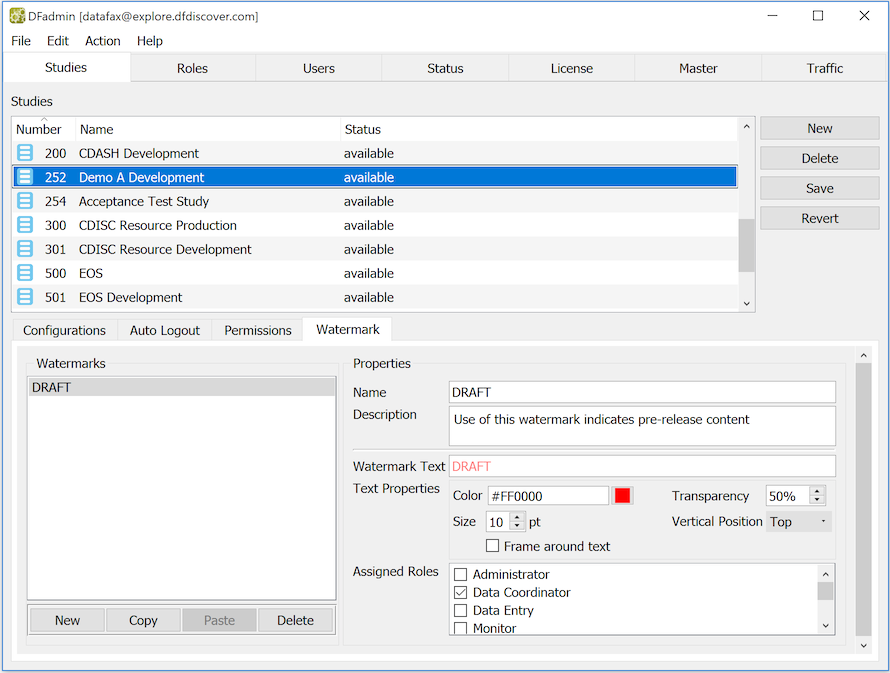
To define a new watermark:
Click . Give the watermark a unique name (maximum 32 characters) or accept the default name provided.
-
Description
Provide a description for your watermark (optional - maximum 200 characters).
-
Watermark Text
Provide the text of the watermark (maximum 100 characters). UNICODE characters are allowed. Use
\nto separate multiple lines of watermark text. Watermark text may contain meta-words%DFUSER(replace with login user name),%DFDATE(replace with current date in format yyyy/mm/dd) and%DFTIME(replace with current time in format hh:mm:ss). -
Text Properties
Several properties of the text can be specified:
-
Color . Click the color square to display the color chooser dialog, or enter a hexadecimal value directly.
-
Transparency . Transparency ranges from 0% to 100%. A watermark with transparency set to 100% is not visible!
-
Size . Point size, for the text font, ranges from 6 to 36 points.
-
Vertical Position . Select Top, Center or Bottom.
-
Frame around text . Check this box to draw a frame around the watermark text.
-
-
Assigned Roles
Check the role names that use this watermark.
[6] DF/Net Research, Inc. occasionally makes test and demonstration studies available for use by clients. Since these studies use study numbers in the range 250 through 255, it is recommended that the maximum study number used actually be 249. On an appropriately licensed system, it is further possible to use study numbers 256 through 999 for EDC studies.