Table of Contents
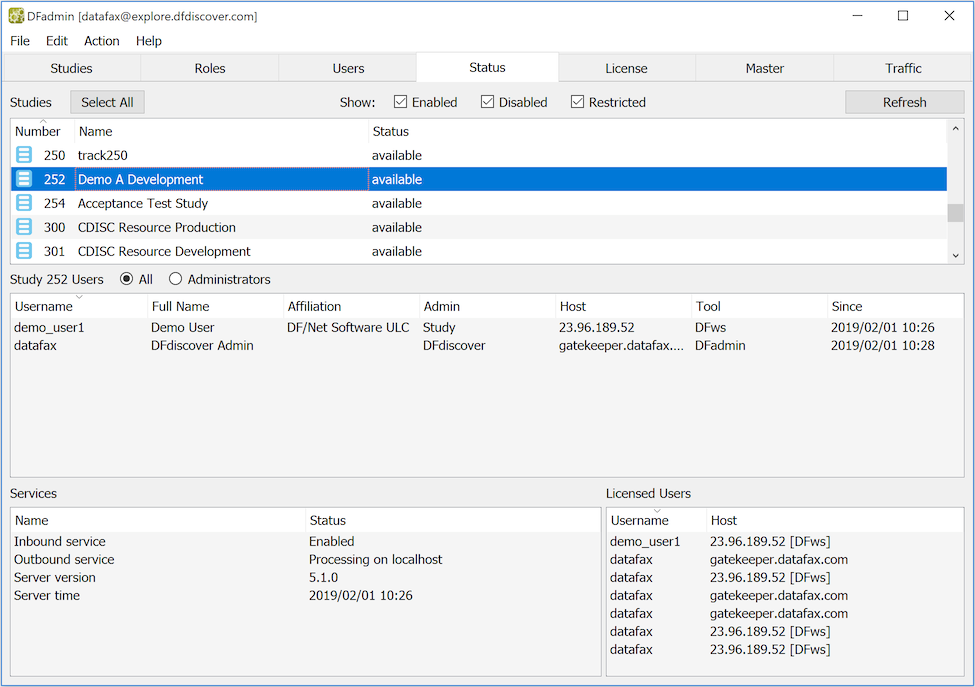
The Status tab shows the studies, users, and services currently running on the DFdiscover server. This includes:
-
the number, name and status of all studies registered on the DFdiscover server which the user has permission to administer
-
this list may be restricted to any combination of: enabled, disabled and restricted studies using the check boxes above the list
-
the current status of each study is indicated with an icon: enabled studies (
 ),
disabled studies
(
),
disabled studies
(  ), and
restricted studies
(
), and
restricted studies
(  ).
).
-
for disabled and restricted studies the user who set the status and the reason message they entered equal to or less than 150 characters is also displayed
-
if a study is in read-only mode 'Study is in Read-Only mode' is displayed in red when the study is selected
-
when a study is selected 'All' current users or just 'Administrators' are shown in the middle panel
-
the current status of the Inbound and Outbound services appears in the bottom left panel
-
all users currently using a DFdiscover license (seat) across all studies and services appear in the bottom right panel
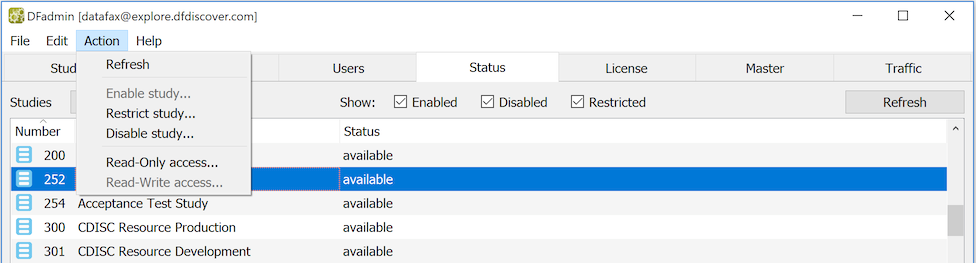
Access to each study can be limited using the Action menu to:
Disable a study, which stops the study database server making it unavailable to all users, essentially locking the study database so that neither the data nor the study setup can be modified.
Restrict a study, which makes it available to DFdiscover and study administrators but unavailable to all other users.
Make a study Read-Only, which allows study data and setup information to be viewed but not changed.
A study may be simultaneously 'Restricted and Read-Only' which limits study access to DFdiscover and study administrators while preventing them from making any changes. This is accomplished by first 'Restricting' the study and then making it 'Read-Only' or vice versa, the order in which these 2 operations are performed is irrelevant.
Putting a study into 'Restricted' access mode does not take effect immediately. Existing users can continue working until they log off. It does however prevent new users from connecting to the study. When all existing connections have terminated, the administrator who put the study into restricted mode receives an email message indicating that the study is now restricted to DFdiscover and study administrators.
It is not possible to 'Disable' a study while it is being used. In such cases the study should first be restricted and then disabled when all users have logged out.
It may take several seconds for the 'Disable' action to complete, as the study server may need to perform extensive shutdown processing before reporting that the action has been successful.
Selecting 'Enable' returns studies which have been disabled or restricted to full access, and selecting 'Read-Write' returns studies which have been made 'Read-Only' to full access.
It is possible to change the status of more than one study at a time by selecting multiple studies and then selecting the desired status from the menu. Use Shift-click to select a range of studies, and Control-click(Win) or Command-click(Mac) to select studies one at a time.
When a change in status is selected a confirmation dialog will appear with to proceed and to abort the operation.
When a study is 'Disabled' or 'Restricted' the confirmation dialog allows entry of an optional message which if provided will be displayed in the study selection dialog in DFexplore and DFsetup. This message is also displayed in the 'Enable study' confirmation dialog to remind users why the study is in it's current state before they reverse it. The reason for disabling or enabling a service have been standardized to accept a maximum 150 character message.
Study status cannot be changed if anyone is currently using the study in either DFexplore or DFsetup. This applies not only to status changes that limit access, but also to those that reverse previously applied limitations.
![[Note]](../../imagedata/note.png) | What gets disabled? |
|---|---|
|
When a study is disabled the study database and setup remain unchanged, but client applications, and fax processing daemons will not be able to communicate with the study server. Faxes that arrive while a study server is disabled will be received and processed by DFdiscover but any pages barcoded for a disabled study will be held until the study is re-enabled, and will not show up in the study's new fax queue until processing is triggered by the arrival of the next fax received by the DFdiscover server. It is not necessary for the next fax to contain pages barcoded coded for the study in question or for any study. When a Query Report is successfully faxed to it's destination clinical site, the study database server is notified. This allows it to update the status field in all queries included in that report, to indicate that they have been transmitted. Since updating the Query database requires the study server, queries will not be updated if the study server is disabled while Query Reports are being transmitted. |
| What gets restricted? |
|---|---|
|
While a study is in restricted access mode, DFdiscover and study administrators will be able to use client and shell-level applications to the full extent allowed by their study role permissions, while other users will not be allowed to use any of the DFdiscover applications, including: DFexplore, DFsetup, DFexport.rpc, DFimport.rpc, DFprintdb, DFcompiler and DFstatus. Also, since shell-level applications like often appear in study specific reports and custom applications, this restriction will extend to applications that may normally be able to run from a UNIX login account. Restricting a study has no effect on the processing of incoming or outgoing faxes, except that only a DFdiscover or study administrator will be able to save records in fax view and route unidentified pages to the study in the router. Unlike 'read-only' and 'disabled', 'restricted' access is a volatile state. If the DFdiscover master is shutdown and restarted, disabled studies remain disabled, and read-only studies remain read-only, but restricted studies become unrestricted. |
| What happens in Read-Only mode? |
|---|---|
|
While a study is in Read-Only mode client applications and shell-level applications are available to view and export study data and setup information, but the study setup and database cannot be changed. Studies are typically put into Read-Only mode when data collection is complete, all queries have been resolved, and the data has been verified against source documents. Statistical analysis may be ongoing or an FDA audit may be in progress thus the study cannot be disabled, but no further changes are expected or allowed. In this state we do not expect to receive any additional CRFs by fax, email or PDF submission. If any pages barcoded with the DFdiscover study number are received they are sent to the unidentified fax router where they can be reviewed, but they cannot be routed to the study database as long as it remains in read-only mode. |