Table of Contents
Tasks is a feature that allows you to retrieve a set of CRFs to review. Each task has its own purpose, defined by the study sponsor or coordinating center, and may include instructions.
![[Note]](../../imagedata/note.png) | Note |
|---|---|
| Tasks are only available when DFweb is connected to DFdiscover server and API version 5.5 or later. |
Once you have selected a study, the list of tasks will be available by clicking  Tasks in the sidebar on the left of the screen.
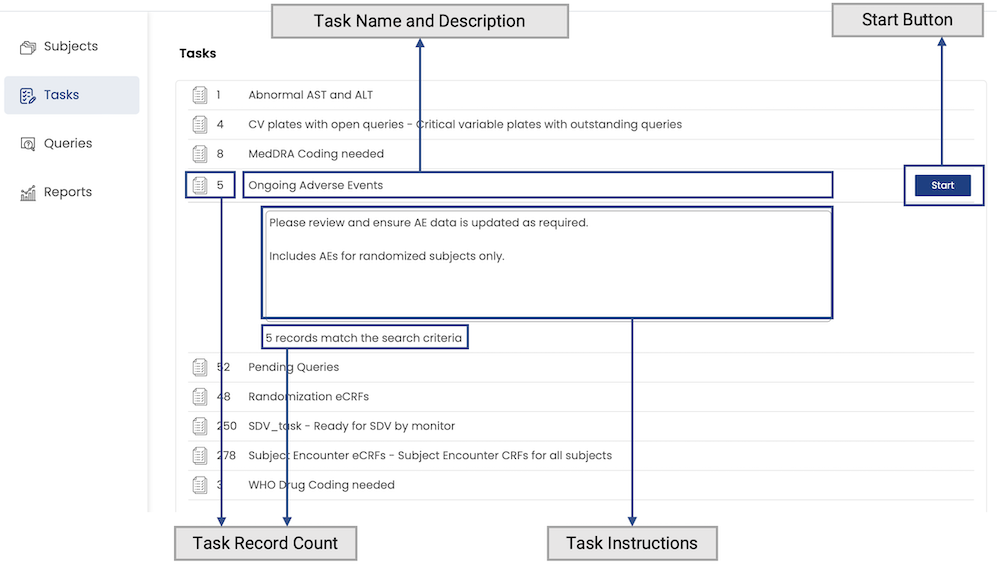
On the task list page, the headers of all the tasks available to your role are shown, and the first task is expanded to show more details.
The task header shows:
Clicking the header of a task expands the task and closes any previously expanded task. Once expanded, the task details show:
If a task has a CRF count of zero, the Task Name and Description and Task CRF Count are de-emphasized, and is disabled. You cannot start a task with no CRFs.
Starting a task takes you to the data entry form with the task binder open in the left-hand sidebar. The first CRF according to site, subject, visit and CRF number is opened, and the other CRFs in the task are available in the task binder sidebar.
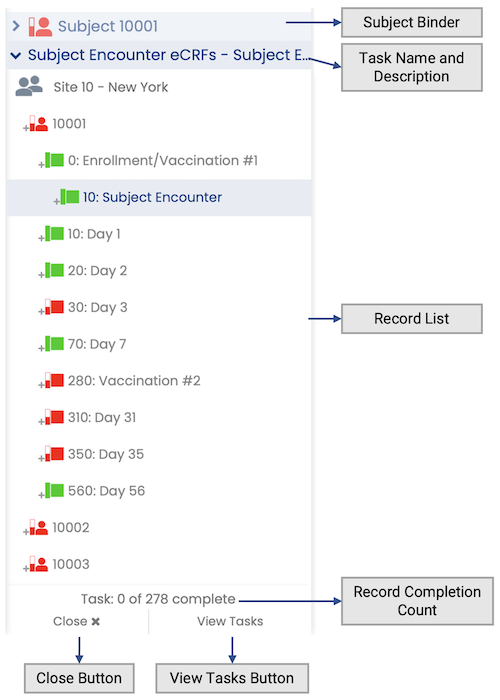
The task binder sidebar shows:
Subject Binder. View all CRFs in the current subject binder by clicking the subject binder header. Clicking again collapses the subject binder and reopens the task binder.
Task Name and Description. The name of the task is shown in the task binder header, followed by a dash and then the descripition of the task, if it has one. Click the task binder header to collapse or expand the task binder.
CRF List. All CRFs in the task are shown in this CRF list. The CRFs are organized by site, subject, and visit.
CRF Completion Count. The CRF completion count shows the completed and total number of CRFs in the task.
Close Button. Click to stop working on the task while keeping the CRF open.
View Tasks Button. Open a dialog showing the current task details, and a list of other available tasks.
Following the instructions for the task, complete the necessary changes on the CRF. Saving the CRF updates the CRF completion count and marks the CRF with a checkmark in the sidebar to show that it was completed. Click on the next CRF, visit, subject or site move to the next CRF in the task.
You can expand the subject binder to view all other CRFs in the subject binder of the current subject. You can open CRFs from the subject that aren't in the task to review their contents and assist you in completing the task. Expand the task binder and click the task CRF you were working on to return to the task.
Click to open a dialog with the list of tasks available. The current task is expanded by default. Select the task you wish to switch to, and click to change tasks. The first CRF in the selected task will be opened. The state of the current task is not preserved when you switch, so the completed CRFs will be reset if you switch back to the first task.