Table of Contents
- 18.1. Introduction
- 18.2. Tests & Requirements
- 18.3. Begin Module 18. DFcollect Mobile Data Collection.
- 18.4. Installation, App preferences and initial DFcollect login.
- 18.5. Online data record creation.
- 18.6. Download subject data for offline use.
- 18.7. Create data records in offline mode, query resolution and adding reasons for data values.
- 18.8. Sync data collected offline to your DFdiscover server.
- 18.9. Clearing DFcollect cache.
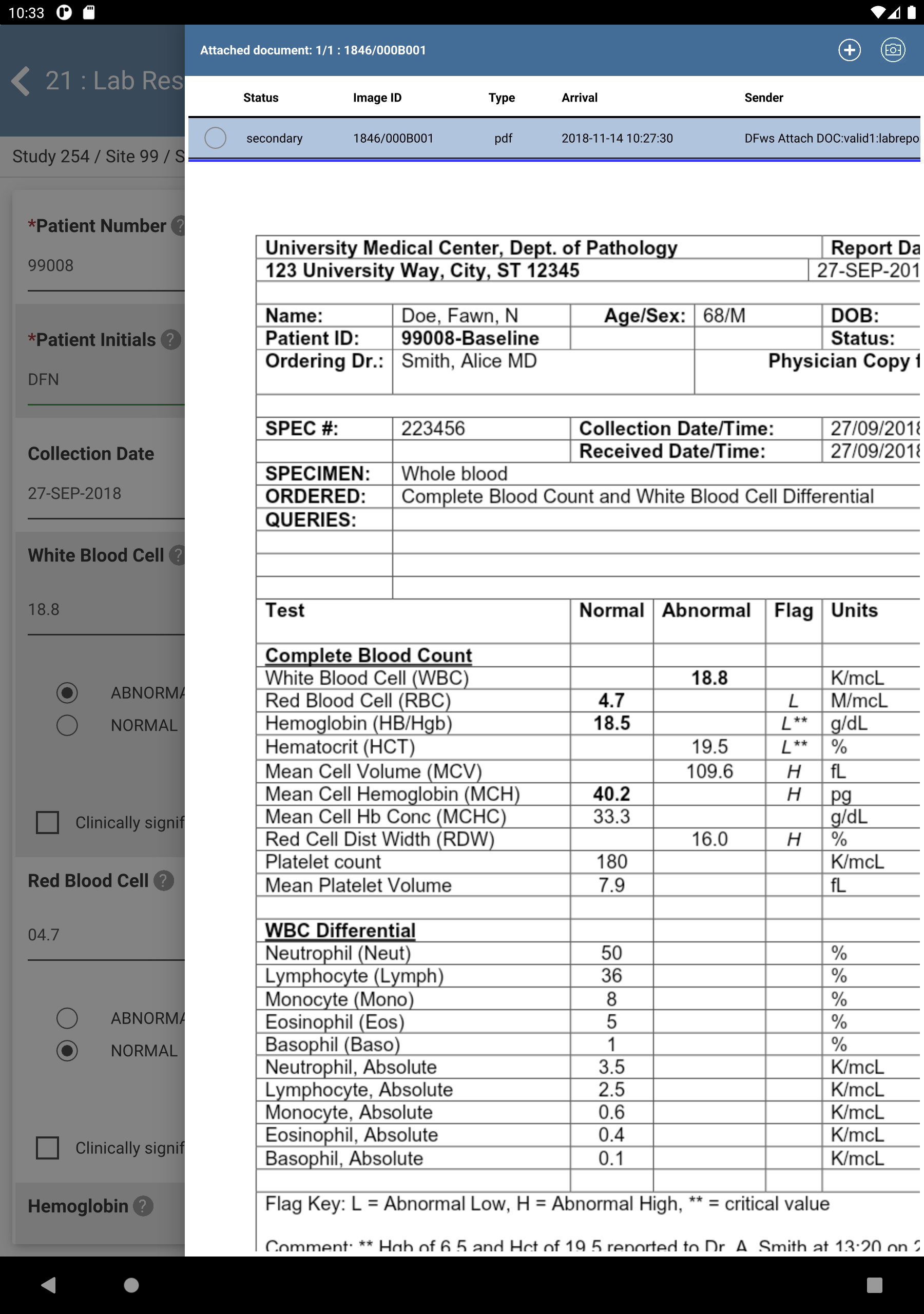
- 18.10. Adding, reviewing and downloading subject documents.
- 18.11. Confirming data sent to the server using DFexplore.
- 18.12. Add an Electronic Signature (eSign) to a set of completed subject records.
- 18.13. Verify removal and Re-applicaton of eSignatures.
- 18.14. Verify DFcollect saves eSignature task data to the specified level.
- 18.15. End Module 18. DFcollect.
![[Warning]](../../imagedata/warning.png) | Warning |
|---|---|
Optional Module. The DFcollect Mobile Data Collection module requires the DFWS feature (web services API). If your DFdiscover server is not licensed for this feature, do not complete this module. DFcollect is compatible with the following mobile device operating systems:
|
Installation, App preferences and initial DFcollect login.
Online data record creation.
Download subject data for offline use.
Create data records in offline mode, query resolution and adding reasons for data values.
Sync data collected offline to your DFdiscover server.
Clearing DFcollect cache.
Adding, reviewing and downloading subject documents.
Confirming data sent to the server using DFexplore.
Add an Electronic Signature (eSign) to a set of completed subject records.
Verify removal and Re-applicaton of eSignatures.
Verify DFcollect saves eSignature task data to the specified level.
Estimate of Time Required: 35 Minutes
-
Start DFATK as described in Module 1 (Installation & Initialization).
-
Click followed by to begin this module.
-
Download and install DFcollect from Google Play™ or Apple® App Store® to your mobile device or tablet.
Open DFcollect.
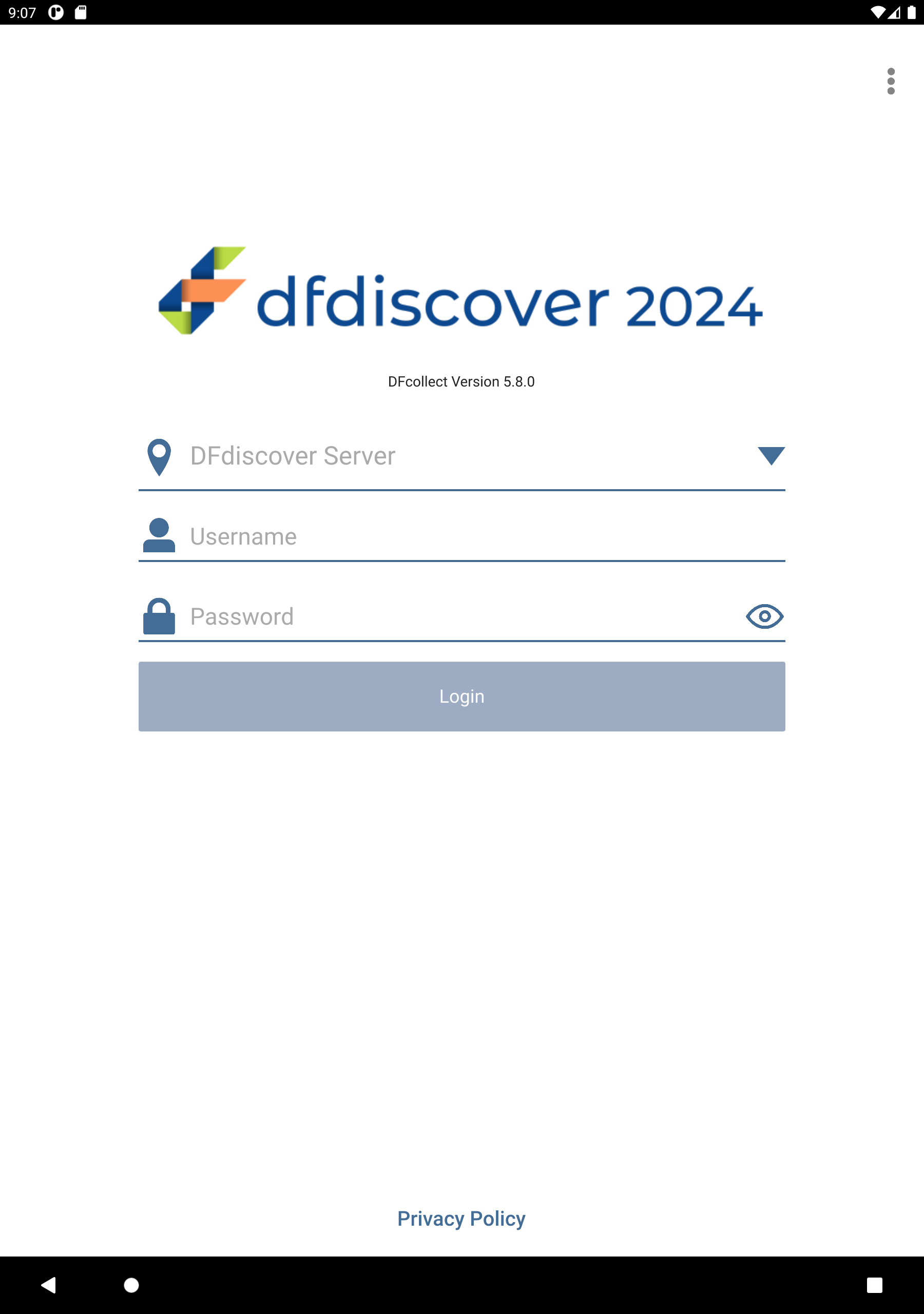
-
System Setting
API Server =
your API servernameOffline Only = Disabled (greyed out)
Click to apply settings.
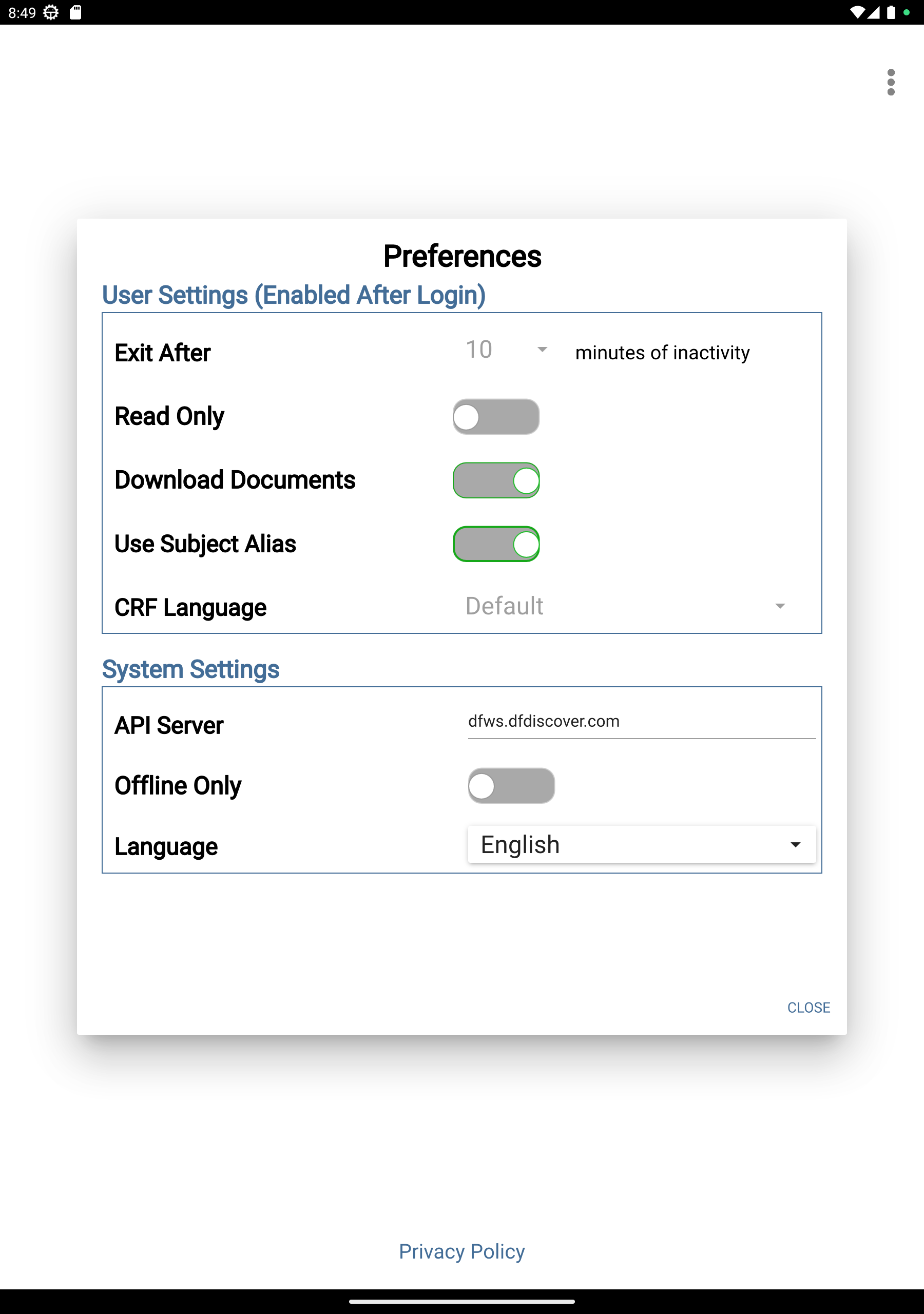
-
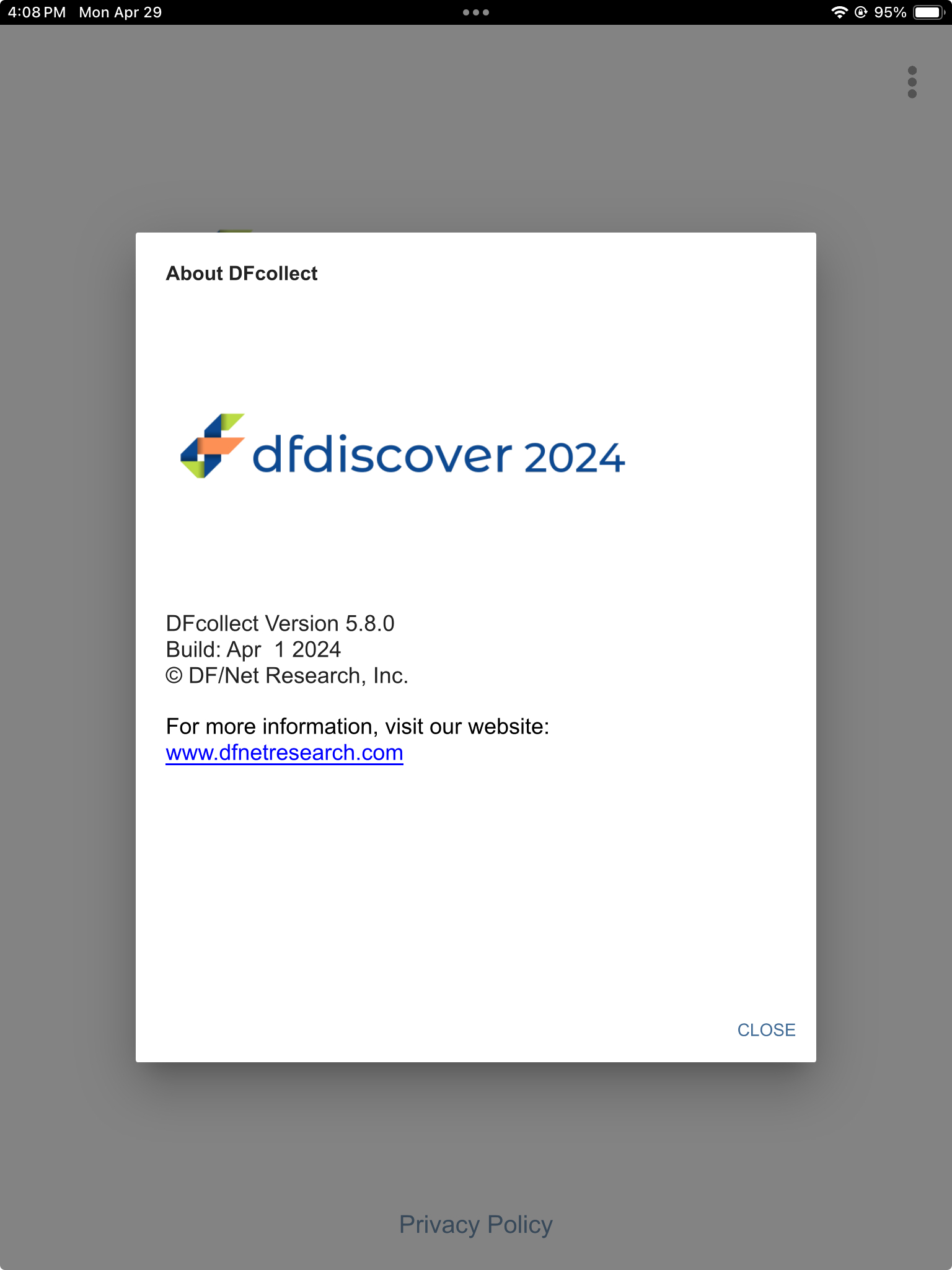
Click
 > Confirm that the version information in the about dialog matches the installed DFcollect Version 5.8.X. Click to return to the DFcollect login screen.
-
In the DFcollect login dialog, enter the name for DFdiscover Server that has been provided by your administrator. Enter
site_monitorin the Username field and the previously assigned password in the Password field. Click to login.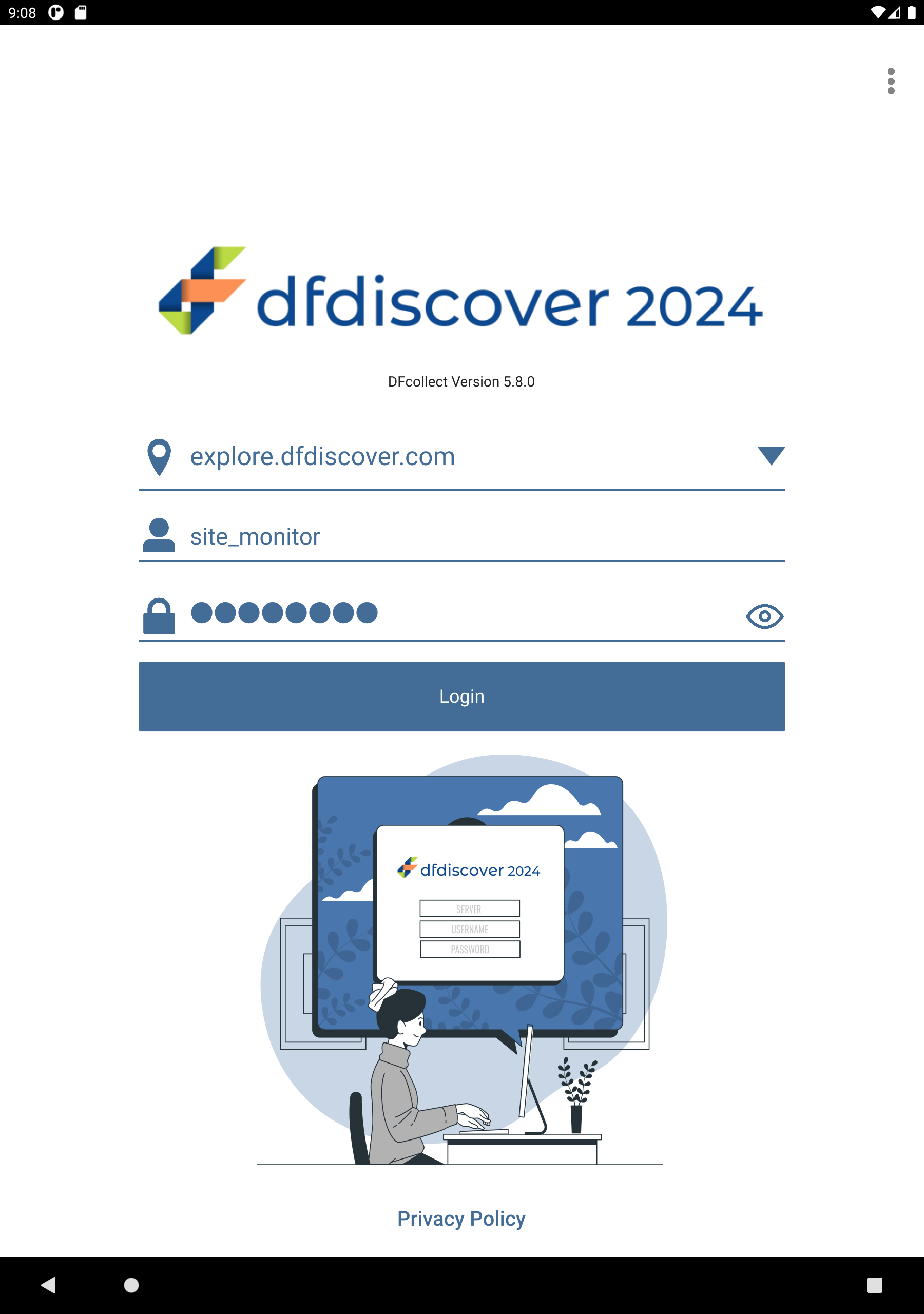
-
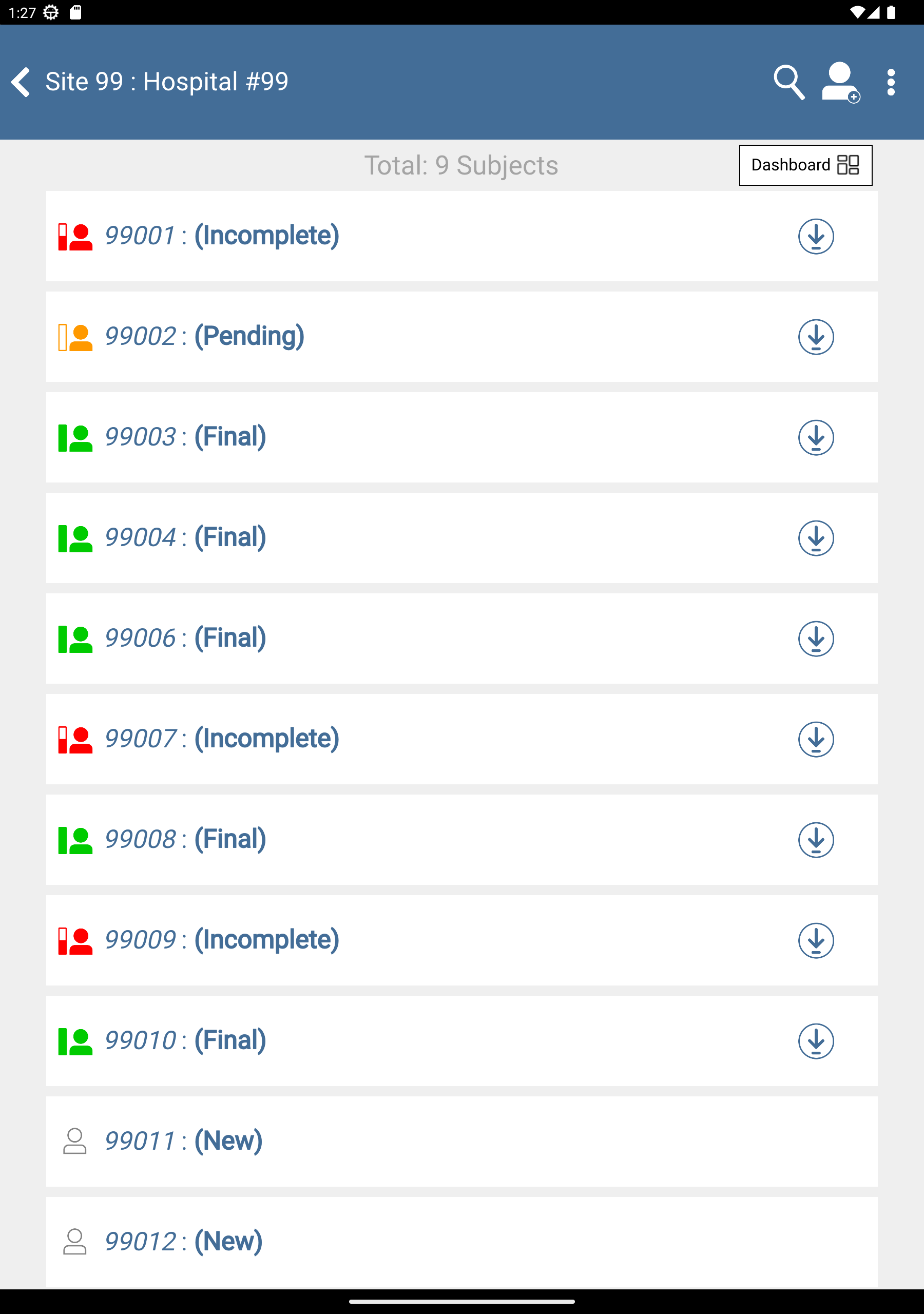
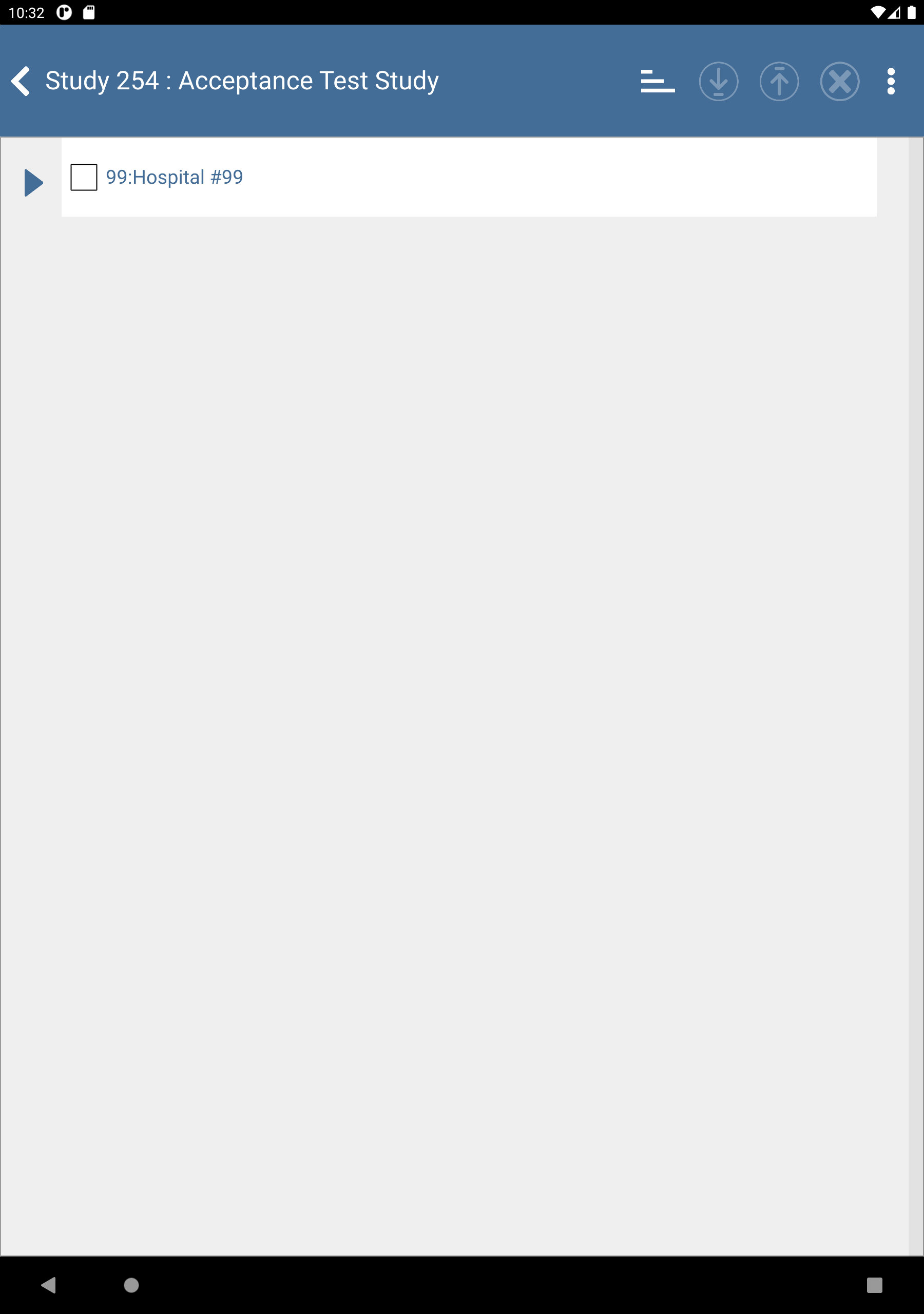
From the list of available studies, click 254 Acceptance Test Study, if not already opened.
Click 99: Hospital #99 to display a list of available subjects.
-
Click
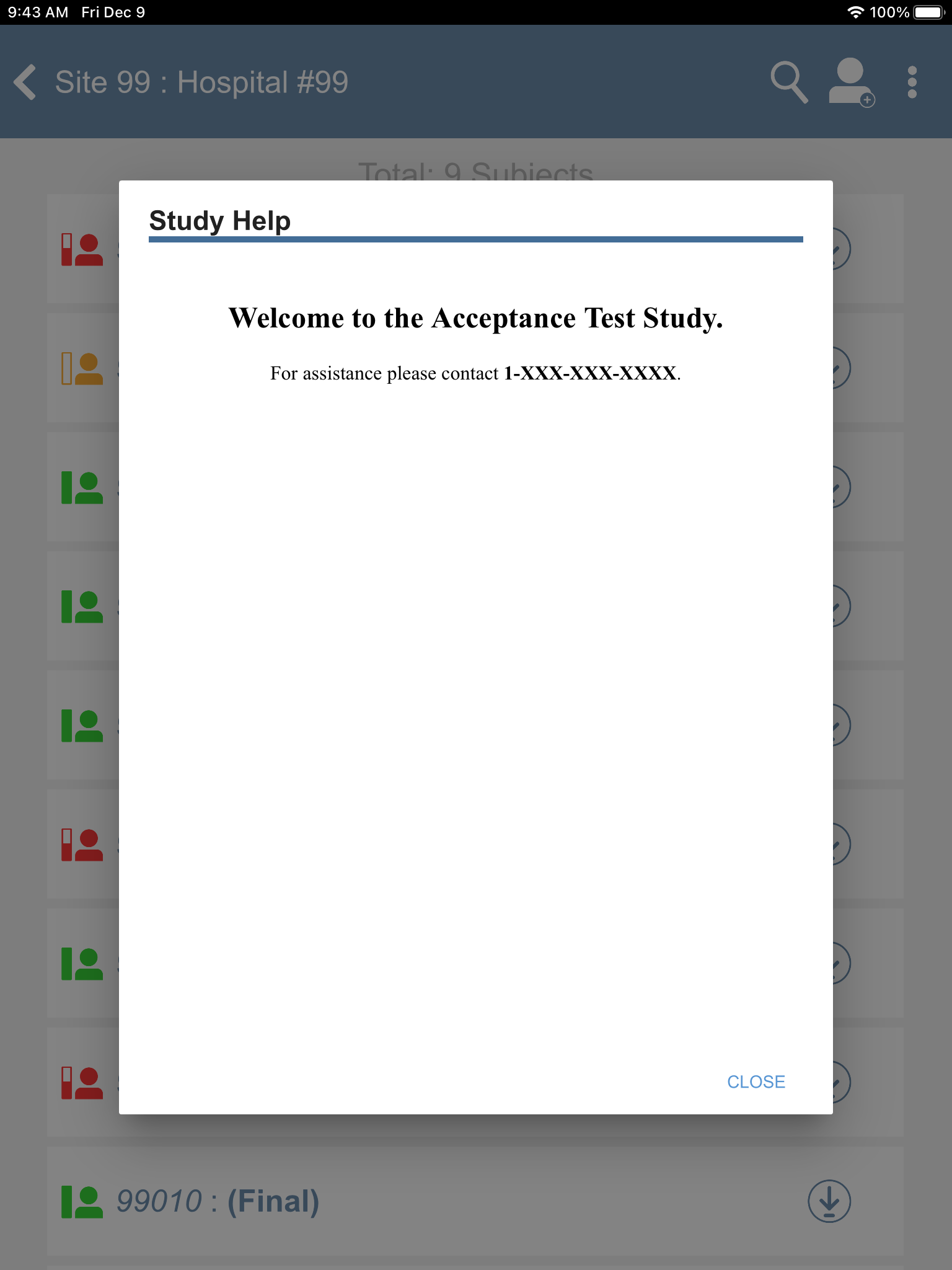
 > to view any study related help messages. Click to close the Study Help window.
-
Click
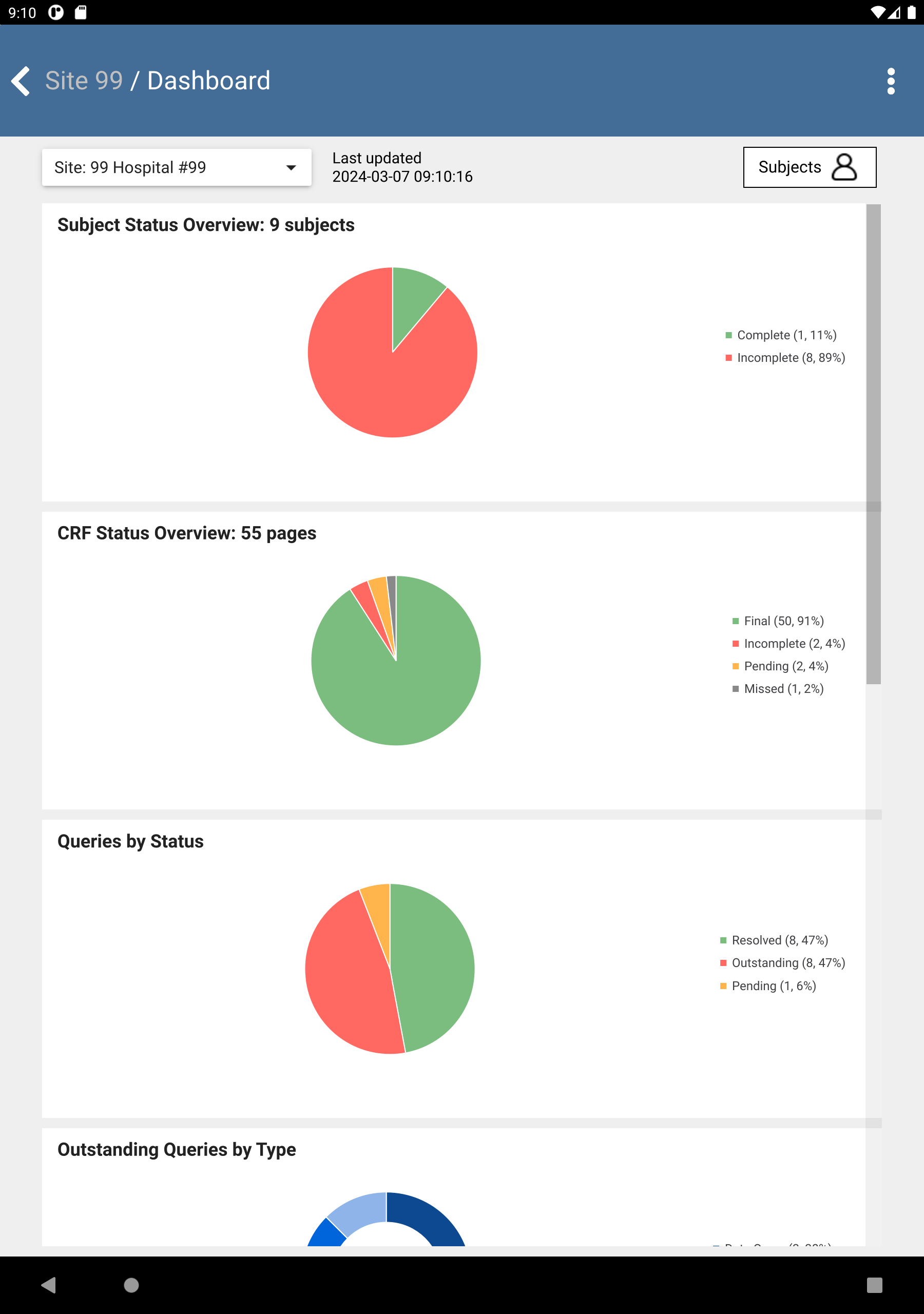
 to open Dashboard view.
-
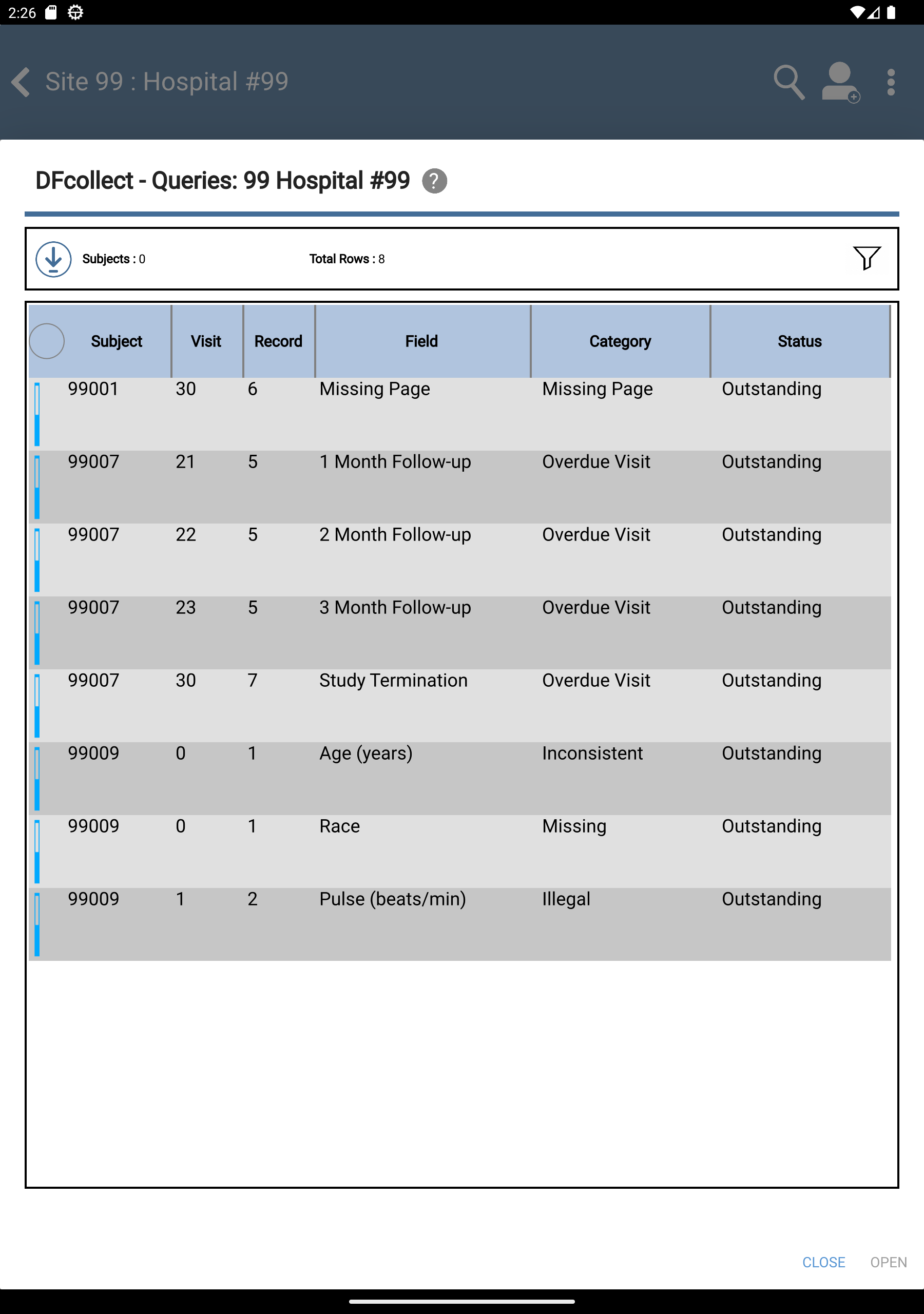
Click View Outstanding Queries located under Outstanding Queries by Type to view all outstanding queries.
-
Click to return to the subject listing.
-
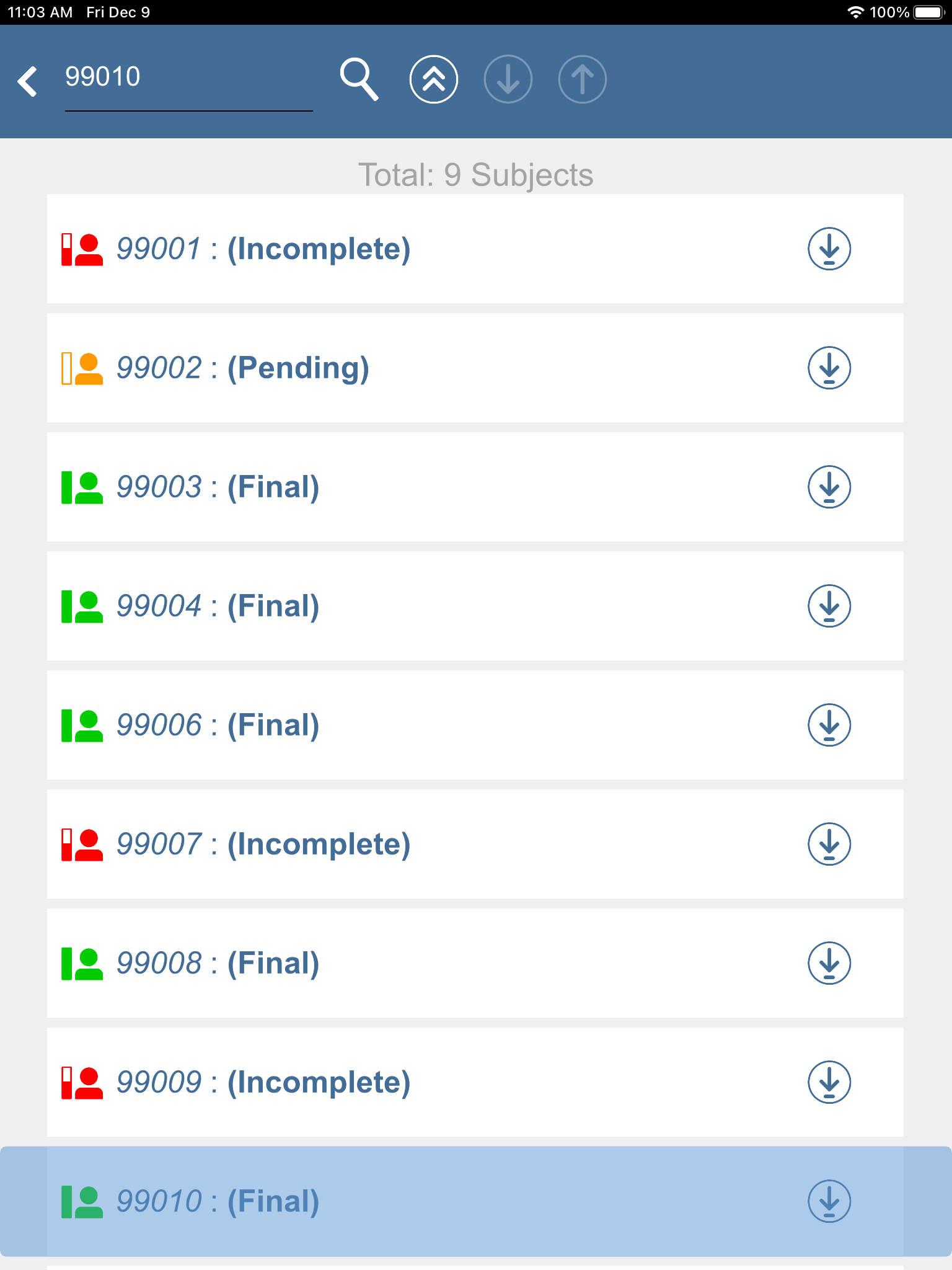
Click
 to search for a subject ID number, enter
 99010. Click, subject 99010 : (Final) gains the focus.
-
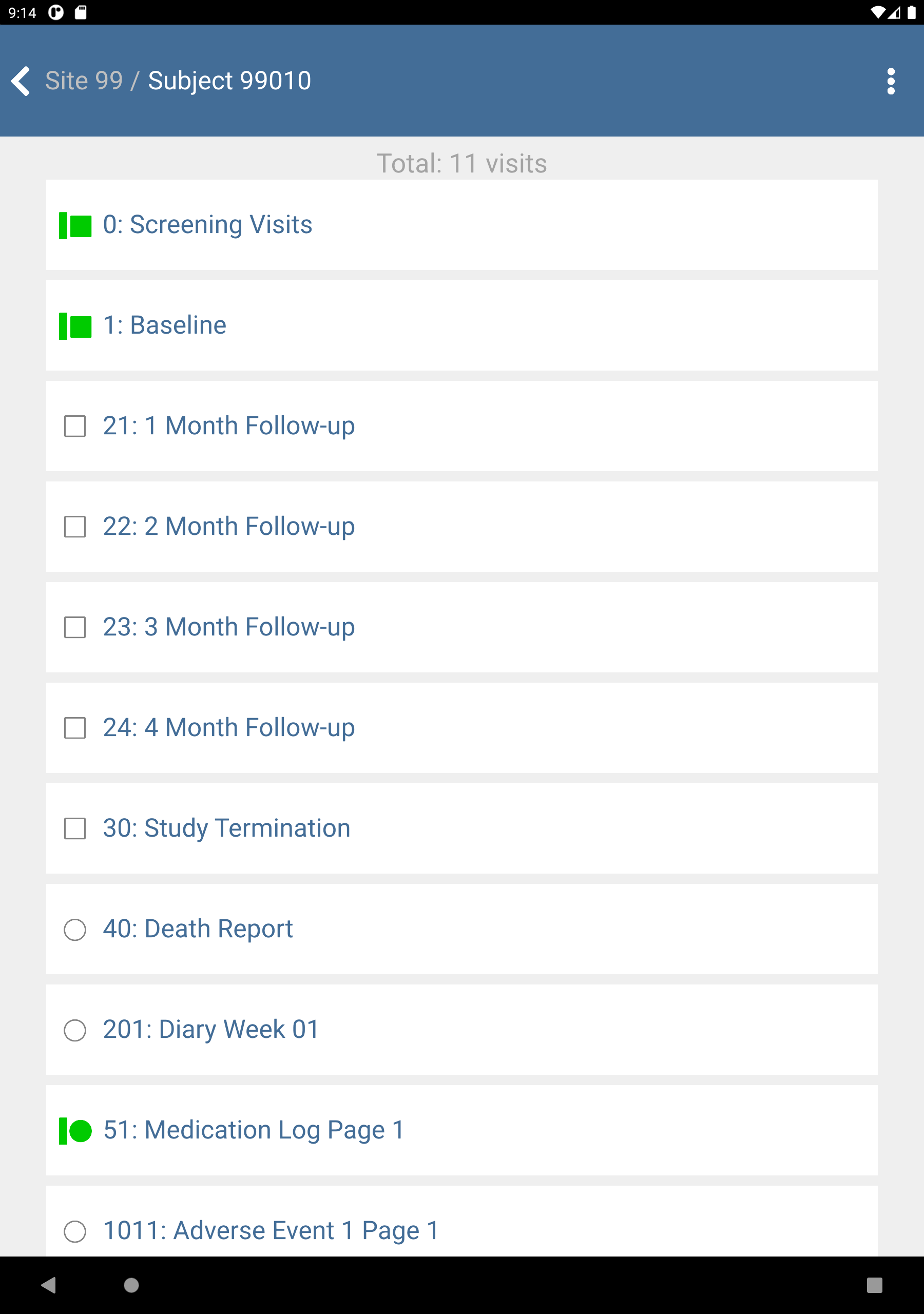
Click subject 99010 : (Final) to view the list of study visits.
-
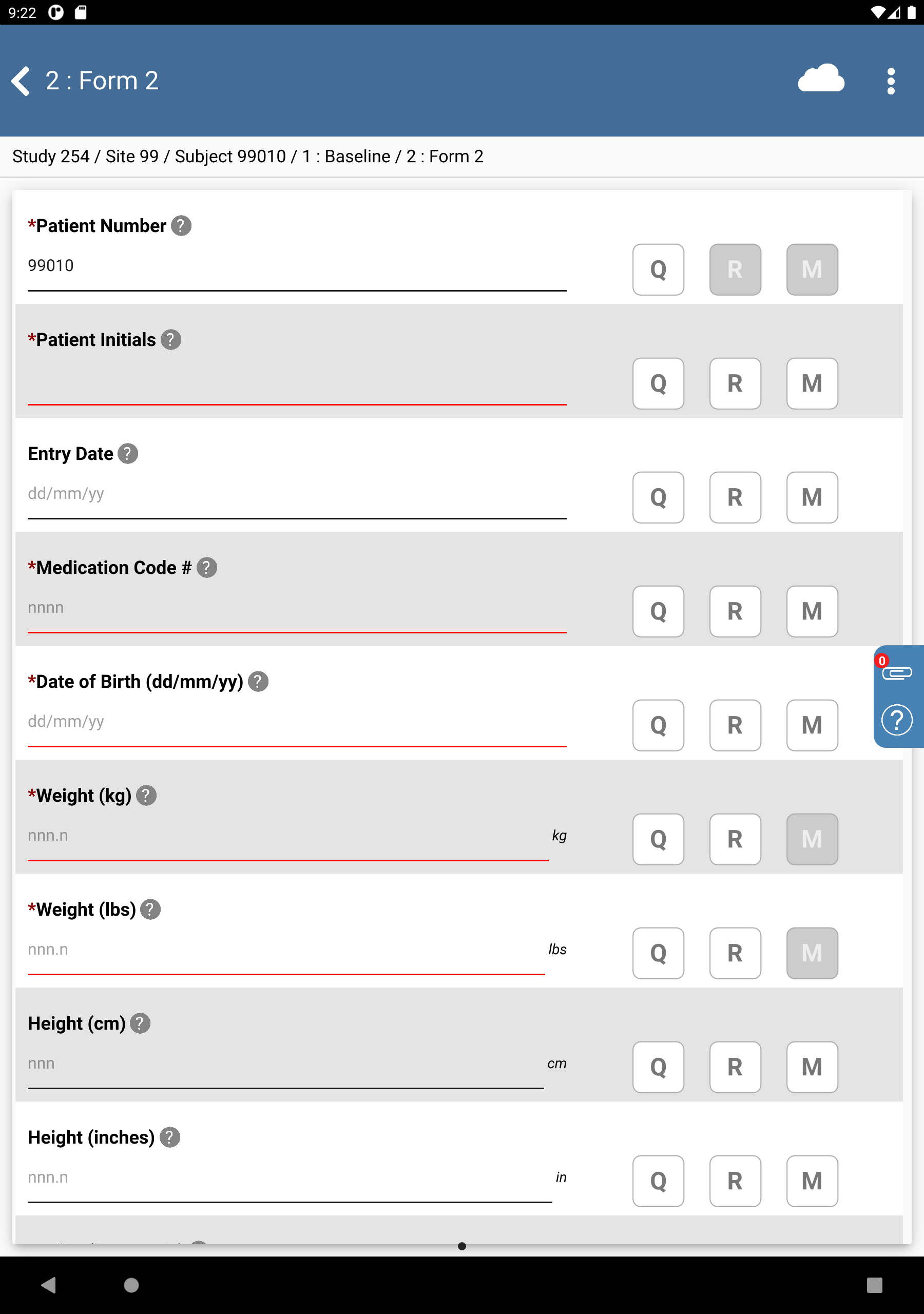
Click 1: Baseline > 2: Form 2. Plate Form 2 becomes the active page.
-
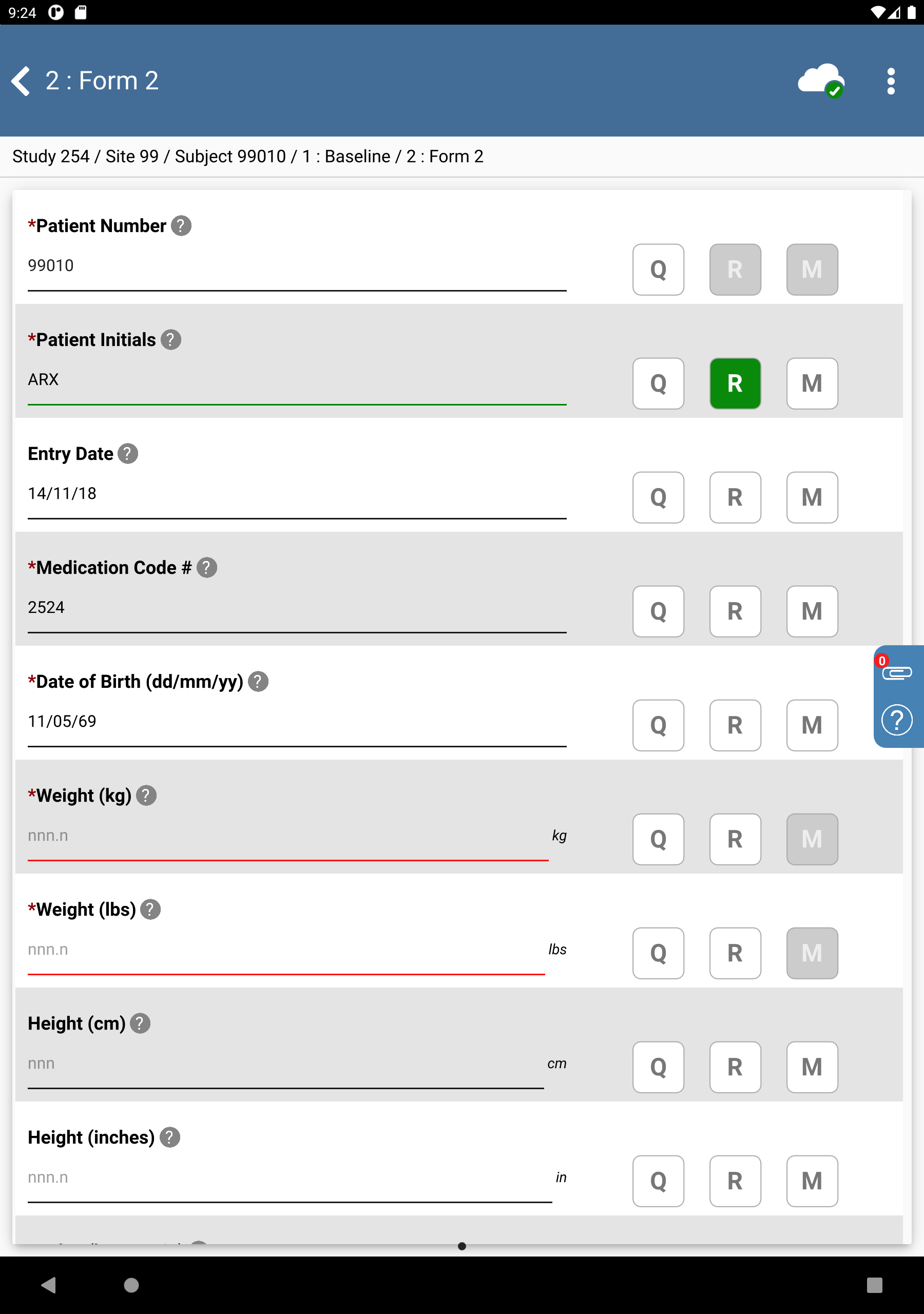
Click Patient Initials. The initials automatically populate this field as a result of the edit check
SetInitdescribed in Module 8. Image Data Entry. Set:Entry Date = Click
 , select
 14/11/18.Medication Code # =
2524Date of Birth = Click
, select 11/05/69.
Click
 .
.
-
Click
 > > 99009 : (Incomplete) > 21: 1 Month Follow-up > 5: Form 5, 1 Month.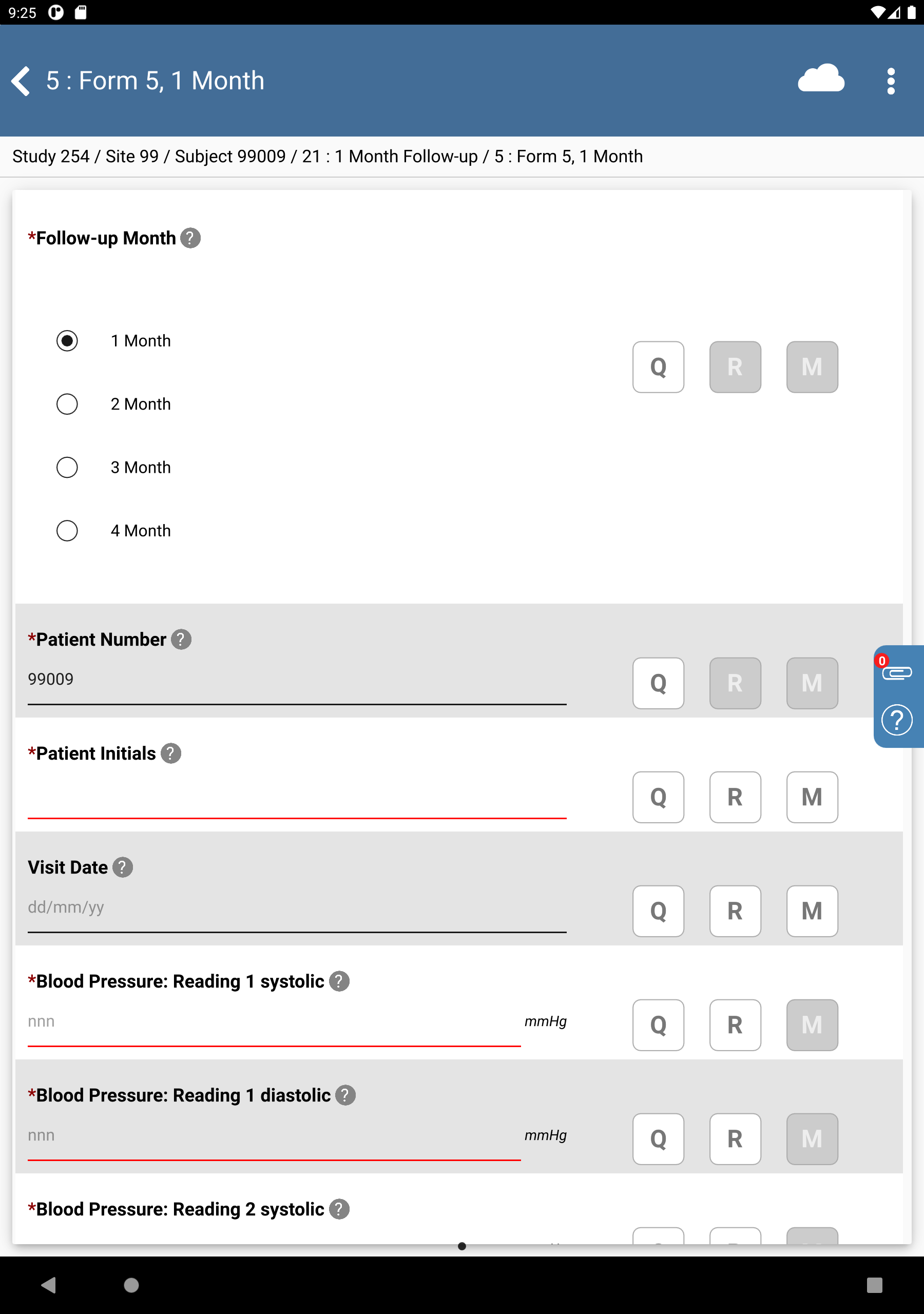
-
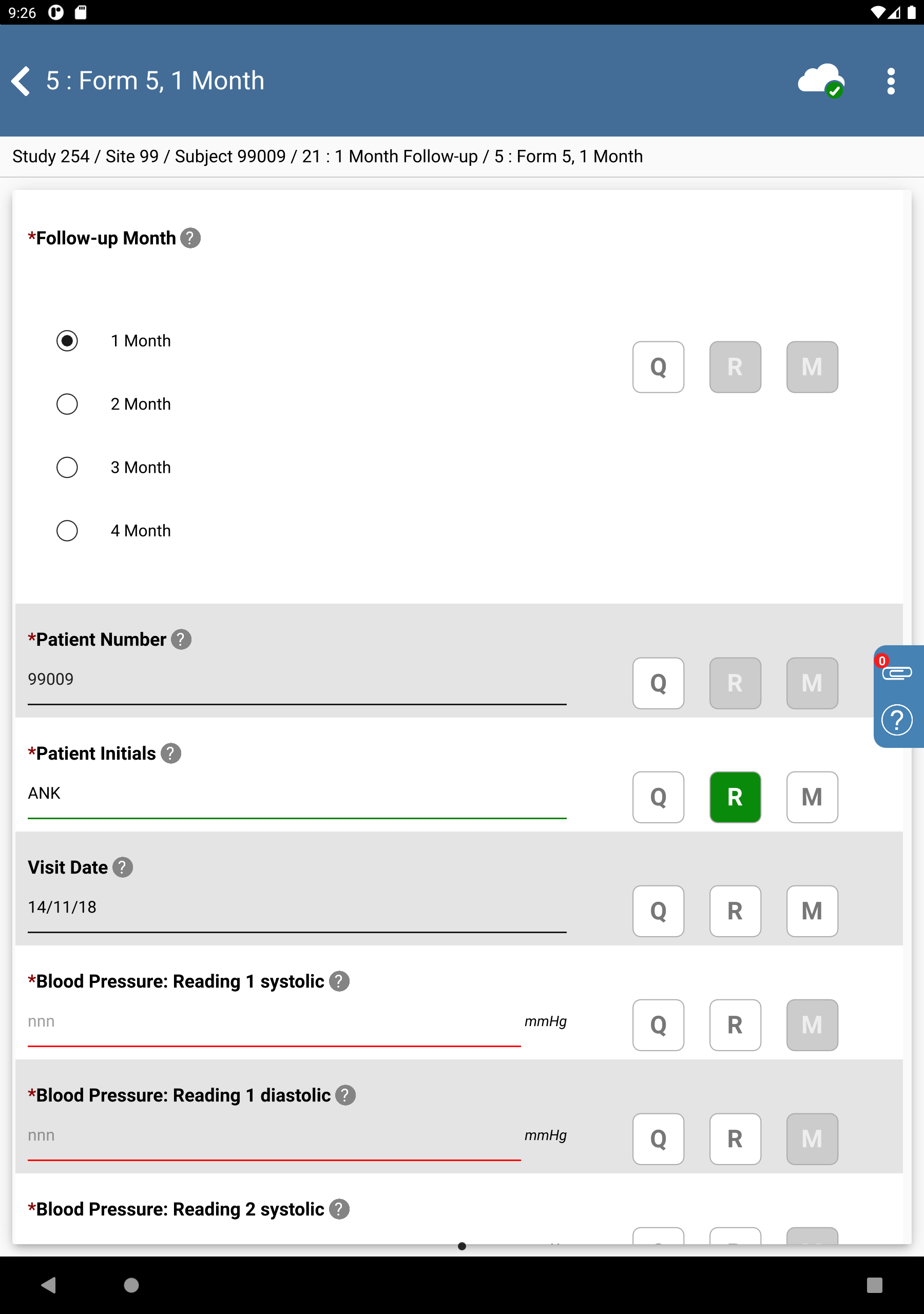
Click Patient Initials. The initials automatically populate this field as a result of the edit check
SetInitdescribed in Module 8. Image Data Entry. Set:Visit Date = Click
, select 14/11/18.
Click
.
-
Click
> > 99010 : (Incomplete) 51: Medication Log Page 1 > 8: Form 8, Pg 51.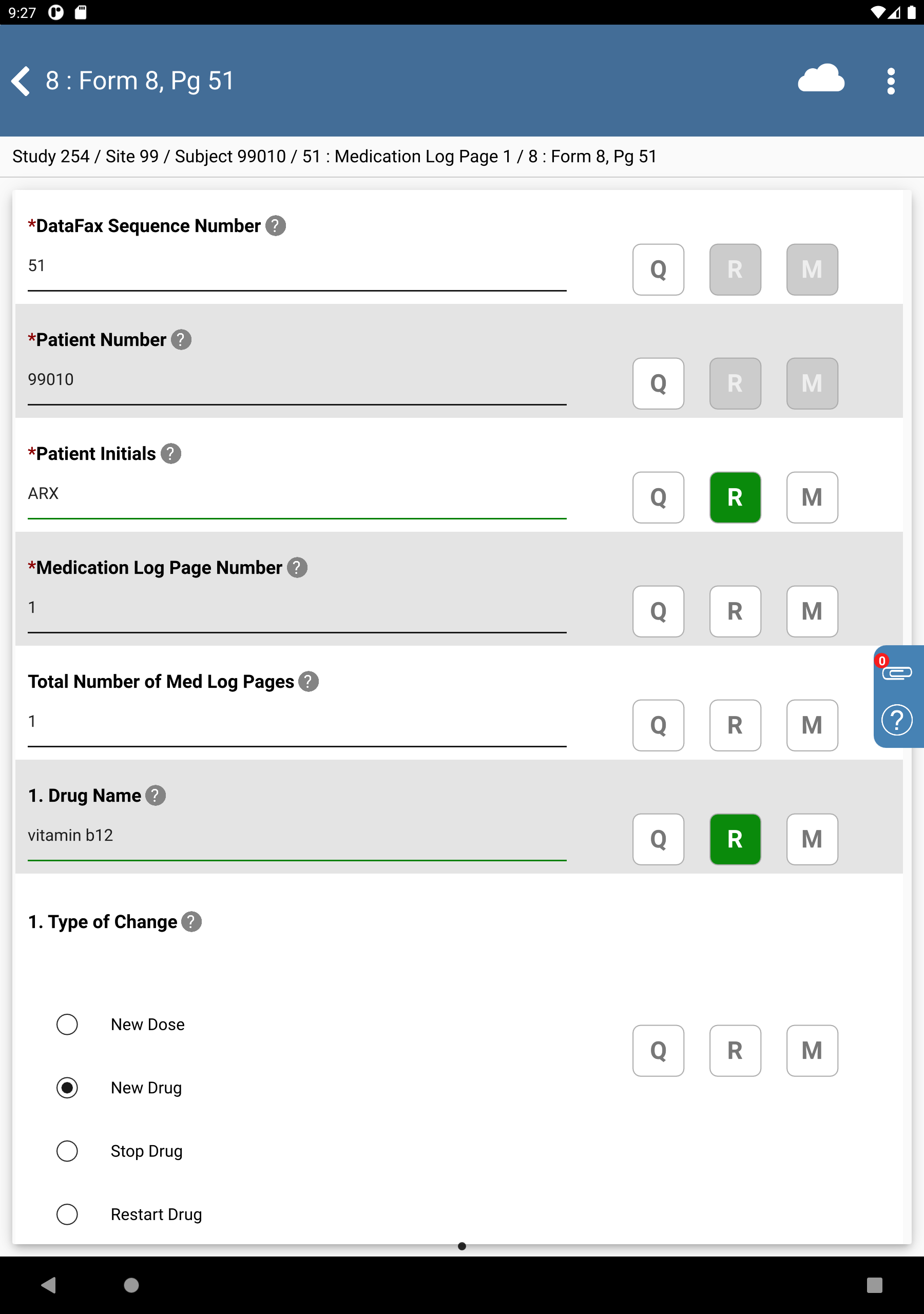
-
Enter
Predin the 2. Drug Name text field, press Tab. Upon leaving the field, an edit check is executed and DFlookup: drugs dialog appears.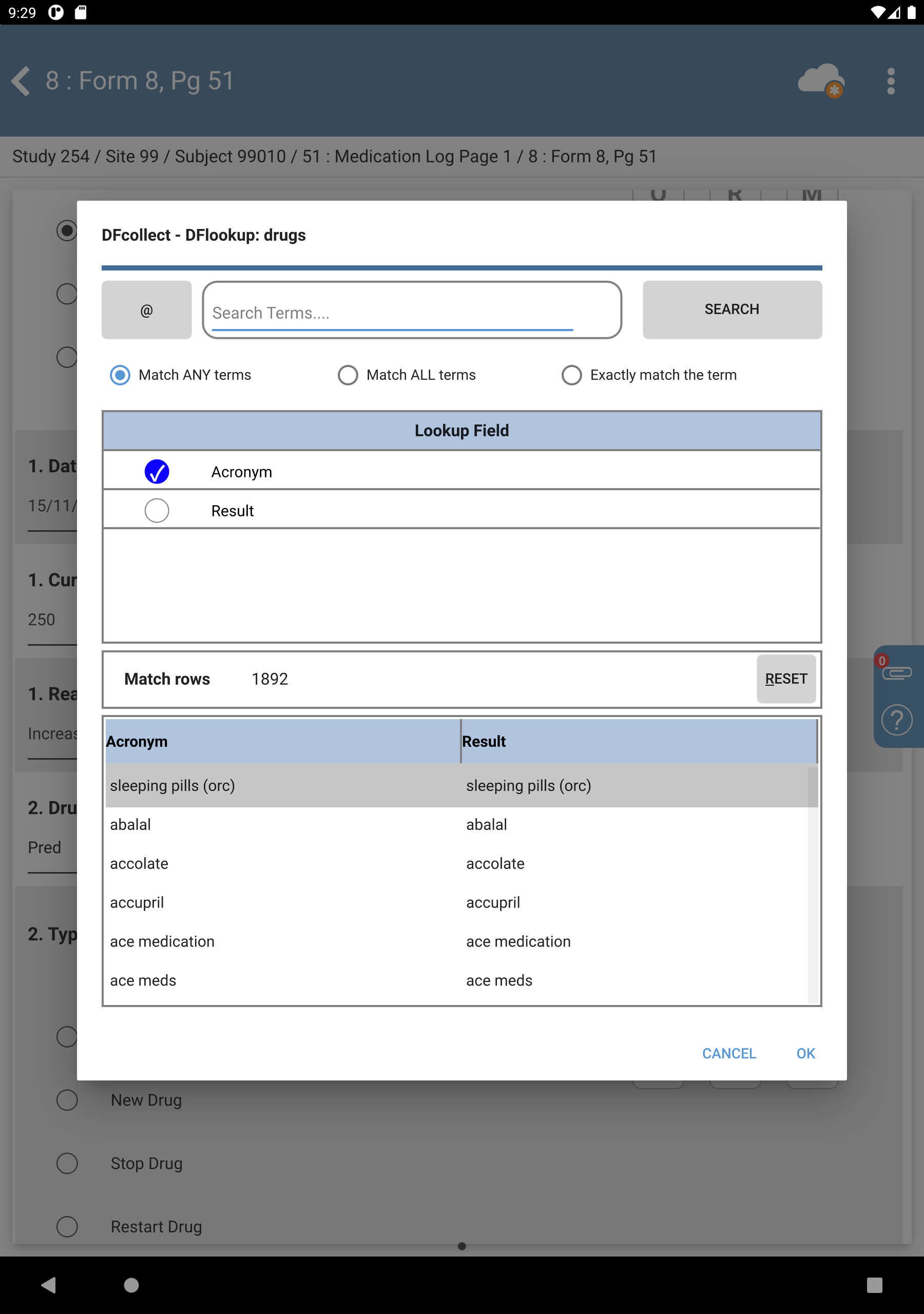
-
Enter
prednisonein the Search Terms, Check Match ANY terms. Click to filter results.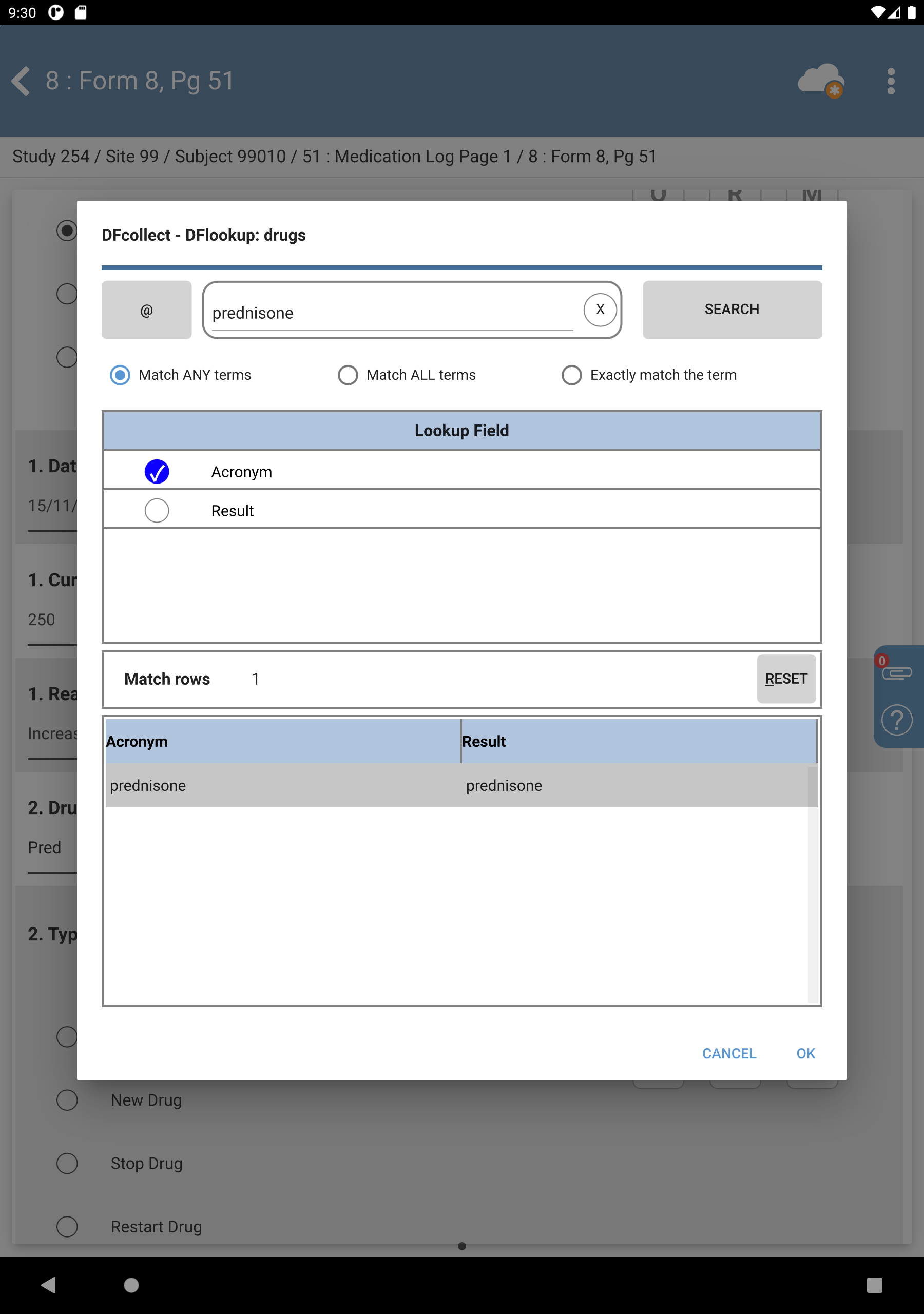
-
Locate the entry for prednisone in the results table. Double-click the entry to auto-populate the field. The 2. Drug Name field is auto-populated with
prednisone, the field contains a Reason for Data Value and Type of Change field gains focus.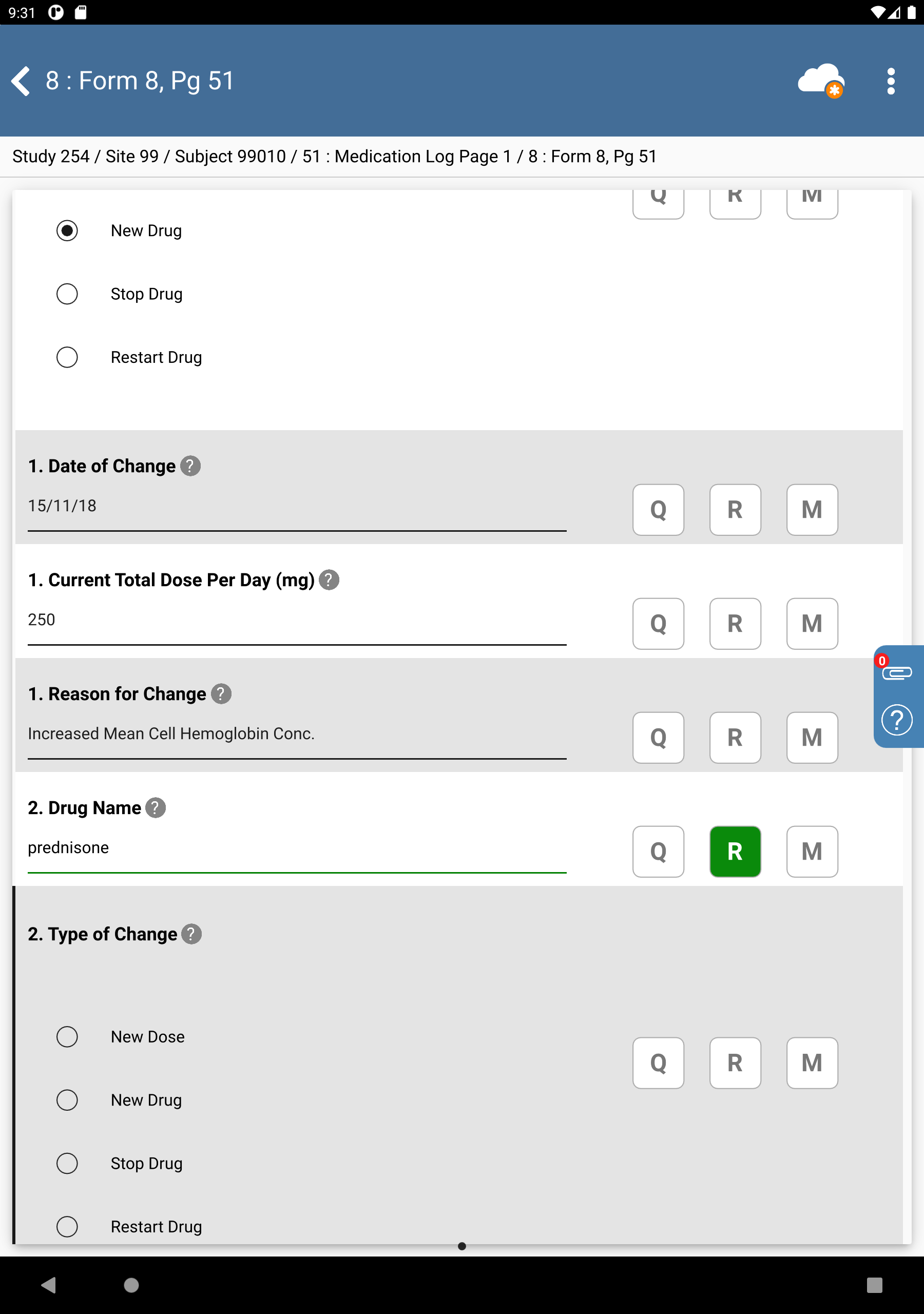
-
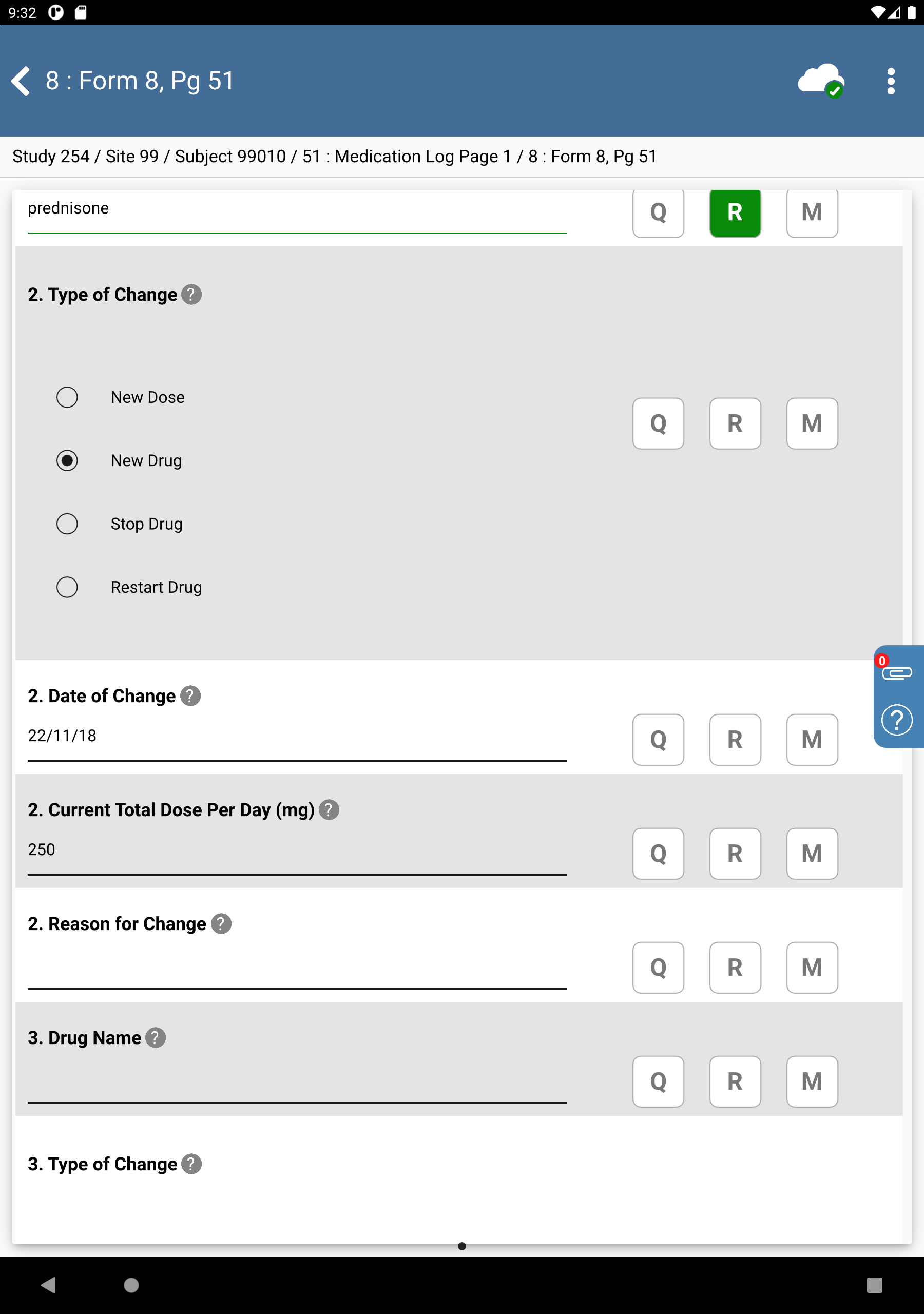
Beginning with the Type of Change field complete the remaining data fields as follows:
Type of Change = Select New Drug
Date of Change = Select
22/11/18Current Total Dose Per Day =
250
Click
.
-
Click
> .
-
Click
 to show the subject listing for 99: Hospital #99.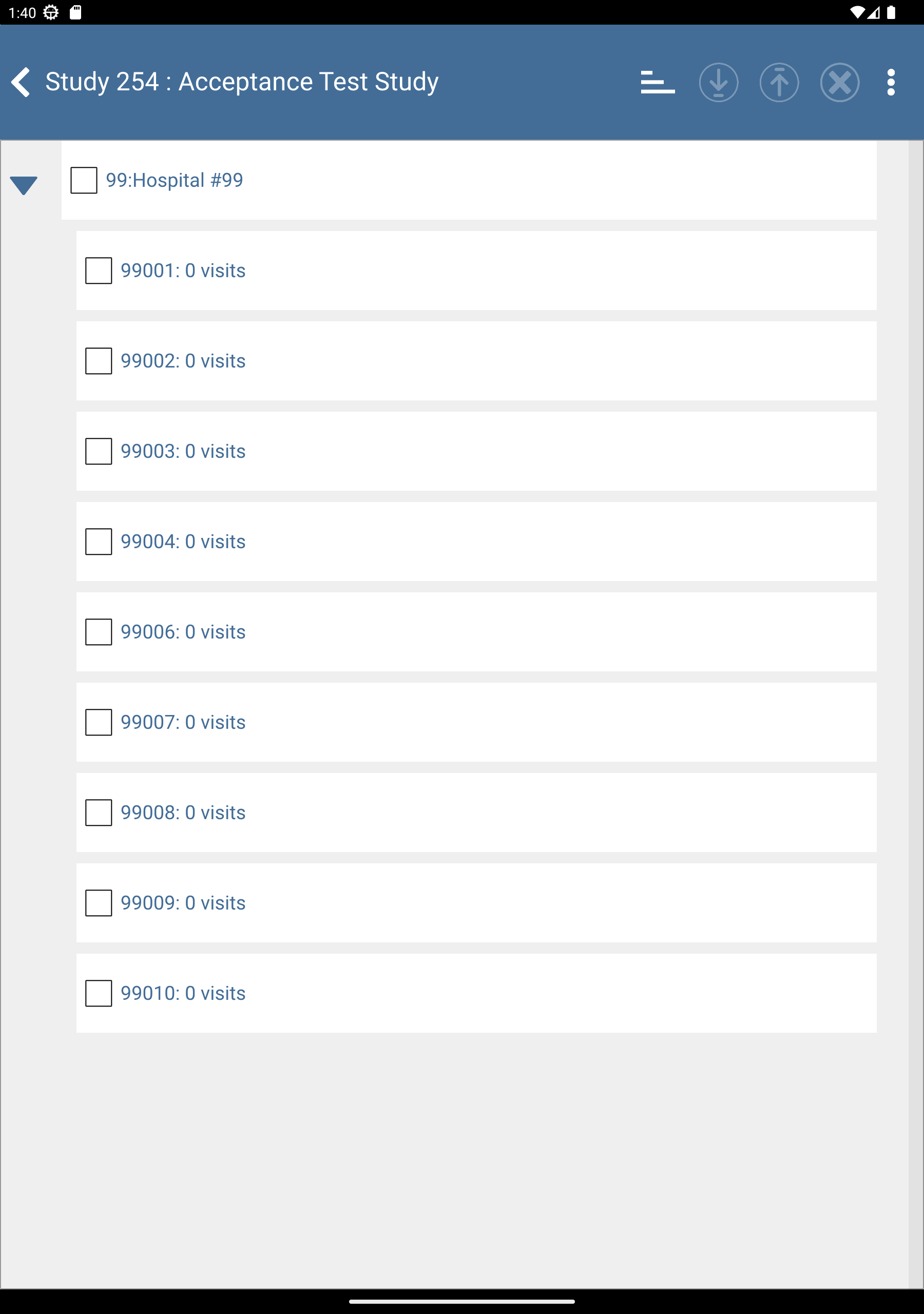
-
Check (enable) subjects 99008: 0 visits, 99009: 0 visits and 99010: 0 visits.
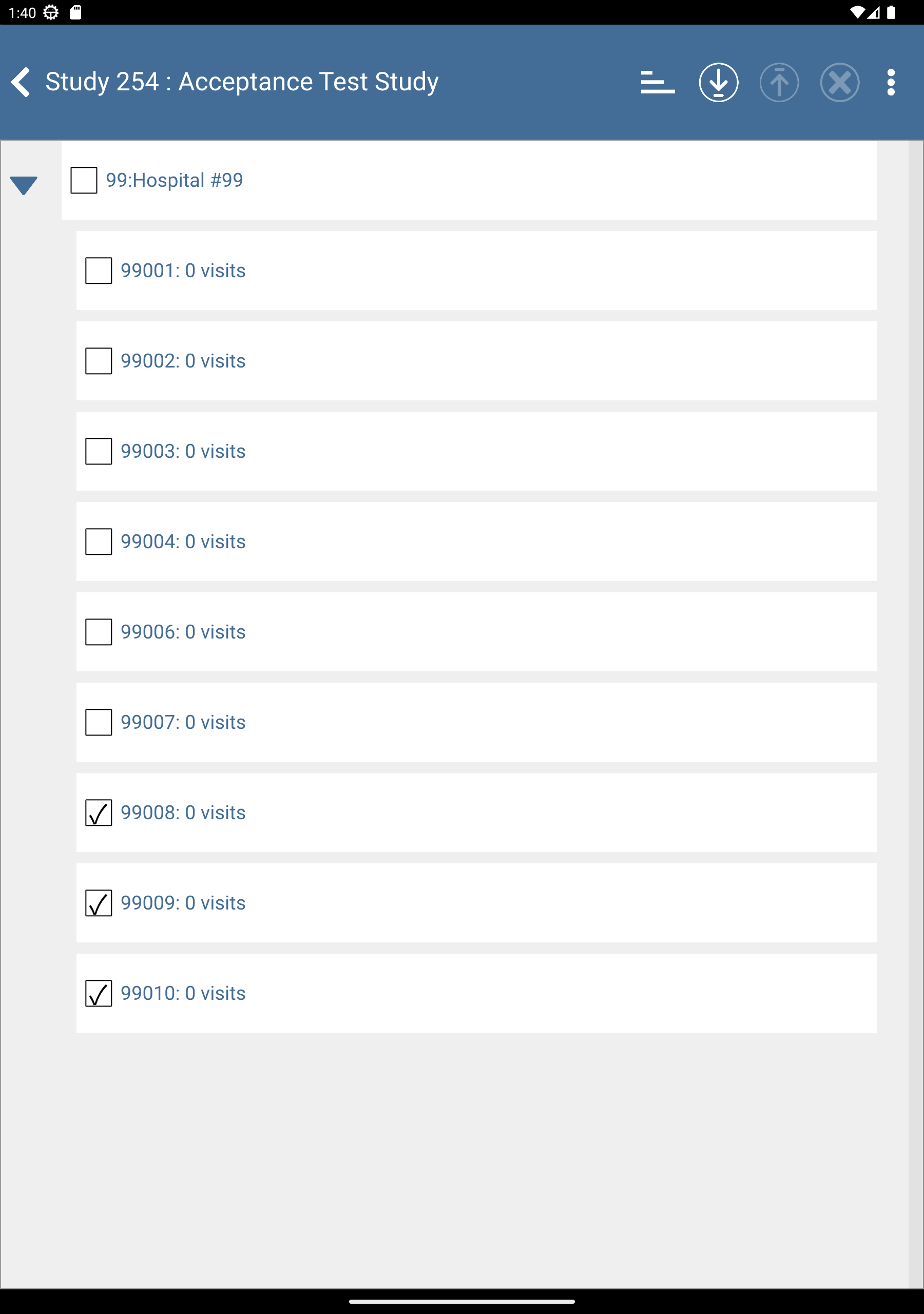
Click
 to download the subjects. After completion, click to dismiss the Download Progress: Data window. Upon successful download there is an
  icon showing the date and time the download was performed.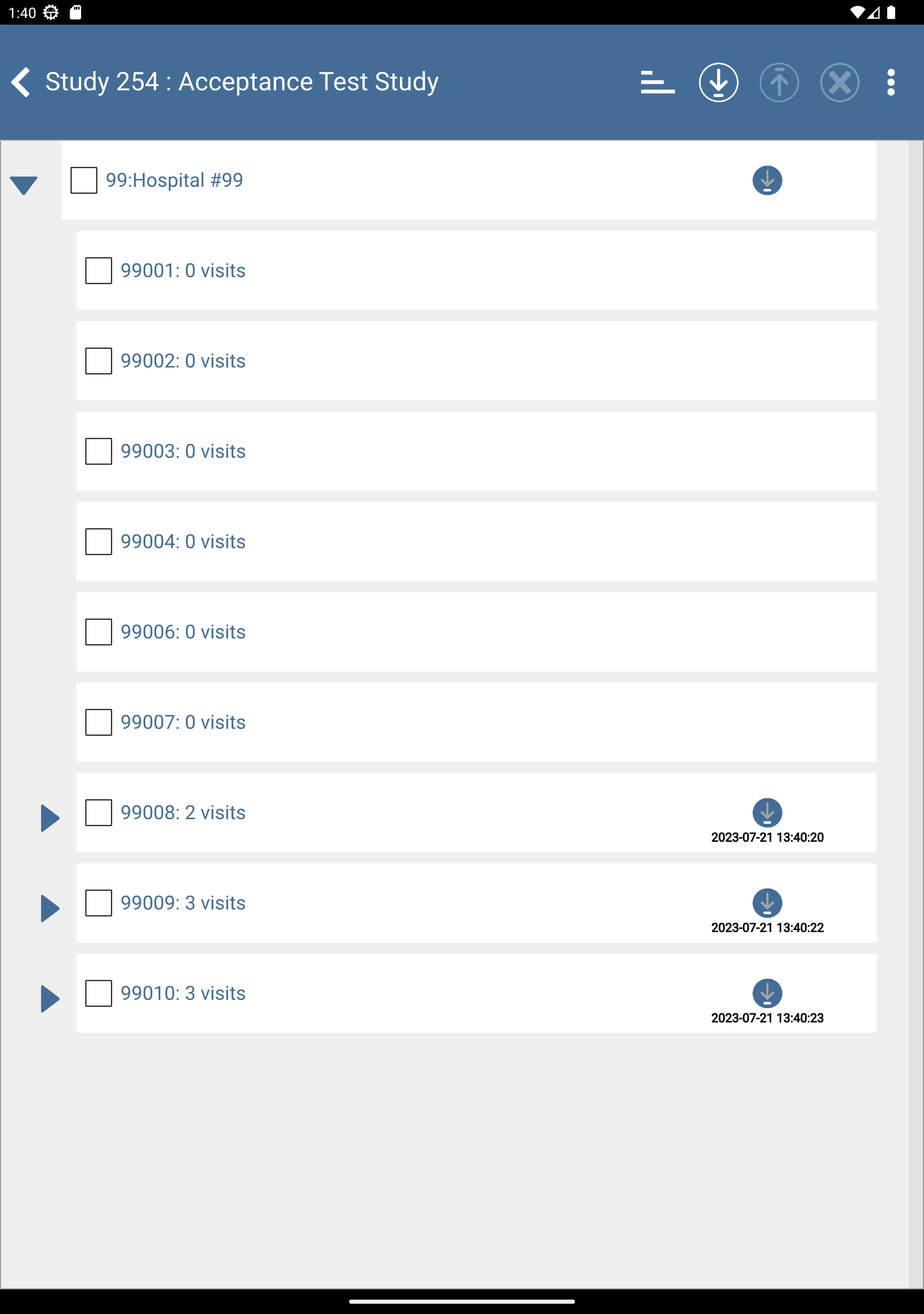
-
Click
> to logout of DFcollect.
-
Click
> Preferences > Offline Only toggle button to enable Offline Only mode (becomes green). Click .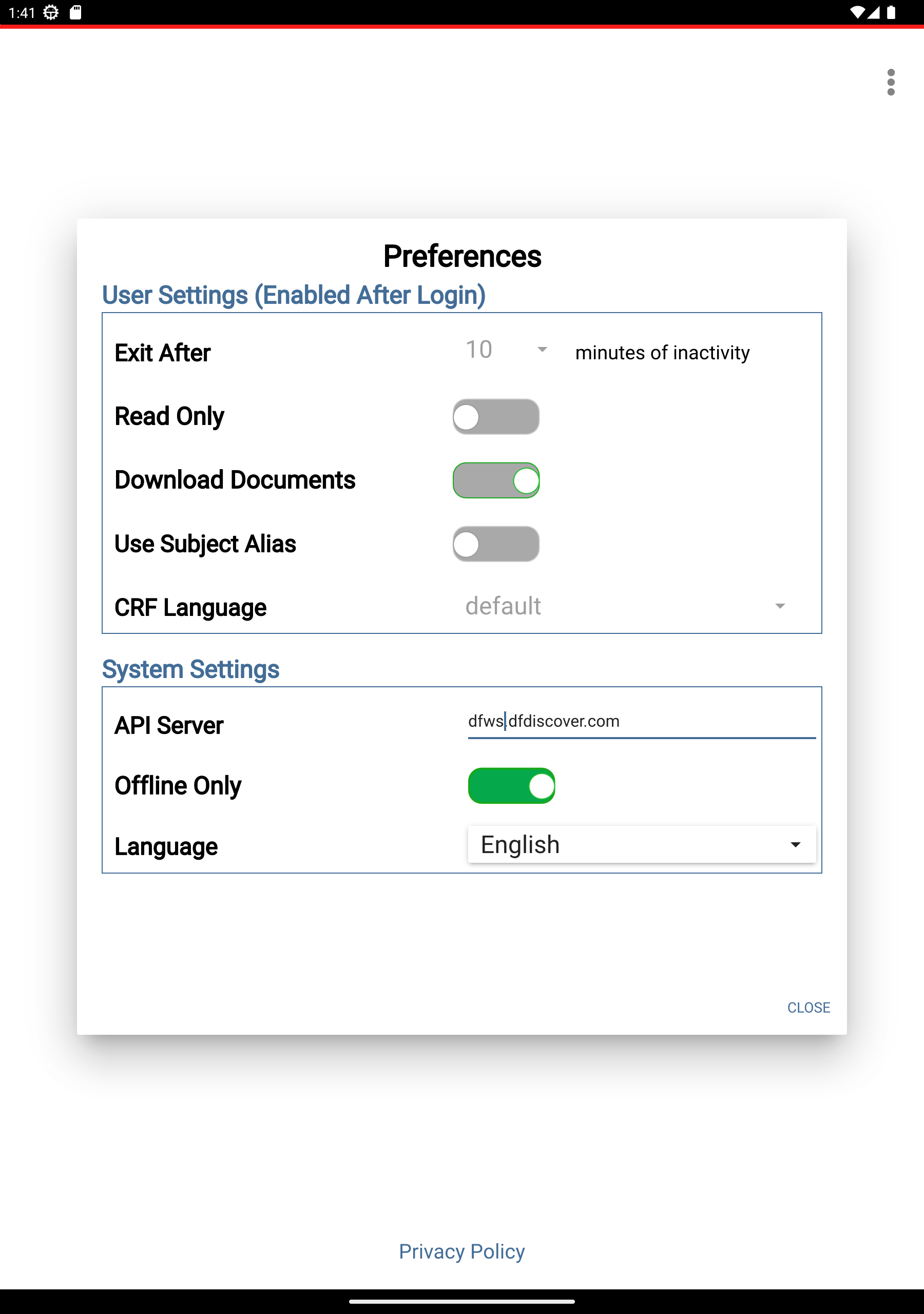
-
In the DFcollect login dialog, enter the name for DFdiscover Server that has been provided by your administrator. Enter
site_monitorin the Username field and the previously assigned password in the Password field. Click to login.
-
Click 99: Hospital #99 > 99009 : (incomplete) > 21: 1 Month Follow-up > 5: Form 5, 1 Month. Set:
Blood Pressure: Reading 1: systolic =
142, diastolic =097Blood Pressure: Reading 2: systolic =
134, diastolic =091Blood Pressure: Arm = Right
Weight (lbs) = Click
 , select Missing Value from the Code drop-down list. Click .
Click
 . Click in the resulting Add Query dialog.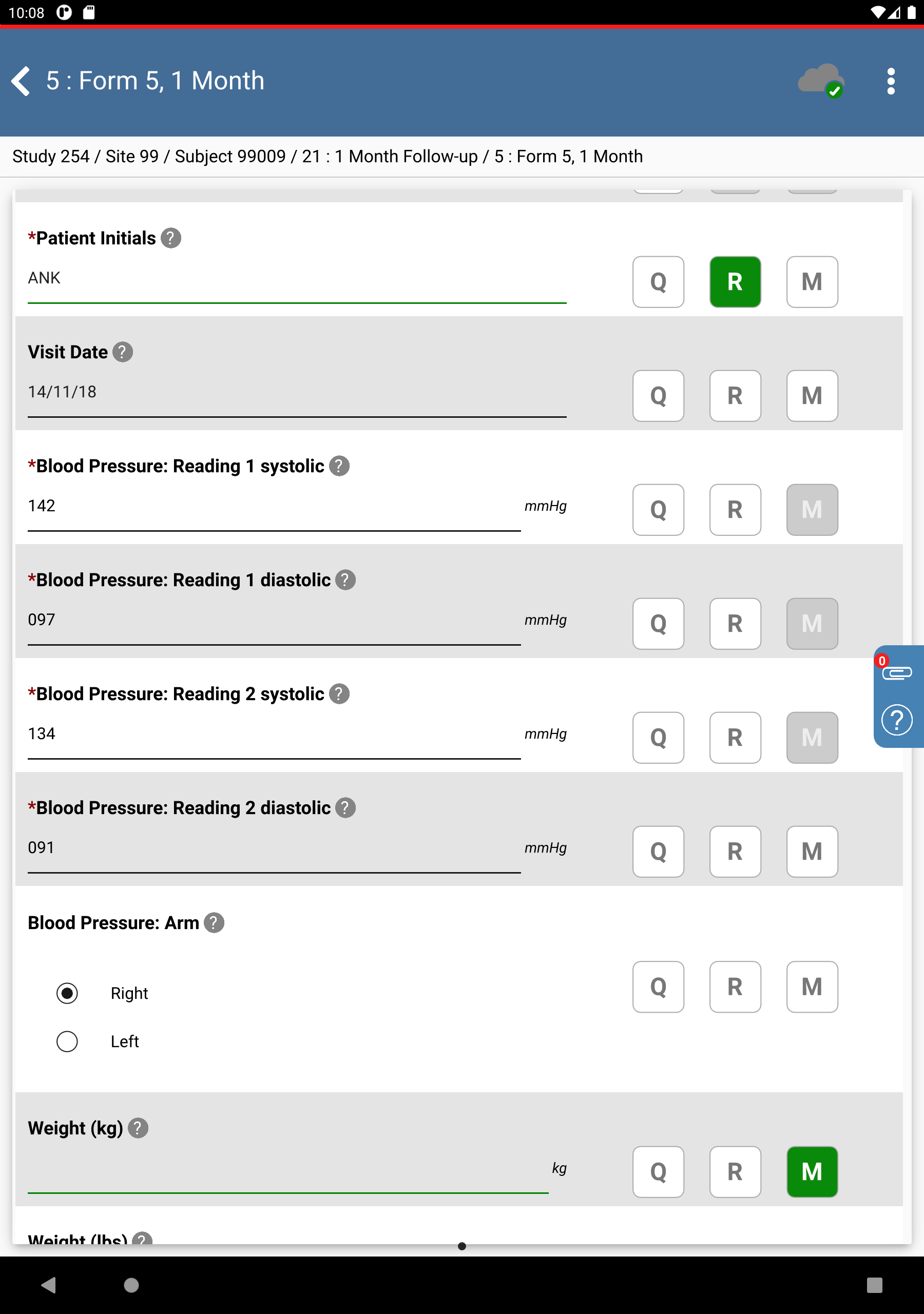
-
Click
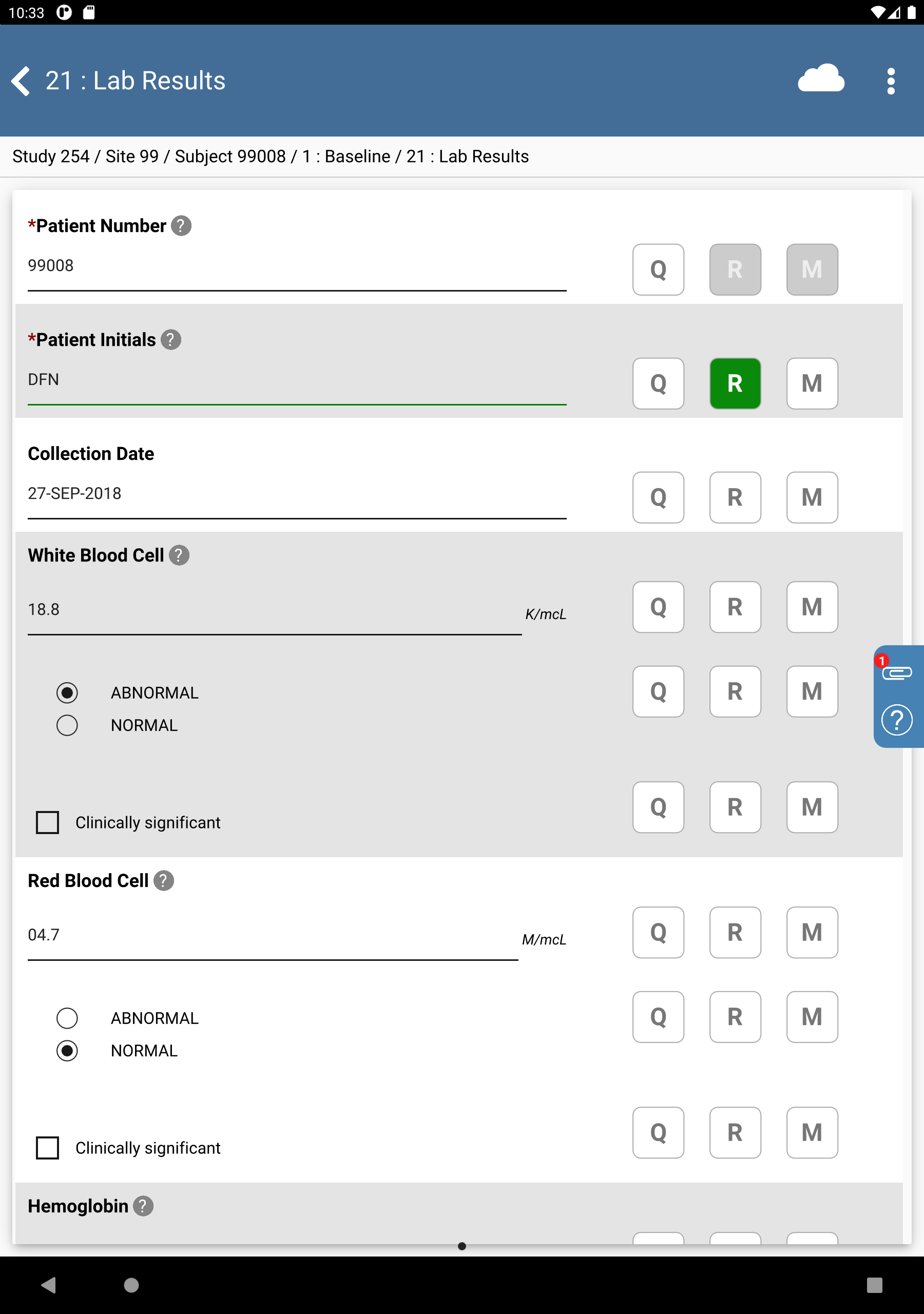
> 21: Lab Results.
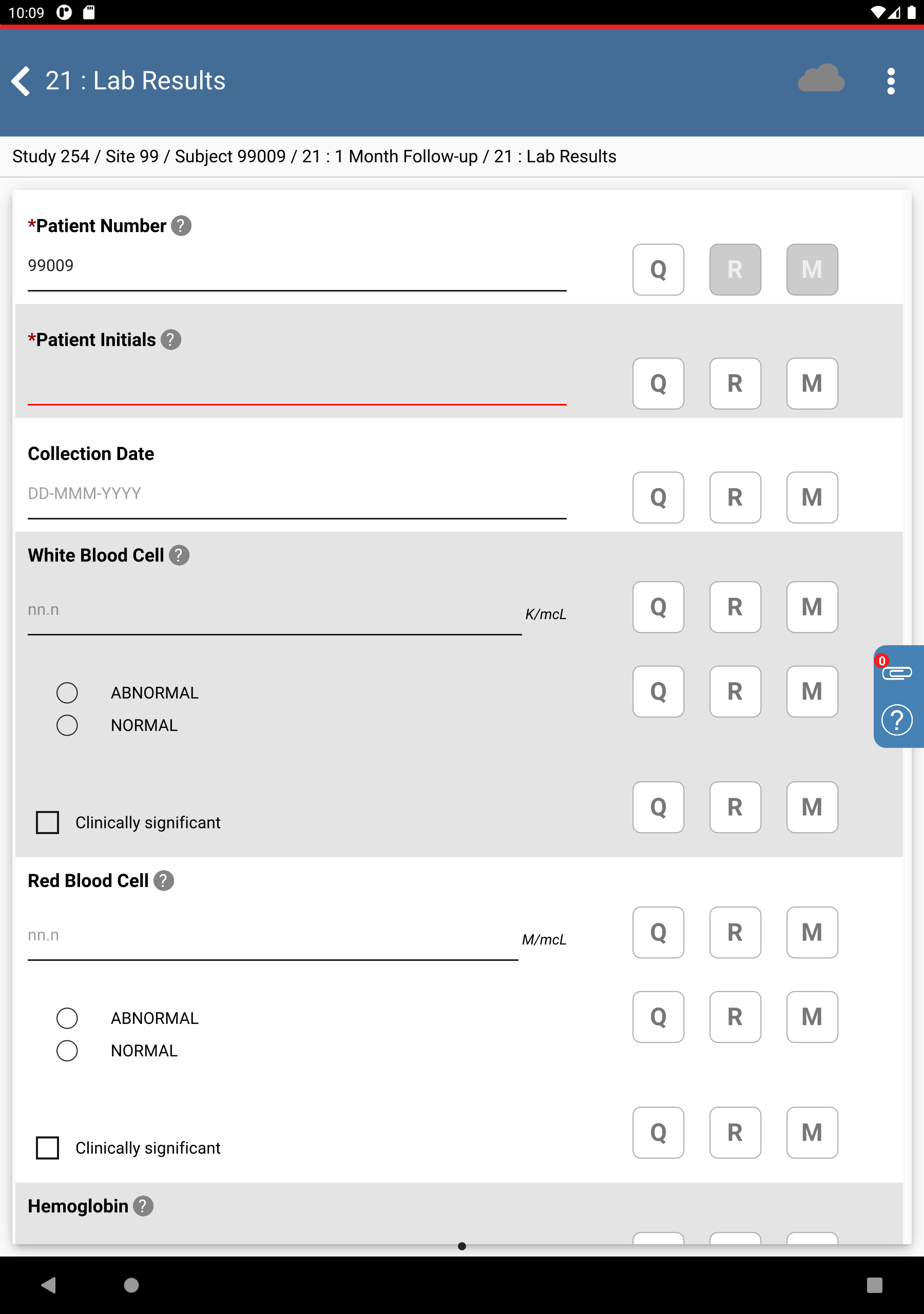
-
Click Patient Initials. The initials automatically populate this field as a result of the edit check
SetInitdescribed in Module 8. Image Data Entry, Set:Collection Date = Click
, select 11-NOV-2018.White Blood Cell =
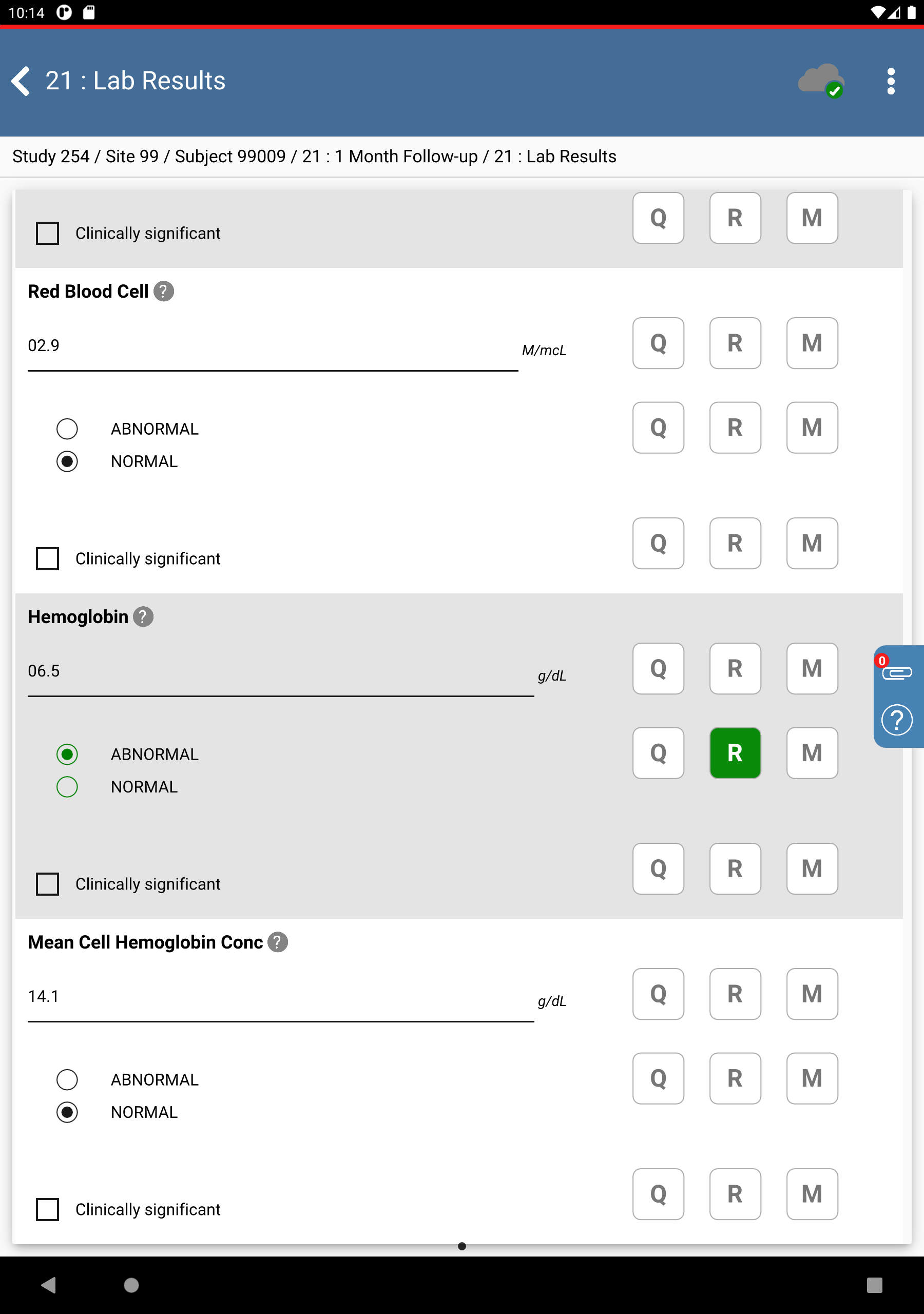
07.8, check (enable) NORMALRed Blood Cell =
02.9check (enable) NORMALHemoglobin =
06.5, check (enable) ABNORMALMean Cell Hemoglobin Conc =
14.1, check (enable) NORMAL
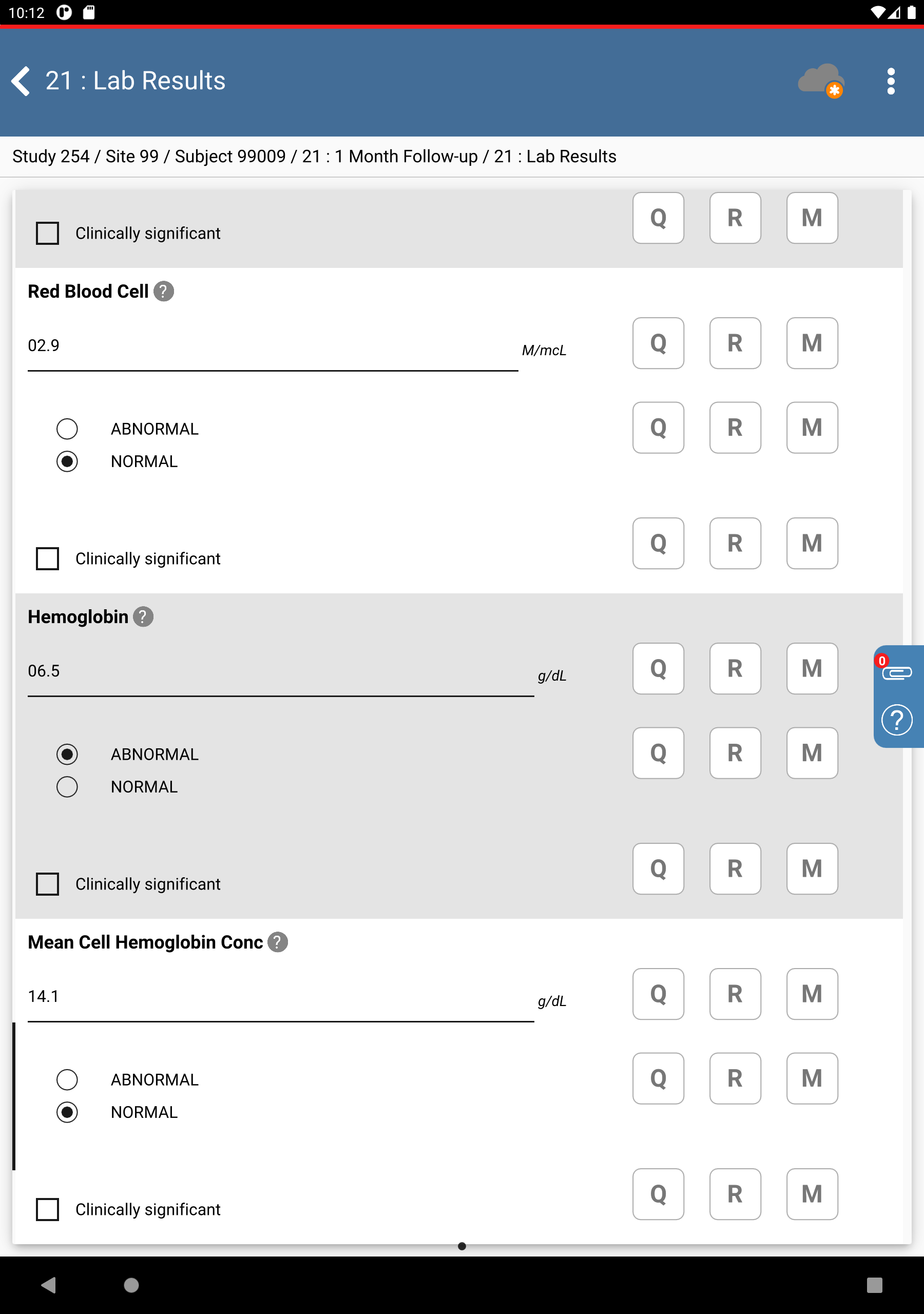
Click
 , to the right of the
Hemoglobin “ABNORMAL/NORMAL” field.
, to the right of the
Hemoglobin “ABNORMAL/NORMAL” field.
-
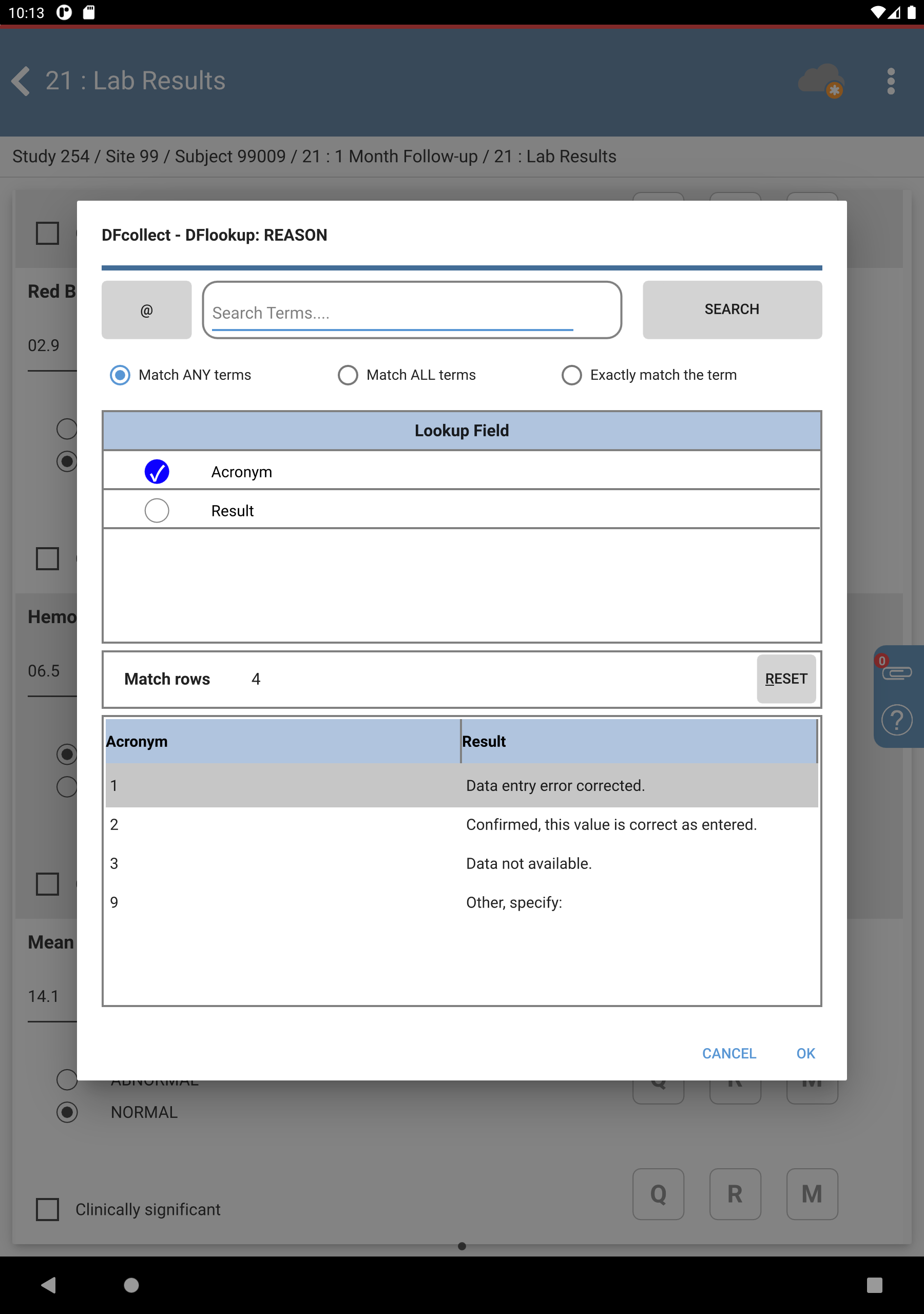
Click next to Reason. The DFlookup: REASON dialog is displayed.
-
Select the Result of Confirmed, this value is correct as entered., Click , followed by then Click
.
-
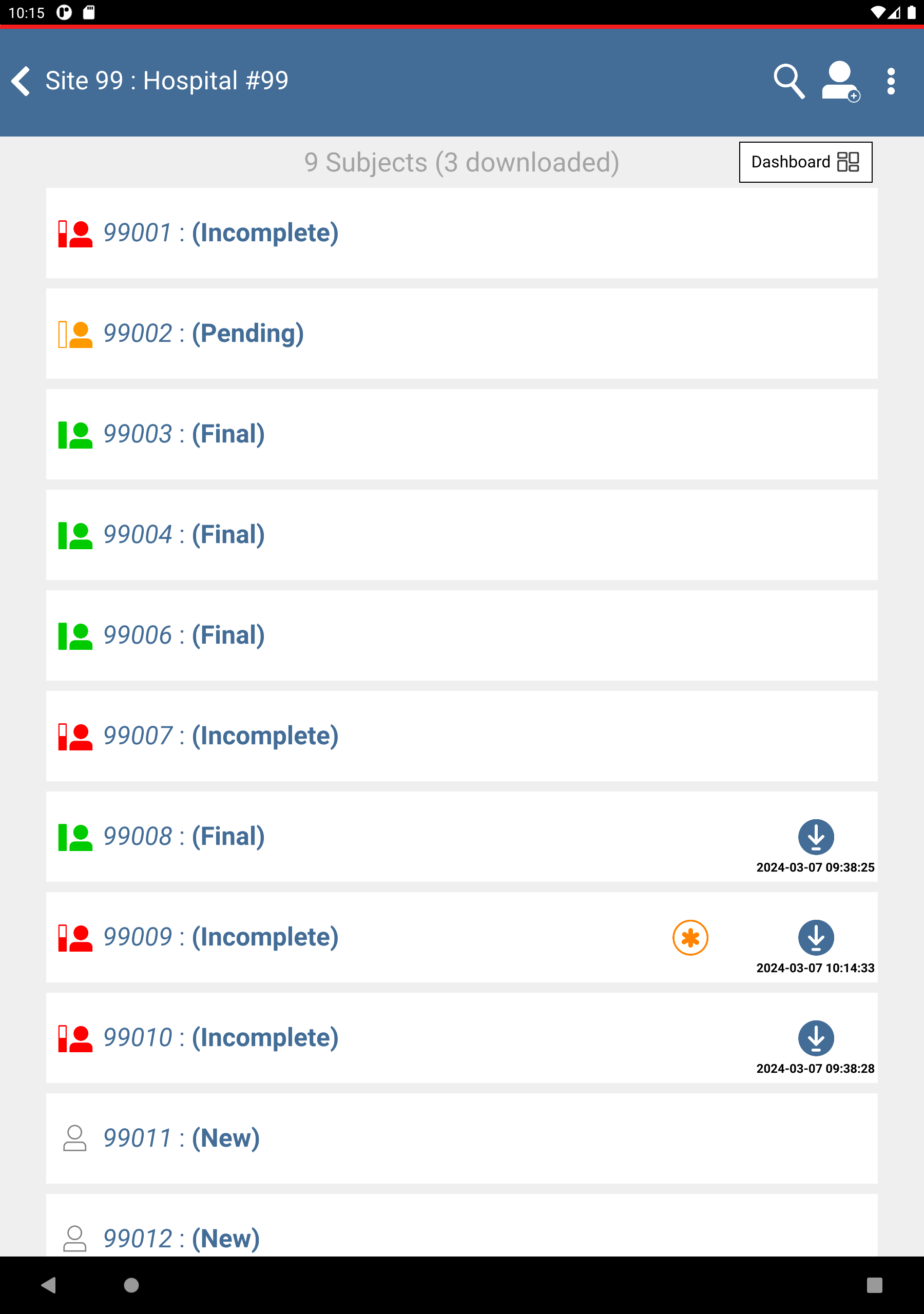
Return to the subject listing for 99: Hospital #99 by clicking
> .
-
Click
> to view outstanding queries.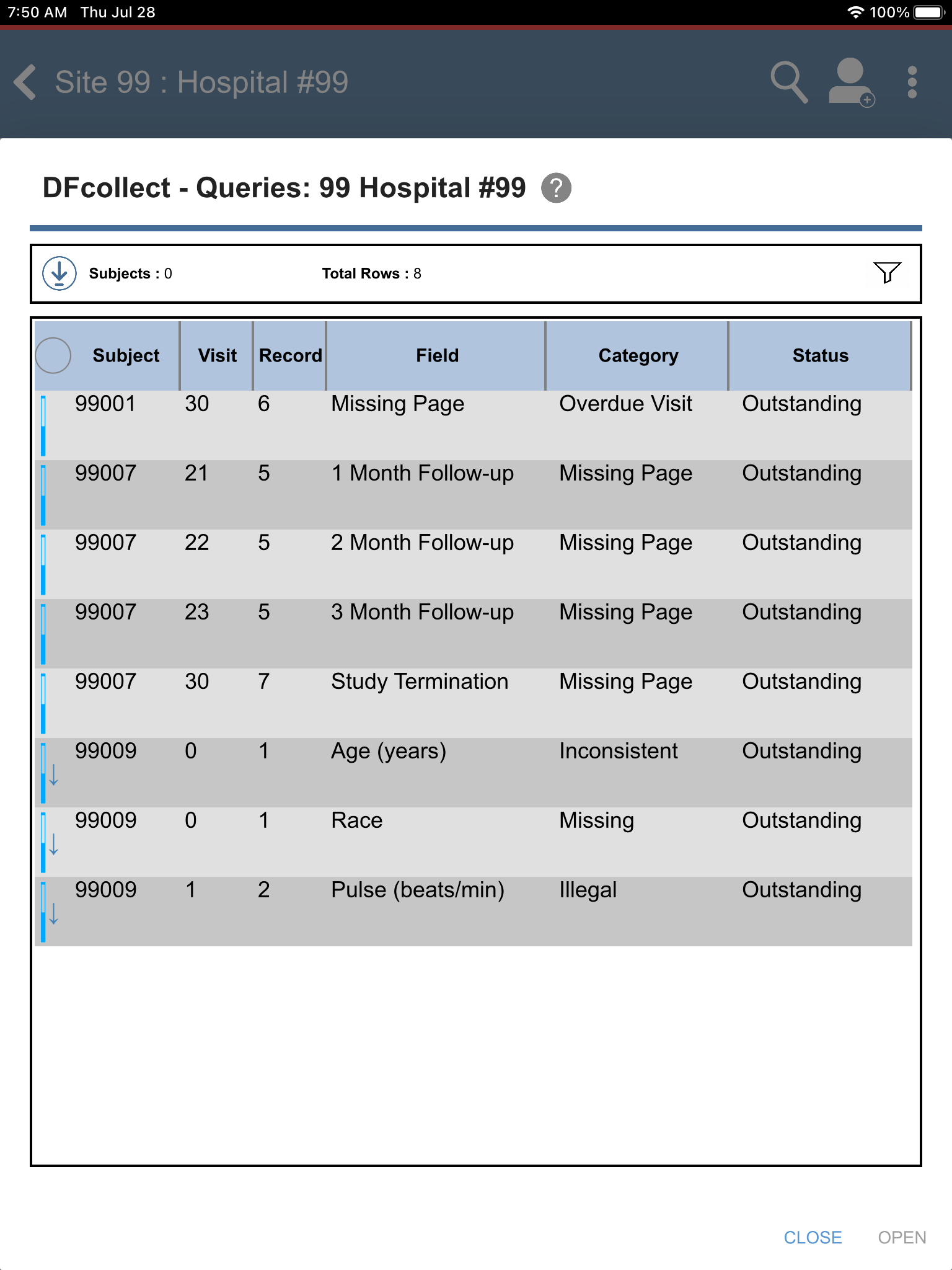
-
Locate and select the outstanding query for subject 99009 > Pulse(beats/min) field. Click . The Pulse(beats/min) field gains focus.
-
Click
next to the Pulse field. In the Reason field specify Value of 95 for pulse is confirmed.. Click >. 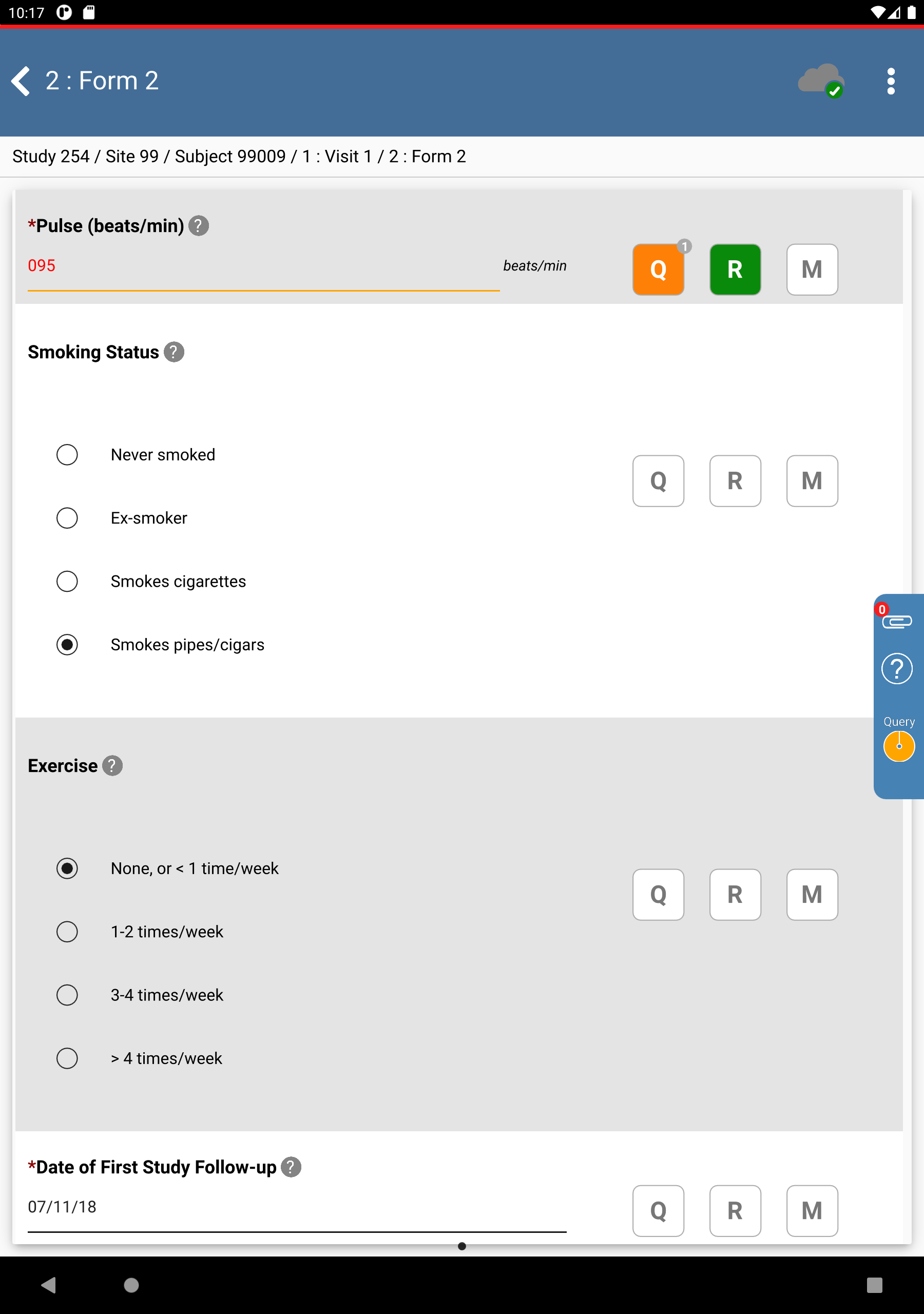
-
Click
to return to Query View. Confirm the outstanding query for 99009 > Pulse(beats/min) field is no longer present. Click .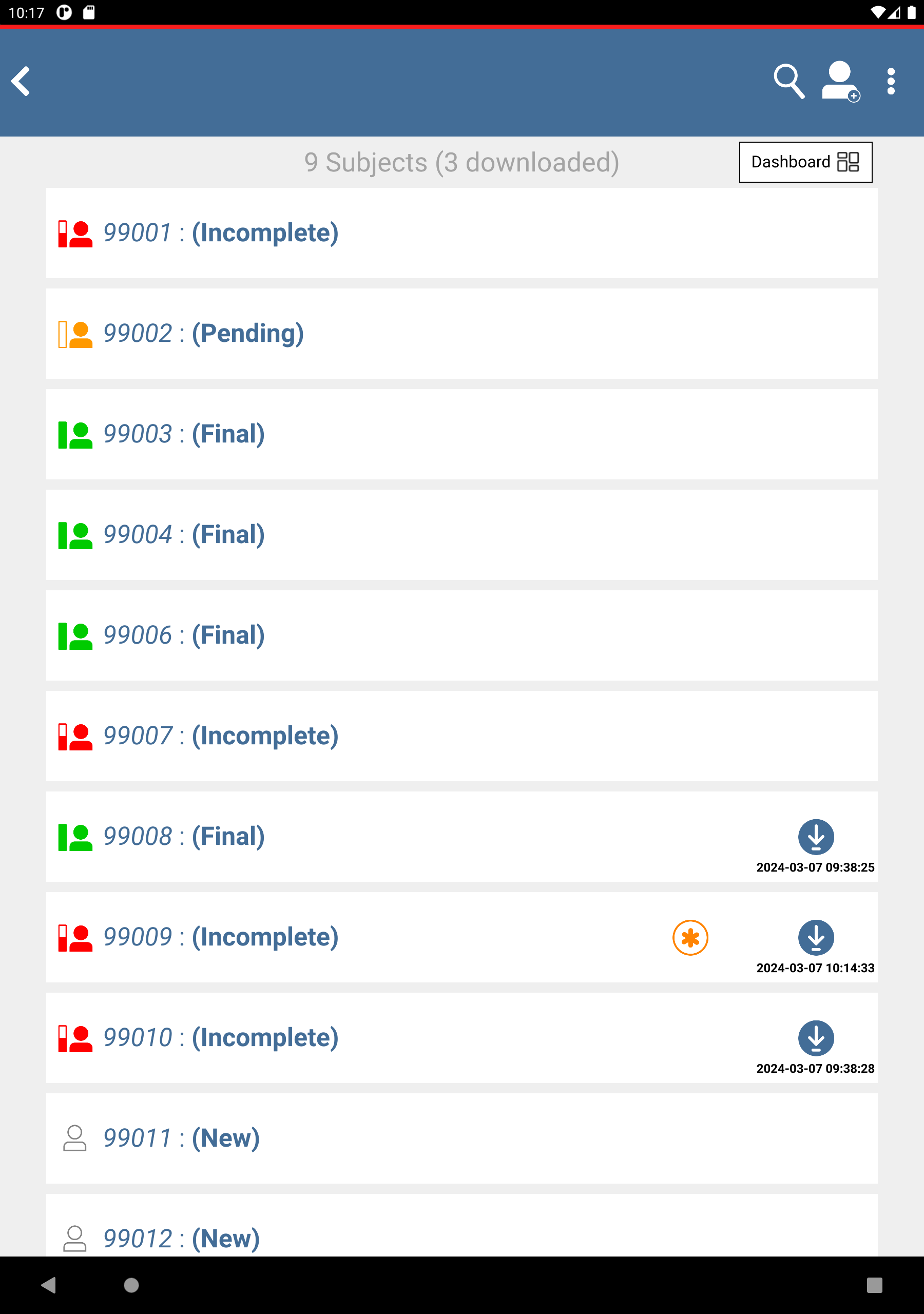
-
Click 99008 : (Final) > 1: Baseline > 2: Form 2. In the Date of First Study Follow-up field click
, select 14/11/18.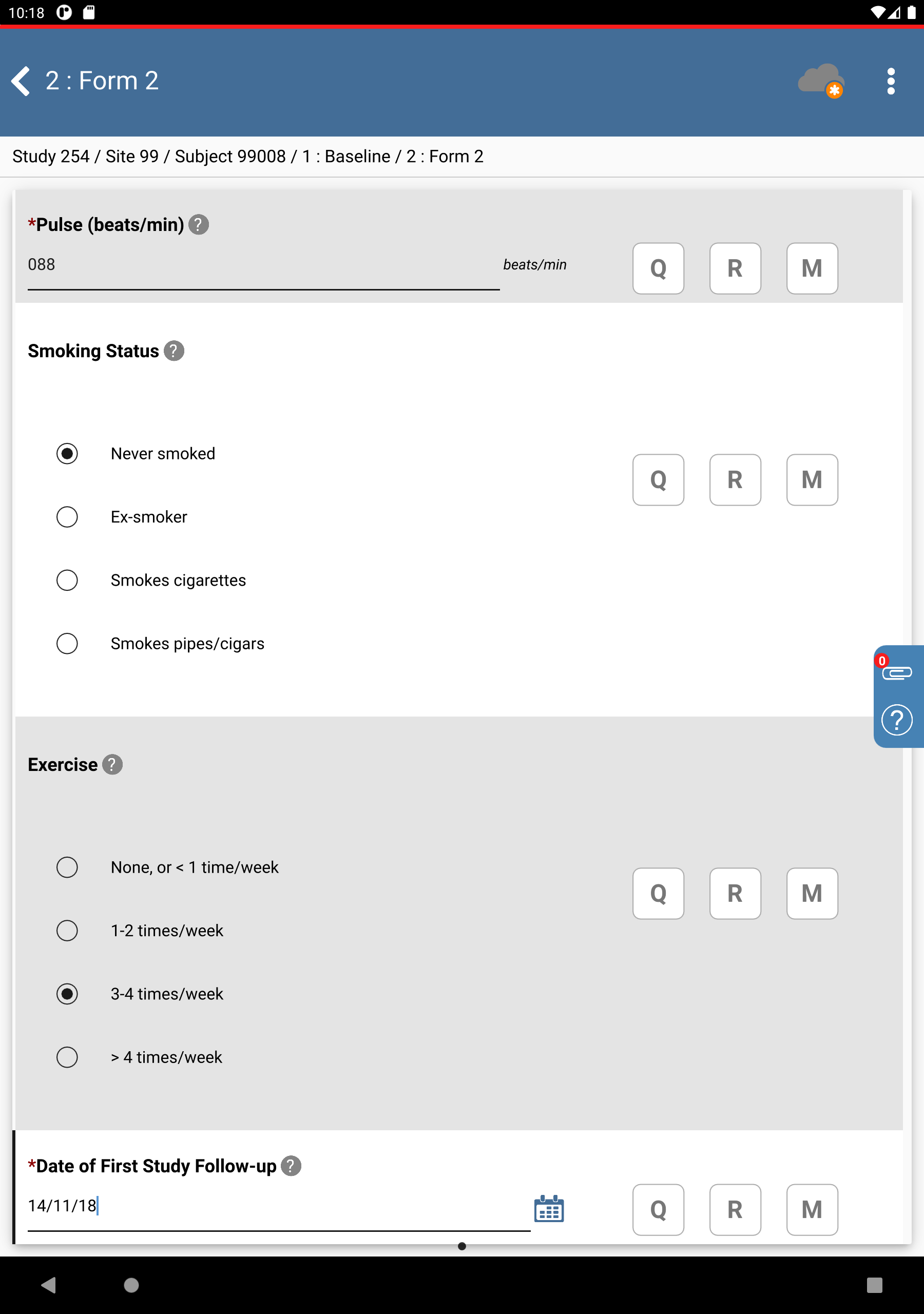
-
Click
. In the Reason field specify Subject has to reschedule due to conflict.. Click >. 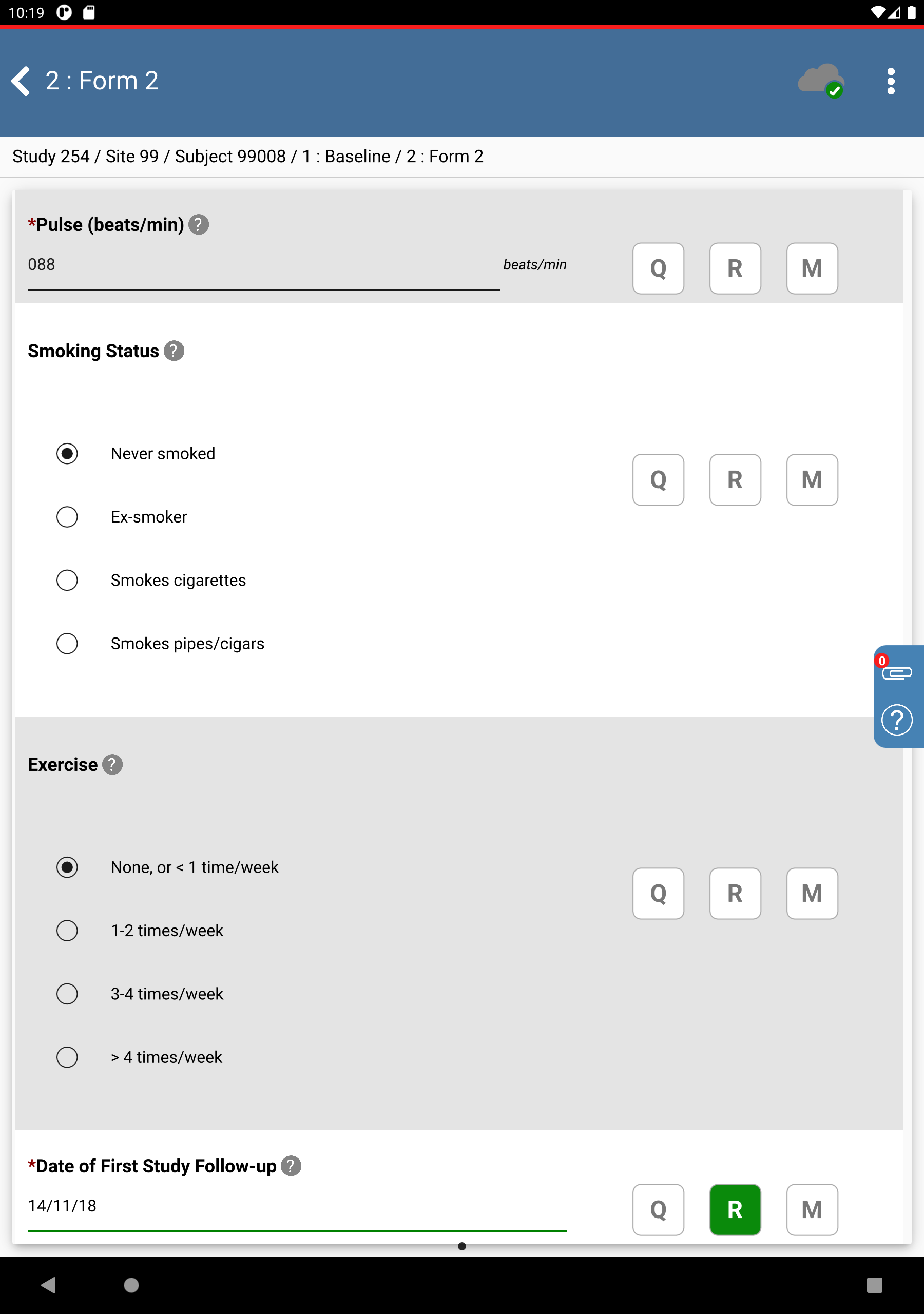
-
Return to the subject listing for 99: Hospital #99 by clicking
> . Re-open Query View by clicking > .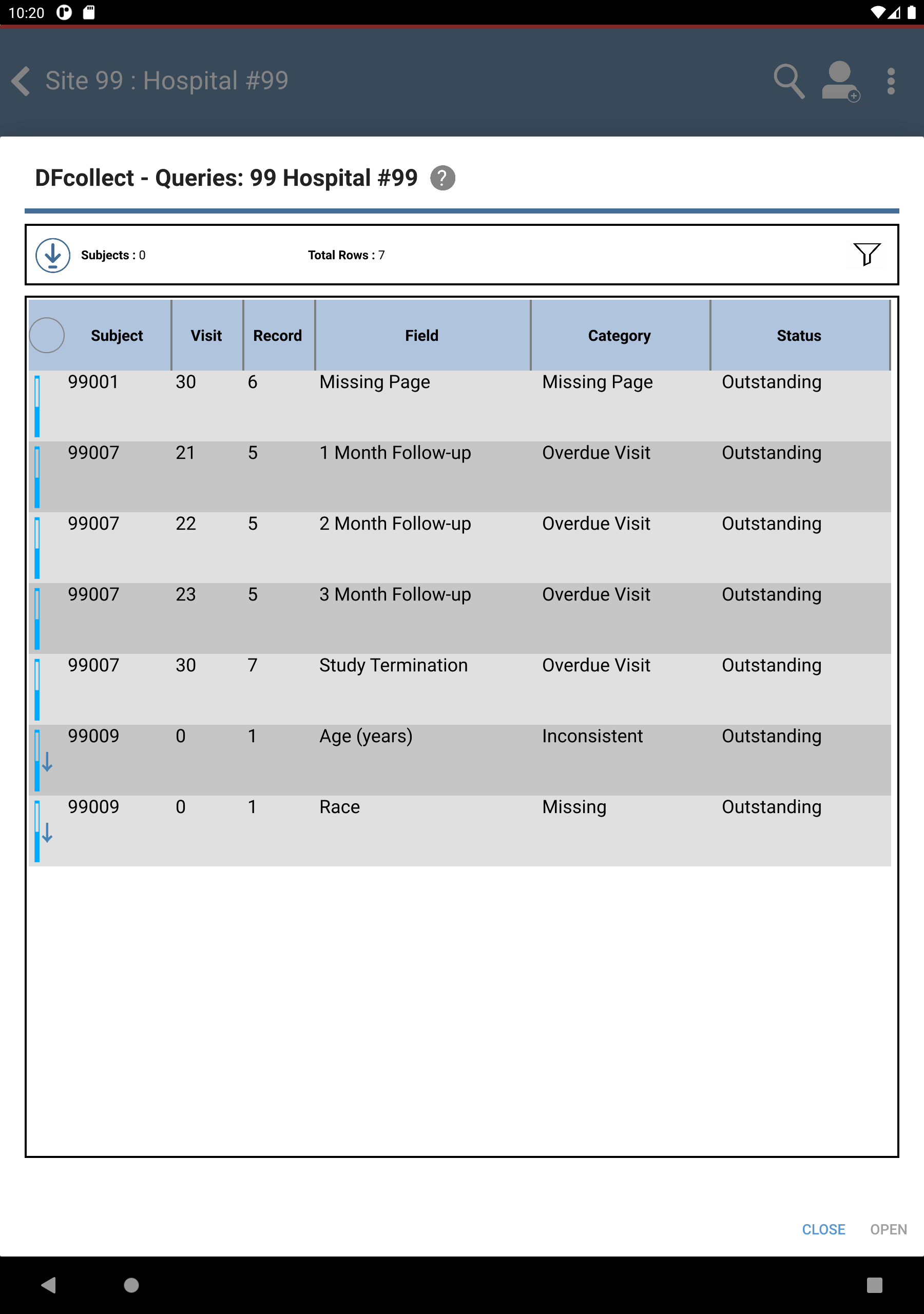
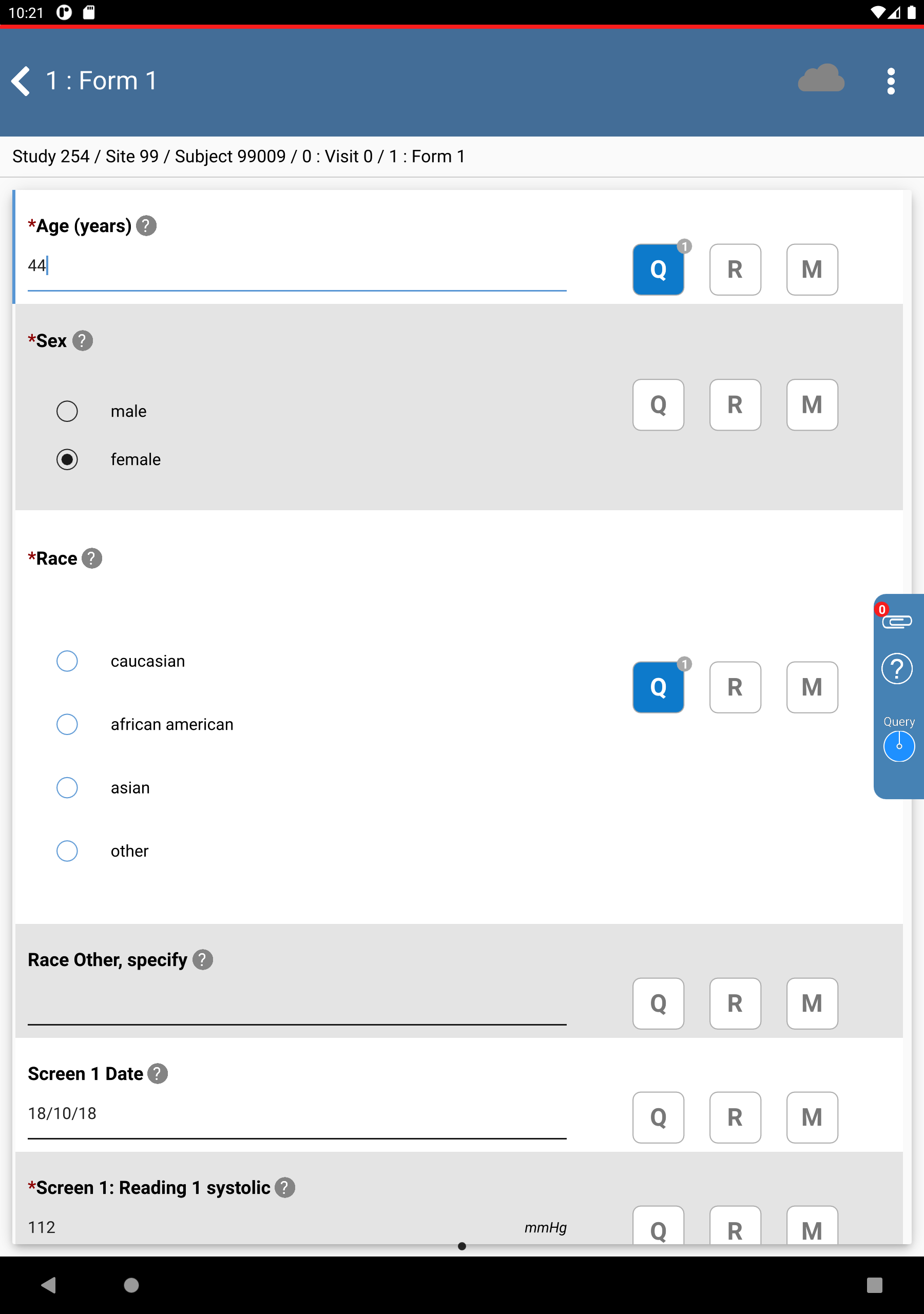
Locate and select the outstanding query for subject 99009 > Age (years). Click . The Age (years) field gains focus.
-
Correct Age (years) from
44to68. Click >
>  , select Resolved from the Status drop-down list. Click > .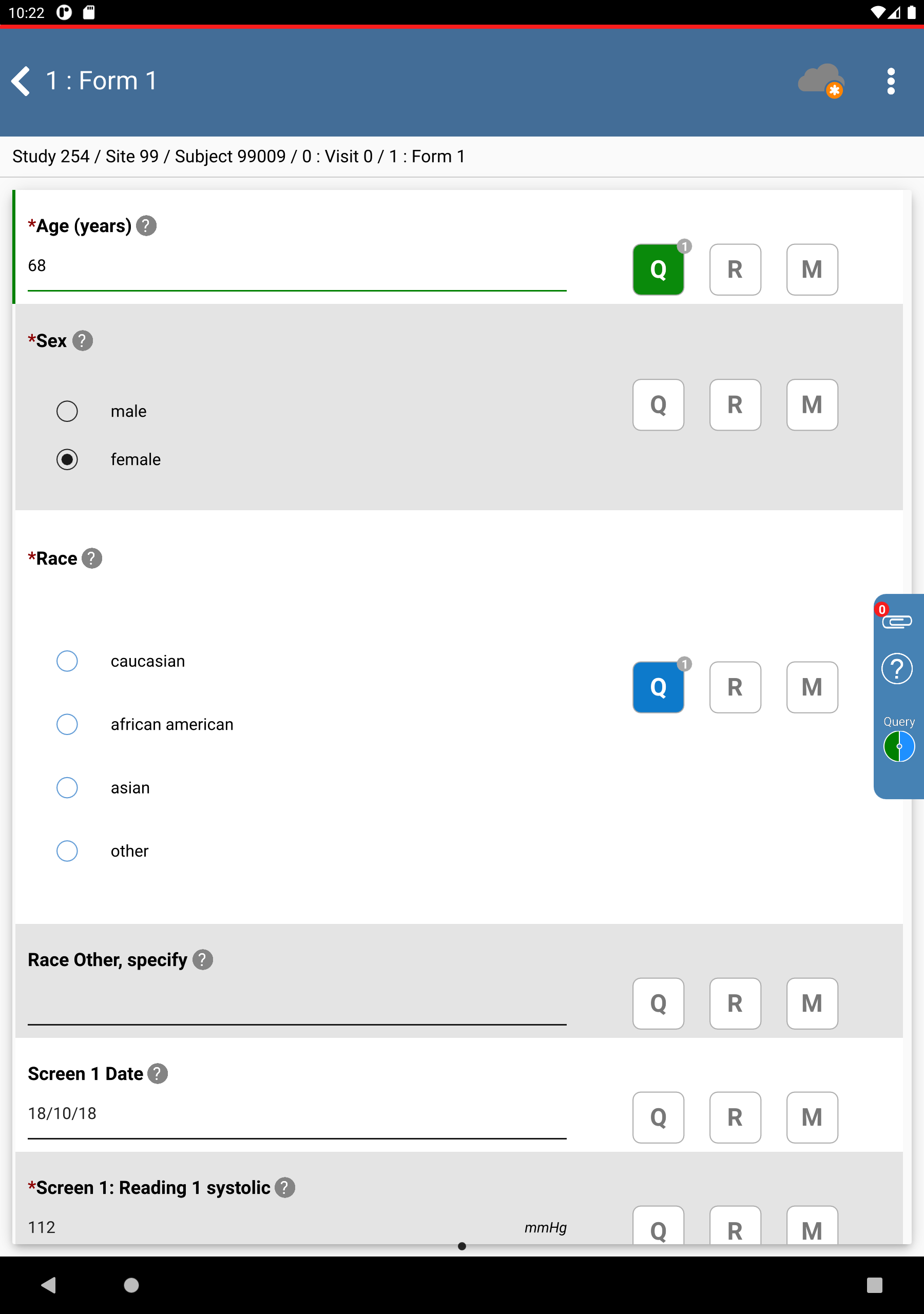
-
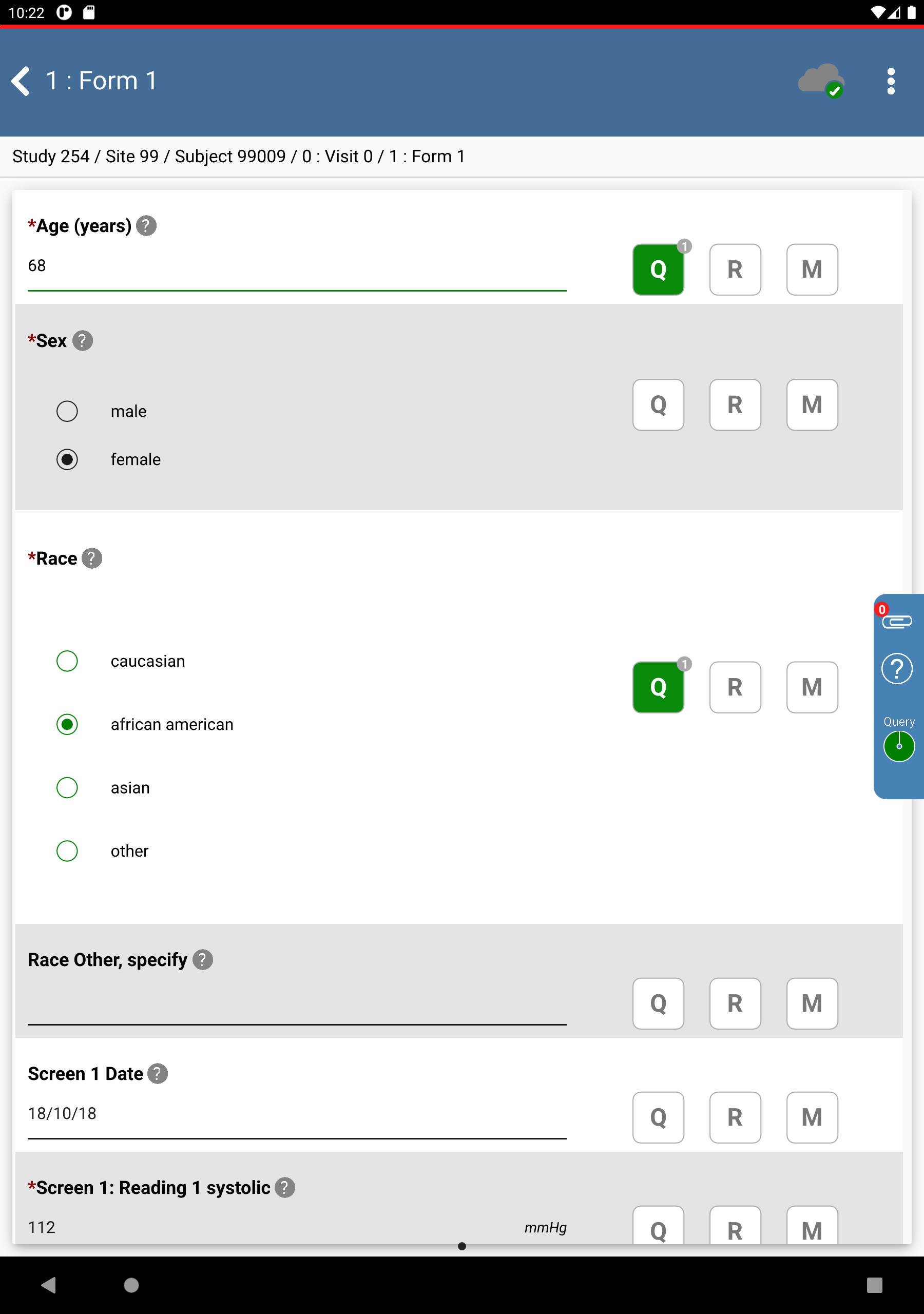
Click Race. Select african american, the query box changes from outstanding to resolved. Click
. 
-
Click
to return to Query View. Confirm the outstanding query for 99009 > Age (years) and Race fields are no longer present. Click .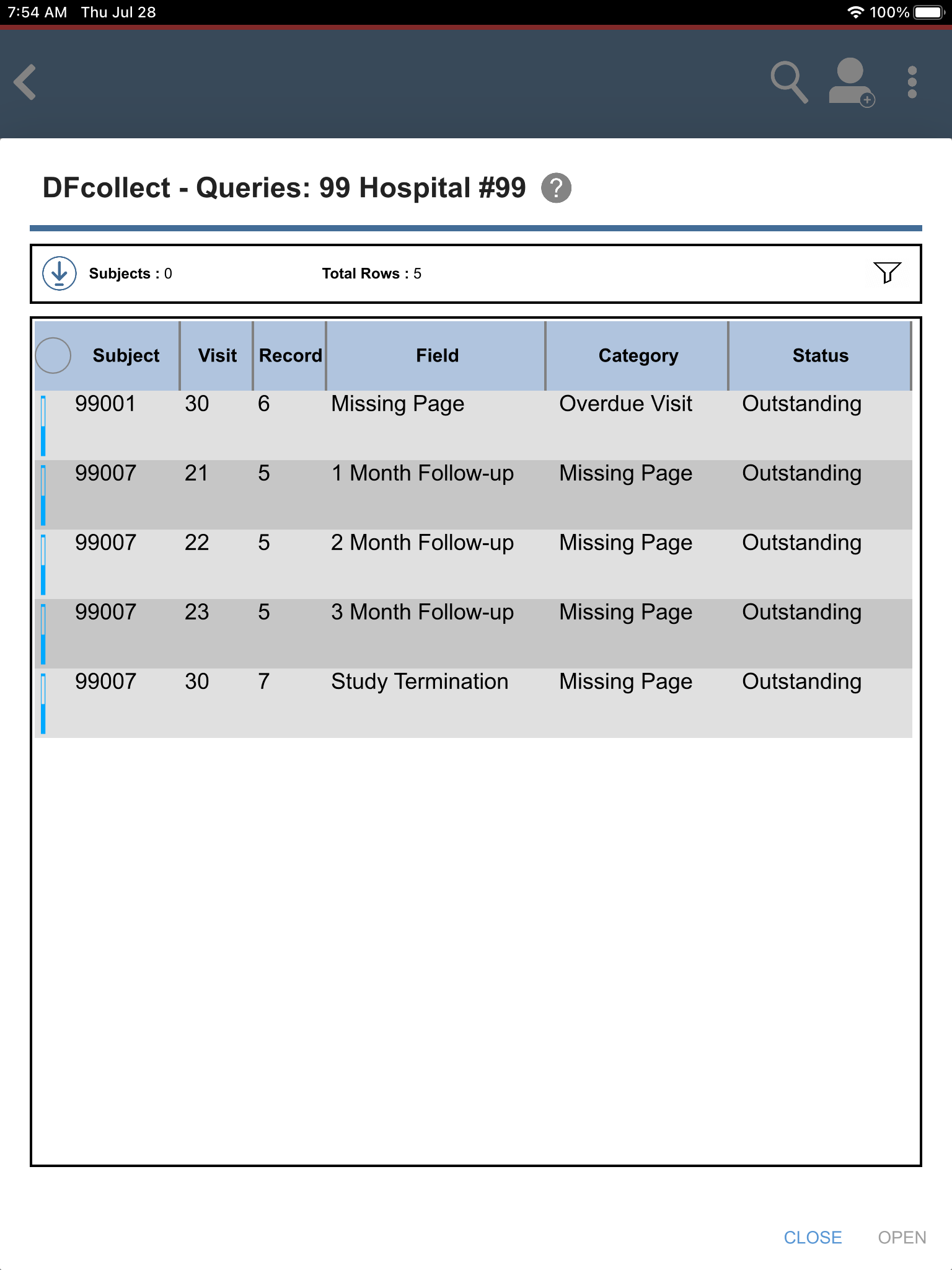
-
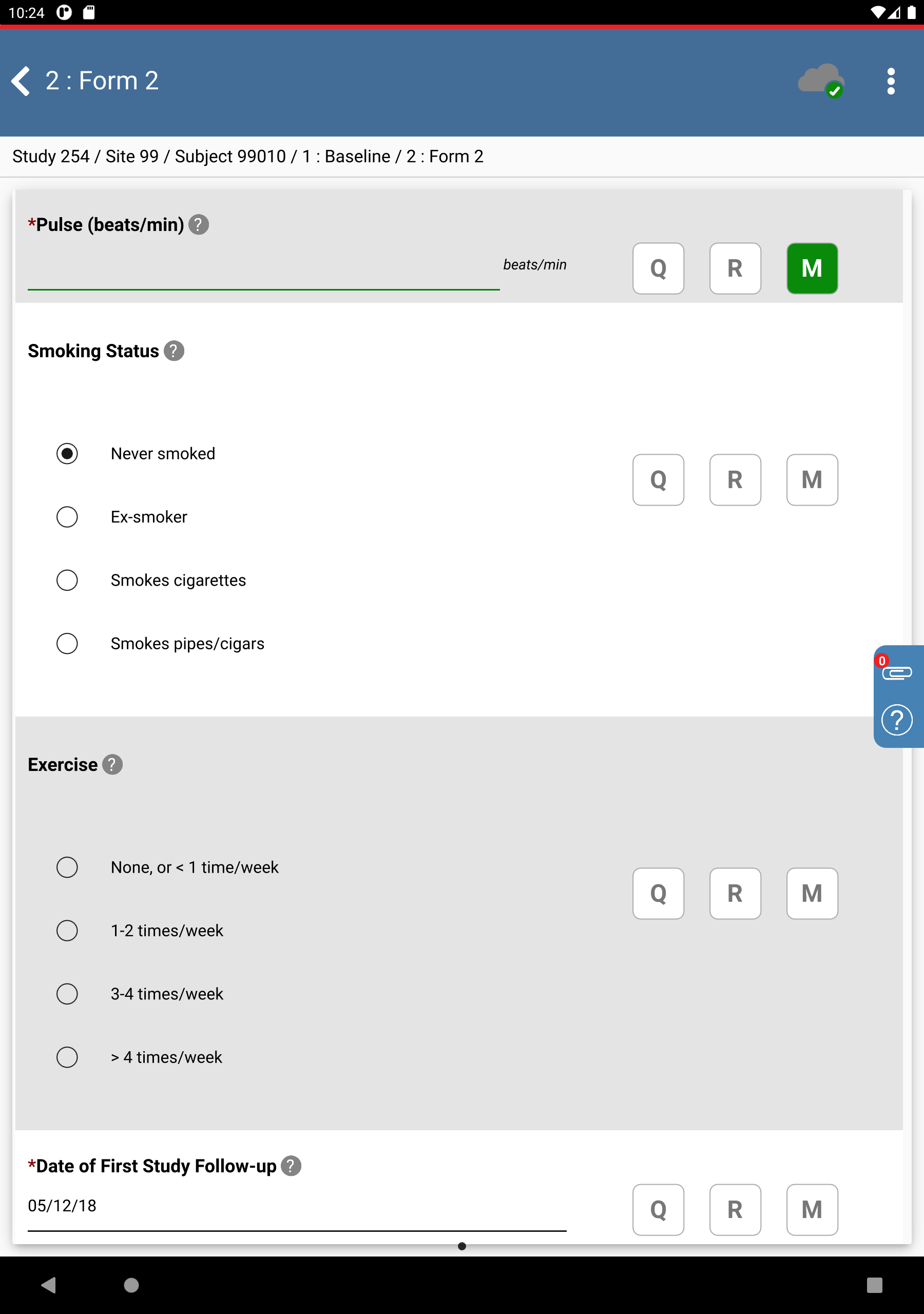
Click 99010 : (Incomplete) > 1: Baseline > 2: Form 2. Set:
Weight (lbs) =
267.0, click in the resulting dialog.Height (in) =
072.8Pulse = click
, select Missing Value from the Code drop-down list. Smoking Status = Never smoked
Date of First Study Follow-up = Click
, select 05/12/18.
Click
. ![[Note]](../../imagedata/note.png)
Note The Weight (kgs) and Height (cm) fields are auto-populated as a result of edit checks.
-
Click
> , to logout of DFcollect.
-
Click
> Preferences > Offline Only toggle button to disable the Offline Only mode (becomes greyed out). Click .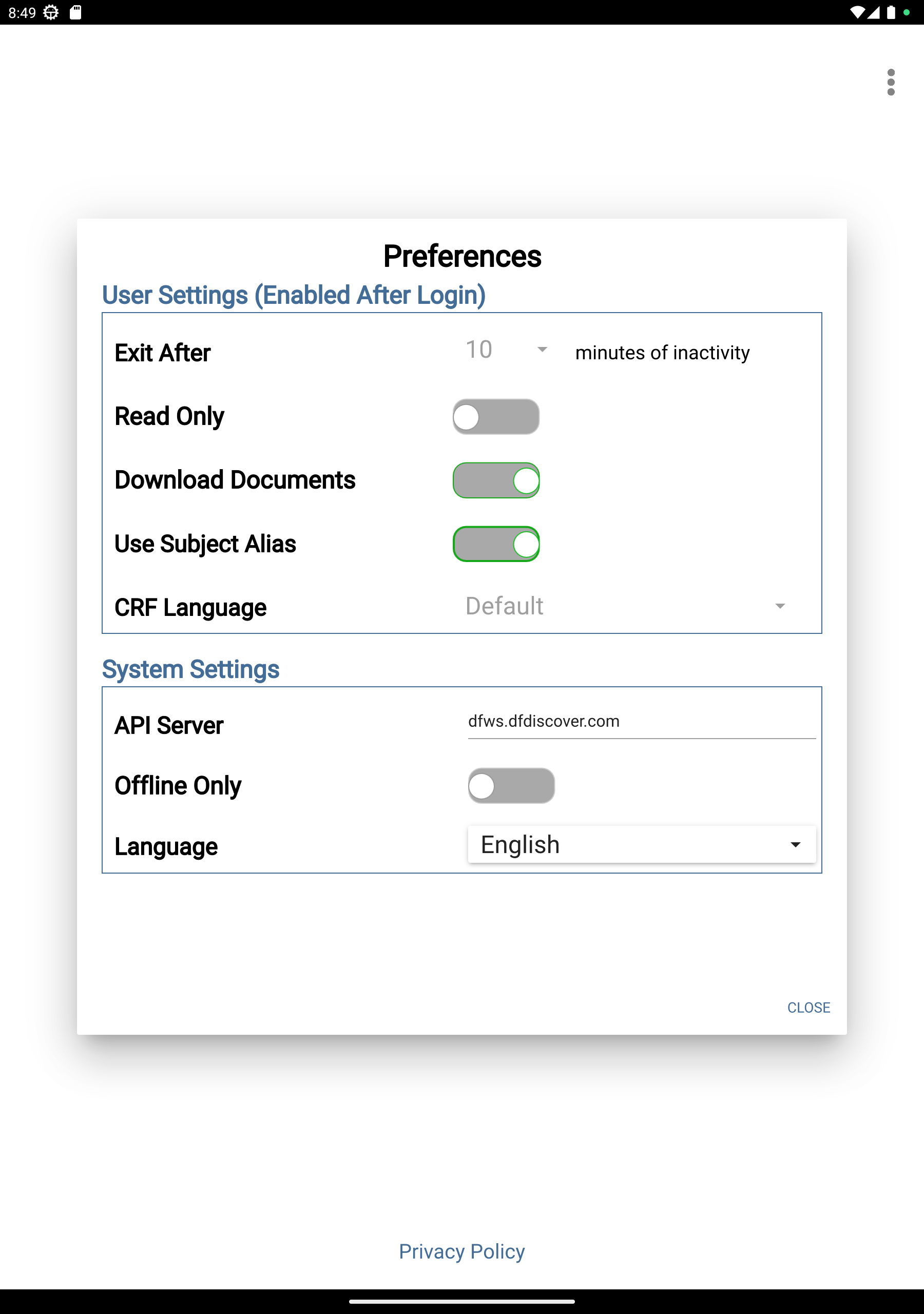
-
In the DFcollect login dialog, enter the name for DFdiscover Server that has been provided by your administrator. Enter
site_monitorin the Username field and the previously assigned password in the Password field. Click to login. -
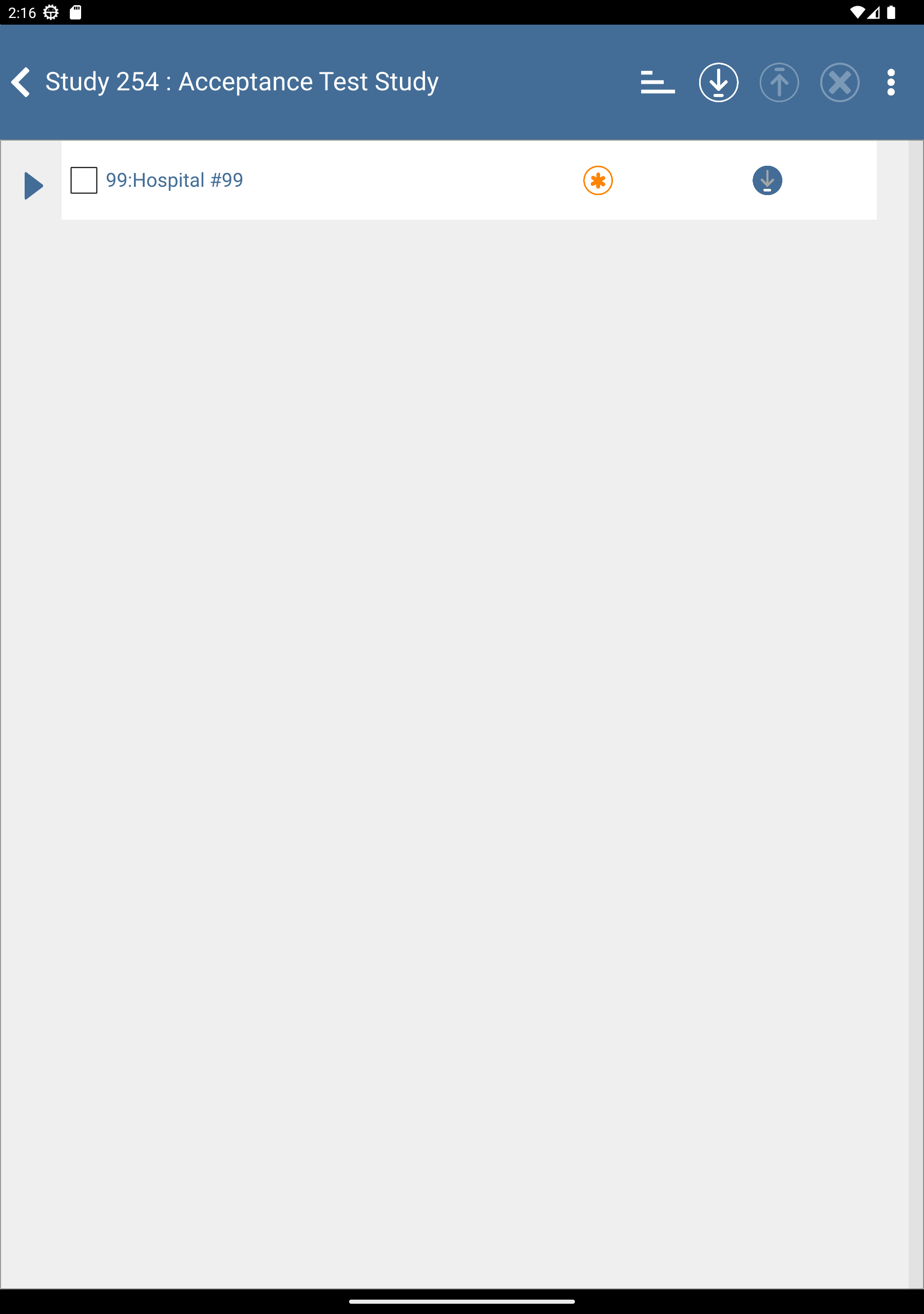
Upon logging into DFcollect, the
 icon is displayed next to 99: Hospital #99 indicating there are cached changes in DFcollect that have not been saved to the database.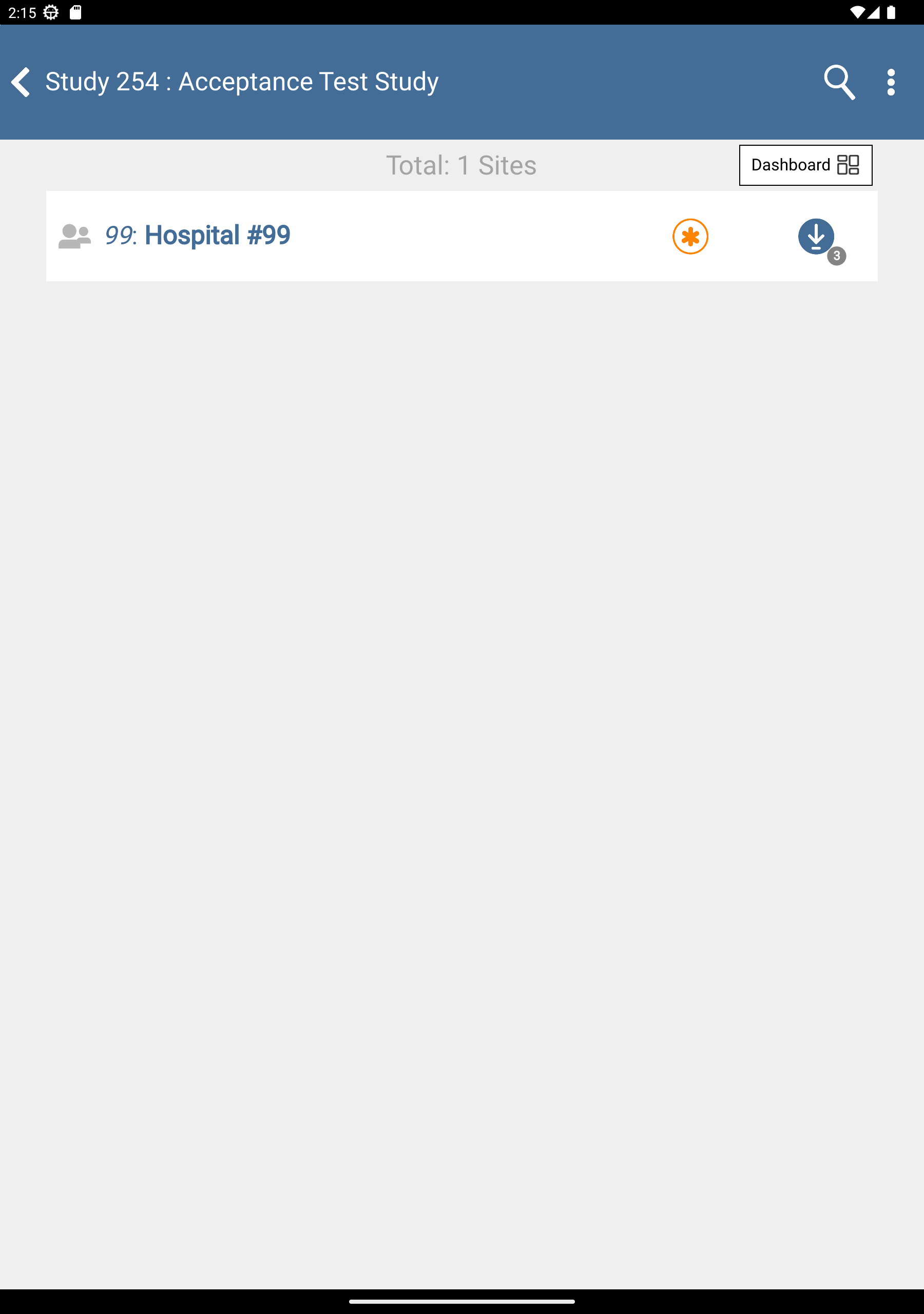
-
-
Click
to expand list of subjects. Check (enable) subjects 99008: 2 Visits, 99009: 3 visits and 99010: 3 visits.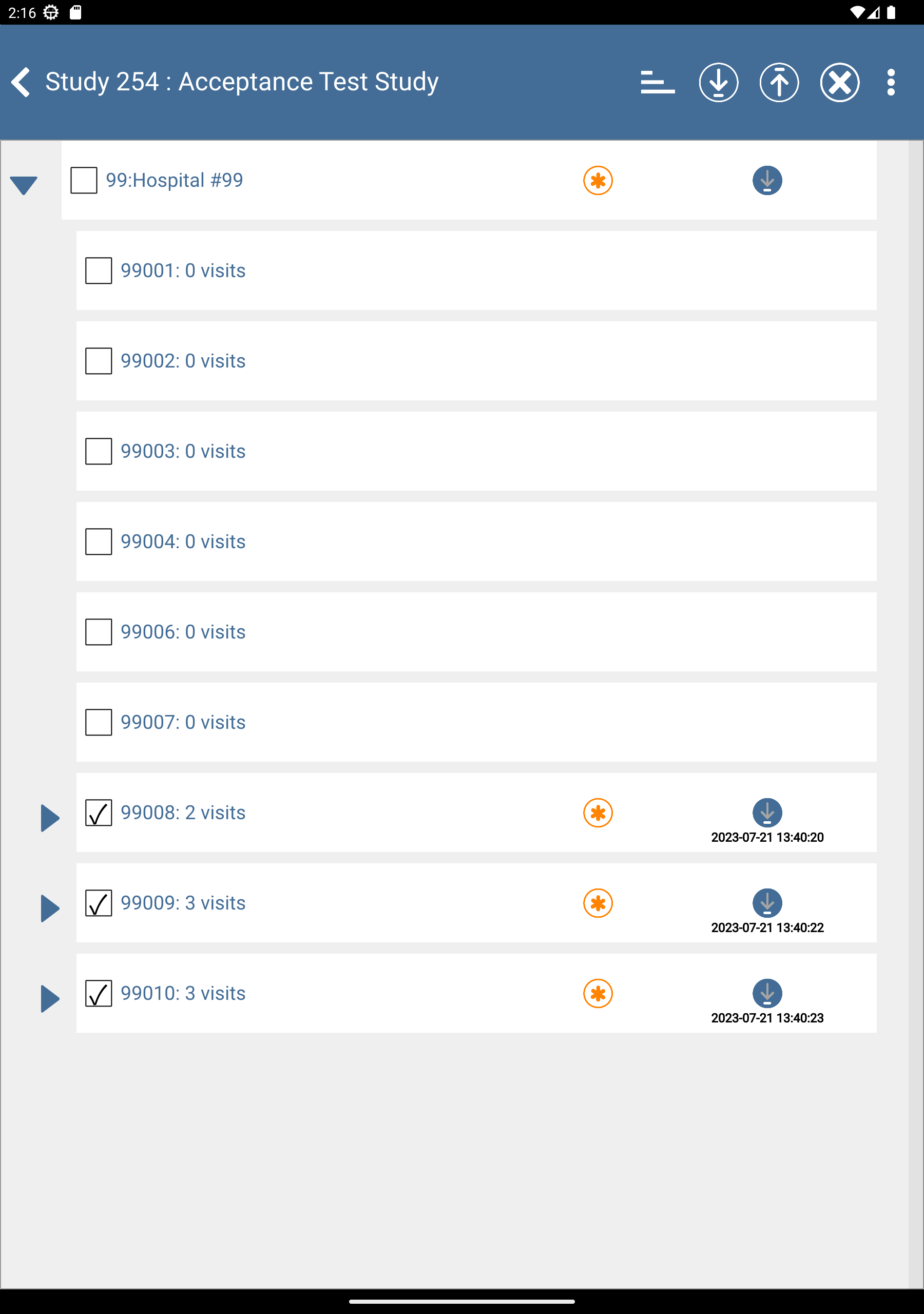
-
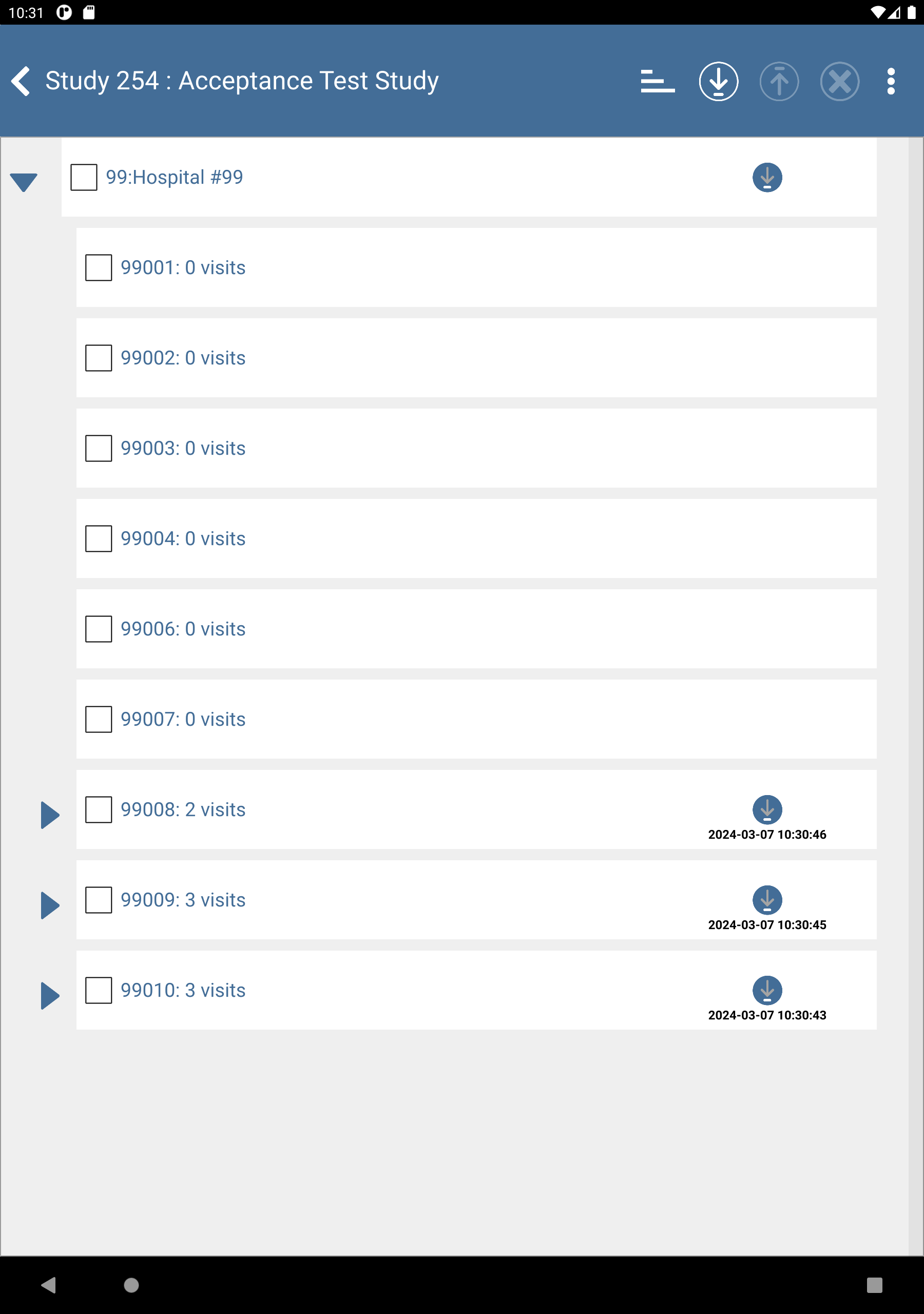
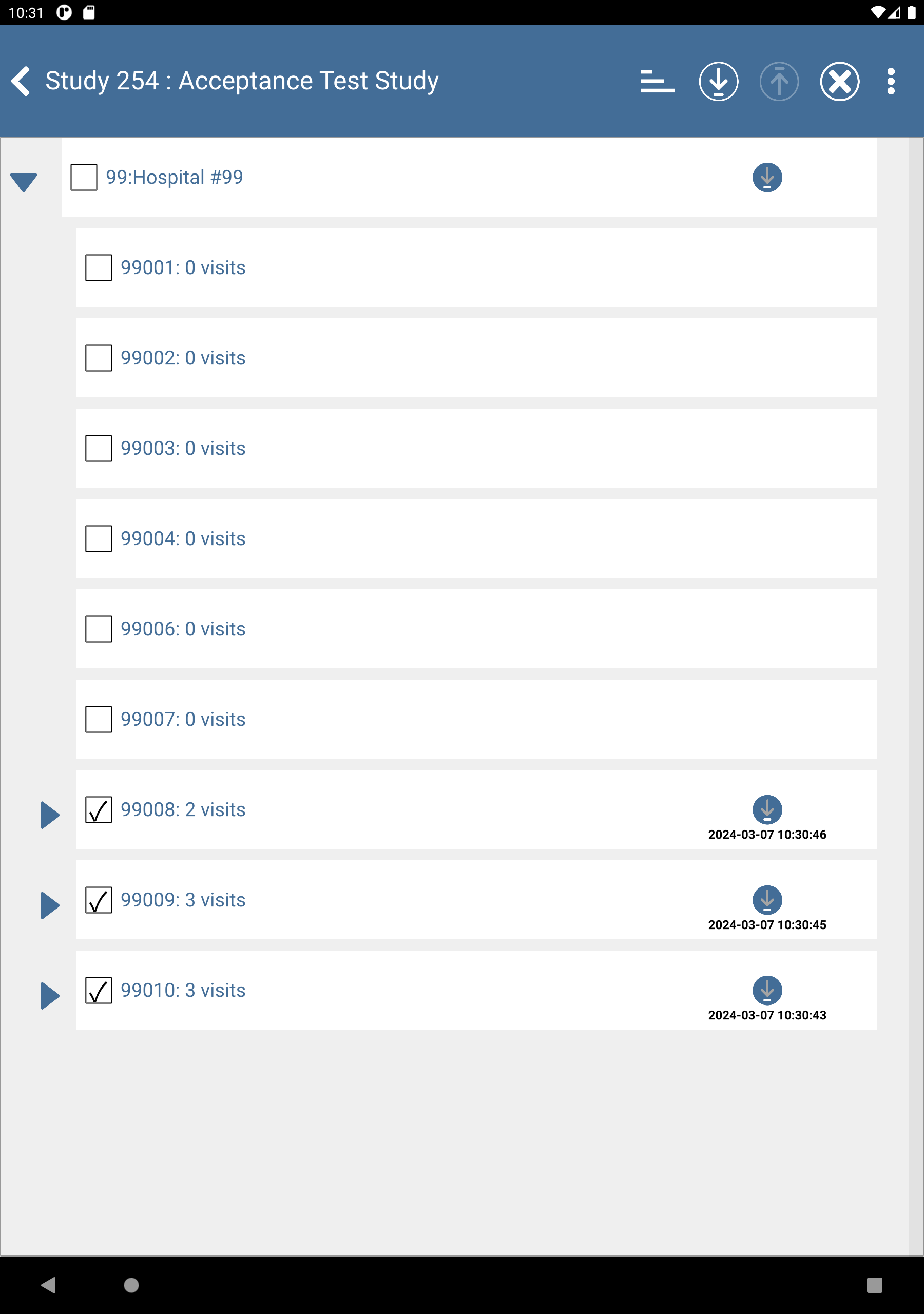
Click
 to upload the previously entered subject data. When the upload is complete, click to dismiss the Upload Progress window. The icon shows the date and time of successful upload.


-
Start DFexplore, login as
data_managerand choose 254 Acceptance Test Study as described in Section 1.7, “How to start DFexplore”. -
Select Site 99: Hospital #99 > subject 99009 > 0: Screening Visits > 1: Form 1. Verify and review the data uploaded is correct.
Age (years) = 68 with a resolved corrected query.
Race = 2 (african american) with a resolved corrected query.
-
Select > to close DFexplore.
| Note |
|---|---|
|
eSignatures require password permission to be set in the user role at the DFadmin level. The Password permission must be granted for the specific eSignature plate. |
-
In the DFcollect; login dialog, enter the DFdiscover Server name that has been provided by your administrator. Enter
site_investin the Username field and the previously assigned password in the Password field. Click to login. -
As user
site_investhas 2FA enabled, enter security code received by email as previously defined.Note Refer to Section 1.8, “Creating user accounts and assigning study permissions.” as a valid email address is required for
site_investto receive 2FA codes. -
From the Subjects list, click Subject 99011 > 30: Study Termination > 7: Form 7.
-
Click Patient Initials enter
SIG, Set:Final Visit Date =
03/06/221. Did patient complete the entire study? = No
Check (enable) Why? Moved away
Check (enable) 2. Last does of study medication: Unknown
Click
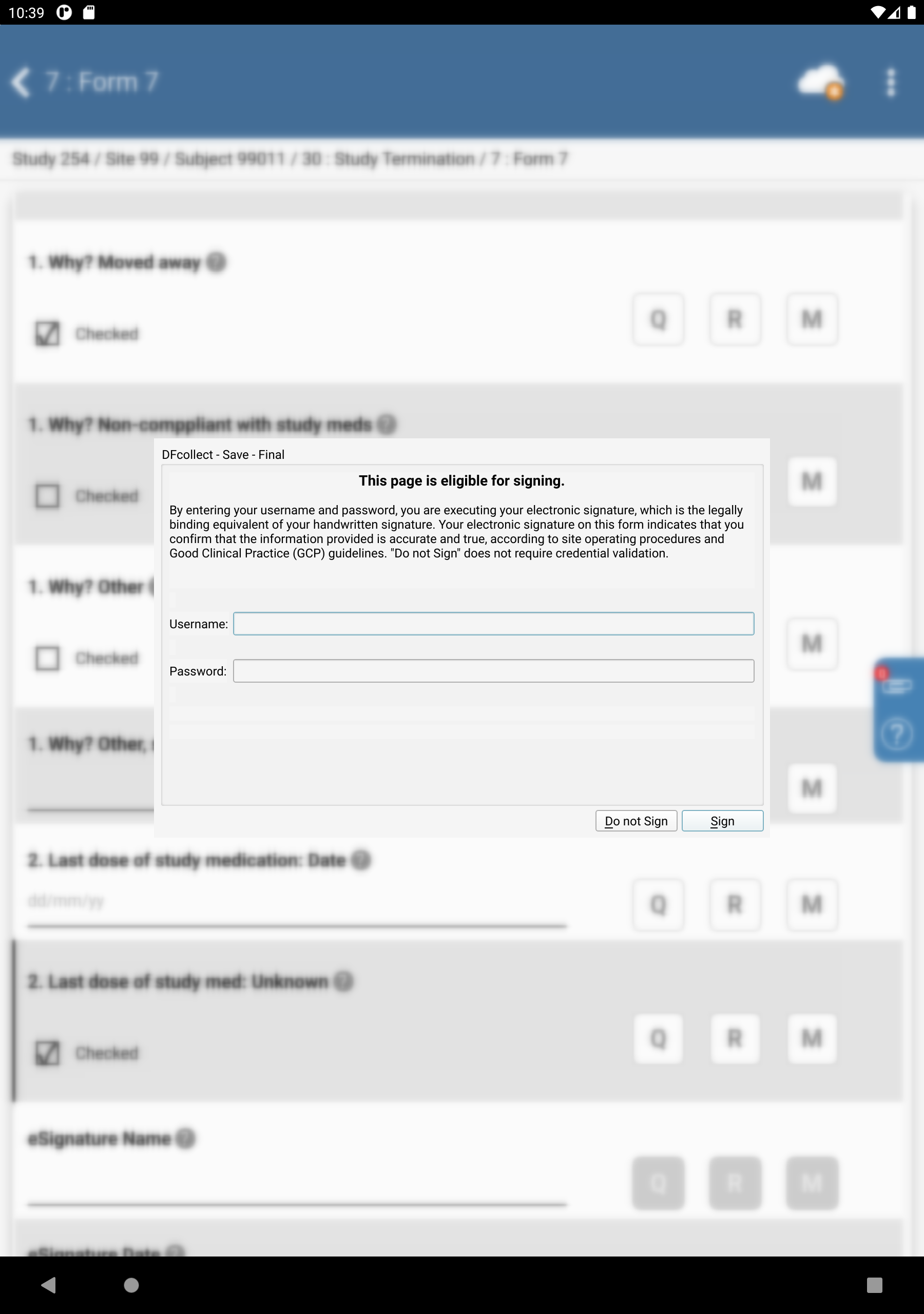
. to save and eSign the Study Termination form.
-
In the dfpassword confirmation dialog enter the user name
site_investand the corresponding password. Click to apply the electronic signature to the current page.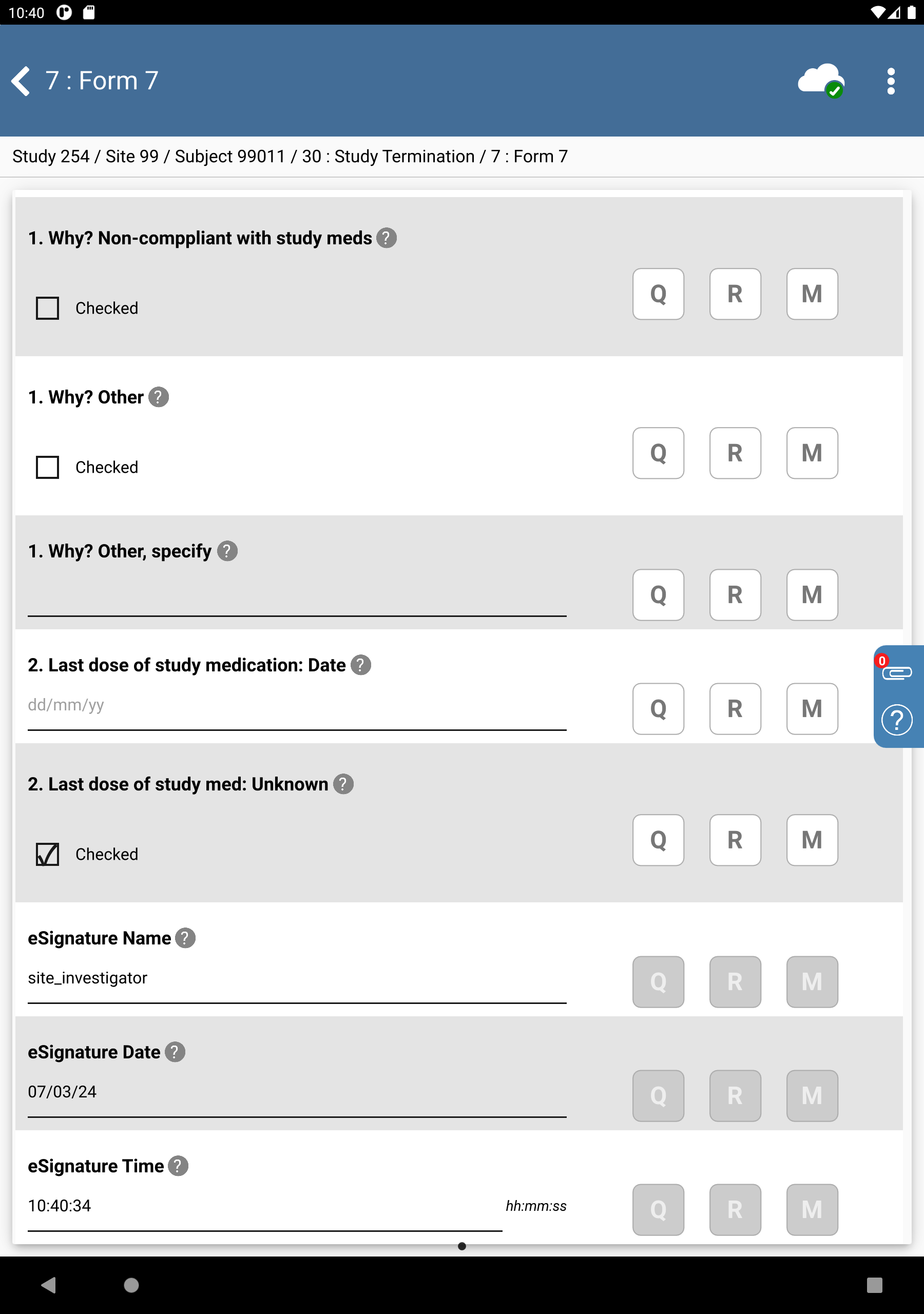
-
Examine the 3 eSignature fields at the bottom of the page.
-
Click
> to exit DFcollect.
-
In the DFcollect login dialog, enter the DFdiscover Server name that has been provided by your administrator. Enter
site_monitorin the Username field and the previously assigned password in the Password field. Click to login. -
From the Subjects list, click Subject 99011 > 30: Study Termination > 7: Form 7.
-
Click 2. Last dose of study medication: Date field. Click
 to open the Add Query dialog. In the dialog, set:
-
Category = Missing
-
Enter
Investigator to confirm last dose taken with subject during clinic visit.in the Note field. -
Click > to apply the query.
-
-
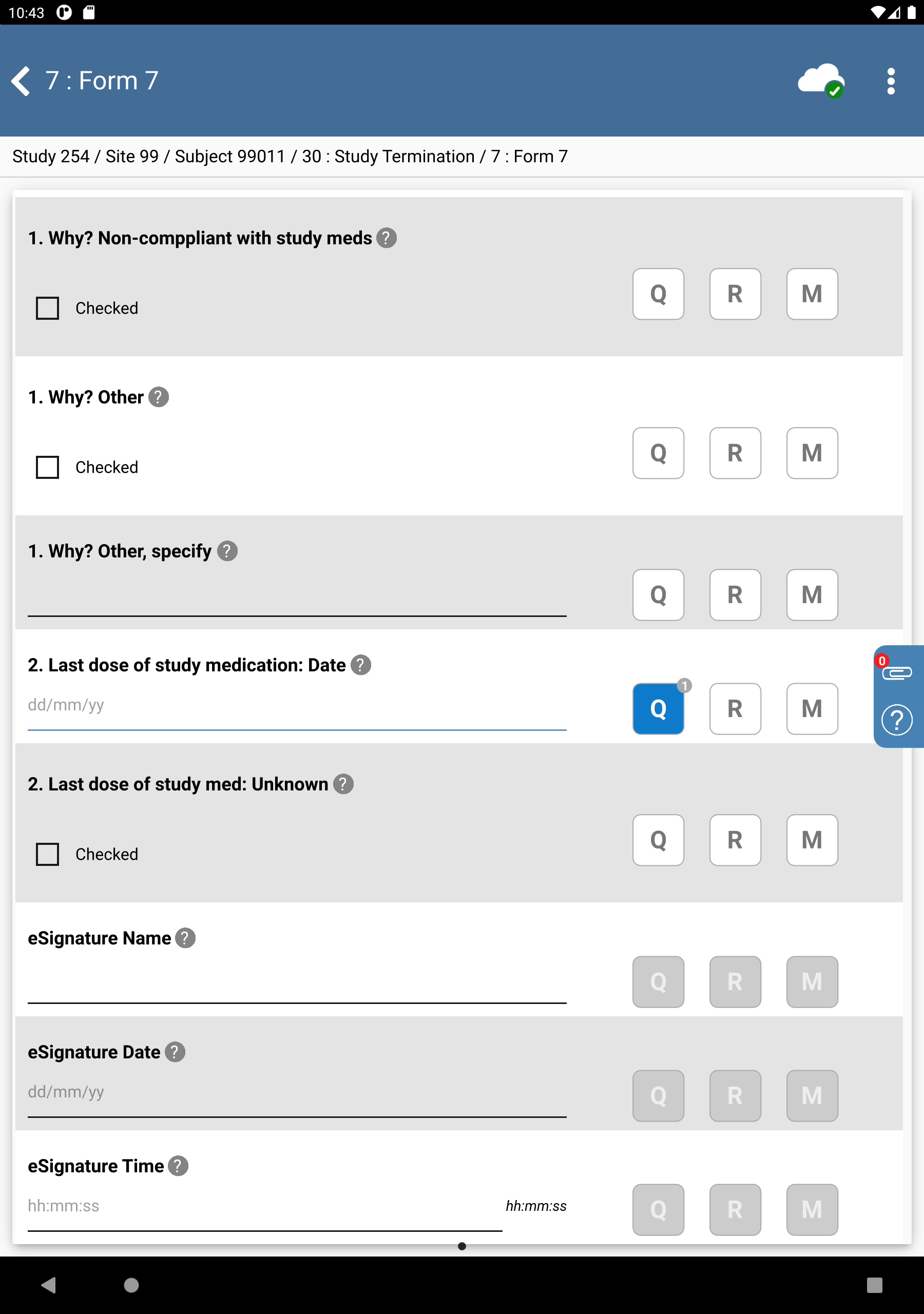
Press Tab to advance to the 2. Last dose of study med: Unknown field. Un-check (disable) the checkbox. Click
.
-
Click
> to exit DFcollect. -
In the DFcollect login dialog, enter the DFdiscover Server name that has been provided by your administrator. Enter
site_investin the Username field and the previously assigned password in the Password field. Click to login. -
Click
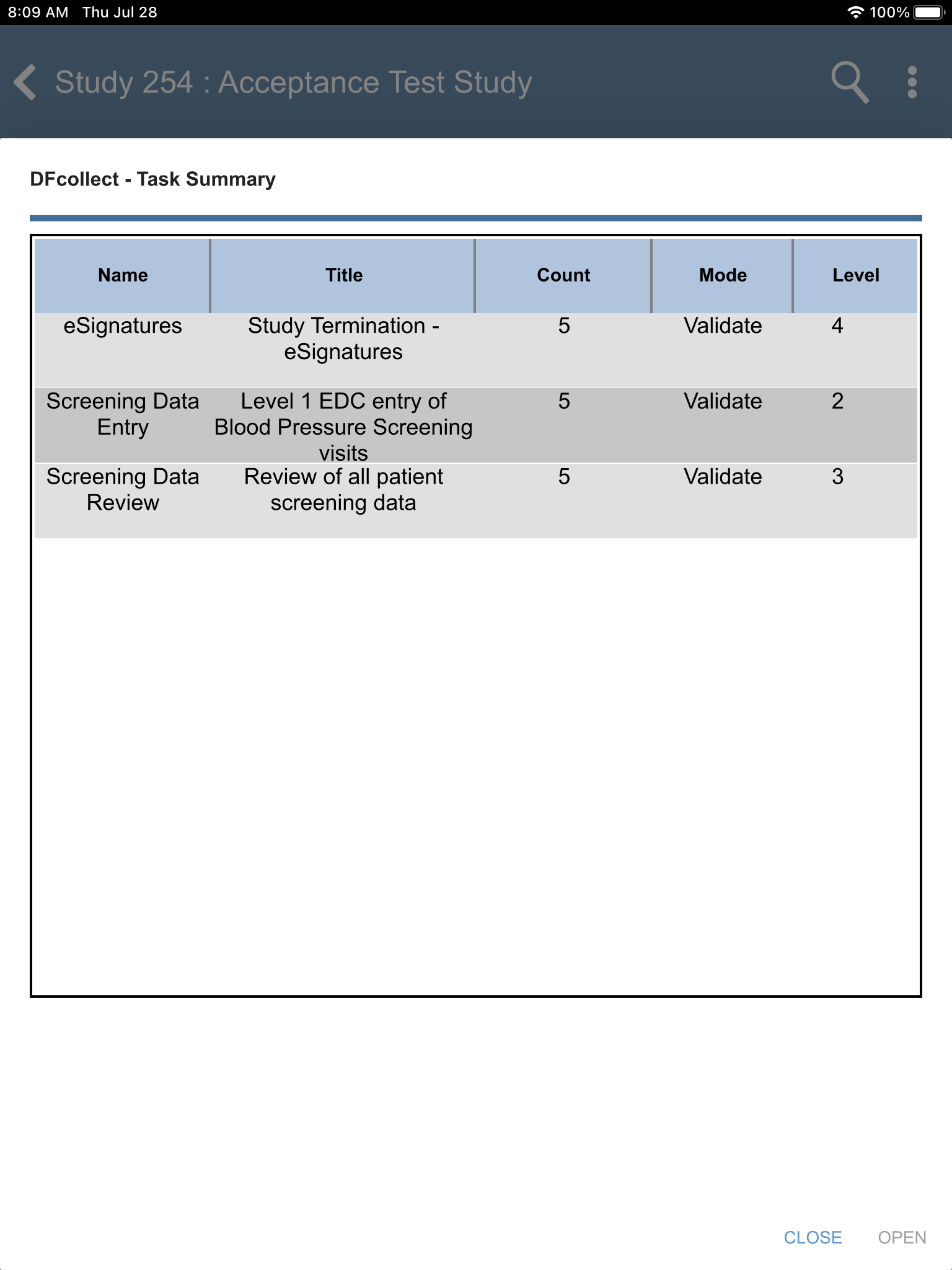
> .
-
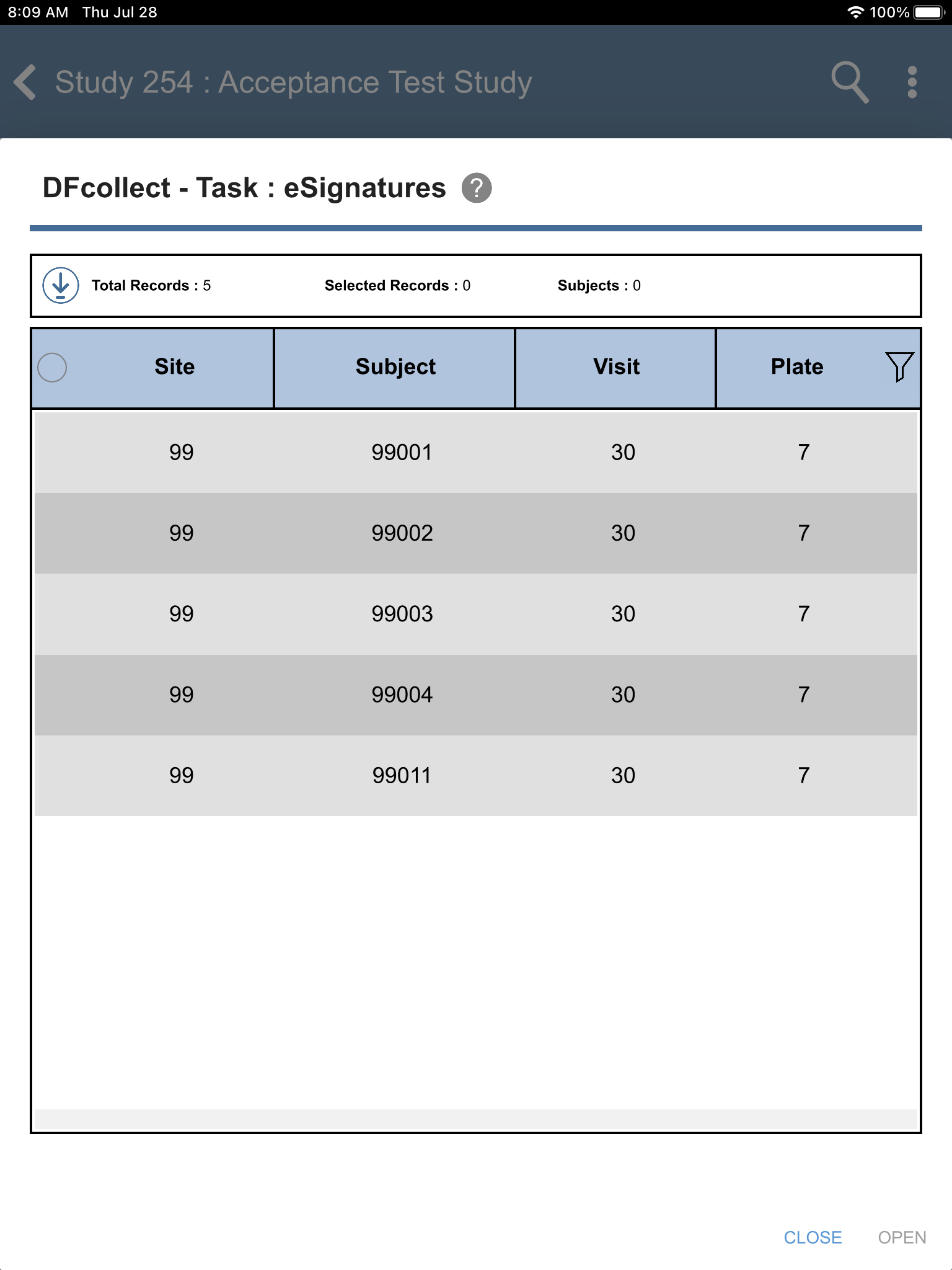
Locate the eSignatures - Study Termination - eSignatures task. Click .
-
From the Subjects list, select subject 99011 > 30: Study Termination > 7: Form 7. Click
-
Click the 2. Last dose of study medication: Date field. Click
 then
then  . Select Resolved from the Status drop-down list. Enter
 Confirmed date of last medication dose verbally with subject during clinic visit.in the Note field. Click , .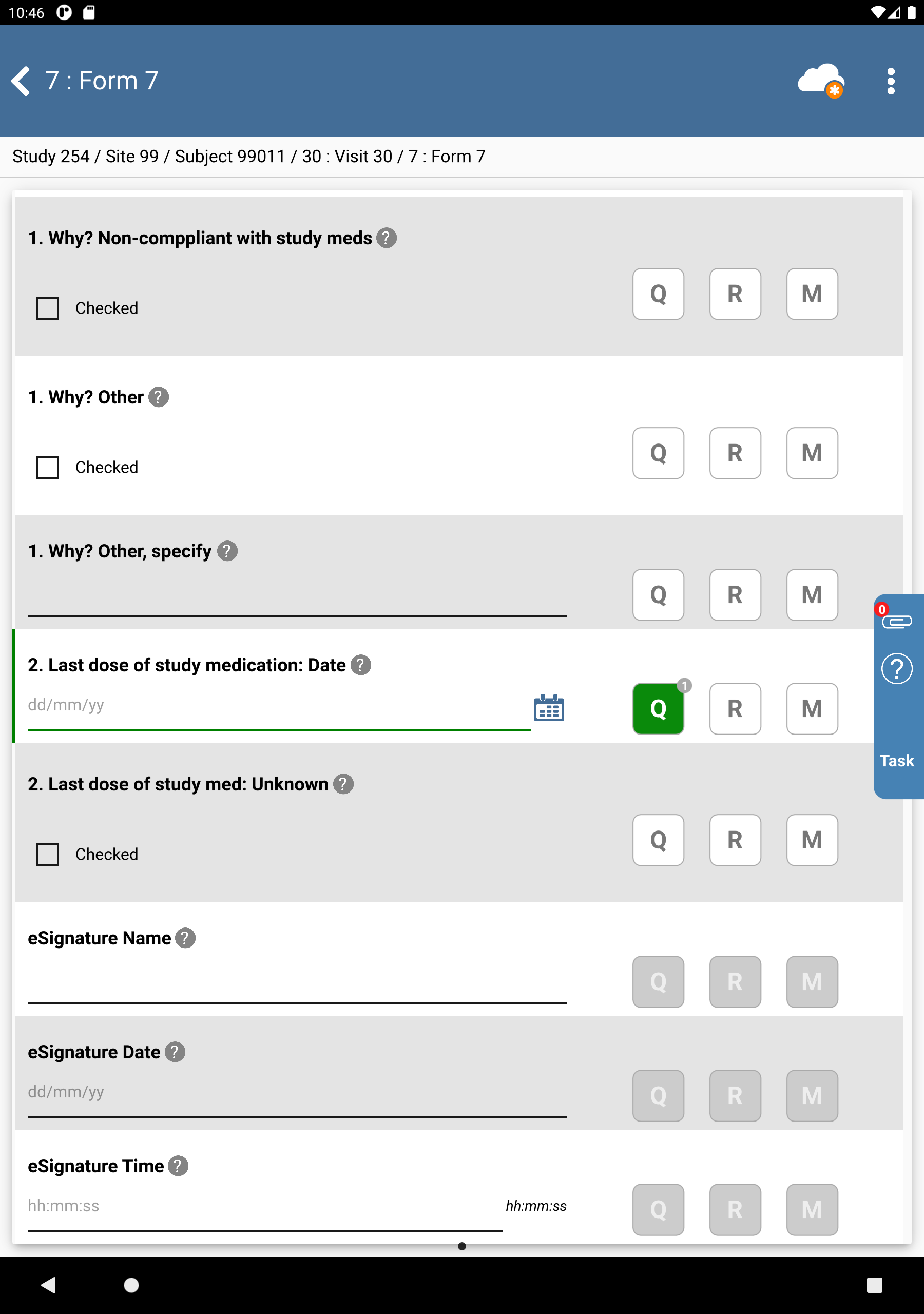
-
Enter the 2. Last dose of study medication: Date as
02/06/22. Click.
-
In the dfpassword confirmation dialog enter the user name
site_investand the corresponding password used for login in Section 13.6, “Add an Electronic Signature (eSign) to a set of completed subject records.”. Click to apply the electronic signature to the current page.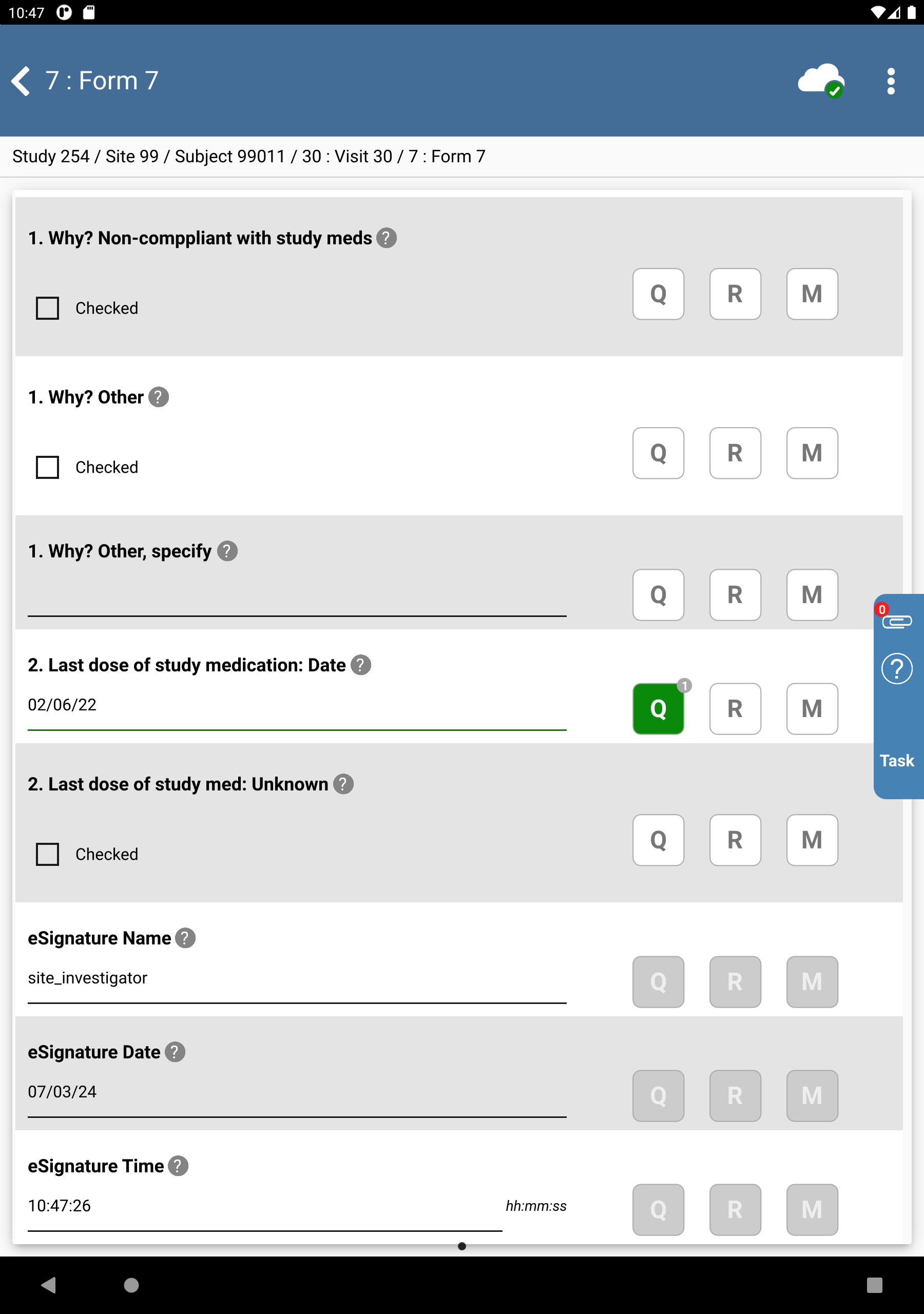
-
Examine the 3 eSignature fields at the bottom of the page.
-
Click
> to open the Page History window. The Page History is displayed, Click to close the window.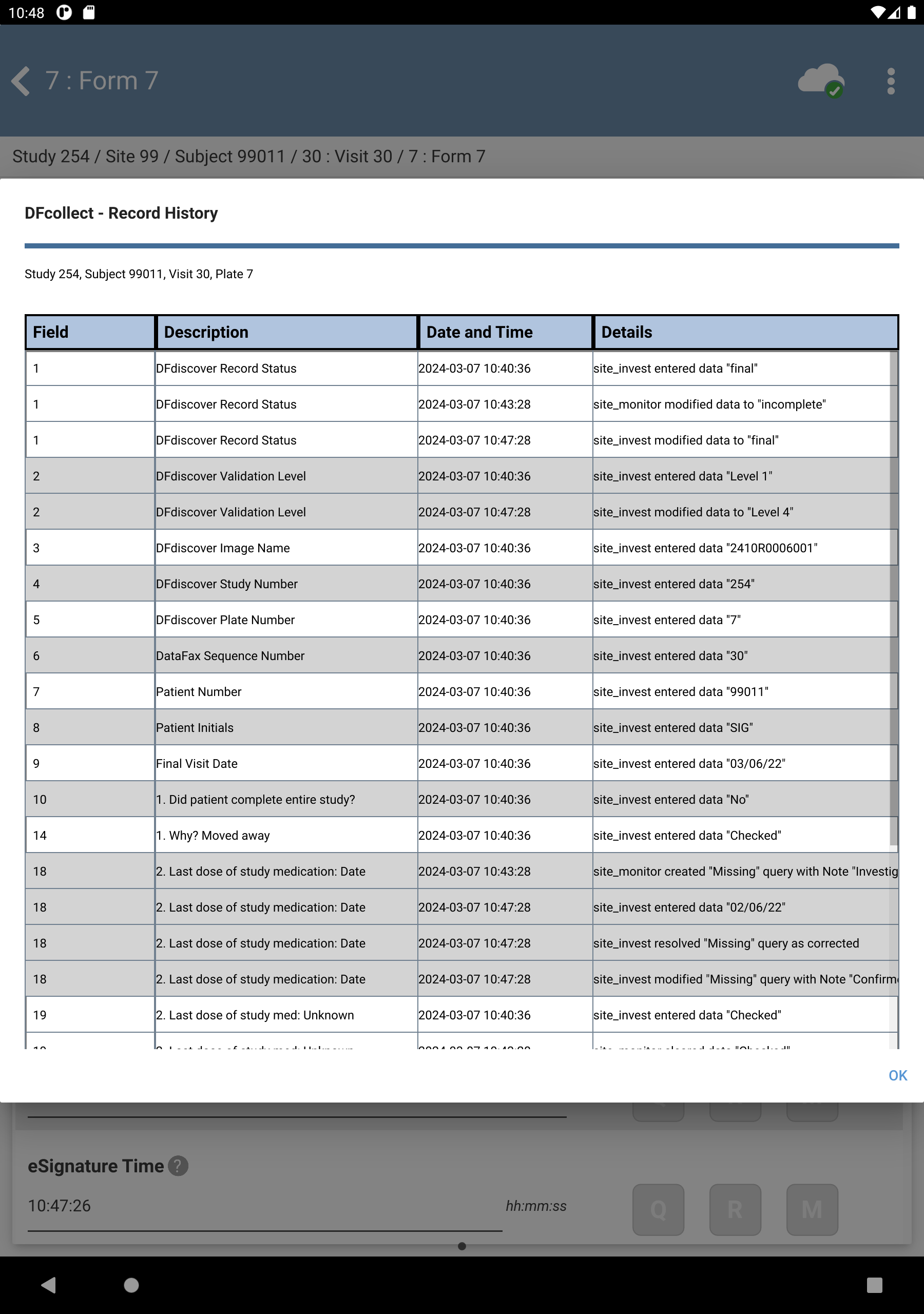
-
Click
> to exit DFcollect.
-
Start DFexplore, login as
data_managerand choose 254 Acceptance Test Study as described in Section 1.7, “How to start DFexplore”. -
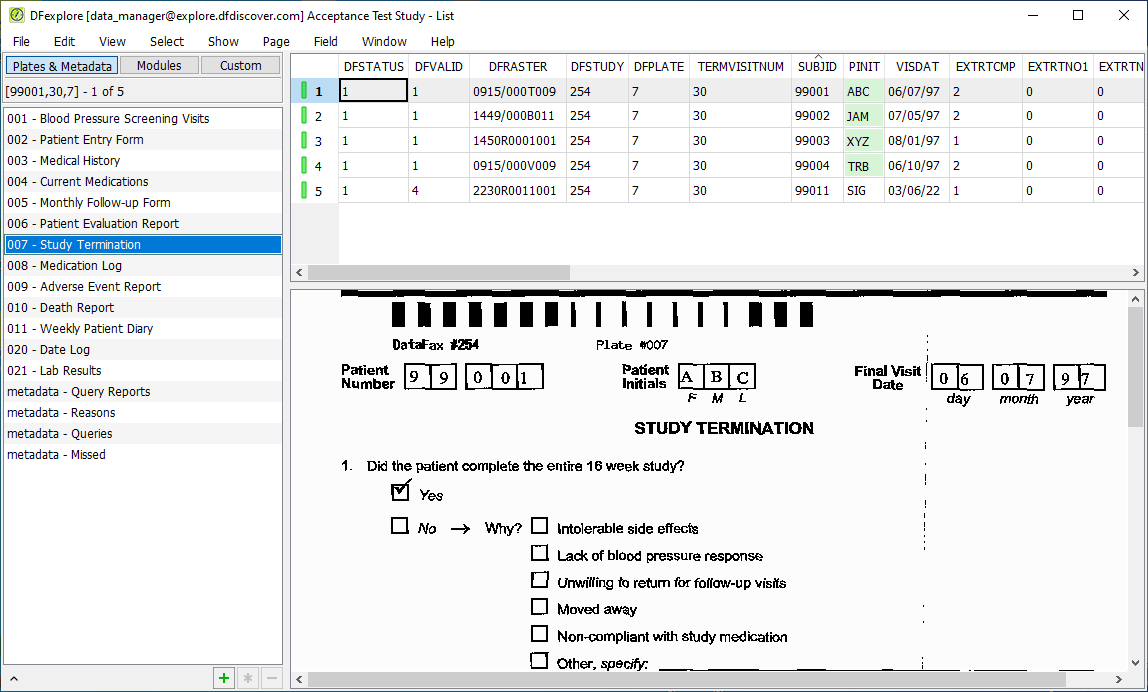
Select > . Click 007 - Study Termination. Confirm DFVALID displays as "4" for subject 99011.
-
Select > to close DFexplore.