Table of Contents
This chapter describes the functions located under the menu.
While choices made in > are study specific, saved on the DFdiscover study server, and apply to all users regardless of what computer they use to run DFsetup, choices made in > are user specific, saved on the computer from which DFsetup is run, and apply to all studies that the user can access. These user preferences can be changed at any time.
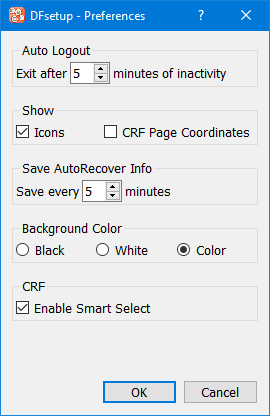
In this example:
DFsetup exits after 5 minutes of inactivity.
Field type icons are displayed in style, filed, module and plate lists.
A recovery (auto save) file containing any unsaved changes is created every 5 minutes.
The CRF backgrounds appear in their original color.
Smart Select accelerates field definition by automatically selecting horizontally adjacent CRF boxes when any single CRF box is selected.
Auto Logout. For security, DFsetup includes an auto logout feature that terminates the DFdiscover server connection after a specified period of inactivity. Values between 1 and 60 minutes may be selected.
If a DFsetup session does auto logout a dialog that allows the user to re-connect easily is presented.
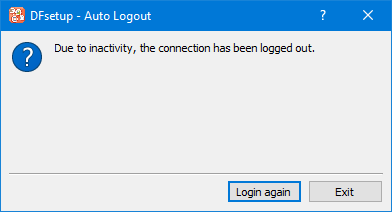
To login again the user must re-enter their password for the DFdiscover server and then reselect the study.
Show/Hide. Data type icons and CRF coordinates can be independently displayed or hidden. Their visibility has no impact on the study setup - they are provided only as optional guides.
Save AutoRecover Info. Under normal circumstances, selecting > sends all changes to style and field definitions, plate properties and global settings to the DFdiscover study server. It is wise to save work frequently to avoid losing setup modifications because of an auto logout, a dropped internet connection, a power failure, or a computer system crash.
For additional protection, DFsetup does, at the specified time interval, create an auto save file for the current study setup, edit checks and lookup tables, in a temporary directory on the local computer. The auto save file is created and updated whenever there are changes that have not yet been saved to the study server. An auto save file is also created, if there are any unsaved changes, immediately before an auto logout. The auto save file is removed when a > is successfully completed.
If the computer you use to run DFsetup has an auto save file for the specific study, then regardless of who created it, DFsetup compares the auto save file with the version of the study setup saved on the server. If the version saved on the server is newer than the auto save version, a warning message is displayed and the auto save file is removed.
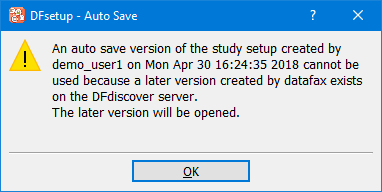
This warning appears if an auto save version exists but is out of date.
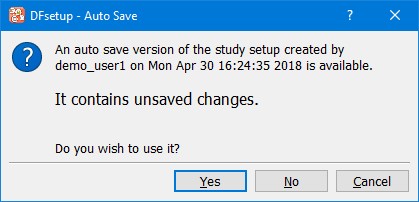
If the auto save version of the study setup is more recent than the version saved on the study server a dialog appears allowing the user to choose which version should be used.
If is selected the study setup is loaded from the local auto save file. Remember to choose > to commit the changes back to the server. At that time the auto save file is also removed.
If is selected the study setup is loaded from the study server and the auto save file is removed.
If is selected login to the study is aborted and the auto save file remains in place.
![[Warning]](../../imagedata/warning.png) | Warning |
|---|---|
|
The auto save mechanism preserves modifications to style and field properties, plate
options and global settings, all of which are stored in files |
If an auto save version of an edit check source file exists on the local computer, an auto save file recovery notification appears and the file is recovered as a new unsaved file. This notification appears when the edit checks view is opened. The recovered file can be renamed, saved or deleted. Renaming the file follows standard file naming restrictions. Since the default behavior is to prevent renamed files from overwriting existing files, to complete recovery of an edit checks file:
Open the recovery file and review the contents. Confirm that the unsaved changes are present.
Select the full contents of the file in the editor dialog. Copy the contents.
Close the recovery file.
Open the original file.
Paste the copy contents in the original file, replacing the file contents.
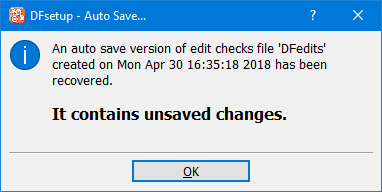
This notification appears if an auto save version of an edit check file exists.
If an auto save version of a lookup table file exists on the local computer, an auto save file recovery notification appears and the file is recovered as a new unsaved file. This notification appears when the lookup table editor is opened. The recovered file can be renamed, saved or deleted. Renaming the file follows standard file naming restrictions.
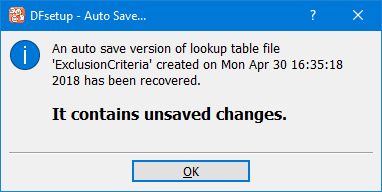
This notification appears if an auto save version of a lookup table file exists.
| Auto save is local |
|---|---|
|
The auto save file recovery notification for edit checks and lookup tables is only triggered when the respective views are opened on the computer that has the local auto save files. |
Background Color. Imported CRFs are displayed as backgrounds on which the data field definitions are created. The background color attribute can be changed with this preference.
CRF. Enabling Smart Select allows the user to select multiple CRF boxes with a single click if they are horizontally adjacent. When any such box is selected, all adjacent boxes are automatically selected and ordered from left-to-right to ensure proper layout and ICR.
Two DFdiscover studies may be linked with one defined as the development study and the other as the production study. When a link is created the production study setup is locked and cannot be changed except by published changes from the development study. This allows the development study to be used to make and test setup changes before implementing them in the production study.
Because it is very restrictive Developer access mode should only be used to perform the functions listed under the > menu item (described below), and all changes to the development study should be made using Exclusive, Normal or Configuration access modes.
To perform the functions available from the > menu in Developer access mode users must be a DFdiscover administrator or study administrator for the current study and have at least 'Setup-Plates' permission for both the development and production studies.
The > actions include:
This option is typically used when setup and testing has been completed for a new study and you are ready to publish the setup to the DFdiscover study (the "production" study) that is used to run the study.
Before selecting this function the new production study must be created in DFadmin and have at least one role.
Candidate studies are displayed in a selection list.
Only new study databases (i.e.
DFsetupnot yet defined) for which the user has 'Setup-Plates' permission appear in the list of candidate studies.When a study is selected all setup components are copied from the current study to the selected production study.
No data files, roles or users are copied - just the setup.
The setup for the production study becomes locked and is available in DFsetup view mode only.
The current study becomes linked as a development study for the selected production study, and all DFsetup access modes remain available.
This option is typically used when you need to perform setup changes and testing for a study that is already in production, where the changes are extensive enough that it would be unwise or impossible to make them directly to the production study setup.
Before selecting this function the new development study must be created in DFadmin and have at least one role.
Candidate studies are displayed in a selection list.
Only new study databases (i.e.
DFsetupnot yet defined) for which the user has 'Setup-Plates' permission appear in the list of candidate studies.When a study is selected all setup components are copied from the current study to the selected development study.
No data files, roles or users are copied - just the setup.
The setup for the development study remains unlocked and all DFsetup access modes remain available.
The current study becomes linked as a production study for the selected development study, and its setup becomes locked. The user must thus logout of DFsetup and can subsequently only login using View mode.
This option can be used to see the differences between the current development and production study setups. Only plate level changes are displayed, including changes to custom level labels and style and field properties. Changes to configuration files are not currently displayed.
When this option is selected a dialog appears listing the changes. The results can be printed or saved to a file.
This option is used to copy all or selected setup files from the development study to the production study, including: 'Plate and Field Definitions', 'CRF images' (data entry backgrounds), custom level labels, and each of the configuration files. Publishing can only be successful if both the development and production studies have the same DFdiscover version of the study setup.
Non-setup components (such as Study reports, Data view tasks, List view) can be selected separately and are not included in the action.
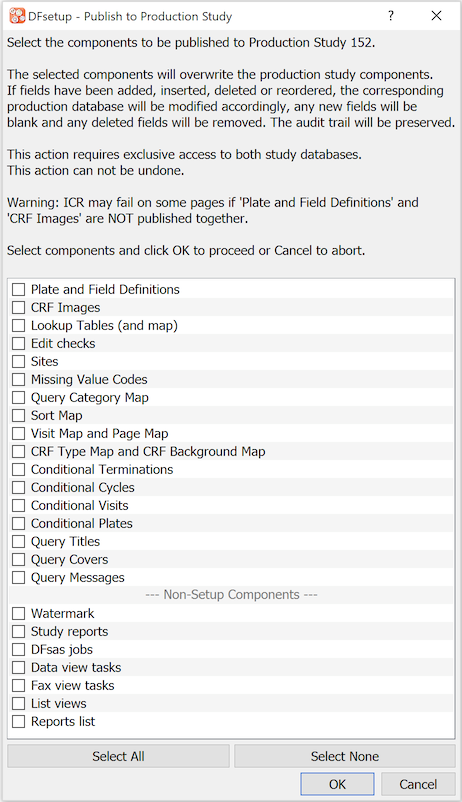
Warning CRF images and Plate and Field Definitions should always be published together. Publishing one without the other may result in inconsistencies between data entry backgrounds and their corresponding data entry fields.
Users require 'Setup-Plates' permission on the production study to publish 'Plate and Field Definitions' or 'CRF images', and require permission for each of the configuration files to be published.
When publishing the CRF background images any extraneous files that exist in the production study
bkgddirectory are removed. This ensures that any backgrounds previously tagged by visit number do not continue to be used by DFexplore if visit tagging is dropped in the development study.When publishing changes the files to be replaced in the production study must be owned by
datafax. Problems may be reported for directoryecbinwhich contains scripts that can only be created by a UNIX login account. Files in this directory owned bydatafaxare published, but any files in the production study owned by other users cannot be replaced bydatafaxand thus must be managed manually.If 'Plate and Field Definitions' are published and they include critical changes to any of the existing study plates (i.e. new, deleted or reorder data fields), the affected database files are automatically restructured on the production study. This is triggered when the study server determines that a new
DFschemafile has been created that includes critical changes. Any new fields are added to existing data records as blank fields, any deleted data fields are removed, and reordering of data fields occurs if needed to make the final data record structure agree with the specifications for each plate in the revised study setup.Because database restructuring is required users must have exclusive access to the production study when publishing plate and field definitions that contain critical changes.
If database restructuring is required remember to review and correct any edit checks, custom programs, DFsas jobs, and DFexplore tasks, views and report lists that may be affected, as these changes cannot be automated.
This option can be used to discard all setup changes to the development study and return it to the current production study setup. Both the development and production studies must have the same DFdiscover version of the study setup to perform this operation.
This cannot be undone.
This option breaks the link between a pair of development-production studies.
When the link is broken the 2 studies become regular standalone DFdiscover studies.
Once broken the link cannot be re-established because a link can only be created to a new study (i.e. one without an existing
DFsetupfile).However, a new development study can be easily created when needed for any production study using > . It can then be used to make, test and publish setup changes, and can be discarded by breaking the link and deleting it in DFadmin when it is no longer needed.
The following study setup documentation can be printed.
Annotated CRFs - prints the CRF image for all or specified plates and annotates each data field with the field number and name. If the name is longer than the bounding box for the field, checking Entire field name includes the full name without truncating it at the bounding box.
Plate Field Properties - prints field properties for all or specified plates. Prints either a compact report containing just those properties defined at the field level, or a longer report containing all field properties, whether defined at field, module or style levels.
Module Properties - prints field properties for all or specified modules. Prints either a compact report containing just those properties defined at the module level, or a longer report containing all field properties, whether defined at module or style levels.
Style Properties - lists the field properties that are locked in each style.
The following study setup documentation can be saved as a PDF file.
Annotated CRFs - saves the CRF image for all or specified plates and annotates each data field with the field number and name. If the name is longer than the bounding box for the field, checking Entire field name includes the full name without truncating it at the bounding box.
Plate Field Properties - saves field properties for all or specified plates. Saves either a compact report containing just those properties defined at the field level, or a longer report containing all field properties, whether defined at field, module or style levels.
Module Properties - saves field properties for all or specified modules. Saves either a compact report containing just those properties defined at the module level, or a longer report containing all field properties, whether defined at module or style levels.
Style Properties - saves the field properties that are locked in each style.
The DFsetup title bar displays '[Save Required]'
if there are changes to the definition of styles, data fields,
plate options or global settings, which
have not yet been saved on the DFdiscover server.
Selecting >
immediately rewrites these files:
DFsetup and DFfile_map (used by DFexplore),
DFschema and (used by reports),
DFtips (used by the ICR software) and the background images used by DFexplore
(if any field widgets have been moved to new locations).
Modifications to the other setup components (configuration files such as sites, visit map, edit checks, etc.) are saved separately within their individual dialogs.
If > is selected and there are unsaved changes in any open plates, styles, fields, edit checks, etc. dialog windows, a message dialog appears with options to save or discard the changes in any or all of the open windows by selecting/de-selecting the desired components from the list of unsaved changes.
Typically modifications to a study in progress are only made after putting the study into restricted access mode and waiting for all users to logout. If changes are saved without doing this, setup changes are immediately available to users who connect to the study server after the save has completed, and users who are already connected to the study continue to see the previous data entry screens, field definitions, edit checks, etc. with one exception: any reports run in Reports View use the updated schema files.
| Warning |
|---|---|
|
Before saving changes to a study that is in progress make sure you have read and understood the warnings and procedures described in Modifying Plates that Contain Data. |
Use this option to export study setup (Plates, Modules, Fields and Styles properties) in Excel, XML or JSON format. An option is available for exporting study setup in XML format without modules (to keep legacy XML output style offered in previous versions).
The study setup can be exported to an Excel workbook. The workbook contains a worksheet for the field definitions in every plate, plus all of the additional configuration information such as the visit map, edit checks and the sites definitions. Inclusion of each worksheet is optional and is specified in the dialog for defining Excel exports.
Select > to display the dialog for defining Excel exports.
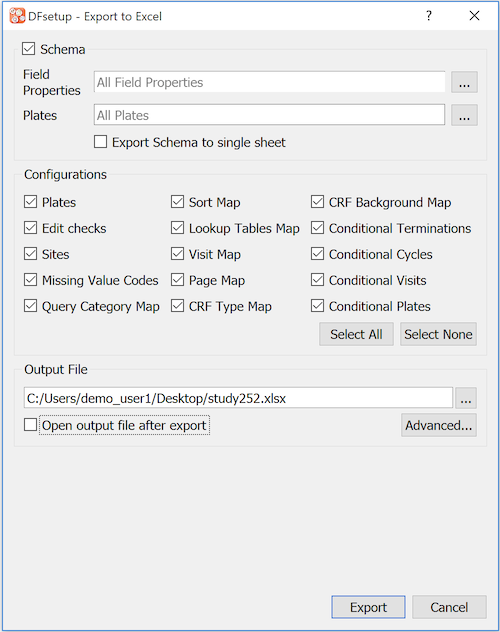
An export definition has three main sections:
Schema. Indicate which field properties and plates are exported. By default, each plate definition is written to a separate worksheet. Select Export Schema to single sheet to override this default and write all of the plate definitions to a single worksheet. All field properties can be included, or a subset can be chosen from the sub-dialog available when clicking .
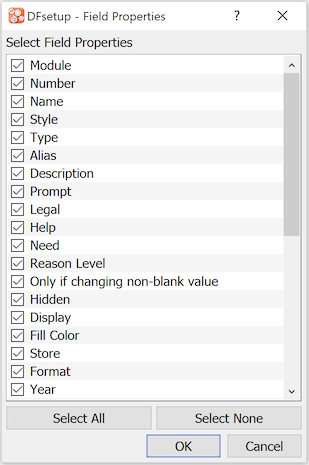
Similarly, all plates can be included, or a subset chosen from the sub-dialog, or by entering a single plate number, list of plate numbers or range of plate numbers.
Configurations. Many of the specifications defined in the menu dialogs can be exported. Check the desired specifications to be included. Each is written to a separate worksheet in the workbook.
Output File. The Excel workbook is written to the specified output file. Check Open Output File after export to start Excel after the output file has been created and display the workbook.
The Excel export function includes definition of basic Excel formatting specifications. Click to display the Excel Export Style dialog.
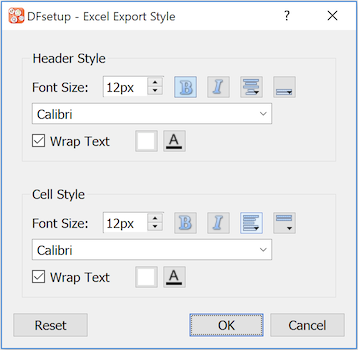
Settings in the dialog allow customization of format for the header and body cells of each worksheet.
Select > to run the standard DFdiscover reports that check the current study setup specifications. The results appear in a dialog which shows any warning or error messages for field and style properties, visit scheduling specifications entered in the visit and conditional maps, and clinical site specifications entered in the sites dialog.
NOTE: the setup verification reports check the setup files stored on the DFdiscover server. They do not have access to any pending changes that have not yet been saved.
Use this option to review changes you have made but not yet saved to plate, style and field definitions. This option does not include any unsaved changes in configuration files: DFedits, Visit Map, etc.
A new study session can be started without terminating the current one. This can be useful when comparing setup specifications for different studies.
This option closes the current study and returns to the study selection dialog where another study could be selected. If there are unsaved changes in the current study a warning dialog appears with options to save or discard the changes, or cancel the close request.