Table of Contents
Estimate of Time Required: 20 Minutes
This module utilizes Electronic case report forms (eCRFs) which you will create using DFsetup without a PostScript® or PDF file. eCRFs do not contain barcodes and are therefore only suitable for entry via EDC.
-
Start DFATK as described in Module 1 (Installation & Initialization).
-
Click followed by to begin this module.
-
This module requires user
data_managerto have exclusive access to the 254 Acceptance Test Study database. The Control Panel must be closed. Click .
-
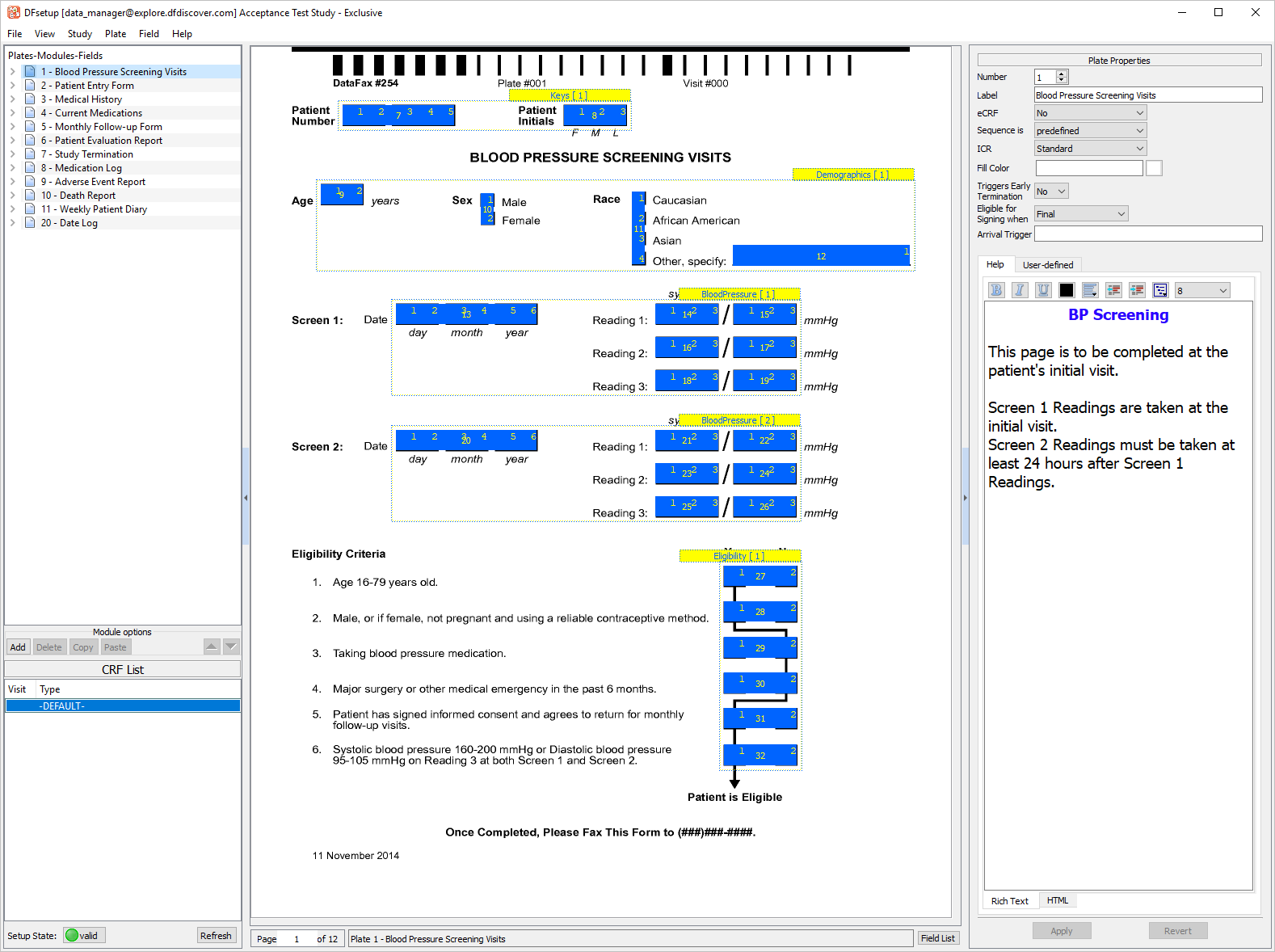
Start DFsetup, login as user
data_managerand choose 254 Acceptance Test Study as described in Section 1.8, “How to start DFsetup”. Choose Exclusive Access and click . Exclusive Access allows you to create and modify plates, styles and fields, and to define all setup configuration files.
![[Note]](../../imagedata/note.png)
Note The main DFsetup window displays the last plate to be active in the user's previous DFsetup session. For this reason, you may see a different plate from what is displayed in the above illustration.
-
Select > . In the Add eCRF Plate dialog enter a New Plate Number of 21. Click .

In the Plate Properties set:
Label =
Lab ResultseCRF = Yes
Sequence is = predefined
Triggers Early Termination = No
Eligible for Signing When = Final
Click .

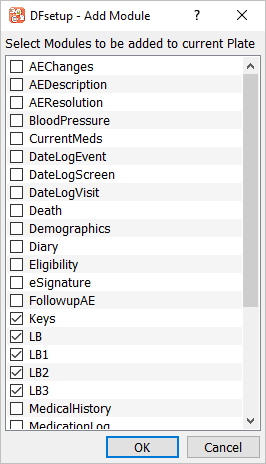
Within Plates-Modules-Fields Module options Click . Check Keys, LB, LB1, LB2, LB3 modules, click .
-
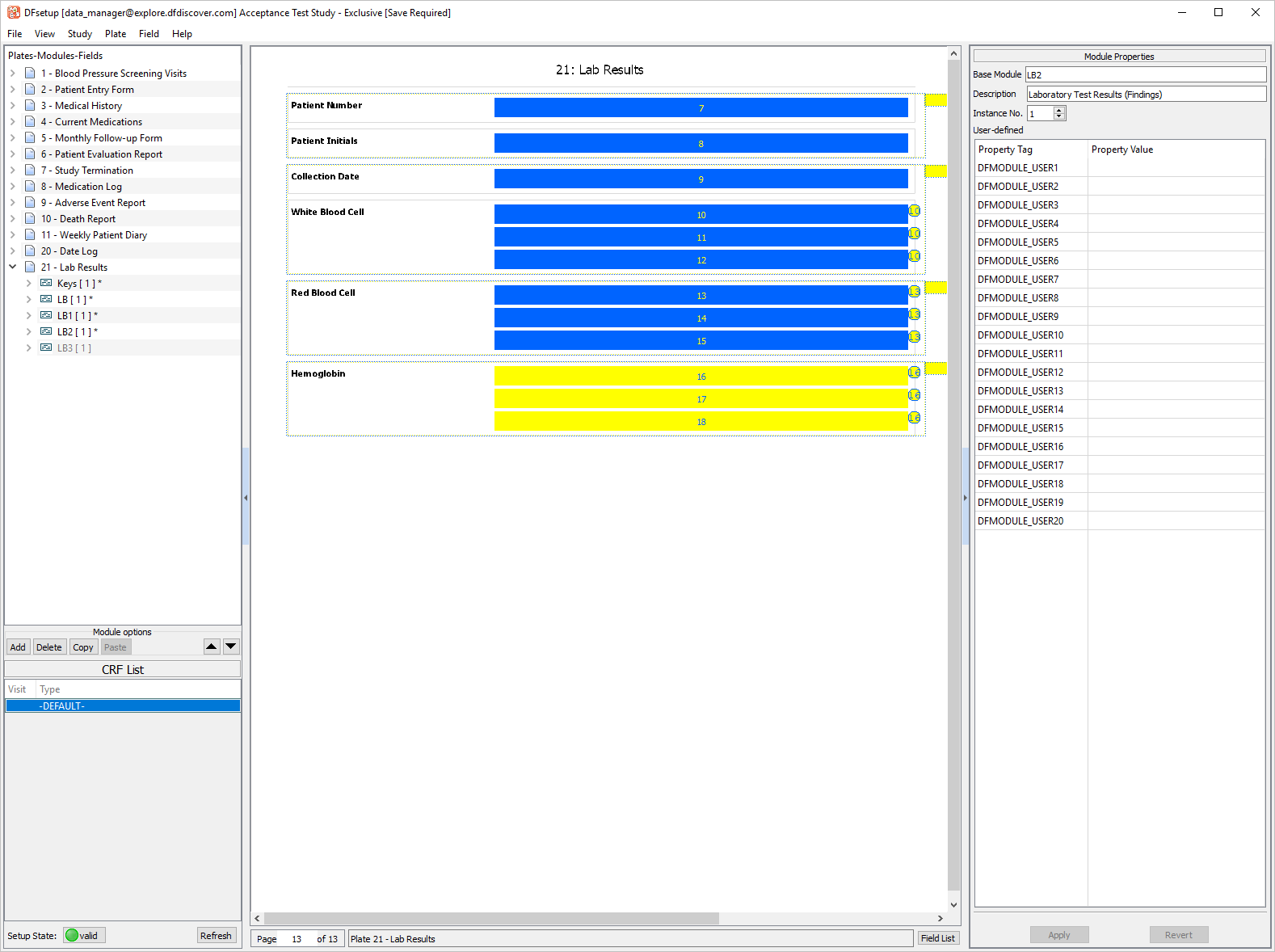
Double-click the Keys [1] module to expand the list of fields. Using your mouse, click and drag the SUBJID and PINIT fields onto the 21: Lab Results eCRF.

-
Click LB [1] Module, drag the module onto the eCRF, select LBORRES_n, LBNRIND and LBCLSIG_c fields by holding Shift and clicking on the fields. Select > .

-
Click LB1 [1] Module, drag the module onto the eCRF. Select > .

-
Click LB2 [1] Module, drag the module onto the eCRF. Select > .
-
Click LB3 [1] Module, drag the module onto the eCRF. Select > .
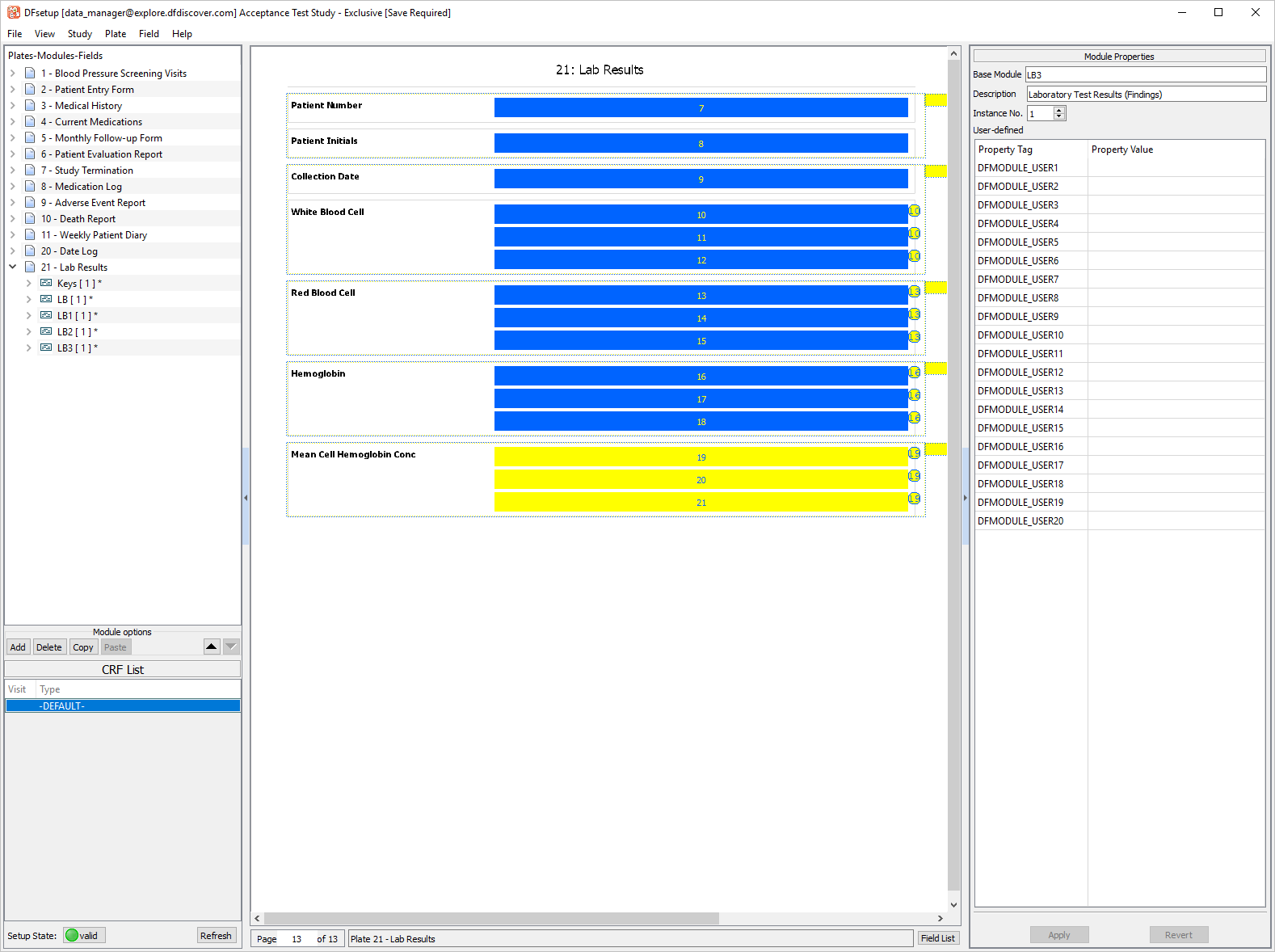
-
Select > .
-
Select > to close DFsetup.
-
Start DFexplore, login as user
site_monitorand choose 254 Acceptance Test Study as described in Section 1.7, “How to start DFexplore”. -
Click Site 99 - Hospital #99 > Subject 99008 > 1: Baseline > 21: Lab Results to make it the active page.
Note DFexplore stores previously defined user preferences. If
site_monitorpreviously used DFexplore and modified user preferences, you may see a different background than what is illustrated below.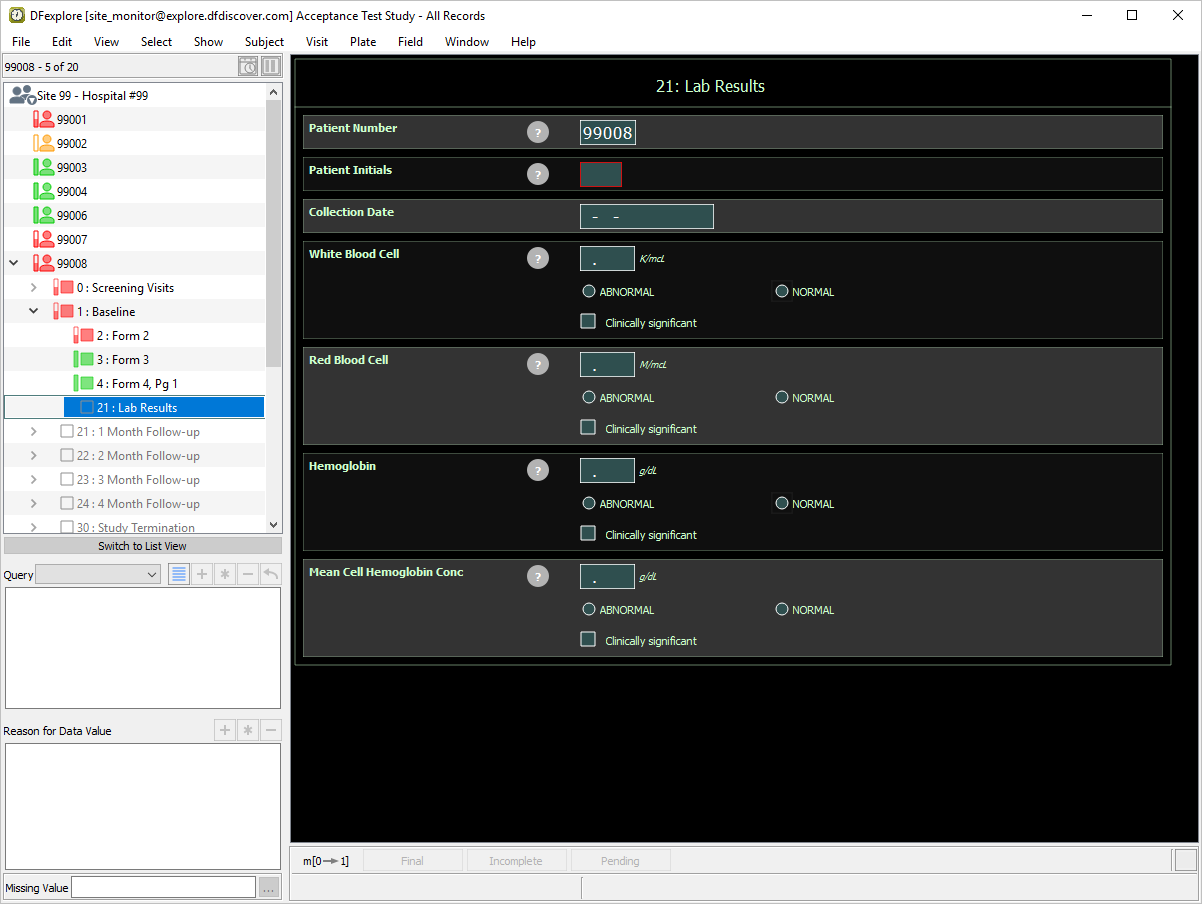
-
Select > , click Background Options to expand the preferences. Click Color then to apply the changes.

-
Select > > Data Window, within eCRF background color, click
 to open the Select Color window.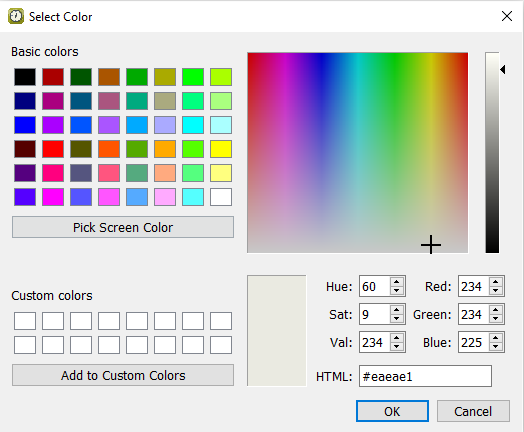
-
Enter HTML:
#66EEEE.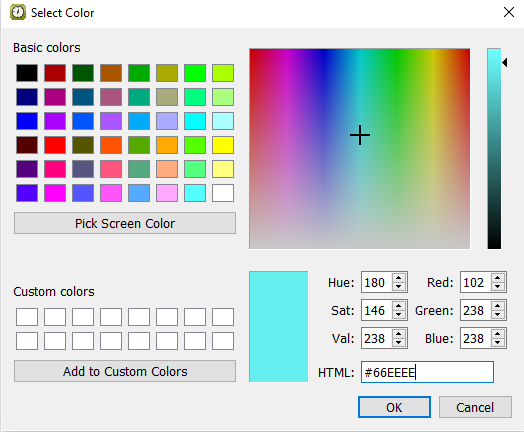
-
Click to close the Select Color window, click to apply your color preferences.
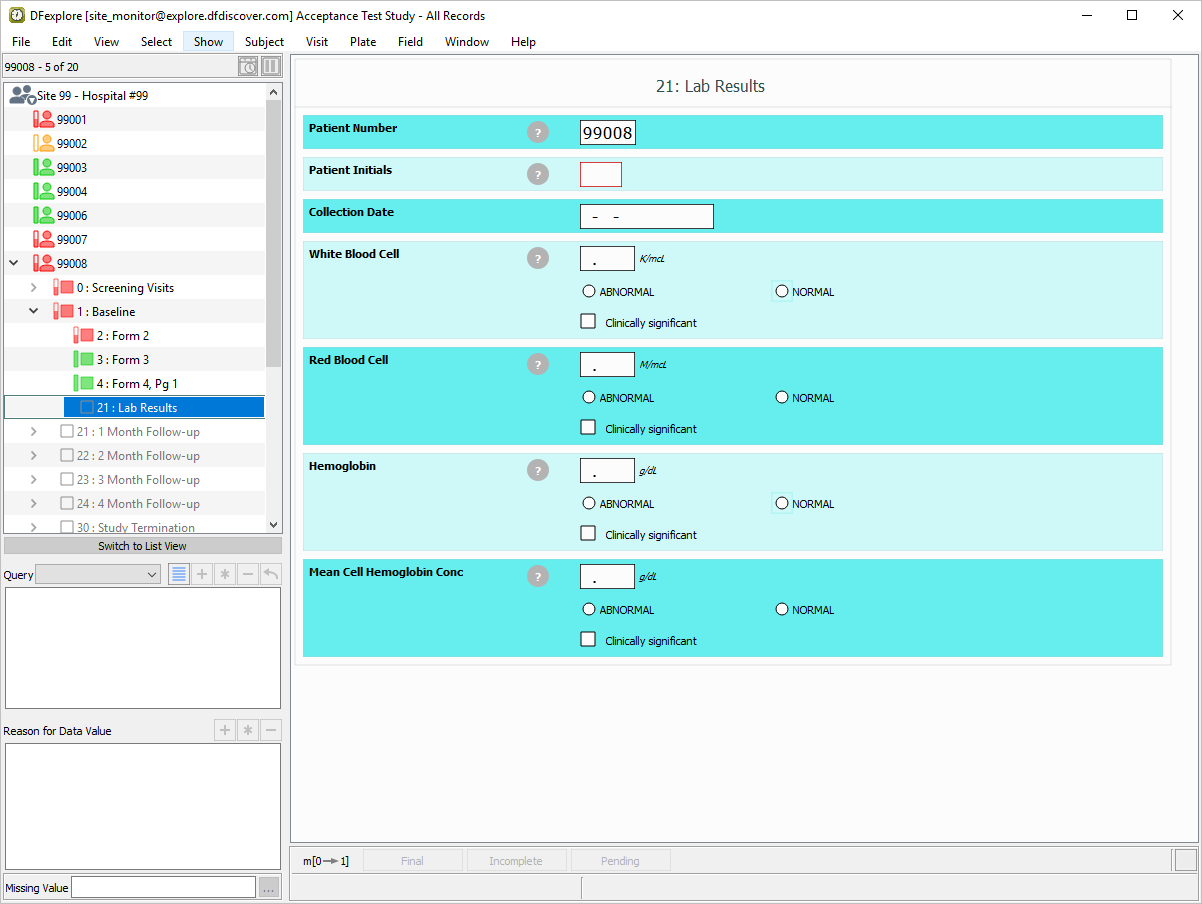
-
Click
 within the Patient Initials field to display the field level help. Click
  to close the help dialog.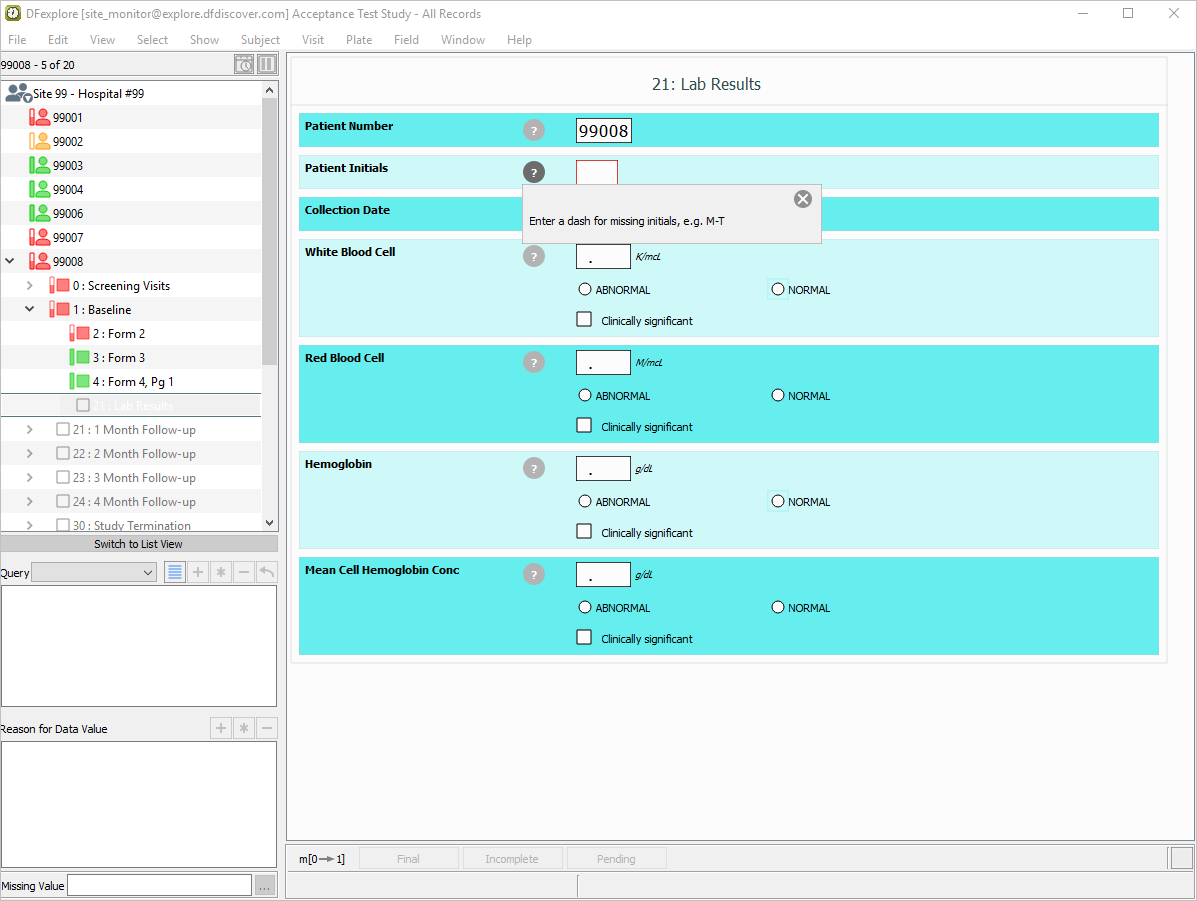
-
With subject 99008 21: Lab Results as the current eCRF, click Patient Initials. The initials are pre-filled as a result of the edit check
SetInitdescribed in Module 8. Image Data Entry. Set:Collection Date =
27-SEP-2018White Blood Cell =
18.8, Check (enable) Abnormal.Red Blood Cell =
4.7, Check (enable) NormalHemoglobin =
18.5, Check (enable) NormalMean Cell Hemoglobin Conc =
40.2, Check (enable) Normal
Click to save the data record.

-
Select > to close DFexplore.
Start DFATK as described in Module 1 (Installation & Initialization).
-
Click to confirm successful completion of Module 4. eCRF Creation.